


















Email Authentication: A Guide to Landing in the Inbox
Confused by email authentication? Learn what SPF, DKIM, and DMARC are, why they matter for your mail merges, and how to set them up to avoid the spam folder.
You sent a mail merge from Gmail. The list was clean, the message was personal, and the offer was relevant. Then the results came back flat. Open rates looked weak, replies barely moved, and a few recipients told you your message landed in spam.
That usually leads people to tweak the copy. They rewrite the subject line, remove a few phrases, or send at a different time. Sometimes that helps. Often it doesn’t, because the underlying problem starts earlier. Before Gmail, Outlook, or Yahoo judges your message content, they judge whether they trust the sender.
That trust layer is called email authentication. If you use Gmail-based mail merge tools, this matters more than ever. You might be sending from a familiar business address and staying inside Google Workspace, but mailbox providers still want proof that your domain has authorized the mail and that the message lines up with the address your recipient sees.
Your Emails Are Going to Spam This Might Be Why
A common small business pattern looks like this. You send outreach from Gmail, use a mail merge tool to personalize each message, and expect the campaign to feel more human than a bulk newsletter. That part is true. But mailbox providers don’t score you on intent. They score you on signals.
The inbox is crowded. Industry benchmarks put average email open rates at around 21% to 25%, and one dataset estimates 3.13 million emails are sent every second, which is why trust signals matter so much for visibility and inbox placement according to these email marketing benchmarks. If your domain isn’t authenticated, your message can look suspicious even when the copy is excellent.
Trust comes before optimization
Small business owners often start with copy tweaks. They remove phrases they think trigger spam filters, or they study lists of risky wording like this guide to spam words in email. That’s useful, but it’s not the foundation.
If Gmail can’t verify that your domain really authorized the send, your campaign starts with a trust deficit.
Practical rule: Fix sender trust before you obsess over subject lines.
Authentication is what tells receiving servers that the message came from an approved sender and wasn’t falsely made to look like it came from you. That’s why any serious effort to optimize email inbox delivery has to start with SPF, DKIM, and DMARC.
The hidden reason Gmail outreach underperforms
Gmail-based outreach creates a false sense of safety. People assume that because the message was sent from a real inbox, the domain must already be trusted everywhere. That isn’t always true, especially when a Google Workspace domain also sends through scheduling tools, CRMs, hiring platforms, help desks, or invoicing software.
The result is frustrating. One team sees normal inbox placement from direct one-to-one messages, then worse performance from automated or merged sends. Same brand. Same domain. Different technical path.
That’s usually your clue. The issue may not be the writing. It may be email authentication.
The Four Pillars of Email Trust SPF DKIM DMARC and BIMI
Email authentication works like a layered trust system. One record says who is allowed to send. Another proves the message wasn’t altered. A third tells receiving servers what to do when checks fail. A fourth can add a visible brand signal in the inbox.
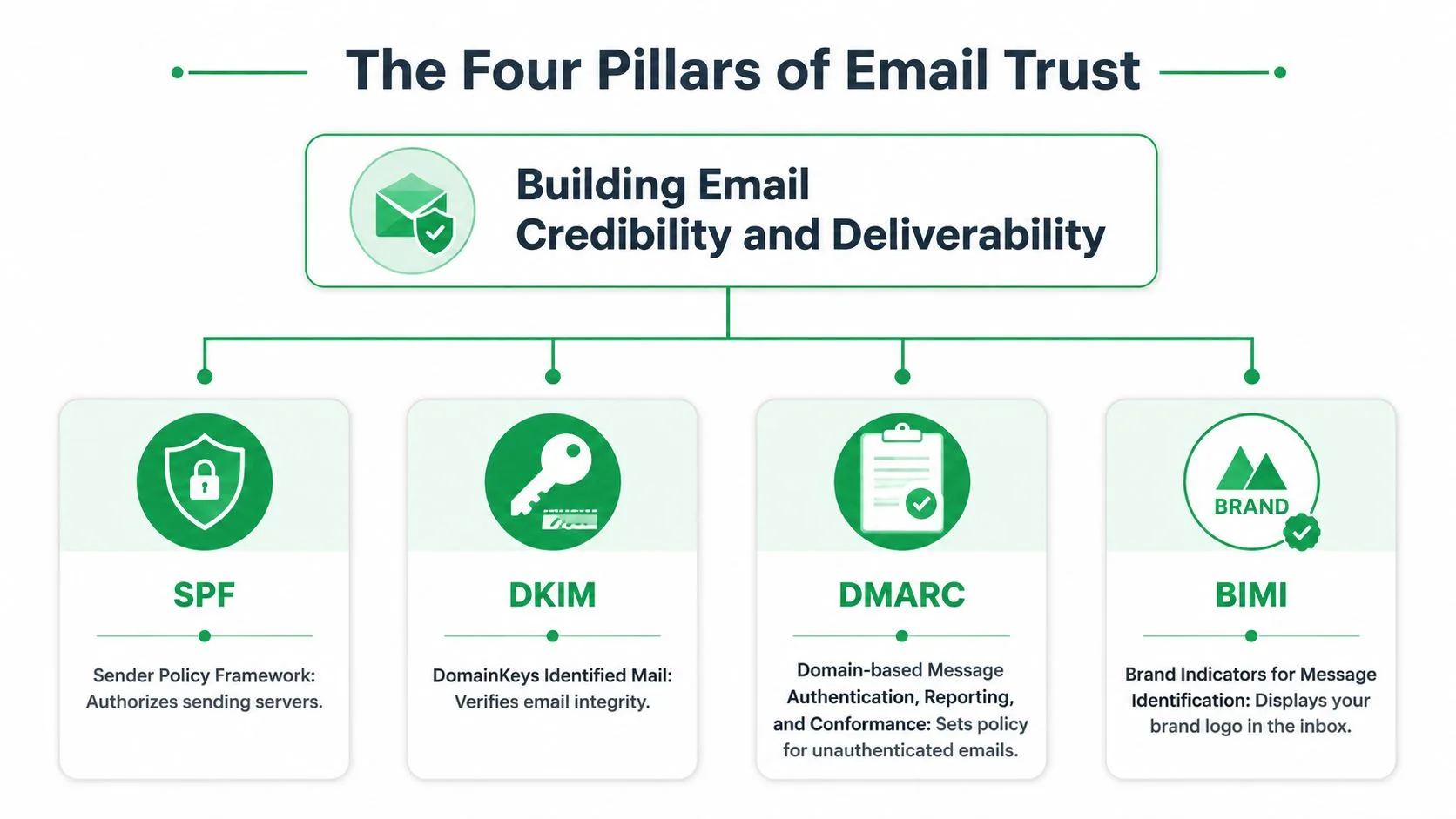
The technical core is straightforward. SPF publishes which servers are authorized to send for your domain, DKIM adds a cryptographic signature, and DMARC tells receivers whether to monitor, quarantine, or reject messages that fail those checks, as explained in this overview of email authentication protocols.
SPF is your guest list
SPF stands for Sender Policy Framework. Think of it as the guest list at your event.
When a receiving server gets a message claiming to be from your business, it checks your domain’s SPF record to see whether the sending service is on the approved list. If the sender isn’t listed, that server has reason to doubt the message.
For a small business, this matters when you send from more than one place, such as:
-
Google Workspace: regular employee email from Gmail
-
A CRM or sales tool: outreach or follow-up sequences
-
A support platform: ticket replies and notifications
-
A form or booking system: confirmations and reminders
If one of those senders is missing from SPF, it can cause problems even though the email is legitimate.
DKIM is your wax seal
DKIM stands for DomainKeys Identified Mail. It helps prove that the message wasn’t changed after it left the sender.
The easiest analogy is a wax seal on an envelope. If the seal is intact, the recipient has more confidence that the letter is authentic and untampered with. With DKIM, the “seal” is a digital signature tied to your domain.
This helps in a different way than SPF. SPF asks, “Did this sender have permission?” DKIM asks, “Does this message still match the signature from the authorized domain?”
DKIM is often the part business owners don’t see, because their email platform may generate the signing key for them. But the receiving server absolutely sees it.
DMARC is your policy layer
DMARC stands for Domain-based Message Authentication, Reporting, and Conformance. If SPF is the guest list and DKIM is the seal, DMARC is the written instruction given to the bouncer.
It tells receiving servers what to do when mail fails authentication checks. The typical policy path looks like this:
| DMARC policy | What it means in plain English |
|---|---|
| Monitor | Watch failures and collect reports without changing delivery behavior |
| Quarantine | Treat failures as suspicious and route them toward spam or junk |
| Reject | Refuse delivery of messages that fail DMARC |
That policy is powerful because it moves you from passive checking to active control.
BIMI is the visible trust signal
BIMI stands for Brand Indicators for Message Identification. Unlike SPF, DKIM, and DMARC, BIMI gives recipients something they may notice: a branded logo display in supported inboxes.
Think of BIMI as the official uniform. It doesn’t replace the identity check. It appears after the underlying trust framework is in place.
For small businesses, BIMI isn’t the first job to tackle. It’s the later-stage reward. Start with authentication. Earn trust first. Then consider whether the visual brand signal is worth the extra effort for your setup.
How SPF DKIM and DMARC Work Together
Most confusion happens when business owners learn the three acronyms separately but don’t understand why a message can still fail after one check passes.
Why alignment trips people up
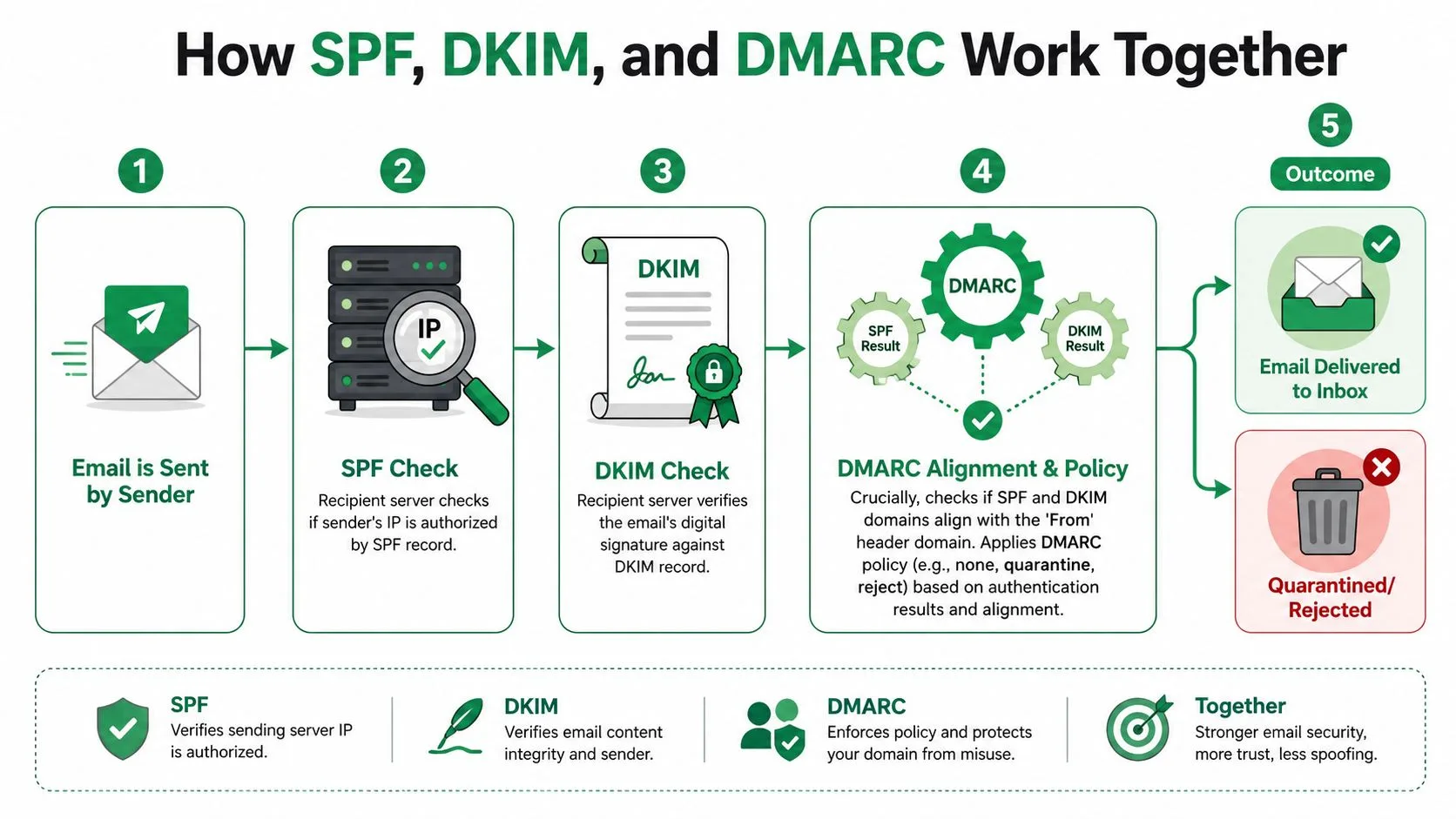
DMARC doesn’t just ask whether SPF or DKIM passed. It also checks whether the passing result aligns with the visible From domain. In plain language, the technical identity has to match the sender identity your recipient sees.
That alignment rule is where many Gmail mail merge setups break. A third-party tool may send mail in a technically valid way, but if the domain used in SPF or the DKIM signing domain doesn’t match your visible From address, DMARC can still fail. That’s the key point in this explanation of DMARC alignment.
A simple travel analogy
Think of SPF or DKIM as your passport. It proves you have a valid identity document.
DMARC alignment is the airline agent comparing that passport to the boarding pass. If the names don’t match, the fact that the passport is real doesn’t solve the problem. You still get stopped at the gate.
This is why people get confused by messages that “passed DKIM” but still had delivery issues. They assume passing one test means everything is fine. It doesn’t. The visible identity still has to line up.
What this looks like in the real world
A small business often sends from these paths at the same time:
-
Direct Gmail messages from staff
-
Mail merge sends from a Google Workspace add-on
-
Appointment reminders from booking software
-
Invoices from accounting tools
If each service uses a different technical sending identity, your domain can become inconsistent. One stream aligns. Another doesn’t. One reaches the inbox. Another drifts to spam.
The safest mindset is this: every service that sends on behalf of your domain needs to be intentionally included, not assumed.
That is why email authentication isn’t just setup. It’s inventory management.
Why This Matters for Your Gmail Mail Merge Campaigns
The business case is simple. If authentication is weak, personalization won’t save the campaign.

The rules changed in 2024
Google and Yahoo tightened requirements for bulk senders in 2024. The rules require SPF or DKIM, DMARC, and one-click unsubscribe, and they also set a spam complaint threshold below 0.3%, according to this summary of bulk sender authentication requirements. That changed the conversation from “nice to have” to operational necessity.
For small teams using Gmail add-ons, this is especially important because the sending behavior may feel lightweight even when the volume and automation look significant to mailbox providers.
What Gmail add-ons make harder
A Gmail mail merge workflow seems simple on the surface. You write inside Gmail, pull names from a sheet, and send personalized messages at scale. But the hard part isn’t the merge itself. It’s governance.
If multiple people send from shared Google Workspace accounts, or if different tools send on behalf of the same domain, someone needs to answer these questions:
-
Which services are authorized to send
-
Which domain each service signs with
-
Whether each sender aligns with the From address
-
Whether unsubscribe behavior is handled correctly where required
If you’re comparing different outreach approaches, this breakdown of native Gmail mail merge vs add-ons is useful because the technical path behind the send affects what you need to monitor.
A quick visual walkthrough helps make the compliance side easier to grasp:
Why this affects real campaign results
Authentication isn’t a marketing trick. It’s infrastructure. When that infrastructure is sound, mailbox providers have a clearer reason to trust the message. When it’s weak, even polite and relevant outreach can be filtered more aggressively.
That makes email authentication a competitive edge for small businesses. Larger senders usually have dedicated admins or ESP support. Smaller teams often don’t. The teams that document their senders, keep alignment clean, and review changes before launching a new tool usually avoid the chaos that hurts inbox placement.
A Simple Guide to Setting Up Your DNS Records
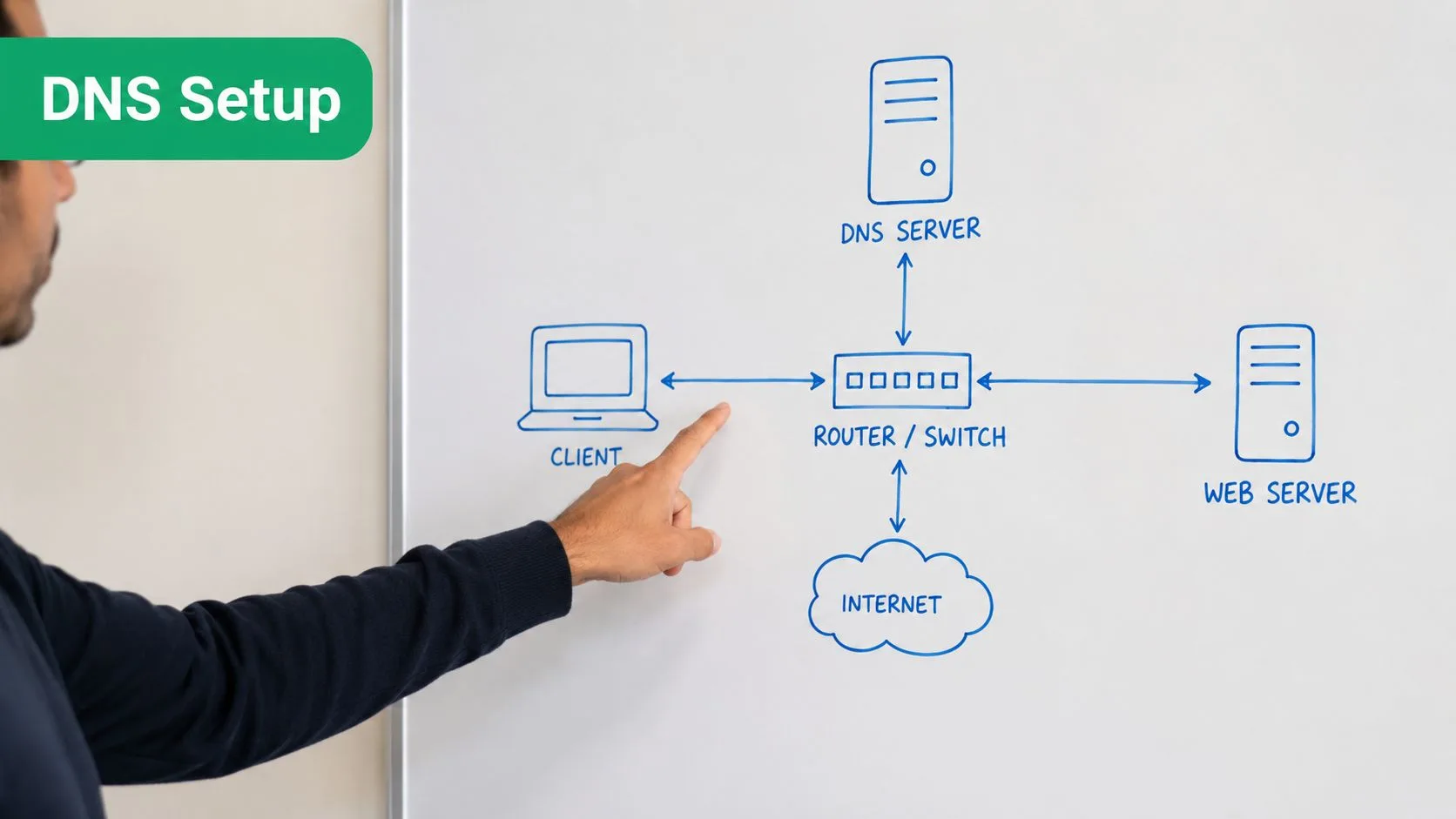
DNS sounds intimidating because the interface often looks old and the terminology feels abstract. In practice, you’re usually editing a few text entries in your domain provider’s control panel.
What you are actually editing
For email authentication, you will usually work with TXT records. Each one has three fields your provider may label a little differently:
-
Host or Name: where the record lives
-
Value or Content: the text instruction itself
-
TTL: how long other systems may cache the record
You don’t need to memorize the DNS jargon. You need to match the values your email provider gives you and paste them into the correct fields.
Small business shortcut: Don’t start by hunting random templates online. Start with the exact records provided by Google Workspace and any tool that sends mail for your domain.
The three records most small businesses need
The minimum stack usually looks like this:
| Record type | Job | What to watch |
|---|---|---|
| SPF | Lists authorized senders | Keep it current as you add services |
| DKIM | Publishes the public key for signing | Make sure the selector and value are exact |
| DMARC | Tells receivers how to handle failures | Start in monitoring mode before enforcing |
For a Gmail-based business domain, your SPF record often includes Google Workspace. If another platform sends on your behalf, that sender usually gives you additional SPF or DKIM instructions.
DMARC is where many owners hesitate, but the safe first move is a monitoring policy. That lets you see what is sending as your domain before you move to quarantine or reject.
A safe rollout order
Use this order to avoid self-inflicted delivery issues:
-
Publish SPF for your primary sender
Make sure your main Google Workspace sending path is covered. -
Enable DKIM where your provider supports it
Many platforms provide the exact DNS values you need. -
Add DMARC with a monitoring posture
This gives you visibility without immediately blocking mail. -
Audit every third-party sender
Check booking tools, CRMs, form apps, support systems, and anything else that sends from your domain. -
Tighten policy only after review
Move toward quarantine or reject only when you know legitimate mail is aligned.
If your domain is managed through cPanel, this walkthrough on how to configure cPanel email spam protection gives a concrete example of where these records typically live.
What not to do
A few mistakes create unnecessary pain:
-
Don’t rush DMARC enforcement: A reject policy before you inventory all senders can block legitimate mail.
-
Don’t let multiple people add tools casually: One new SaaS app can break alignment if nobody updates DNS.
-
Don’t treat DNS as one-and-done: Every new sending tool may require a record update.
That last point matters most for small businesses. Growth adds systems, and systems add senders.
How to Test Your Setup and Fix Common Errors
Saving DNS records doesn’t mean the job is done. You still need to verify that the records are published correctly and that the messages you send use them the way you expect.
A practical testing checklist
Use a simple checklist after any change:
-
Check record visibility: Look up your SPF, DKIM, and DMARC records with a DNS checker such as MXToolbox or another validator.
-
Send a real message: Test from the same Gmail workflow you use for actual campaigns, not from a different app.
-
Review authentication results: Look at the message headers or testing tool output to confirm SPF, DKIM, and DMARC behavior.
-
Repeat after adding any new sender: A setup that works today can break later when a new platform starts sending.
The errors small teams hit most often
The first common problem is SPF lookup complexity. Small businesses add one service after another until the SPF record becomes bloated. When that happens, validation can fail even though each individual service looked harmless when it was added.
The second is simple syntax mistakes. One missing character, one pasted value in the wrong field, or one duplicated record can cause hours of confusion.
The third is misreading pass results. People see that a message passed one check and assume deliverability is solved. It isn’t. Authentication verifies identity, but inbox placement still depends on other factors. This explanation of why authentication is not the same as deliverability is the part many beginner guides leave out.
Passing authentication means, “This sender appears legitimate.” It doesn’t automatically mean, “This message earns the inbox.”
A simple troubleshooting pattern
When something looks wrong, work in this order:
-
Confirm the DNS record exists
-
Confirm the record matches the provider’s instructions exactly
-
Test with the actual sending workflow
-
Check whether the visible From domain aligns
-
Review whether another service is sending unexpectedly
That process catches most small-business issues faster than jumping between random blog posts and forum threads.
Beyond Setup Monitoring Your Email Authentication
The most useful shift is treating email authentication as ongoing maintenance, not a weekend project.
What DMARC reports are really for
Once DMARC is live, you’ll start getting reports that show who is sending mail claiming to be from your domain. Those reports can look messy, but their purpose is practical: they help you spot legitimate tools you forgot to account for and suspicious traffic you definitely didn’t authorize.
That visibility matters because a growing business rarely sends from just one place forever. A hiring tool gets added. Then a help desk. Then event software. Then an automated reminder app.
A simple maintenance habit
Put one recurring task on the calendar. Review your sending inventory whenever you add, remove, or change a tool that sends email.
A lightweight process works well:
-
Keep a sender list: Document every platform allowed to send for your domain.
-
Check alignment before launch: Verify that new services use the right From domain and signing setup.
-
Read your reports for patterns: Look for unknown senders, repeated failures, or services that need configuration updates.
-
Review current guidance: This checklist of email sender guidelines is a useful reference point when your team wants a plain-English reminder of what to keep in order.
Email authentication started as a security control. For small businesses using Gmail mail merge tools, it has become something broader. It’s how you protect your brand, support inbox placement, and keep growth from turning your domain into a confusing patchwork of half-configured senders.
If you send personalized campaigns from Google Workspace, Mail Merge for Gmail gives you a simple way to run outreach from your Gmail account while keeping visibility into sends, opens, clicks, replies, and unsubscribe handling. It’s a practical option for teams that want to scale one-to-one style email without leaving the Google tools they already use.
Ready to send your first campaign?
Install Mail Merge for Gmail from the Google Workspace Marketplace and send up to 50 personalized emails per day for free.
Get started for freeMore reading
More from Tutorials
Payment Reminder Email Template: Five Messages You Can Send from Google Sheets
Copy a payment reminder email template for each stage of an overdue invoice, then send every reminder from Google Sheets through Gmail with personalized merge fields.
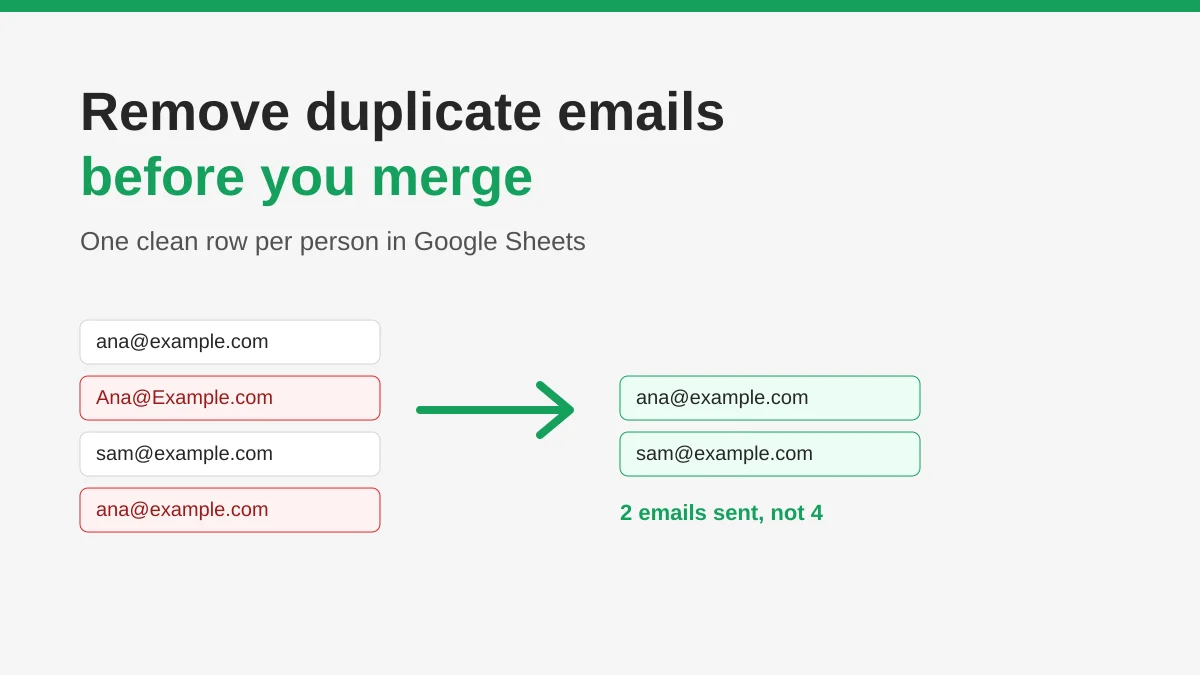
How to Remove Duplicate Emails in Google Sheets Before a Mail Merge
Learn how to remove duplicate emails in Google Sheets before a mail merge with Remove duplicates, UNIQUE and COUNTIF, so no contact gets the same message twice.
How to Build Targeted Email Lists That Actually Convert
Learn how to build targeted email lists that drive opens, clicks, and replies. Practical steps for sourcing, segmenting, cleaning, and GDPR-compliant outreach.