


















Reminder Emails for Events: A Guide to Higher Attendance
Discover how to craft effective reminder emails for events that boost attendance and engagement. Practical tips inside.
You’re three days out from an event, the registration list looks healthy, and still the live room ends up thinner than it should be. The email went out, people saw it, and a chunk of them still didn’t show. That gap is exactly where reminder emails for events either do their job or disappear into the noise.
Most organizers treat reminders like a second invitation. That’s the wrong frame. A reminder is a friction-reduction tool, a short message that removes the tiny barriers that stop someone from joining, arriving, or staying on track.
Why Most Event Reminder Emails Fail to Boost Attendance
A common failure pattern starts with good intentions. The organizer opens a reminder draft, then adds the speaker bio, the full agenda, a paragraph about why the event matters, and a few extra links because “more context” feels safer. The result looks polished, but the person reading it on a phone ten minutes before the event still has to hunt for the one thing that matters most, how to join or where to go.
That’s where reminders lose people. The most useful reminder emails are short, specific, and built around the attendee’s immediate task, not the organizer’s promotional goals. Guidance from Zoho Backstage’s reminder email advice makes the core trade-off clear, include only what prevents no-shows, then push everything else to a landing page or FAQ.
What attendees actually need in the final moments
A person checking their phone right before a webinar doesn’t want a brand story. They want the join link, the event time, the time zone, and any detail that stops a last-minute panic, like a venue entrance, parking note, or prep item. The closer the event gets, the less tolerant people are of hunting through text.
Practical rule: if a detail doesn’t help someone attend, arrive, or prepare in the next few minutes, it probably doesn’t belong in the reminder email.
That’s also why reminder systems work best when they’re part of a larger notification flow. Teams that want cleaner operational communication often pair reminders with broader message discipline, and the logic behind improve club communication applies here, too, because the message has to be timely, clear, and easy to act on.
There’s another hidden failure point, deliverability. If a reminder lands in spam, none of the copy matters, so it’s worth checking your sending setup and list quality alongside the message itself. A practical starting point is how to prevent email from going to spam, because a brilliant reminder with poor inbox placement still misses the room.
The mindset shift is simple. A reminder is not there to persuade someone from scratch. It’s there to make attending feel effortless.
Building a High-Performing Reminder Email Cadence
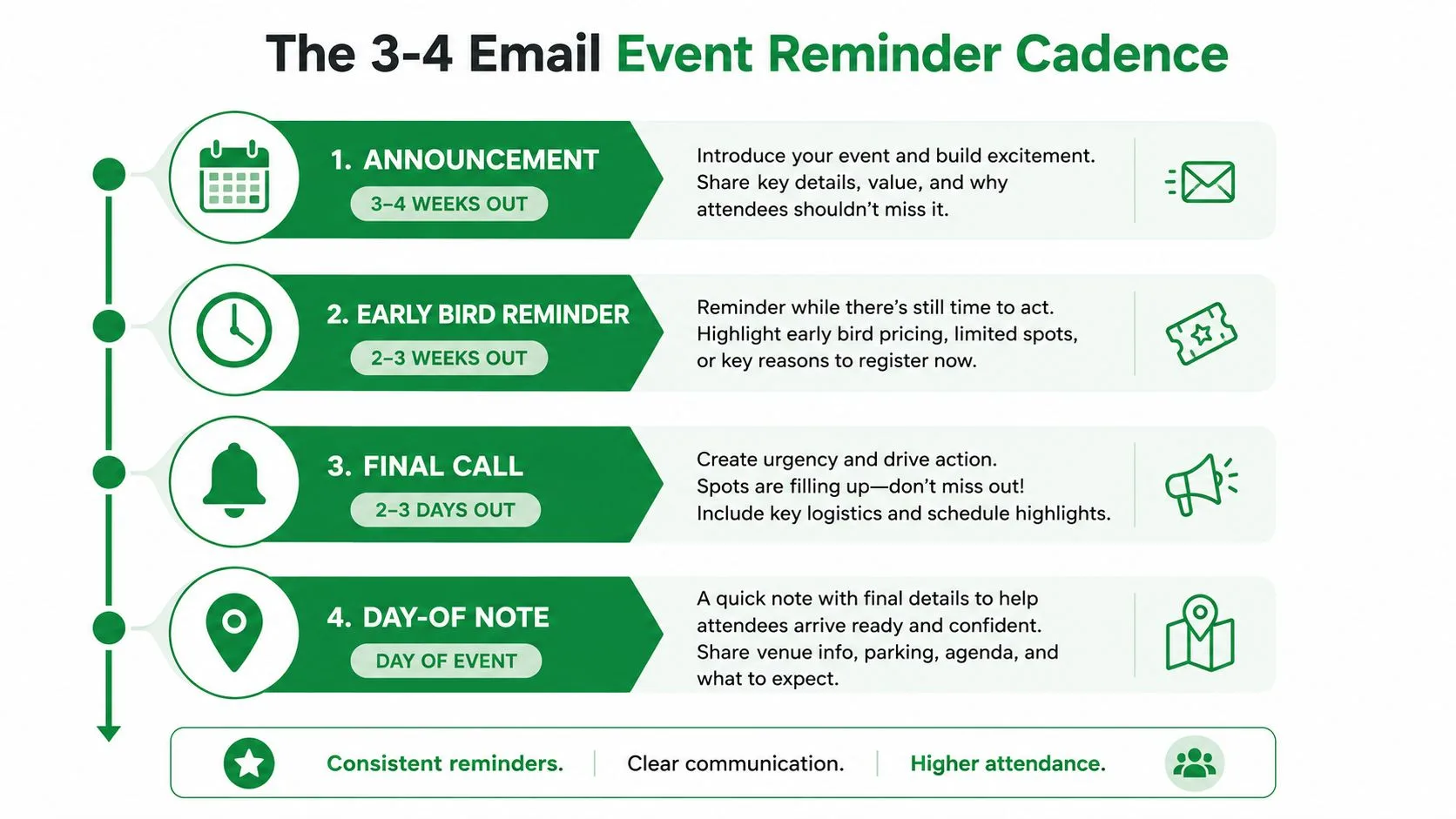
The cadence matters as much as the copy. Send too early and people forget. Send too often and the messages feel like clutter. The most widely used approach is three to four emails in the final week, with reminders around one week, 24 hours, and one hour before the event, plus an optional follow-up within 24 hours after for attendees and no-shows, which is the pattern many event guides treat as the practical sweet spot Add to Calendar Pro.
Use each send for a different job
The one-week reminder builds anticipation and gives people room to plan. It’s the first point where you should repeat the essentials, but keep the tone calm and practical. For webinars and virtual events, this is also the right time to reinforce the time zone, because confusion there can push no-shows higher than people expect.
The 24-hour reminder is the logistics email. It contains the parking, entrance details, calendar links, or the join link. For in-person events, this email does a lot of quiet work because it removes the last-minute scramble over venue access, check-in, or transport.
The one-hour reminder is the final attendance capture. It should be extremely short and highly specific. For online events, place the join link near the top so people don’t have to scroll, and for live events, make the arrival instructions impossible to miss. That approach lines up with event reminder email timing guidance from Twilio, which points to one week and 24 hours as the core timing anchors.
When to add the post-event note
A follow-up within 24 hours after the event is useful for both attendees and no-shows. Attendees get next steps or materials, and no-shows can get a clean path back into the funnel without forcing the original reminder to do too much.
The best cadence is the one that tells each reminder to do one job well, not three jobs badly.
For global audiences, the same cadence still works, but the send time has to respect local time zones. For multi-day conferences, split reminders by day or by track so the messages don’t turn into a wall of dates. The structure stays the same, the timing gets adapted.
If you already think in campaign sequences, the logic is similar to a drip email campaign framework, except the pressure point is attendance, not nurture.
Writing Reminder Copy That Reduces Friction
A good reminder email often reads like a stripped-down operations note, not a polished promo. That feels less glamorous, but it works because the reader can process it instantly. The biggest mistake is trying to make every reminder feel fresh by adding more words instead of making the message easier to act on.
Decide what stays and what gets cut
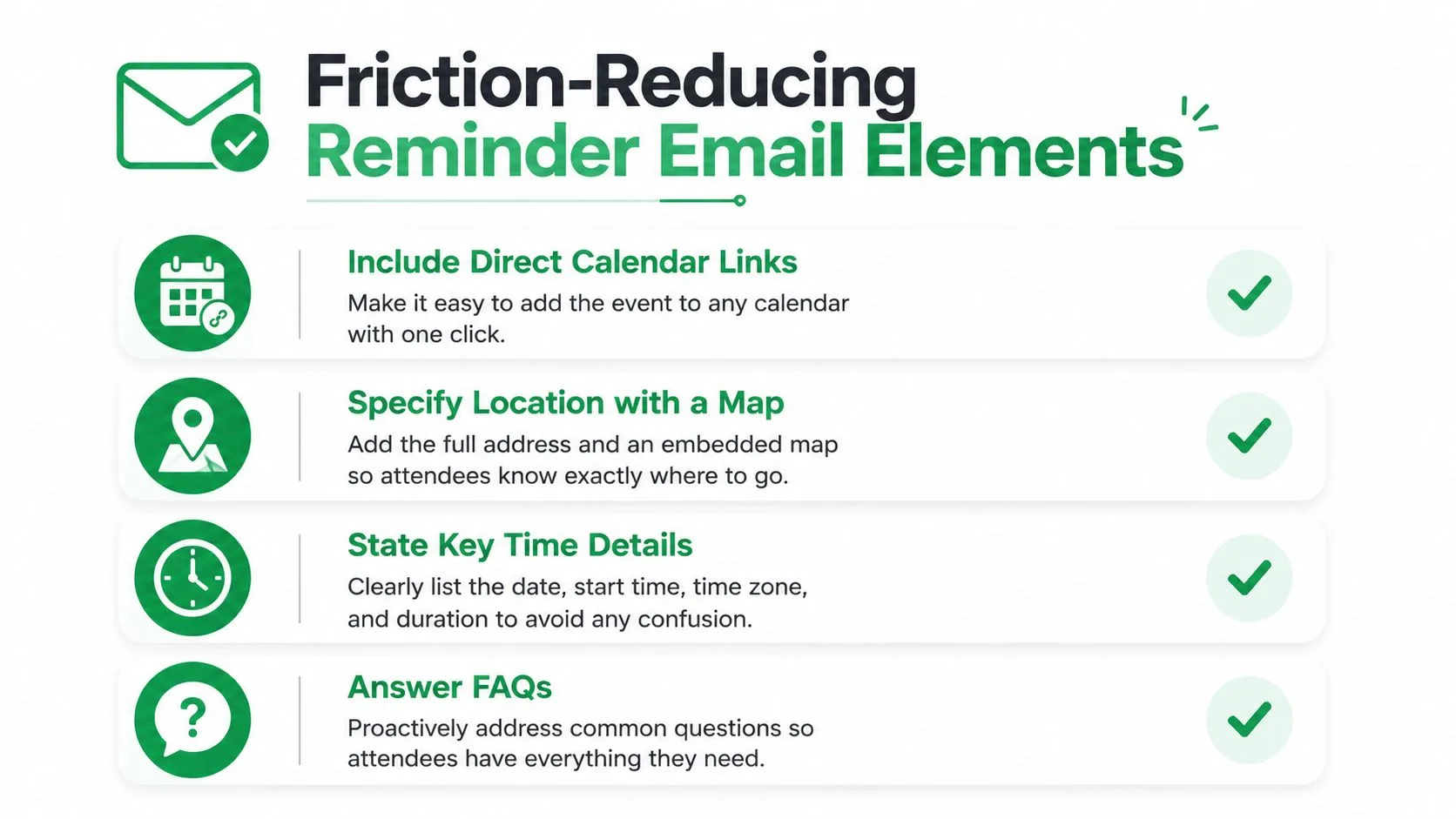
Keep the details that prevent no-shows. That usually means the event name, date and time, time zone for cross-region or virtual events, location or join link, and a single clear CTA. For in-person events, add parking, venue access, or dress code only if those details affect attendance or arrival.
Cut the rest. Full speaker bios, long sponsor lists, and duplicated agenda paragraphs usually belong on a landing page or FAQ, not in the reminder body. If the attendee has already registered, they don’t need to be re-sold on the event, they need a fast path to show up prepared.
Here’s the hard rule I use when reviewing copy:
- Keep platform access details when the event is online, because a missing link creates a missed session.
- Keep venue logistics when the event is physical, because parking, check-in, and entry points are the common failure zones.
- Keep prep instructions when an attendee has to bring something or complete a step beforehand.
- Move everything else out if it doesn’t reduce confusion, delays, or no-shows.
The most effective reminders answer three questions immediately, what is it, when is it, and where is it. For virtual or cross-region events, the time zone has to be explicit, not implied. That’s especially important when attendees are seeing the message close to start time on mobile.
Make each reminder add something new
Repeating the same block of copy in every send trains people to skim. A better pattern is to keep the core structure stable while adding one useful new detail each time, such as an agenda highlight, a speaker quote, or a parking reminder. That way the reminder feels relevant without turning into a second brochure.
Mobile design matters here because these emails are often opened right before the event, on a phone, in a hurry. Short paragraphs, visible links, and a direct CTA make a bigger difference than clever subject lines. Mailchimp’s event reminder guidance also emphasizes mobile viewing for this reason Mailchimp event reminder guidance.
If someone needs to zoom in to find the join link, the reminder has already failed.
For online events, put the join link and instructions at the top. For hybrid events, surface the split clearly, so attendees don’t waste time figuring out which path applies to them. That small bit of clarity usually does more than another paragraph of brand voice ever will.
Setting Up Personalized Reminder Campaigns with Mail Merge for Gmail
Personalization gets much easier when every attendee doesn’t receive the same reminder. A tool like Mail Merge for Gmail can send individualized reminder emails from Gmail using contact data stored in Google Sheets, which is useful when different guests need different links, session details, or logistics. The flow is straightforward, and the practical value is that the message can stay short while the fields change per recipient.
A clean setup inside Google Sheets
Start with your recipient list in Google Sheets. Make sure the rows are clean, then import that sheet into the mail merge workflow. If your list includes session choices, ticket types, or networking group assignments, those fields can be used to tailor the reminder so each attendee sees the right version.
A solid reference point for the mechanics is how to mail merge from Google Sheets. The core pattern is simple, import recipients, choose or build a template, preview, then send.
Use merge fields in the subject line and body when they help the recipient act faster. A session-specific attendee doesn’t need a generic reminder if the email can name the track, room, or access link directly. That’s not about novelty, it’s about reducing confusion.
Scheduling, tracking, and team coordination
Scheduling matters because reminder timing is part of the event experience. Set the one-week, 24-hour, and one-hour sends in advance so the cadence runs without manual follow-up. If your team needs visibility, use CC or BCC fields sparingly for coordination, not as a substitute for a clean attendee list.
The tracking side is just as useful. Mail Merge for Gmail writes delivery and engagement statuses back to the spreadsheet, so your team can see who was sent, opened, clicked, or replied without building a separate reporting process. That gives you a shared record when you need to compare reminder performance across sessions or event types.
Unsubscribe management also matters, even for event communications, because you want a list that stays reliable over time. And if you’re scaling reminder work across teams, one advantage of a spreadsheet-based flow is that it keeps the attendee record visible without forcing people to dig through inbox threads.
Tracking Performance and Optimizing Deliverability
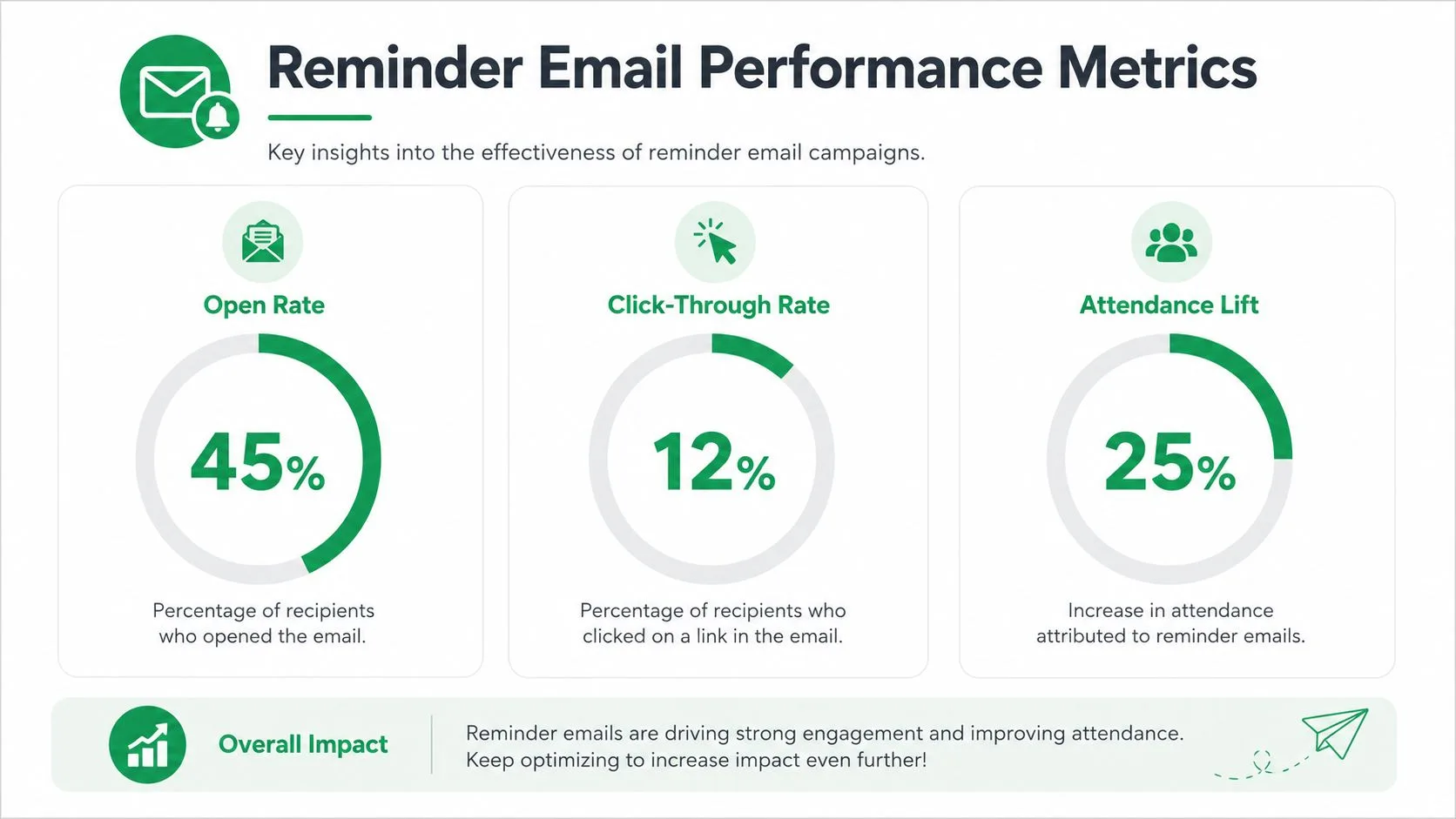
The reminder gets sent, but the work starts when you look at what happened next. Open behavior, click behavior, and replies tell different stories, and they rarely point to the same fix. If people open but don’t click the join link, the problem is usually clarity or timing. If they never open, the issue is more likely subject line, send time, or inbox placement.
What to watch after each send
Open data is most useful right after the email goes out, because that’s when the reminder is supposed to do its first job. Click data matters most on the join link or calendar link, since that shows whether the attendee can move from reading to action. Replies are easy to ignore, but they often surface the true blockers, like schedule conflicts or access questions.
List hygiene sits underneath all of that. Dedupe the recipient list, verify addresses before sending, and remove role-based or invalid addresses because they can distort delivery and attendance metrics and make the campaign look better or worse than it really is. That advice shows up in practical reminder guidance from Stripo’s event reminder email article, and it’s one of the few places where operations work directly changes the quality of the data.
Here’s the part teams often skip:
- Test subject lines when you need to know whether clarity or urgency is winning.
- Test send times when a reminder is getting opened too late or too early.
- Compare clicks to opens to see whether the content is helping people take the next step.
- Share the results with stakeholders so no one has to rebuild the same report in a spreadsheet.
Use the data to refine the next cadence
I look for patterns, not one-off spikes. If the one-hour reminder gets strong clicks but weak attendance, the issue may be arrival friction rather than messaging. If the one-week reminder gets ignored but the 24-hour reminder performs better, the earlier send may be too light on urgency or too easy to overlook.
Deliverability problems often look like content problems until you check the list.
That’s why performance review has to include both the message and the recipient list. A clean reminder sequence can still underperform if the contacts are stale, duplicated, or poorly segmented. The point of tracking is not to generate more charts, it’s to find the exact spot where the attendee journey breaks.
Your Complete Event Reminder Implementation Checklist
A solid reminder workflow starts before the first email goes out. Build a clean list, segment it by audience or track, then set the cadence so the one-week, 24-hour, and one-hour sends are already scheduled. If you’re running a larger program, a reference like the Paul Robins Promotions checklist can help you line up the reminder work with the rest of the event operations.
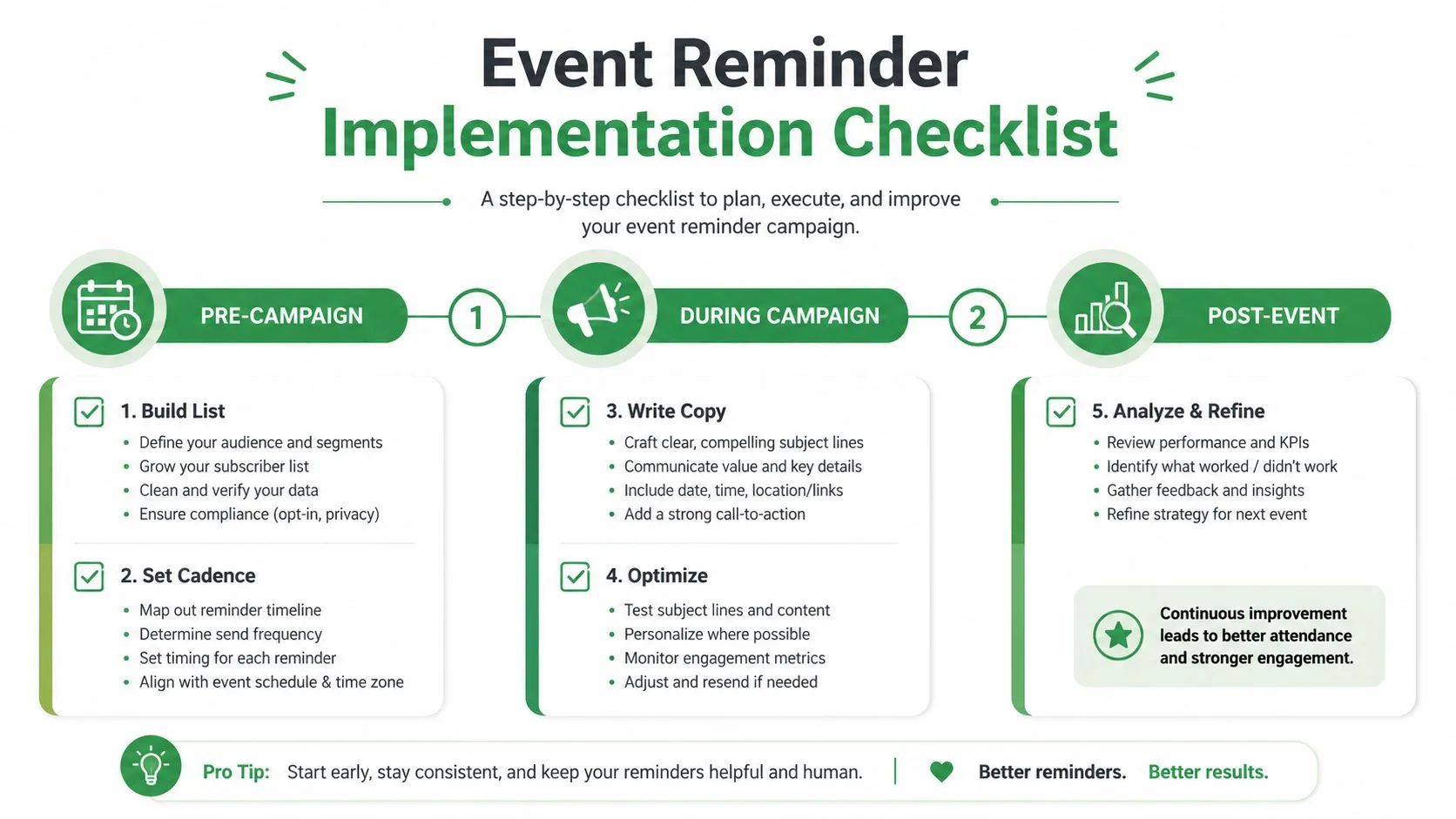
Keep the workflow tight
During the campaign, write copy that answers the basics fast, then cut anything that doesn’t remove friction. Use merge fields where they help, but don’t overcomplicate maintenance with too many variations. If you’re sending reminders for global audiences, verify the time zone in every version before it goes live.
After the event, review opens, clicks, replies, and any delivery issues, then adjust the next cadence based on what happened. The best reminder system is repeatable, boring in the right way, and easy for the team to run without constant debate.
- Pre-Campaign, build and clean the list so your send data reflects real attendees.
- Pre-Campaign, set the cadence so timing doesn’t depend on manual follow-up.
- During Campaign, write for action so the attendee sees the join link or arrival path immediately.
- During Campaign, optimize for mobile so the message works on the device people primarily use.
- Post-Event, analyze and refine so the next event starts with better decisions.
If you want a simpler way to personalize and schedule reminder emails from the tools your team already uses, Mail Merge for Gmail lets you send trackable, individualized campaigns from Gmail with Google Sheets data, scheduling, and response tracking built in. It’s a practical fit for event reminders because the details can stay tight while each attendee still gets the right version.
Ready to send your first campaign?
Install Mail Merge for Gmail from the Google Workspace Marketplace and send up to 50 personalized emails per day for free.
Get started for freeMore reading
More from Tutorials
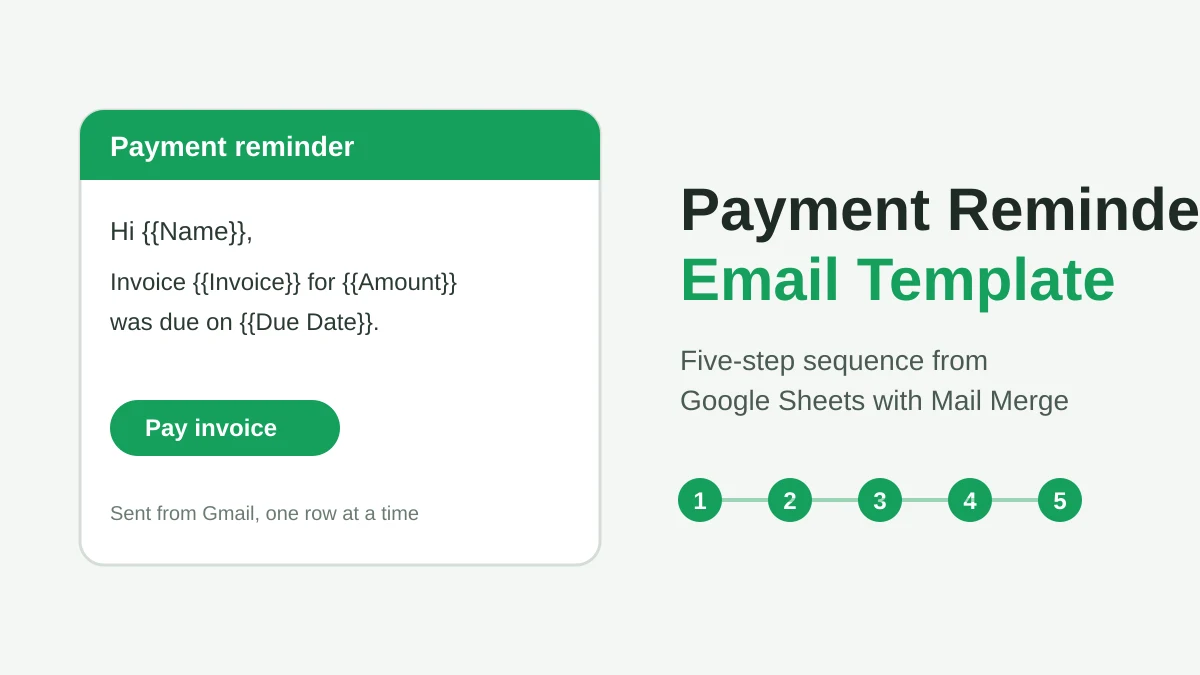
Payment Reminder Email Template: Five Messages You Can Send from Google Sheets
Copy a payment reminder email template for each stage of an overdue invoice, then send every reminder from Google Sheets through Gmail with personalized merge fields.
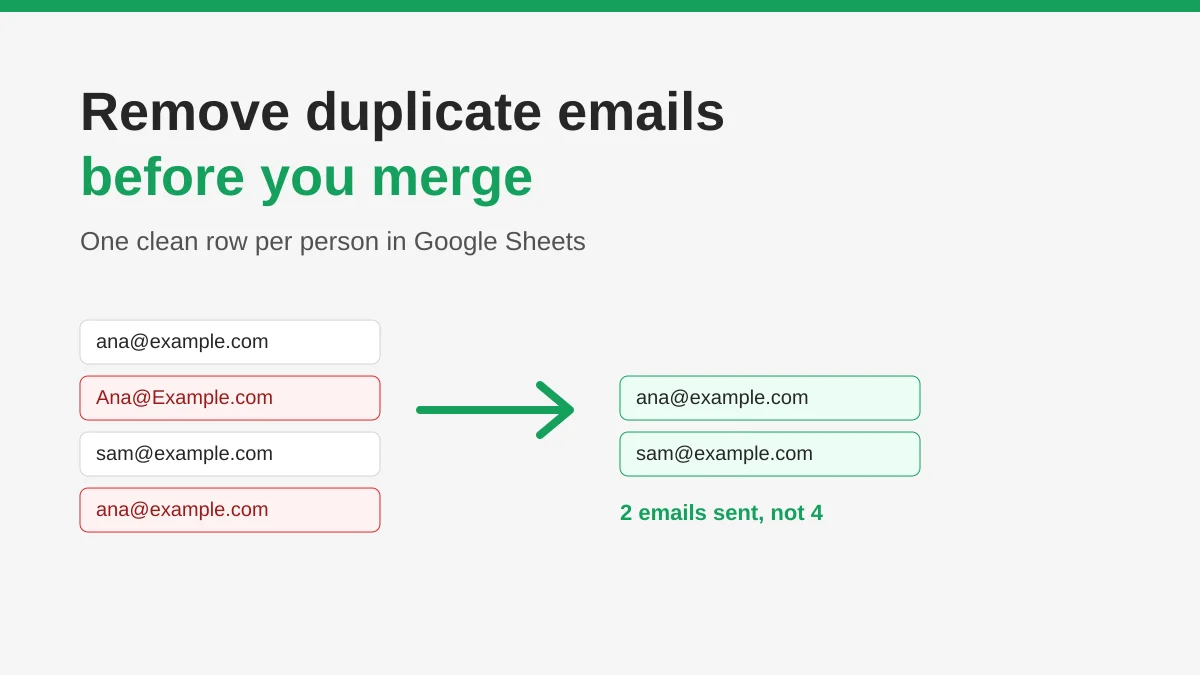
How to Remove Duplicate Emails in Google Sheets Before a Mail Merge
Learn how to remove duplicate emails in Google Sheets before a mail merge with Remove duplicates, UNIQUE and COUNTIF, so no contact gets the same message twice.
How to Build Targeted Email Lists That Actually Convert
Learn how to build targeted email lists that drive opens, clicks, and replies. Practical steps for sourcing, segmenting, cleaning, and GDPR-compliant outreach.