


















10 Newsletter Best Practices to Boost Engagement in 2026
Master these 10 newsletter best practices for 2026. Learn to personalize, segment, and track campaigns in Gmail to boost opens, clicks, and replies.
Is Your Newsletter Working as Hard as You Are? You spend hours crafting the perfect newsletter, but are you seeing the opens, clicks, and replies you deserve? The difference between a newsletter that gets deleted and one that drives action often comes down to a few core principles. This guide covers 10 essential newsletter best practices, with practical tips on how to implement them using powerful tools directly within your Gmail and Google Sheets workflow.
A lot of newsletter advice stays too high level. It tells you to personalize, segment, and test, but it rarely shows how to do that inside the tools most small teams already use. That gap matters. If your workflow lives in Gmail and Google Sheets, your best practices need to fit that reality instead of assuming a full marketing automation stack.
One note before choosing any Gmail-based sending tool. Be cautious when researching products named “Mail Merge for Gmail.” The name is highly descriptive, so it’s easy to confuse one tool with another. Always verify that the information you’re reading refers to the specific product you plan to use, not a competitor with a similar name.
If you’re still growing your list, strong content won’t save a weak signup experience. Start by tightening your high-converting newsletter forms, then make sure the emails you send earn the attention those forms capture.
1. Deep Personalization & Merge-Field Powered Sending
Often, efforts to personalize stop at “Hi FirstName.” That’s not personalization. It’s mail merge at its most basic level.
The better approach is to use the columns in your Google Sheet to shape the entire message. Subject line, intro, example, CTA, and even tone can all change based on who’s receiving the email.
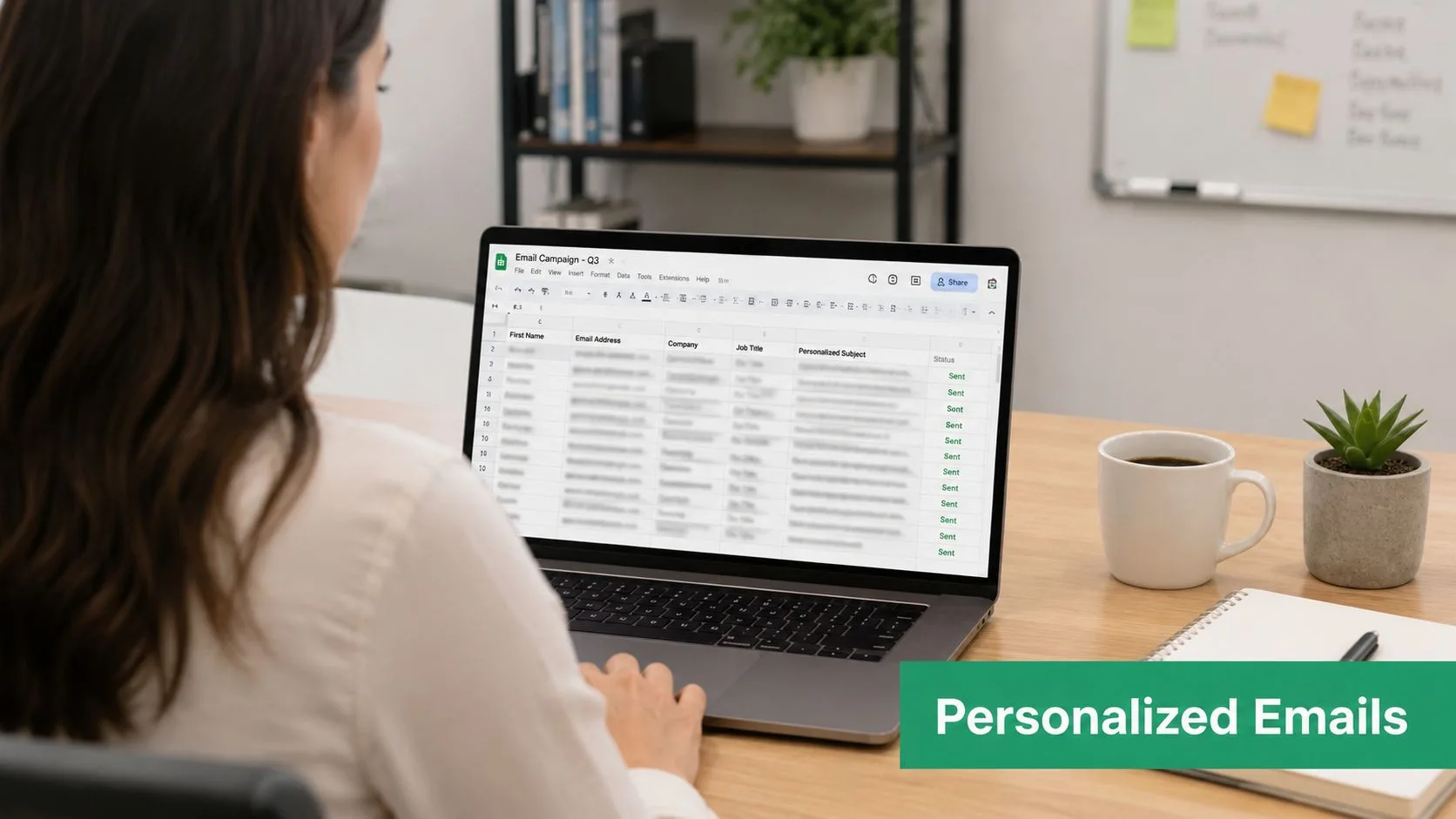
A sales team might use fields like FirstName, CompanyName, Role, LastActivity, and OwnerName. A recruiting team might swap in JobTitle, InterviewStage, and ApplicationLink. HR can personalize with DateRange or BenefitsWindow. Nonprofits can reference DonationAmount and Cause when that information is appropriate and accurate.
Build your sheet before you write your copy
If you want messages to feel one-to-one, your spreadsheet structure matters as much as the writing. Create clean column names, decide which fields are required, and set fallback values before you draft the email.
Use rows to support variations like these:
- Sales outreach: “Hi [FirstName], I noticed [CompanyName] recently [Activity]”
- Recruiting: “About the [JobTitle] role at [CompanyName]”
- HR updates: “Your benefits year starts [DateRange]”
- Event invites: “Join [SenderName] for [EventName]”
- Nonprofit follow-up: “Thank you for your gift supporting [Cause]”
Segmented campaigns generate 30% more opens and 50% more click-throughs than non-segmented campaigns, and that’s exactly why row-level data in Google Sheets is so useful. It gives Gmail-based sending a practical way to behave more like a customized campaign than a generic blast.
Practical rule: If a field is important enough to mention in the email, test that field with a small batch first and confirm every row populates correctly.
Once the structure is right, preview a handful of messages from different rows. That catches broken variables, awkward phrasing, and missing values before they hit your full list.
For a walkthrough of what this looks like inside a Gmail workflow, this demo is useful:
2. Strategic Subject Line Optimization
What makes someone open your newsletter instead of skipping past it in a crowded Gmail inbox?
Usually, it is not cleverness. It is clarity plus relevance. A subject line works when the recipient can tell, in a second or two, why the email matters to them right now.
That is why generic labels underperform. “April Newsletter” asks for attention without giving a reason. A stronger line names the topic, the audience, or the benefit. In a Gmail-based workflow, that often means treating the subject line as another field you can test, personalize, and refine in Google Sheets.
What to test in Gmail and Google Sheets
Keep the body copy fixed and test one subject line variable at a time. In practice, I set up two filtered groups in a Sheet, assign each group a subject line version, then send through Gmail with the same message content. That gives you a cleaner read on whether the subject line changed the result.
Test meaningful differences:
- Specificity: “Q3 hiring update for Austin employees” vs. “Company hiring update”
- Personalization: “[FirstName], your benefits deadline is Friday” vs. “Benefits deadline is Friday”
- Context: “Notes from yesterday’s demo” vs. “Following up”
- Timeliness: “Board meeting agenda for May 14” vs. “Monthly agenda”
If you already maintain audience groups in Sheets, your subject line tests should reflect that structure. A useful email list segmentation workflow makes subject line testing more accurate because each version is written for a defined audience, not a mixed list.

Keep mobile constraints in view. Gmail often truncates long subject lines, especially on phones, so put the key detail early. If the important word is at the end, many recipients will never see it.
One more practical rule. Match the subject line to the actual email. Curiosity can raise opens for one send, but misleading phrasing trains subscribers to ignore future messages. Avoid inflated urgency, all caps, and promo language unless the email requires it.
In a Sheets workflow, subject line writing is tied directly to data quality. Clean fields give you more precise, more credible subject lines without leaving Gmail.
3. Segmentation and Targeted Messaging
If everyone gets the same newsletter, almost no one feels like it was meant for them.
Segmentation fixes that by turning one list into several audiences with different needs. For a startup, that might mean prospects, active customers, partners, and former leads. For HR, it could be departments or office locations. For recruiting, it’s often candidate stage.
Start with segments you can maintain
The mistake isn’t under-segmenting. The mistake is creating a complex structure your team won’t keep updated.
Start with two or three useful groups in your Google Sheet. Add a Segment column, then filter by that value before each send. You can also split tabs by audience if that’s easier for your team to manage.
A practical setup looks like this:
- Sales: Cold prospects, warm leads, existing customers
- Recruiting: Applied, interviewed, offer stage
- Events: Speakers, sponsors, attendees
- Nonprofits: Recurring donors, major donors, volunteers
- Internal comms: Engineering, sales, operations
If you need a solid framework for organizing these groups, this guide on email list segmentation is a useful reference.
The reason segmentation keeps showing up in newsletter best practices is simple. Relevance compounds. When a recipient keeps seeing messages that match their role, stage, or interest, they’re more likely to keep opening future emails too.
Send fewer “company-wide” ideas to people who need role-specific help. Broad relevance usually performs worse than narrow usefulness.
Behavioral segmentation is where Gmail and Sheets become especially practical. Add columns for Opened, Clicked, and Replied, then build sends based on actual engagement instead of assumptions. A clicked webinar link can trigger a speaker recap. A prospect who ignored three sends might need a different angle or a pause.
4. Clear and Compelling Call-to-Action
A newsletter can be informative and still fail. That happens when the reader finishes the email and has no clear next step.
Every send needs a primary action. Not ten. One main action, with maybe a secondary option if it supports the message.
The best CTA copy is concrete. “Learn more” is weak because it hides the value. “Schedule a 15-minute demo,” “Apply for the [JobTitle] role,” and “Reply with your biggest challenge this quarter” tell the reader exactly what happens next.
Match the CTA to the send intent
Many newsletters become inconsistent. The content says one thing, but the CTA asks for something bigger or different. If the email offers practical tips, the CTA should continue that momentum. If it announces an event, the CTA should focus on RSVP.
Good examples by use case:
- Sales: “Schedule a demo with [Sender Name]”
- Recruiting: “Apply for the [JobTitle] role”
- HR: “Review your enrollment options”
- Events: “Confirm your attendance by Friday”
- Nonprofit: “Make your gift to support [Specific Impact]”
A useful benchmark comes from internal newsletters, where a 10% to 20% click-through rate is considered reasonable. That’s a reminder to judge your CTA by clicks and conversions, not just opens. Open data is less reliable than it used to be, so the action after the open matters more.
If you’re using Google Sheets as the campaign source, add columns for CTAClicked and Converted. Then review performance by segment and by CTA wording. That closes the loop between copy decisions and outcomes.
5. Mobile Optimization and Responsive Design
A newsletter that looks polished on desktop can still be painful on a phone. That’s where a lot of good campaigns lose momentum.
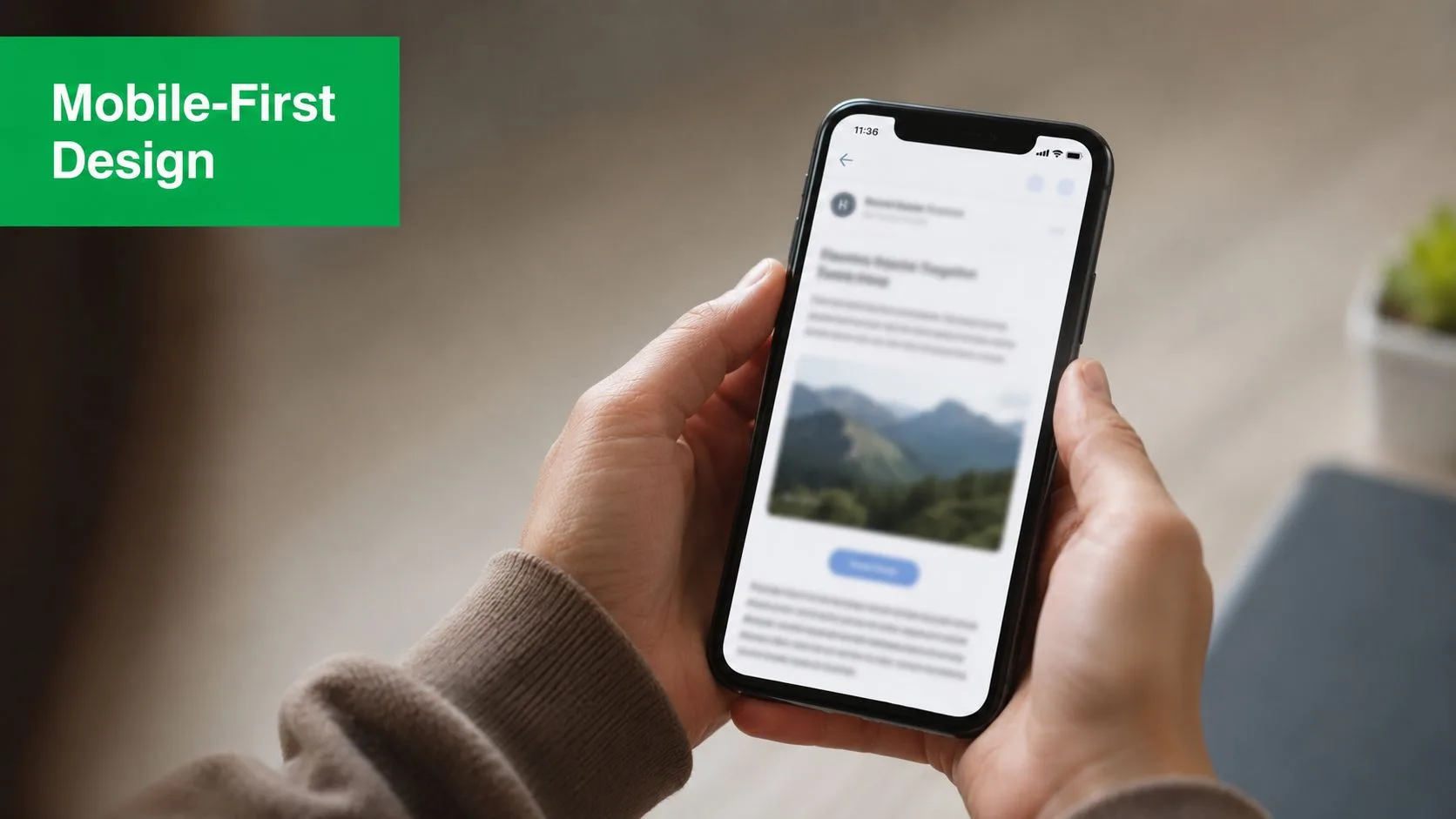
The mobile version needs to be easier to read, not just technically viewable. Short paragraphs, clear spacing, and obvious links usually beat elaborate layouts. In Gmail-based workflows, simpler templates also break less often.
Design for tapping and scanning
Most readers skim first. Your email should support that behavior instead of fighting it.
Use a basic structure:
- Short sections: Keep paragraphs to two or three sentences
- Clear hierarchy: Headings, bold phrases, and spacing help readers find the point
- Tap-friendly CTAs: Make buttons and links easy to hit without zooming
- Clean images: Avoid text-heavy graphics that become unreadable on small screens
If your team wants a deeper walkthrough, this guide to responsive email design covers the fundamentals in a practical way.
The trade-off is straightforward. Fancy newsletter design can look impressive in a mockup, but simple design usually performs better in real inboxes. If you’re sending from Gmail and want reliability, that trade-off is often worth making.
Test your message on an actual phone before sending. Not a browser preview. A real phone in the Gmail app. That’s the fastest way to catch broken spacing, giant images, or links that are hard to tap.
6. Tracking and Analytics for Continuous Improvement
A newsletter program gets better when the feedback loop is short.
That means your tracking should flow back into the same place where you manage your audience. For a Gmail and Google Sheets workflow, that usually means writing engagement data back to each row so you can sort, filter, and act on it without exporting reports all day.
Track what changes decisions
Open data still has some value, but it shouldn’t be your only scoreboard. Privacy protections have made opens less dependable, which is why click, conversion, and reply data carry more weight in practice.
A strong setup includes columns like:
- Sent
- Opened
- Clicked
- Replied
- Converted
- Last Campaign
- Segment
If you want a simple way to set up that visibility, this overview of email open tracking is a good starting point.
One of the most useful workflow habits is keeping a separate summary tab for campaign-level notes. Log the subject line, send date, audience segment, primary CTA, and what changed from the previous send. Then compare results over time instead of reacting to one issue in isolation.
Track one meaningful change per campaign. If you change the subject line, CTA, audience, and send timing at once, you won’t know what actually moved performance.
In Gmail-based newsletter operations, speed matters. When your send data writes back to the source sheet, you can build follow-ups immediately. Clickers can get a next-step email. Non-openers can get a revised subject line. Reply-heavy rows can go straight to sales, recruiting, or support.
7. Unsubscribe Management and Compliance
Unsubscribes aren’t just a legal requirement. They’re list hygiene.
Teams sometimes treat unsubscribe links like a loss to avoid. In practice, making it hard to leave creates bigger problems. Frustrated recipients stop engaging, mark the email as spam, or stay on the list while hurting performance.
Make opting out simple and fast
Every newsletter should include a visible unsubscribe link in the footer and honor removal requests promptly. If your process relies on manually cleaning a sheet, build that cleanup step into your send workflow so nobody slips through the cracks on the next campaign.
This is especially important in shared environments like recruiting, HR, and nonprofit communications where multiple teammates may work from the same spreadsheet. Create a clear status column such as Subscribed, Unsubscribed, or Paused, and filter before every send.
A practical unsubscribe system includes:
- Visible footer link: Don’t hide it in tiny text
- Status tracking in Sheets: Mark records clearly
- Removal before the next send: Don’t wait for a monthly cleanup
- Pattern review: Notice when a specific topic or cadence causes opt-outs
- Preference option when appropriate: Offer fewer emails or narrower topics instead of only a full unsubscribe
Compliance is also part of sender trust. Include the required footer details for your sending context, use an active reply-to address, and keep your list based on permission wherever possible.
When newsletter best practices talk about deliverability, this is part of the foundation. A smaller list that wants your emails is more valuable than a bigger one that tolerates them.
8. Consistency in Send Schedule and Branding
What makes a newsletter feel familiar enough to open without hesitation?
Consistency does that work. Readers learn your sender name, your format, and your rhythm. In a Gmail-based workflow, that familiarity matters even more because you are often sending from the same inbox people already use for one-to-one conversations. If every issue looks and feels different, the message starts to resemble a one-off blast instead of a publication they chose to follow.
A good send schedule is one you can maintain with your actual resources. Weekly works if your team can produce useful content every week. Twice a month is often a better fit for small teams using Gmail and Google Sheets because it leaves room to segment the list, update merge fields, and review replies before the next send.
Build repeatability into Gmail and Sheets
Consistency is partly a branding decision and partly an operations decision. If the process is messy, the brand will look messy.
Keep these elements fixed across sends:
- Sender name: Use the same From name every time
- Subject style: Keep a recognizable pattern without making every line identical
- Template layout: Use the same header order, body structure, and sign-off
- Visual identity: Keep logo, colors, and button styling consistent
- Send day or send window: Pick a timing pattern readers can learn
In practice, I set this up with one Gmail template for the newsletter body and one Google Sheet that acts as the control panel. The sheet usually includes columns for segment, send status, last send date, content version, and any merge fields used for personalization. That setup makes it easier to send the right version on time without rebuilding the campaign from scratch.
Timing also gets easier when you stop guessing. If you need a starting point, this article on understanding best email send times is a useful reference.
Brand consistency is not about making every email look rigid. It is about keeping the parts that build recognition steady while changing the content that keeps the newsletter useful. A familiar structure buys you attention. Relevant content keeps it.
9. Engagement-Based Re-engagement Campaigns
Inactive subscribers shouldn’t stay on your list forever with no plan. They either need a reason to come back or a clean exit.
Re-engagement works best when it’s based on behavior, not guesswork. If someone hasn’t opened, clicked, or replied for a long stretch, move them to a dedicated tab in Google Sheets and stop treating them like active readers.
Use behavior to trigger the next message
A re-engagement campaign shouldn’t look like your normal newsletter. It needs a different subject line, a simpler message, and one clear decision for the reader.
Good re-engagement angles include:
- A direct check-in: “Still want these updates?”
- A value reset: Remind them what they’ll get if they stay
- A preference option: Fewer emails or narrower topics
- A feedback ask: Why did the newsletter stop feeling useful?
This matters more as inbox fatigue grows. A 2024 survey found that 63% of subscribers skip newsletters unless they offer exclusive, non-replicable content or actionable data. If inactive readers are ignoring you, generic content is often part of the problem.
Behavior-based follow-ups also deserve more attention than they usually get. The same source notes that newsletters using behavioral triggers in 2025 to 2026 projections saw higher reply rates. In a Sheets workflow, that can be as simple as filtering for Clicked but Not Replied and sending a plain-text follow-up that references the topic they engaged with.
Don’t re-engage everyone the same way. A former clicker needs a different message than someone who never interacted at all.
10. Value-First Content Strategy
If your newsletter feels like a disguised ad, readers catch on fast.
The strongest newsletters teach, help, or inform before they ask for anything. That’s why the value-first approach keeps surviving every algorithm change and inbox trend. People stay subscribed to content that makes their job easier, sharpens their thinking, or gives them something they can’t get everywhere else.
A widely cited benchmark is the 90% educational and 10% promotional content ratio. You don’t need to follow that mechanically in every issue, but the principle is sound. Lead with usefulness. Let promotion play a supporting role.
What value-first looks like in practice
For different teams, value means different things:
- Sales newsletters: Industry insight first, offer second
- Recruiting emails: Career advice alongside role openings
- HR communications: Practical guidance, not just policy reminders
- Event newsletters: Speaker takeaways before ticket pushes
- Nonprofit updates: Impact stories and context before the donation ask
Short, skimmable structure helps this strategy land. Use brief paragraphs, bullets, and bold phrases so readers can get the point quickly. If you need ideas for planning that content over time, these ProdShort content strategy insights are worth a read.
One more reality check matters here. Sales-oriented newsletters sometimes need a more promotional mix than editorial newsletters do. That’s fine, as long as the message still gives the reader a reason to care. Even a cold outreach newsletter can offer a relevant insight, a practical example, or a useful resource before the ask.
10-Point Newsletter Best Practices Comparison
| Tactic | 🔄 Implementation Complexity | ⚡ Resources & Maintenance | 📊 Expected Impact (⭐) | 💡 Ideal Use Cases |
|---|---|---|---|---|
| Deep Personalization & Merge-Field Powered Sending | Moderate–High, setup merge fields & conditional logic, test variations | Data‑intensive; requires clean contact data and ongoing updates | High 📊⭐, large uplifts in open/CTR/conversions when done correctly | Sales outreach, recruiting, personalized fundraising, product recommendations |
| Strategic Subject Line Optimization | Low, copy testing and A/B setup | Low, copywriting and iterative tests (fast cycles) ⚡ | High 📊⭐, biggest near-term ROI on open rates | Any campaign seeking open-rate improvement, mobile-focused audiences |
| Segmentation and Targeted Messaging | Moderate, build and maintain segment rules and templates | Moderate, segment data, multiple templates and analytics | High 📊⭐, better engagement and conversion vs. broadcasts | Lifecycle campaigns, behavioral targeting, donor tiers, candidate stages |
| Clear and Compelling Call-to-Action (CTA) | Low, copy/design choice and placement | Low, simple design tests and tracking ⚡ | High 📊⭐, improves clicks and conversions when specific | Conversion-driven emails: demos, RSVPs, applications, donations |
| Mobile Optimization and Responsive Design | Moderate, responsive templates and client testing | Moderate, design/dev effort and device testing | High 📊⭐, reaches majority of opens; reduces friction | All campaigns, especially audiences with high mobile opens |
| Tracking and Analytics for Continuous Improvement | Moderate, implement tracking, UTM, and reporting | Moderate, analysis time and metric maintenance | High 📊⭐, enables data-driven optimization and attribution | Ongoing programs, A/B testing, send-time and subject experiments |
| Unsubscribe Management and Compliance | Low–Moderate, add links, preference center, legal footers | Low, process to honor requests and maintain lists | Medium 📊, improves deliverability and reduces complaints | All senders; required for GDPR/CAN‑SPAM compliance and deliverability |
| Consistency in Send Schedule and Branding | Low, establish cadence, templates, and voice | Moderate, editorial calendar and content planning | Medium–High 📊⭐, builds recognition and predictable engagement | Newsletters, brand programs, recurring communications |
| Engagement-Based Re-engagement Campaigns | Moderate, segment inactive users and create sequences | Moderate, separate campaigns, incentives, and follow-up | Medium 📊, recovers some users; improves list health | Inactive subscribers, list-cleaning efforts, reactivation drives |
| Value-First Content Strategy | Moderate–High, regular quality content creation | High, ongoing content production or curation required | High (long-term) 📊⭐, builds trust and sustained engagement | Thought leadership, audience building, education-first newsletters |
Start Sending Smarter Newsletters Today
Improving your newsletter isn’t about chasing every new tactic. It’s about getting the fundamentals right, then making them easier to repeat inside your real workflow.
That’s where many teams get stuck. They understand the theory behind newsletter best practices, but their day-to-day process still lives in Gmail, spreadsheets, and manual follow-up. The good news is that this setup can work very well when you use it intentionally. In many cases, it’s faster, leaner, and easier to maintain than a heavy platform with features you’ll never use.
The strongest pattern across all ten practices is relevance. Personalization makes the message feel specific. Segmentation ensures the right people get the right version. A focused CTA turns attention into action. Analytics tell you what to change next. None of those pieces work well in isolation. Together, they create a newsletter system that gets sharper with every send.
There are also real trade-offs. A highly designed email might impress internally, but a simpler one often performs better on mobile. A larger list might look good on paper, but an engaged list is far more useful. More frequent sending can increase touchpoints, but only if the content earns its place in the inbox. Experienced email marketers learn to choose what sustains trust, not just what looks ambitious in a planning document.
For Gmail and Google Sheets users, the practical path is straightforward. Start with clean data. Add the columns that matter. Build segments you can maintain. Write one strong email for one clear audience instead of one broad email for everyone. Then track opens, clicks, replies, and conversions at the row level so your next send improves on the last one.
It also helps to respect the mechanical limits of the platform you’re using. In Google Workspace, mail merge has a daily cap of 1,500 total recipients, and Gmail allows a maximum of 1,000 recipients in the To field for a single mail merge message. If you use CC or BCC in a mail merge workflow, those recipients also count toward the same daily cap. That means planning batches inside your sheet is part of newsletter operations, not an afterthought.
Start small if you need to. Tighten one subject line test. Create one new segment. Rewrite one CTA. Those incremental changes are usually what move performance. With a tool like Mail Merge for Gmail, advanced tactics become accessible without forcing your team out of the inbox and spreadsheet workflow they already know.
If you want to turn Gmail and Google Sheets into a practical newsletter engine, Mail Merge for Gmail makes it easier to send personalized campaigns, track opens and clicks back to each row, manage unsubscribes, and stay organized without leaving your inbox. It’s a strong fit for small businesses, sales teams, recruiters, nonprofits, and anyone who wants more control than a basic blast without the overhead of a larger platform.
Ready to send your first campaign?
Install Mail Merge for Gmail from the Google Workspace Marketplace and send up to 50 personalized emails per day for free.
Get started for freeMore reading
More from Tips
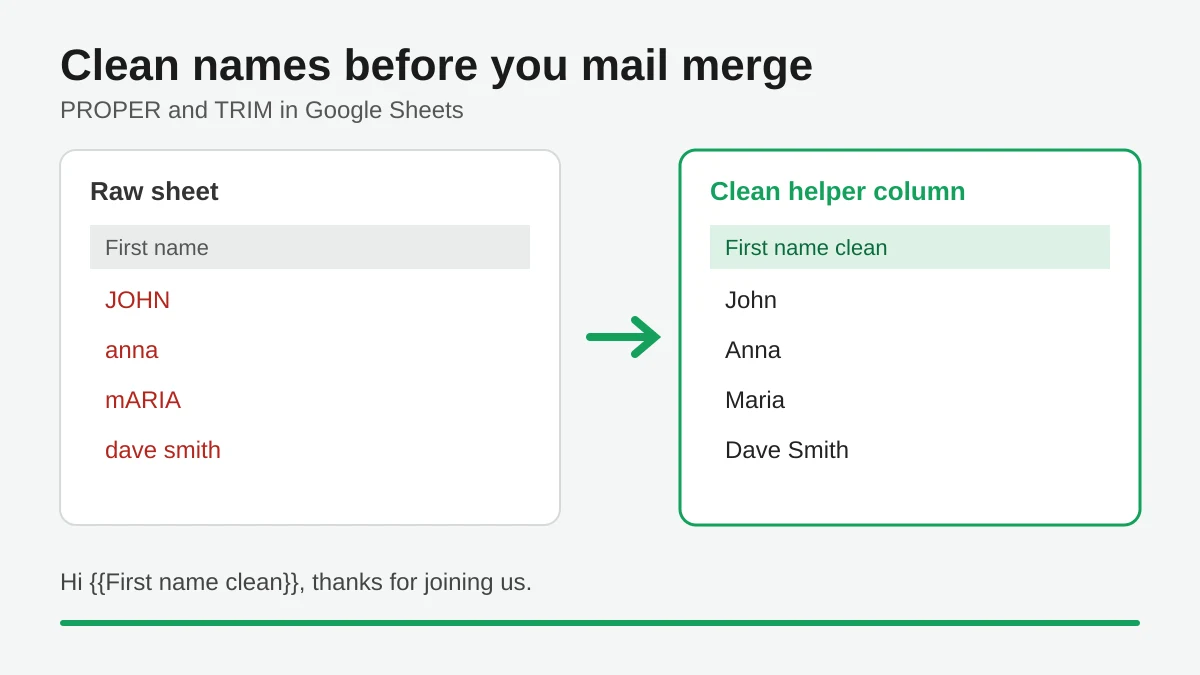
Mail Merge Names Capitalization: Clean Your Google Sheet Before You Send
Fix wrong capitalization and stray spaces in names before a mail merge. Use PROPER, TRIM and a helper column in Google Sheets so every merged email greets people correctly.
Track Email Opens in Gmail
Learn to track email opens in Gmail with clear setup steps, Sheets status updates, troubleshooting tips, and privacy guidance for reliable outreach results.
10 Email Campaign Best Practices for Better Results
Use these 10 email campaign best practices to improve targeting, deliverability, engagement, testing, compliance, and conversions with Mail Merge for Gmail.