


















Video in Email: Boost Engagement & CTR 2026
Master video in email strategy. Get expert tips on implementation, support issues, & best practices to boost engagement & CTR in 2026.
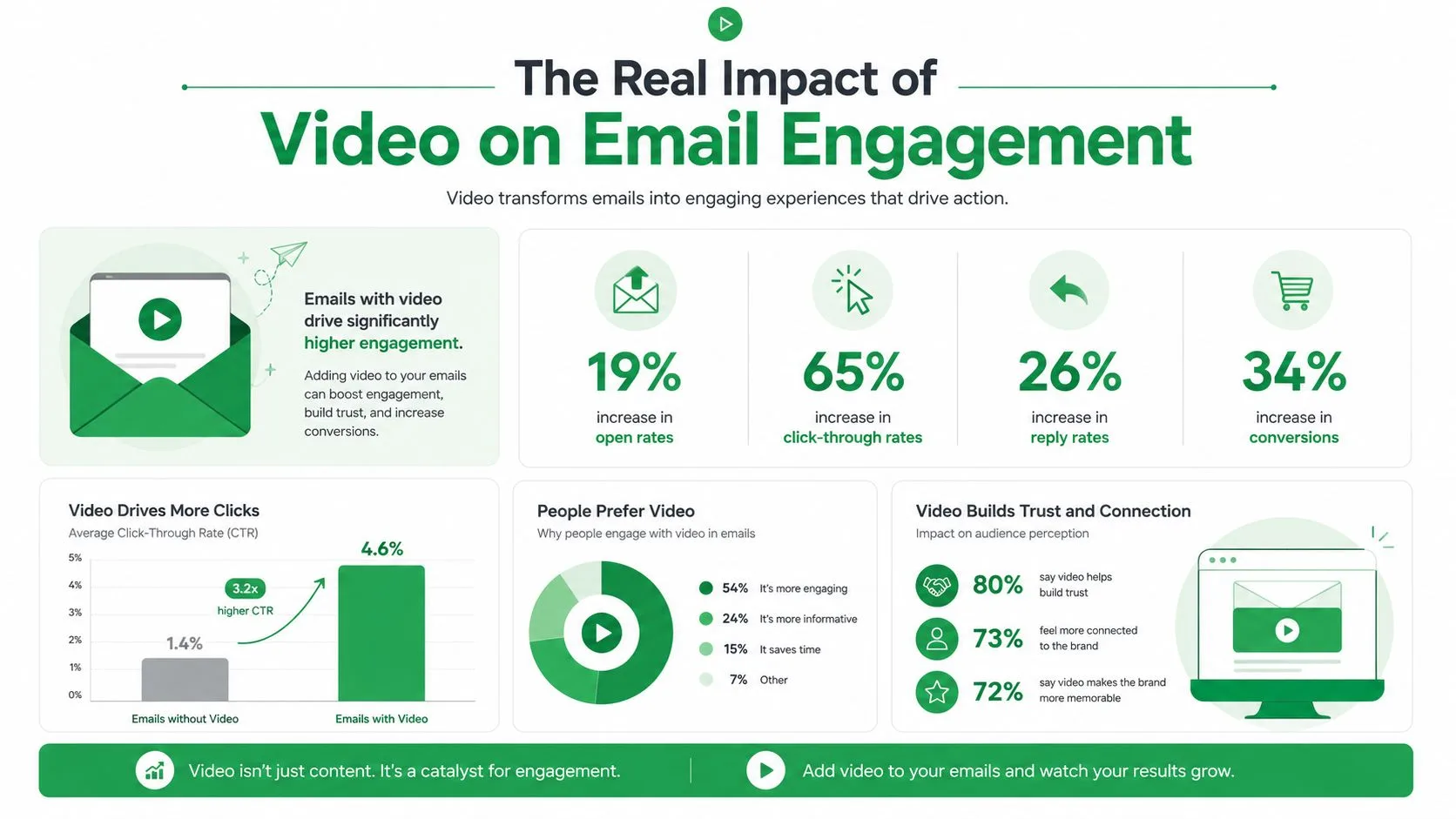
Video in email can lift click-through rates by 65% compared to text-only emails, and adding the word video to the subject line can lift open rates by 19%, according to Digital Applied’s 2026 video marketing statistics roundup. This insight is vital for marketing professionals.
The part most articles skip is the messy reality. Video in email works, but not in the way people imagine when they hear “embed a video.” In Gmail, Outlook, and many other inboxes, the winning workflow usually isn’t a native player. It’s a carefully built thumbnail, sometimes an animated GIF, linked to a fast landing page where the actual video lives.
That distinction matters because execution decides whether video becomes a performance asset or just another heavy creative that slows the email down and disappoints the click. The teams that get ROI from video in email don’t chase novelty. They design for how inboxes render, how people scan, and how campaigns are tracked.
Why Your Next Email Campaign Needs Video
73% of people prefer to learn about a product or service through short video. That preference changes how an email gets processed the moment it is opened.
Video earns its place in a campaign when the message is easier to show than explain. Product demos, onboarding steps, event invites, founder messages, and feature releases all benefit from a visual first impression. A static block of copy asks for time. A thumbnail with a clear play cue suggests speed.
That matters because attention in email is usually shallow. Recipients scan, decide, and move on. Video helps when it reduces the work required to understand the offer. If the value proposition needs context, motion, or a human face, a video asset can shorten the path to interest.
I have seen this hold up across both marketing and sales sends. The campaigns that perform best are rarely the ones with the fanciest production. They are the ones where the thumbnail makes a specific promise, the click leads to a fast page, and the message after the click matches what the email suggested. That is also why teams need to measure the right click metric for the campaign, whether they are tracking total clicks or unique engagement. This guide on click rate vs click-through rate is useful if your reporting is blending those two.
There is also a practical trust benefit. Showing a person, a screen, or a product in use can remove ambiguity faster than copy alone. For cold outreach, that can make the sender feel more credible. For lifecycle email, it can lower confusion at moments where users commonly stall.
Use video with restraint. If the message is already obvious in one sentence, adding a video asset can add weight without adding clarity. The best use case is simple. Send video when demonstration improves understanding or confidence, and package it for the inbox you work with in practice, especially Gmail, not the one marketers wish existed.
The Real Impact of Video on Email Engagement
Emails with a video element usually win on one metric first. More clicks. Not because recipients love video as a format, but because a clear thumbnail gives them a faster way to decide whether the message is worth their time.
Why the click happens
A video asset changes the decision the reader makes in the inbox. Instead of asking them to process a block of copy, it offers a quick preview of what they will learn after the click. That matters in product marketing, onboarding, customer education, and outbound prospecting, where understanding is often the primary bottleneck.
The play icon helps, but it is not magic. The best-performing emails pair that icon with a thumbnail that makes a specific promise. Show the product screen. Show the person speaking. Show the result. If the image is vague or decorative, the click lift disappears fast.
In practice, the gain comes from reducing friction.
Why video often improves post-click intent
A click on a video thumbnail usually carries more intent than a casual click on a stock image or banner. The recipient expects to invest a little more attention, so the click is often a better signal of real interest. That is one reason reporting can get messy if teams treat every click the same. If you are comparing campaigns, it helps to understand the difference between click rate and click-through rate before drawing conclusions from the numbers.
I have seen this matter most in campaigns where the offer needs proof. A short demo, a founder update, a customer walkthrough, or a personalized sales video can answer questions that copy leaves open. Good video assets do not just attract clicks. They pre-qualify them.
Why trust can improve
Video shows tone, confidence, and product behavior quickly. That can make the sender feel more credible, especially in cold outreach or trial-stage lifecycle email where uncertainty is high.
But the trust benefit depends on execution. A grainy webcam recording can still work if it feels personal and gets to the point. A polished video can still fail if the first frame is generic, the page loads slowly, or the message after the click does not match what the email promised.
The strongest video emails feel easier to evaluate, not more impressive.
Where teams overestimate the payoff
Video does not rescue a weak offer. It does not fix bad targeting. It does not create ROI if the landing page is slow or the CTA is unclear.
That is the practical reality behind the hype. Video improves engagement when it shortens the path to understanding and gives the recipient confidence to keep going. If it adds load time, confusion, or a mismatched click experience, the format stops helping.
Understanding Your Video in Email Options
Inbox support decides the format. In real campaigns, video in email usually means a clickable image or GIF, not true in-email playback.
Embedded video exists, but it is a niche option because support is inconsistent across major inboxes. If a list skews heavily toward Gmail, broad client compatibility matters more than the appeal of an in-email player. Teams that ignore that trade-off spend extra time building fallbacks, then watch the fallback carry the campaign anyway.
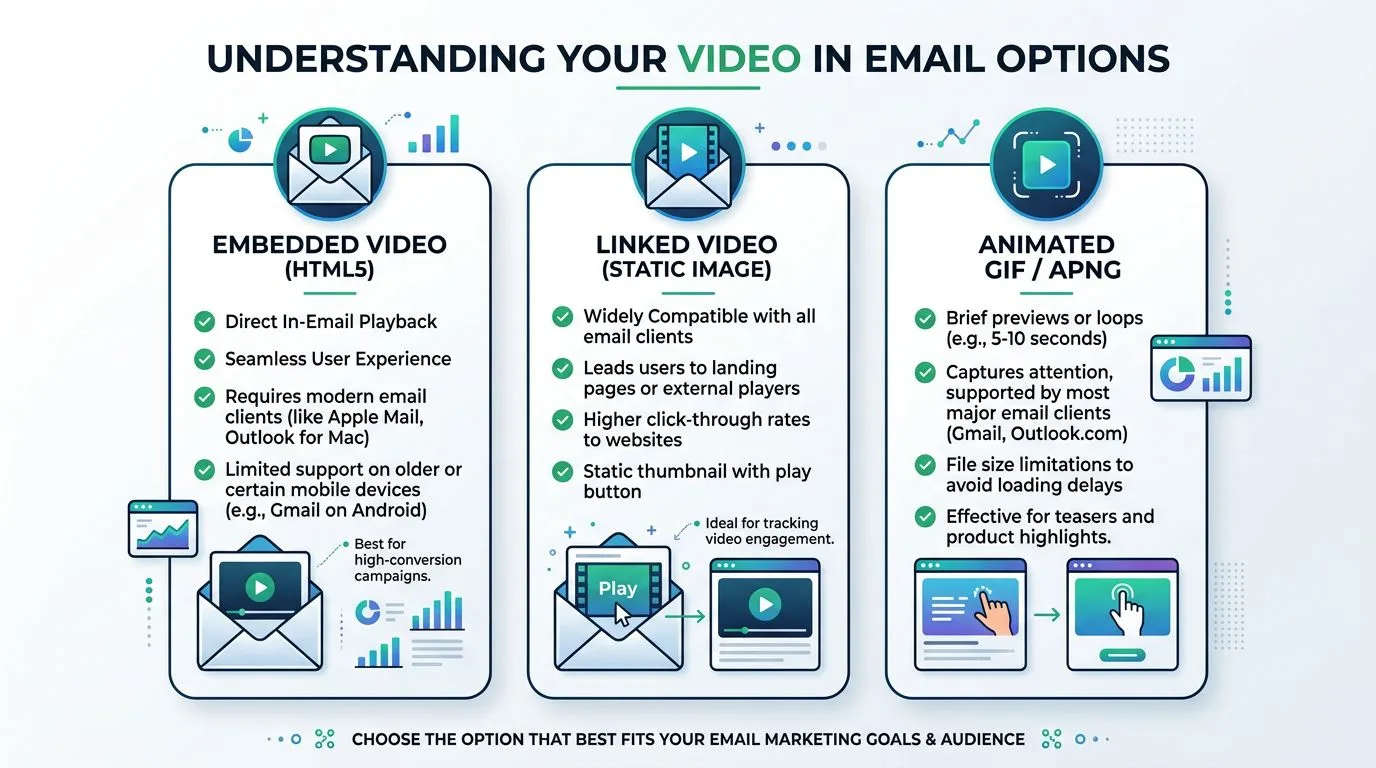
Option one is native embedded video
Native playback can work in tightly controlled environments where you know the recipient’s email client. That is rare outside internal communications, small account lists, or specialized B2B programs with reliable client data.
For general marketing sends, this option creates too many failure points. You need fallback rendering, careful testing, and a version that still makes sense when the player does not appear. I only recommend embedded video when the audience and client mix are already predictable.
Option two is a static thumbnail with a play icon
This is the default for a reason. A thumbnail linked to a landing page or hosted video works well in Gmail, loads fast, and is easy to test across devices.
It also puts pressure on the creative. The thumbnail has to sell the click. A weak frame, tiny play button, or generic screenshot can hurt performance even if the video itself is strong. Good thumbnails show a face, a product screen, or a clear before-and-after moment. The recipient should understand the value before clicking.
Option three is an animated GIF preview
GIFs add motion without depending on inbox video support. They are useful for product tours, UI demos, and any message where the movement itself explains the benefit faster than copy can.
The catch is file size. Heavy GIFs slow load time and can drag down the experience on mobile. Looping also needs restraint. Three to six seconds usually works better than a long sequence that keeps repeating. I treat GIFs as trailers. They should create curiosity, then send the click to a page where the full video starts immediately.
If your team needs to produce these assets quickly, tools that help create AI videos with PhotoMaxi can speed up the first draft. The email version still needs manual adaptation, especially for thumbnail selection, GIF length, and mobile cropping.
| Method | Best use | Main strength | Main risk |
|---|---|---|---|
| Native embedded video | Controlled client environments | Playback inside the email | Inconsistent support |
| Static thumbnail | Broad campaigns, especially Gmail | Reliable rendering | Weak creative can suppress clicks |
| Animated GIF | Product demos, visual teasers | Motion without full embed | File weight and awkward looping |
What actually works in Gmail
For Gmail, linked assets win because they are predictable. A static thumbnail is the safest choice. A lightweight GIF can outperform it when motion clarifies the offer.
Use these standards every time:
- Make the play button obvious at mobile size.
- Choose a first frame with context so the image explains what the video is about.
- Link to a fast page where the video appears immediately, not below the fold.
- Keep the message aligned from subject line to thumbnail to destination page.
The practical rule is simple. Build for dependable rendering first, then improve the click experience. That approach gets better results than chasing embedded playback that only works under perfect conditions.
A Step-by-Step Guide to Preparing Your Video
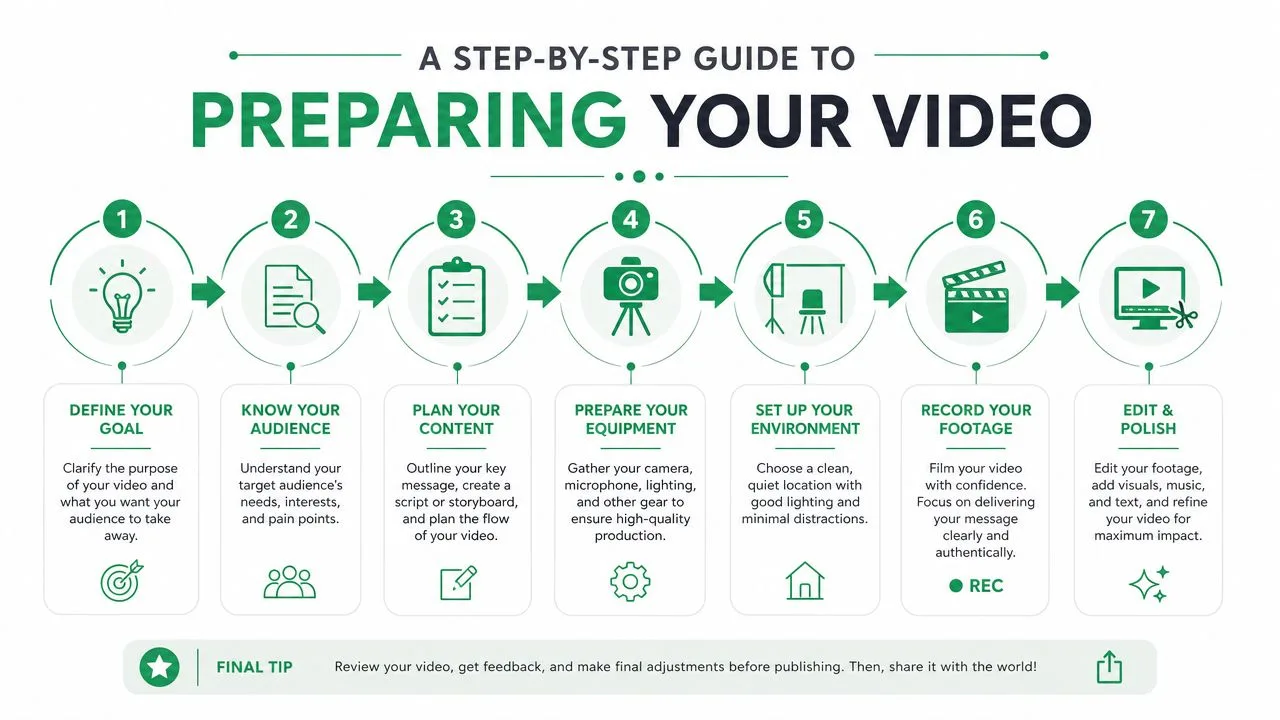
Preparation decides whether the inbox asset feels polished or improvised. The video itself matters, but the thumbnail, GIF, and destination page matter just as much because they shape the click.
Trim for attention first
Start by cutting the video down to its sharpest version. For email, stronger is usually shorter. Remove slow intros, logo animations, and anything that delays the point.
If you’re making the asset from scratch, tools that speed up production can help. For teams experimenting with synthetic presenters or rapid visual assembly, this guide on how to create AI videos with PhotoMaxi is a useful reference for building assets quickly before you adapt them for email.
A good email video opens with context, not suspense. The recipient clicked because they want clarity. Give it to them fast.
Build the thumbnail before you export the email asset
The thumbnail is not a frame grab you settle for at the end. It’s the main creative. Pick a scene that shows a face, a product interface, or a visual outcome. Then add a play button that’s obvious at mobile size.
Use a short caption on the image only if it clarifies the value. Don’t turn the thumbnail into a poster. One idea is enough.
This walkthrough is a useful example of the kind of concise video asset that works well once adapted for email:
Create a GIF only when motion adds meaning
A looping preview works best when the motion itself sells the click. Product UI changes, before-and-after transitions, and a person speaking directly to camera all translate well. Slow panning shots usually don’t.
Keep the loop tight. If the motion feels random or repetitive, a still thumbnail often performs better because it looks cleaner and loads more predictably.
Host the full video somewhere dependable
The inbox asset should always point to a landing destination that loads quickly and presents the video without confusion. YouTube works well for reach and familiarity. A dedicated hosted page works well when you want tighter control over branding and the next call to action.
Before you send anything, test the full chain on mobile. Tap the image. Open the page. Watch the first few seconds. If any step feels slower or less obvious than it should, fix that before you touch the email platform.
Sending Trackable Video Emails with Mail Merge for Gmail
If you’re using Gmail to run outreach at scale, the practical workflow is straightforward. Build the video asset outside Gmail, place that asset into a draft, link it to the hosted video, then send a personalized campaign using spreadsheet data so you can track who engaged.
One caution matters here. When you research Mail Merge for Gmail, make sure the information you’re reading is about that product and not another similarly named mail merge tool for Gmail. The name is descriptive, and it’s easy to mix up product details if you don’t verify the source carefully.
Set up the campaign assets in Gmail
Start with a clean Gmail draft. Write the email as if the thumbnail were your main call to action, because for many recipients it will be. Keep the copy around it light. A short intro, one clear reason to watch, and a direct next step is enough.
Insert your prepared thumbnail or GIF into the draft. Then hyperlink the image to the hosted video page. Don’t send an attachment unless you have a very specific internal-use case. Hosted video is easier to load, easier to update, and easier to measure.
Use spreadsheet personalization carefully
The next step is to prepare recipient data in Google Sheets. Keep the merge fields practical. First name, company, role, offer variation, and destination URL are usually enough. If every row points to the same video, that’s fine. If you’re segmenting by audience, map each segment to the right landing page rather than stuffing multiple video choices into one email.
If you need a walkthrough of the spreadsheet-driven workflow, this guide on how to mail merge from Google Sheets is the most relevant reference point.
A few execution rules matter here:
- Keep the draft stable: Finalize images, links, and copy before launching the merge.
- Check merge fields in preview: A broken variable beside a thumbnail makes the whole email look careless.
- Track the video link: If the image click is your primary action, that’s the link worth watching most closely.
- Use a test segment first: Send to yourself and a few internal addresses across different devices.
The click on the image is the signal. Treat that link as the center of the campaign, not a decorative add-on.
Plan around Gmail sending limits
Campaign planning has to respect Gmail’s limits. Google Workspace accounts allow up to 1,500 recipients per day for mail merge, while trial accounts are limited to 500, and a single message can include up to 2,000 total recipients, according to Google Workspace sending limits.
That has real operational consequences. If your list is larger, split the send across days or across properly managed sending accounts. Don’t build a campaign calendar that assumes infinite volume from one mailbox. Also remember that your sending activity isn’t separate from normal account usage. Heavy campaign days require discipline.
What to track after launch
Once the campaign is live, focus on the metrics that reflect the video asset’s actual job. Did the subject line get the message opened. Did the thumbnail get clicked. Did the landing page complete the action you wanted.
For video in email, this sequence matters more than vanity. If opens are healthy but clicks lag, the problem is usually creative alignment. If clicks are strong but outcomes are weak, the destination page is probably doing a poor job finishing the story.
Best Practices for Deliverability and Performance
Inbox providers make fast judgments. If your email loads slowly, looks image-heavy, or sends mixed signals between the subject line, thumbnail, and landing page, performance drops before the video ever gets a fair shot.
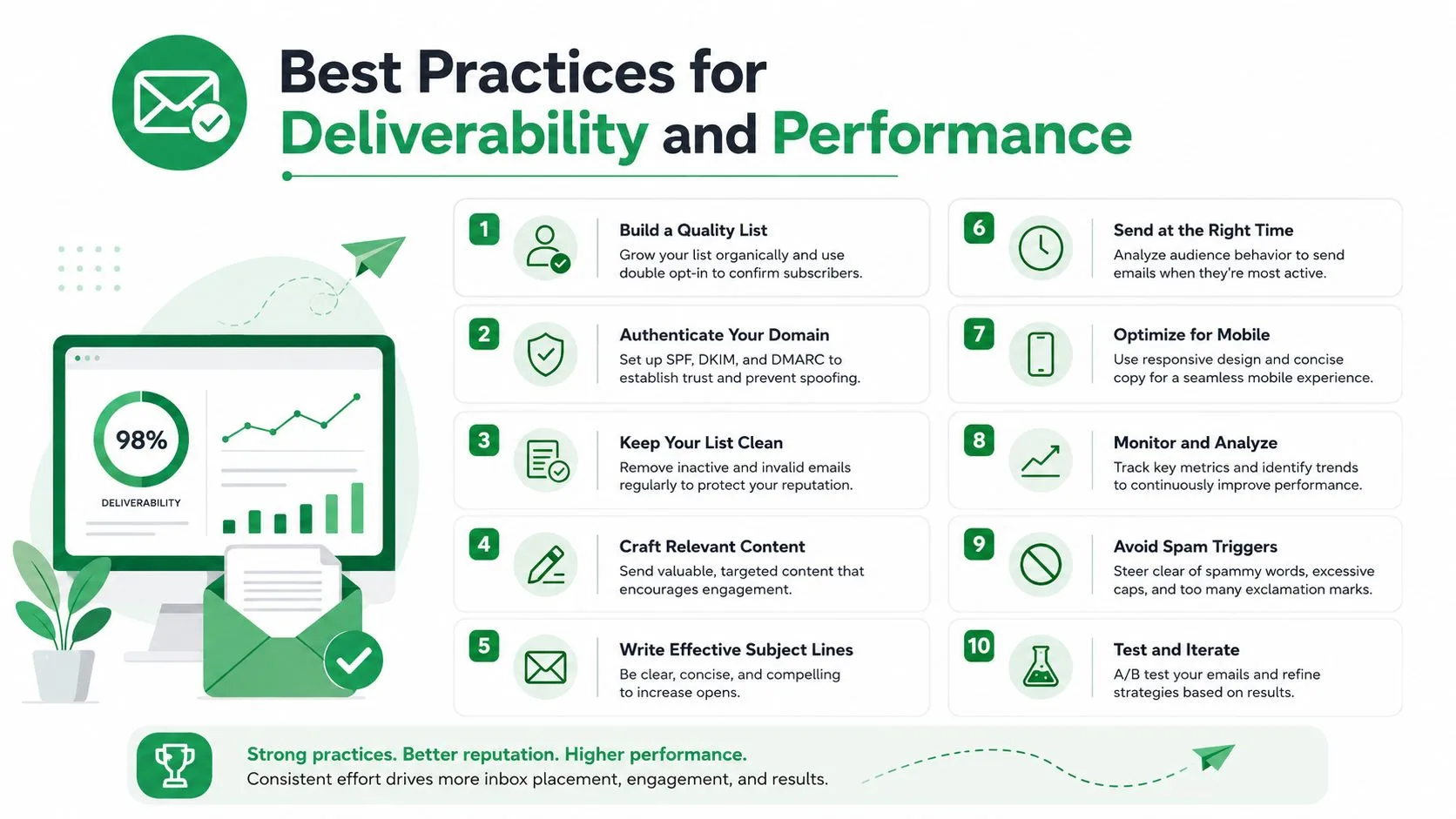
The practical rule is simple. Keep the email light, make the click obvious, and make the destination load fast.
For Gmail campaigns, that usually means using a static thumbnail or a tightly compressed GIF instead of trying to force full video playback inside the inbox. Embedded video can work in a narrow set of clients, but Gmail is not the place to bet the campaign on that behavior. The safer workflow is a linked thumbnail with a clear play button and a landing page that starts the video immediately.
The pre-send checklist that matters
A few decisions do most of the work here:
- Keep assets small: Large GIFs drag down load time, especially on mobile data. If a GIF adds motion but delays rendering, use a static image instead.
- Keep the video short enough to finish: Short videos usually earn more completions because the commitment feels low. Edit hard before you send.
- Match the thumbnail to the promise: If the subject line promises a demo, show the product. If it promises a personal message, use a human frame, not a title card.
- Use one primary call to action: The thumbnail click should be the main job of the email. Extra buttons and competing links dilute attention.
- Protect sender reputation: Clean technical setup still matters. Review your email authentication setup before sending at scale.
I have seen strong creative underperform because the landing page did not pick up where the email left off. The email promised a quick explanation. The click opened a slow page with a long header, extra navigation, and no visible video above the fold. That kind of disconnect kills conversion.
Test the variables that change clicks
Thumbnail testing is usually worth the effort. Test the frame, the play icon, and the headline treatment on the image. Leave everything else alone so the result is readable.
Test the destination too. A good thumbnail can get the click, then lose the sale on a cluttered page or a player that stalls on mobile.
One more practical point. If you host on YouTube, check the public viewing experience before sending. Playback restrictions, formatting issues, or account-level problems can undercut the campaign after the click. This YouTube creator error guide is a useful reference if the hosted video behaves unexpectedly.
Field note: The highest-performing video emails usually look simpler than the drafts teams argue over the longest.
Troubleshooting Common Video in Email Issues
The most common complaint is, “Why isn’t the video playing inside the email?” In most cases, nothing is broken. The inbox isn’t designed to behave like a browser-based video page. The solution is to stop chasing autoplay and make the linked asset clearer.
If open rates look healthy but clicks stay soft, inspect the thumbnail before you rewrite the copy. Weak frame selection, no visible play icon, or a mismatch between the subject line and the image usually causes that pattern. Recipients opened because the promise was interesting. They didn’t click because the asset didn’t confirm the promise.
If emails drift into spam or promotions more aggressively than expected, trim the weight and simplify the build. Heavy GIFs, cluttered HTML, and too many competing image blocks can make the message feel less trustworthy. The fastest fix is often a cleaner draft with one dominant action.
Cold outreach needs tighter standards
Personalized video can work in outbound, but only when it feels genuinely relevant. For cold outreach, personalized video only shows significant gains when paired with hyper-relevant subject lines and concise 15 to 30 second clips, and 40% of recipients skip video emails if they detect auto-generated content, based on the discussion summarized in this cold outreach thread on Reddit.
That means generic “recorded just for you” tactics don’t hold up if the video feels templated. If you use video in sales outreach, make the first sentence specific to the recipient’s context. Keep the clip brief. Give them one reason to care now.
When the issue is on the destination side, especially with YouTube-hosted assets, it also helps to know the platform’s common failure points. This YouTube creator error guide is a practical reference if the hosted experience is creating friction after the click.
The core fix in almost every scenario is the same. Stop trying to make email behave like a video platform. Use email to earn the click, then let the landing environment handle playback properly.
If you want to send personalized, trackable video campaigns directly from Gmail, Mail Merge for Gmail gives you a practical way to do it with Google Sheets data, click tracking, scheduling, and per-recipient status updates without leaving your normal workflow.
Ready to send your first campaign?
Install Mail Merge for Gmail from the Google Workspace Marketplace and send up to 50 personalized emails per day for free.
Get started for freeMore reading
More from Tips
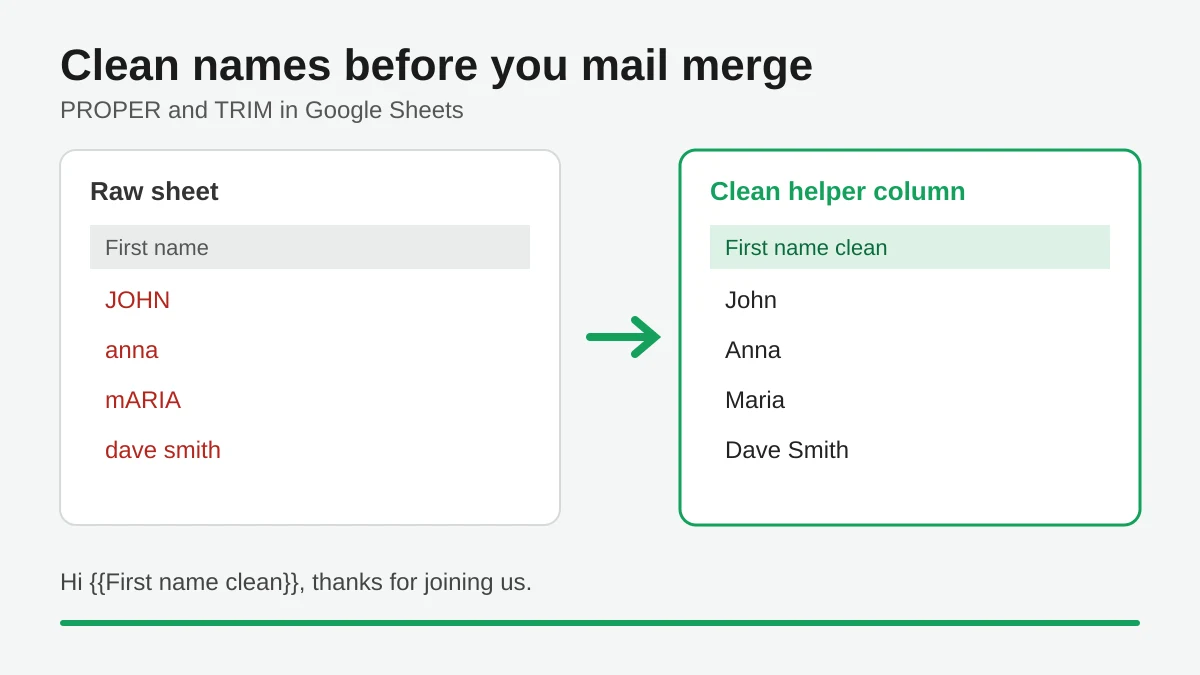
Mail Merge Names Capitalization: Clean Your Google Sheet Before You Send
Fix wrong capitalization and stray spaces in names before a mail merge. Use PROPER, TRIM and a helper column in Google Sheets so every merged email greets people correctly.
Track Email Opens in Gmail
Learn to track email opens in Gmail with clear setup steps, Sheets status updates, troubleshooting tips, and privacy guidance for reliable outreach results.

10 Email Campaign Best Practices for Better Results
Use these 10 email campaign best practices to improve targeting, deliverability, engagement, testing, compliance, and conversions with Mail Merge for Gmail.