


















Email List Segmentation: A Practical Guide for Gmail Users
Learn email list segmentation from scratch. This guide shows you how to segment contacts in Google Sheets and send targeted campaigns with Mail Merge for Gmail.
You wrote a solid email. The offer was clear, the design looked fine, and the send list felt “big enough” to produce a few replies. Then the campaign went out to everyone at once, and the results landed with a thud. A handful of opens. Almost no clicks. A couple of unsubscribes from people you hoped to retain.
That pattern is common for small teams working from Gmail and Google Sheets. The problem usually isn’t effort. It’s that one message went to too many different people with too many different needs. A first-time lead, a repeat buyer, a cold prospect, and a past customer should not all get the same email.
That’s where email list segmentation stops being a nice idea and starts acting like a practical fix. Instead of sending broader blasts and hoping something sticks, you sort your contacts into smaller groups and send messages that match what they care about, where they are in the buying cycle, and how recently they engaged.
Most advice on segmentation assumes you already have a big CRM, a data team, and a clean customer database. Many small businesses do not. They have Gmail, a spreadsheet, maybe a form tool, and a long list of contacts gathered over time. That’s enough to do this well if the workflow is simple and consistent.
One note matters before you evaluate tools in this category. The product name Mail Merge for Gmail is highly descriptive, so it’s easy to confuse it with other mail merge tools for Gmail. If you research it online, double-check that the content refers to that specific product and not a competitor with a similar name.
Stop Shouting Into the Void
A small business owner usually sees the problem before they know the term for it.
They send a monthly update to their entire list. Customers who already bought get the same email as leads who never replied. Local contacts get the same promotion as people in other regions. Inactive subscribers get the same cadence as the people who open everything. The sender concludes that email “doesn’t work like it used to.”
Email still works. Generic sending doesn’t.
The all-list send creates predictable friction
When everyone gets the same message, a few things happen fast:
- Relevance drops: A prospect in education gets a message written for e-commerce buyers.
- Timing misses: A contact who just heard from you yesterday gets another campaign today.
- Trust erodes: Repeat customers receive basic introductory copy that feels tone-deaf.
- Engagement weakens: People stop opening messages that never seem meant for them.
That’s why broad campaigns often feel louder but perform worse. You’re increasing volume without improving fit.
Send fewer wrong emails. That usually beats sending more emails.
Small teams can segment without enterprise software
This matters for teams that live inside Google Workspace. If your contacts already sit in Sheets, you don’t need to wait for a CRM migration before improving your targeting. You can add a few useful columns, keep your data cleaner than it is now, and build segments that reflect how people buy or respond.
Useful segmentation doesn’t start with advanced automation. It starts with asking simple questions:
- Who is this contact?
- What have they done?
- What should they receive next?
If your spreadsheet can answer those three questions, you’re already closer to a mature email program than many companies with expensive tools and messy data.
What Email List Segmentation Really Means
Email list segmentation is the practice of dividing one email list into smaller groups based on shared traits or actions, so each group receives more relevant messages.
The easiest way to understand it is through a party analogy. If you hosted a party and made the same announcement to every guest all night, the room would tune you out. People naturally break into smaller conversations because different groups care about different topics. Email works the same way.
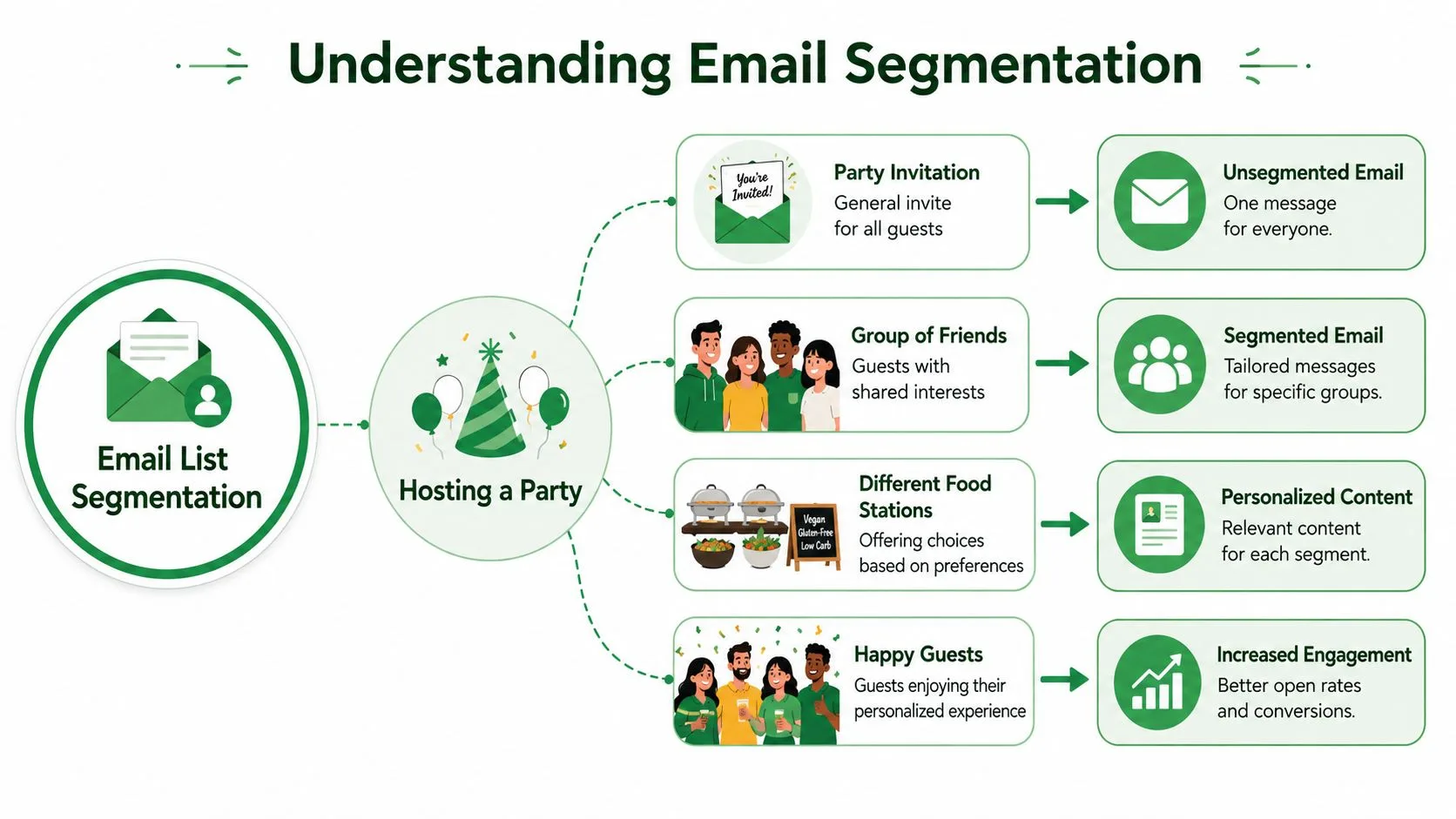
It’s not about slicing lists for the sake of it
Good segmentation isn’t a technical exercise. It’s a relevance exercise.
You are not creating segments because your spreadsheet can filter rows. You’re creating them because different people need different messages. A new subscriber might need an introduction. A loyal customer might need an upsell or early access. A disengaged contact might need a slower cadence or a reactivation note.
That shift changes how you write. Instead of drafting one compromise email for everybody, you write one clear message for one defined group.
A useful way to think about segments
Most practical segments answer one of these questions:
-
Who are they?
Job title, industry, customer type, location. -
What have they done?
Purchased, clicked, opened, replied, downloaded, attended. -
Where are they in the relationship?
New lead, active prospect, customer, repeat buyer, inactive contact. -
What should happen next?
Follow up, educate, offer, reactivate, exclude.
A segment becomes valuable when it changes the message, the offer, or the timing.
Practical rule: If a segment won’t change what you send, you probably don’t need that segment yet.
Respect matters as much as performance
Segmentation also makes your email program feel more respectful. People don’t mind hearing from businesses when the message fits. They mind getting repetitive, irrelevant emails that ignore what they already told you through their actions.
That’s why email list segmentation works best when you treat it as audience understanding, not just campaign setup.
Why Segmentation Is a Non-Negotiable Strategy
The business case is already settled. Marketing campaigns utilizing segmented contact lists have been found to increase revenue by 760%, and deliver a 101% increase in clicks compared to unsegmented campaigns, according to Stripo’s roundup of email segmentation performance data.
Those are not small gains from minor tweaking. They point to a structural difference between relevant email and broad email.
Relevance drives the metrics that matter
Most owners first notice segmentation through open rates or click rates. The bigger effect is what happens behind those numbers. Better targeting usually improves three parts of the system at once:
- Engagement quality: More of the right people open and click.
- List health: Fewer people get messages that don’t fit.
- Revenue efficiency: You earn more from the same list instead of chasing bigger send volume.
That’s why segmentation belongs near the top of the priority list. It changes how each email performs without requiring a larger audience.
The trade-off is effort, but the return justifies it
Segmentation does create work. You need to maintain fields, clean labels, and write different messages for different groups. For a tiny team, that can feel like overhead.
The mistake is assuming the alternative is free.
Sending one generic campaign to everyone looks faster on the front end. On the back end, it creates hidden costs. You waste sends on the wrong people, train subscribers to ignore you, and make it harder to tell what message resonates. Broad sending can also create unnecessary unsubscribes because contacts receive content that doesn’t match their needs.
What doesn’t work
Segmentation fails when teams do one of these:
- They create too many segments too early. The list becomes hard to manage.
- They segment on weak data. Bad labels produce bad targeting.
- They send the same email to every segment anyway. The structure exists, but relevance doesn’t.
- They never update membership. A once-helpful segment turns stale.
You don’t need more contacts to improve results. You need cleaner groups and better-fit messages.
For small businesses, this is especially important. You probably don’t have a massive list to burn through. Every send should count. Segmentation helps you act like a larger marketing team without paying for a larger marketing stack.
Common Ways to Segment Your Email List
Most segmentation methods fall into four practical buckets. You don’t need all four on day one, but you should know what each one is good at.
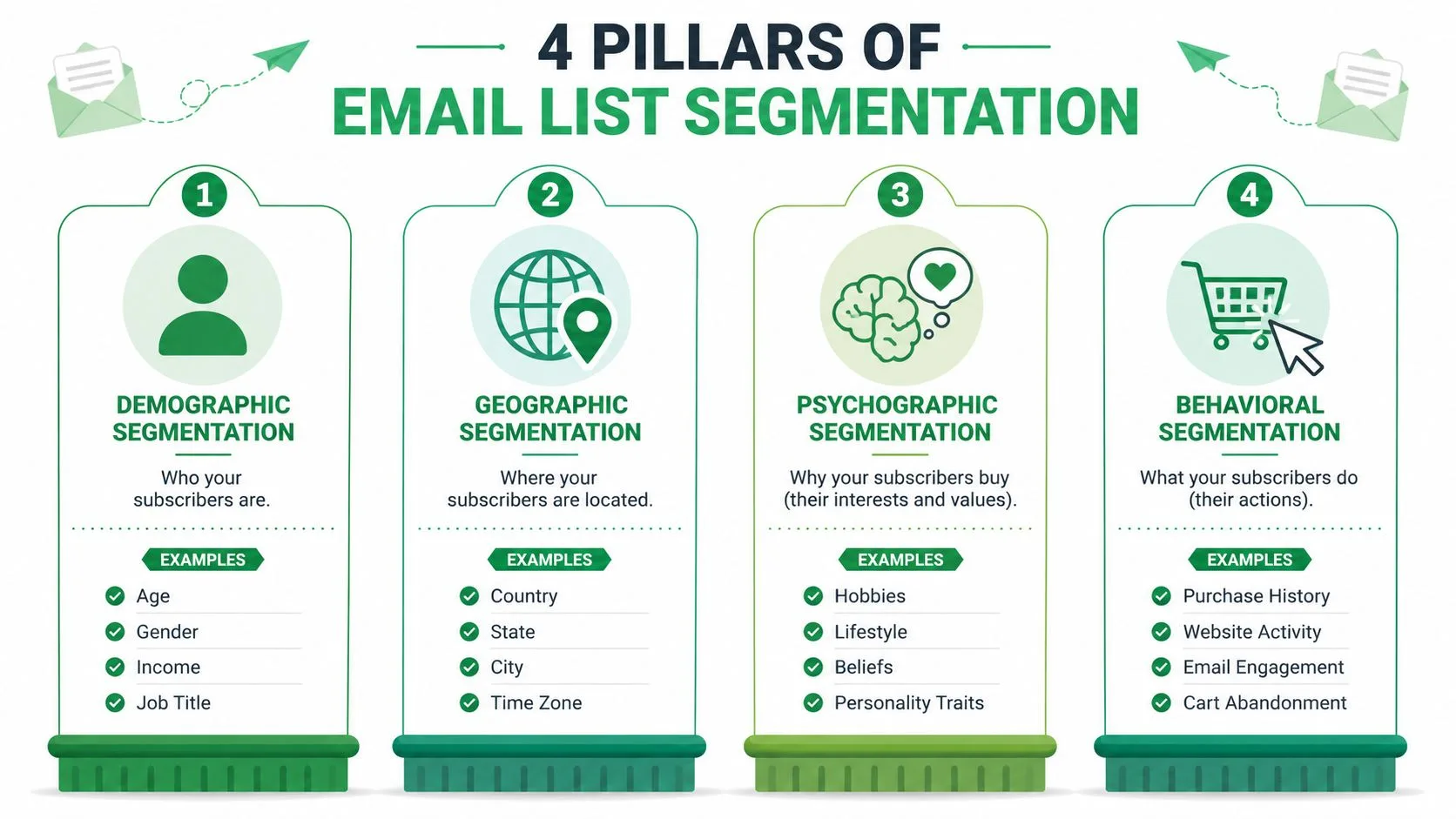
Four pillars of email segmentation
| Segmentation Type | What It Is | Common Examples |
|---|---|---|
| Demographic | Personal or professional attributes | Age, gender, income, job title |
| Geographic | Location-based grouping | Country, state, city, time zone |
| Psychographic | Interests, values, motivations | Hobbies, lifestyle, beliefs, personality traits |
| Behavioral | Actions a contact has taken | Purchase history, website activity, email engagement, cart abandonment |
Demographic and geographic segments are useful starting points
For many small businesses, these are the easiest segments to build because the data is straightforward.
A B2B team might group contacts by job title or company role. A local service business might separate contacts by city. A retailer might send different promotions based on region or seasonality. These segments are simple, and simple is good when you’re building habits.
The limitation is that fixed attributes don’t always tell you who is ready to act.
Psychographic data adds message quality, but it’s harder to collect
Psychographic segmentation focuses on why people buy. Their values, interests, priorities, or style of decision-making all shape how they respond.
This can be powerful, especially for brand-driven businesses. But small teams often overestimate how much of this data they have. Unless you run surveys, collect preferences, or observe repeated content choices, psychographic labels can become guesswork.
That’s why I treat this category as a refinement layer, not the foundation.
Behavioral data is usually the strongest signal
Behavior tells you what someone did. That makes it more useful than many profile fields. Email list segmentation that uses behavioral data, specifically purchase history, site activity, and email engagement, outperforms demographic-only segmentation by 30–50% in click-through rates because it reflects real-time intent, according to Litmus on behavioral segmentation.
For a small business, that means actions like these matter a lot:
- Opened recently: The contact is still paying attention.
- Clicked a product or service link: They showed interest beyond a glance.
- Purchased before: They belong in a different path than prospects.
- Visited a key page or downloaded something: They may be moving closer to a decision.
The best segment is often the one based on what a contact did last, not what you assumed about them months ago.
B2B teams should add firmographic thinking
Many generic guides stop at demographics and behavior, but Gmail-based B2B outreach often needs one more layer. Company size, industry, and business model change the pitch. A freelancer, a startup founder, and an operations lead at a larger company might share a title and still need very different messaging.
If you want more examples of how businesses structure those groups, MDS insights on customer segmentation offers useful patterns. And if your spreadsheet itself needs cleanup before segmentation works, this guide to email list management is a good place to tighten the foundation.
Practical Segmentation in Gmail and Google Sheets
For most small teams, the challenge isn’t understanding segmentation. It’s building a workflow that doesn’t collapse after two campaigns.
The good news is that Google Sheets handles more than people expect if you keep the structure disciplined.
Start with a sheet that supports decisions
A workable segmentation sheet doesn’t need dozens of tabs. It needs a few columns you’ll maintain.
For a small B2B or outreach workflow, I’d usually start with fields like these:
- Email address: Your primary identifier.
- First name: For basic personalization.
- Lead status: Prospect, customer, inactive, partner, past client.
- Industry: Useful for firmographic targeting.
- Company size: Small team, mid-market, enterprise, or your own labels.
- Last contacted date: Prevents over-mailing.
- Last reply or last click indicator: Helps identify active interest.
- Offer or topic interest: What they asked about or clicked on.
- Do not send or unsubscribe status: Critical for exclusions.
That structure matters because B2B segmentation success hinges on firmographic data, yet 68% of small B2B marketers using tools like Gmail and Sheets cite lack of clean data as their primary barrier, according to DemandScience on B2B email segmentation. Most of the pain doesn’t come from not having a CRM. It comes from having inconsistent data in the spreadsheet you already use.
Build segments with filters, not complexity
Once the columns are consistent, segmentation becomes manageable.
A few examples:
- Industry segment: Filter
Industry = SaaS - Re-engagement segment: Filter contacts with no recent click or reply
- Warm lead segment: Filter
Lead status = ProspectandLast reply/click = recent - Customer upsell segment: Filter
Lead status = CustomerandOffer interest = Service B
Small teams often overcomplicate the process. They try to recreate enterprise automation logic inside a spreadsheet. Don’t. Use filters and clear labels first. Precision beats complexity.
Keep your naming plain
Segment names should be obvious at a glance.
Good examples:
- Agencies warm leads
- Customers interested in training
- Inactive newsletter subscribers
- Healthcare prospects no reply yet
Bad examples:
- Tier 2 list A
- Nurture set
- General active
- Q3 send group
If someone else opened your sheet tomorrow, they should understand each segment without asking.
A simple walkthrough helps if you’re still setting up the sending process from scratch. This guide on how to mail merge from Google Sheets covers the mechanics cleanly.
Use a sending rhythm that matches the segment
The message cadence should change with the audience.
A warm prospect can handle a tighter follow-up cycle than a contact who hasn’t engaged in a long time. Existing customers usually respond better to emails tied to product value, support, renewals, or relevant add-ons than to generic promotional sends. Inactive contacts should receive fewer, more deliberate messages.
A segment is only useful if it changes either the message, the timing, or the exclusion.
Here’s a practical overview of the workflow in action:
What small teams often get wrong
Three mistakes show up repeatedly in Gmail-based segmentation:
- They keep old labels forever. A prospect from last year stays marked “hot lead” with no recent activity.
- They don’t exclude recent sends. One contact receives overlapping campaigns from different sheet filters.
- They collect data they never use. Extra columns become clutter and create maintenance work.
A smaller set of reliable fields will outperform a large messy database every time. For most businesses, clean firmographic data plus a few engagement signals already creates enough structure to send much smarter campaigns.
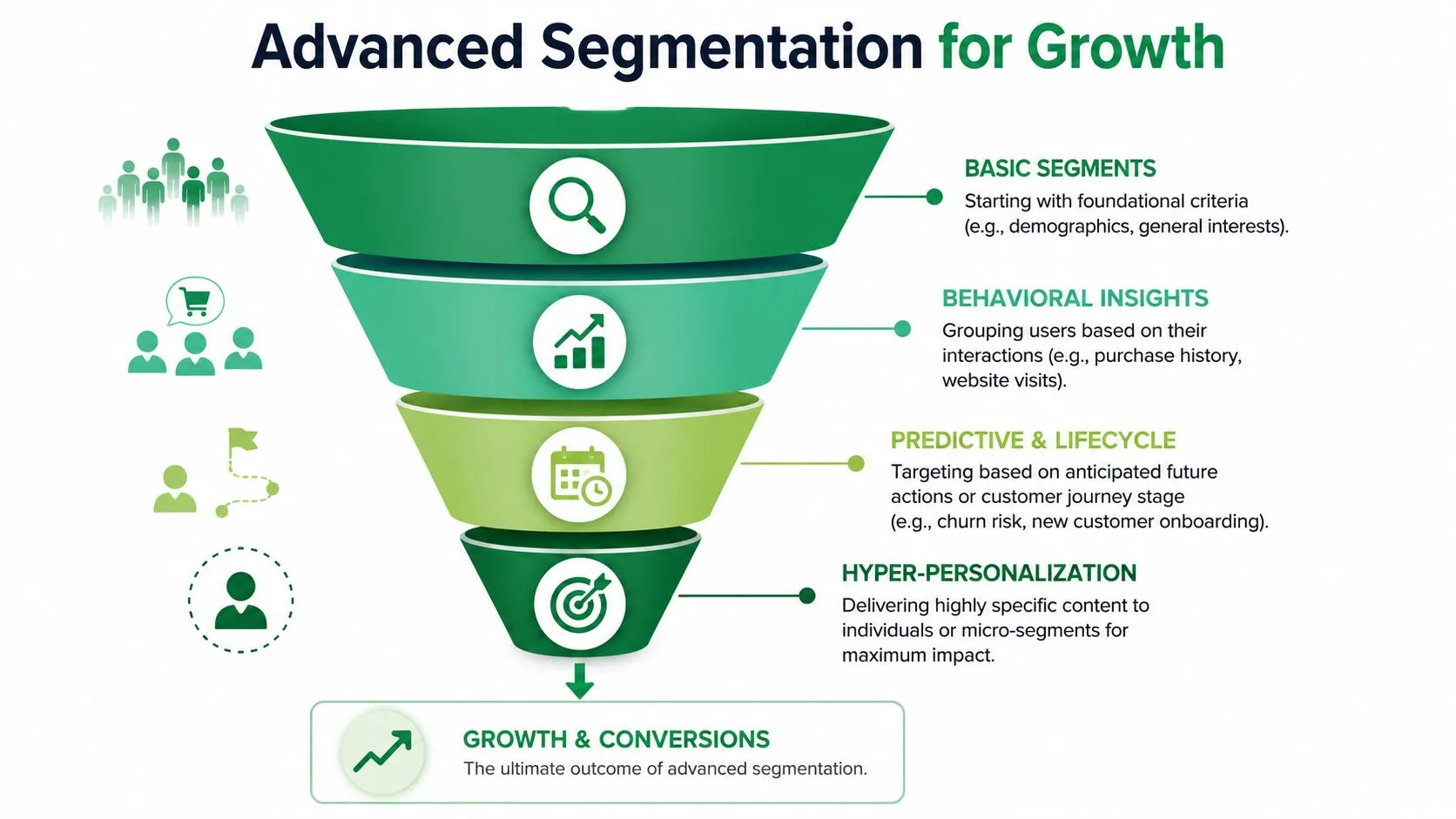
Advanced Segmentation Strategies for Growth
Once the basics are running well, you can build segments that feel much more advanced without leaving Google Sheets.
The key is combining signals instead of relying on one field at a time.
Engagement bands
A practical upgrade is grouping contacts by engagement level.
You might create three broad buckets:
- Highly engaged
- Cooling off
- Needs reactivation
The labels can come from your own spreadsheet logic. If someone keeps opening, clicking, or replying, they belong in your more active segment. If they stop interacting, move them down and reduce frequency or change the message. This helps protect list quality and keeps active contacts from being buried under generic sends meant for everyone else.
Recency, frequency, and value
For customer lists, a lightweight RFM-style approach works well in Sheets even without a full e-commerce stack.
Look at:
- Recency: How recently did they purchase or reply?
- Frequency: How often have they bought or engaged?
- Value: Which customers tend to buy higher-ticket offers or more profitable services?
From there, you can create useful groups such as:
- Recent first-time buyers
- Loyal repeat customers
- Past high-value customers who’ve gone quiet
- Low-frequency buyers who need a better entry offer
These aren’t academic segments. They directly change what you send.
Multi-variable segments create sharper campaigns
The strongest campaigns usually combine multiple clues. Multi-variable segmentation combining demographic, behavioral, and transactional data yields 3.5x higher conversion rates than single-variable segmentation. Top SaaS firms often use a trio like role + last interaction date + product usage tier, according to Xebia’s summary of multi-variable segmentation findings.
That principle applies well in small-business spreadsheets too.
A few examples:
- Founder + clicked pricing page + no reply yet
- Agency owner + downloaded guide + inactive this month
- Customer + bought once + interested in premium service
- HR manager + attended webinar + requested follow-up
Broad segments improve relevance. Combined segments improve decisions.
Don’t chase complexity for its own sake
Advanced segmentation is useful when it clarifies the next message. It becomes a waste when it creates tiny groups with no practical campaign behind them.
A good test is simple. Can you explain why this segment exists in one sentence? If yes, keep it. If not, merge it back into a broader group.
For Gmail and Sheets users, that restraint matters. You want enough detail to target well, but not so much structure that the whole system becomes maintenance work instead of marketing.
Measuring Success and Optimizing Your Segments
Segmentation isn’t finished when the email goes out. Significant gains come from using response data to improve the next send.
When your spreadsheet records delivery and engagement outcomes back into the rows, the list stops being a static contact file and starts acting like a working feedback loop. You can compare which segments opened, clicked, or replied, then adjust the next campaign accordingly.
What to look for after each send
Review performance by segment, not just for the campaign as a whole.
- Check engagement patterns: Which groups consistently interact?
- Spot weak-fit sends: Which segments received the message but didn’t respond?
- Refine your labels: Did “warm leads” behave like warm leads?
- Update exclusions: Remove or slow down contacts who shouldn’t stay in the main flow.
If you’re using spreadsheet-based tracking, it helps to understand what open data can and can’t tell you. This guide on tracking email opens gives the practical context.
Improvement usually comes from simpler fixes
Most optimization does not require a new tool. It usually comes from:
- Cleaning one field
- Splitting one segment into two better groups
- Changing the offer for a specific audience
- Reducing sends to low-engagement contacts
That’s the habit to build. Send, review, relabel, repeat.
A good segmentation system gets sharper over time because each campaign teaches you something about who belongs together and who doesn’t.
If you want to run segmented outreach directly from Gmail without adding a bulky CRM, Mail Merge for Gmail gives you a practical setup built around Google Sheets. You can personalize messages, send to filtered segments, and write delivery and engagement data back to your spreadsheet so your list keeps getting smarter with every campaign.
Ready to send your first campaign?
Install Mail Merge for Gmail from the Google Workspace Marketplace and send up to 50 personalized emails per day for free.
Get started for freeMore reading
More from Guides
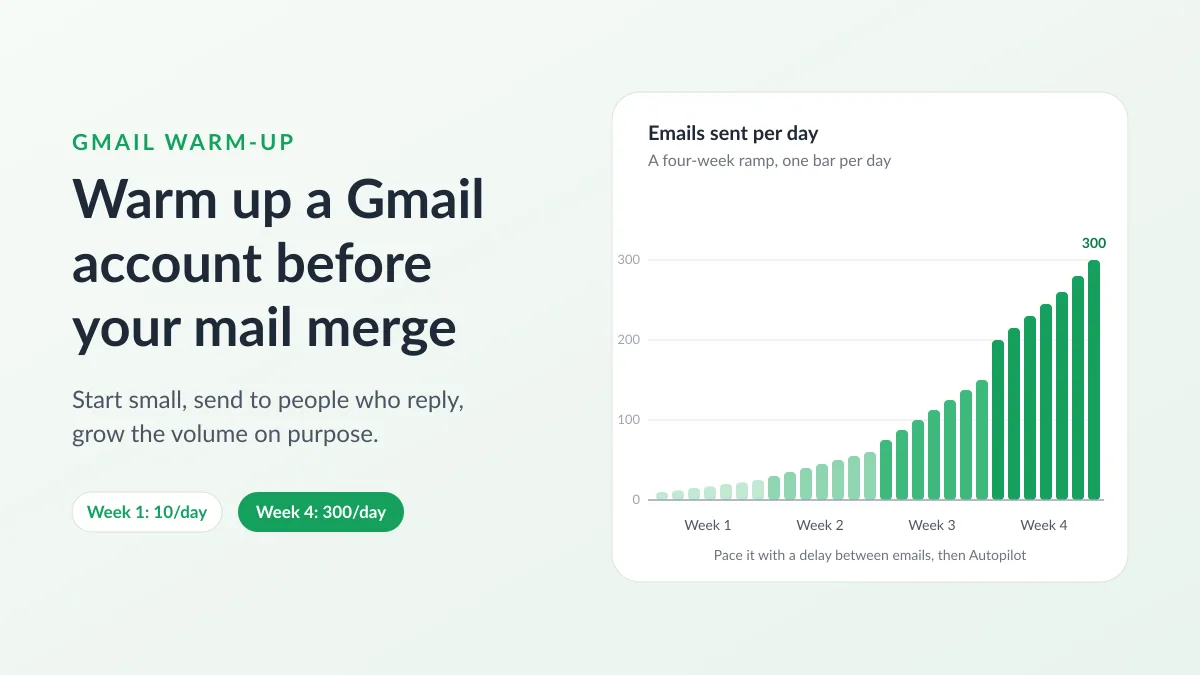
Gmail Warm-Up: How to Warm Up a Gmail Account Before a Mail Merge
Gmail warm-up explained with Google's own ramp-up rules: who needs it, a four-week manual schedule from Google Sheets, and how Mail Merge's warm-up works.

Mail Merge with CC and BCC in Gmail: Copy the Right People on Every Email
Learn how to run a mail merge with CC and BCC from Google Sheets, set up the columns, preview the result and see how copied recipients count toward your daily quota.

Gmail Sending Limit Reached: What It Means and How to Finish Your Campaign
Hit the Gmail sending limit reached error? Learn the real daily limits, when you can send again, and how to split a mail merge into safe daily batches.