


















Mail Merge Formatting Tips for Gmail Add-on Success
Master mail merge formatting in Gmail with step-by-step data prep, template styling, conditional logic, and troubleshooting to boost deliverability.
You finish a campaign, run a last preview, and spot the usual mess. A first name sits flush against the next word because the sheet had an empty value. A date shows up in the wrong regional format. A carefully styled block of text looks clean in your draft, then shifts once the merge runs. If you’re working from Gmail and Google Sheets, that kind of breakage usually happens at the formatting layer, not the copy layer.
Most mail merge advice still assumes a Microsoft Word workflow. That helps if you’re printing letters or generating documents, but it doesn’t solve the cloud-native problems that show up in Gmail add-ons. Gmail handles spacing differently, HTML support is narrower than many people expect, and Google Sheets introduces its own formatting traps around dates, numbers, and text values. The result is a gap between what looks right in your draft and what reaches the recipient.
There’s also one easy source of confusion worth calling out. When researching Mail Merge for Gmail, double-check that a page refers to that specific product and not a different tool with a similar descriptive name. The category name and the product name overlap, so it’s easy to mix up features across competitors.
Introduction to Cloud Based Mail Merge Formatting
Cloud mail merge fails in small, annoying ways before it fails in big ones. A greeting turns into “Hi,” because the name field is blank. A phone number loses formatting after someone pastes a new contact list into Google Sheets. A branded message built with rich formatting looks fine in compose view, then Gmail strips part of the styling when the send runs.
That problem is more common in Gmail workflows because the old Word habits don’t transfer cleanly. Word guidance focuses on field codes, print layout, and document styling. Gmail add-ons work closer to browser rendering, spreadsheet values, and email client constraints. Those are different systems with different failure points.
Broken mail merge formatting rarely starts in the template. It usually starts one step earlier, in the sheet.
The fix isn’t to make your emails fancier. It’s to make every layer more predictable. In practice, that means:
- Cleaning the sheet first so dates, numbers, names, and fallback values behave consistently
- Designing the template with variable content in mind so spacing and line breaks still work when fields expand or disappear
- Using conditional logic carefully so personalization doesn’t expose missing data
- Testing inside Gmail conditions rather than assuming a document-based preview tells the truth
Small businesses usually don’t need a complicated system for this. They need a repeatable one. When the sheet is structured well and the template is built for merge behavior, campaigns stop looking automated in the wrong ways and start looking intentional.
Preparing Source Data in Google Sheets
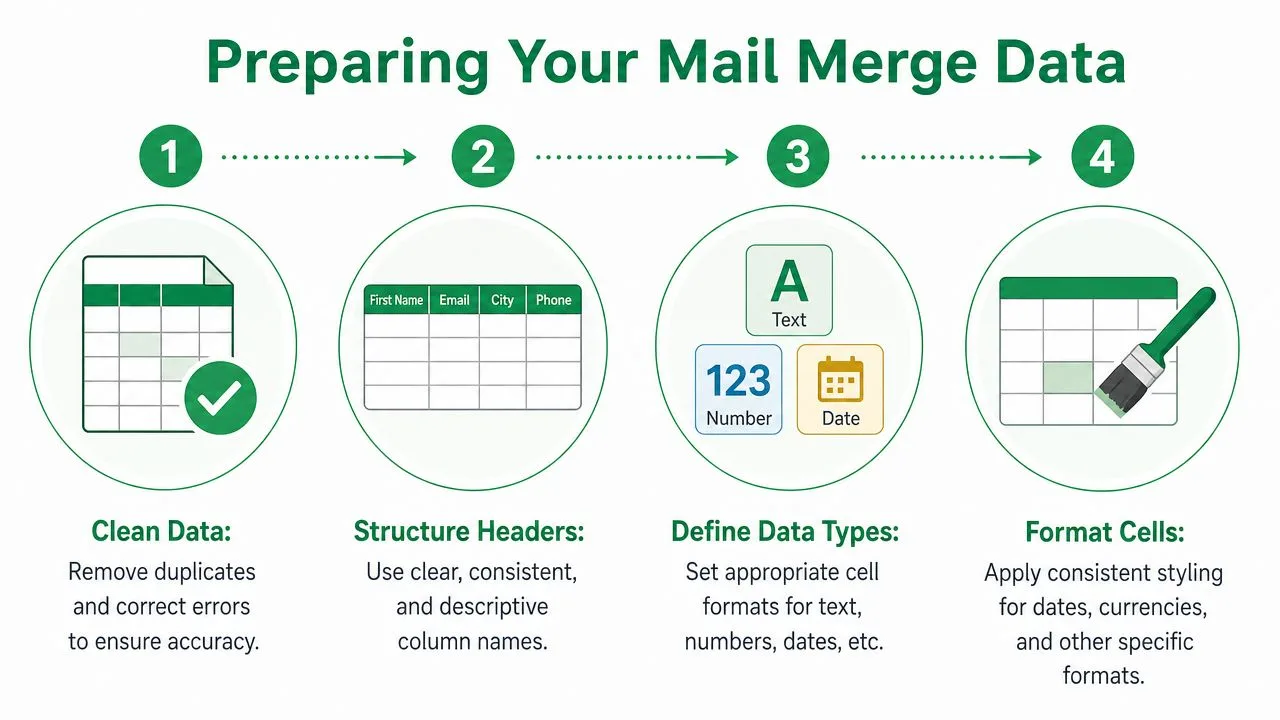
Mail merge formatting starts in the spreadsheet, even when the final output is an email. If the data is inconsistent, Gmail can’t rescue it later. Data formatting errors, especially in dates, phone numbers, and currency values, are the leading cause of merge failures, with 57% of technical pitfalls stemming from inconsistent source data or missing decimal precision in numeric fields, according to this breakdown of clean mail merge formatting pitfalls.
Set up the sheet like a production asset
Treat your Google Sheet as part database, part template input. That means stable headers, clean values, and no guesswork.
A solid layout usually includes columns like these:
| Column | Purpose | Common formatting issue |
|---|---|---|
| FirstName | Greeting personalization | Blank cells or extra spaces |
| Company | Business context | Inconsistent naming |
| StartDate | Scheduling or reminders | Regional format mismatch |
| Amount | Quotes or invoices | Missing decimals |
| Phone | Contact details | Lost leading zeros |
| FallbackGreeting | Backup salutation | Left empty when needed |
Clean the values before you write copy
A few habits prevent most formatting surprises:
- Use clear header names: Keep headers simple and consistent so your placeholders stay easy to map.
- Format columns intentionally: Dates should display one way across the whole column. Currency should use one pattern. Phone numbers need a format that preserves the exact value you want shown.
- Trim stray characters: Hidden spaces, copied punctuation, and odd symbols can break merges or make text look sloppy.
- Add fallback columns: If some rows don’t have a first name, create a value such as “there” or a fuller greeting alternative instead of leaving the field blank.
Practical rule: If a value would look awkward when dropped directly into a sentence, fix it in Sheets, not in the email body.
One cloud-specific issue catches teams all the time. A Google Sheet may use a different locale than the wording in the email. That matters for dates and number display. Some users convert cells to plain text to preserve formatting, but that can create downstream issues for sorting and automation. In Gmail-centered workflows, it’s usually safer to choose the display format in Sheets deliberately and verify merged output with live test emails.
If you’re building your first spreadsheet-driven campaign, this walkthrough on how to mail merge from Google Sheets is a practical reference for the setup sequence.
Build for missing data, not perfect data
Real contact lists aren’t complete. Someone will leave a company field blank. Someone else will paste a phone number in a different style. Your job is to assume imperfection and make the sheet resilient.
Use data validation where it helps. Review a few live rows manually before every send. And keep one sample row that reflects the messiest realistic contact, not the cleanest one. If the ugliest row still merges well, the rest of the campaign usually follows.
Building and Formatting Your Gmail Template
A Gmail template can look polished in draft view and still fall apart the moment Sheet data drops in. The usual failure points are small. A long company name wraps badly. A bold placeholder turns every merged value into a visual distraction. Extra spacing appears because the template was built around ideal sample data instead of real rows.
Match the field styling to the sentence around it
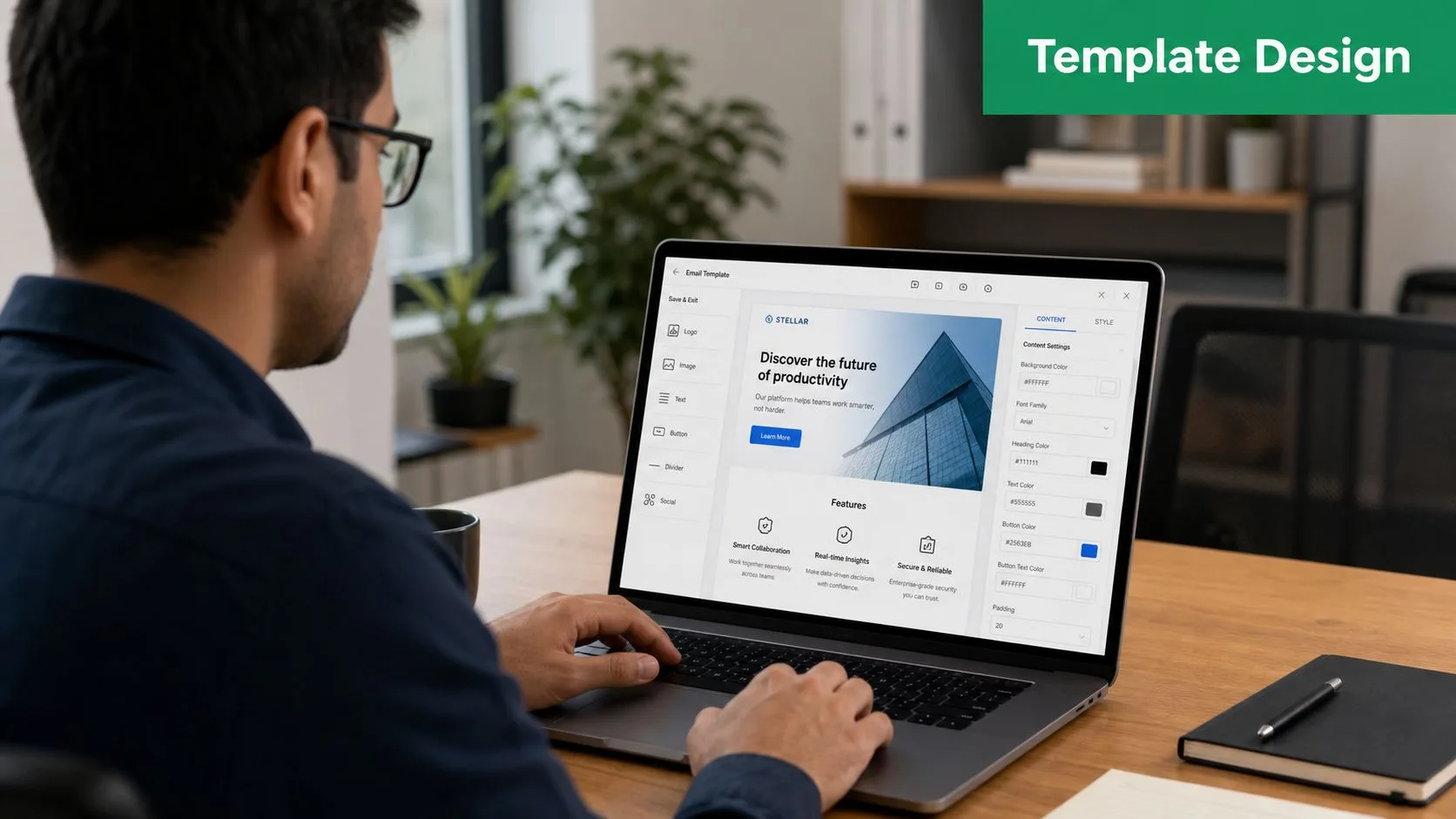
In Gmail and Gmail add-on workflows, placeholders should disappear into the sentence. If the surrounding copy is 11 pt Arial in regular weight, the merged value should inherit that same styling. Any mismatch gets amplified once the email is populated across hundreds of rows.
This matters more in Gmail than in Word-style merge tools because you have less layout control and more client-side rendering quirks. A placeholder in bold, a different font size, or a pasted text style from another editor can create visible breaks inside otherwise simple body copy.
A quick check catches most of this. Click into the line, remove any special styling around the placeholder, and format the whole sentence as one unit.
Design for length changes before you write polished copy
Short test values hide formatting problems. Real data exposes them.
A template that reads cleanly with “Amy” may look cramped with “Alexandria.” A tidy line with “Acme” may become awkward with “Northwest Regional Behavioral Health Partners LLC.” In Google Sheets based campaigns, that is normal. The template has to absorb those changes without looking patched together.
Use a few practical rules while drafting:
- Leave a natural space before and after each placeholder.
- Keep paragraphs short enough that one long value does not turn the email into a wall of text.
- Use one body font, one link style, and minimal brand color.
- Test with your longest realistic values, not your cleanest sample row.
I also recommend drafting one version with deliberately ugly data. Long names. Long titles. Missing optional fields. If that version still reads smoothly in Gmail preview and in a live test send, the template is usually stable.
Build for Gmail’s actual merge limits
Template choices depend on the merge method. Gmail’s native mail merge only supports @firstname, @lastname, @fullname, and @email, as documented in Google’s help page for Gmail mail merge tags. It does not pull custom columns from Google Sheets into the body or subject line.
That limitation changes how you format the message. If the campaign needs fields like company, role, renewal date, or custom offer language, build the template inside a Gmail add-on workflow from the start. Do not format the email as if native Gmail tags will handle Sheet data later. They will not.
Mail Merge for Gmail handles that Google Sheets to Gmail workflow more cleanly. You can map custom columns to placeholders, keep the drafting process inside Gmail, and format the email around the fields you will use.
If custom Sheet columns drive the message, choose the add-on first, then write and format the template around its placeholders. That avoids rework in the body copy, subject line, and spacing.
Implementing Advanced Personalization Logic
Basic merge tags personalize names. Good logic personalizes the message without exposing missing data. That’s the difference between a mail merge that feels deliberate and one that looks assembled.

Use fallback text before you use clever logic
Fallback values do the unglamorous work. If a first name is missing, the email should still open naturally. If a company is missing, the sentence should still read well. In document-style merge systems, fallback values like “Hi there” instead of “Hi ” reduce empty field errors sharply and help avoid an automated feel, but the broader lesson applies across Gmail workflows too.
A few reliable patterns:
- Greeting fallback: Use a backup salutation when name data is incomplete.
- Company fallback: Rewrite the sentence so the company field is optional, not required.
- Optional block fallback: If a field controls a whole sentence, hide the sentence when the field is empty.
Example:
- Weak version: “Hi {FirstName}, I noticed your team at {Company}…”
- Stronger version: “Hi {GreetingName}, I noticed your team…”
That second version gives you more room to protect the message if the company field is blank.
Respect the HTML-to-email gap
A lot of advanced personalization problems aren’t really logic problems. They’re rendering problems. Users often run into the HTML-to-Email rendering gap when merging directly into Gmail, and standard Word field switches can’t preserve complex CSS and images, which can lead to broken layouts in Gmail clients if not handled carefully, as discussed in this video on HTML rendering issues in Gmail-based merge workflows.
That matters when you’re tempted to build logic-heavy HTML blocks with custom styling. Gmail doesn’t behave like a web browser, and it definitely doesn’t behave like Word. Keep conditional sections visually simple.
A short walkthrough helps when you’re planning more dynamic sends:
Where advanced fields usually help
The practical use cases aren’t exotic. They’re operational.
-
Segmented closing lines
Add a different closing sentence for leads, customers, or partners. -
Attachment control
Only include an invoice or file when the row calls for it. -
CC and BCC rules
Route internal stakeholders into certain messages without doing it manually each time.
The safest personalization logic removes awkwardness. It doesn’t try to impress the recipient with complexity.
If a rule makes the template harder to preview than the value it adds, cut it. The cleanest campaign often wins.
Styling Plain Text and HTML Emails
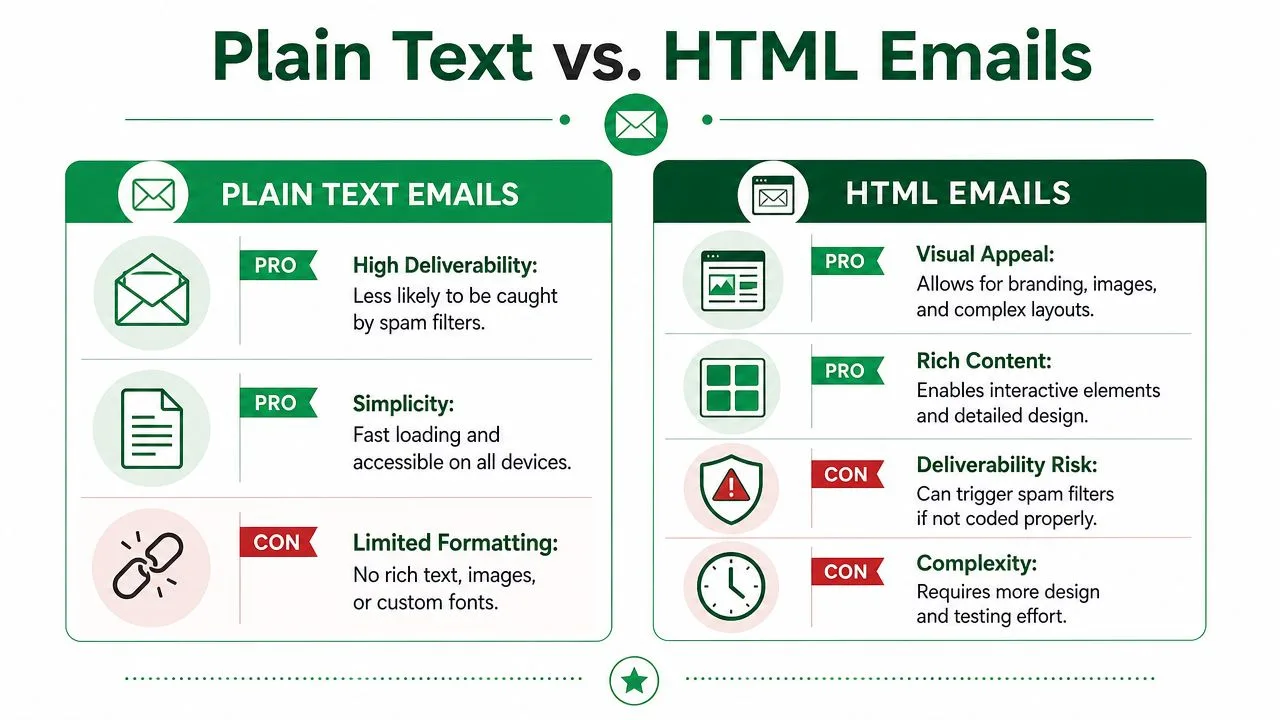
Plain text and HTML serve different jobs. Neither is automatically better for mail merge formatting. The right choice depends on what the message needs to do and how much rendering risk you’re willing to manage.
How the two formats behave
| Format | What it does well | Where it causes trouble |
|---|---|---|
| Plain text | Reads like a direct one-to-one note and keeps formatting simple | No layout control, no visual branding |
| HTML | Supports branding, structure, buttons, and richer presentation | More fragile in Gmail and other clients |
Plain text is the safer choice when the goal is a personal outreach email, recruiting note, or simple customer update. Line breaks matter a lot here. Keep paragraphs short, avoid giant blocks, and preview with missing-field scenarios so spacing still reads naturally.
HTML works better when brand presentation matters. A newsletter, event reminder, or customer announcement may need structure, images, or visual hierarchy. But Gmail can strip or reinterpret parts of HTML, so keep the markup lean and rely on inline styling that survives common email client behavior.
What tends to work in practice
- Plain text choice: Use it when the message should feel conversational and direct.
- HTML choice: Use it when branding or layout matters enough to justify testing effort.
- Hybrid mindset: Even in HTML emails, write copy so it still reads cleanly if styling weakens.
If you’re designing for different screen sizes and inbox environments, this guide to responsive email design is worth reviewing alongside your template build.
A polished email isn’t the one with the most styling. It’s the one that still reads well after the client has done its worst to it.
Previewing and Troubleshooting Deliverability
A mail merge should never go from draft straight to full send. Previewing isn’t a courtesy step. It’s where you catch the problems that the sheet and template hid from you.
Test the message like a recipient will see it
Send small live tests to yourself and a colleague. Use sample rows with edge cases, not just clean records. Check the version with a long name, the one with a missing company, and the one with a differently formatted date.
A good pre-send review includes:
- Merged content check: Confirm every placeholder resolves correctly.
- Spacing check: Read the message out loud and look for jammed words, blank greetings, and strange line breaks.
- Client check: Open the test in Gmail on desktop and mobile.
- Status check: Review what your add-on writes back to the sheet so you can spot sends that fail or rows that don’t process as expected.
Know the limits before you schedule volume
If you’re using Gmail’s native feature, Google Workspace mail merge has a hard daily cap of 1,500 recipients per user account, applied to unique addresses in any rolling 24-hour period, according to Google Workspace sending limits documentation. That limit is specific to mail merge, not the broader standard sending cap.
That affects formatting decisions more than people think. If a send fails halfway through testing because you’re rushing volume, fixing the template becomes slower. Staggering sends gives you room to inspect outcomes and correct issues before the next batch.
Troubleshooting the failures that matter
Most formatting-related send issues come down to a few categories:
- Unrecognized fields: The template placeholder doesn’t match the sheet header or supported tag type.
- Regional mismatch: Date or number display doesn’t align with how recipients should read it.
- Broken layout: HTML or rich formatting doesn’t survive Gmail rendering.
- Incomplete personalization: Blank values create awkward copy because no fallback was built in.
For a tighter pre-send process, this checklist on email template testing helps catch structural problems before the campaign reaches a full audience.
Good mail merge formatting isn’t about making email look fancy. It’s about making variable data behave. If you want a Gmail and Google Sheets workflow that supports custom fields, previews, tracking, and spreadsheet-based status updates inside one process, take a look at Mail Merge for Gmail.
Ready to send your first campaign?
Install Mail Merge for Gmail from the Google Workspace Marketplace and send up to 50 personalized emails per day for free.
Get started for freeMore reading
More from Tips
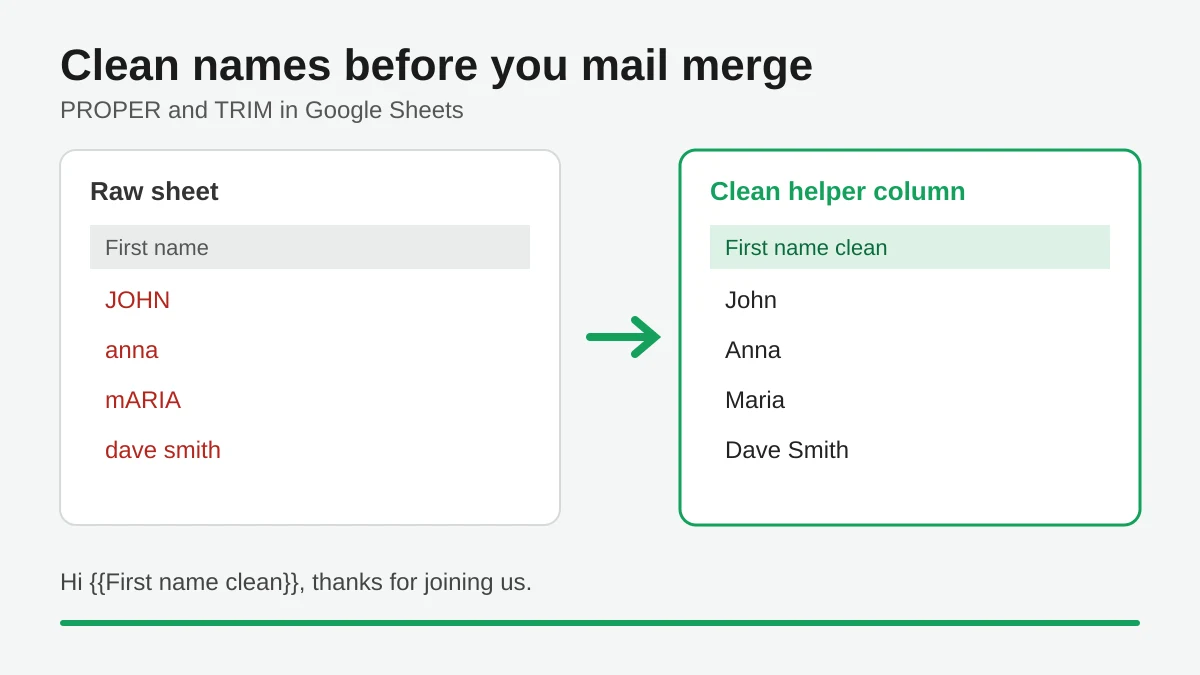
Mail Merge Names Capitalization: Clean Your Google Sheet Before You Send
Fix wrong capitalization and stray spaces in names before a mail merge. Use PROPER, TRIM and a helper column in Google Sheets so every merged email greets people correctly.
Track Email Opens in Gmail
Learn to track email opens in Gmail with clear setup steps, Sheets status updates, troubleshooting tips, and privacy guidance for reliable outreach results.
10 Email Campaign Best Practices for Better Results
Use these 10 email campaign best practices to improve targeting, deliverability, engagement, testing, compliance, and conversions with Mail Merge for Gmail.