


















Bounce Back Messages Explained and How to Fix Them in Gmail
Learn what bounce back messages mean, how to read SMTP codes, troubleshoot delivery failures, and protect sender reputation with Gmail mail merge tools.

Your inbox gets a bounce notice after you’ve already moved on to the next task. A campaign went out from Gmail, replies started to trickle in, and then a message with a subject like Mail Delivery Failed lands in the wrong place at the wrong time. That message isn’t a personal reply, and it isn’t noise. It’s a diagnostic from the receiving system, and if you read it correctly, it tells you what broke, where it broke, and whether you should retry, suppress, or investigate reputation.
For small teams, that distinction matters. A bounce back message is an operational signal, not a verdict on the whole campaign. Treat it like telemetry, and it starts protecting your sender reputation instead of sitting in your inbox as clutter.
Why Bounce Back Messages Are Showing Up in Your Inbox
A bounce notice usually appears after the original send because the receiving mail server needs time to process the message, decide whether to accept it, and return a Delivery Status Notification if something goes wrong. The original email may have left Gmail minutes, hours, or even longer before the failure notice reaches you. That delay is normal, especially when the remote server is slow, temporarily unavailable, or running its own checks.
The notice also may arrive in a different mailbox from the one that sent the campaign. The bounce follows the message’s return-path, so a shared sending setup, a forwarding rule, or a team mailbox can change where the report lands. What matters is not the inbox location, but the fact that the server has handed you a machine-generated record of delivery failure.
Read the notice as a signal, not clutter
A bounce back message is a record of what the receiving system saw. That record helps you separate a bad address from a temporary server issue or a policy rejection, which changes the next action you take with the contact and the list.
Practical rule: if a bounce notice shows up, pause before resending. Read the code first, because the code usually tells you whether the right move is retry, suppress, or escalate.
That habit protects sender reputation. Bounce notices work best as telemetry, the same way a small team might watch a shared spreadsheet for repeated failures instead of treating each one as an isolated mistake. Oracle’s deliverability guidance says to keep hard bounces at 2% or less and overall bounce rate at 5% or less (Oracle bounceback guidance). For a campaign of 10,000 emails, that means trying to stay below 200 hard bounces and 500 total bounces in line with common best-practice limits. When bounce notices are treated like telemetry, those thresholds become a working target instead of a vague warning.
What a Bounce Back Message Contains
A bounce back message is usually a DSN or NDR, which stands for Delivery Status Notification or Non-Delivery Report. It is a structured report, not free-form text. The mail server that could not deliver your email sends back machine-readable fields that describe the failure, and those fields are the part that matters when you are debugging delivery.
The part that often trips up new senders is the syntax. You will often see angle brackets, header blocks, and a sender address that looks empty. That is normal. The report is built for mail systems first, then for people reading it after the fact.
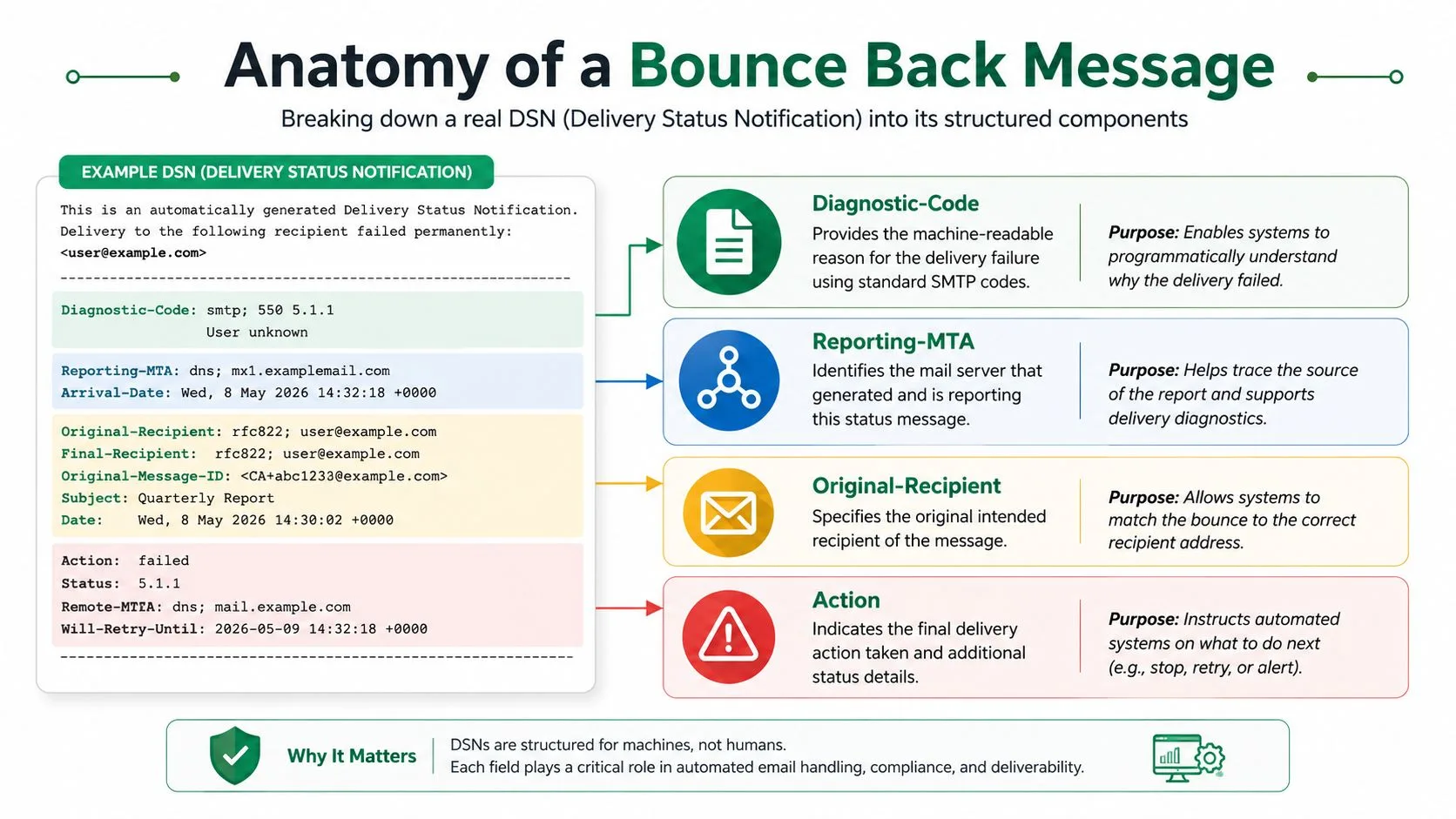
The parts that matter most
Start with the return-path, because that is where the bounce notice is sent. In many DSNs, that sender is a null address, written as <>, which signals that the message is automated and not a person replying. That detail is useful in practice, because it helps you treat the notice as delivery telemetry rather than inbox chatter.
Then find the Diagnostic-Code line. It is usually the clearest explanation of what went wrong, and it sits near the SMTP status code. You will also see a Reporting-MTA field, which names the mail transfer agent that generated the report, plus Original-Recipient or related recipient fields that identify the address being discussed. The structure lets you trace the failure back to one specific contact instead of guessing across the whole list.
A simple reading order keeps the report from feeling noisy:
- Return-path or sender: confirms the notice is automated.
- SMTP status code: shows the failure class.
- Diagnostic text: gives the human-readable reason.
- Recipient field: confirms which address bounced.
- Server details: show where the failure surfaced.
That sequence works like reading a repair ticket. The headline tells you the category, the body gives the reason, and the server fields tell you where the mail stopped.
The bounce message is the record. The status code is the headline. The diagnostic text is the reason.
If you want a visual comparison with a real DSN, the guide from EmailScout on bounces is a useful companion after you have learned to read the machine fields yourself.
Hard Bounces vs Soft Bounces and Why the Difference Matters
A bounced email is not one category. The first question to ask is simple, does the address fail permanently, or is the receiving system only refusing it for now? That split gives you hard bounces and soft bounces. Hard bounces point to a permanent failure. Soft bounces point to a temporary one.
That distinction changes how a small team should handle the contact record. A hard bounce means the address should come out of the active list. A soft bounce means the message may still reach the mailbox later, so the pattern matters more than the single event.
Hard bounces are the addresses you should remove
Hard bounces usually appear when the address does not exist, the domain is blocked, or the receiving server rejects the message for a permanent reason. A policy rejection can also land here when the remote side is saying it will not accept mail from your sending setup. Retrying does not change the outcome, because the destination itself is not becoming valid later.
For teams using Gmail, it helps to read the bounce message alongside your outgoing path. A message may fail because of the address, or because the server chain behind it is misconfigured. A short reference on outgoing email servers can help you separate recipient problems from sender-side routing issues before you touch the list.
Soft bounces are the ones you watch
Soft bounces work differently. A mailbox may be full, a server may be down, a message may be too large, or a temporary filter may slow acceptance. In those cases, letting the receiving system retry can make sense. Guidance on bounce handling commonly recommends immediate suppression of hard-bounced addresses and suppression after roughly 3 to 5 consecutive soft bounces when the failure keeps repeating (bounce message guidance).
That split matters because it keeps live contacts in play without carrying dead ones along. A small team that treats every bounce the same way ends up with a dirtier list, more repeat failures, and more strain on sender reputation than necessary.
For a practical overview of bounce rate math and list hygiene, the guide from EmailScout on bounces is a helpful companion when you are building your own triage rules. The goal is straightforward, remove permanent failures quickly and give temporary failures a short, controlled window.
Reading Common SMTP Bounce Codes Without the Jargon
The code is the fastest way to decide what kind of problem you’re looking at. A 5.x.x code usually points to a permanent failure, while a 4.x.x code usually points to a temporary failure. That’s the first filter, and it’s the one that saves the most time.
Start with the status class
A 550 5.1.1 response usually means the recipient doesn’t exist. In practice, that’s a hard bounce and the address should be suppressed. A 452 response often points to a mailbox or storage limit, which is why it behaves like a soft bounce instead of a permanent rejection.
A 451 code generally means the remote server is temporarily unavailable or not ready to accept the message yet. That’s different from a 550, which is saying the message is not acceptable in a permanent way. One asks you to wait and retry, the other asks you to stop sending to that address or revisit the sending setup.
Policy codes are not the same as bad addresses
A 5.7.1 response usually points to policy or security rejection. That can mean sender authentication problems, reputation issues, or filtering rules rather than a typo in the recipient address. If you keep seeing that code, the fix usually lives on the sender side, not in the contact list.
For teams that send from Gmail, this is the important mental model, the bounce code tells you which category of fix you need. It doesn’t just say “delivery failed.” It points toward retry, suppress, or investigate authentication.
If you want a deeper look at the sending side, this outgoing email servers guide is a useful reference for understanding how messages leave a mailbox and where failures can surface along the way.
Action rule: if the code starts with 5, treat it as a suppression candidate unless the diagnostic text clearly says the problem is on your sending side. If it starts with 4, give it a short retry window and watch for repeated failure.
A Step-by-Step Workflow to Troubleshoot a Bounce in Gmail
The fastest way to handle a bounce is to turn it into a repeatable checklist. Start with the notice itself, then move to the recipient row in your sheet, then decide whether the failure belongs in the list, the message, or the sending configuration. That sequence keeps panic out of the process.
Work the problem in order
- Find the bounce notice. Look in the inbox that received the automated report, not just the Sent folder. If the bounce came through a team mailbox or forwarding address, keep that path in mind.
- Read the SMTP code first. The code tells you whether the issue is temporary or permanent.
- Check the recipient address. A typo, a stale record, or a disabled mailbox changes what you do next.
- Match the code to the likely fix. Remove a hard bounce, wait on a soft bounce, or check sender authentication if the rejection points that way.
When a code like 5.7.1 repeats, don’t keep guessing at the list. Check whether your sender domain is aligned on SPF, DKIM, and DMARC, because policy rejections often come from that layer rather than from the recipient address itself. If the address is valid and the domain is still getting rejected, the problem is usually not the contact.
A second useful habit is to inspect the original message headers in Gmail. That helps you confirm which version of the message went out, which recipient it was tied to, and whether the failure looks isolated or tied to a broader send. Once you know that, mark the row in your spreadsheet so the same address doesn’t get picked up again by accident.
If you need a process for tracing where a message landed, this how to trace emails guide is a practical companion to the bounce code itself. The combination of headers plus DSN gives you the best view of what happened.
Preventing Bounces With List Hygiene and Authentication
A bounce is easier to prevent than to repair after the send. The first filter is list hygiene, because stale contacts, obvious typos, and low-intent signups are the quickest ways to fill a sheet with addresses that will not deliver. The practical question is simple, which rows deserve to stay in the next send, and which rows should be removed before they create another failure.
Hygiene first, then trust signals
Verification before send gives you the first line of defense. Double opt-in helps newsletter lists confirm intent, and it lowers the chance that a bad address enters the system at all. Role-based addresses like info@ or support@ often behave differently from individual mailboxes, so many teams leave them out of marketing sends to avoid avoidable failures.
Authentication is the other half of prevention. SPF, DKIM, and DMARC help prove that a message is coming from the sender it claims to be, which lowers the chance of policy rejection when the address itself is valid but the mail is still being blocked. If you want a plain-language overview of that layer, the email authentication guide is a useful reference.
For broader deliverability habits, the how to improve email deliverability guide gives a useful outside view of the same idea, keep the list healthy and the sender identity clean. Oracle’s benchmark guidance still applies here, hard bounces at 2% or less and total bounces at 5% or less (Oracle bounceback guidance). For a small team, those work as practical guardrails rather than abstract theory.
A clean list and trusted authentication do more for delivery than a clever subject line ever will.
How Mail Merge for Gmail Tracks and Logs Bounces
A bounce is much easier to manage when it shows up as a row in your sheet instead of a buried notice in an inbox. Mail Merge for Gmail writes per-row delivery and engagement statuses back into the spreadsheet, so you can see which contacts were Sent, Opened, Clicked, or Replied without hunting through email logs. That turns bounce handling into a visible workflow instead of an after-the-fact cleanup job.
Use the sheet as your control panel
Once a contact bounces, the row can be filtered, paused, or removed before the next send. That matters because bounce-prone rows tend to keep creating the same problem if they stay in circulation. A visible status field gives a small team a simple way to keep bad addresses out of the next campaign and keep the list cleaner over time.
Mail Merge for Gmail also supports personalization across subject lines, body content, CC/BCC, attachments, and custom HTML templates, which helps teams keep the sending process inside Gmail and Google Sheets. That’s useful when you want one place to manage the list, the template, and the send status without switching tools for every campaign.
The practical value is in the workflow, not the label. Once bounce history is recorded next to the contact, you can segment future sends more carefully, stop resending to problem addresses, and protect reply rates by keeping the list current. Scheduled resends and unsubscribe management help with that too, because they reduce repeated delivery attempts to addresses that are already showing signs of failure.
That loop closes the circle from the earlier sections. Bounce messages stop being random inbox clutter and become one more operational signal that improves sender reputation over time.
Bounce Back Questions Small Teams Ask Most
Do bounce back messages hurt sender score directly? They can, because repeated hard bounces and unresolved soft bounces are signals that list quality or sending practices need attention. The message itself is the warning, but the pattern is what affects reputation.
How long should a soft bounce be retried? Let the mail system finish its automated retries first, then decide. If the same contact keeps bouncing after several attempts, suppress it instead of letting it sit on the list.
What if a contact hard-bounced after previously delivering? Treat it as a new failure, not a permanent exception. Mailboxes get closed, employees leave, and valid addresses can become invalid later.
Can DMARC reports reveal bounces that never produced a notice? They can sometimes help you spot authentication or policy issues that don’t show up as a clean bounce notice, especially when the receiving side filtered the message before a normal DSN came back.
If you want a simple way to keep bounce handling tied to the same Gmail workflow your team already uses, Mail Merge for Gmail gives you per-row delivery status, tracking, and spreadsheet-based visibility in one place. It helps you spot bounced addresses, keep your list cleaner, and act on delivery problems before the next campaign goes out.
Ready to send your first campaign?
Install Mail Merge for Gmail from the Google Workspace Marketplace and send up to 50 personalized emails per day for free.
Get started for freeMore reading
More from Tutorials
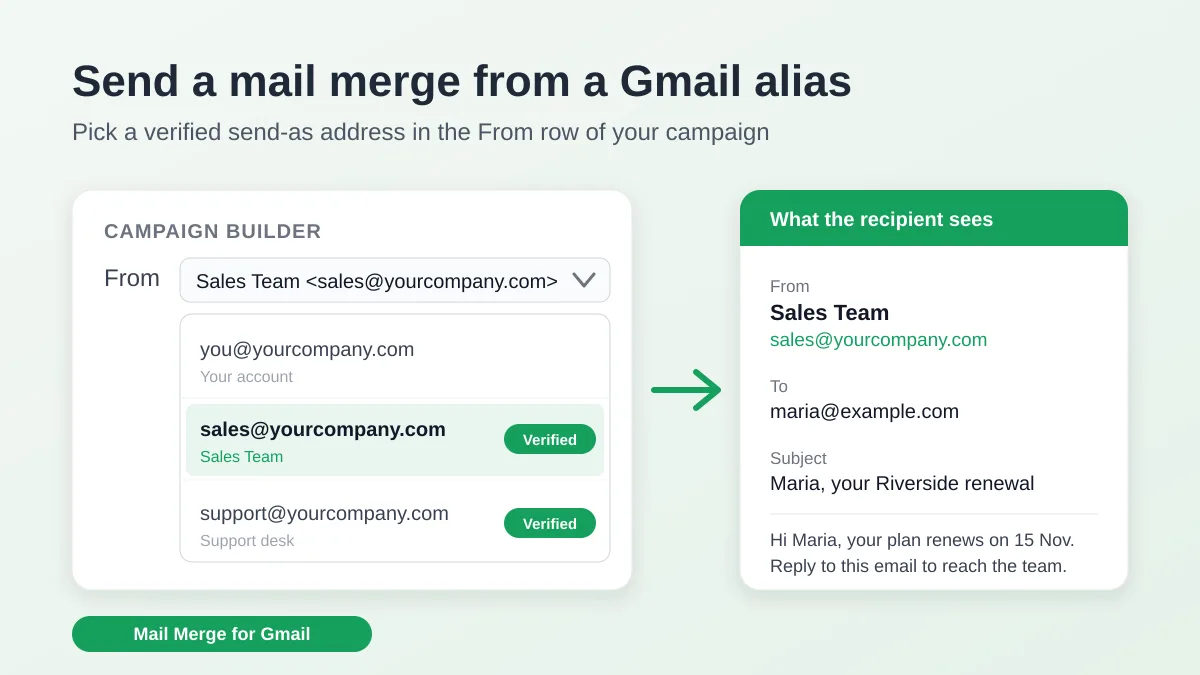
Send a Mail Merge from a Gmail Alias or Shared Mailbox
Send a mail merge from a Gmail alias, group or shared mailbox: set up Send mail as in Gmail, verify the address in Mail Merge and keep replies working.
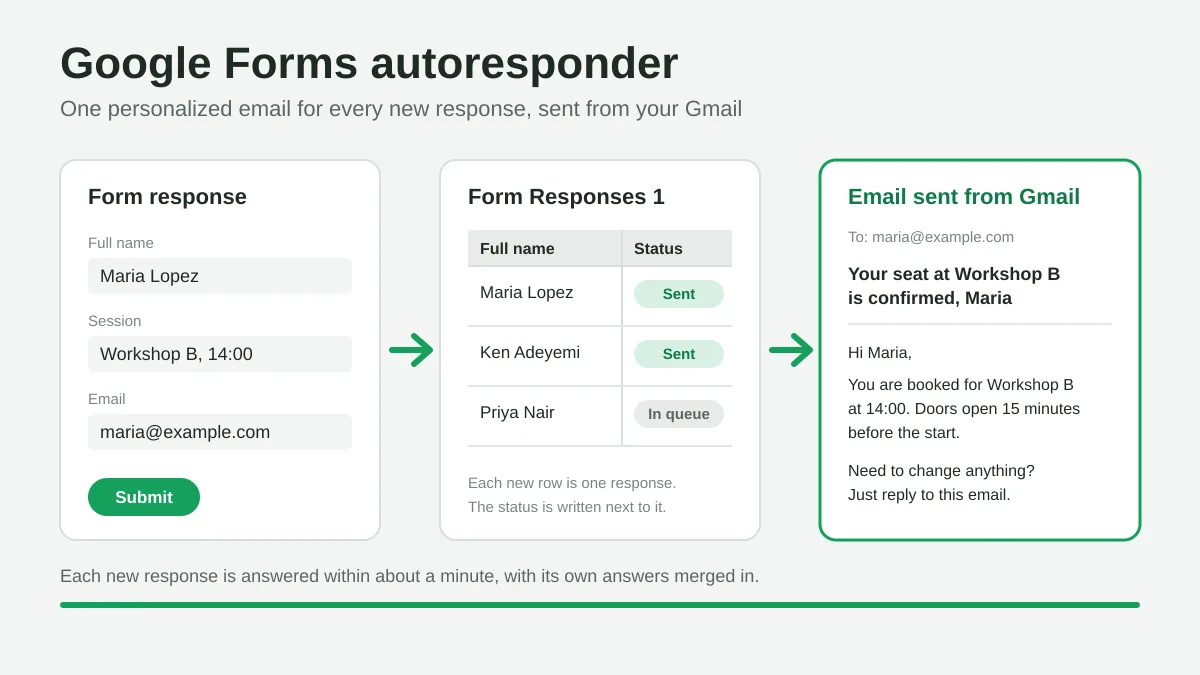
Google Forms Autoresponder: A Personalized Email for Every Response
Set up a Google Forms autoresponder that emails every new response from Gmail, personalized with the answers, using Google Sheets and Mail Merge for Gmail.
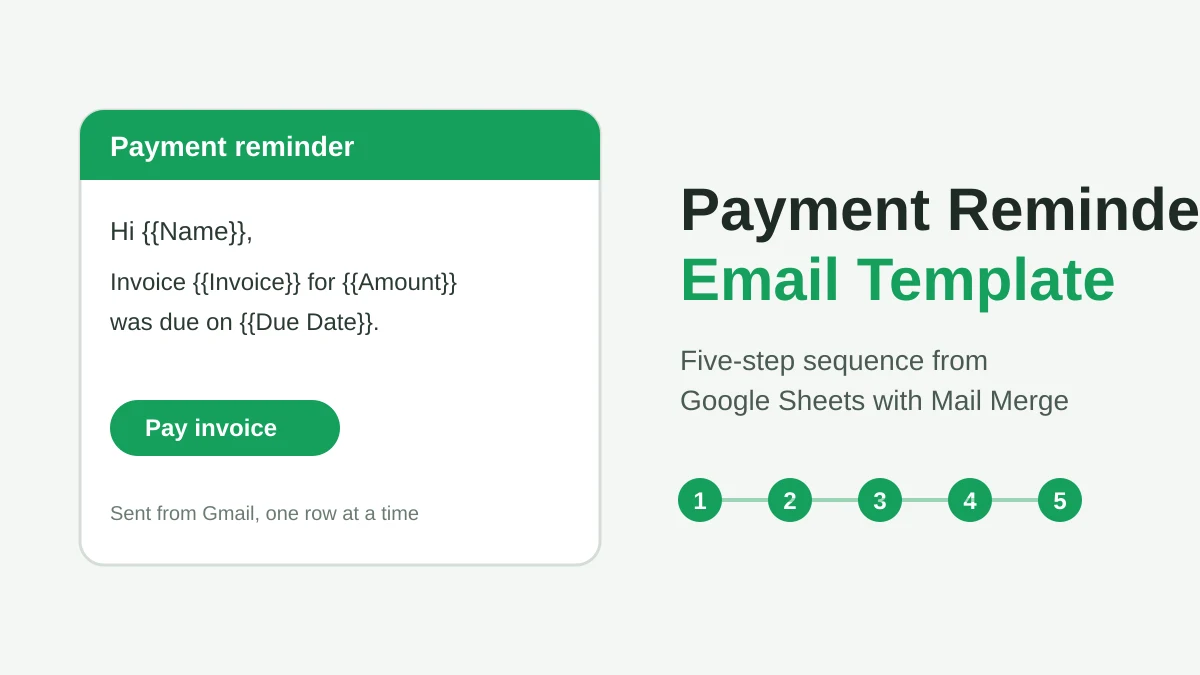
Payment Reminder Email Template: Five Messages You Can Send from Google Sheets
Copy a payment reminder email template for each stage of an overdue invoice, then send every reminder from Google Sheets through Gmail with personalized merge fields.