


Gmail Templates: How to Create, Use and Personalize Them
Turn on Gmail templates, then create, insert, edit and delete one. See what templates cannot do and how a mail merge personalizes each recipient's copy.
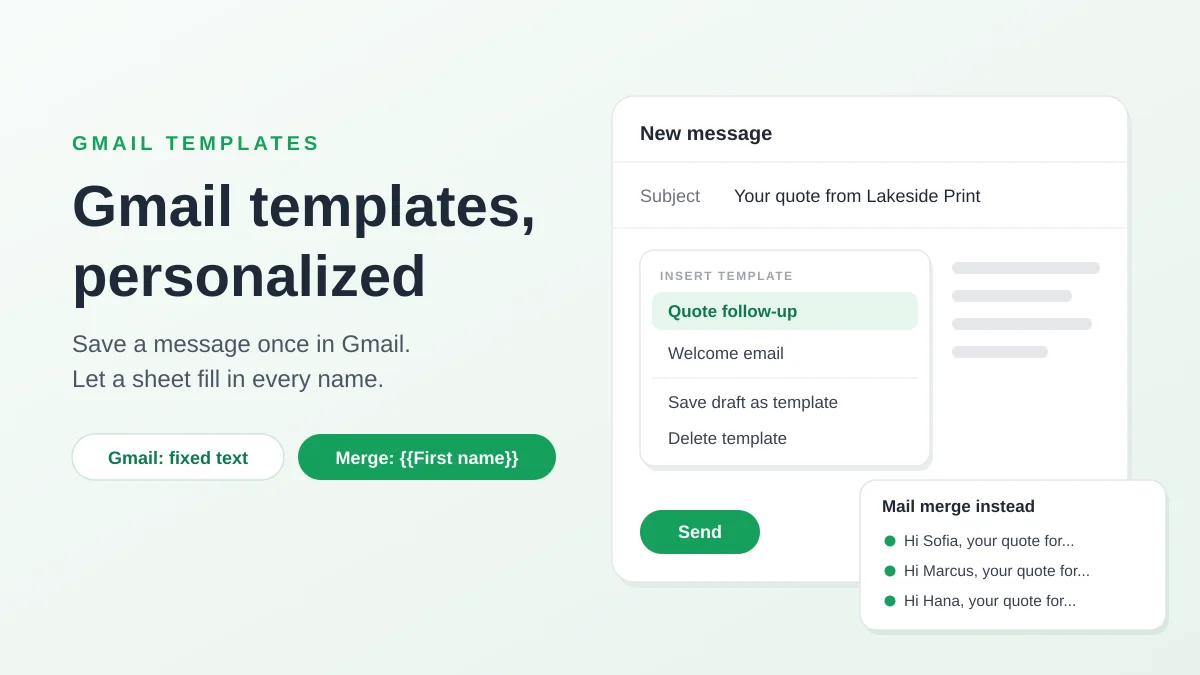
Gmail templates are saved messages that you insert into a new email or a reply in a few clicks, so you stop retyping the same answer. The feature is switched off by default, which is why many people never find it: you enable it under Settings, See all settings, Advanced, then save any draft from the three-dot More options menu of the compose window. This guide follows Google’s own instructions for each step, lists what a template cannot do, and shows how to personalize one when the same message goes to many people.
Turn on Gmail templates: they are off by default
Google’s help page, Create a template in Gmail, gives the switch in five steps:
- Open Gmail on a computer. The setting does not exist in the mobile apps.
- Open the full settings. At the top right, click the Settings gear, then See all settings.
- Go to the Advanced tab at the top of the settings page.
- Enable Templates. Next to “Templates”, click Enable.
- Save. Scroll to the bottom and click Save Changes.
From then on, a Templates entry sits in the More options menu of every compose window.
The same page opens with a restriction that explains most “where are my templates” questions: you can only turn on and use message templates from Gmail on your computer. Google’s Workspace Learning Center repeats it in its tips for sending email in Gmail: email templates are available only in Gmail on the web, and they are not available in the Gmail mobile apps.
Create, insert, edit and delete a Gmail template
Everything happens in one place: the More options button (three vertical dots) at the bottom of the compose window, then Templates. The steps below are the ones on Google’s help page.
Save a message as a template
- Write the message. Click Compose and type the text you want to reuse, with its subject line.
- Open the Templates menu. At the bottom of the compose window, click More options, then Templates.
- Save it. Click Save draft as template, then Save as new template.
- Name it. Gmail asks for a name. Keep the subject line or type a more descriptive title, then click Save.
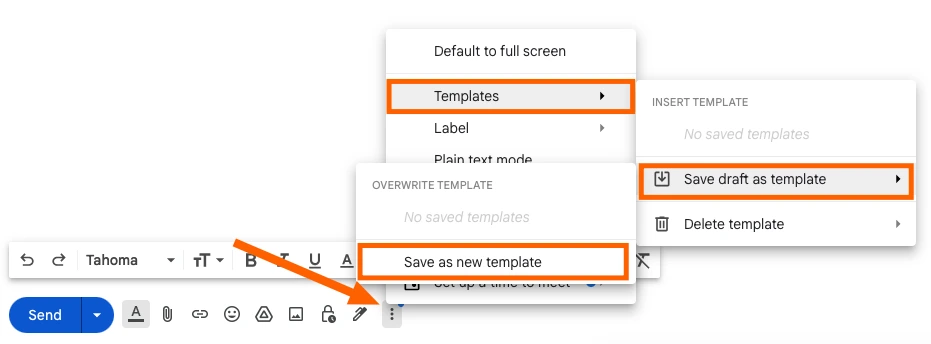
The naming step and three practical details are not on Google’s page. They come from Zapier’s walkthrough of Gmail templates, last updated in February 2025:
- The name becomes the subject. The title of the template automatically populates the subject line when you use it. Name each template the way its subject should read, or check the subject before every send.
- Recipients are not saved. Leave the To line empty when you save, and add the people each time.
- Attachments do not come along. You cannot add attachments directly to a template. The workaround is to insert a Google Drive file with Add as link before saving, which keeps the link in the text.
Google’s Learning Center adds that a template can also include your signature.
Insert a template into an email
- Click Compose.
- Open More options, then Templates.
- Pick the template under “Insert template”.
- Finish and send. Add the recipients, change what needs changing, and click Send.
The template arrives as ordinary text that you can edit before sending. Google’s Learning Center presents the feature as a cure for typing the same reply to a common question.
Edit or delete a template
Gmail has no separate editor for templates. To change one, you save over it:
- Insert the template into a compose window and make your changes.
- Open More options, then Templates, and click Save draft as template.
- Choose the template to replace under “Overwrite Template”, then click Save.
To remove one, open the same menu, click Delete template, choose the template and click Delete.
Send a template as an automatic reply
A template can also answer for you. Google’s page says that to send a template as an automatic reply, you must create a filter:
- Open the filter form. In the search box at the top of Gmail, click Show search options and enter your criteria, for example a sender or words in the subject.
- Click Create filter.
- Tick “Send template” and choose the template.
- Click Create filter again to confirm.
Every matching message then receives the same reply, word for word. When the trigger is a form submission and each person should get their own details back, a Google Forms autoresponder is the better fit.
What Gmail templates cannot do
Google describes a template as a message whose information “doesn’t change frequently”. In other words, a template is fixed text, and its limits follow from that.
| Limit | What it means in practice | Stated by |
|---|---|---|
| Computer only | No creating or inserting templates in the Gmail apps for Android and iPhone | Gmail Help, Workspace Learning Center |
| Fixed text | No fields that fill themselves in. You type each name, date and amount by hand | Gmail Help describes saved text only |
| No recipients | The To line is not stored with the template | Zapier |
| No attachments | Files are not kept. A Google Drive link in the text is | Zapier |
| No shared library | The only way to share a template is to email it, so the other person can save a copy | Zapier |
| No undo | A deleted template cannot be recovered | Gmail Help |
Two more points come up often:
- The number of templates. Many guides repeat a cap of 50 templates per account. Neither of Google’s two pages states a maximum, so treat that figure as unconfirmed and keep your list short enough to scan in the menu.
- Design. A template is not a layout. For a branded look with a logo, colors and buttons, Gmail has a separate feature called Layouts, which Google’s page on branded emails with customized layouts lists for Workspace Individual and for the Standard and Plus editions of Business, Education and Enterprise. Our guide to Gmail layouts covers it.
Gmail templates with variables: three ways to personalize
The limit people hit first is the second row of that table: a template that opens with “Hi there” says “Hi there” to everyone. There are three ways around it, from the most manual to the most automatic.
1. Bracket placeholders that you fill in by hand
Write the template with obvious gaps, such as “Hi [NAME], your quote for [PRODUCT] is [PRICE]”, and replace them in each message. Zapier’s advice is to make placeholders as obvious as possible: all caps, bold text, bright colors and brackets. This works for a few emails a day. Its weak point is the bracket you forget to replace.
2. Gmail’s built-in mail merge
Gmail can fill in names by itself, in a different feature. Google’s page on sending personalized emails with mail merge describes it:
- Tags. You type @ in the message and pick @firstname, @lastname, @fullname or @email. If you link a spreadsheet, its columns become tags too.
- Plans. It needs an eligible Google Workspace plan: Workspace Individual, Business Standard or Plus, Enterprise Standard or Plus, Education Standard or Plus. A free @gmail.com account is not on that list.
- Limits. Merge tags cannot be used in subject lines or in hyperlinked text. Mail merge cannot be combined with a reply, a forward or Schedule send, and it reaches at most 1,500 recipients a day.
Our guide on how to enable mail merge in Gmail shows where the button is.
3. A template with merge tags, filled from a Google Sheet
The third way keeps the idea of a saved template and adds the variables. With Mail Merge for Gmail, an add-on for Google Sheets, a template contains merge tags: the name of a column of your sheet, written in double curly braces, such as {{First name}}. Each row of the sheet becomes one email, sent from your own Gmail account, with the tags replaced by that row’s values. It works on free @gmail.com accounts and on Google Workspace, and tags work in the subject line as well as in the body.
| Gmail template | Gmail mail merge | Mail Merge for Gmail template | |
|---|---|---|---|
| Account | Any Gmail account, on a computer | Eligible Google Workspace plans only | Free @gmail.com and Google Workspace |
| Personalization | None, you edit by hand | @firstname, @lastname, @fullname, @email, or spreadsheet columns | Any column of your sheet, as a tag in double curly braces |
| Tags in the subject line | No tags at all | No | Yes |
| Send later | Yes, with Gmail’s Schedule send | No | Yes, on paid plans |
| Emails per day | One message at a time | Up to 1,500 recipients | 50 on Free, 250 on Personal, up to 1,500 on Professional (500 with an @gmail.com address) |
| Unsubscribe link | None | Added automatically | Optional, and people who unsubscribe are skipped in later campaigns |
Turn a Gmail template into a mail merge template: a worked example
Lakeside Print Shop, a made-up business, answers quote requests with this Gmail template:
Subject: Your quote from Lakeside Print Shop
Hi [NAME],
Thanks for asking about [PRODUCT]. The price for your order is [PRICE], and the quote is valid until [DATE].
Reply to this email to confirm and we will start printing.
Nora, Lakeside Print Shop
On a quiet day, filling four brackets by hand is fine. After a trade fair there are 40 quotes to send, and the details already sit in a Google Sheet:
| First name | Product | Price | Valid until | |
|---|---|---|---|---|
| sofia@example.com | Sofia | 500 business cards | $85.00 | Nov 30 |
| marcus@example.com | Marcus | 200 A5 flyers | $120.00 | Dec 4 |
| hana@example.com | Hana | 50 posters | $210.00 | Dec 7 |
Mail Merge for Gmail keeps its own template library and does not use Gmail drafts as templates, so the bridge is a copy and paste. Install the add-on from the Google Workspace Marketplace, then:
- Copy the text out of Gmail. Insert the template into a compose window, select the body and copy it.
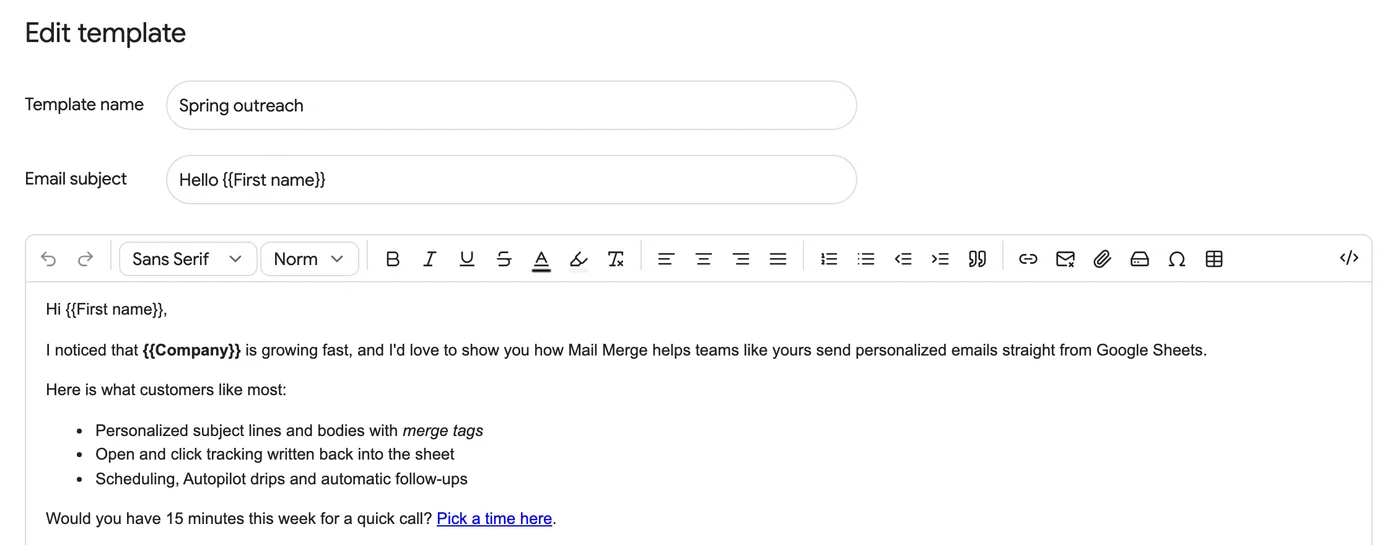
- Create the template. In your sheet, open Extensions, then Mail Merge for Gmail, then Templates, and click New template. Paste the text into the body. According to the help center, an email pasted into the editor keeps its formatting and its inline images.
- Swap each bracket for a merge tag. [NAME] becomes
{{First name}}, [PRODUCT] becomes{{Product}}, [PRICE] becomes{{Price}}and [DATE] becomes{{Valid until}}. A tag has to match the column name in the first row of the sheet. - Personalize the subject. In Email subject, type
{{First name}}, your quote for {{Product}}. Our examples of a mail merge subject line show what else works there. - Name the template “Quote follow-up” and click Save and close.
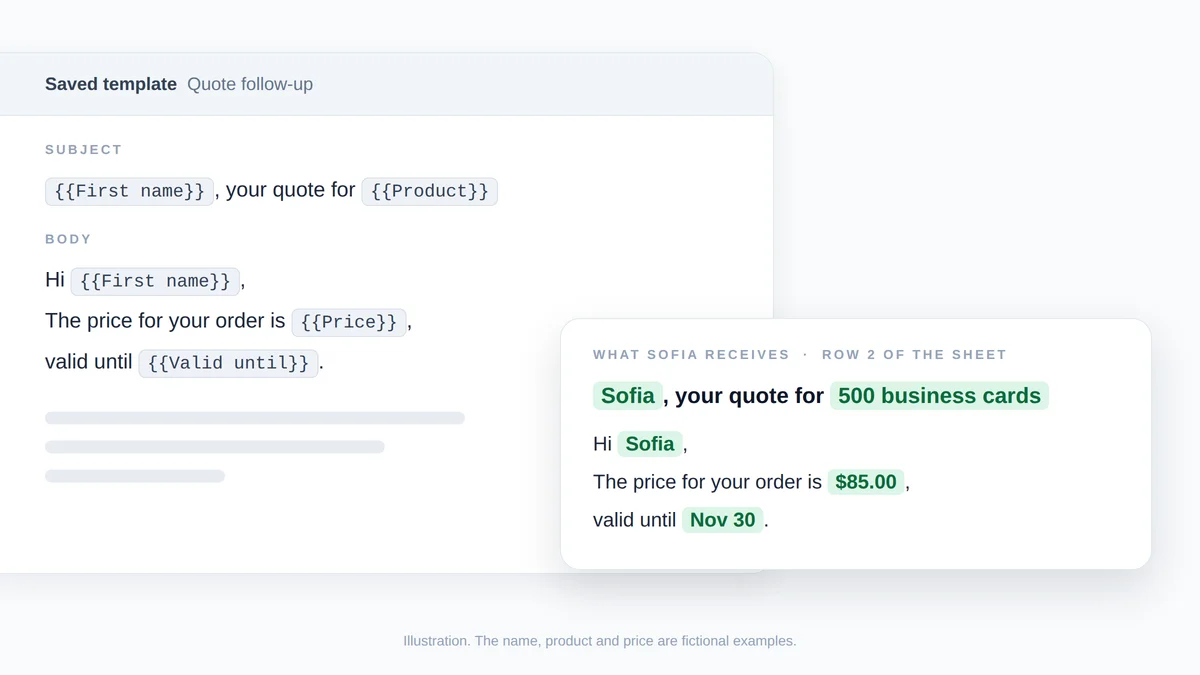
Illustration, not a screenshot: row 2 of the sheet fills the four merge tags of the saved template, and Sofia receives the email on the right. The name, product and price are fictional.
Send the template to every row
- Open the builder from the sheet. Choose Extensions, then Mail Merge for Gmail, then New campaign. The builder opens with the rows of the sheet loaded as recipients.
- Select the template. In the empty editor, click select a template and pick “Quote follow-up”. The subject and the body fill in, and you can still edit them for this campaign.
- Preview and send. Show preview renders the email of each recipient with the tags replaced, and Send me a test delivers the one on screen to your own inbox. Then click Send to N recipients and confirm.
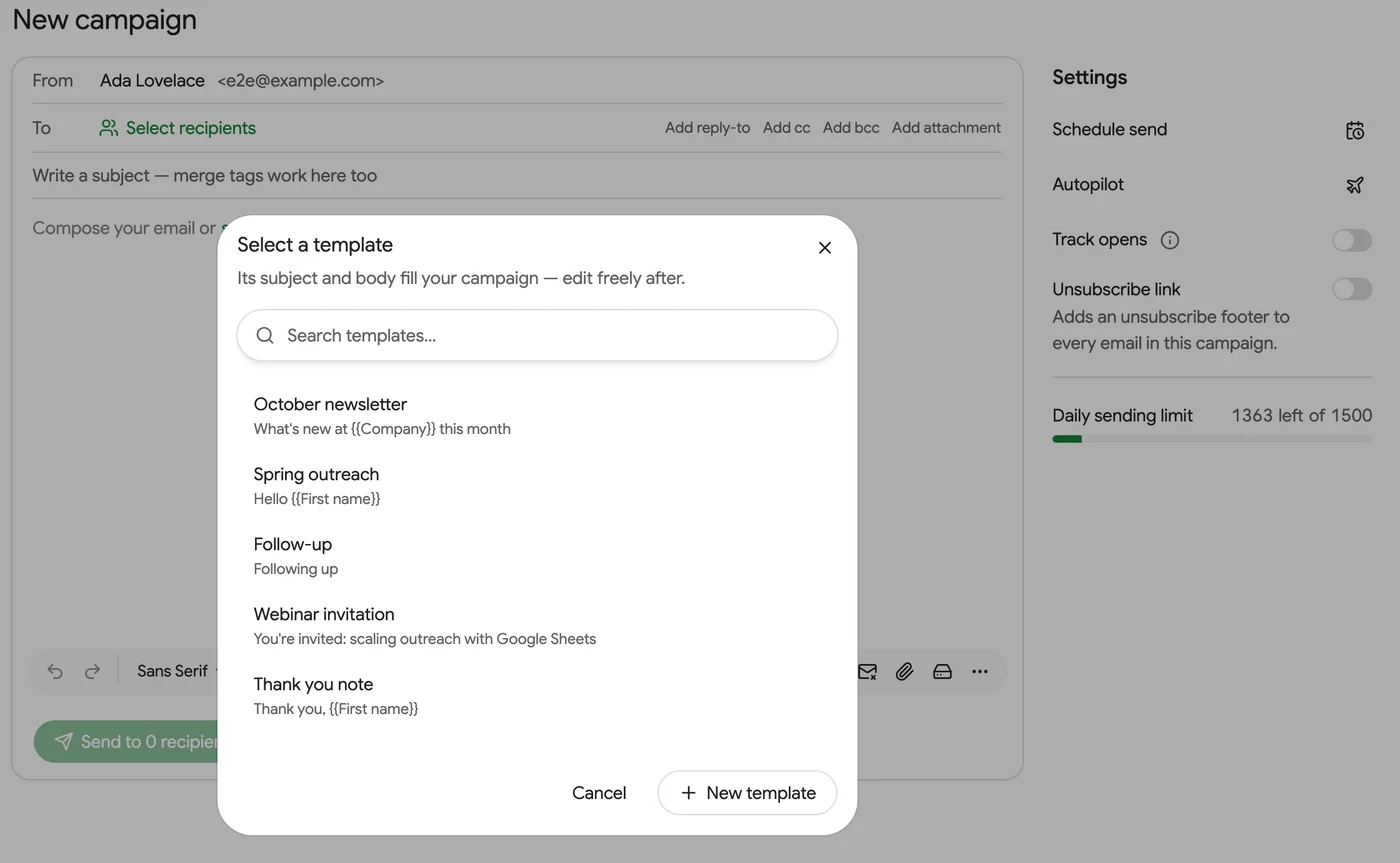
After the send, the add-on adds a status column to the sheet with one cell per row: Sent, then Read when open tracking is on and the recipient opens the email. Our walkthrough of a mail merge from Google Sheets covers the whole flow from an empty sheet.
Four things to know before the first send:
- An empty cell leaves a blank. With an empty First name cell, “Hi {{First name}},” goes out as “Hi ,”. Fill the gaps or filter those rows out.
- A tag that matches no column is sent as written. Pick tags from the builder’s Merge tag menu, which lists your columns, and heed its warning when some tags did not fill in.
- The Free plan keeps up to 3 saved templates and sends 50 emails a day, with a small Mail Merge footer. Paid plans have no template limit.
- You do not have to start from Gmail. The Templates screen also offers a gallery of six starting points, Generate with AI and Import from Google Docs, which keeps the merge tags typed in the document.
Frequently asked questions
Why is the Templates option not showing in Gmail?
Templates are off until you enable them: Settings, See all settings, Advanced, Enable next to Templates, then Save Changes. After that, look in the More options menu (three dots) at the bottom of the compose window, not in the formatting toolbar.
Can I use Gmail templates on my phone?
No. Gmail Help says you can only turn on and use templates from Gmail on your computer, and the Workspace Learning Center says templates are not available in the Gmail mobile apps. Open Gmail in a browser on a computer to create or insert one.
Can Gmail templates include attachments?
Google’s pages on templates do not mention attachments. Zapier’s guide says you cannot add them directly, and suggests inserting a Google Drive file as a link before saving. Mail Merge for Gmail can attach one file to every email, or a different Google Drive file per recipient from a column of links.
Keep the template, let the sheet do the typing
A Gmail template is the right tool for an answer you send to one person at a time. The day the same message has to reach a list with each person’s name, product and price in it, keep the wording and change the tool: paste the template into Mail Merge for Gmail, replace the brackets with merge tags, and send one personalized email per row from your own Gmail account. Install it free and move your most used template over today.
Ready to send your first campaign?
Install Mail Merge for Gmail from the Google Workspace Marketplace and send up to 50 personalized emails per day for free.
Get started for freeMore reading
More from Tutorials
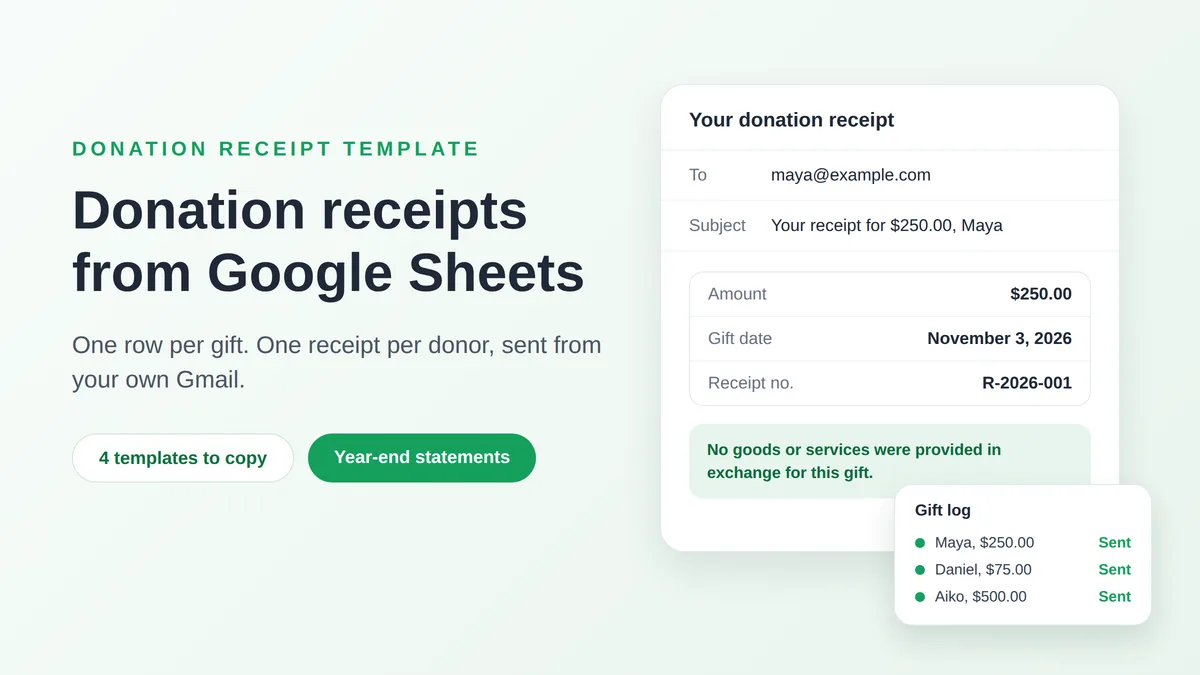
Donation Receipt Template: Email Every Donor from Google Sheets
Copy a donation receipt template for cash, in-kind and year-end gifts, see what the IRS asks for, and email each donor their receipt from Google Sheets.
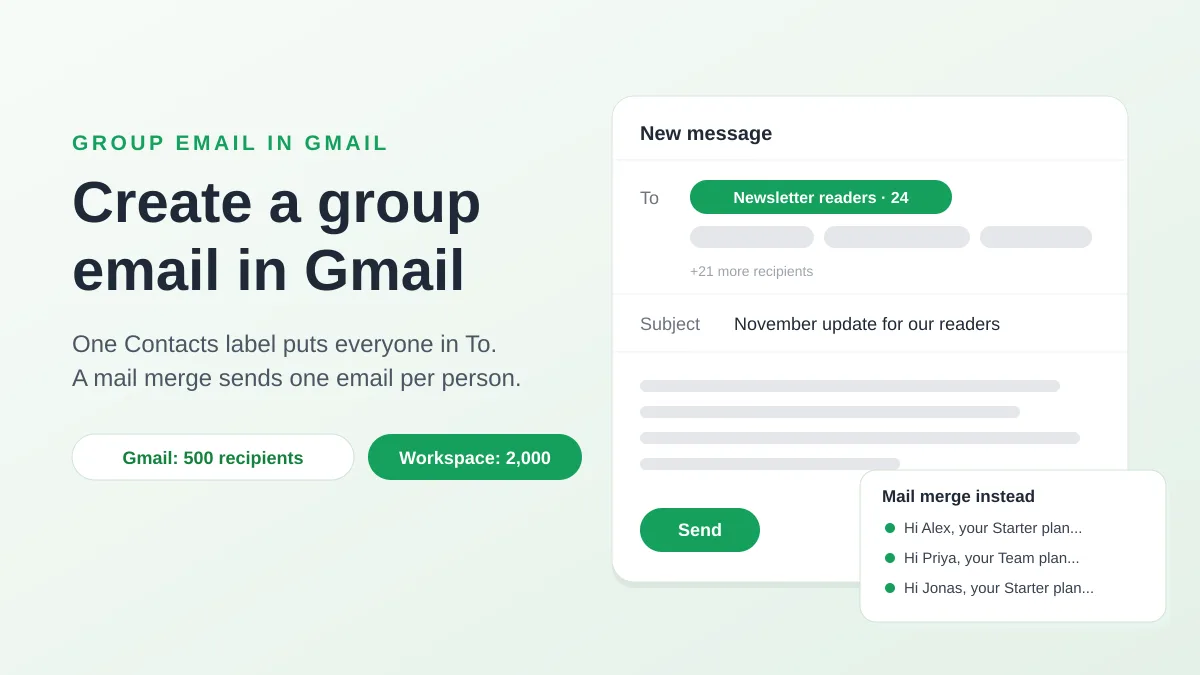
How to Create a Group Email in Gmail, and When to Use a Mail Merge
Create a group email in Gmail with a Google Contacts label, send it with To or Bcc, know Google's recipient limits, and see when a mail merge fits better.
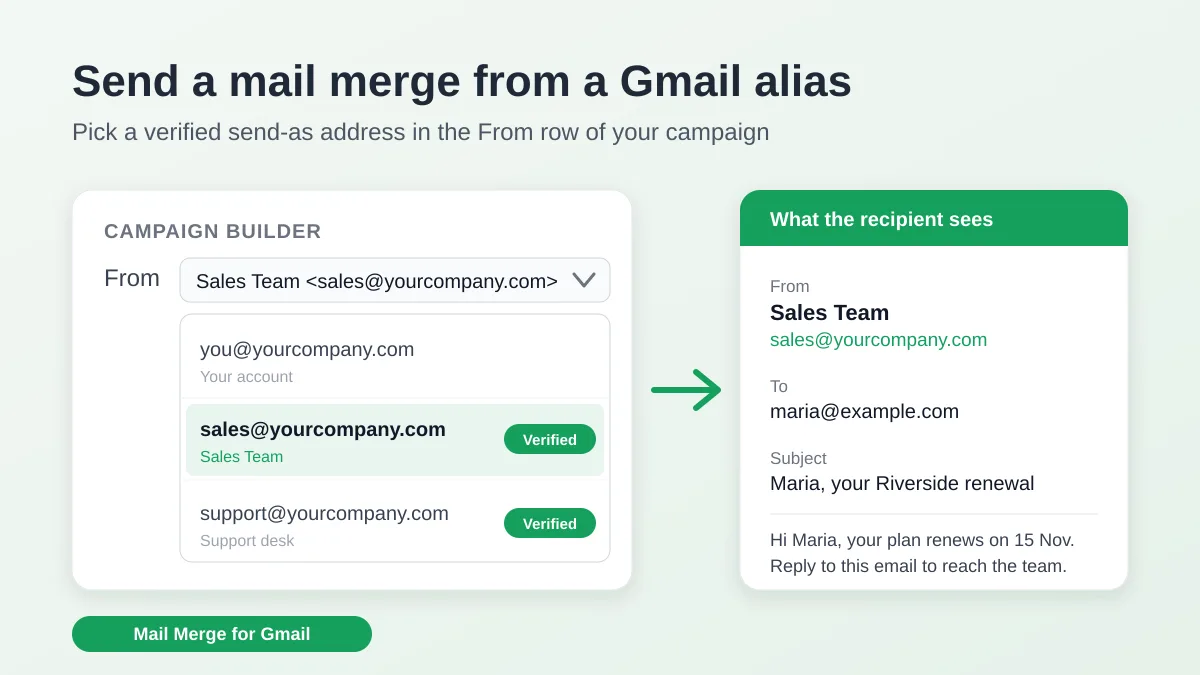
Send a Mail Merge from a Gmail Alias or Shared Mailbox
Send a mail merge from a Gmail alias, group or shared mailbox: set up Send mail as in Gmail, verify the address in Mail Merge and keep replies working.