


How to Create a Group Email in Gmail, and When to Use a Mail Merge
Create a group email in Gmail with a Google Contacts label, send it with To or Bcc, know Google's recipient limits, and see when a mail merge fits better.
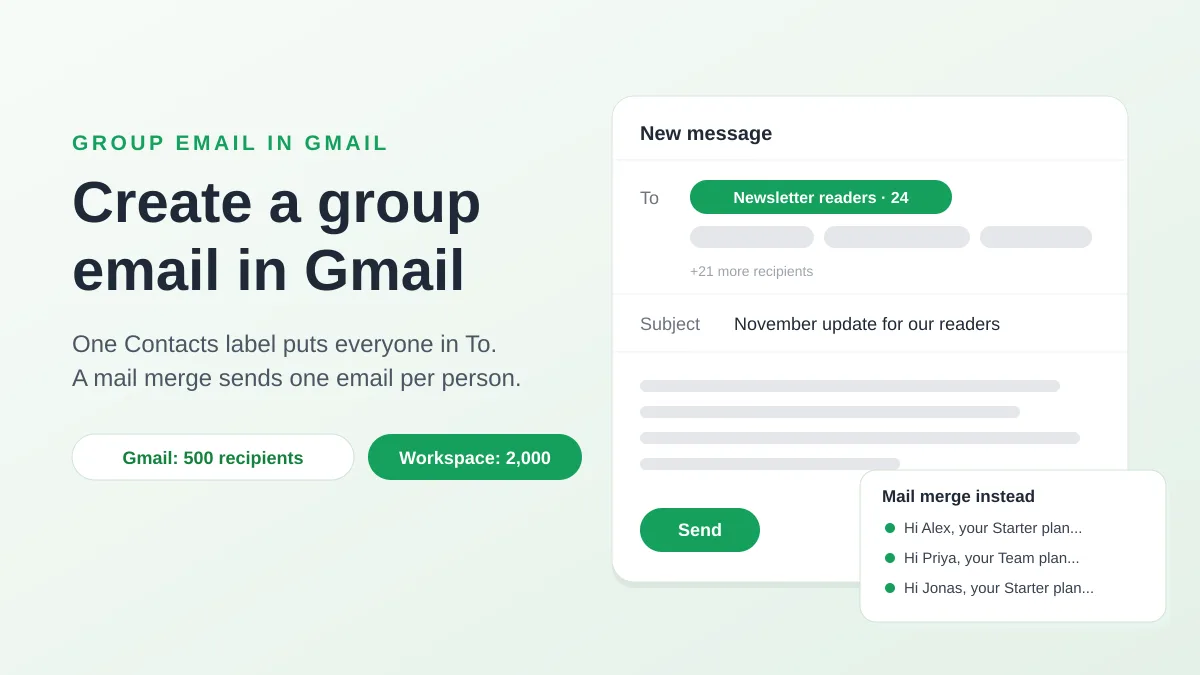
To create a group email in Gmail, you make a label in Google Contacts, add people to it, and type the label’s name into the To field of a new message: Gmail swaps the name for every address in the group. That is the whole trick, and it works on a free @gmail.com account as well as on Google Workspace. This guide covers what the short version leaves out: the exact clicks on a computer and on Android, how to keep recipients from seeing each other, how many people one message may carry, what a Google Group adds, and when a mail merge from Google Sheets is the better way to reach the same list.
A Gmail group email is a label in Google Contacts
Gmail has no “group” button of its own. The feature people mean lives in Google Contacts, where Google calls it a label (most tutorials still say “contact group”). A label is a named set of your contacts, and typing its name in To, Cc or Bcc expands it into the addresses it holds. Nothing is sent to a shared address, and nobody else can see or use the label.
Two other things get called a group email, and they behave differently:
| What you want | Use | Who sees whom |
|---|---|---|
| Send one message to the same people from time to time | A label in Google Contacts | Everyone in To or Cc sees every address. Bcc hides them. |
| A shared address like team@yourdomain.com that several people receive and can reply from | A Google Group | Members receive the message. Who can see the member list is a group setting. |
| One email per person, with their own name, details, tracking and unsubscribe link | A mail merge | Each recipient sees only themselves. |
The next four sections walk through the label and its limits. The last two explain where it stops being the right tool.
Step 1: Create the group as a label in Google Contacts
On a computer, Google’s help page on grouping contacts with labels gives these steps:
- Open Google Contacts. Go to contacts.google.com, or click the Google apps grid in Gmail and pick Contacts.
- Create the label. On the left, next to Labels, click Create label, type a name and click Save. Pick a name you will recognize when Gmail suggests it, such as “Newsletter readers” or “Parents 5B”.
- Select the people. Tick the checkbox next to each contact. To take everyone, tick one box, then open Selection Actions at the top left and choose All.
- Apply the label. At the top, click Manage labels, click your label, then Apply.
The same page adds a detail that explains most “someone was missing” surprises: if a contact has several email addresses, only their default address is added to the label group. Open the contact and check which address is marked as default before you trust the list.
Someone who is not in your contacts yet has to become a contact first (Create contact, at the top left of Google Contacts), then be added to the label. On Android, the Google Contacts app does the same job: tap Label, then New label, name it and tap OK, then add people with Add contact, or several at once by touching and holding a contact and tapping the others. Google’s page documents the computer and Android paths only, so on an iPhone the dependable route is contacts.google.com in the browser, which syncs the label to every device on the account.
Step 2: Send an email to the group from Gmail
Back in Gmail, the label works like any other recipient:
- Click Compose.
- In the To field, start typing the label’s name and select it from the suggestions. Google’s help page describes what happens next: you see the list of contacts in the To field, one chip per person.
- Remove a chip or add an address if this message should not go to the exact group.
- Write and send as usual.
Put the group in Bcc when people do not know each other
A label in To or Cc shows every recipient every other address, and one careless Reply all reaches the whole list. For a class of parents, a customer list or anyone who did not sign up to be seen together, put your own address in To and the label in Bcc. Each person then receives the message with only your address visible. Our guide on how to BCC in Gmail shows where the field is and what recipients see.
Edit the group, and fix a label that does not show up
Labels change with your list, and Google Contacts is where you change them:
- Add people: select the contacts, click Manage labels, tick the label, click Apply.
- Remove people: click the label on the left, tick the contacts to remove, click Label at the top right and untick the label’s name.
- Rename or delete the label: on the left, under Labels, point to the label and follow the options that appear.
Gmail reads the label when you type its name, so a change in Contacts applies to the next message, not to one already sent. When a label does not appear in Gmail’s suggestions, check these before rebuilding it: open the label in Contacts and confirm the people you expect are in it, make sure each has a valid address in an Email field (a contact with only a phone number is silently left out), give the autocomplete a few minutes after creating or renaming the label, then reload Gmail or sign out and back in. If the name is a single generic word, rename it to something more specific. These are the fixes that resolve the recurring threads about missing groups in Google’s Gmail Help Community.
How many people one group email can reach
A label makes it easy to put hundreds of people in one message, which is where Gmail’s limits come in. For a personal account, Google’s page on limits for sending and getting mail says you may see “You have reached a limit for sending mail” after sending to more than 500 recipients in a single email, or more than 500 emails in a day. Sending normally resumes within 1 to 24 hours. The same page suggests creating a Google Group of your recipients and writing to the group’s address instead of listing everyone, and it warns of a second block, “Messages you sent couldn’t be delivered”, when many addresses are invalid or bounce. Every address in To, Cc and Bcc counts, so a label of 120 people in Bcc plus you in To is 121 recipients.
A Google Workspace account has more room, and more rules. Google’s Gmail sending limits in Google Workspace, last updated on 2026-10-26, lists these figures, each applied over a rolling 24-hour period rather than a calendar day:
| Limit (Google Workspace) | Value |
|---|---|
| Messages per day per user | 2,000 (500 for trial accounts, 1,500 for Gmail’s own mail merge) |
| Recipients per message in To, Cc and Bcc | 2,000, with at most 500 outside your domain |
| Recipients per message sent by SMTP from Outlook, Apple Mail or another client | 100 |
| Recipients per message sent through the Gmail API | 500 |
| External recipients per day | 3,000 |
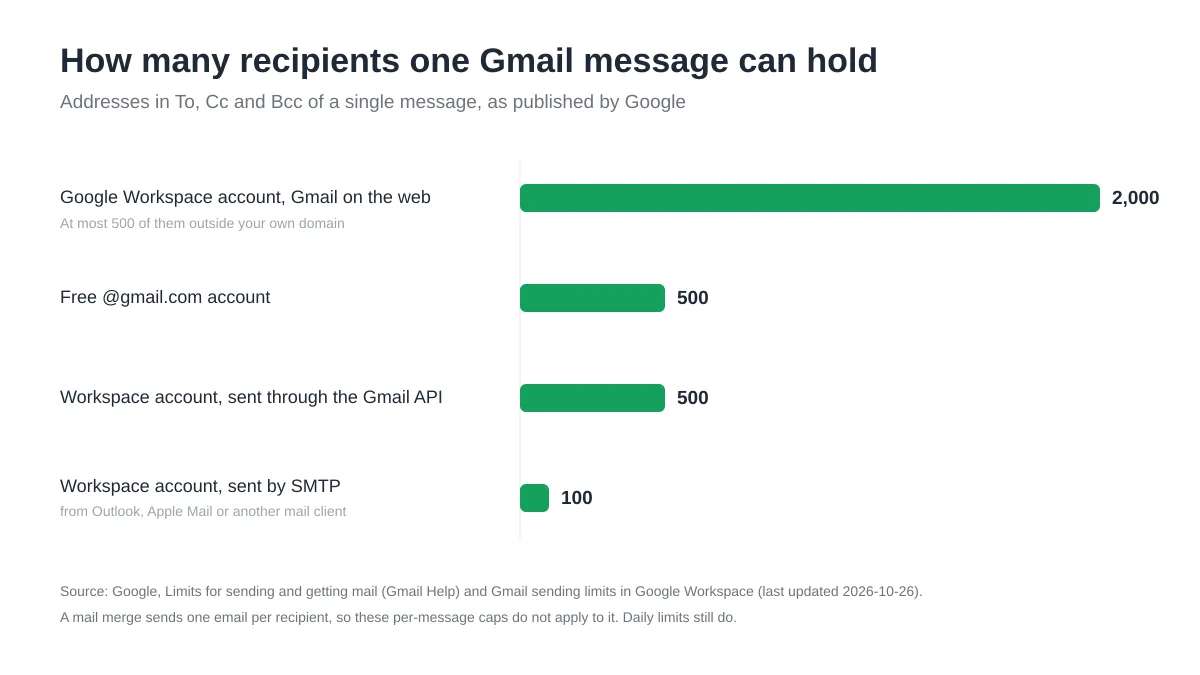
Two practical consequences. First, a label of 600 people cannot be emailed in one go from a free account: split it into two labels, or use one of the two alternatives below. Second, hitting the cap stops every message from the account, including the one-to-one replies you need to send that afternoon. Our guide on the Gmail sending limit reached message explains the rolling window and how to finish a send without tripping it again, and the piece on how to send mail to multiple recipients in Gmail covers the counting rules.
When a label is not enough: make a Google Group
A label belongs to one person’s contact book. The moment a team needs the same list, or wants an address that outsiders can write to, Google’s answer is Google Groups. Its help page on creating a group is short: sign in to Google Groups, click Create group at the top, enter the name and settings, and click Create group again, then wait a few minutes before emailing it or the first message may fail to deliver. You choose the group’s email address (up to 63 characters before the domain), who can find and join it, who can post and who can see the members, and you give colleagues the Member, Manager or Owner role.
What a Google Group adds over a label
From then on, Google’s Workspace Learning Center page on collaborating in Groups sums up the daily use in one sentence: next to To, instead of adding each team member’s address, just enter the group’s email address. Compared with a label, a Group gives you:
- A shared address the whole team receives and that outsiders can write to, which also invites everyone to a Calendar event or shares a Drive file in one go.
- An archive and moderation, with Owner, Manager and Member roles, and on Workspace plans a Collaborative Inbox for a support@ or sales@ address.
- Room to grow: Google’s Workspace page on Groups limits puts no cap on the number of members, and a single group may send to up to 50,000 external recipients a day, far beyond a label.
What a Google Group does not change: it still delivers one identical message to everyone, and replies go to the group or to you, not into a per-person history. If what you really need is to send campaigns from the group’s address under your own name, see how to send a mail merge from a Gmail alias or shared mailbox.
When a mail merge beats a group email
A group email is one message copied to many inboxes. A mail merge is many messages, each written for one person from the data you hold about them. The difference shows the moment you want to write “Hi Priya” instead of “Hi all”, mention someone’s plan, class or invoice, know who opened, or let people leave the list without emailing you. The illustration below contrasts the two.
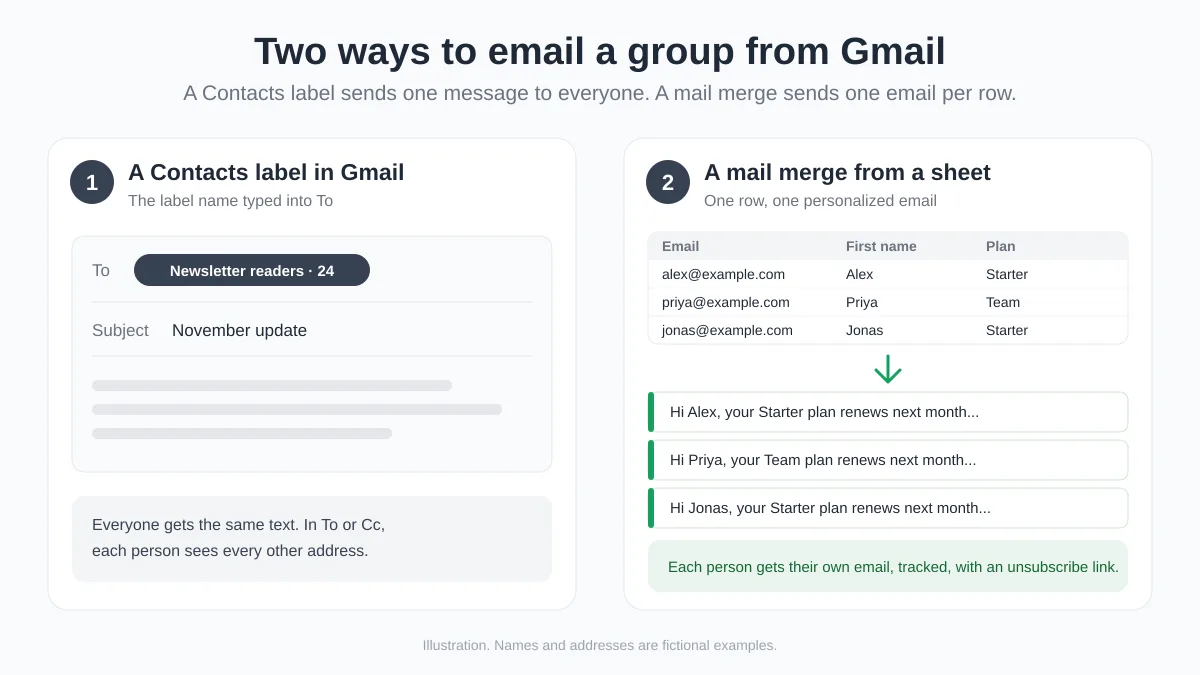
Illustration, not a screenshot: on the left, a contact label expands into one message that every member receives together. On the right, each row of a sheet (Email, First name, Plan) becomes its own email. Names and addresses are fictional.
Gmail’s built-in mail merge
Gmail has a mail merge mode of its own. Google’s page on sending personalized emails with mail merge says it needs an eligible Google Workspace plan (Workspace Individual, Business Standard and Plus, Enterprise Standard and Plus, Education Standard and Plus), is turned on with Use mail merge next to the To line, and personalizes with the tags @firstname, @lastname, @fullname and @email. Each recipient gets a unique copy with a unique unsubscribe link at the bottom, up to 1,500 recipients per message and per day, and only one address in Cc or Bcc. If your account qualifies and four tags are enough, it is a real step up from a label. Our comparison of how to send the same email to multiple recipients separately in Gmail weighs it against Bcc and against an add-on.
A mail merge from Google Sheets with Mail Merge for Gmail
Mail Merge for Gmail works on free @gmail.com accounts and on every Workspace plan, and it personalizes with any column you have. The recipients can come from four places: a Google Sheet, an uploaded CSV or Excel file, the contact book the add-on builds from your past campaigns (with contact lists that play the role of labels), or addresses you paste into a Type addresses box. To move an existing Gmail group over, open the label in Google Contacts, select its contacts, and follow Google’s steps for exporting contacts: More actions, Export, then Google CSV. Upload that file in the recipients dialog: Mail Merge finds the email column itself, and the other columns of the export become merge tags. The same works for a broader cleanup, as our guide on how to export contacts from Gmail describes.
A worked example, for the group from the illustration:
| First name | Plan | Renewal date | |
|---|---|---|---|
| alex@example.com | Alex | Starter | 3 December |
| priya@example.com | Priya | Team | 9 December |
| jonas@example.com | Jonas | Starter | 14 December |
The subject becomes {{First name}}, your {{Plan}} plan renews on {{Renewal date}}, and the body opens with “Hi {{First name}},” followed by the paragraph everyone gets. Click Show preview to page through the exact email each person will receive, send yourself a test, switch on the Unsubscribe link, and send. A status column in the sheet then fills in with Sent, Read, Clicked or Unsubscribed per row, the record a Bcc blast never gives you. The Free plan sends 50 emails a day with open tracking and unsubscribe management included, and anyone who unsubscribes is skipped automatically in every later campaign. Paid plans raise the daily limit (250 on Personal, up to 1,500 on Professional with a Workspace address) and add scheduling and click tracking, with automated follow-up sequences on Professional.
| Contact label | Google Group | Mail merge | |
|---|---|---|---|
| Setup | Minutes, in Google Contacts | Minutes, plus settings and members | A sheet or a file with one row per person |
| Personalization | None | None | Any column, in subject and body |
| Recipients visible to each other | Yes in To or Cc, no in Bcc | Depends on group settings | Never |
| Per send | Up to 500 (free Gmail) or 2,000 (Workspace) addresses in one message | One message to the group address | One email per row, within your daily limit |
| Opt-out | A reply to you | Members leave the group themselves | One-click unsubscribe link, enforced on later campaigns |
| Who opened or clicked | Unknown | Unknown | Per recipient, in the sheet and the campaign page |
Frequently asked questions
How do I create a group email in Gmail on my phone?
Create the label in the Google Contacts app on Android (Label, then New label), or at contacts.google.com in your phone’s browser on any device, and add contacts to it there. The label syncs to the account. Google’s help documents emailing a label from Gmail on a computer, so if the group does not appear in a mobile app, compose from the browser.
Can the people in my group see each other’s email addresses?
Yes if the label is in To or Cc: every chip is visible to every recipient, and a Reply all answers all of them. Put your own address in To and the label in Bcc to hide the list. A mail merge avoids the question entirely, because each person receives an email addressed only to them.
Why does my group not show up when I type its name in To?
Check that the contacts in the label each have a valid email address (only the default address of a contact is used), that the label name is specific rather than a generic word, and that you gave Gmail a few minutes after creating it. Then reload Gmail or sign out and back in. If the people are right and the label still fails, renaming it and reapplying it to the contacts is the usual fix.
How many emails can I send to a group per day in Gmail?
A free @gmail.com account is limited to 500 recipients per message and 500 emails per day, after which sending stops for 1 to 24 hours. A Google Workspace account can put up to 2,000 addresses in one message (500 of them external) and send 2,000 messages a day, over a rolling 24-hour window. For a bigger list, Google itself suggests writing to a Google Group’s address and letting the group distribute the message, and a group may reach up to 50,000 external recipients a day.
Is a Google Contacts label the same as a Google Group?
No. A label is private to your contact book and only exists inside Gmail’s address field. A Google Group is a shared address at groups.google.com, with members, roles, an archive and settings about who can post. Use a label for a list only you email, a Group for a team address, and a mail merge when every person should get their own email. Our guide on how to send individual emails to a group compares all of these side by side.
Send to your group the way it deserves
A Google Contacts label is the right answer when the message is genuinely for everyone and the list is small. When you catch yourself writing “Hi all” to customers, parents or members, splitting the list into Bcc batches to stay under the limit, or wondering who actually read it, move the list into a Google Sheet and send it with Mail Merge for Gmail: one personalized email per row, your own Gmail account as the sender, opens and clicks written back into the sheet, and an unsubscribe link that keeps the list clean for the next send. Install it free and turn today’s group email into tomorrow’s campaign.
Ready to send your first campaign?
Install Mail Merge for Gmail from the Google Workspace Marketplace and send up to 50 personalized emails per day for free.
Get started for freeMore reading
More from Tutorials
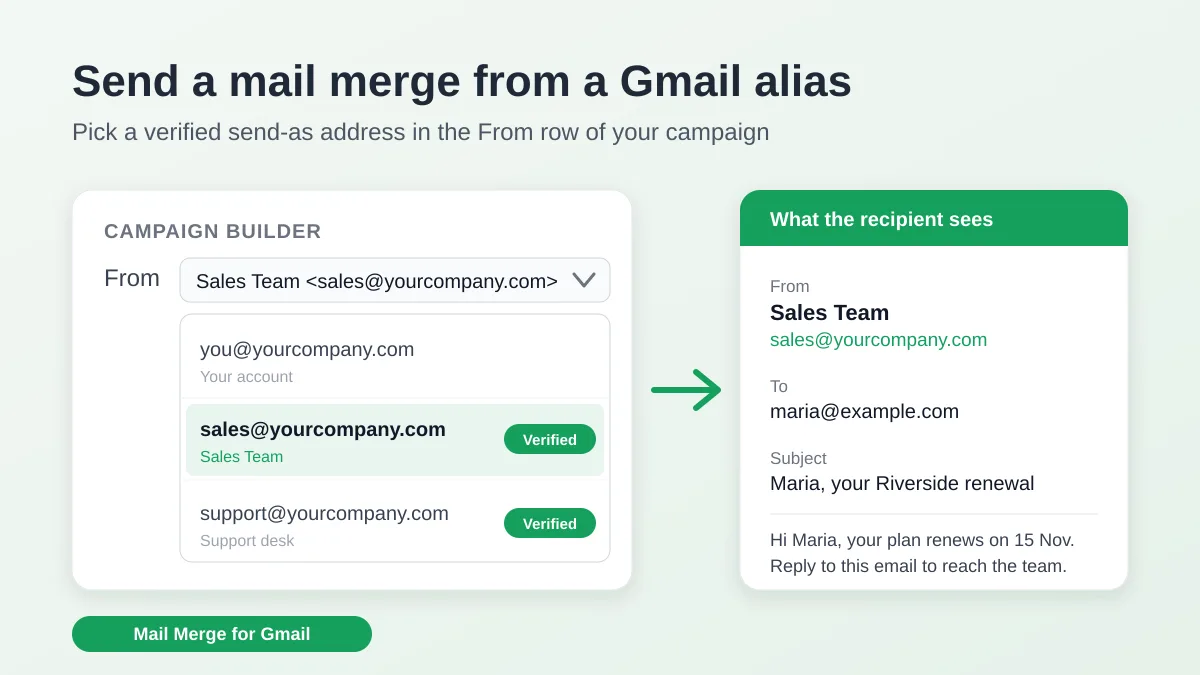
Send a Mail Merge from a Gmail Alias or Shared Mailbox
Send a mail merge from a Gmail alias, group or shared mailbox: set up Send mail as in Gmail, verify the address in Mail Merge and keep replies working.
Google Forms Autoresponder: A Personalized Email for Every Response
Set up a Google Forms autoresponder that emails every new response from Gmail, personalized with the answers, using Google Sheets and Mail Merge for Gmail.
Payment Reminder Email Template: Five Messages You Can Send from Google Sheets
Copy a payment reminder email template for each stage of an overdue invoice, then send every reminder from Google Sheets through Gmail with personalized merge fields.