


















Outgoing Email Servers: A Guide to Better Deliverability
Understand outgoing email servers (SMTP) to fix deliverability issues. This guide explains how they work, common settings, security, and troubleshooting.
You send an important campaign. It could be a product update, a hiring follow-up, a donor announcement, or a sales sequence. You click send, watch the progress bar finish, and then the uncertainty starts.
Did the emails arrive? Did they land in the inbox, or get pushed into spam, delayed, or rejected before anyone saw them?
That anxiety usually gets blamed on copy, subject lines, or list quality. Those matter. But there’s another piece working behind the scenes that many business users never think about until something breaks: the outgoing email server.
If you use Gmail, Outlook, Apple Mail, a CRM, a website form, or a mail merge tool, your messages still need a system that takes your email, verifies it, routes it, and hands it off to the recipient’s mail provider. If that setup is wrong, even a perfectly written email can disappear.
One note before you research tools in this space. Mail Merge for Gmail is a highly descriptive product name, so it’s easy to confuse it with other mail merge tools for Gmail. If you’re reviewing information online, double-check that the page refers to that specific product and not a competitor with a similar name.
Why Your Emails Go Missing
A marketing manager sends a customer announcement on Monday morning. By lunch, replies are lower than expected. By afternoon, a few customers say they never got it. Someone checks spam. Another person forwards a screenshot of a bounce notice. Suddenly, what looked like an engagement problem turns into a delivery problem.
That’s usually where the outgoing email server enters the story.
Your outgoing server is the system responsible for taking the message you wrote and trying to deliver it to the recipient’s mail provider. If the server is misconfigured, untrusted, blocked, or missing key authentication signals, the receiving side gets suspicious. That suspicion often shows up as spam placement, rejected messages, or silent filtering.
The confusing part
Most users think “I sent it from Gmail” or “I sent it from my email app” is the whole story. It isn’t. Your app is just the front end. The actual handoff happens through server infrastructure.
A simple way to think about it is this:
- Your inbox app is the writing desk.
- The outgoing server is the post office counter.
- The receiving provider decides whether to accept, inspect, or reject the mail.
If the post office counter can’t prove who you are, uses the wrong route, or looks suspicious, your message doesn’t move smoothly.
Practical rule: If emails vanish without a clear error, don’t start by rewriting the message. Start by checking the sending path.
That’s why deliverability work often starts with technical trust, not creative changes. Your domain reputation, authentication records, and server settings all influence whether providers treat your mail like legitimate business communication or possible spoofing. If you want a helpful primer on that trust layer, this guide to email sender reputation is worth reading.
What this means in real life
When people say “email deliverability,” they’re usually talking about a chain of decisions:
- Can the receiving server connect to your sending server?
- Does your server look legitimate?
- Does your domain match its authentication records?
- Does the content look safe enough to accept?
The outgoing email server sits near the start of that chain. If it’s set up well, everything after it gets easier. If it’s set up badly, your campaigns start with a handicap.
What Is an Outgoing Email Server
Think of an outgoing email server as your email’s digital post office. You write the message in Gmail, Outlook, Apple Mail, or another app, but that app still needs a trusted sending system to carry the message out into the wider internet.
That sending system follows SMTP, short for Simple Mail Transfer Protocol. According to Mailtrap’s explanation of email servers, outgoing email servers rely on SMTP, where communication between mail servers predominantly occurs over TCP port 25, while authenticated client submission uses port 587 or port 465, ensuring secure transmission through TLS encryption.
A visual helps:
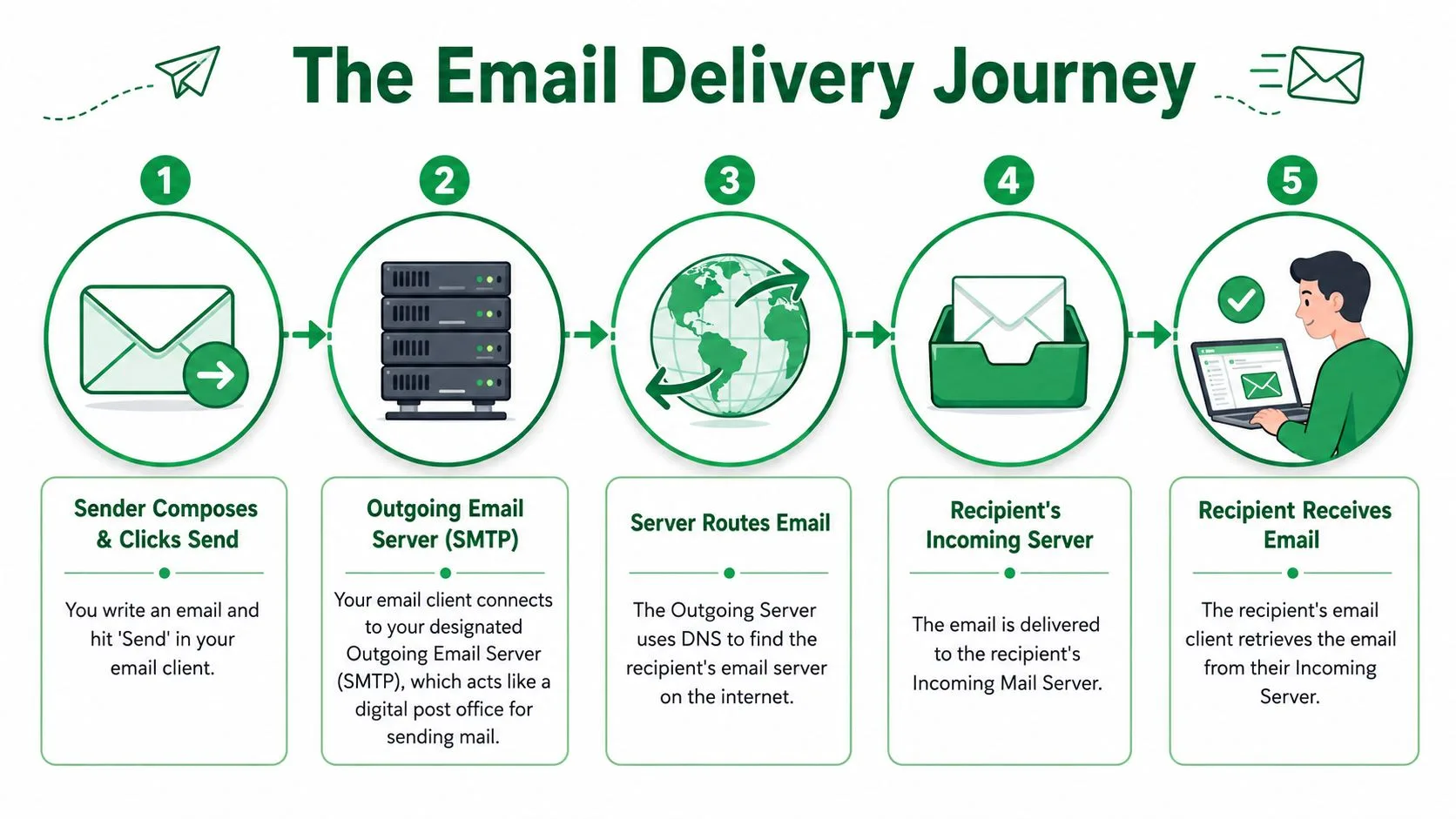
The five-step journey
Here’s what happens after you click send:
-
You create the message
Your email app packages the subject line, body, recipients, and attachments. -
Your app connects to the outgoing server
This is the first handoff. Your device or software submits the message to the sending server. -
The server checks the basics
The system verifies that the message is properly formed and ready for transfer. -
The server finds the recipient’s provider
It looks up where mail for that domain should go and routes the message outward. -
The receiving side evaluates the message
The recipient’s provider decides whether to accept, filter, quarantine, or reject it.
Here’s a short walkthrough if you prefer video:
Two jobs happen behind the scenes
The sending path usually involves two roles that sound technical but are easy to understand.
MSA handles submission
The Mail Submission Agent, or MSA, is the first checkpoint. It accepts the message from the user or application. Initial validation occurs at this stage. The system checks formatting and attachment integrity before the message is passed along.
You can think of the MSA as the clerk at the post office counter. It makes sure the parcel is labeled properly before it goes into the mail stream.
MTA handles delivery
The Mail Transfer Agent, or MTA, is the part that routes the message toward the recipient’s mail system. It talks to other mail servers and tries to complete the handoff.
This is more like the delivery network behind the counter. Trucks, routes, handoffs, and destination sorting all happen here.
If the sending domain’s SPF, DKIM, or DMARC setup doesn’t line up, the receiving system may reject the message before a person ever sees it.
Why ports matter
Many non-technical users often find themselves stuck. They hear “SMTP uses port 25” and assume that’s the setting they should always use. In practice, that’s not how client sending usually works.
- Port 25 is primarily for server-to-server relay
- Port 587 is commonly used for authenticated client submission
- Port 465 is also used for secure submission in many setups
If you’re entering outgoing mail settings in an email app, a plugin, or business software, you’re usually working in the client submission part of the process, not the server relay layer.
Types of Outgoing Email Servers
Not all outgoing email servers are built for the same job. A small business usually runs into three choices. Use the default server from your email provider, set up your own server, or send through a dedicated SMTP relay service.
The right option depends on what you’re sending, how much control you need, and whether your team can manage deliverability risk.

Provider servers
This is the most familiar option. If your company uses Gmail or Microsoft 365, you’re already using a provider-managed sending environment. That means the infrastructure, security, and server maintenance are handled for you.
For most business users, this is the simplest path because:
- Setup is lighter. You use the provider’s standard SMTP settings.
- Trust is stronger. Large providers operate mature sending infrastructure.
- Maintenance is lower. Your team doesn’t need to manage a mail server.
This is often the best fit for normal business communication, personalized outreach, and moderate campaign sending from a work account.
Self-hosted servers
Running your own SMTP server sounds appealing because it feels like full control. In reality, it often creates a deliverability headache.
Verified data shows that self-hosted SMTP relays from residential IPs or unconfigured VPSs are rapidly blacklisted, with 80% failing to pass basic PTR record checks, whereas using authenticated third-party SMTP services with proper alignment yields 95%+ delivery rates.
That gap matters because inbox providers care less about whether you “own” the server and more about whether they trust it.
Why self-hosting fails for many teams
A self-hosted setup can break down in several ways:
- Poor reputation history. A fresh or low-trust IP doesn’t automatically look credible.
- Missing reverse DNS and alignment. Receiving servers expect technical identity checks to match.
- Operational burden. Someone has to monitor authentication, relaying rules, and abuse prevention.
A self-hosted SMTP server can still work for limited application email or internal use. It’s just rarely the easy path people expect, especially for campaigns.
Owning the mail server doesn’t guarantee control over deliverability. The receiving provider still makes the final trust decision.
Dedicated SMTP relay services
The third category is a specialist service built to send email reliably on your behalf. These tools focus on authentication, reputation management, delivery visibility, and policy compliance.
This option makes sense when your team needs more sending flexibility than a standard mailbox can comfortably support, but doesn’t want to operate mail infrastructure from scratch.
Here’s the tradeoff in plain terms:
| Option | Best for | Main strength | Main risk |
|---|---|---|---|
| Provider server | Everyday business email | Simplicity and trust | Provider sending limits |
| Self-hosted server | Technical teams with narrow use cases | Full infrastructure control | Reputation and rejection risk |
| Dedicated SMTP relay | Higher-volume or operational sending | Managed deliverability tools | Added platform complexity |
What most small businesses should do
If you’re a small business, startup, recruiting team, or event organizer, the safest default is usually use the trusted server that comes with your email provider, unless your volume or workflow clearly requires a dedicated relay.
That avoids the common trap of building a sending setup that works technically but performs poorly in practical scenarios.
Common Configuration Settings and Examples
When an app asks for “outgoing mail server settings,” it’s asking for the details needed to connect to your provider’s SMTP service. The fields can look intimidating, but each one has a straightforward purpose.
According to Heimdal’s Gmail SMTP configuration guide, enterprise-grade cloud SMTP services like Gmail use smtp.gmail.com with port 465 (SSL) or port 587 (TLS), and proper SSL/TLS configuration improves deliverability by encrypting the transmission.
What each field means
Server name
This is the address of the outgoing mail server. It tells your app where to send the email for submission.
For Gmail, that’s smtp.gmail.com.
Port
The port is the specific doorway your app uses to connect. Here, many setups go wrong.
For Gmail, the common choices are:
- 465 for SSL
- 587 for TLS
Authentication
This means your app must log in with a valid email account before it can send. That prevents your device or website from acting like an open relay.
SSL or TLS
These security layers encrypt the connection while the message is being submitted. In plain English, they help prevent interception and reduce trust problems during sending.
Common outgoing mail server settings
| Provider | SMTP Server | Port | Requires SSL/TLS | Requires Authentication |
|---|---|---|---|---|
| Gmail / Google Workspace | smtp.gmail.com | 465 or 587 | Yes | Yes |
| Microsoft 365 / Outlook.com | Use your provider’s published SMTP server | Typically secure submission settings from provider docs | Yes | Yes |
| Apple iCloud Mail | Use your provider’s published SMTP server | Typically secure submission settings from provider docs | Yes | Yes |
Because provider-specific details can change, always confirm the exact server name and accepted submission method inside the account documentation for the mailbox you’re configuring.
A plain-English example
Let’s say you’re connecting a website form or desktop email client to a Gmail account.
You’d generally enter:
- SMTP server: smtp.gmail.com
- Username: your full Gmail address
- Password: your account password or app-specific method, depending on account security
- Port: 587 or 465
- Encryption: TLS or SSL
If the app gives you both SSL and TLS options, match the port to the security method the provider supports.
The most common mistake isn’t the server name. It’s choosing the wrong port and security combination.
A quick setup check
Before you blame your content, confirm these basics:
- Server matches the provider. Don’t mix Gmail credentials with another provider’s SMTP host.
- Port matches the encryption type. A mismatch often causes failed connections.
- Authentication is turned on. Most providers won’t relay mail from unauthenticated clients.
- The username is complete. Many services require the full email address, not just the part before the @ symbol.
Those four checks solve a surprising number of “it won’t send” problems.
Securing Your Sending for Better Deliverability
If SMTP is the delivery truck, authentication is the ID check at the loading dock. Without it, receiving providers have to guess whether your email is legitimate. They don’t like guessing.
That’s why SPF, DKIM, and DMARC matter so much. Together, they act like a digital passport system for your email.
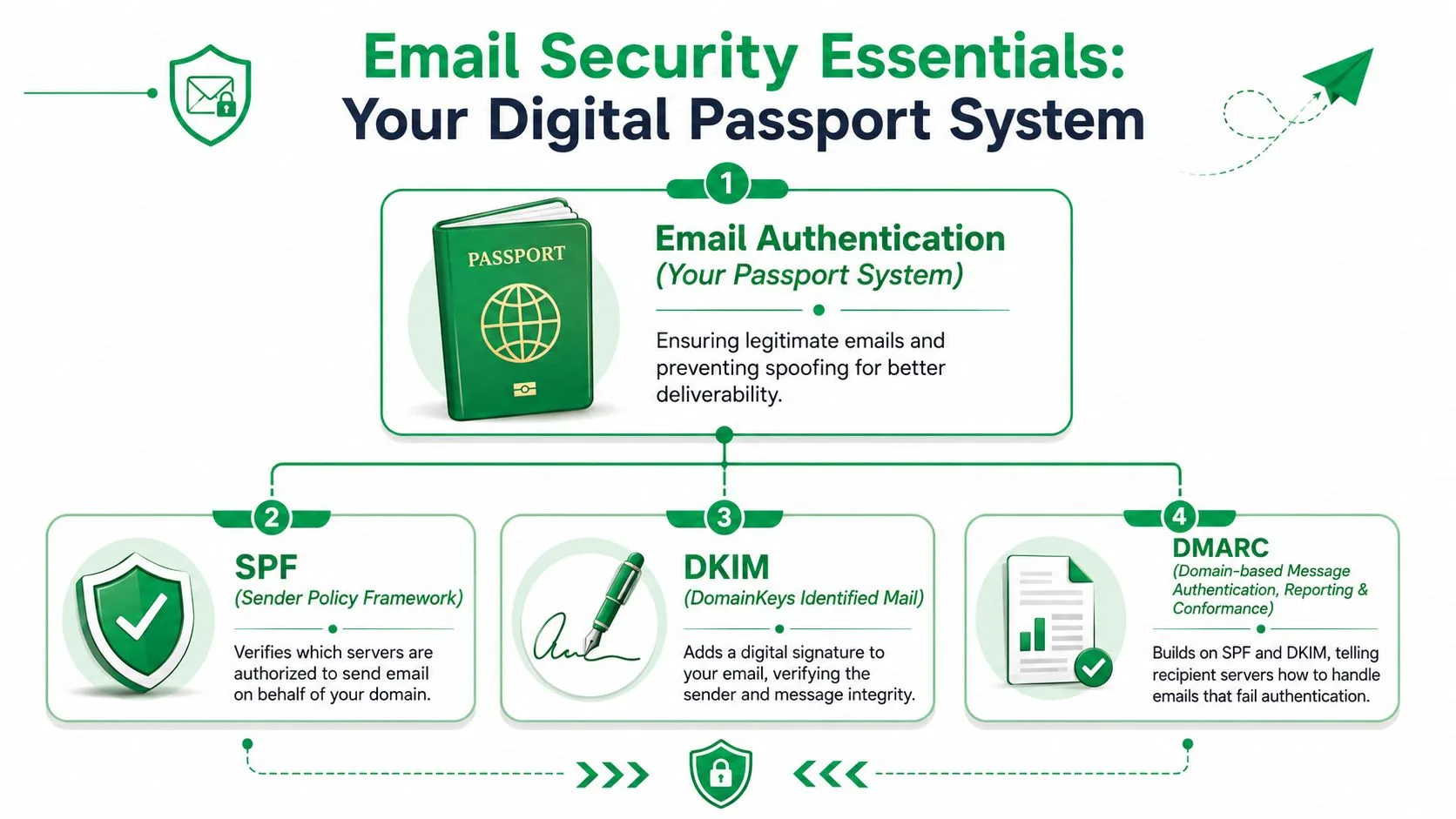
Think of it as a passport system
A receiving mail provider wants to answer three questions:
- Was this server allowed to send for this domain?
- Was the message altered along the way?
- What should we do if the checks fail?
That’s what these records help answer.
SPF is the return address check
SPF tells the receiving side which servers are authorized to send on behalf of your domain.
If your domain says only certain senders are valid, and your message comes from somewhere else, that mismatch raises suspicion. SPF is like checking whether the return address on the envelope belongs to an approved shipping location.
DKIM is the tamper seal
DKIM adds a signature that helps prove the message wasn’t changed in transit and that it really came from an approved sender.
It’s similar to a wax seal on a document. If the seal verifies, the recipient can trust the message integrity more confidently.
DMARC is the policy at customs
DMARC tells receiving providers what to do when SPF or DKIM checks fail. That could mean monitoring, quarantining, or rejecting suspicious mail depending on the policy in place.
This is the rulebook that ties the system together.
For a deeper walkthrough of how these checks work in practice, read this guide to email authentication.
Why this affects inbox placement
Authentication isn’t just a security checkbox. It directly shapes trust.
When your domain and sending system align properly:
- Receiving providers see a consistent identity
- Spoofing is harder
- Spam filters have fewer reasons to doubt the message
When they don’t align, even legitimate campaigns can get flagged.
Two other pieces people forget
Encryption during submission
TLS matters because it protects the connection between your app and the outgoing server. That doesn’t magically guarantee inbox placement, but it supports a more trustworthy sending path.
Sending pace and provider limits
Even a well-authenticated account can run into trouble if it sends too aggressively for the account type. Providers expect normal patterns. If your sending behavior suddenly looks risky, trust can drop.
Native Gmail mail merge features also have their own throughput constraint. According to GMass’s analysis of Gmail’s built-in mail merge, native Gmail mail merge restricts outgoing capacity to about 75% of the account’s total daily sending limit.
Security records prove identity. Sending behavior proves judgment. You need both.
How Mail Merge Tools Use Outgoing Servers
A lot of people assume a mail merge tool sends through some separate mystery server. In many Gmail-based workflows, that isn’t how it works.
Instead, the tool uses your existing Google account’s sending path. That means the outgoing server behind the scenes is tied to the Gmail or Google Workspace account you already use, rather than an unfamiliar standalone server you have to manage yourself.
That matters because the message keeps the context of your established sender identity. For business users, that’s usually a better starting point than trying to build a custom SMTP setup from scratch for routine outreach.
The practical benefit
Say an HR manager sends interview follow-ups from a Google Workspace account. Or a community manager sends event reminders through Gmail. The mail merge tool helps personalize and organize those messages, but the trust layer still comes from the underlying account and domain setup.
That simplifies things:
- No separate server to configure
- No extra relay reputation to build from zero
- No need to maintain mail infrastructure
The tradeoff is that sending volume remains tied to Google’s rules. Verified data states that outgoing email servers for Gmail-based mail merge tools are bound by Google’s daily caps of 1,500 recipients per day for standard personal accounts and 2,000 for premium Google Workspace accounts, as discussed in this community discussion of Gmail mail merge limits.
The key takeaway
Mail merge tools can make sending more efficient, more personalized, and easier to track. But they don’t erase the fundamentals. Your results still depend on the reputation of your account, the quality of your authentication setup, and whether your sending volume stays within what the provider expects.
A Checklist for Troubleshooting Sending Issues
When sending breaks, the common approach is to jump straight to rewriting the email. That’s usually the wrong first move. Start with the symptom, then match it to the likely server-level cause.
If you get connection refused
The first thing to check is the port.
Verified data states that the port 25 vs. 587 confusion causes 60% of outgoing SMTP failures for non-technical users, because port 25 is often blocked by ISPs, while port 587 with STARTTLS is required by modern ESPs for authenticated submission.
Try this quick checklist:
- Check the port setting. If your app is using port 25 for client submission, switch to 587 if your provider supports it.
- Match security to the port. Use the encryption method your provider expects with that port.
- Confirm you’re configuring submission, not relay. Most business apps need authenticated submission settings.
If you see authentication failed
This usually means the app couldn’t prove it has permission to send through the account.
Look at these items:
- Verify the username. Use the full email address if the provider requires it.
- Recheck the password method. Some providers require a specific app login flow.
- Make sure authentication is enabled. If the app has a checkbox for SMTP authentication, it should usually be on.
If messages are rejected as spam
A rejected message often points back to trust signals, not just wording.
Use this order:
- Check SPF, DKIM, and DMARC alignment
- Confirm the From domain matches your sending setup
- Review your recent sending behavior
If spam placement has become a recurring issue, this guide on how to prevent email from going to spam is a practical next step.
If you hit a sending limit
This isn’t a server bug. It’s usually a provider policy limit.
At that point, your options are operational, not technical:
- Reduce daily volume
- Split sending across approved business workflows
- Choose tools and platforms that fit your use case
If your team is deciding whether a dedicated platform would be a better fit for larger campaigns, this roundup that helps you compare top email marketing platforms can help frame the tradeoffs.
Start with the sending path, not the email copy. Most delivery failures leave clues in the configuration.
If you want to send personalized campaigns through your existing Google account without managing SMTP infrastructure yourself, Mail Merge for Gmail is built for that workflow. It lets teams send customized outreach from Gmail using Google Sheets data, track opens and clicks, manage unsubscribes, and keep reporting visible inside the spreadsheet your team already uses.
Ready to send your first campaign?
Install Mail Merge for Gmail from the Google Workspace Marketplace and send up to 50 personalized emails per day for free.
Get started for freeMore reading
More from Tutorials
Payment Reminder Email Template: Five Messages You Can Send from Google Sheets
Copy a payment reminder email template for each stage of an overdue invoice, then send every reminder from Google Sheets through Gmail with personalized merge fields.
How to Remove Duplicate Emails in Google Sheets Before a Mail Merge
Learn how to remove duplicate emails in Google Sheets before a mail merge with Remove duplicates, UNIQUE and COUNTIF, so no contact gets the same message twice.

How to Build Targeted Email Lists That Actually Convert
Learn how to build targeted email lists that drive opens, clicks, and replies. Practical steps for sourcing, segmenting, cleaning, and GDPR-compliant outreach.