


















Contact Database Management: A Practical Guide for 2026
Learn effective contact database management with our practical guide. We cover hygiene, segmentation, and how to use Google Sheets to build a powerful system.
A lot of small teams are sitting on the same problem right now. Contacts live in one crowded Google Sheet, some replies are buried in Gmail, someone keeps a separate CSV on their laptop, and nobody fully trusts which row is current.
That mess usually doesn’t start because people are careless. It starts because the business grows faster than the system. One client referral turns into a newsletter list, then a prospecting list, then a pipeline tracker, and suddenly the spreadsheet is doing five jobs badly.
Good contact database management fixes that. Not by forcing every small company into a heavyweight CRM, but by applying the right discipline to the tools widely utilized.
Your Contacts Are More Than Just a List
Most contact lists begin as a convenience. You export a few leads, add a couple of past customers, paste in form submissions, and promise yourself you’ll clean it up later. A year later, the sheet has duplicate rows, missing names, stale emails, random notes, and no consistent way to tell who should hear from you next.
That isn’t just admin clutter. It’s operational drag.
Contact database management is the practice of deciding what contact information belongs in your system, how it should be structured, who maintains it, and how that data gets used in outreach. Software helps, but the discipline matters more than the brand name on the login page. A clean Google Sheet with rules is better than an expensive CRM nobody updates.
The broader market is moving in that direction. The global contact management system market is valued at USD 2.73 billion in 2026 and projected to reach USD 7.73 billion by 2035, growing at a 12.31% CAGR, according to Business Research Insights’ contact management system market analysis. That projection matters because it reflects how companies increasingly treat contact data as a business asset, not a side file.
Practical rule: If your team sends emails, books calls, runs follow-ups, or manages renewals, your contact list already affects revenue.
Small businesses don’t need to copy enterprise tooling to act like professionals. They need a system that keeps one source of truth, supports targeted outreach, and makes it easy to see what happened after each send.
That’s where a CRM-lite approach works well. Google Sheets can handle the structure. Gmail can handle the conversations. The missing piece is process.
Why a Clean Database Is a Financial Asset
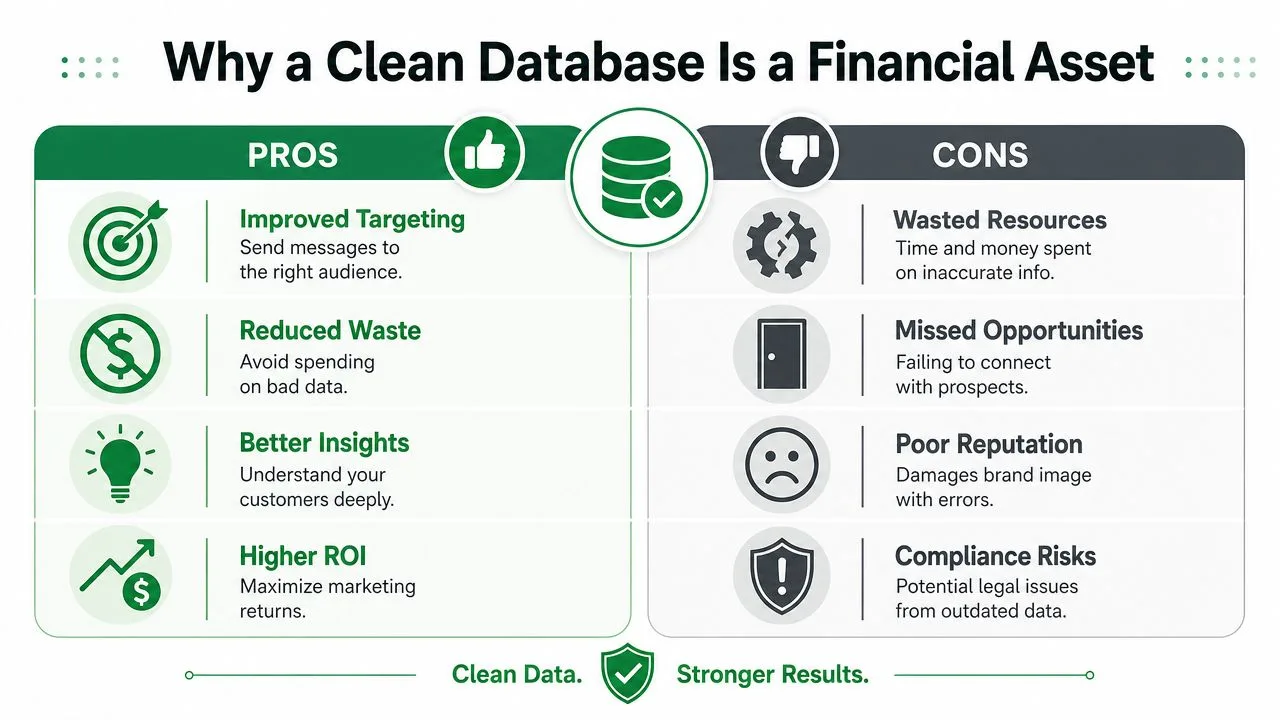
A messy contact sheet works like a pile of unsorted books on the floor. The information exists, but nobody can retrieve the right thing at the right time. A clean database works like a well-run library. Records are organized, labels are consistent, and people can find what they need without guessing.
That difference shows up in money, time, and sender reputation.
What bad data costs
In B2B outreach, lists don’t stay fresh on their own. B2B contact data decays at a rate of 25-30% per year, and 70% of data in a typical CRM is outdated or inaccurate, costing sales teams around 500 hours annually in lost productivity, based on Landbase’s B2B database statistics roundup.
For a small team, that wasted time looks familiar:
- Wrong people get emailed and the campaign underperforms before the copy ever gets a fair shot.
- Former employees stay in the sheet and bounce rates climb.
- Sales follow-ups hit dead addresses while active prospects get ignored.
- Reporting gets distorted because you can’t tell whether poor results came from weak messaging or weak data.
Why clean data pays back
A clean database does four useful things at once.
- It protects deliverability: Fewer bad records means fewer bounces and fewer signals that tell inbox providers your mail can’t be trusted.
- It improves relevance: Segmentation only works when fields are consistent enough to filter by source, status, location, or interest.
- It reduces waste: Teams stop sending campaigns to people who shouldn’t be in the audience.
- It creates better decisions: You can see patterns in replies, non-responses, and lifecycle stage because the records are structured.
A lot of teams wait too long to clean because the job feels tedious. It helps to break it into recurring maintenance. If you need a practical cleanup workflow, this guide on how to clean an email list is a useful place to start.
A contact database isn’t valuable because it stores names. It’s valuable because it lets your team act on the right names with confidence.
Treating hygiene as a revenue task changes behavior. People become more careful about imports, field naming, and list ownership because the downstream impact is obvious.
The Four Pillars of Contact Management
Most contact database management problems fall into four buckets. If you fix these, the rest gets much easier.
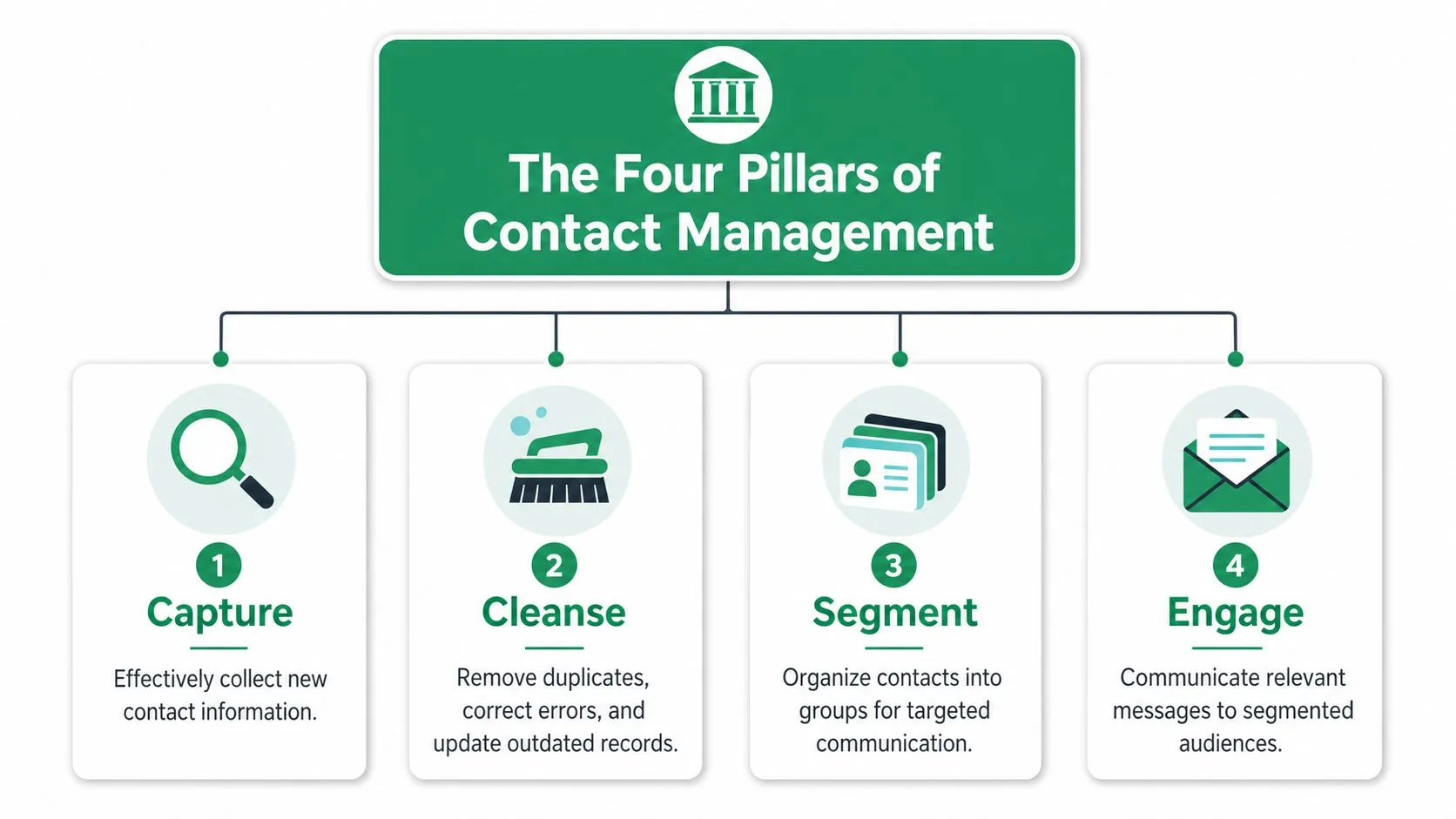
Data model and structure
Start with the shape of the database. Decide what a record is, what fields matter, and where each fact should live. Even in Google Sheets, you need a simple schema.
At minimum, separate identity fields from workflow fields. A person’s name and email are not the same kind of data as lead source, owner, or last contacted date. When teams blur those together, the sheet turns into a note dump.
A practical starter structure includes:
| Field | Purpose |
|---|---|
| FirstName | Personalization and sorting |
| LastName | Identification |
| Primary outreach field | |
| Company | Account context |
| LeadSource | Where the contact came from |
| Status | Lead, Prospect, Customer, Partner, etc. |
| Owner | Who on your team manages the relationship |
| LastContacted | Operational timing |
| Notes | Short, controlled context |
Data hygiene
Hygiene is the ongoing work of cleaning, standardizing, and correcting records. Many organizations underinvest in this area because the work isn’t flashy.
The payoff is real. Quarterly contact database hygiene reviews, including removing duplicates and correcting incomplete fields, have been shown to reduce email bounce rates by 40-60% and increase open rates by 25-35%, according to ZoomInfo’s discussion of contact database software practices.
That result lines up with what operators see in the field. If you remove obvious junk, standardize values, and archive dead records before each major send, campaigns usually get easier to diagnose and improve.
Operator note: If two team members can label the same contact as “Prospect,” “prospect,” and “Sales Lead,” your segmentation is already drifting.
Data enrichment
Enrichment means adding useful context to a record so you can make better outreach decisions. Sometimes that’s company name, role, territory, or a note about prior engagement. Sometimes it’s as simple as filling in a missing first name so the message doesn’t feel robotic.
The mistake is enriching everything just because you can. Small teams get better results when they enrich only the fields they use in targeting, personalization, or routing. Extra columns without a clear use become dead weight.
Teams handling attendance lists, invite-only events, or partner rosters run into the same issue. The work isn’t just storing names. It’s controlling statuses, deduplicating entries, and making sure the list supports operations on the day of action. That’s why articles on troubleshooting guest list challenges can be surprisingly relevant even outside events.
Segmentation
Segmentation is where the database starts earning its keep. You’re grouping contacts based on something meaningful, then sending the right message to the right slice.
Good segments are operational. Bad segments are aspirational.
Use fields you can maintain consistently. Status, source, geography, service interest, customer stage, and owner are usually strong candidates. If you want ideas for building cleaner campaign slices, this guide to email list segmentation in Google Sheets workflows is useful.
A healthy system doesn’t chase complexity. It captures cleanly, stays clean, adds useful context, and segments with discipline.
How to Build Your Database with Google Sheets
Google Sheets is enough for many teams if you treat it like a lightweight database instead of a scratchpad. That means fewer free-text fields, more standardized columns, and clear rules on what goes where.
Start with a master sheet
Use one primary sheet as the authoritative contact table. Not one sheet for newsletters, one for leads, one for referrals, and one hidden tab that only one person understands. Separate views are fine. Separate truths are not.
A practical setup looks like this:
- Identity columns: FirstName, LastName, Email, Company
- Operational columns: Status, Owner, LeadSource, LastContacted
- Campaign columns: Segment, LastCampaign, DoNotEmail
- Context columns: Notes, ProductInterest, Region
Keep notes short. If notes become mini-paragraphs, the sheet gets harder to scan and filter.
Use built-in controls early
The best time to prevent dirty data is before it enters the file.
Use Google Sheets data validation for fields that should never vary in spelling. Status is the classic example. Instead of letting people type anything, create a dropdown with approved values such as Lead, Prospect, Customer, Partner, and Archived.
A few simple controls go a long way:
- Dropdowns for repeat values: Use them for Status, Owner, Segment, and Region.
- Required columns: Make Email and Status mandatory before a row is considered active.
- Consistent date formatting: Pick one format and keep it across the sheet.
- Protected ranges: Lock formula columns and audit fields so nobody overwrites them.
Don’t let convenience decide your data model. Every free-text field creates future cleanup work.
Clean as you import
Imports are where most sheet-based systems get polluted. CSV files arrive with stray spaces, odd capitalization, or combined fields that don’t match your structure.
Google Sheets gives you enough to fix a lot of that quickly. TRIM() removes extra spaces. PROPER() can normalize name casing. Sorting and filtering help spot blanks, duplicates, and outliers. If you need a quick refresher on sorting records cleanly, this tutorial on how to alphabetize in Google Sheets is handy.
For teams moving data in from exported lists or form tools, a utility like CSV to Contacts can help when the main challenge is getting imported contact files into a cleaner structure before outreach begins.
Keep the sheet usable for humans
A contact database doesn’t need to impress a data engineer. It needs to support day-to-day execution.
That usually means:
| Good practice | What it prevents |
|---|---|
| One row per contact | Duplicate identity records |
| One field per type of data | Mixed notes and workflow clutter |
| Short approved status values | Broken filters |
| Separate archive view | Active list contamination |
The big win with Sheets is visibility. Everyone can see the same rows, filters are easy to use, and changes happen fast. The trade-off is governance. Without rules, a sheet gets messy much faster than a locked-down CRM.
Activate Your Database with Mail Merge for Gmail
A lot of small teams get the database mostly right and still hit a wall. The sheet is organized, the segments make sense, and the email copy is ready. Then the outreach happens in a separate tool, and the result data never makes it back to the contact record.
That’s the break in the system.
Where native Gmail falls short
Gmail’s built-in mail merge is useful for basic sends, but it has clear limits. Google states that the native feature supports only four merge tags, @firstname, @lastname, @fullname, and @email, in its Gmail mail merge help documentation. That restricts how much personalization you can pull from a sheet.
There are also send-volume constraints. Gmail’s native mail merge is capped at 1,500 unique recipients per day, as described in this guide to Gmail’s 1,500-recipient mail merge limit.
For small campaigns, that may be enough. For repeatable outreach operations, the bigger problem is workflow. Native mail merge doesn’t give small teams much help with closed-loop contact management.
The missing feedback loop
One of the most expensive failures in contact database management is when engagement data lives outside the database. Marketing sends the campaign. Sales checks replies in Gmail. Nobody writes outcomes back to the contact sheet. A few weeks later, the same people get treated like strangers.
That isn’t a niche issue. 70% of B2B marketers fail to sync their marketing automation with their CRM in real time, leading to stale data that harms campaign performance, according to New Breed’s contact database management best practices article.
That figure matters because it points to the core operational gap. The sheet can’t stay useful if every campaign creates new information but nobody records it where future decisions get made.
A practical CRM-lite loop in Google Workspace
A Google Workspace stack can become much more capable without turning into an enterprise CRM rollout. The basic model is simple:
- Store contact records in Google Sheets
- Use those fields to personalize sends in Gmail
- Write send and engagement status back to the same row
- Filter the sheet based on behavior for the next action
Used that way, the spreadsheet stops being a static list and becomes a working contact engine.
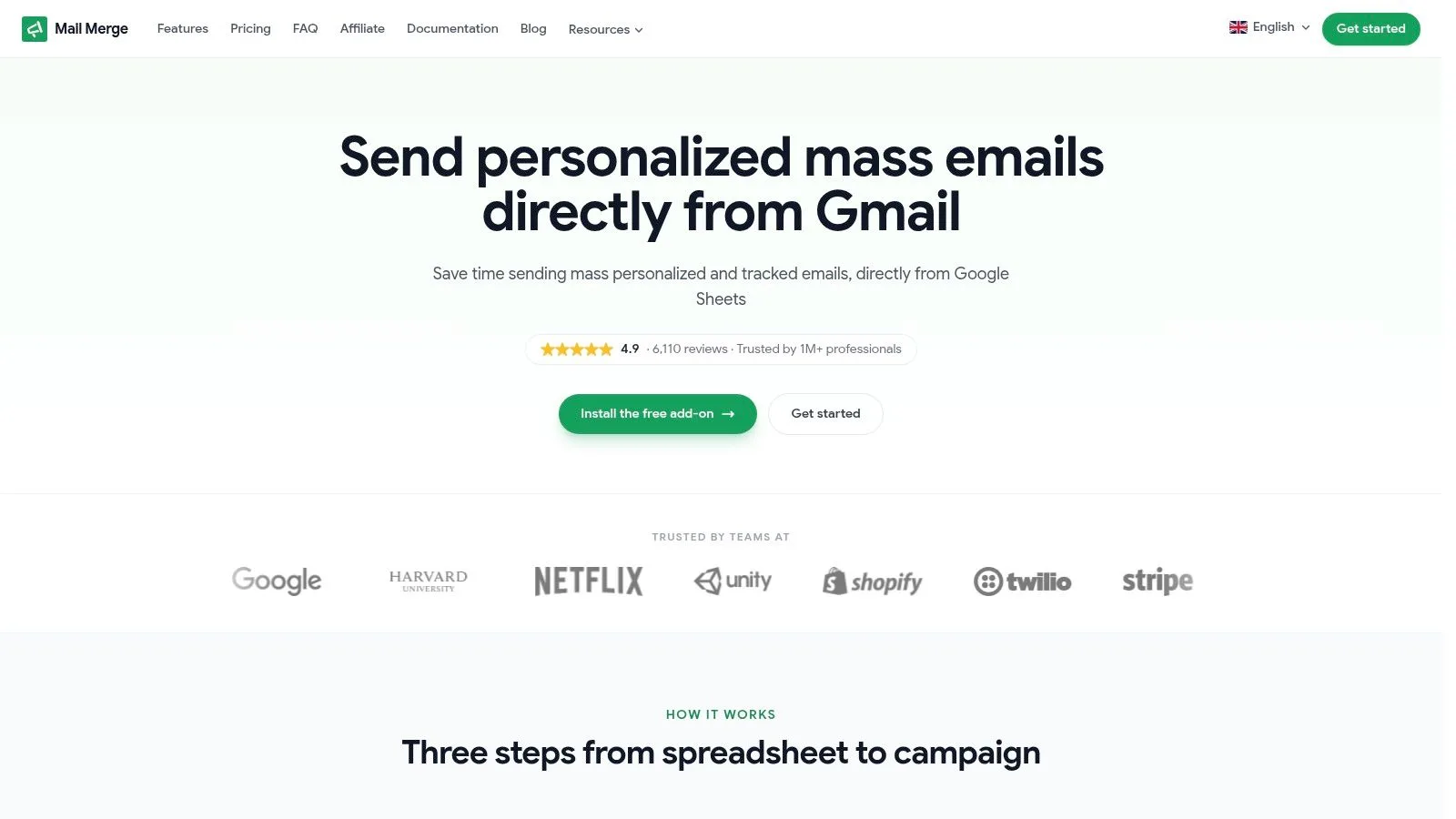
Mail Merge for Gmail fits this workflow by using Google Sheets data for personalized campaigns sent from Gmail and writing per-row statuses such as Sent, Opened, Clicked, and Replied back into the sheet. That’s the key shift from simple list sending to practical contact database management inside a familiar stack.
Because the product name is descriptive, it’s worth being careful when researching it online. A lot of articles about “mail merge for Gmail” refer to generic mail merge tools for Gmail rather than the specific Google Workspace add-on called Mail Merge for Gmail.
A lightweight system becomes powerful when every send teaches the database something new.
Here is the workflow in motion:
- Opened but didn’t click: Review subject line fit and send a tighter follow-up with one clear call to action.
- Clicked but didn’t reply: Move the contact into a warmer segment and send a more direct next-step message.
- Replied: Change status, assign an owner, and stop further campaign sends.
- Never engaged: Suppress after a defined review cycle or requalify later.
After you’ve seen the sheet update from campaign behavior, the operational value becomes obvious.
A quick product walkthrough helps show the setup in context:
What actually works for small teams
The low-cost version of sophistication isn’t more software. It’s tighter loops.
What tends to work:
- One master contact sheet: Campaign tabs can exist, but they should pull from the same core records.
- Behavior-based segments: Filter on actual engagement instead of guessing interest.
- Per-row status updates: Keep outcomes attached to the contact, not buried in someone’s inbox.
- Simple field governance: Only track what the team will truly use.
What usually fails:
- Copying contacts into new sheets for every send
- Letting reps maintain personal lists outside the shared file
- Using custom statuses no one agreed on
- Sending again before checking what happened last time
That last point matters most. Contact database management isn’t about collecting more names. It’s about making each interaction improve the quality of the next one.
An Actionable Checklist for Ongoing Success
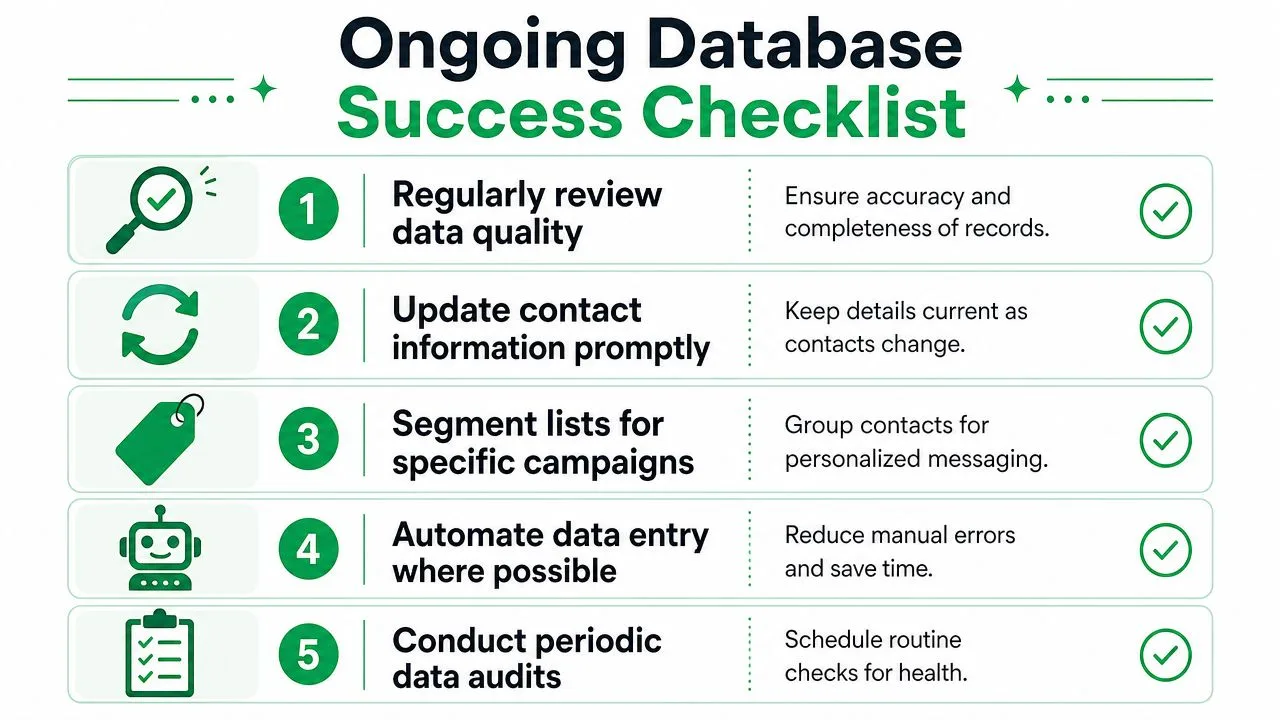
Once the system is built, the main job is maintenance. Good contact database management is repetitive on purpose. Teams that treat it as a quarterly discipline keep their lists usable. Teams that treat it as a one-time cleanup drift back into spreadsheet chaos.
Governance rules that keep the sheet clean
Start with ownership. Someone should be responsible for the master sheet, even if multiple people edit it. That person doesn’t need to do every update, but they should control field definitions, dropdown values, archive rules, and import standards.
Use a short operating checklist:
- Control who edits structure: Limit who can add columns, rename headers, or change formulas.
- Archive inactive records: Move old contacts out of the active working view instead of deleting useful history.
- Define status rules: Make it clear when a contact becomes a Prospect, Customer, or Archived record.
- Review imports before merge: Never paste a purchased or exported list directly into the master sheet without inspection.
Compliance and security basics
Even small teams need to handle personal data carefully. If you’re storing contact details and sending campaigns, consent, suppression handling, and accurate records matter. GDPR may apply depending on where your contacts are and how you use their data, so build the habit of honoring unsubscribe requests, keeping only necessary data, and documenting who should receive what.
There’s also a practical security point in keeping the workflow inside your existing Google account environment. When contact data and campaign tracking stay tied to the same Workspace setup, access control is usually easier to manage than when staff scatter CSV files across inboxes and desktops.
Keep this standard: If a team member leaves tomorrow, another person should still be able to understand the database and continue outreach without rebuilding the system.
A working quarterly checklist
You don’t need a giant rev ops process. You need a repeatable one.
- Review duplicate contacts and merge or archive them.
- Filter for blank critical fields such as email, status, or owner.
- Check bounce and non-response patterns by segment.
- Update stale statuses after recent campaigns or sales activity.
- Confirm suppression handling so unsubscribed or ineligible contacts aren’t mailed again.
- Audit segment logic to make sure values still reflect how the business operates.
- Protect the sheet structure after cleanup so fixes don’t get undone.
The best KPI set is the one the team will inspect. Deliverability, opens, clicks, replies, segment-level performance, and list health are usually enough to spot problems early when those signals are visible in the same operating sheet.
Start Building Your Contact Engine Today
You don’t need a bloated CRM to run disciplined outreach. You need clean records, a usable structure, consistent rules, and a feedback loop that turns each send into better contact data.
That’s why the CRM-lite approach works for small businesses. Google Sheets gives you visibility. Gmail gives you a familiar sending environment. A smart process ties them together. If your operation also depends on front-line call handling, tools in adjacent workflows like virtual receptionist software for businesses can help keep inbound communication as organized as your outbound system.
Start with the sheet you already have. Clean it, structure it, govern it, and make it learn from every campaign.
If you want to run this workflow inside Google Workspace, Mail Merge for Gmail connects Google Sheets contact data with personalized Gmail sends and writes campaign status back to each row, which makes ongoing contact database management easier without moving your team into a full CRM.
Ready to send your first campaign?
Install Mail Merge for Gmail from the Google Workspace Marketplace and send up to 50 personalized emails per day for free.
Get started for freeMore reading
More from Guides

Mail Merge with CC and BCC in Gmail: Copy the Right People on Every Email
Learn how to run a mail merge with CC and BCC from Google Sheets, set up the columns, preview the result and see how copied recipients count toward your daily quota.

Gmail Sending Limit Reached: What It Means and How to Finish Your Campaign
Hit the Gmail sending limit reached error? Learn the real daily limits, when you can send again, and how to split a mail merge into safe daily batches.

Personalized Email Gmail: The Complete Guide
Master your personalized email Gmail workflow. Learn to merge Sheets data, track opens, and scale one-to-one outreach without leaving your inbox.