


















Shared Email Templates: Cut Drafting Time
Discover how shared email templates cut drafting time, keep messaging consistent, and scale outreach with personalization, governance, and analytics that work.
The same question lands in three inboxes by lunch. One rep rewrites the intro, another pastes an older draft, and the third sends a version that sounds close enough but uses different wording, different timing, and a different promise. By the time anyone notices, the thread is already messy, and the team is stuck cleaning up its own inconsistency.
That’s the primary reason shared email templates matter. Email is still the default business channel for a huge share of day-to-day work, with more than 4.6 billion people worldwide using it in 2025 and over 376 billion emails sent and received every day, while the average office worker gets about 121 emails per day and spends 5 to 15.5 hours per week in email workflows (CloudHQ workplace email statistics). In that environment, templates aren’t a nice-to-have shortcut. They’re an essential tool.
For sales, recruiting, support, and internal comms, the win is not just faster drafting. It’s fewer off-brand sends, fewer stale replies, and fewer repeated decisions about the same message. The teams that get this right usually solve three jobs at once, they write once with personalization built in, they share without drift, and they know which version performed.
The Hidden Cost of Rewriting the Same Email Twice
A rep opens a thread, starts typing the same intro for the third time that morning, then stops to check whether support already promised the same thing in a different tone. That small pause looks harmless. In practice, it is the hidden tax teams pay every day. When five people each spend ten minutes drafting a message that already exists in a rough draft, a shared reply, or a teammate’s sent folder, the team has burned almost an hour on copy that should have been reusable.
Templates change that math. The savings are not limited to writing time. Repeated drafting creates inconsistent phrasing, mismatched promises, and replies that land out of sequence because nobody is sure which version is current. Email volume makes the problem harder to ignore, and the pressure rises fast in sales, recruiting, customer support, and internal announcements, where the same message has to stay consistent while still sounding human.
Practical rule: if a message gets written more than twice a week, it belongs in a shared template library.
The tangible benefits of shared templates
They deliver consistency first. Speed comes second. A team that keeps retyping from memory tends to drift in tone, calls to action, and promise language, while a team that starts from a shared template keeps the message aligned and only changes the fields that matter.
They also cut inbox friction. Nobody wants another tab, another login, or another system to update just to send a routine follow-up. Keeping the workflow inside Gmail is the practical move when the team already lives there and only needs a repeatable way to reuse approved copy. For teams that want a clear setup path, this guide to mail merge from Google Sheets shows how shared data can feed personalized sends without forcing people into a separate tool.
The other advantage is governance. Once a template becomes the default for a team, it starts acting like a controlled communication asset, whether anyone labels it that way or not. That is the point where versioning, ownership, and performance tracking stop being extras and become part of the job.
Setting Up a Shared Template Library in Gmail and Google Sheets
A workable library doesn’t start with a giant taxonomy. It starts with a clean folder, a clear naming rule, and a sheet that can feed merge fields without forcing everyone to guess which column means what. In Gmail, the simplest setup is to keep the reusable copy close to the inbox, then use a Google Sheet as the recipient source so every row carries the fields the message needs.
Build the library before you build the campaign
Start with a shared folder or label structure that matches how the team works. For a small team, a simple split by function is enough, such as sales, recruiting, support, and internal. Once the number of templates grows, add prefixes that make searching predictable, like sequence names, owner initials, and a last-updated tag in the title.
A practical template name usually does three things at once. It says what the message is for, who owns it, and whether it’s current. That sounds minor until someone is hunting for the right version during a live campaign and needs the answer fast.
Keep the sheet clean enough to merge
Recipient sheets need more than names and email addresses. Add fields that support status and control, not just personalization. A solid starter sheet includes columns for status, unsubscribe, and last touch date, because those fields tell the sender whether the contact is active, opted out, or already in motion.
Use headers that stay obvious. Stray spaces, duplicated labels, and vague names are how merge jobs break. If a team can’t tell at a glance which column drives a subject line and which one feeds the body, the setup isn’t ready yet.
For the actual merge workflow, the cleanest path is to keep the template library inside Gmail, keep the recipient data in Google Sheets, and connect the add-on from the same workspace so users don’t have to copy data between tools. For a walkthrough on how that handoff works in practice, this guide on how to mail merge from Google Sheets is the right place to start.
Personalization Tokens That Make Templates Feel One-to-One
The first mistake teams make is thinking personalization means dropping in a first name and calling it done. That’s not enough anymore. Good templates now have to support subject-line variation, body fields, role-specific language, and sometimes even attachments or recipient routing, because the message has to feel specific without being rewritten from scratch every time.
Dynamic email content works best when the template forces the sender to change the few parts that matter. In practice, that means the template stays stable, while the fields carry the context.
Use tokens with discipline, not everywhere
The most useful tokens are the ones that change the message’s meaning, not just its formatting. Subject-line tokens matter because they can change whether the email gets opened at all. Body tokens matter because they help the sender reference the right company, role, or previous touch. CC and BCC tokens matter when the workflow requires a teammate, manager, or recruiter to be included consistently.
Attachments and HTML templates help in branded outreach, but they should solve a real need, not decorate the send. If every message needs a polished layout, that’s a sign the use case is more formal than a plain text sequence. If the team just needs clarity and speed, heavy formatting can get in the way.
Use tokens to reduce manual judgment, not to remove the sender’s responsibility to personalize.
A simple SDR sequence
Take a three-step sales follow-up. Step one opens with the prospect’s name, company, and a one-sentence reference to the trigger event. The subject line stays short and direct, while the body asks for one clear next step.
Step two keeps the same core offer, but swaps the body token to reference the earlier send and changes the ask to something lighter. Step three keeps the tone polite, short, and closeable, but drops the more detailed context and leaves only the decision point. The subject line can vary slightly across the sequence, but the core CTA should stay recognizable.
The static parts are the brand voice, the offer, and the logic of the sequence. The variable parts are the names, roles, context, timing cue, and any routing detail. If the template forces too many tokens into every line, it starts feeling like a form instead of an email.
Watch for the common failure modes
The biggest failure is over-tokenization. Too many fields make the message look robotic and break the reading flow. The second failure is empty values, where a token pulls a blank string and leaves a weird gap or half-sentence in the final send. The third is a bad header match, usually from a stray space or a slightly different column name that sends the wrong value into the wrong place.
A useful rule is to tag the fields that vary by recipient and leave the rest out. If a field won’t change the message, don’t make the sender fill it in. That keeps the sheet usable and the template readable.
Choosing How Your Team Will Share and Access Templates
There isn’t one right sharing model. There are only trade-offs, and the wrong one usually shows up as either template drift, access confusion, or nobody knowing who changed the copy last. The best setup depends on how many people are sending, how often the templates change, and how much control the team needs over usage.
A shared Google Drive folder is the lightest option. It works well when two people need the same snippets and don’t want a formal system around them. The upside is simplicity. The downside is that discoverability and permissions get messy once more people start editing or copying files in parallel.
A shared mailbox works better for teams already collaborating from one inbox. It keeps the work close to the send environment, which helps adoption. The gap is auditability, because it’s harder to know who used which version, and once the mailbox fills up, it gets harder to keep a clean record of the current template set.
A workspace add-on model is the most controllable option. It supports a centrally maintained library, and the team inherits updates without everyone manually syncing drafts. That makes the most sense when templates change often or when the team cares about usage traceability and version consistency.
If the template changes often, centralize it. If the team is tiny and stable, keep the system lightweight.
For a two-person team, a shared Drive folder is often enough. For a group of five to fifteen who already work in one inbox, a shared mailbox can be the sweet spot. For teams sending more than a few hundred personalized messages a week, the add-on model usually wins because the administrative overhead of drift becomes real.
The key question isn’t which system is fanciest. It’s which system lets people send fast without creating a hidden cleanup job for someone else later.
Testing, QA, and the Send-Day Workflow That Prevents Embarrassment
A template can look perfect in preview and still fail in production because one merge field is empty or one subject token pulled the wrong column. That’s why send-day needs a routine, not a guess. The strongest teams treat the first send as a controlled test, not a leap of faith.
Start with internal checks. Send the message to yourself and two teammates first, then confirm the merge fields render the way you expect. After that, run a dry pass on a small sample from the data sheet so you can see whether the row data behaves the same way it did in preview.
Then check the operational basics. Confirm that opt-out logic is present, that the right recipients are in the right state, and that the template doesn’t collapse when a field is missing. If the send depends on a sequence, schedule it in batches instead of trying to force everything at once.
For a tighter QA routine, use email template testing best practices as a reference point and adapt the steps to your own process.
| Common Merge Mistakes and Quick Fixes | ||
|---|---|---|
| Symptom | Likely Cause | Fix |
| Blank name in the greeting | Empty field in the sheet | Fill the column or set a fallback |
| Wrong company name in the body | Header mismatch or shifted column | Recheck column names and row alignment |
| Subject looks broken | Token inserted in the wrong place | Test the subject separately before send |
| Opt-out recipient still included | Status column not enforced | Filter the send list before launch |
| Tracking looks incomplete | Test rows weren’t reviewed | Verify the sample rows before the live run |
Real-time tracking matters here because it gives the sender something to act on, not just something to admire. Per-row delivery and engagement statuses written back to the sheet make it much easier to see what happened at contact level, and that’s the kind of visibility teams need when they’re managing follow-ups across multiple owners.
The other operational constraint to plan around is the daily send ceiling. Batching around a 1,500 recipients per day limit forces discipline, which is annoying only until it saves a launch from becoming a send failure.
Governance, Version Control, and Knowing Who Owns the Message
Once a template is used by three or more people, it’s not just a saved reply anymore. It’s a controlled communication asset. That shift matters because the team now needs to know who owns it, when it was last reviewed, and how to retire it before outdated language leaks into live sends.
Most shared-template guides stop at creation and reuse. They cover how to save the copy, how to insert it, and maybe how to personalize it. They usually skip the harder operational question of who used which version and when, which is exactly where teams run into trouble once templates are shared across sales, HR, recruiting, or support.
The need for usage tracing is real. Even a product help article that exposes a Usage tab shows that teams want visibility into how shared templates are being used, not just how to store them (shared email templates help article). That’s a small clue, but it points to a bigger truth, shared messaging now needs light governance.
Simple rules that prevent chaos
Give every template one named owner. Keep one canonical location for the approved version. Put a last reviewed date in the name or metadata. Add a retire rule so stale copy doesn’t linger forever just because nobody wants to delete it.
A usage log doesn’t need to be complicated. It just needs to answer the basic audit questions without a scavenger hunt. Who sent it, which version they used, and whether it was still approved at the time are usually enough to keep the team honest.
The governance side also ties into brand control. If you need a broader framework for managing communication assets across teams, build a powerful brand is a useful lens for thinking about ownership and consistency beyond email.
The best template libraries feel boring in the right way, because everyone knows which version is current.
Keep the process light. One owner, one canonical location, one review date. Anything more starts to feel like bureaucracy, and bureaucracy is how teams stop maintaining the system they said they wanted.
Measuring What Works and a 30-Day Rollout Plan You Can Run on Monday
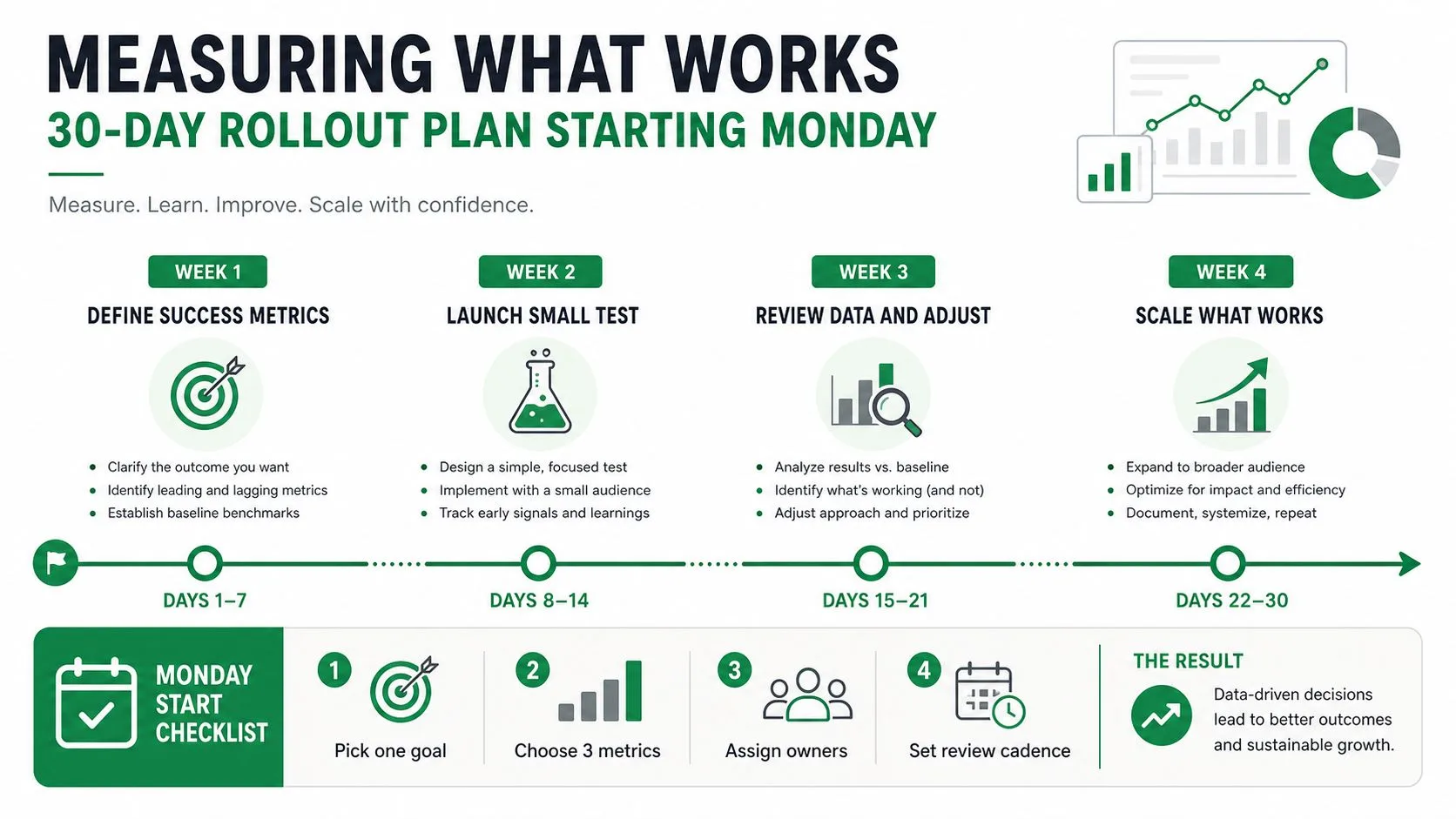
The point of template analytics isn’t to admire charts. It’s to answer a simple question, which message gets replies without creating more cleanup for the team. Once templates are governed and personalized well, the next job is to track which version gets used, which subject line gets engagement, and which owner keeps the library current.
This is also where teams should think more critically about standardization. Outreach that relies on a generic template often performs worse than outreach with a specific trigger, a clear value statement, and a tight ask, so the measure of success isn’t just reuse. It’s whether the template still leaves room for enough context to earn a response.
A rollout that doesn’t drag on
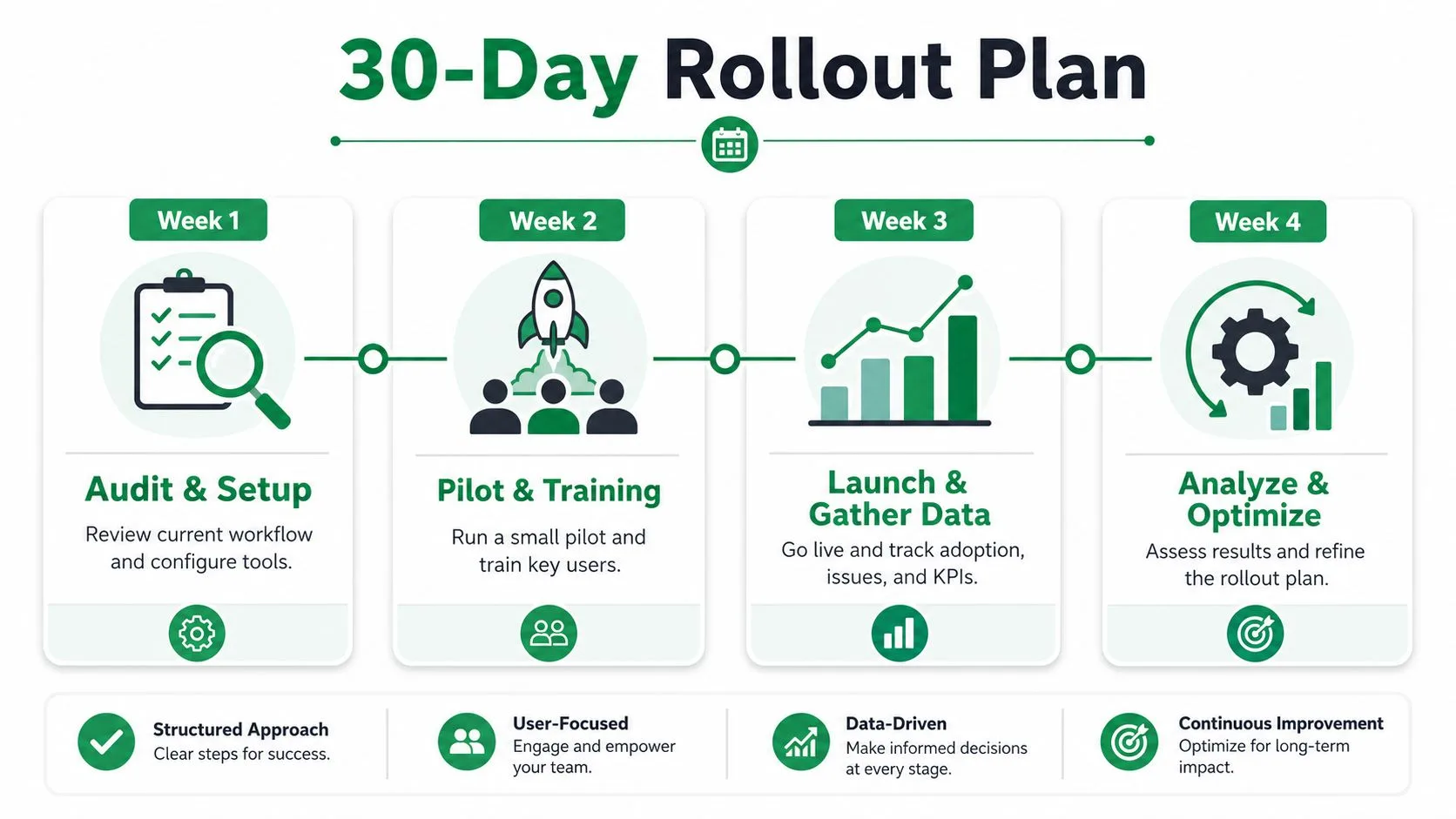
Week one, audit the current drafts and decide which ones deserve to stay. Put them into one canonical folder or library and clean up the sheet structure so the merge fields are predictable.
Week two, build two core templates with tokens for the fields that vary. Train the senders on how to use them and what not to edit.
Week three, run a real campaign with QA checks in place and watch the per-row status columns for delivery and engagement. Week four, review what worked, retire the dead copy, and tighten the fields that caused friction.
If you want a short version for Slack, use this:
Rollout note: clean the library, lock the current version, test the merge fields, launch a small batch, then review usage and replies before expanding.
If your team wants to send faster without losing control of the message, Mail Merge for Gmail gives you a way to keep templates in Gmail, pull recipient data from Google Sheets, and track what happened row by row. Visit Mail Merge for Gmail to see how shared templates, personalization, and send tracking can live inside the workflow your team already uses.
Ready to send your first campaign?
Install Mail Merge for Gmail from the Google Workspace Marketplace and send up to 50 personalized emails per day for free.
Get started for freeMore reading
More from Guides

Mail Merge with CC and BCC in Gmail: Copy the Right People on Every Email
Learn how to run a mail merge with CC and BCC from Google Sheets, set up the columns, preview the result and see how copied recipients count toward your daily quota.

Gmail Sending Limit Reached: What It Means and How to Finish Your Campaign
Hit the Gmail sending limit reached error? Learn the real daily limits, when you can send again, and how to split a mail merge into safe daily batches.
Personalized Email Gmail: The Complete Guide
Master your personalized email Gmail workflow. Learn to merge Sheets data, track opens, and scale one-to-one outreach without leaving your inbox.