


















GoDaddy SPF Record Setup Guide for 2026
Set up your GoDaddy SPF record correctly in 2026. Learn syntax, multi-sender merging, the 10-lookup limit, and verification steps that actually work.

You’ve got the record in GoDaddy, the last campaign went out, and Gmail still treated half your sends like they were coming from a stranger. Then someone adds a CRM, a newsletter tool, and a transactional platform, and the whole setup starts behaving like a pile of loose wires. That’s usually where a GoDaddy SPF record stops being a checkbox and turns into the thing holding your deliverability together.
The painful part is that SPF failures rarely announce themselves clearly. A sender gets added, DNS gets edited once, and weeks later the team sees spam placement, authentication errors, or one platform working while another falls off the list. If that sounds familiar, you’re dealing with DNS ownership, record structure, and the 10 lookup ceiling, not just “email issues.”
Why Your GoDaddy SPF Record Matters More Than You Think
SPF is simple in concept and brutal in practice. A receiving server checks the domain’s published policy in DNS, then asks whether the sending server is allowed to send for that domain. If the answer doesn’t line up, the message can be treated as unauthorized even when the sender is legitimate.
That’s why a broken GoDaddy SPF record hurts more than many realize. Microsoft 365 and Google Workspace both rely on authentication signals that mailbox providers evaluate behind the scenes, so a missing or malformed SPF record can affect inboxing long before anyone notices a visible failure. The difference between hardfail and softfail matters here, because the ending qualifier tells receivers whether unauthorized mail should be rejected outright or treated with suspicion.
The part most teams miss
SPF doesn’t just say, “is this domain yours.” It says, “is this sender on the approved list published in DNS.” That’s also where SPF alignment starts to matter, because DMARC later checks whether the visible From domain lines up with the authenticated source.
Practical rule: if a sender was added to the stack after the original SPF record was built, that sender has probably become the problem unless the DNS record was revised too.
GoDaddy’s own guidance reflects the modern approach, where SPF is published as a TXT record rather than a separate SPF type record, and the workflow centers on DNS editing inside the domain’s portfolio. That setup sounds ordinary, but it’s exactly why SPF breaks so often. The record is easy to add once and easy to forget after the next tool gets approved.
Adding Your First SPF Record in GoDaddy DNS
Start in the Domain Portfolio, open DNS, and add a record as TXT. GoDaddy’s own help shows this path for SPF setup, with the SPF policy entered in the Value field and the host set at the root when the policy applies to the entire domain, while TTL stays on Default in the documented example for related mail records GoDaddy’s SPF record help GoDaddy’s DNS record fields for email authentication.

The fields that matter
Type should be TXT, not SPF. GoDaddy’s documentation uses TXT because that’s the standard publication format for SPF in modern DNS, and that choice avoids ambiguity across validators.
Name should usually be @ for a root-domain policy. That tells GoDaddy the record belongs at the top of the domain rather than on a subdomain. Value is where the SPF string lives, so that’s where you paste the policy itself.
TTL can stay on Default if you’re following GoDaddy’s documented setup, especially when you’re not in the middle of troubleshooting. The exact field names are easy to gloss over, but they’re the difference between a record that lives at the domain root and one that sits somewhere useless.
A simple GoDaddy-managed mail example looks like v=spf1 include:secureserver.net -all, which is the form GoDaddy shows for hosting email. If you’re only authorizing one sender source, that’s the shape you want, one record, one policy, one place.
For a Gmail-specific variant, this SPF guide for Gmail users shows the same TXT-first logic in practice.
If you type the record type as something other than TXT, or leave the host blank when the policy needs to sit at the root, the record may exist in the UI but still fail at the DNS layer.
Later in the process, GoDaddy’s own interface becomes less important than the authoritative DNS zone, but the first win is getting the record entered in the right field, with the right type, at the right host.
SPF Syntax for the Senders You Use
Many organizations do not run one sender. They run a primary mailbox, a marketing platform, a CRM, and a transactional system. The SPF record is the single statement that authorizes all of them, so the actual job is choosing the right mechanisms and keeping the list short enough to validate before GoDaddy DNS starts working against you.
Ready-to-paste SPF strings for common sender stacks
| Sender Setup | SPF Value | Lookups Used |
|---|---|---|
| Google Workspace | v=spf1 include:_spf.google.com -all | One include, then the final policy check |
| Microsoft 365 | v=spf1 include:spf.protection.outlook.com -all | One include, then the final policy check |
| Google Workspace plus a marketing tool | v=spf1 include:_spf.google.com include:servers.mcsv.net -all | Two includes, plus any nested lookups inside the included records |
| Microsoft 365 plus a transactional sender | v=spf1 include:spf.protection.outlook.com include:amazonses.com -all | Two includes, plus any nested lookups inside the included records |
These strings are useful because they show the pattern, one record, one policy, one place to control it in GoDaddy. If your stack starts with Google Workspace or Microsoft 365 and then grows into marketing and transactional mail, the record usually stops being about syntax and starts being about how many DNS lookups each provider spends behind the scenes.
What the mechanisms do
include says to check another domain’s SPF policy and inherit its authorization. That is the workhorse for Google Workspace, Microsoft 365, Mailchimp, SendGrid, and similar platforms.
ip4 is for fixed sending addresses, which helps when you control the source IP and do not want to depend on another provider’s policy chain. all at the end sets the rule for anything not already authorized, and the qualifier decides how strict the failure should be.
Practical rule: use a stricter ending when your sender list is stable, and a softer ending only while you are still cleaning up the stack.
A useful outside perspective on sender planning is advice for small business email campaigns, because campaign teams often add tools without checking their impact on DNS.
The part that trips up real GoDaddy setups is lookup budget. Every extra include spends that budget, and a record can look clean while still failing because the chain gets too deep. Build the syntax around the stack you run, not the stack you wish you ran.
Merging Multiple Senders Without Hitting the Lookup Limit
The big failure mode with a GoDaddy SPF record isn’t syntax, it’s accumulation. A domain starts with one sender, then marketing adds another, then sales adds a CRM, then operations adds a transactional platform, and nobody notices that SPF is now trying to validate more systems than the standard allows.
The rule is blunt, and it doesn’t bend. Never publish more than one SPF record at the same name. If two SPF TXT records exist for the same domain, receivers can treat the result as invalid or ambiguous, which means the record you thought was helping may be the thing breaking authentication.
How the merge process works
Start by listing every legitimate sender. Then fold them into one TXT policy, using include statements where the provider manages its own sending infrastructure. If you already have a record in GoDaddy, edit that one instead of creating a second copy.
The second trap is nesting. A single include can hide several more lookups inside the provider’s own SPF policy, and that’s why domains can run out of budget faster than the team expects. GoDaddy-focused guidance warns users to stay under the 10 DNS-mechanism lookups limit, and that limit applies during evaluation, not after the fact SPF setup best practices for GoDaddy domains 2026 SPF guidance for GoDaddy domains.
A cleaner operating model
- Audit every sender first: remove old tools that no longer send mail, because stale includes still consume budget.
- Consolidate into one policy: keep all authorization in a single TXT record at the correct name.
- Verify the lookup count before saving: a record that looks tidy can still fail if nested includes push it over the ceiling.
Mail Merge for Gmail fits this logic neatly. It sends through Google’s authenticated infrastructure, so it doesn’t need its own separate include and doesn’t add to the SPF budget when you’re already authorizing Google Workspace.
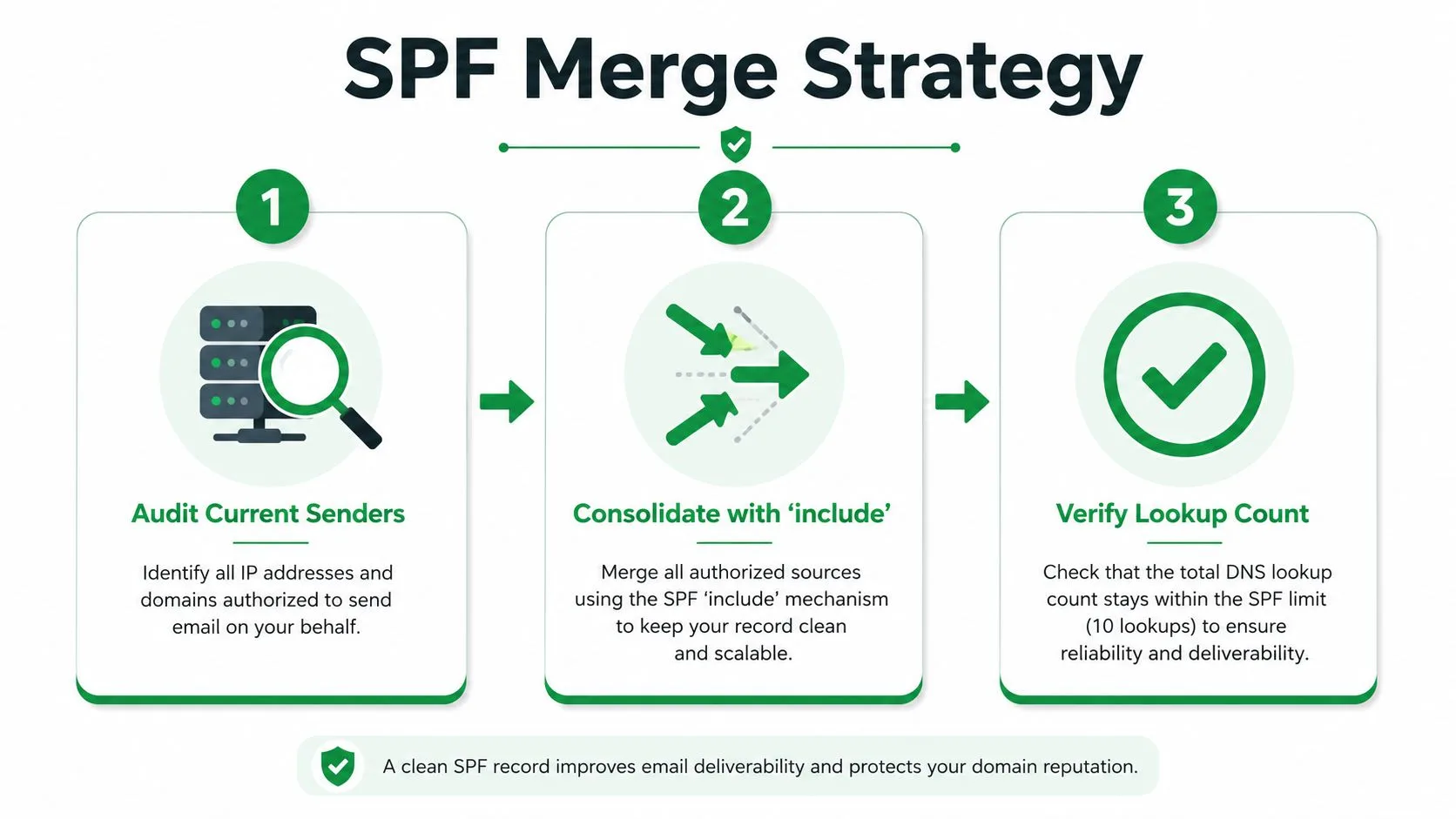
The reason this matters so much is simple. A team can stay under the limit for months, then one new vendor pushes the record past the edge and SPF starts failing without any obvious DNS error in the GoDaddy UI.
Verifying Your Record Actually Works
Saving the record in GoDaddy is not proof. It only means the change was entered, not that the authoritative zone is serving it, not that caches have caught up, and not that the policy parses cleanly.
Three checks, three different answers
The first check is a DNS lookup against the live zone. A dig or nslookup query tells you what the authoritative nameservers are returning, which matters because the GoDaddy interface can show a value before propagation finishes, and it won’t tell you if another DNS host owns the zone instead.
The second check is an SPF parser such as MXToolbox’s SPF check. That kind of tool is useful because it reads the syntax and counts lookups at the same time, which is exactly where nested includes and over-limit chains show up.
The third check is message-level evidence. Send a test to Gmail, open the original message, and inspect the headers. The Authentication-Results line will usually show whether SPF passed or failed for the sending domain, which tells you how a mailbox provider evaluated the message, not just what DNS says.
Practical rule: if DNS looks correct but headers still fail, the problem is usually at the validation layer, not the GoDaddy UI.
There’s also a propagation reality that teams ignore at their own risk. GoDaddy’s TTL behavior is usually fast, but edge-case DNS changes can still take time to settle across resolvers. If you’re moving records between providers, confirm the authoritative nameservers first and then validate against the actual zone, not the control panel you happened to use. For tracing messages end to end, this email trace guide is the cleaner companion piece.
From SPF Pass to Full Email Authentication
An SPF pass feels reassuring, but it doesn’t solve the whole problem. SPF only authorizes sending sources, it doesn’t sign the message, and it doesn’t stop a message from being altered after it leaves the sender. That’s why SPF on its own can still leave forwarding edge cases and impersonation holes.
Where DKIM and DMARC fit
DKIM adds a cryptographic signature to the message itself. In GoDaddy-managed DNS, that typically means a TXT record under the selector host, and Google Workspace commonly uses google._domainkey as part of that setup.
DMARC sits on top of SPF and DKIM. It tells receiving systems what to do when authentication fails and where to send reports, usually through a TXT record at _dmarc on the domain. Without DMARC, mailbox providers have no shared policy to follow when SPF or DKIM doesn’t line up.
The key takeaway is that SPF is only one layer of trust. A forged message can still exploit weak alignment if DKIM isn’t in place, and a forwarded message can still behave differently from an original send even when SPF was clean at the source.
The practical stack is straightforward. SPF authorizes the sender, DKIM signs the message, and DMARC tells receivers how to act when the two don’t agree. The earlier section on verification matters here because you don’t want to tighten policy before you know every legitimate sender is authenticating.
For a deeper run through the full stack, this email authentication guide connects SPF, DKIM, and DMARC in one workflow.

Keeping SPF Clean During Real Mail Merge Campaigns
A mail merge campaign puts the DNS work under pressure fast. Sales, recruiting, or event teams can send a clean sequence from Gmail one day and then blame content the next week when replies dip, even though the deeper issue was authentication drift.
Mail Merge for Gmail sends through Google’s authenticated infrastructure, so it doesn’t create a separate sender that needs its own SPF include. The bigger risk is that the surrounding stack changes, the domain owner adds another platform, and the mailbox providers start evaluating a message history that no longer looks consistent.
A pre-campaign checklist that actually helps
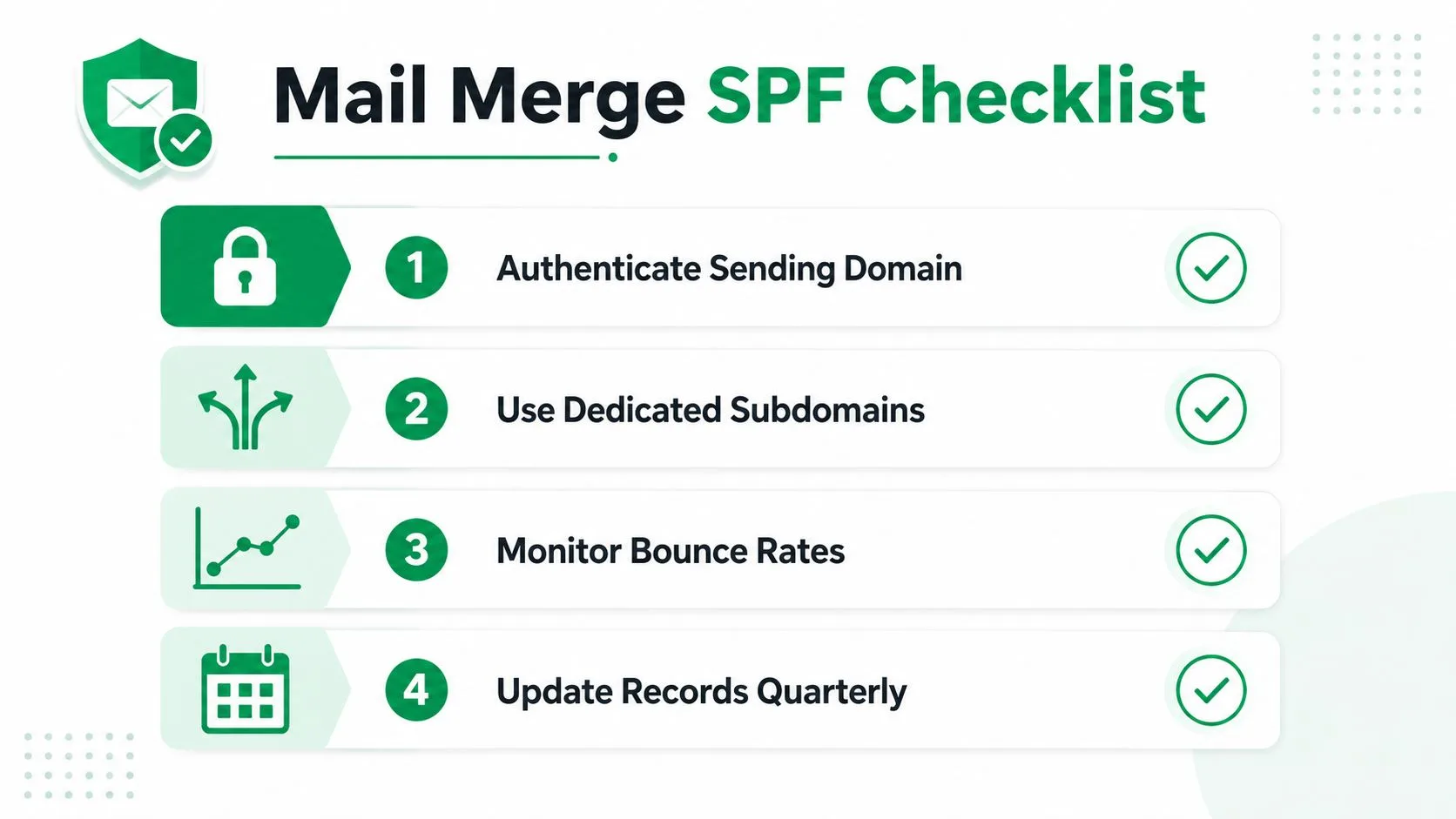
- Confirm SPF passes for the sending Google account: test the exact mailbox that will send the campaign, not a random alias.
- Confirm DKIM is enabled in Google Workspace admin: SPF alone is too fragile for forwarded or rewrapped mail.
- Confirm DMARC is at least
p=nonewith reporting on: that gives you visibility before you harden the policy.
A green SPF result on its own doesn’t mean the campaign is safe to launch. It only means the sender matched the current DNS policy at that moment.
The best habit is to treat the SPF record like plumbing. Check it before the campaign, check it when a new sender gets added, and check it again when a platform changes its sending path. That’s how you keep a GoDaddy SPF record from aging into a deliverability problem.
Mail Merge for Gmail helps teams send personalized campaigns from Gmail while keeping the sending path tied to Google Workspace, which makes SPF easier to reason about when the domain stack gets crowded. If you’re cleaning up a GoDaddy DNS setup before your next outreach run, visit Mail Merge for Gmail and review how it fits into a workflow that already depends on SPF, DKIM, and DMARC staying clean.
Ready to send your first campaign?
Install Mail Merge for Gmail from the Google Workspace Marketplace and send up to 50 personalized emails per day for free.
Get started for freeMore reading
More from Guides
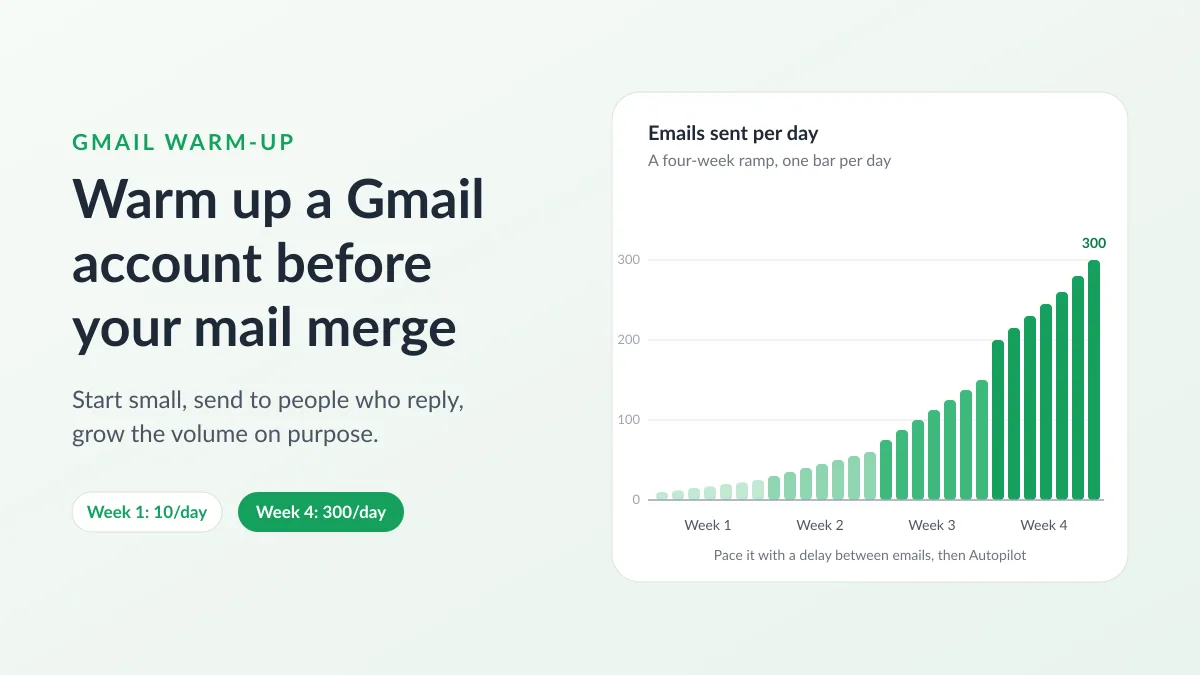
Gmail Warm-Up: How to Warm Up a Gmail Account Before a Mail Merge
Gmail warm-up explained with Google's own ramp-up rules: who needs it, a four-week manual schedule from Google Sheets, and how Mail Merge's warm-up works.

Mail Merge with CC and BCC in Gmail: Copy the Right People on Every Email
Learn how to run a mail merge with CC and BCC from Google Sheets, set up the columns, preview the result and see how copied recipients count toward your daily quota.

Gmail Sending Limit Reached: What It Means and How to Finish Your Campaign
Hit the Gmail sending limit reached error? Learn the real daily limits, when you can send again, and how to split a mail merge into safe daily batches.