


















Boost ROI with 2026 Email List Management
Optimize your email list management in 2026. Get practical workflows for hygiene, segmentation, & compliance in Gmail/Sheets.
Your contact sheet probably started out simple. A few customers from a website form, a few event signups, maybe some leads copied in from Gmail replies. Then the spreadsheet grew. One tab became three. Someone added a “newsletter” column, someone else tracked opt-outs in notes, and now nobody is fully sure who should still receive what.
That’s the point where email stops feeling easy.
Small teams often run outreach from Gmail and keep contacts in Google Sheets because it’s fast and familiar. The problem isn’t the tools. The problem is that most advice on email list management assumes you have a dedicated CRM admin, a formal marketing ops team, and enterprise software to enforce rules. Most small businesses don’t. They need a process they can maintain on a busy Tuesday afternoon.
What Is Email List Management and Why It Matters
Email list management is the ongoing work of keeping your contact list accurate, relevant, and permission-based. It isn’t just “cleaning a spreadsheet.” It’s how you protect deliverability, avoid sending the wrong message to the wrong person, and keep email from turning into a liability.
A good way to think about it is a garden. You don’t plant once and walk away. You water what should grow, pull what doesn’t belong, and make sure each plant has the right conditions. Your email list works the same way. New contacts come in, old ones go stale, some need different messaging, and some should never be mailed again.
That’s especially important for teams using lightweight tools. As Envoke’s email list management checklist notes, there is little written on how to reconcile GDPR-scale expectations with the fact that many outreach emails are crafted ad hoc by people who aren’t trained data stewards. Guidance for small-scale tools and add-ons remains thin, even as regulators scrutinize how non-ESPs handle personal data.
What a messy list looks like in practice
Here’s a familiar setup:
- Sales adds prospects from webinar attendees.
- Support exports customers for an announcement.
- HR keeps candidates in another tab.
- Someone unsubscribes by replying to an email, but that change never makes it into the main sheet.
Nothing is broken in isolation. The trouble starts when all those rows get used for the next send.
A messy list doesn’t fail loudly at first. It fails quietly through missed inboxes, irrelevant emails, and unsubscribe problems.
What good management changes
When email list management is handled well, your sheet becomes a working system instead of a dumping ground. You know where each contact came from. You know what they agreed to receive. You know who has bounced, who has engaged, and who must be excluded.
That creates three immediate benefits:
- Better deliverability because invalid and risky addresses aren’t dragging down sends
- Better response quality because people receive content that fits their role or interest
- Better compliance discipline because consent and unsubscribe history are visible
For a small business, that’s not admin overhead. It’s basic infrastructure.
The Pillars of a Healthy Email List
A healthy list rests on three pillars: Quality, Relevance, and Trust. If one is weak, the whole system gets unstable.
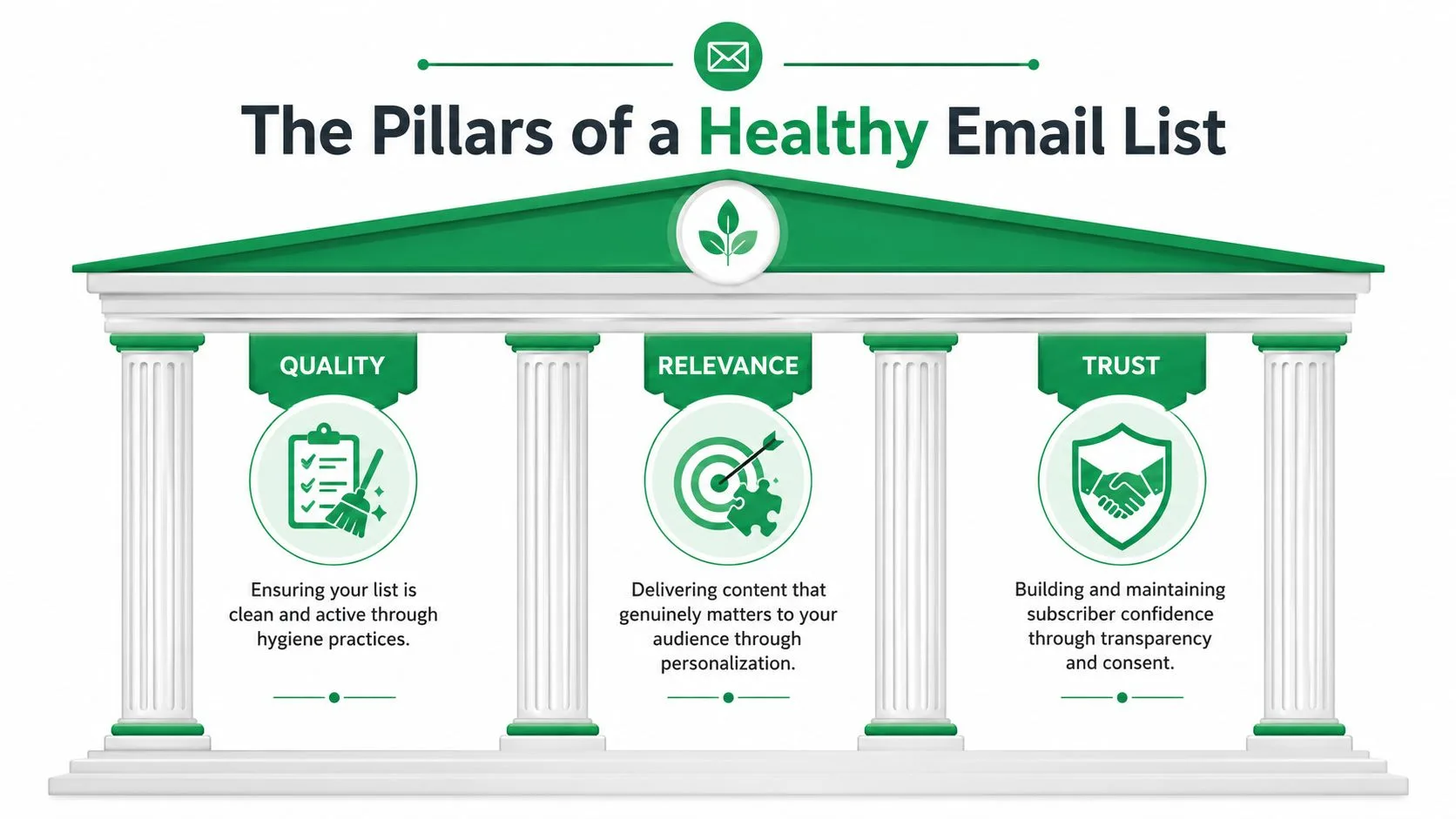
Consider a house. Quality is the structure that keeps it standing. Relevance is the layout that makes it useful. Trust is the foundation. Without trust, everything above it is at risk.
Quality keeps your list usable
Quality means the people on your list are real, active, and stored cleanly. No duplicate rows. No obvious typos. No old hard bounces waiting to be mailed again. If your sheet is full of dead addresses, every campaign becomes harder than it should be.
This is also where many small teams get burned. They mistake a large list for a strong list. It usually isn’t.
Relevance keeps your emails welcome
Relevance means you don’t send the same message to everyone. A prospect, an active customer, a job candidate, and an event attendee shouldn’t live in one undifferentiated bucket.
Segmentation sounds advanced, but in practice it often comes down to a few good columns and consistent labels. If your sheet can answer “who is this person?” and “why are we emailing them?” you already have the raw material.
Trust keeps you allowed to send
Trust is the permission layer. It covers consent, transparency, and honoring opt-outs. It also shapes sender reputation. If people don’t expect your emails, they ignore them, complain, or unsubscribe.
The business case is strong. According to FluentCRM’s review of email list management practices, well-managed, permission-based lists generate a typical ROI of around $40 to $50 per $1 spent, and firms that clean lists quarterly see twice the revenue per thousand subscribers compared with firms that only clean annually.
Practical rule: If a contact’s origin, permission, or status is unclear, treat that row as incomplete until you fix it.
How the three pillars work together
These pillars aren’t separate projects.
- Quality without relevance gives you a clean list that still underperforms.
- Relevance without trust can create strong messaging on top of weak consent.
- Trust without quality leaves compliant-looking records that still hurt deliverability.
Teams do best when they build all three into one routine. Clean the sheet. Label people correctly. Track permission and status. Then sending gets simpler.
Mastering List Hygiene and Deliverability
List hygiene is where most email list management either works or breaks. If you keep mailing bad addresses, stale contacts, or duplicate entries, Gmail and Outlook don’t care how good your copy is. They see poor list quality first.
The practical goal is simple. Keep your list clean enough that mailbox providers continue to trust your sends.
Know what you’re removing
Some terms sound technical, but the underlying ideas are straightforward.
- Hard bounce means the address is invalid or no longer exists. Don’t keep retrying it.
- Soft bounce usually means a temporary problem, like a full mailbox or temporary server issue. Watch it, but don’t remove it immediately without context.
- Duplicate means the same person appears more than once, often under slightly different names or imports. This causes repeat sends and muddy reporting.
A clean list also reduces confusion for your own team. If one person exists in three rows, nobody knows which status is current.
Use clear triggers for cleanup
You don’t need a giant quarterly project to start. You need a repeatable rule.
According to Twilio’s email list management best practices, email deliverability experts advise cleaning lists at least every six months, or sooner if bounce rates rise above 2 to 3%. That process helps keep overall deliverability above the important 95% threshold at major mailbox providers like Gmail and Outlook.
That gives small teams a solid operating standard:
- Clean on a schedule at least twice a year
- Clean earlier if bounce rates start climbing
- Review campaign anomalies when hard bounces suddenly spike
If you want a broader inbox-readiness check, it also helps to understand email authentication basics, because list quality and sending setup affect deliverability together.
If your bounce rate jumps, don’t just rerun the send. Stop and inspect the rows behind it.
A simple hygiene routine that works
For most Gmail and Sheets users, this workflow is enough:
- Remove invalid addresses when you identify obvious formatting issues or confirmed hard bounces.
- Suppress hard bounces permanently so they never re-enter future sends by accident.
- Merge duplicates before every campaign, especially after imports from forms, events, or team spreadsheets.
- Review inactive contacts and decide whether they deserve a re-engagement message or should be retired.
- Keep one master sheet instead of multiple “final_v2” exports circulating across departments.
What not to do
A few habits reliably create trouble:
| Habit | Why it fails |
|---|---|
| Keep every contact forever | Old rows become bounce risks and clutter segmentation |
| Re-add bounced addresses from old exports | You repeat the same deliverability issue |
| Ignore duplicates | Reporting gets distorted and recipients get annoyed |
| Treat inactivity as harmless | Stale engagement can weaken future campaigns |
Good hygiene is less about deleting aggressively and more about maintaining a trustworthy list. If you’d hesitate to explain why a person is still in the sheet, that row probably needs attention.
Effective Segmentation for Higher Engagement
Segmentation gets treated like advanced marketing, but for small teams it’s often just disciplined sorting. If your spreadsheet already tells you who someone is, where they came from, or what they signed up for, you can send more relevant email without buying another system.
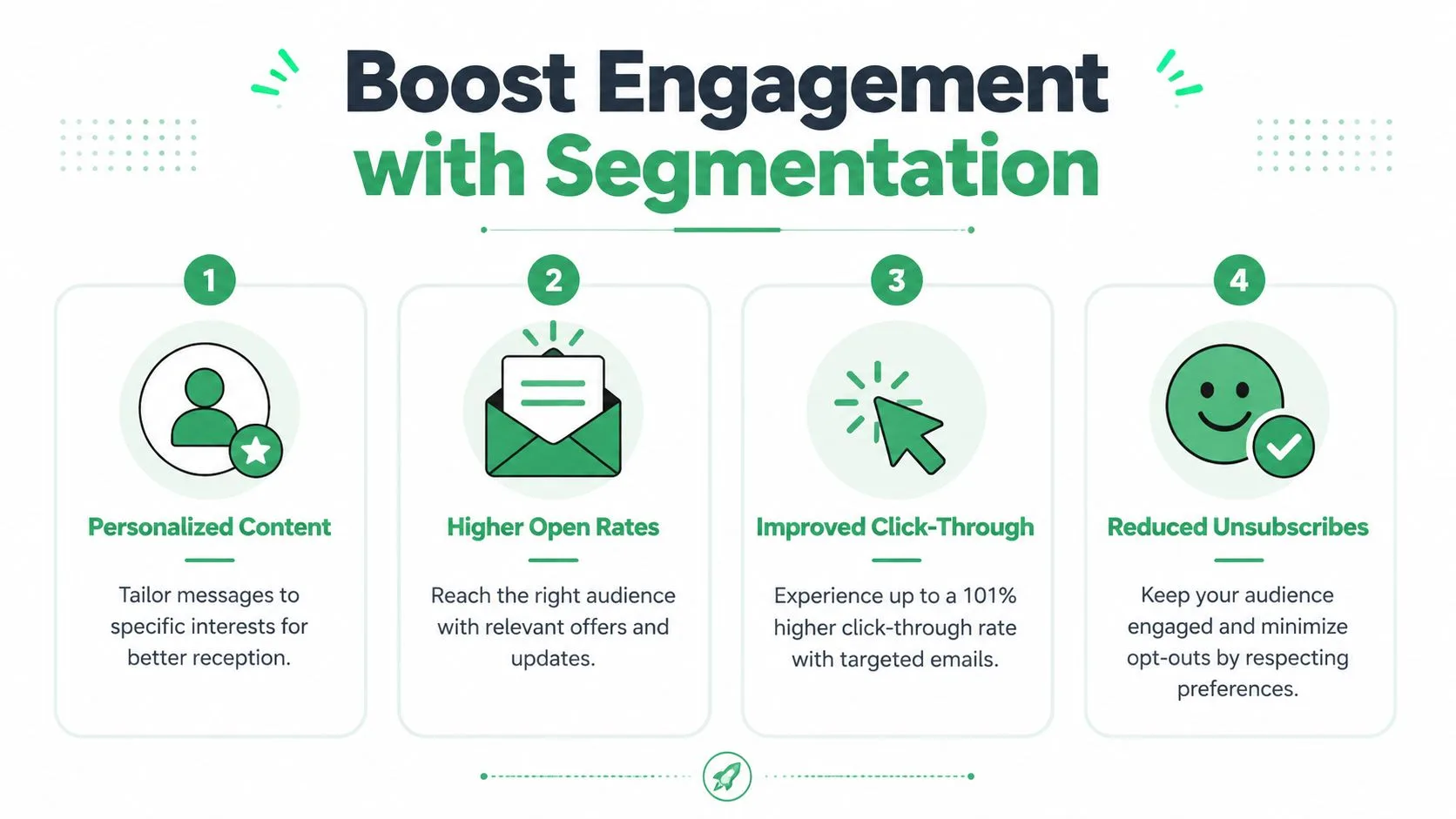
That matters because relevance changes behavior. A 2021 global benchmark analysis summarized by Mailtrap found that segmented, targeted campaigns outperformed unsegmented ones by about 14.3% higher open rates and 101% higher click-through rates on average.
Start with filters you already understand
You don’t need predictive scoring. You need categories that help you decide what someone should receive.
For example:
- Sales teams can split prospect, active opportunity, customer, and partner.
- HR teams can split applicant, interview stage, finalist, and alumni candidate.
- Event organizers can split invited, registered, attended, and no-show.
- Community managers can split volunteer, donor, member, and sponsor.
Those aren’t abstract personas. They’re operational segments. Each one changes what email makes sense.
Better segmentation usually means sending less
Small businesses often find a useful surprise. Segmentation doesn’t just improve engagement. It also stops unnecessary sends.
A customer who bought last week probably shouldn’t receive the same introductory message as a cold prospect. A candidate waiting on interview feedback shouldn’t get a general hiring newsletter. Relevance reduces friction.
Send the narrowest message that still fits the audience. Broad campaigns are easier to launch, but narrow campaigns are usually easier to justify.
Build segments into the sheet itself
A segment shouldn’t live only in someone’s head. It should exist as a field your team can sort and filter.
Useful segmentation columns include:
- Role or relationship such as prospect, customer, partner, candidate
- Source such as webinar, site form, referral, event
- Interest or topic such as product updates, recruiting, community news
- Lifecycle status such as new lead, active, inactive, unsubscribed
Once those fields are in place, segmentation becomes a spreadsheet habit rather than a marketing theory. That’s the version small teams sustain.
Navigating Consent and Compliance with GDPR and CAN-SPAM
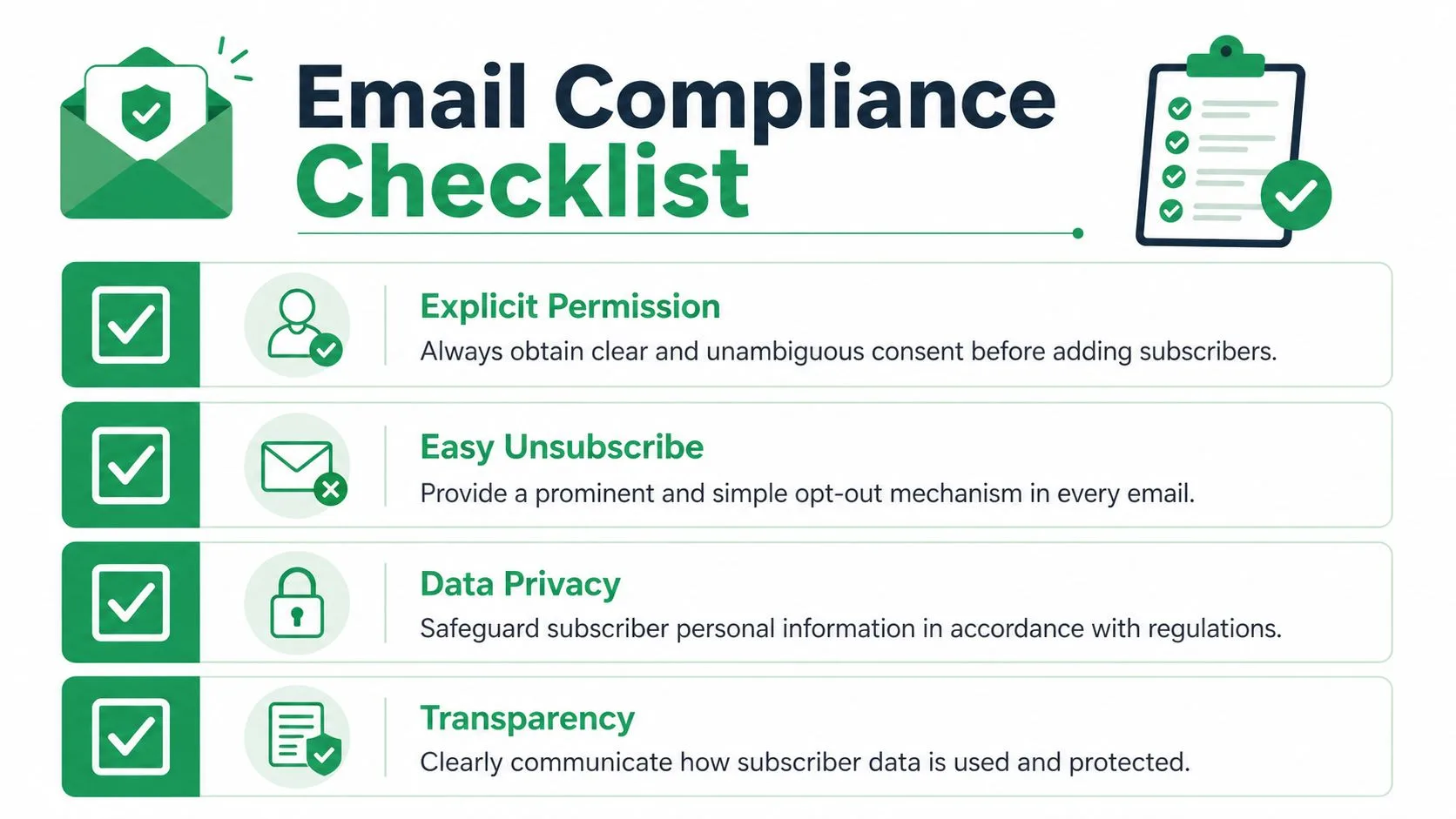
Compliance sounds intimidating until you bring it down to a few operational rules. In day-to-day list management, the essentials are straightforward. Get permission. Record it. Provide an easy way out. Honor that request every time.
The challenge for Gmail and Google Sheets users is that these rules won’t enforce themselves. Your sheet has to carry the record.
Record consent like it matters
A contact row should answer three questions:
- Where did this person opt in?
- When did they do it?
- What type of opt-in was it?
That’s why fields like consent source and consent timestamp matter. According to Mailchimp’s guidance on email list management, lists with verified, double-opt-in signups and explicit consent metadata like source and timestamp have complaint rates 2 to 3 times lower than lists built via single-step forms. Structuring a Google Sheet to store this data also enables more precise, compliant segmentation.
If you’re reviewing your current process, it’s worth studying how email compliance software supports permission-based sending, because the principle is the same even when your team operates from Sheets.
The minimum columns I’d require
For a small team, these are the essential items:
- Email address
- Consent source
- Consent date
- Opt-in type
- Campaign status
- Segment or purpose
Without those fields, you can still send email. You just can’t manage risk well.
How to handle unsubscribes in Sheets
This is the part many teams get wrong. Someone unsubscribes, but the update stays in one person’s inbox or one campaign export. Then the person gets mailed again later from the “master” sheet.
Use one status field and make it authoritative.
When a user unsubscribes, mark them with an “unsubscribed” status in the campaign status column, then exclude that row from every future send.
That gives you a simple process that’s easy to audit:
- Update the same master sheet
- Never delete the row just to tidy the file
- Filter out “unsubscribed” before sending
- Train every team member to respect that field
What works and what doesn’t
Here’s the practical trade-off:
| Approach | Result |
|---|---|
| Keep unsubscribe status in the master sheet | Clear, reusable suppression logic |
| Track opt-outs in private notes or inbox labels | Easy to miss, impossible to trust |
| Store consent source and date | Better accountability and segmentation |
| Import third-party contacts with unclear permission | Higher risk and weaker list trust |
Compliance is rarely about legal jargon in the daily workflow. It’s about whether your sheet reflects reality.
A Practical Workflow with Gmail and Google Sheets
If you want a sustainable system, build one master contact sheet and make every send start there. Don’t manage email from scattered CSV files, separate tabs by person, or one-off exports sitting in downloads. That’s how status gets lost.
The workflow below is simple enough for a founder, recruiter, sales rep, or community manager to maintain without a dedicated ops person.
Build one master sheet
Start with a single spreadsheet for active contacts. Use one row per person and keep the columns consistent.
Recommended Google Sheet Structure for Email List Management
| Email Address | First Name | Last Name | Segment (e.g., Prospect, Customer, Partner) | Consent Source (e.g., Webinar, Website Form) | Consent Date | Campaign Status (e.g., Sent, Opened, Unsubscribed) |
|---|---|---|---|---|---|---|
| jane@example.com | Jane | Smith | Prospect | Webinar | 2026-01-10 | Sent |
| david@example.com | David | Lee | Customer | Website Form | 2026-02-03 | Opened |
| maria@example.com | Maria | Gomez | Partner | Webinar | 2026-02-18 | Unsubscribed |
A sheet like this does two jobs at once. It stores contact data and preserves sending history in a format the whole team can understand.
Use a pre-send checklist
Before any campaign, review the sheet in this order:
- Filter out unsubscribed contacts in the campaign status column.
- Check for duplicate email addresses and merge them.
- Confirm the segment matches the email you’re about to send.
- Scan consent fields for blanks or unclear sources.
- Remove or suppress bad rows identified in prior campaigns.
Workflow discipline matters more than software complexity. If you want a plain-language primer on the bigger idea, what is workflow automation is a useful resource because it explains how repeatable rules reduce manual errors across routine processes.
Send from the sheet, then write results back
The healthiest setup is one where campaign activity returns to the same sheet that supplied the recipients. That way your status fields don’t live in separate reporting files.
A practical Gmail and Sheets process looks like this:
- Select the filtered recipient set
- Use a template with personalization fields
- Preview before sending
- Send the campaign
- Review row-level status after the campaign finishes
When send outcomes write back to the spreadsheet, your next campaign starts with better information than the last one.
For teams that need a walkthrough of the mechanics, this guide on how to mail merge from Google Sheets shows the operational side of that process.
Keep status updates in one place
The most important maintenance habit is also the simplest. Don’t let campaign status drift into side documents.
Use the campaign status column as the shared truth for rows that are sent, opened, or unsubscribed. If someone opts out, that status must live in the same sheet your team uses next time. If you move fast and skip that step, you create resend risk immediately.
A master sheet only works if every campaign writes back to it and every sender trusts it.
Make this workable across teams
This workflow holds up well beyond marketing.
- Sales can manage outreach lists without re-mailing old opt-outs.
- HR can separate candidate stages and avoid irrelevant updates.
- Event teams can send reminders to registrants and follow-ups to attendees.
- Community and nonprofit teams can track supporter interest without building a full CRM first.
That’s what makes spreadsheet-based email list management useful. It doesn’t require a heavy system. It requires one reliable process.
Measuring Success and Improving Your List
Once your process is in place, the job shifts from setup to pattern recognition. Every campaign leaves clues about list health.
The core metrics are familiar, but they each answer a different question:
- Open rate tells you whether the audience and subject line matched expectations
- Click-through rate shows whether the content felt relevant enough to act on
- Bounce rate reveals list quality problems
- Unsubscribe rate signals whether your targeting, frequency, or message fit the audience
A high bounce rate usually points back to hygiene. A spike in unsubscribes often points to relevance or consent mismatch. Good email list management means reading those signals together, not in isolation.
Use each campaign to refine the next one
A strong process becomes cyclical:
- Send to the right segment
- Review engagement and status changes
- Clean the list based on what happened
- Adjust future segmentation or content
If you want to connect campaign activity more directly to outcomes, Cometly’s insights on email conversions are worth reading because they help frame what happens after the click, not just inside the inbox.
Your list won’t stay healthy on autopilot. But it also doesn’t need enterprise overhead. For most small teams, steady improvement comes from one clean sheet, one clear status system, and the discipline to update both after every send.
If you want a simpler way to run personalized campaigns from Google Sheets without leaving Gmail, Mail Merge for Gmail is built for exactly that workflow. You can send trackable emails, personalize each message, and keep row-level statuses visible in your spreadsheet so your list stays organized, compliant, and easier to manage over time.
Ready to send your first campaign?
Install Mail Merge for Gmail from the Google Workspace Marketplace and send up to 50 personalized emails per day for free.
Get started for freeMore reading
More from Guides
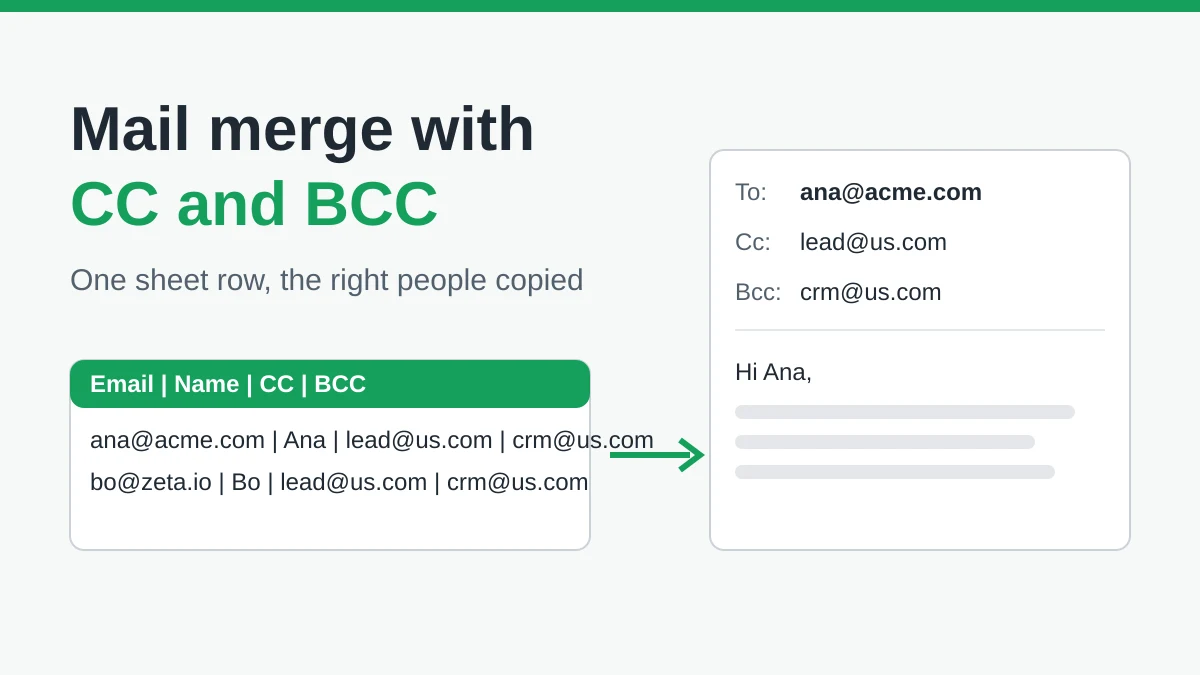
Mail Merge with CC and BCC in Gmail: Copy the Right People on Every Email
Learn how to run a mail merge with CC and BCC from Google Sheets, set up the columns, preview the result and see how copied recipients count toward your daily quota.
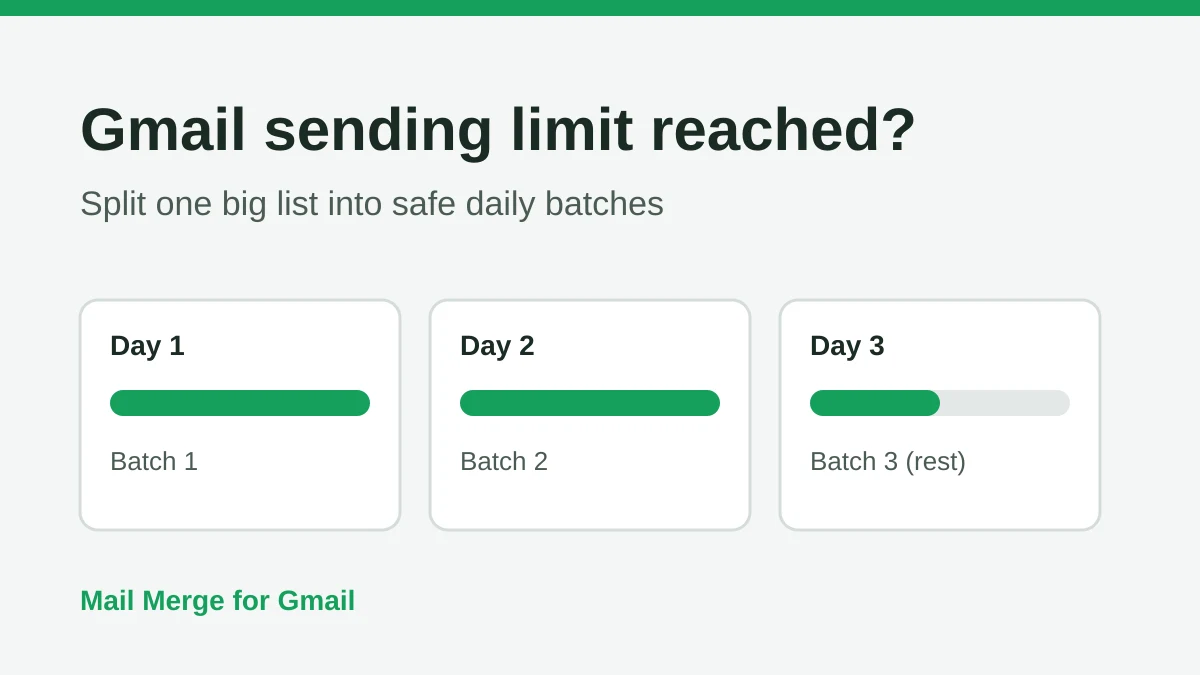
Gmail Sending Limit Reached: What It Means and How to Finish Your Campaign
Hit the Gmail sending limit reached error? Learn the real daily limits, when you can send again, and how to split a mail merge into safe daily batches.
Personalized Email Gmail: The Complete Guide
Master your personalized email Gmail workflow. Learn to merge Sheets data, track opens, and scale one-to-one outreach without leaving your inbox.