













7 Event Invitation Email Templates for Any Occasion
Find your perfect event invitation email template for formal, casual, or VIP events. Get copy examples, subject lines, and tips for sending with Gmail.
The usual failure point happens late. The venue is booked, the speakers are ready, the registration page works, then the invite goes out and responses come in slower than expected. That gap is usually not about the event. It is about how the event is presented in the inbox.
A strong event invitation email template has one job. Help the reader decide quickly. It needs a clear subject line, a short explanation of why the event matters, the right details in the right order, and one obvious call to action. If the message feels generic, it gets buried in the daily flood of emails.
Good results usually come from process, not from adding more software. Teams that fill seats consistently use a repeatable workflow: choose a layout that works on phones first, write copy around the attendee benefit instead of the agenda, personalize the parts that matter, then send and track responses without creating extra manual work. A quick review of responsive email design best practices for invitation emails helps here, because even a well-written invite underperforms if the layout breaks on mobile.
That is the angle of this guide. It is not just a gallery of templates. It is a practical system for building the invite, choosing the right tool for the design, sending personalized emails at scale, and tracking what happens after the send. For teams already working in Gmail, that last part matters a lot. You can run save-the-dates, reminders, VIP outreach, and follow-ups from the same workflow instead of moving everything into a heavier platform.
That simplicity saves time when event marketing is only one part of the job. You may also be coordinating speakers, approvals, sponsorship assets, or trying to design your outdoor party layout at the same time.
The tools below cover the full path from template design to delivery, starting with the fastest option for teams that already live in Gmail and Google Sheets.
1. Mail Merge for Gmail
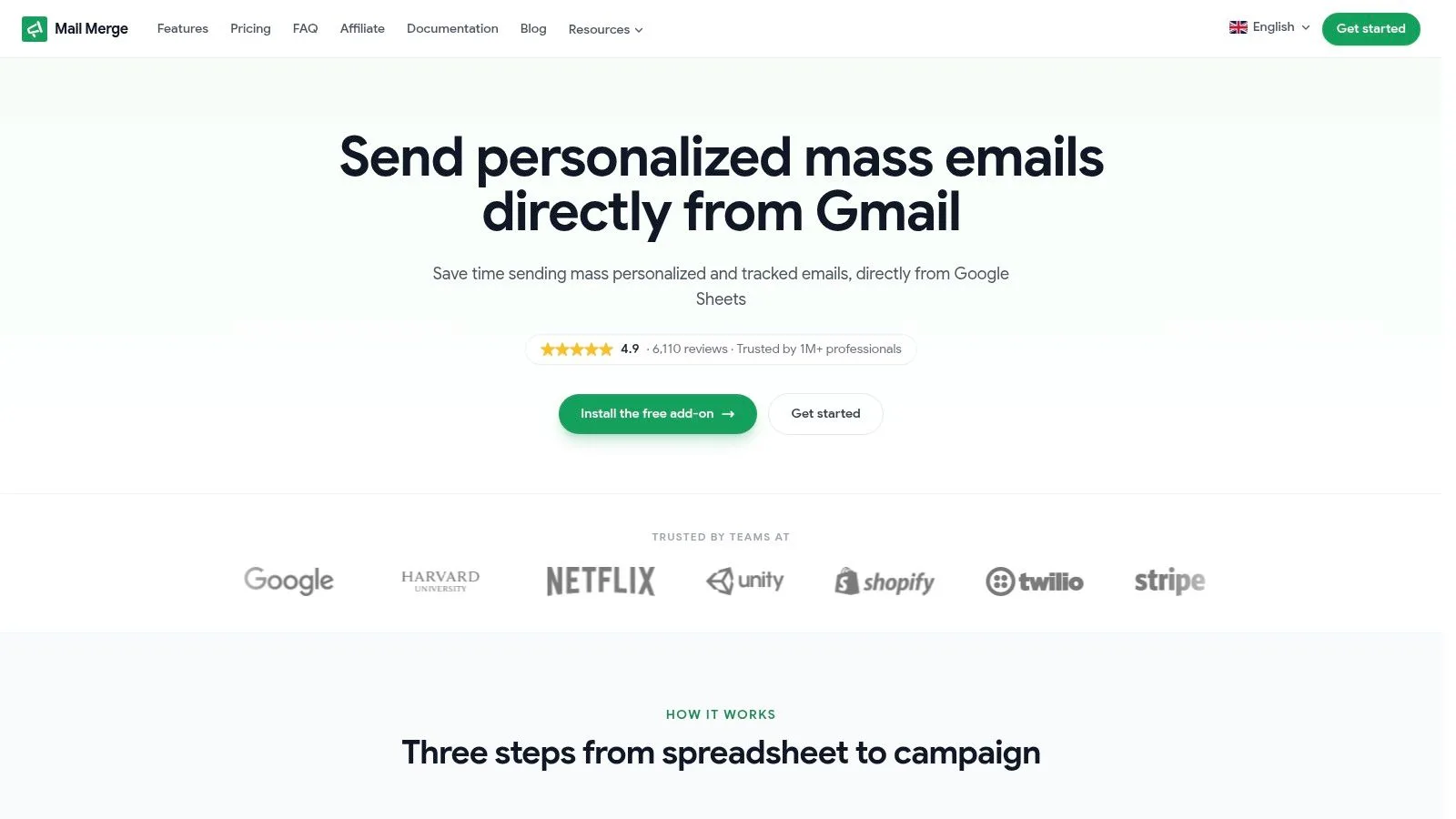
If you already work in Gmail and keep invite lists in Google Sheets, Mail Merge for Gmail is the most efficient event invitation email template workflow in this list. It doesn’t ask you to move into a full email platform just to send a polished invite. You load recipients into a sheet, build the email in Gmail, preview the personalization, and send.
That simplicity matters because event outreach often needs speed. You’re not only sending one launch email. You’re sending save-the-dates, reminders, confirmations, VIP invites, and follow-ups to slightly different segments. Mail Merge for Gmail handles that without forcing a new system on your team.
Why it works well for event campaigns
The best part is how effectively it personalizes. Gmail’s built-in mail merge without a connected Google Sheet is limited to the recipient’s name and email address, while add-ons like Mail Merge for Gmail can map Google Sheets columns into subject lines, body copy, CC/BCC, attachments, and custom HTML templates, as described in Streak’s explanation of Gmail multi-send limits and personalization. That’s the difference between “Hi Sarah” and “Hi Sarah, we saved a seat for your Austin team at next Thursday’s workshop.”
It also keeps reporting practical. Instead of opening a separate dashboard, you can see per-row statuses written back to your spreadsheet, including Sent, Opened, Clicked, and Replied. For teams sharing event lists across marketing, founders, sales, or community managers, that’s easier to act on than a siloed report.
Practical rule: If your event list already lives in Sheets, don’t rebuild it in another platform unless you need advanced automation. Most small teams don’t.
Mail Merge for Gmail is built for one-to-one style outreach at scale, directly from your own Gmail account. It supports scheduling, unsubscribe management, custom HTML, and team analytics sharing, while keeping data in your Google environment and stating that it doesn’t read your inbox. That privacy-first setup is one reason it’s widely used by professionals who want better control without adding another database.
Real trade-offs
Mail Merge for Gmail isn’t pretending to be a giant ESP. If you need elaborate lifecycle automation, deep lead scoring, or heavyweight enterprise segmentation, a dedicated platform may fit better. But for event organizers, agencies, nonprofits, and startup teams, that complexity often slows execution more than it helps.
There are also Gmail’s limits. Google’s own mail merge caps still apply at the platform level. Google support, as summarized in this discussion of Gmail mail merge recipient limits, confirms that personal accounts can send to 1,500 unique recipients daily with mail merge, while premium Workspace accounts can reach 2,000. Account planning still matters if your campaign volume is large.
For practical Gmail outreach tactics, this guide on sending the same email to multiple recipients separately in Gmail is worth keeping bookmarked.
Best fit
- Best for staying in Gmail: Teams that don’t want to learn a separate sending platform
- Best for spreadsheet-driven personalization: Organizers segmenting by role, city, past attendance, or account owner
- Best for affordable scale: People who need polished event emails without enterprise software overhead
Mail Merge for Gmail also keeps pricing straightforward, with a free tier, paid monthly plans, and a one-time Lifetime option. For many event campaigns, that’s the sweet spot between manual Gmail sending and overbuilt email software.
2. Beefree
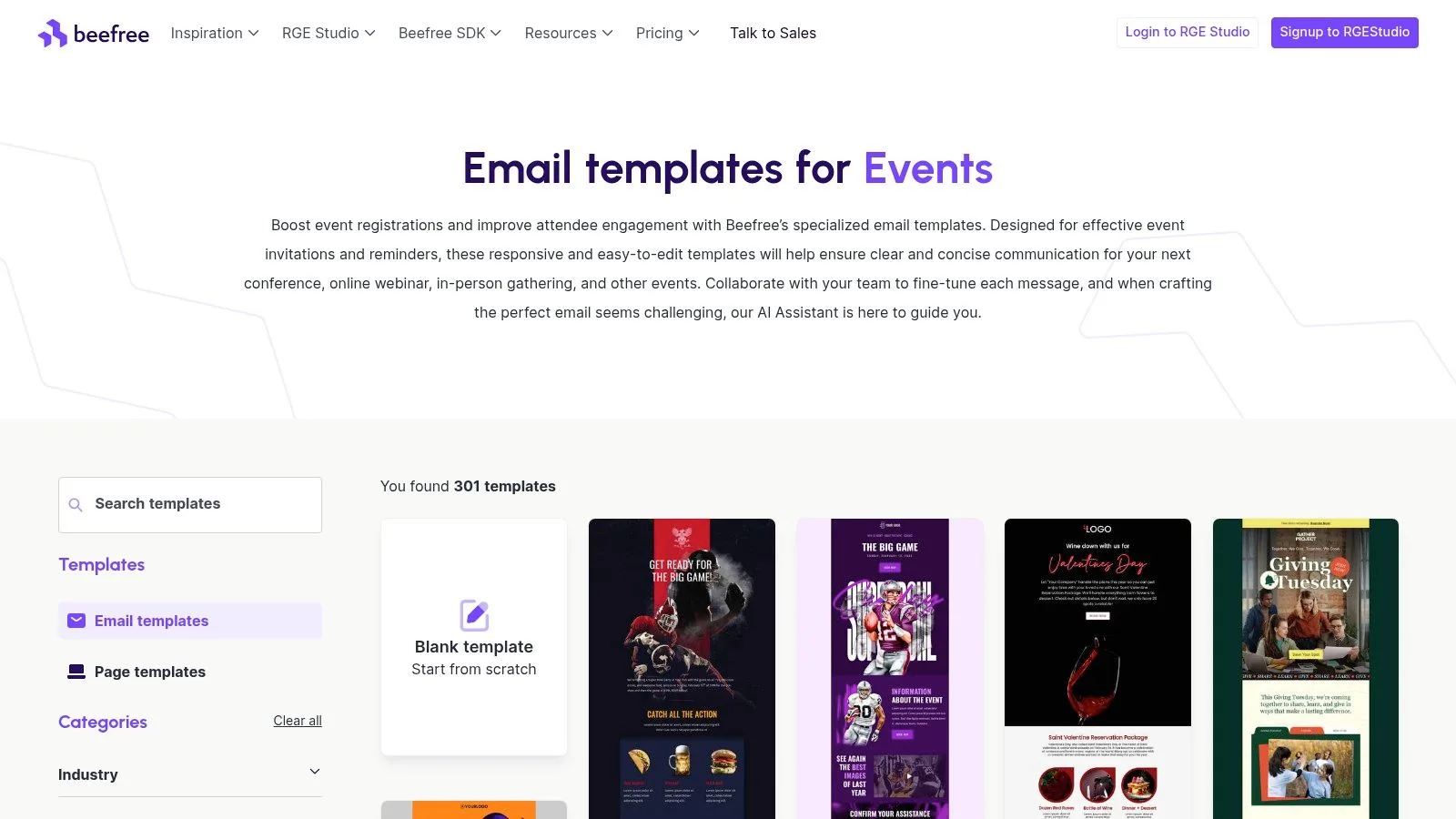
Beefree is the design-first option I’d pick when the email needs to look polished fast. Its event template gallery is broad, and the drag-and-drop editor is easy to hand off between a marketer, designer, or founder without much explanation. If your main problem is “we need a clean invite by this afternoon,” Beefree solves that quickly.
Its event templates cover the usual campaign needs, including invitations, confirmations, and reminders. That’s useful because strong event promotion rarely comes from one blast. In one multi-week sequence, sending an initial invitation, then a proof email, then a last-call reminder boosted completed signups by 22% compared with a single-email blast.
Where Beefree helps most
Beefree shines when branding matters. You can adapt layouts for webinars, conferences, fundraisers, meetups, and more without touching code. The templates are mobile responsive, and the export options make it easier to move the design into your sending tool of choice.
That last part matters because design and sending are often split. A designer wants control over layout, while the marketer needs to send through Gmail, Mailchimp, Brevo, or another stack. Beefree sits well in the middle.
If you care about mobile rendering before you export, this article on responsive email design is a useful companion read.
A good-looking invitation still fails if the CTA blends into the layout. Design should support the click, not compete with it.
Trade-offs to know
Beefree is strongest as a builder, not as your full event email operating system. If you want deep native sending logic, registration flows, or all-in-one campaign analytics, you’ll need another tool around it.
A free plan makes it accessible for occasional use, but some collaboration controls and higher-end workspace features sit on paid tiers. Teams with lots of image assets should also pay attention to hosting and CDN allowances on larger plans.
Use Beefree when your main bottleneck is design speed. Skip it if your bigger issue is segmentation, outreach operations, or tracking invite performance inside one workspace.
Visit Beefree.
3. Stripo
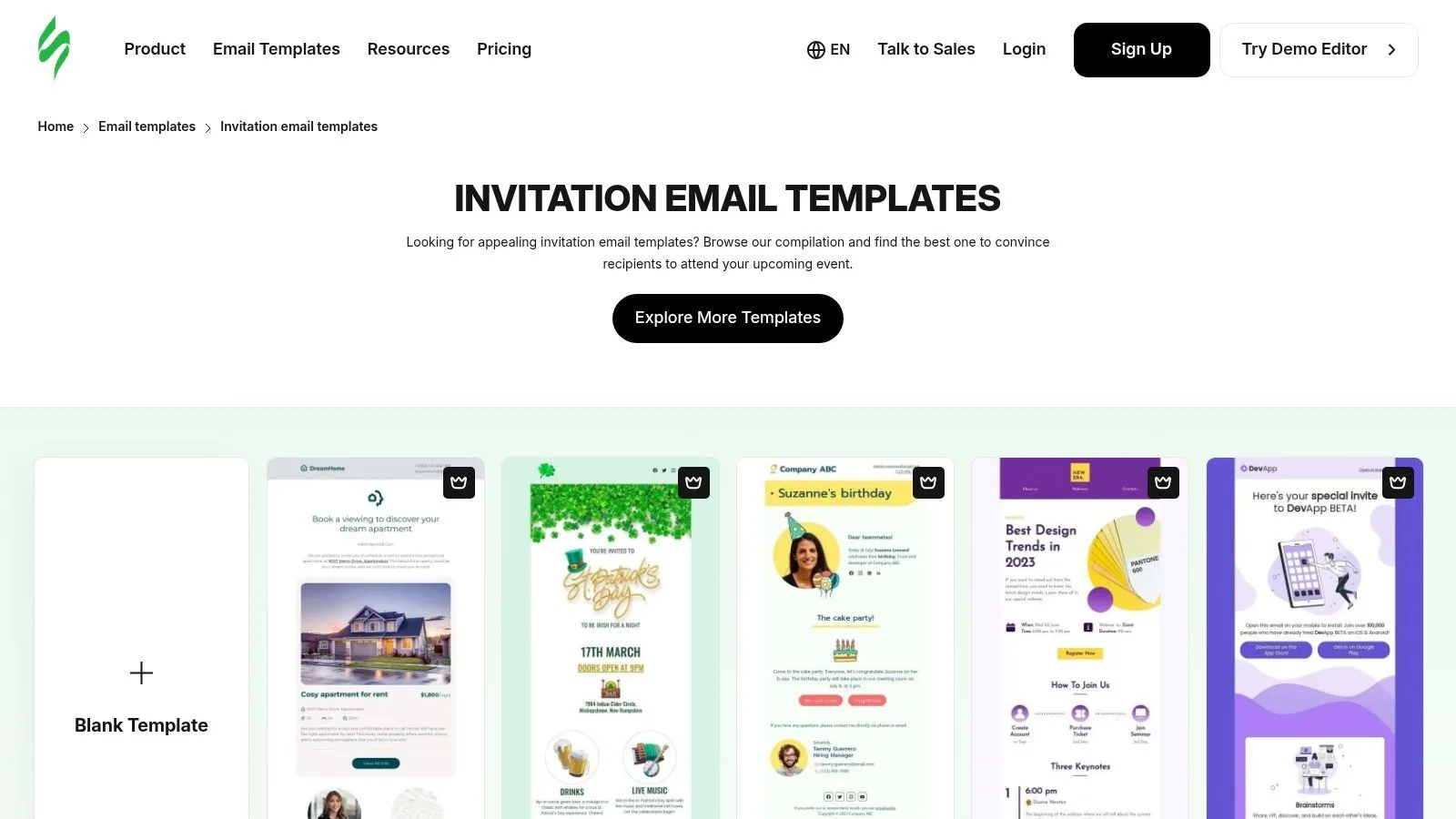
Stripo is a stronger fit when you want more control than a basic drag-and-drop builder gives you. It has a large invitation library, a visual editor for marketers, and full HTML access for teams that want to tune layout details or embed the editor into a larger workflow.
That mix makes it practical for event teams running more than a single invitation. You can build a save-the-date, registration push, speaker reminder, confirmation, and pre-event reminder as one coordinated set instead of stitching together unrelated designs.
Why marketers like it
Stripo is one of the better options for modular production. You can reuse content blocks for agendas, speaker sections, venue details, sponsor logos, and FAQ-style snippets. That’s helpful when your event invitation email template needs to evolve over several sends without a full redesign each time.
It’s also useful for calendar logistics. Event emails work better when they don’t stop at the RSVP button. Stripo’s support content around calendar links helps teams add practical follow-through like Google Calendar, Outlook, or iCal options.
One more benefit is volume of choice. If you run different event types across the year, the template library gives you enough range to avoid every invite looking like the same campaign with a swapped headline.
Where it falls short
Stripo can feel heavier than you need for simple sends. If the event is small and the audience is known, a plain personalized Gmail invite may outperform a more produced HTML email anyway. That’s a common mistake. Teams overdesign the invite when the audience would respond better to something that feels personal.
It’s also worth keeping the copy disciplined. A 2026 analysis of high-converting templates found that subject lines naming a specific outcome, rather than just the event title, shifted open rates by 5 to 15 points. In practice, that means a beautiful template won’t rescue weak positioning.
- Use Stripo when: you want modular event emails with design flexibility and some technical control
- Skip Stripo when: you just need to send personalized invites fast from Gmail
- Watch for: premium templates or features that may sit behind paid plans
Visit Stripo.
4. Campaign Monitor
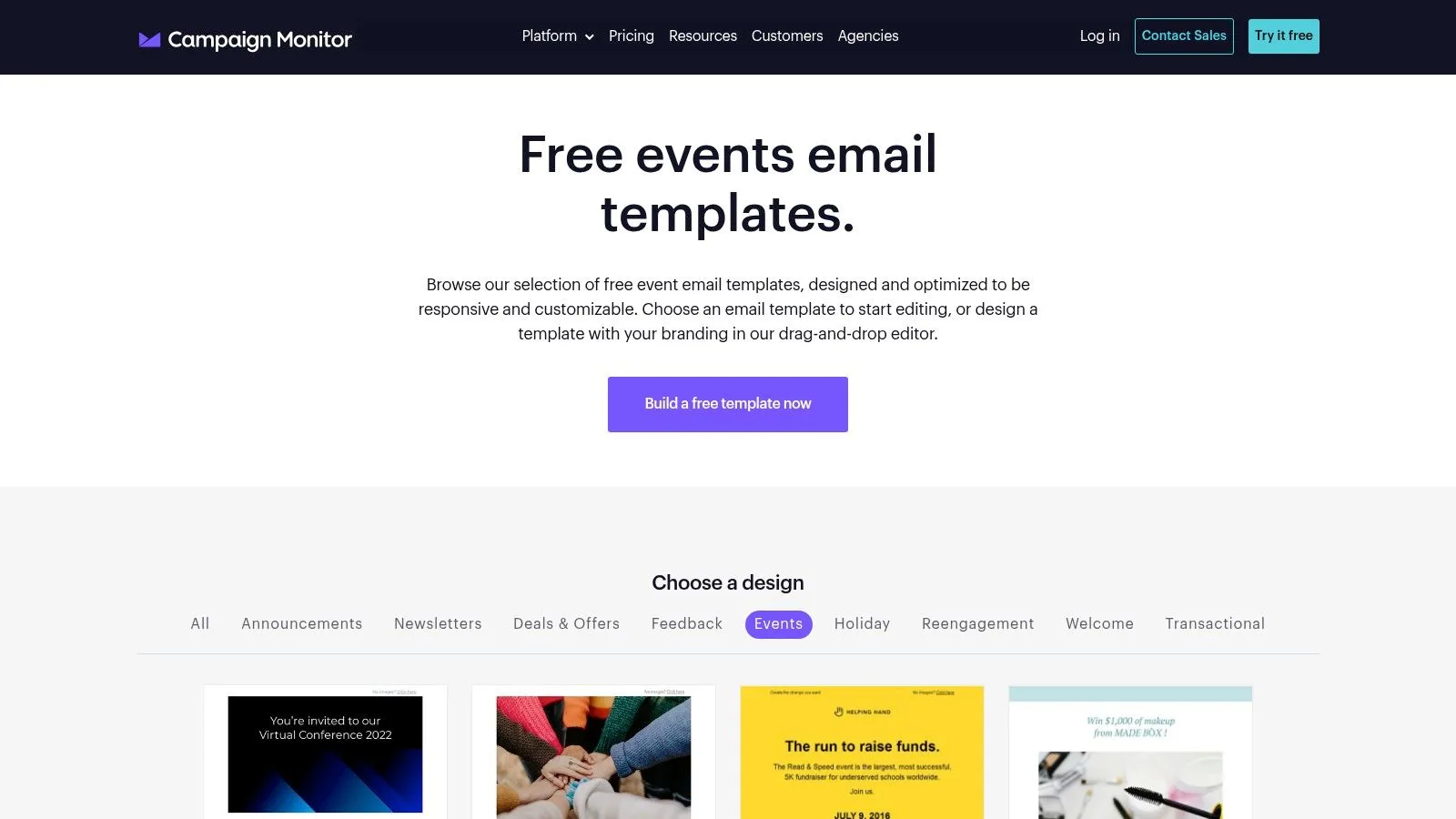
Campaign Monitor makes sense when you want templates and sending in the same place. Its event-focused templates are clean, and the platform is mature enough for marketers who want segmentation, scheduling, and analytics without patching together several tools.
This is the option I’d look at if you’re already leaning toward an ESP and want the invitation workflow tied directly to list management. It reduces handoffs. You can build the email, segment the audience, schedule the send, and review results inside one system.
What it gets right
Campaign Monitor is strong at the basics that move registrations. Effective event invitations need the event name, date, time, location, agenda, and a clear CTA button, and using a dedicated CTA button instead of a plain text link improves click-through and registration behavior according to this event invitation email guide. Campaign Monitor’s templates are built in that style.
It also helps marketers who want more than a one-off invite. You can run announcement emails, reminder emails, and segmented follow-ups in one account without moving files back and forth.
Field note: Mature ESPs are convenient, but they can tempt teams into over-segmenting too early. Simple segments usually outperform complicated logic when the event offer is clear.
The trade-off
The downside is portability. Campaign Monitor’s best experience is inside its own ecosystem. If you like the templates but want to send elsewhere, you’ll put in more work than you would with a pure builder.
Cost can also become a factor as lists grow. For some small teams, especially those using Gmail daily, an add-on workflow is easier to justify than a full ESP subscription. Still, if your event program already runs through a broader email marketing setup, Campaign Monitor is a sensible, reliable choice.
Visit Campaign Monitor.
5. Litmus
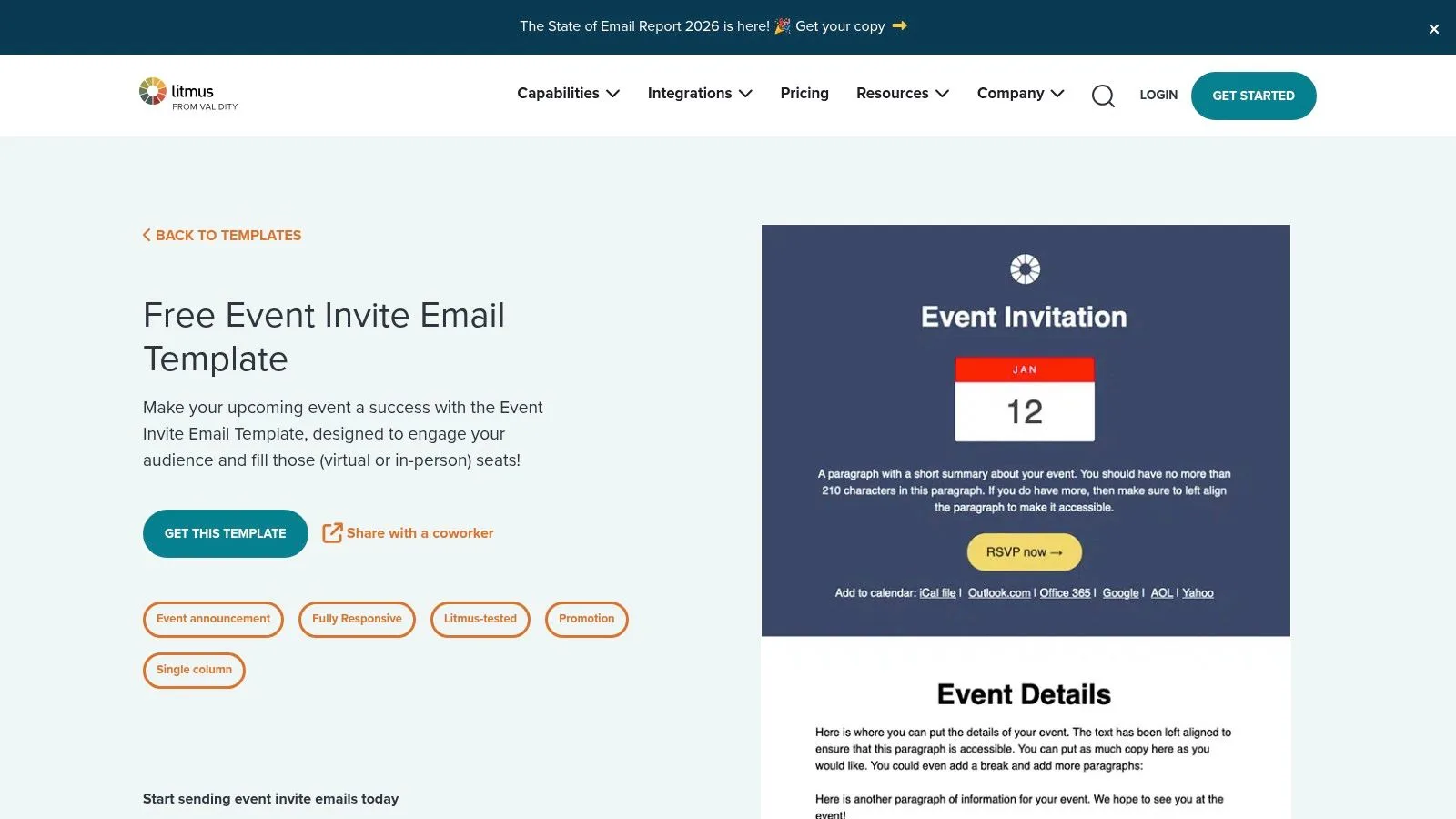
Litmus takes a different angle. It isn’t primarily an invitation gallery. It’s a quality and testing brand that offers a downloadable Event Invite template you can adapt and send through the platform you already use.
That makes it a smart choice for teams that care less about endless design variations and more about solid HTML that behaves properly across email clients. If your organization has ever lost time troubleshooting broken layouts in Outlook or image spacing in Gmail, Litmus starts to look appealing very quickly.
Why this template matters
Litmus is useful when the event invitation email template needs to be dependable first and flashy second. Its downloadable code gives you a stable base to customize for a nonprofit fundraiser, B2B webinar, community event, or internal launch.
That reliability matters because invite performance doesn’t stop at opens. Mailtrap notes that many existing guides still fail to explain deeper spreadsheet-based personalization beyond first-name merge fields, even though 80% of consumers are more likely to engage with personalized emails. A well-coded template helps, but relevance in the copy still does the heavier lift.
Best use case
Litmus fits especially well in teams that already use a separate sender and just want cleaner creative assets. Developers and email specialists also like it because they can adapt the HTML directly without fighting a restrictive visual builder.
The broader Litmus platform is paid, and pricing is more sales-led than self-serve. So this isn’t the cheapest path if all you need is a quick invite for a one-time event. But if quality assurance is the pain point, Litmus earns its place.
- Good fit: teams that want tested HTML and cross-client reliability
- Less ideal: marketers looking for a huge visual template gallery
- Strong pairing: any ESP or Gmail-based workflow where the send system is already decided
Visit Litmus.
6. Canva
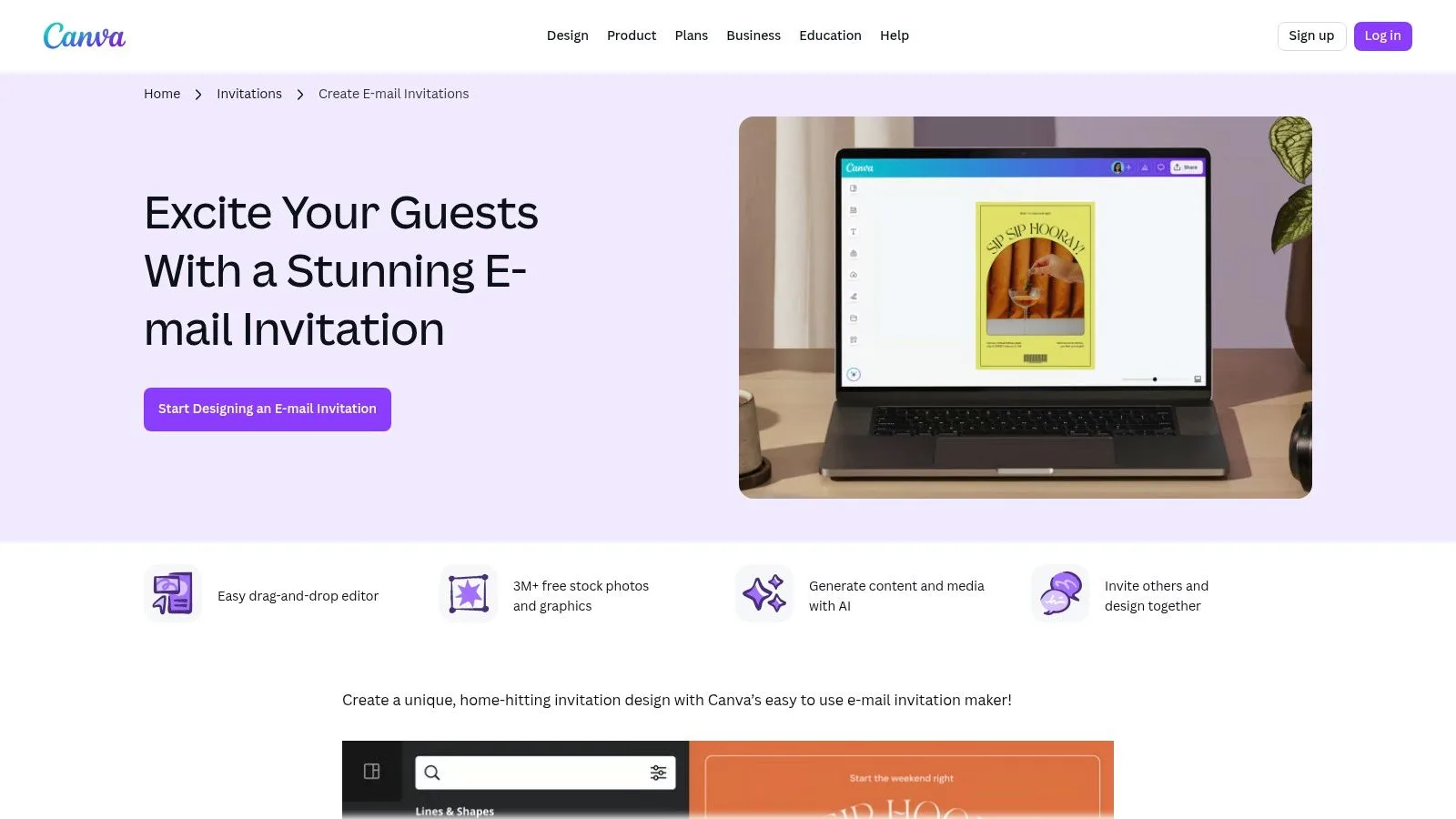
You need an invite by this afternoon. The venue changed, a speaker headshot is outdated, and nobody on the team has time to open a design tool that takes a week to learn. Canva fits that situation well.
It gives event marketers a fast way to produce polished visual assets without waiting on a designer. For brand-led launches, community events, fundraisers, and social invites, that speed matters because details change often and the email still has to look intentional.
Where Canva earns its place
Canva works best as the design layer in your workflow. Use it to build the hero image, agenda block, speaker graphic, or branded header. Then move those assets into the system that sends the invitation and tracks results.
That matters if you want more than a nice-looking email. A complete invite workflow still needs subject lines, audience segments, merge fields, follow-ups, and reporting. Canva handles the creative piece well. Tools like Mail Merge for Gmail handle the operational side inside Gmail, which is often the simpler choice for teams that want to send personalized invitations at scale without adding another platform.
It is also practical for ongoing edits. If the date changes or a sponsor logo needs to be added, the team can update the design quickly instead of rebuilding the whole email from scratch.
The trade-off
Canva can help the invitation look credible, but it does not solve deliverability or personalization by itself. If your list is poorly segmented, your subject line is vague, or your messages keep landing in promotions or spam, stronger graphics will not fix that. It helps to follow basic email deliverability practices that keep event invitations out of spam before focusing on visuals.
I usually recommend Canva for teams that already know who they are inviting and just need better creative, fast. It is less useful if the bigger problem is campaign setup, testing, or send infrastructure.
Strong design gets attention. Clear targeting and clean sending practices get registrations.
Canva is a good choice when visual quality needs to improve quickly. Pair it with a sender that supports personalization, tracking, and follow-up, and it becomes part of a workable event invitation system instead of just a design file.
Visit Canva.
7. Constant Contact
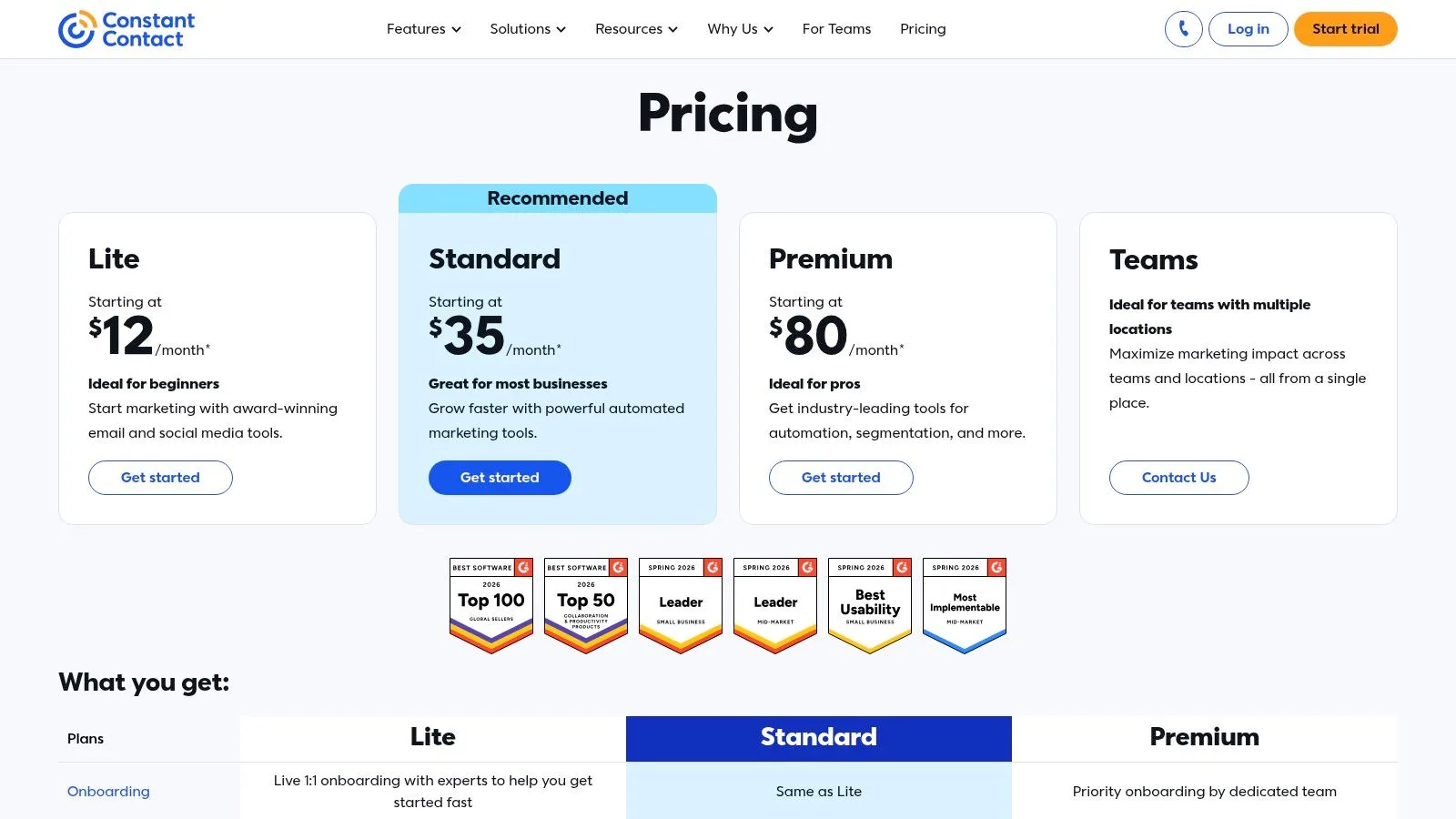
Constant Contact is the practical all-in-one choice for small businesses, nonprofits, and community organizations that want templates connected to event management features. Instead of only designing the email, you can tie the invitation to registration, reminders, and tracking inside the same platform.
That end-to-end setup is what makes it useful. For teams running recurring workshops, donor events, or local classes, having the invite linked to event operations saves time and reduces manual follow-up.
Why it’s attractive for SMB event teams
Constant Contact’s event workflow is built around the tasks most smaller organizations need. Create the event. Build the invitation. Send reminders. Track registrations. Keep going from the same account.
That structure also aligns with how invitation campaigns perform in practice. Gmail’s built-in mail merge uses only about 75% of the account’s daily sending capacity, so users on a Workspace plan that allows 2,000 emails per day can only send around 1,500 through native mail merge. For some organizers, that makes a full event-capable ESP more appealing, especially when registrations and reminders live together.
The main downside
Costs scale with contact count, and that can make Constant Contact expensive for larger lists compared with a lighter Gmail-centered workflow. It’s most appealing when you want the full program inside one tool, not when you just want a template and a quick send.
If you do use a platform like this, protect deliverability early. Spam placement can undermine event turnout. This guide on how to prevent email from going to spam covers the practical habits that matter before your next registration push.
Visit Constant Contact.
Top 7 Event Invitation Email Template Tools Comparison
| Tool | Implementation Complexity 🔄 | Resource Requirements ⚡ | Expected Outcomes 📊 | Ideal Use Cases 💡 | Key Advantages ⭐ |
|---|---|---|---|---|---|
| Mail Merge for Gmail | Low, 3-step setup inside Gmail/Sheets, minimal learning | Low, requires Gmail + Google Sheets; paid tiers for higher daily send limits | High personalization & per-row tracking; good deliverability when using your account | Small-to-midsize teams that want scalable, privacy-focused outreach from Gmail | Affordable, privacy-first, per-row status tracking, easy to use |
| Beefree | Low, drag-and-drop editor, quick template edits | Moderate, design time; needs an ESP for sending; potential CDN costs on paid plans | Fast production of responsive, brandable event HTML | Teams needing editable event templates to export into their ESP | Large responsive template gallery and connectors to ESPs |
| Stripo | Moderate, visual builder plus full HTML access; plugin options | Moderate, may require HTML skills for advanced tweaks; integrates with ESPs | Versatile templates suitable for multi-email flows and calendar links | Marketers and technical users building multi-step event campaigns | Deep template variety, modular blocks, calendar link guidance |
| Campaign Monitor | Moderate, within ESP; native editor and workflow | Moderate–High, requires Campaign Monitor account for integrated sending/analytics | Integrated sending, segmentation, scheduling, and analytics | Organizations wanting an end-to-end ESP for invites and reminders | Event-optimized templates with built-in tracking and ESP features |
| Litmus | Low (template use) to High (full QA integration), download and deploy or use Litmus Builder | Low–High, free template download; Litmus testing tools are paid | High-quality, client-tested HTML that reduces cross-client issues | Teams that prioritize deliverability and QA across email clients | Professionally coded, QA-focused templates compatible with any ESP |
| Canva | Very low, drag-and-drop visual design, fastest for creative assets | Low, design-focused; export assets to an ESP for sending/tracking | Polished, on-brand visuals ready to export; not a full email-sending solution | Rapid creative production for invites to be sent from an ESP or mail-merge tool | Extremely fast, visually polished templates and strong brand controls |
| Constant Contact | Moderate, built-in event workflow simplifies end-to-end setup | Moderate–High, ESP subscription; costs scale with contact count | End-to-end event invites with registration, reminders, and tracking | Nonprofits and SMBs needing integrated event management and outreach | Integrated event workflow and ticketing/registration integrations |
Your Event Invitation Playbook Key Takeaways
A good invite earns the next click fast. Someone opens your email between meetings, scans for ten seconds, and decides whether this event is worth their time. If the value is buried, the layout is noisy, or the registration path feels slow, you lose them.
Start with the core information and make it easy to process. The event name, date, time, location, and the clearest reason to attend should all be visible without work. Use one primary CTA and give it one job. If the goal is registration, every part of the email should support registration.
Personalization helps, but only when it reflects something real about the audience. A first name in the subject line can help. Segment-specific copy usually helps more. Past attendees may respond to what is new this year. Prospects may need a stronger statement of practical value. Local contacts may care about venue convenience, while executives may care more about who else will be in the room.
Timing also changes by audience. There is no perfect universal send window. Test earlier sends for busy professional audiences, closer-to-date reminders for local events, and different subject lines for each segment. Small adjustments often beat a full redesign.
Strong event promotion usually runs as a sequence, not a single send. Start with the main invitation. Follow with a reminder that adds proof, urgency, or a clearer benefit. Send a final note close to the deadline or event date. This is how teams keep registration moving without rewriting the whole campaign from scratch.
The workflow matters as much as the template. Design the email in a tool that matches your skill level. Finalize copy around one audience and one CTA. Then send and track it in a system your team will use. For many lean teams, that means building the invite in Gmail, pulling personalized fields from Google Sheets, and sending at scale through Mail Merge for Gmail. You get direct personalization, simple tracking, and a process that does not require a full ESP to work well.
Tool choice should follow the bottleneck. Use Beefree, Stripo, Litmus, or Canva when the challenge is design or rendering quality. Use Campaign Monitor or Constant Contact when you need built-in automation, segmentation, and reporting. Use Mail Merge for Gmail when the priority is a practical end-to-end workflow for personalized event invitations sent directly from Gmail.
Ready to send your first campaign?
Install Mail Merge for Gmail from the Google Workspace Marketplace and send up to 50 personalized emails per day for free.
Get started for freeMore reading
More from Guides
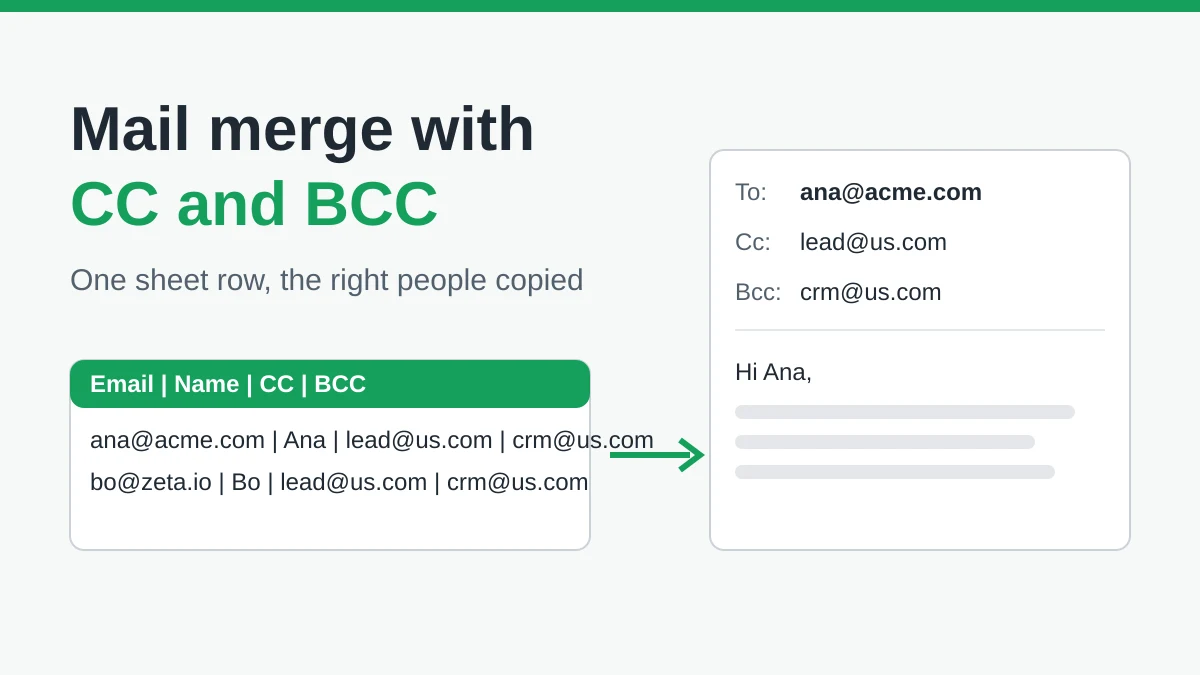
Mail Merge with CC and BCC in Gmail: Copy the Right People on Every Email
Learn how to run a mail merge with CC and BCC from Google Sheets, set up the columns, preview the result and see how copied recipients count toward your daily quota.
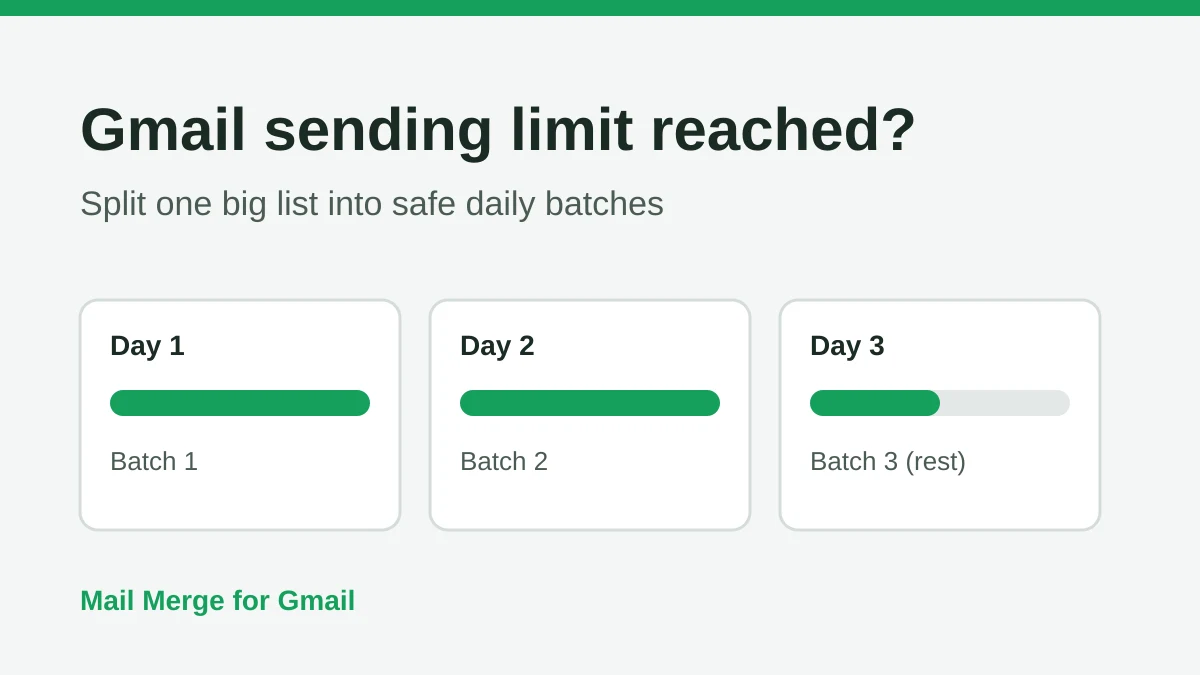
Gmail Sending Limit Reached: What It Means and How to Finish Your Campaign
Hit the Gmail sending limit reached error? Learn the real daily limits, when you can send again, and how to split a mail merge into safe daily batches.
Personalized Email Gmail: The Complete Guide
Master your personalized email Gmail workflow. Learn to merge Sheets data, track opens, and scale one-to-one outreach without leaving your inbox.