


















Gmail Playbook: Master Re Engagement Campaigns in 2026
Learn to plan, build, & send effective re engagement campaigns in Gmail. Win back inactive subscribers & boost list health with our 2026 guide.
You can usually spot the problem before the numbers make it obvious. Opens fade, clicks dry up, and a growing slice of your list stops reacting even though those contacts never unsubscribed. Re engagement campaigns give you a way to win back that attention without treating every subscriber like they are in the same stage of the relationship.
The cleanest way to handle it is to separate dormant contacts from your core list and work them in a system you can maintain. Keep the data in Google Sheets, draft the outreach in Gmail, and use Mail Merge for Gmail to send personalized follow-ups from the workflow you already know. That approach also fits the reality that a meaningful share of a database can be inactive at any point, which is why re-engagement work usually belongs in every email program.
Defining Your Inactive Subscribers in Google Sheets
Segmentation is the difference between a campaign that feels relevant and one that just adds noise. A subscriber who has not clicked in 90 days behaves very differently from someone who bought last week but stopped opening promotional email. If you put both groups into the same win-back send, you blur the message and make the results harder to read.
Start with behavior, not just opens
Open data is useful, but it should not be the only signal you trust. Apple Mail Privacy Protection can inflate opens, so clicks are a more reliable sign that someone still cares enough to act, and purchase history is even stronger when you have it. A good Google Sheets setup should include columns for last click date, last purchase date, and any seasonal pattern that explains why a subscriber goes quiet.
Build the segment around the last meaningful action, then keep the logic visible in the sheet. That keeps the list clean when you move into Gmail and write the follow-up. If you need a practical reminder on message structure before you build the next send, the Essential email campaign templates guide can help you keep the workflow grounded.
A practical cut-off is to flag contacts once they have crossed your chosen inactivity window and then sort them into a separate sheet tab. In many lists, that window falls somewhere between 60 to 90 days of inactivity for most industries, based on a common timing rule used in re-engagement programs. If your business has longer buying cycles, you can stretch the window, but the key is to apply one rule consistently.
Practical rule: use the last meaningful action, not the last open, when you decide whether someone belongs in a win-back segment.
Build a simple flag column in Sheets
Keep the logic visible. Add a column labeled Status and use a plain, repeatable rule such as “Active,” “At risk,” or “Inactive.” Then add a filter so you can isolate only the contacts who qualify for a re-engagement send.
A clean workflow looks like this:
- Mark the threshold date: Compare each contact’s last click or last purchase date against your inactivity rule.
- Add a status flag: Use a simple label so your team can sort and filter without guessing.
- Separate by intent: Put people who still buy, click, or respond into a different working view.
- Keep suppression clean: Remove anyone who has already unsubscribed or explicitly asked not to receive follow-ups.
That structure makes the next steps faster in Gmail, because your mail merge list is already segmented before you write a single subject line. It also protects deliverability, since you are not sending a win-back message to people who still behave like active subscribers. If you want a refresher on list handling and resend logic, the internal guide on how to resend an email fits naturally beside this workflow.
Crafting Your Win-Back Message and Offer
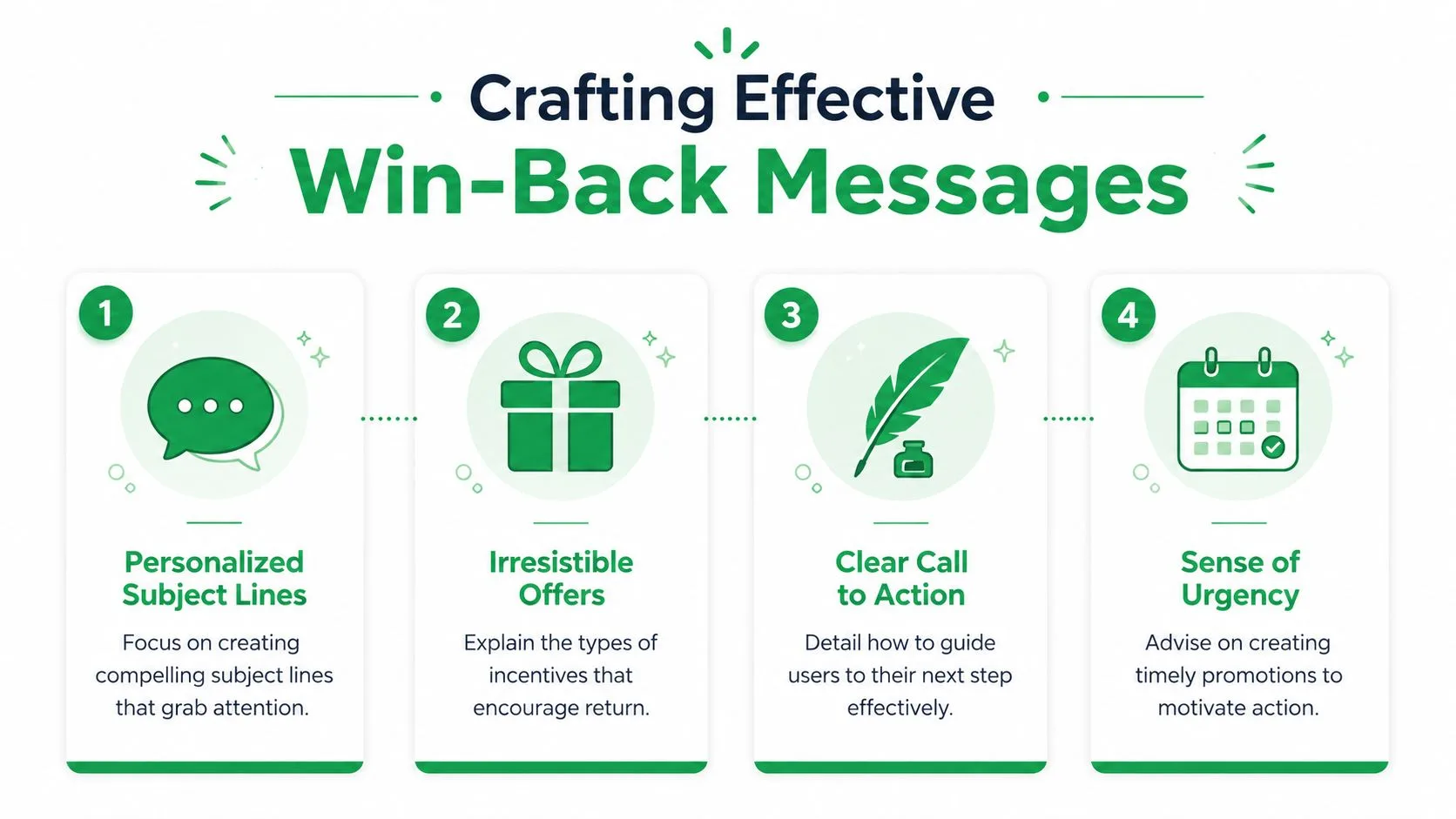
The message has to do three jobs at once. It needs to remind the subscriber who you are, prove there’s still value in staying connected, and give them a reason to act now. If one of those pieces is missing, the email tends to become background noise.
Subject lines should sound useful, not needy
A weak win-back subject line usually tries too hard. A better one feels direct and specific, and it gives the reader a clear reason to open. Names can help, but only if the rest of the line has a real point.
A few practical patterns work better than vague “we miss you” language. Try framing the subject around a benefit, a recent change, or a small act of recognition. For example, “A quick update for you” feels calmer than “Please come back,” and “Your latest resource is ready” gives the reader a reason to check in without pressure.
Your subject line doesn’t need to be clever. It needs to make a tired subscriber think, “That might be worth opening.”
Body copy should acknowledge the silence and move on
The body copy should acknowledge the gap without turning it into a guilt trip. Keep the tone human, concise, and confident. A simple structure works: one line of recognition, one line of value, one line of next step.
That’s where your brand voice matters. If you serve customers with educational content, remind them what they’ve been missing. If you’re a product business, point to new features, new use cases, or a cleaner path back in. The email should read like a useful check-in, not a breakup text.
Offers should match the reason they drifted away
The offer should fit the audience, not your internal pressure to create urgency. For some lists, a discount works. For others, a content upgrade, a fresh recommendation, or a feedback request performs better because it feels less transactional.
A useful way to think about offers is this:
- If the subscriber left for price, a limited incentive can lower the barrier.
- If the subscriber left for relevance, a better content angle may matter more than a discount.
- If the subscriber became inactive, a simple “Do you still want these emails?” message can surface intent fast.
For templates that can help you write faster, Essential email campaign templates is a useful reference to keep nearby while you draft. The sequence itself should still feel like your own work, because inactive subscribers respond better to relevance than to recycled marketing language.
A practical re-engagement workflow is to segment contacts by inactivity windows such as 90–120 days of no open or click activity, then trigger a rolling 2–3 email sequence over about 14 days that moves from value reminder to final removal notice, according to ATTN Agency. That cadence gives the reader space without dragging the campaign out so long that the message loses urgency.
Building a Multi-Step Re-Engagement Sequence
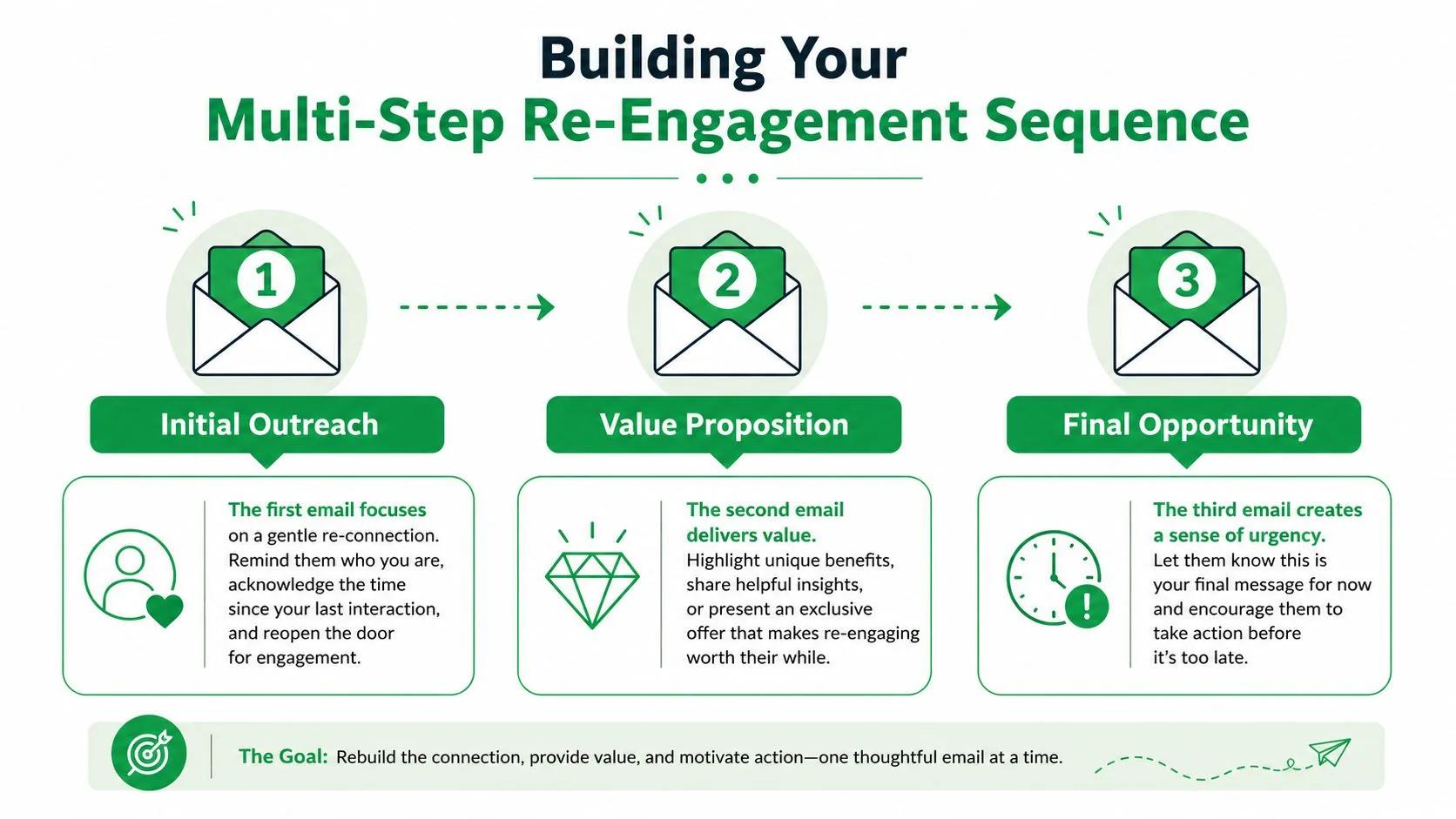
A single “we miss you” email rarely changes behavior. A better sequence feels like a controlled conversation, where each send has a distinct job and the final email makes the outcome clear. That clarity matters because it helps you separate the people who want back in from the people who are only still on the list by accident.
Use three emails with different intent
The first email should be light. It reconnects, reminds the reader who you are, and points back to the value they subscribed for in the first place. Don’t spend this message trying to close the loop. Spend it earning another glance.
The second email can carry the main incentive. This is the place for a sharper offer, a new feature, or a stronger reason to click. If the first email was about recognition, the second one is about momentum.
The third email should be final and explicit. Customer.io recommends that the final call-to-action be a request for opt-in, and anyone who doesn’t explicitly opt in should be removed permanently from the marketing list, while also advising that re-engagement sends stay within the 90/10 rule, meaning no more than 10% of daily emails sent to the engaged audience should be re-engagement sends, according to Customer.io’s re-engagement guidance. That approach keeps the campaign disciplined and forces a real decision.
Final check: if the subscriber doesn’t click, opt in, or respond by the end, treat the silence as a decision.
Keep the sequence tight and consistent
Spacing matters because over-sending burns trust, but waiting too long weakens the reason to reply. A two-week sequence is usually enough to test interest without letting the contact go cold again. The subject lines should clearly change across the series so the subscriber sees progression instead of repetition.
A clean sequence also respects the fact that subscribers have already drifted once. If every email says almost the same thing, the campaign feels automated in the worst way. If each send moves the conversation forward, the list learns that your messages are worth opening.
For a practical resend workflow inside Gmail, the internal guide on how to mail merge from Google Sheets pairs well with this sequence logic, because it keeps the data source and message build in one place. That’s the kind of setup that makes follow-up campaigns easy to run again later.
Executing Your Campaign with Mail Merge for Gmail
The campaign only works if the execution is clean. Gmail handles the sending, Google Sheets holds the list, and the merge layer does the personalization work so each subscriber gets a message that looks hand-written. That setup is especially useful when you’re sending a re-engagement series and need the list, copy, and tracking to stay aligned.
Load the Sheet before you write the template
Start in Google Sheets with the segment you already cleaned up. Keep the columns simple, because merge campaigns fail more often from messy data than from weak copy. At minimum, your sheet should clearly identify the recipient and the fields you want to personalize.
In Gmail, build the message as a normal draft and insert merge tags where names, product references, or list-specific notes should appear. That small change makes a win-back note feel less like a blast and more like a direct follow-up. If your audience includes different customer types, use separate columns for those distinctions instead of trying to force one generic message on everyone.
Use personalization where it actually changes the message
Personalization should do more than insert a first name. It should reflect the reason the person is in the win-back segment. A subscriber who hasn’t opened educational content may need a different reminder than a customer who hasn’t purchased in months.
Mail Merge for Gmail supports personalized campaigns from Gmail with contact data stored in Google Sheets, and it writes delivery and engagement status back to the spreadsheet, including per-row outcomes like sent, opened, clicked, and replied. In practice, that makes the follow-up review easier because you’re not hunting through a separate reporting dashboard to figure out who reacted.
Schedule the send and watch the sequence
Timing matters as much as wording. Use scheduling to control the cadence of the sequence so Email 2 doesn’t land too late and Email 3 doesn’t show up before the reader had a fair chance to respond. For a re-engagement list, tight scheduling also makes the campaign easier to monitor while it’s still active.
Deliverability has to stay part of the execution plan. Experts recommend limiting re-engagement to 3 to 5 touches per inactive subscriber and monitoring complaints closely, because Apple Mail Privacy Protection can inflate opens and clicks are the more reliable reactivation signal, according to Iterable’s best practices. That means you should care more about who clicks than who merely appears to have opened.
If you need a practical visual while you set up the merge flow, the embedded walkthrough at the middle of this process can help you keep the mechanics straight.
One useful habit is to test the first send with a small internal segment before rolling the sequence to the full inactive list. That gives you a chance to catch broken merge tags, awkward copy, or scheduling mistakes before they touch the entire dataset.
Keep the send list under control
Don’t push the whole inactive segment at once if the list is large or heavily dormant. Smaller waves make it easier to spot problems early, and they reduce the risk of overloading your sending pattern. If a campaign underperforms, you can pause, adjust the copy, and restart with better data.
That’s where a Gmail-based workflow feels practical. It keeps the campaign close to the people running it, instead of splitting the work across too many tools. If your team already works in Sheets all day, that’s usually a better operating model than forcing a separate system for a simple reactivation series.
Measuring Success and Cleaning Your List
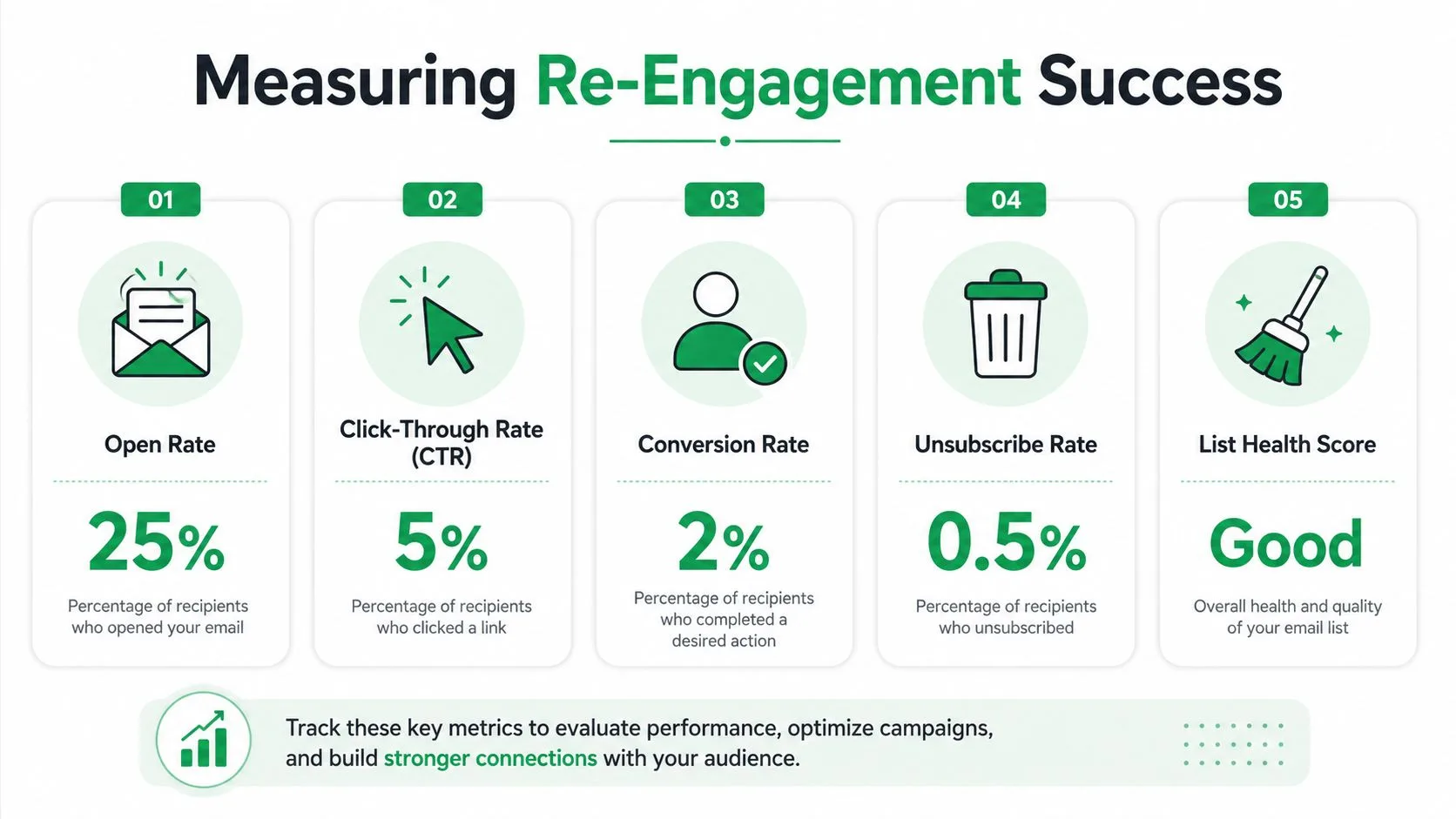
The true win isn’t just a few extra opens. It’s a cleaner list, clearer intent, and better deliverability on the emails you send next. If a re-engagement campaign only “looks busy” but doesn’t improve list quality, it hasn’t done its job.
Read clicks before you celebrate opens
Open rates can be noisy in this context, especially with privacy features in play. Clicks are the stronger signal because they show real intent, not just inbox visibility. In the tracking report, that means a subscriber who opens but never clicks is still questionable, while a subscriber who clicks has given you proof of life.
A widely used benchmark puts re-engagement open rates at 12% to 15% and click-through rates at 0.5% to 1.2%, with about 2% to 5% of inactive subscribers returning to active status, according to UseBouncer’s re-engagement benchmarks. The same source notes that acquiring a new customer can be 5x to 25x more expensive than re-engaging an existing one, which is why even modest recovery can be worthwhile.
Interpretation matters more than vanity: a small click rate from a known list can still beat the cost and friction of replacing those contacts from scratch.
Use the sheet to separate the list into three groups
Once the sequence ends, sort the spreadsheet into three outcomes. One group clicked or replied and should move back into the active pool. Another group opened but didn’t act, which usually means they need different messaging later. The last group ignored the entire sequence and should be suppressed or removed according to your policy.
If you want to tighten the cleanup process, the internal guide on how to clean email list is a helpful companion to the review stage. It pairs well with the same Sheets-based workflow because your notes, statuses, and outcomes all live in one place.
Decide when silence becomes removal
Removal isn’t punishment. It’s list hygiene. If someone went through the sequence and still didn’t click, reply, or opt in again, you’ve got enough evidence to stop spending attention on that contact.
That’s also where a broader list-cleaning mindset pays off. If you’re unsure about risky addresses or stale records, an AI-first email verification platform can help you validate list quality before the next campaign goes out. The aim isn’t to chase a bigger number in the spreadsheet, it’s to keep the right people in the audience.
Mail Merge for Gmail makes that final review easier because the engagement status lands back in the Sheet where the segment started. You can filter by clicked, replied, or untouched, then act on each group without rebuilding the list from scratch. That creates a loop you can reuse every time your list starts to drift.
If you want a simpler way to run win-back sends from Gmail, Mail Merge for Gmail gives you personalized sending, tracking, scheduling, and spreadsheet-based reporting in one workflow. Use it when you’re ready to turn a dormant list into a clean re-engagement process, instead of guessing who’s still listening.
Ready to send your first campaign?
Install Mail Merge for Gmail from the Google Workspace Marketplace and send up to 50 personalized emails per day for free.
Get started for freeMore reading
More from Guides

Mail Merge with CC and BCC in Gmail: Copy the Right People on Every Email
Learn how to run a mail merge with CC and BCC from Google Sheets, set up the columns, preview the result and see how copied recipients count toward your daily quota.

Gmail Sending Limit Reached: What It Means and How to Finish Your Campaign
Hit the Gmail sending limit reached error? Learn the real daily limits, when you can send again, and how to split a mail merge into safe daily batches.
Personalized Email Gmail: The Complete Guide
Master your personalized email Gmail workflow. Learn to merge Sheets data, track opens, and scale one-to-one outreach without leaving your inbox.