


















How to Prevent Email from Going to Spam: A 2026 Guide
Learn how to prevent email from going to spam with our guide for Gmail users. Master authentication, list hygiene, and sender reputation to land in the inbox.
You wrote a solid outreach email in Gmail. The subject line is clear, the copy sounds human, and the offer is relevant. Then the replies don’t come in. A few contacts tell you they found the message in spam. Most say nothing at all.
That’s the frustrating part of email deliverability for small teams. The email can be good and still fail because the problem often isn’t the wording. It’s the trust signals around the message.
If you’re sending from Google Workspace, using Gmail plus a mail merge tool, you need a practical setup that fits how small businesses operate. You don’t have an ops team watching DNS all day. You need a checklist that helps you send wanted email, prove your domain is legitimate, and avoid behavior that mailbox providers read as risky. That is the answer to how to prevent email from going to spam.
Your Guide to Landing in the Inbox in 2026
A lot of email advice is stuck in the past. People still obsess over whether using words like “free” or “urgent” will doom a campaign. Content matters, but that’s no longer the main reason legitimate email misses the inbox.
The bigger issue now is trust at the sender level. As Twilio’s deliverability guidance notes, public advice often over-focuses on content while the largest inbox-placement failures come from sender reputation and authentication mechanics, and Google and Yahoo now require bulk senders to authenticate with SPF or DKIM and provide one-click unsubscribe.
That shift matters even more if you’re a small business sending from Gmail. You’re probably not using a heavyweight enterprise email platform with a dedicated deliverability team. You’re sending newsletters, outreach, updates, follow-ups, and transactional messages from the same Google Workspace environment where you do everyday work. That means setup choices, contact quality, and sending habits have an outsized effect.
If your domain doesn’t look trustworthy to Google, a perfectly written email can still land in spam.
There are really three pillars that decide what happens next:
-
Authentication: Can Gmail verify that your domain is allowed to send this message?
-
Reputation: Have recipients treated your past emails like wanted mail?
-
Engagement: Do people open, click, reply, save, and keep your emails?
If you want another practical breakdown from the Gmail sender side, Breaker’s B2B email deliverability guide is a useful companion read because it treats deliverability like an operating discipline, not a copywriting trick.
The good news is that inbox placement isn’t random. When you approach it as a system instead of a mystery, it gets much easier to fix.
Build a Bulletproof Foundation with Email Authentication
Authentication is the first thing to get right because it answers a simple question for mailbox providers: is this sender really who they claim to be?
For Gmail and Google Workspace users, this isn’t an advanced optimization anymore. It’s baseline infrastructure. Full alignment across SPF, DKIM, and DMARC is associated with 95%+ inbox placement, while unauthenticated email can face a 60 to 70% spam folder rate. The same verified data also notes that a 2025 Google internal report indicated 88% of spam complaints from business domains stem from authentication misconfigurations.
Why authentication matters more than copy tweaks
Think of authentication like showing ID at the door.
If you send from you@yourcompany.com, Gmail wants proof that Google Workspace or your approved sending tool is allowed to send on behalf of yourcompany.com. Without that proof, your message may look like spoofing even when it’s legitimate.
This is why businesses that send newsletters, customer updates, cold outreach, or automated follow-ups from Gmail need to authenticate every domain and subdomain they use. A campaign can look polished and still be filtered if the sending identity isn’t verifiable.
Practical rule: Fix authentication before you tweak templates, subject lines, or send times.
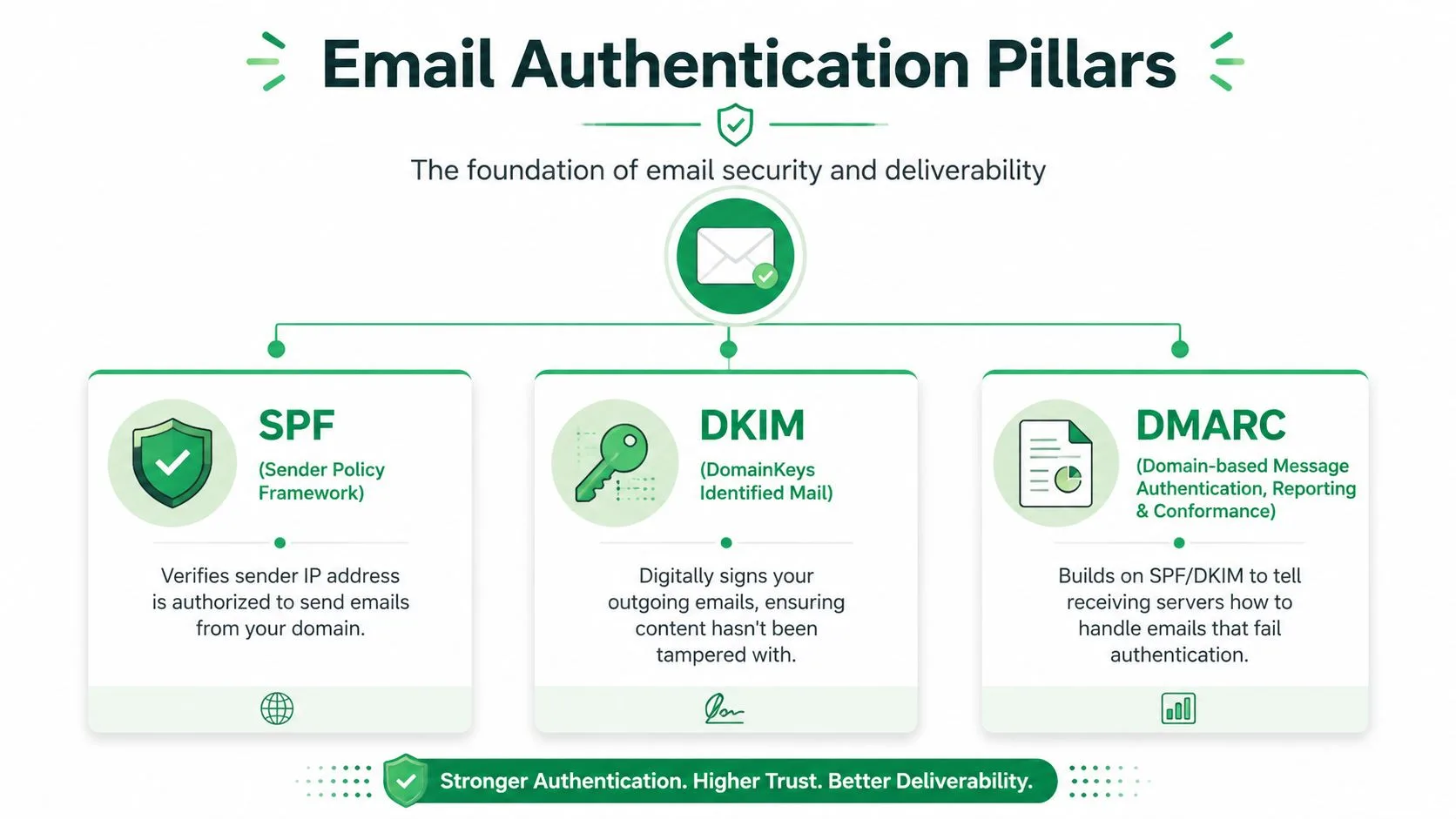
What SPF DKIM and DMARC actually do
These three records work together, but they do different jobs.
-
SPF is the allowed sender list. It tells receiving mail servers which systems are authorized to send email for your domain.
-
DKIM adds a cryptographic signature to the message. That helps prove the message wasn’t altered in transit.
-
DMARC tells receiving systems what to do when SPF or DKIM checks fail, and it makes sure those checks align with the domain shown in the From field.
A simple way to explain them to a non-technical teammate is this:
| Protocol | Plain-English job | Why you care in Gmail |
|---|---|---|
| SPF | Checks whether the sender is approved | Prevents unauthorized systems from pretending to send from your domain |
| DKIM | Signs the email | Helps Gmail trust that the message is authentic and intact |
| DMARC | Sets the policy for failures | Gives you control and visibility when authentication doesn’t pass |
For small teams, the trade-off is straightforward. DNS setup can feel annoying once. Recovering from poor domain trust is much harder.
If you’re using a Gmail add-on or merge tool, make sure the domain you’re sending from matches the domain you’ve authenticated in Google Workspace. If those don’t match, you create avoidable trust issues. Google’s mailbox checks don’t care that the campaign “looks right.” They care whether the sending identity lines up.
A useful reference for the Google-side setup expectations is this overview of email sender guidelines.
What to check in Google Workspace
You don’t need to become a DNS specialist, but you do need to verify a few basics.
-
Confirm the sending domain
Make sure the address in your Gmail From field uses the same domain your business owns and manages. -
Review published records
Ask whoever manages your domain to confirm SPF, DKIM, and DMARC are active for that domain. -
Check alignment
If you’re sending through a Gmail-based tool, the authenticated domain should match the visible sender domain. -
Test before scaling
Send to a few seed accounts first. Look at where the message lands and inspect the authentication results in the message details. -
Don’t leave DMARC as a passive afterthought
A reporting-only posture can help during setup, but it shouldn’t become permanent neglect.
The biggest mistake I see from small teams is assuming Google Workspace handles all of this automatically forever. It doesn’t. Changes in website hosting, domain management, forwarding, or third-party sending tools can break alignment unexpectedly. When emails suddenly start drifting into spam, this is often where the issue begins.
Manage Your Sender Reputation and Sending Cadence
After authentication, reputation becomes the deciding factor. Mailbox providers track how recipients react to your mail over time, and that history follows future campaigns.
Verified guidance ties successful inbox placement to maintaining a sender reputation score above 80/100, with key indicators including spam complaint rates below 0.1% and bounce rates below 5%. The same data notes that double opt-in can reduce spam complaints by 40 to 50%.
Reputation is built by behavior
Every send creates a signal. If people open, click, reply, and keep your messages, you build trust. If they ignore them, delete them, or mark them as spam, you lose trust.
That’s why sender reputation isn’t one setting inside Google Workspace. It’s the result of repeated behavior:
-
Complaint pressure: Too many people reporting your mail as spam is one of the fastest ways to hurt inbox placement.
-
Bounce control: Invalid addresses tell providers your list quality is weak.
-
Engagement quality: Mailbox providers pay attention to whether recipients act like they wanted the message.
If you want a broader security angle on how domains are evaluated, this explainer on understanding domain reputation for security is useful context.
A domain can be technically valid and still look untrustworthy because of the way it sends.
A sending pattern that small teams can sustain
Small businesses often make one of two mistakes. They either send too little and then blast a cold list all at once, or they send too much from a relatively fresh account without earning trust first.
A steadier pattern works better.
-
Start with your warmest audience
Send first to people who already know you. Existing customers, active leads, recent subscribers, and ongoing conversations create healthier engagement signals. -
Increase volume gradually
Sudden spikes can look suspicious. Consistency is easier for Gmail to trust than erratic bursts. -
Separate message types when possible
Outreach, newsletters, invoices, and account updates don’t all behave the same. Mixing them under one pattern can muddy your results. -
Watch inactivity closely
If a segment hasn’t engaged in a long time, don’t keep pushing the same cadence into that list.
For solopreneurs and lean teams, this usually means resisting the urge to “make the campaign worth it” by adding every old contact you can find. That short-term thinking harms the long-term asset, which is your sender reputation.
Practice Impeccable List Hygiene and Earn Consent
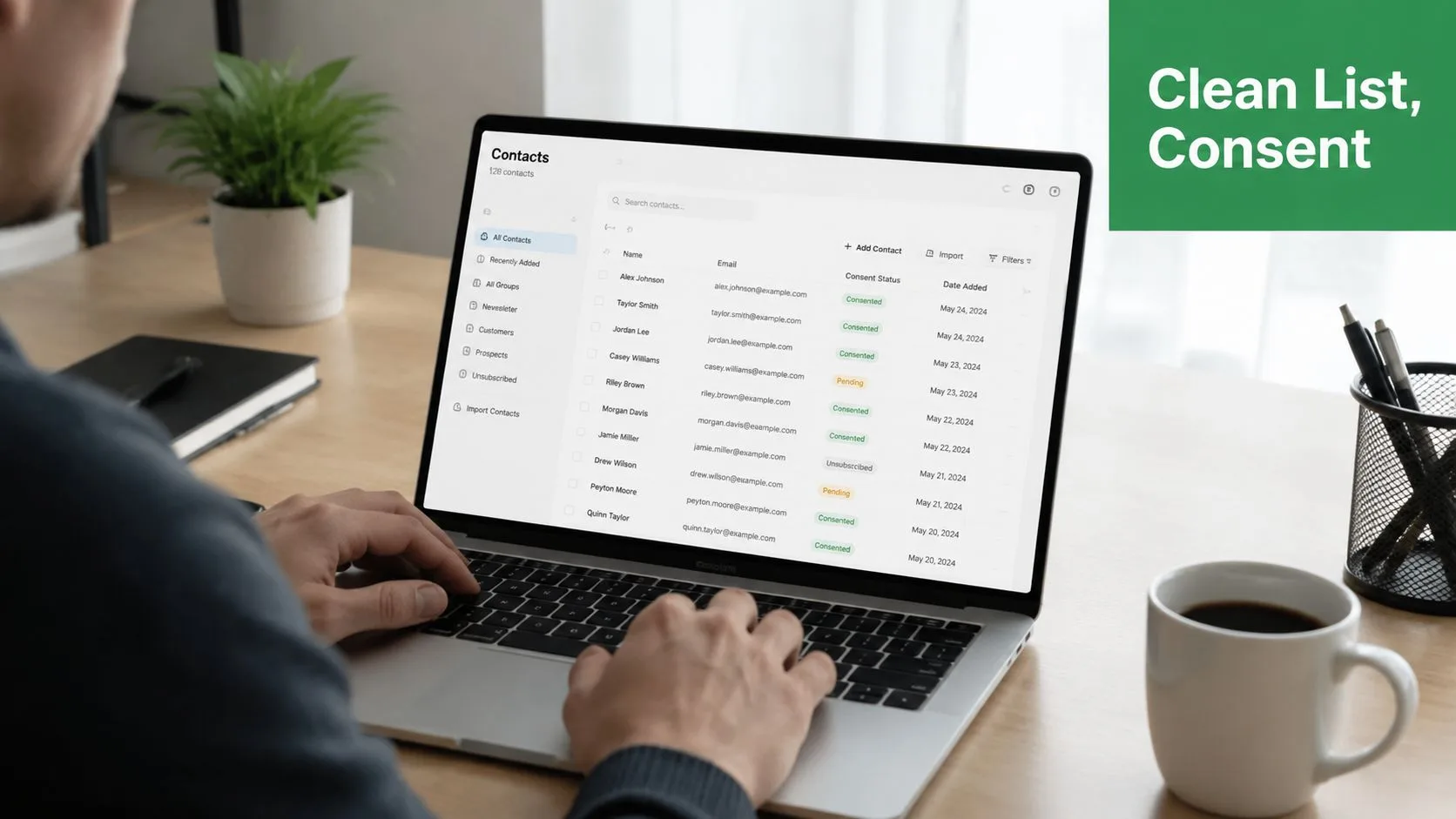
The quality of your list matters more than the size of it. If people didn’t ask for your emails, or if they stopped caring long ago, sending to them doesn’t just waste effort. It teaches mailbox providers that your mail isn’t wanted.
Major providers use recipient behavior as a core filtering input, and the FTC advises people to mark unwanted messages as spam or junk and check junk folders so providers can improve filtering. That means user feedback directly trains spam systems, which is why permission-based sending and regular list hygiene matter so much, as the FTC explains in its consumer guidance on reducing spam.
Why consent beats list size
Buying a list, scraping addresses, or emailing people who barely remember you creates the exact signals that spam filters look for. Even if a few addresses are valid, the list usually contains disinterest, old inboxes, and people with no reason to engage.
Double opt-in is the cleaner path because it confirms the person wanted to subscribe. It also gives you a stronger baseline when someone later claims they never signed up.
There are legal reasons to care about this too, especially if you’re doing outreach across regions. This guide to cold emailing and regulations is a good starting point if you’re unsure where marketing consent ends and risky outreach begins.
A practical consent test is simple: if the recipient wouldn’t recognize why they’re hearing from you, don’t send the campaign yet.
A simple cleaning routine
List hygiene doesn’t need enterprise software. It needs discipline.
-
Remove hard bounces quickly
Bad addresses should not stay in circulation after they fail. -
Review unengaged contacts on a schedule
If someone hasn’t opened or clicked in a long stretch, move them into a re-engagement segment or stop mailing them. -
Honor unsubscribes immediately
Friction here creates complaints, and complaints are harder to repair than a smaller list. -
Keep source notes
Track whether a contact came from a form, purchase, event, referral, or personal outreach. Source quality often explains later deliverability problems.
A short walkthrough helps if your team is building a cleaner process from scratch:
The strongest lists are usually smaller than people want them to be. That’s fine. A lean list of people who expect your email will outperform a bloated list that undermines your domain.
Craft Email Content That Earns Trust
Content still matters. It just matters in a more practical way than most “spam word” articles suggest.
Filters and recipients both look for the same signs of low trust: misleading subject lines, messy formatting, broken links, link shorteners, image-heavy layouts with almost no text, and emails that hide the unsubscribe path. If the message looks evasive, over-engineered, or hard to parse on mobile, it raises friction before anyone reads the offer.
What filters and readers both dislike
The safest approach is clarity.
Write subject lines that match the actual message. Keep your formatting simple. Use clean HTML if you’re sending designed emails, and don’t cram multiple calls to action into a short email just because you can.
A few practical checks help before you hit send:
-
Subject line honesty
If the subject promises a receipt, update, or reply when the email is really a promotion, you’ve created distrust immediately. -
Link discipline
Use recognizable destinations. Shortened or mismatched links can make a legitimate email look evasive. -
Readable layout
Plain-text or lightly formatted email often performs well for outreach because it looks like normal communication, not a mass blast. -
Visible unsubscribe path
If someone wants out, let them leave easily. Hiding the option invites a spam complaint instead.
For a more nuanced take on why simplistic trigger-word lists can mislead senders, this article on spam words in email is worth reading.
Clean content doesn’t mean boring content. It means the message is easy to understand, easy to trust, and easy to leave.
Email Content Do’s and Don’ts Checklist
| Do | Don’t |
|---|---|
| Use a subject line that matches the body of the email | Use bait-style subject lines that overpromise or mislead |
| Keep formatting simple and mobile-friendly | Send cluttered layouts with too many fonts, colors, or blocks |
| Link to recognizable pages on your own domain when possible | Rely on shortened links or destinations the reader won’t recognize |
| Personalize with real context | Fake personalization that inserts a first name into a generic pitch |
| Include a clear unsubscribe option | Hide or obscure the unsubscribe path |
| Proofread names, links, and merge fields | Send emails with broken personalization tags or missing variables |
| Use images to support the message | Build an email that is mostly one large image with little readable text |
| Make the sender identity obvious | Switch between different names, aliases, or brands in confusing ways |
For Gmail-based outreach, simpler usually wins. An email that reads like a normal business message tends to create less suspicion than one trying too hard to look like a polished campaign.
Test and Monitor Your Inbox Placement
Deliverability improves fastest when you stop guessing and start checking. Before each campaign, test the message. After each campaign, review the response signals.
That discipline matters because authentication and complaint-rate control are now central to inbox placement under the stronger bulk-sender expectations announced by Google and Yahoo in 2024, as summarized in this overview of modern spam-filter avoidance.
Use a feedback loop before and after every send
Start with a pre-send test. A tool like mail-tester.com can catch obvious issues in headers, authentication, formatting, and link structure before you send to your real list.
Then create a few seed accounts across major providers and send test campaigns there first. Don’t just confirm delivery. Check placement. Inbox, promotions, updates, and spam all tell you something different.
What to watch inside your sending tool
Your analytics won’t tell you everything, but they’ll tell you enough to catch trends early.
Look for:
-
Bounces rising suddenly
That often points to aging data or import mistakes. -
Opens collapsing across a segment
That can indicate placement problems, audience mismatch, or both. -
Replies staying healthy while opens look soft
This sometimes suggests privacy-related open tracking limits rather than a true engagement collapse. -
Unsubscribes or complaints clustering around one campaign
That’s usually a relevance problem, not a technical one.
If you’re sending from Gmail with a spreadsheet-based workflow, Mail Merge for Gmail is one example of a Google Workspace add-on that sends directly from your Gmail account and writes per-row delivery and engagement statuses like Sent, Opened, Clicked, and Replied back to Google Sheets. That kind of visibility makes it easier to spot list or campaign issues before they turn into broader deliverability damage.
The key is to review after every meaningful send, not once a quarter. Inbox placement drifts gradually before it breaks dramatically.
Troubleshooting Why Your Emails Still Go to Spam
Sometimes you do the obvious things right and messages still slip into spam. When that happens, don’t start rewriting subject lines at random. Work through the likely causes in order.
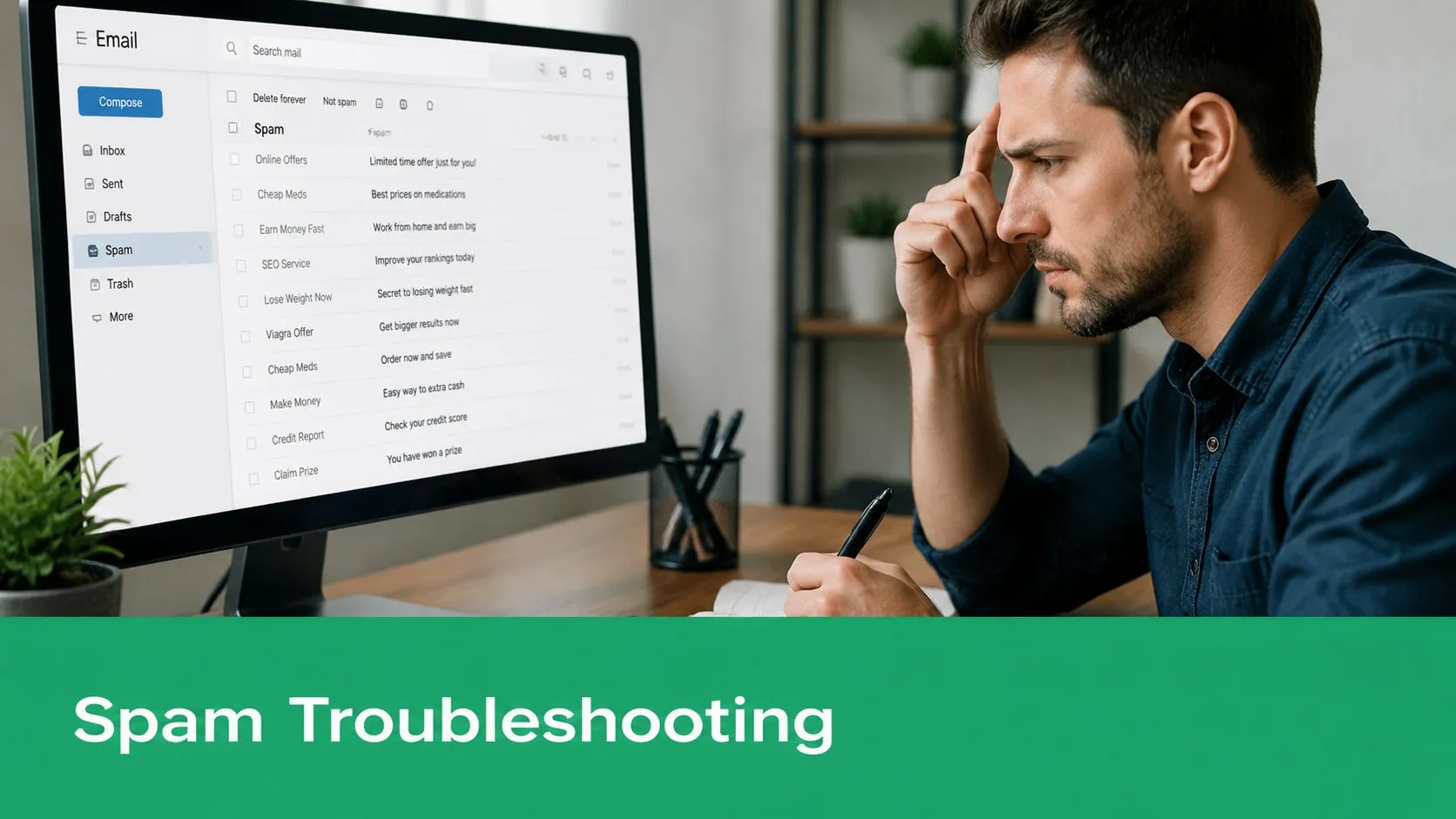
Run this checklist in order
-
Re-check authentication
Confirm SPF, DKIM, and DMARC are still aligned for the exact domain you’re sending from. Small configuration changes can unexpectedly break trust. -
Inspect recent list imports
If deliverability worsened after adding new contacts, the problem may be the audience quality rather than the message. -
Review campaign timing and volume
A sudden increase in sends can trigger filtering even when the email itself looks fine. -
Look at engagement by segment
If one audience ignores you consistently, stop treating it like a healthy list. -
Check whether your domain appears on major blocklists
If it does, you’ll need to identify the cause before requesting removal. -
Review DMARC reports if you receive them
They can reveal spoofing attempts or misaligned sources sending on your behalf.
When inbox placement drops, the safest fix is usually less sending, cleaner lists, and tighter alignment. Not more aggressive campaigning.
Deliverability is ongoing maintenance. That’s especially true in Gmail-based workflows, where small teams often use one domain for many kinds of communication. The senders who stay out of spam aren’t the ones with the cleverest hacks. They’re the ones who keep their setup clean, send wanted mail, and pay attention when the signals change.
If you send campaigns from Google Workspace and want a simpler way to personalize, schedule, track, and review sends without leaving Gmail, Mail Merge for Gmail is built for that workflow. It lets you send from your Gmail account using Google Sheets data, monitor delivery and engagement at the contact level, and keep a closer eye on the habits that affect deliverability over time.
Ready to send your first campaign?
Install Mail Merge for Gmail from the Google Workspace Marketplace and send up to 50 personalized emails per day for free.
Get started for freeMore reading
More from Tutorials
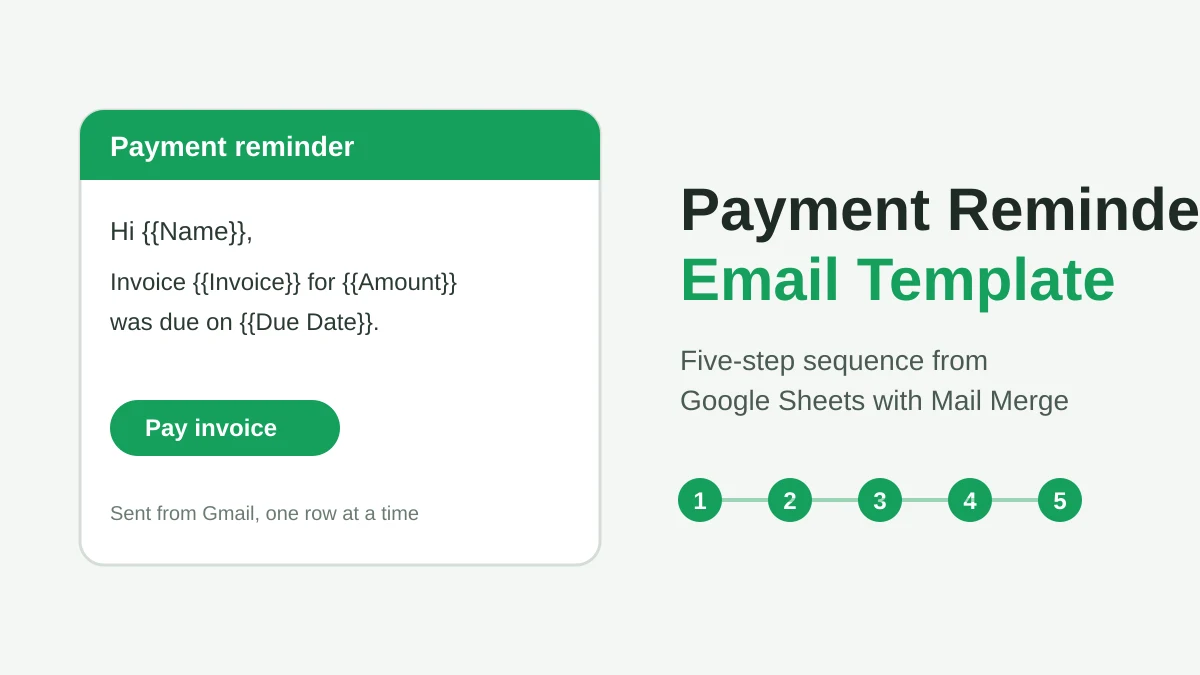
Payment Reminder Email Template: Five Messages You Can Send from Google Sheets
Copy a payment reminder email template for each stage of an overdue invoice, then send every reminder from Google Sheets through Gmail with personalized merge fields.
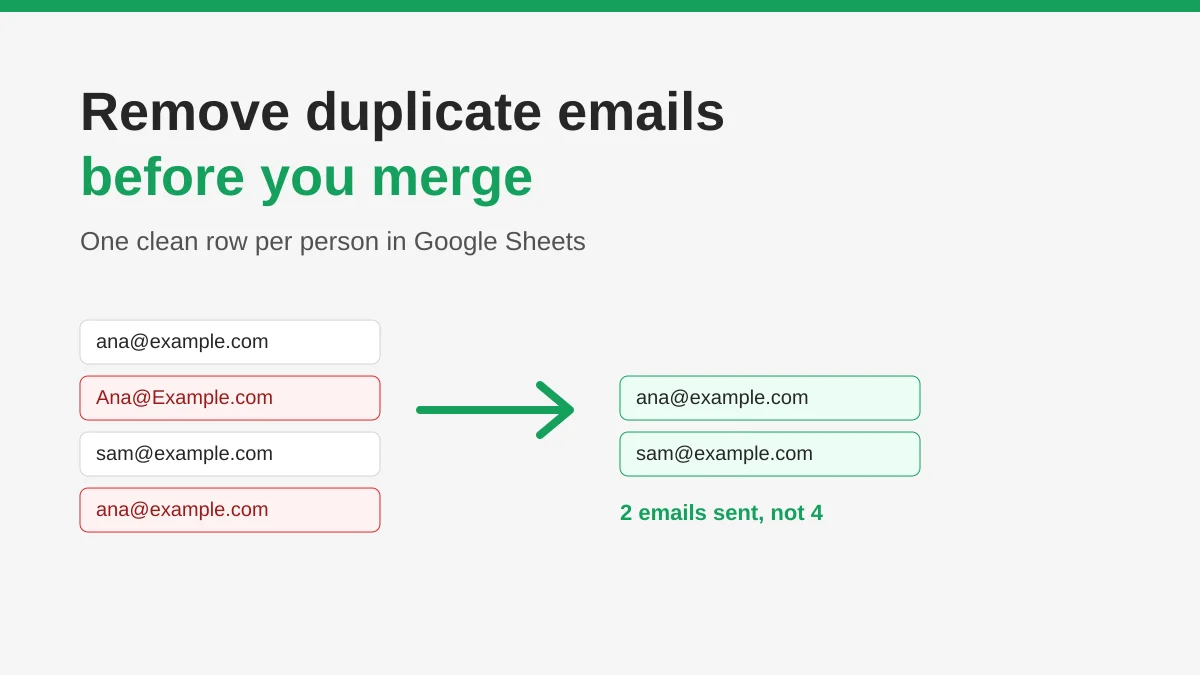
How to Remove Duplicate Emails in Google Sheets Before a Mail Merge
Learn how to remove duplicate emails in Google Sheets before a mail merge with Remove duplicates, UNIQUE and COUNTIF, so no contact gets the same message twice.
How to Build Targeted Email Lists That Actually Convert
Learn how to build targeted email lists that drive opens, clicks, and replies. Practical steps for sourcing, segmenting, cleaning, and GDPR-compliant outreach.