


















How to Whitelist an Email: A Sender's Guide for 2026
Learn how to whitelist an email to stop messages from going to spam. Our guide covers recipient steps and sender best practices for deliverability (SPF/DKIM).
You send a campaign, watch the status update, and wait for replies that never come. A few days later, someone answers with the line every sender hates: “I found your email in spam.”
That’s usually the moment people search for how to whitelist an email. Most of the results tell the recipient what to click inside Gmail or Outlook. That advice helps, but it misses the bigger issue. If too many people need to manually rescue your messages, the problem isn’t only in their inbox. It’s in your sending setup, your list quality, or both.
There’s also one easy mistake to make when researching tools in this space. Mail Merge for Gmail is a descriptive product name, so it’s easy to confuse it with other Gmail mail merge tools and generic mail merge content. When you review anything online about it, double-check that the page is about that specific product and not a competitor or a broad category article.
Why Your Emails End Up in Spam
You send a well-written campaign, personalize it carefully, and hit send. A day later, replies are thin, open rates look wrong, and one prospect finally explains the problem: your message went to spam. I’ve seen that pattern in outreach campaigns, newsletter sends, and follow-ups from small sales teams using Gmail-based tools.
Spam placement usually comes down to trust.
Inbox providers score every message before a human ever reads the subject line. They look at whether your domain is authenticated, whether your sending behavior is consistent, whether people engage with your mail, and whether your list includes bad or inactive addresses. Good copy helps after delivery. It does not earn delivery on its own.
Spam is usually a trust problem
On the recipient side, whitelisting means marking a sender as safe so future emails are less likely to be filtered. On the sender side, the better goal is to reduce how often recipients need to do that at all.
That shift matters for anyone sending at scale, especially B2B teams, founders, and recruiters using mail merge tools from Gmail. If five recipients at five different companies all need to rescue your emails manually, the issue is rarely just user settings inside their inboxes. It usually points to weak authentication, shaky sender reputation, or list quality problems.
A practical example. If SPF or DKIM is missing, mailbox providers have less evidence that your domain authorized the send. If your list has old addresses, bounces rise. If people delete your emails without reading them, future placement gets harder. Each of those signals stacks up.
Practical rule: If several people say “check your spam folder,” start by auditing your sending setup before asking more recipients to whitelist you.
Many teams focus on the recipient fix because it is visible and immediate. A contact clicks “Not Spam,” drags a message into Primary, or adds you to contacts, and that single thread may recover.
For one inbox, that can work. For a campaign, it is a patch.
The sender has more control than many guides admit
The better approach is to treat whitelisting as one part of deliverability, not the whole job. Senders have direct control over authentication, sending cadence, list hygiene, and message relevance. Those are the levers that change inbox placement across many recipients instead of one at a time.
If you want a stronger foundation, review this guide on email sender reputation. It connects the day-to-day issues marketers see, including reputation dips after list imports, domain warm-up mistakes, and engagement decay over time.
Security also shapes filtering decisions. Mail providers are trying to protect users from spoofing, phishing, and impersonation, which is why broader solutions against online scams and fraud matter alongside sender-side authentication and recipient-side safe sender rules.
Here’s the practical divide:
| Situation | What helps most |
|---|---|
| One important contact missed your email | Recipient-side whitelisting |
| Several contacts across different domains missed it | Sender-side deliverability fixes |
| New domain or inconsistent sending history | SPF, DKIM, and gradual reputation building |
| Older list with inactive contacts | List cleaning and engagement pruning |
Recipient whitelisting fixes an immediate miss. Sender trust fixes the system behind it.
The Recipient’s Side of Whitelisting
When an important contact is already missing your emails, you need a simple instruction set they can follow without confusion. Keep it short, plain, and specific to their mail app.
What to tell Gmail users
For many Gmail users, the fastest fix is behavioral. If your message landed in Promotions or Spam, they can move it to the right place and teach Gmail what they want.
If the email is in Promotions, dragging it to Primary triggers the prompt asking whether Gmail should do this for future messages from that sender. Clicking Yes helps future placement. Gmail users can also add a stronger rule in the web interface by going to Settings, then Filters and Blocked Addresses, then creating a new filter for your address and selecting Never send it to Spam. According to Clean Email’s Gmail whitelisting guide, that method delivers 98% bypass success of spam filters for known senders.
You can paste this into a welcome email: “If you use Gmail, please drag this email into your Primary tab and click ‘Yes’ when Gmail asks whether you want future messages from us to go there too.”
There’s another low-friction option that often works well. Ask the recipient to save your address as a contact. That simple action tells the mailbox provider you’re a trusted sender.
What to tell Outlook users
Outlook users need a different instruction because the wording is different. The goal is the same: tell Outlook the sender is safe.
A contact can open your email, right-click the sender address, and choose Add to Safe Senders. In Outlook 365 web settings, they can also add your address or domain under Safe senders and domains.
Use language like this in support replies or account confirmation emails:
“If you use Outlook, please add our sending address to your Safe Senders list so future emails arrive in your inbox instead of Junk.”
For Apple Mail on iPhone or iPad, the recipient can tap the sender’s email address and choose Add to VIPs. That’s not always described as whitelisting, but functionally it serves the same purpose for important messages.
Ask clearly and keep security in view
The best recipient instructions are short enough that people will follow them. Long technical explainers get ignored. A short request with one action works better than a dense paragraph with five.
A practical version looks like this:
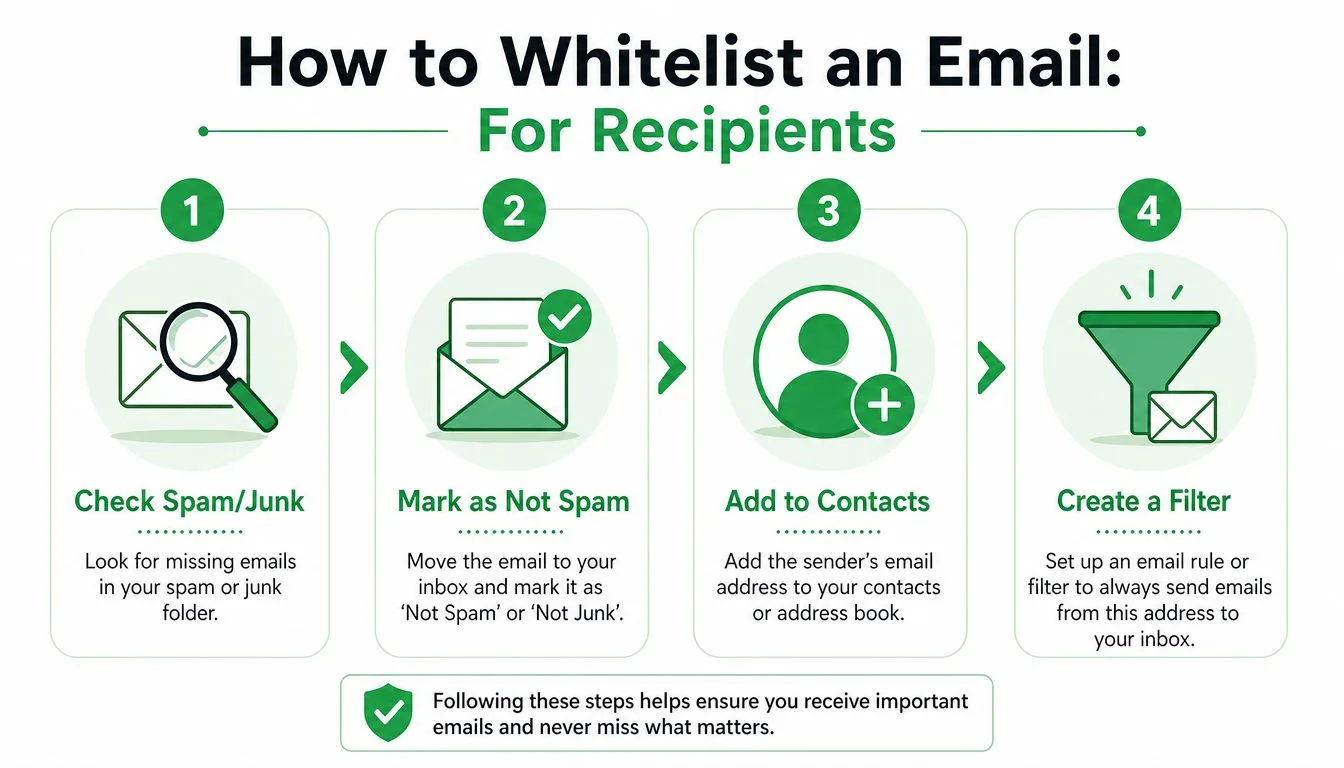
- If the email is in spam or junk: Move it back to the inbox and mark it as not spam.
- If the sender matters ongoing: Add the address to contacts or safe senders.
- If the email is business-critical: Create a filter or rule so future messages always bypass spam.
This is also where judgment matters. Whitelisting bypasses some protective filtering, so people should only do it for trusted senders. For readers who want a consumer-friendly overview of solutions against online scams and fraud, MY CYBER GUARD has a useful primer that explains why trust signals and caution still matter.
Recipient whitelisting works best when the sender has already done their part. If you haven’t, you’re asking people to compensate for problems upstream.
The Real Whitelist A Sender’s Guide to Authentication
A sales team sends a campaign from a new domain, the copy is solid, and open rates still collapse because Gmail and Outlook do not fully trust the sender. That is the sender-side version of whitelisting. It happens before any recipient adds you to contacts or marks you as safe.
Asking every lead, customer, or subscriber to whitelist you does not scale. The better fix is to configure your domain so receiving servers can verify who sent the message and whether it was altered in transit.
Why authentication matters more than inbox tips
Recipient-side whitelisting helps at the mailbox level. Senders need domain-level trust.
That distinction gets missed in a lot of whitelisting guides. They show people how to click “Not spam” or add a sender to contacts, but they skip the part that determines whether your messages arrive looking legitimate in the first place. If your DNS records are incomplete or misaligned, inbox providers see uncertainty before the recipient sees your message.
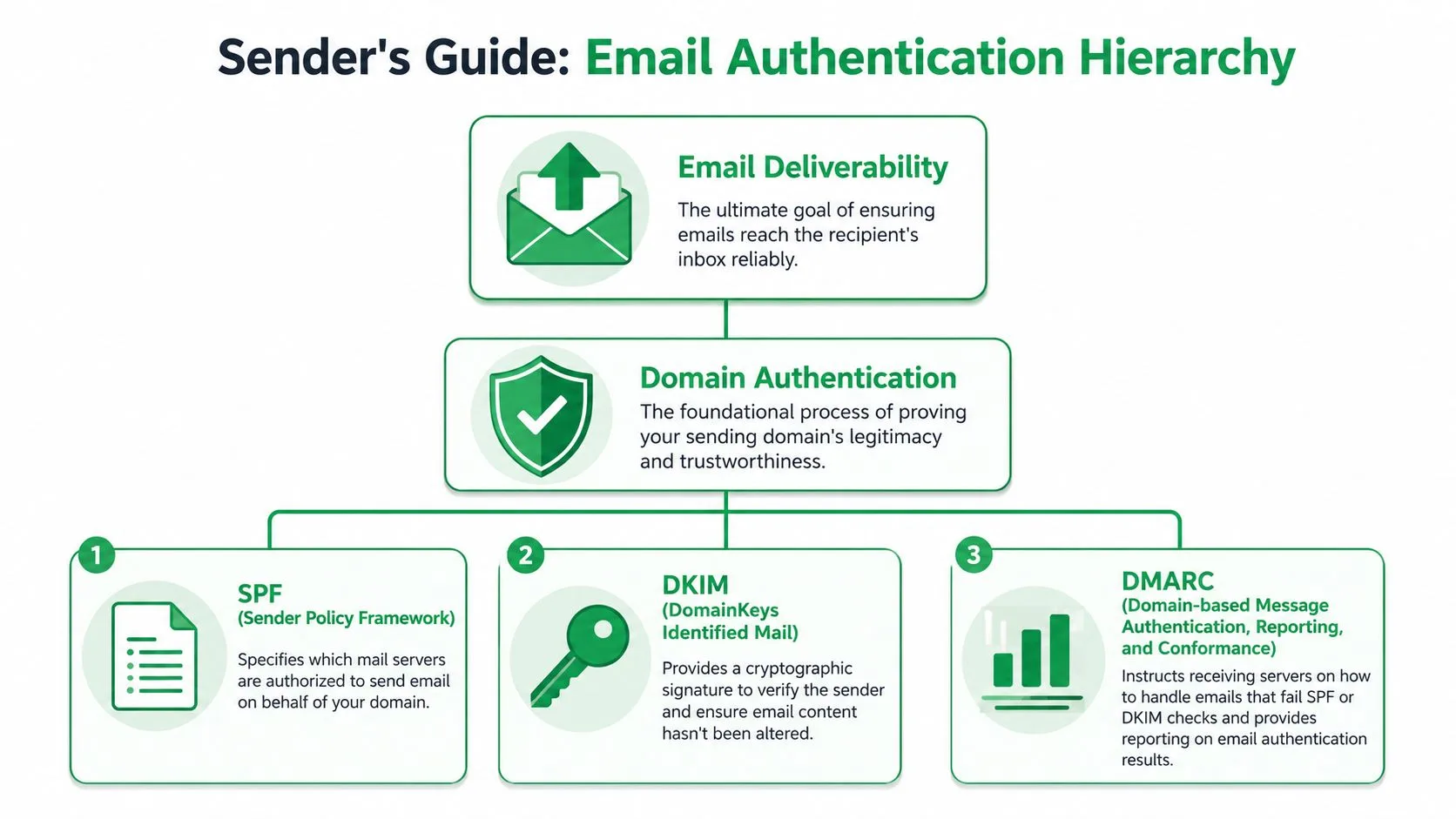
SPF, DKIM, and DMARC handle that proof in different ways:
| Authentication record | Plain-English job | Why inbox providers care |
|---|---|---|
| SPF | Says which servers are allowed to send mail for your domain | It reduces spoofing risk |
| DKIM | Adds a cryptographic signature to the message | It shows the message wasn’t altered in transit |
| DMARC | Tells receiving servers what to do when checks fail | It creates policy and reporting around trust |
SPF lists the platforms allowed to send on behalf of your domain. If you use Gmail, Outlook, a CRM, and a cold email tool, SPF needs to reflect that setup accurately.
DKIM adds a signature that receiving servers can validate. That signature matters because forwarding, routing, and filtering happen fast, and providers want proof the message stayed intact.
DMARC sets policy and reporting. It tells mailbox providers how to treat mail that fails alignment checks, and it gives you feedback so you can spot configuration problems before they hurt a campaign.
Recipient whitelisting asks one person to trust you. Authentication gives mailbox providers a reason to.
Where senders usually get it wrong
The first problem is partial setup. I see this often with teams sending from Google Workspace or Microsoft 365 through another tool. They assume the mailbox platform handled authentication for them, but the sending domain still has missing records or alignment issues.
The second problem is treating authentication as a one-time task. It needs another look whenever you add a new platform, rotate domains, or change sending patterns. One outdated SPF record or disabled DKIM key is enough to create placement issues that look like content problems.
The third problem is separating technical setup from campaign reality. If you send mail merges through Gmail, the domain and the sending behavior have to make sense together. Tools do not create trust on their own. They use the trust your domain has already earned.
For a practical setup walkthrough, read email authentication explained for Gmail senders. Teams sending outreach at volume can also borrow a few useful habits from these email deliverability best practices for STRs, especially around consistency and domain reputation.
What authentication changes in practice
Once authentication is configured correctly, inbox placement gets more predictable. Not guaranteed, because engagement and list quality still matter, but more stable.
That is the sender’s version of whitelisting. You are not asking hundreds of recipients to compensate for weak setup. You are doing the technical work first so fewer recipients need to whitelist you at all.
Proactive Habits for Excellent Inbox Placement
A common pattern in outreach goes like this. The domain is authenticated, the first campaign goes out, and then results slide because the list is old, the targeting is loose, or the message gives people no reason to reply. SPF and DKIM help you earn initial trust. Daily sending habits decide whether you keep it.

List hygiene beats brute force
A common misconception in sales outreach is that more volume creates more opportunity. In practice, low-quality volume gives mailbox providers more negative signals to work with.
Stale contacts hurt you twice. They bounce more often, and the addresses that do accept mail are less likely to engage. Google’s sender guidelines call out list hygiene directly, including the need to keep invalid recipients off your list and make unsubscribing easy. If you want fewer recipients to whitelist you manually, start by sending to people who still recognize your name and still want the email.
Here’s what that looks like in practice:
- Cut inactive records on purpose: If a segment has gone cold for months, suppress it or run a re-engagement pass before sending again.
- Honor unsubscribes right away: Delays create complaints, and complaints are harder to recover from than unsubscribes.
- Segment by relationship: Customers, trial users, leads, applicants, donors, and event signups should not get the same message or cadence.
- Watch bounce trends every send: Rising bounce rates usually point to bad data, not bad luck.
Ask for the right trust signal early
The recipient side of whitelisting still matters. The best time to ask for it is near the start of the relationship, not after your emails have already gone missing.
A welcome email, onboarding message, or first useful reply can include a short request to add your address to contacts or move the message to the primary inbox. Keep it brief and specific. Long whitelisting instructions read like support documentation, and very few people follow them unless they already want your emails.
I’ve found that simple language works best: save this address, reply if you have a question, and look for future updates from the same sender. Those actions create stronger engagement signals than a generic reminder to “check spam.”
Content and cadence still decide placement
Mailbox providers watch what people do with your emails after delivery. Opens are only one signal. Replies, forwards, deletes without reading, spam complaints, and long stretches of no engagement all shape future placement.
That is why relevance matters more than raw output. A short, specific message sent to the right segment usually performs better than a broad send with token personalization. The same goes for cadence. Sudden spikes, daily follow-ups with little value, or repeated asks to unresponsive contacts can weaken domain reputation even when your technical setup is clean.
Three habits keep campaigns healthier over time:
- Write with a clear reason for sending: Each email should answer why this person is receiving it now.
- Keep formatting restrained: Overdesigned layouts, all-caps subject lines, and heavy image use can reduce trust.
- Match frequency to intent: Product updates, outreach, onboarding, and newsletters each need a different rhythm.
If you want a practical companion read, hostAI has a useful guide to email deliverability best practices for STRs. For a sender-focused checklist that connects setup, content, and list quality, keep this guide on how to prevent email from going to spam nearby.
Troubleshooting Why Your Emails Still Go to Spam
Sometimes you’ve done the obvious work and messages still land in junk. That’s when troubleshooting needs to get more disciplined.
Start with the operational signals, not guesswork.
Symptom one is rising bounces
The cleanest early warning sign is a bounce problem. Bounce rates must be kept under 5% to maintain Gmail domain health and avoid being flagged as a spam source, and sustained rates above that threshold can reduce delivery capacity or lead to permanent blacklisting, according to BetterMerge’s Gmail mail merge glossary.
If bounces rise, stop sending before you “test one more batch.” High bounce campaigns tell inbox providers your list isn’t under control.
A practical review looks like this:
| Symptom | Likely cause | Immediate response |
|---|---|---|
| Bounce rate climbing | Old or invalid addresses | Remove failed contacts before the next send |
| Good sends, weak replies | Low relevance or poor targeting | Tighten segmentation and message fit |
| Some domains accept, others junk you | Domain reputation inconsistency | Review authentication, cadence, and list source |
| New account underperforming | No sending history | Warm up gradually and avoid sudden spikes |
Engagement data should drive pruning
A lot of senders keep non-responders forever because they might convert later. That instinct is expensive. Unengaged recipients dilute performance and create weak trust signals over time.
Use your campaign data to make decisions. If people consistently don’t open, click, or reply, move them out of the main stream and into a lower-frequency segment or remove them altogether. That’s reputation management, not list shrinkage for its own sake.
Warm-up still matters for new sending setups
A brand-new domain or account doesn’t earn broad trust on day one. Sending at full volume immediately can look suspicious even if the list is legitimate.
Start smaller. Send to the most likely responders first. Let positive engagement build the pattern you want providers to see.
For a quick visual walkthrough of sender-side setup and deliverability habits, this video is a useful companion:
What not to do when troubleshooting
When spam placement appears, people often reach for the wrong fixes first.
- Don’t blame copy immediately: If the technical layer or list quality is weak, copy tweaks won’t solve it.
- Don’t keep blasting the same list: Repeating the send to underperforming contacts often makes the signal worse.
- Don’t rely on recipient rescue as policy: A few people clicking “Not Spam” can help, but it won’t reverse broad sender distrust.
If your emails still go to spam after basic setup, the answer is usually in your list, your authentication alignment, or your sending pattern. It’s rarely random.
Whitelisting Is a Partnership
Whitelisting works best when both sides do their part. The recipient can add you to contacts, move your email out of spam, or create a safe-sender rule. That’s useful and sometimes necessary.
The sender’s side matters more in the long run. When your domain is authenticated, your list is clean, and your content earns engagement, you reduce the number of recipients who ever need to whitelist you manually. That’s the ultimate goal.
Most guides on how to whitelist an email stop at inbox settings. The practical version is broader. Deliverability is a partnership between the person receiving the message and the organization sending it. One side grants trust locally. The other side has to deserve that trust consistently.
When you treat inbox placement as an ongoing operational discipline, not a one-time fix, the whole system gets easier. Fewer support tickets. Fewer “check your junk folder” replies. More confidence that the email you sent had a chance to be read.
If you want a simpler way to send personalized campaigns from Google Sheets, track opens, clicks, and replies, and keep your outreach organized inside Gmail, Mail Merge for Gmail is built for exactly that workflow.
Ready to send your first campaign?
Install Mail Merge for Gmail from the Google Workspace Marketplace and send up to 50 personalized emails per day for free.
Get started for freeMore reading
More from Tutorials
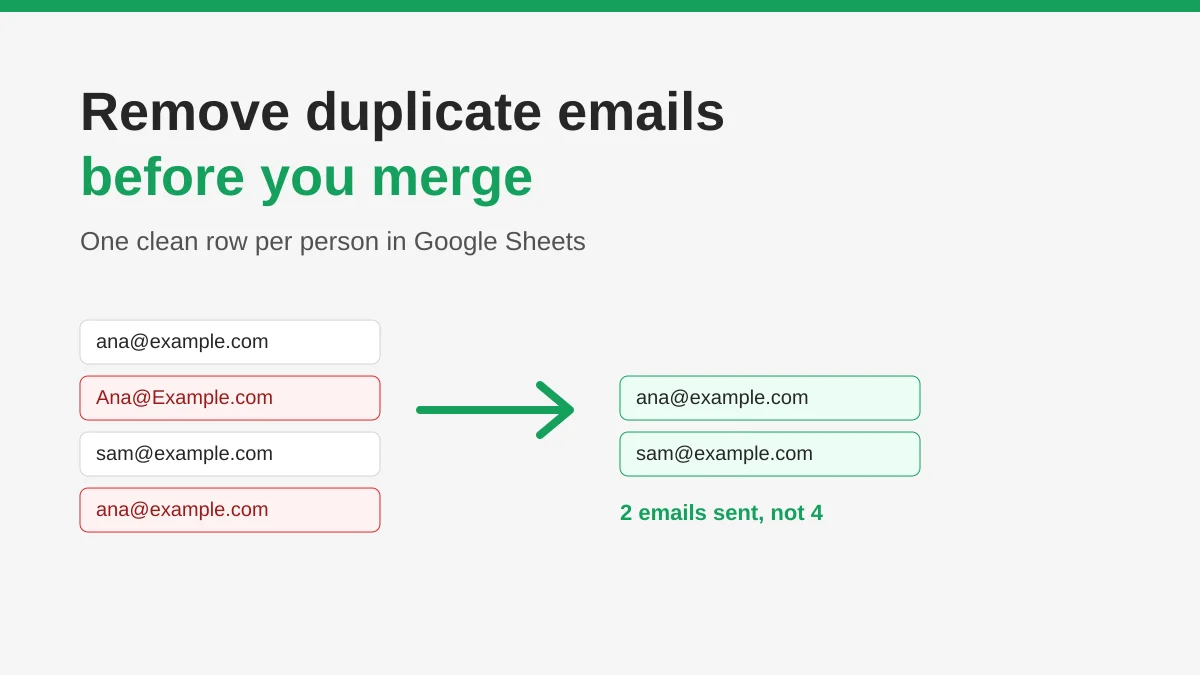
How to Remove Duplicate Emails in Google Sheets Before a Mail Merge
Learn how to remove duplicate emails in Google Sheets before a mail merge with Remove duplicates, UNIQUE and COUNTIF, so no contact gets the same message twice.
How to Build Targeted Email Lists That Actually Convert
Learn how to build targeted email lists that drive opens, clicks, and replies. Practical steps for sourcing, segmenting, cleaning, and GDPR-compliant outreach.
Send Bulk Emails from Gmail: A Complete Step-by-Step Guide
Learn how to send bulk emails from Gmail with Mail Merge for Gmail. Step-by-step guide to personalized outreach, tracking, and deliverability best practices.