


















How to Track Opened Email in Gmail and Beyond
Learn how to track opened email using pixels and read receipts. Step-by-step setup for Gmail, Mail Merge for Gmail, and tips to improve accuracy.
The popular advice says to watch the open rate and let it tell you who’s engaged. That sounds clean, but it’s not how email works anymore. An opened email usually means a tracking image loaded, not that a person sat down and read your message, and privacy tools, image proxies, and security scanners can make that signal noisy or misleading.
That doesn’t make open tracking useless. It just means you have to treat it like a directional metric, not proof of attention. Used correctly, it still helps you rank contacts, time follow-ups, and compare campaigns, but only if you know what the system is recording and where the gaps are.
Why Open Tracking Is Not What You Think
An open is not a human event. In modern email systems, it’s usually a server-side request for a tiny tracking image, and that request can happen for reasons that have nothing to do with a real reader. Mailchimp’s definition of an open is tied to loading the tracking image, and its reporting separates Opened from Total opens, which is a reminder that one recipient can create multiple opens while still counting once as a unique opener (Mailchimp open tracking).
That distinction matters more than most dashboards admit. An open rate is calculated from delivered emails, not emails sent, so the denominator already excludes messages that never arrived. Microsoft Viva Insights also treats open tracking as a reporting layer, with Track email open rates and In-context email open rate views built into Outlook, which tells you how standard this measurement has become across mainstream tools (Microsoft Viva Insights in Outlook).
What an open really captures
The core signal is simple. A message is sent, a hidden pixel or equivalent resource is requested, and the system logs the event. That can be useful for relative comparisons, but it is not the same as reading, comprehension, or intent.
Practical rule: Use opens to sort contacts into rough engagement buckets, not to claim they read every line.
The rise of privacy features has made the signal even messier. Apple Mail Privacy Protection can preload remote content, Gmail can cache or proxy images, and security scanners can trigger opens without a person ever viewing the message. Ask Leo’s guidance is blunt on the underlying truth, there’s no 100% reliable way to know whether a specific email was opened or read (Ask Leo).
What changed in practice
The result is a metric that still matters, but differently than it used to. Teams that treat opens as a final verdict usually overreact to spikes and dips. Teams that treat opens as a trend signal make better decisions, because they compare opens with clicks, replies, and downstream actions instead of assuming the pixel tells the whole story.
That’s the shift in 2026. Open tracking didn’t disappear, it just stopped being a clean proxy for attention.
How Email Open Tracking Actually Works
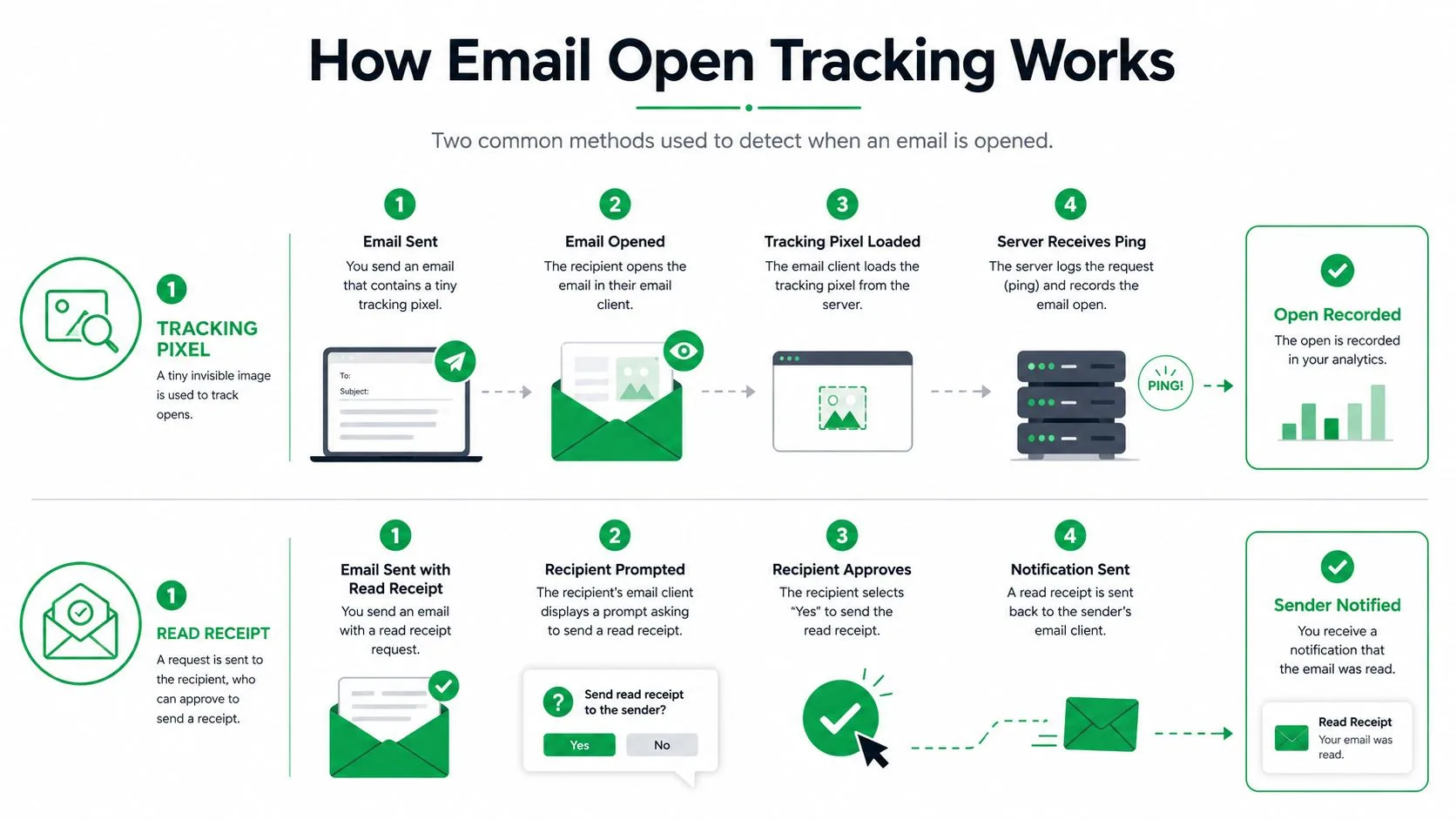
There are two common ways to track an opened email, and they behave very differently. The first is a tracking pixel, usually a hidden 1x1 transparent image embedded in the message body. The second is a read receipt, which asks the recipient’s client to send back a confirmation after opening, though the recipient can often approve, ignore, or block that request depending on the platform.
The pixel path
The pixel workflow is mechanical. You send the email. The recipient’s client renders HTML. If images load, the client requests the tiny pixel from the server. That request gets logged with metadata such as timestamp and, in some systems, IP or device details. Slate’s documentation shows this kind of record keeping clearly, since it logs the message ID, date and time, IP address, and user agent when a message is opened (Slate open and click tracking).
Here’s the practical limitation. The system measures an image-load event, not verified human attention. Allegrow describes the same mechanism, where a hidden image loads and the server records an open, which means “opened” is an event, not proof of reading (Allegrow email tracking guide).
The read receipt path
Read receipts are different because they depend on recipient behavior and client support. They’re more explicit, but they’re also less scalable and less consistent across inboxes. In Gmail and Outlook environments, that inconsistency matters, because one sender can see a prompt, another can see nothing, and a recipient can choose not to send the receipt at all.
| Method | What triggers it | What it’s good for | Main weakness |
|---|---|---|---|
| Tracking pixel | Image loads in the email client | Campaign analytics, automation triggers, segmentation | Blocked images, privacy proxies, scanner noise |
| Read receipt | Recipient approves a confirmation | One-to-one follow-up in controlled settings | Inconsistent support, user permission required |
The send-to-event flow is easy to picture, even if the results aren’t perfect. Build the message, send it, wait for the client to render HTML, then map the recorded event back to the contact record. For a broader Gmail-focused walkthrough of open and click tracking mechanics, the internal guide at track email open is a useful companion.
Setting Up Open Tracking in Mail Merge for Gmail
Mail Merge for Gmail works the way a lot of teams want to work, inside Gmail, with status updates written back into Google Sheets. The key behavior is simple: it writes per-row delivery and engagement statuses, Sent, Opened, Clicked, and Replied, back to your spreadsheet for shareable analytics, and it supports real-time open and click tracking, unsubscribe management, scheduling, and team analytics sharing.
A clean setup starts in the sheet
Start with a spreadsheet that has one row per recipient. Keep the columns obvious, names, email addresses, and any personalization fields you plan to use in the template. Clean row structure matters because the status output is row-based, and that’s what makes later filtering and follow-up decisions easy.
Build or select your email template next. Keep placeholders consistent with your sheet headers, then preview the message before you send anything. That preview step is where you catch broken personalization, awkward formatting, and missing merge fields before they turn into bad data in the campaign.
Enable tracking before the send
Turn on tracking in the add-on sidebar before launch. Once the campaign is sent, the system can register opens and clicks, then push the engagement status back into the spreadsheet so the whole team can see what happened without digging through multiple dashboards. That workflow is especially useful when sales, recruiting, or nonprofit teams need a shared source of truth.
Useful habit: Label your follow-up rows in the sheet before launch, then use the Opened and Didn’t open status columns as the first sorting layer after the send.
The value is not just seeing who opened. It’s seeing who opened, who clicked, and who replied in the same table, which makes it easier to separate curiosity from actual interest. If you want adjacent context on Outlook workflows, add ins to streamline Outlook is a relevant resource for teams comparing inbox-based tools.
Mail Merge for Gmail also fits into a larger reporting habit. If you’re already measuring campaign-level outcomes, the internal guide on campaign performance reporting pairs well with this setup because the sheet becomes both a sending tool and a reporting surface.
Privacy Protections and Deliverability Factors That Distort Opens
Open data gets noisy for two reasons, privacy design and delivery conditions. Apple Mail Privacy Protection preloads remote content through proxy servers, Gmail and other clients can cache or proxy images, and security tools can trigger image requests without a human reader ever seeing the message. In practice, that creates both false positives and false negatives, which is why open rate should be read as a directional trend, not a ground-truth KPI.
The most reliable way to sanity-check your numbers is controlled testing. Send test emails to multiple client types, then confirm that the pixel fires only when the message is rendered in the inbox. Compare those opens with clicks and replies, because those downstream signals are less vulnerable to proxy inflation than a bare open count.
What to watch for in noisy data
Inflated opens often show up as patterns, not one-off anomalies. A campaign may appear healthy even when replies stay flat. Another may show strange open timing that doesn’t line up with normal business hours. Those patterns usually point to scanners, proxies, or client behavior, not unusually attentive recipients.
Authentication and list hygiene still matter because they affect deliverability and whether the tracking pixel even has a chance to load. If messages land poorly, the open signal becomes harder to trust, and the rest of the reporting stack suffers with it. For a deeper technical pass on that side of the setup, the internal guide on email authentication fits here.
Open tracking is useful when it ranks contacts, but weak when it pretends to verify attention.
A 2025 analysis from Verified.Email looked at more than 3 million email campaigns and reported true human open rates of 25% to 35%, while the reported average email open rate that year was 42.35%, which shows how automated loading can inflate the metric (Verified.Email analysis). That doesn’t mean every campaign is off by that much, but it does show why you should never treat the dashboard number as a perfect reading of human behavior.
If you want a quick visual check of the privacy problem, the embedded video below is a useful primer.
Turning Open Data Into Smarter Outreach Decisions
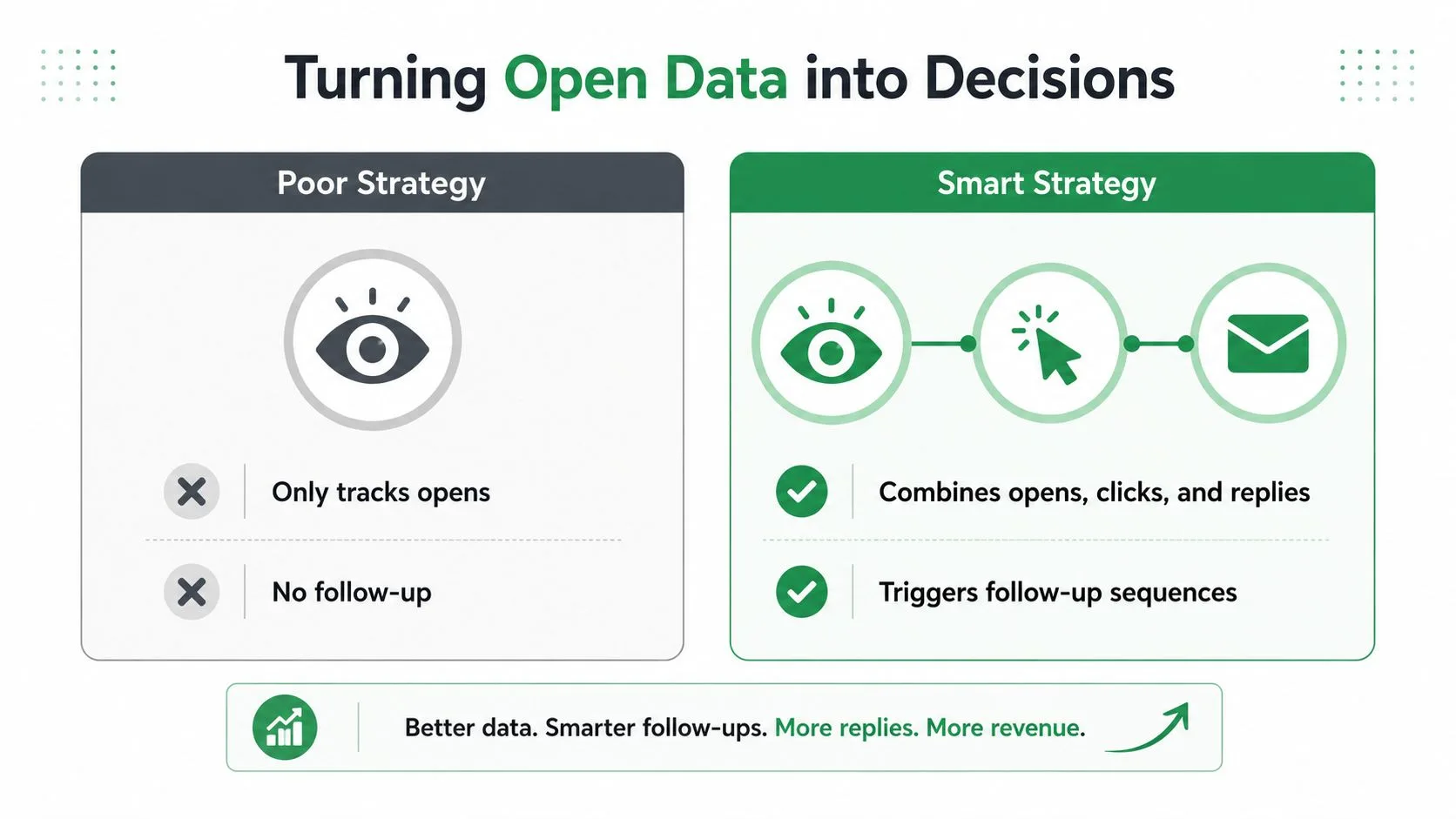
Open data becomes useful when it changes what you do next. A contact who opened but didn’t click is not the same as a contact who clicked a link and then replied, and your follow-up should reflect that difference. HubSpot’s email reporting language makes the same point from another angle, since it breaks performance into open rate, click rate, click-through rate, and reply rate so teams can compare signals instead of reading one metric in isolation (HubSpot email performance).
How to rank engagement signals
Open tracking belongs at the top of the sorting pile, not the bottom line. I use it as the first pass for triage, then I weigh clicks and replies more heavily because they show intent with more clarity. That approach keeps campaigns from chasing people who merely loaded the message once and never acted again.
For sales teams, the difference is obvious. An opener with no click might deserve one light follow-up, while a clicker who ignored the CTA might need a different angle entirely. Recruiters can use the same logic to prioritize candidates who opened a role overview and then clicked the application link. Newsletter senders can separate casual readers from active subscribers by grouping people who keep opening but never click through.
| Signal | What it usually means | Better next move |
|---|---|---|
| Open only | Weak interest or noisy tracking | Light follow-up, different subject line |
| Open plus click | Clearer curiosity | Relevant reply or second-step content |
| Open plus reply | Strong engagement | Direct response, human handoff |
Mail Merge for Gmail makes that triage easier because the spreadsheet records the status trail. You can sort by Opened, then move rows into a follow-up sequence based on whether they also clicked or replied. That keeps the process grounded in actual contact behavior instead of generic campaign averages.
Practical rule: Don’t build automation around opens alone. Use opens to choose who gets attention, then let clicks and replies decide how much attention they get.
The best outreach decisions come from triangulation. Opens tell you who might be warm, clicks tell you who took a concrete step, and replies tell you who wants a conversation.
Troubleshooting Common Open Tracking Problems
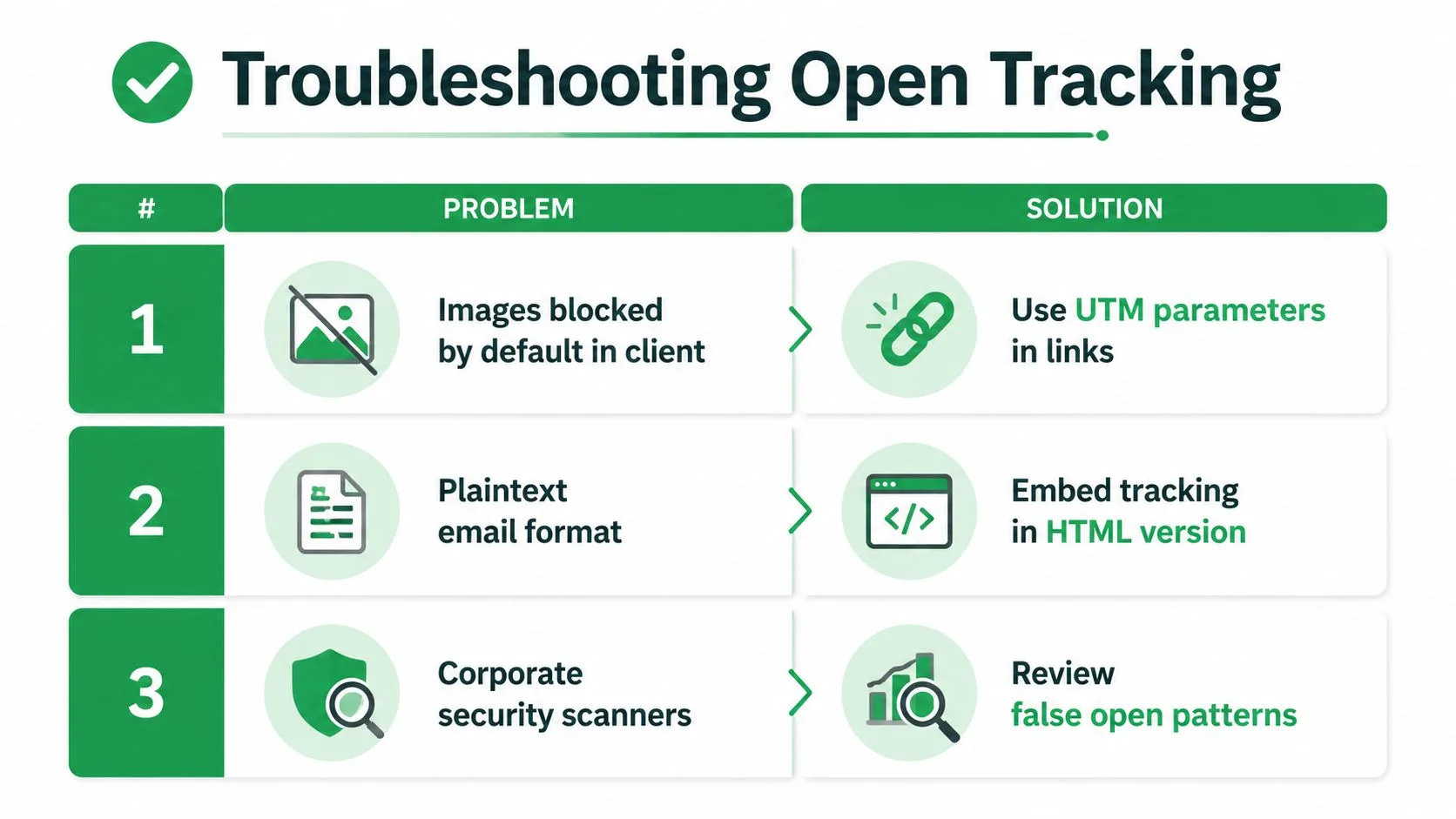
Some open tracking problems are setup issues, and some are just the reality of modern inboxes. If images are blocked by default, the pixel never loads. If the message is plain text only, there may be nothing to track. If a corporate security scanner touches the email first, you can get an open that looks real but isn’t. And if a privacy-preserving client prefetches content, the open can appear before the person reads anything.
| Problem | What it looks like | What to do |
|---|---|---|
| Images blocked | Opens stay unusually low | Use trackable links and review HTML rendering |
| Plain text format | No image event to record | Send an HTML version alongside text |
| Security scanner noise | Opens appear instantly or in clusters | Compare opens with replies and clicks |
| Privacy proxy loading | Opens arrive before human behavior | Treat opens as directional, not definitive |
The fastest diagnostic step is a controlled test send. Use a few accounts across different clients, then confirm whether the tracking pixel fires only after the message is rendered. If you see opens but no clicks, or opens that don’t align with replies, you’re probably looking at noise rather than genuine engagement.
Once the basics are stable, accept that some opens will stay untrackable. That’s not a failure of your workflow, it’s the current state of email. The safest launch checklist is simple: HTML version active, tracking enabled, test emails sent, clicks available as a backup signal, and follow-up rules based on more than one metric.
If you want open tracking that stays usable inside a real Gmail workflow, Mail Merge for Gmail gives you per-row Opened, Clicked, and Replied statuses in Google Sheets, so you can sort noisy opens against stronger engagement signals without leaving your inbox. Set up a campaign, review the status columns, and use the data to decide who deserves a follow-up, not just who happened to load a pixel.
Ready to send your first campaign?
Install Mail Merge for Gmail from the Google Workspace Marketplace and send up to 50 personalized emails per day for free.
Get started for freeMore reading
More from Tutorials
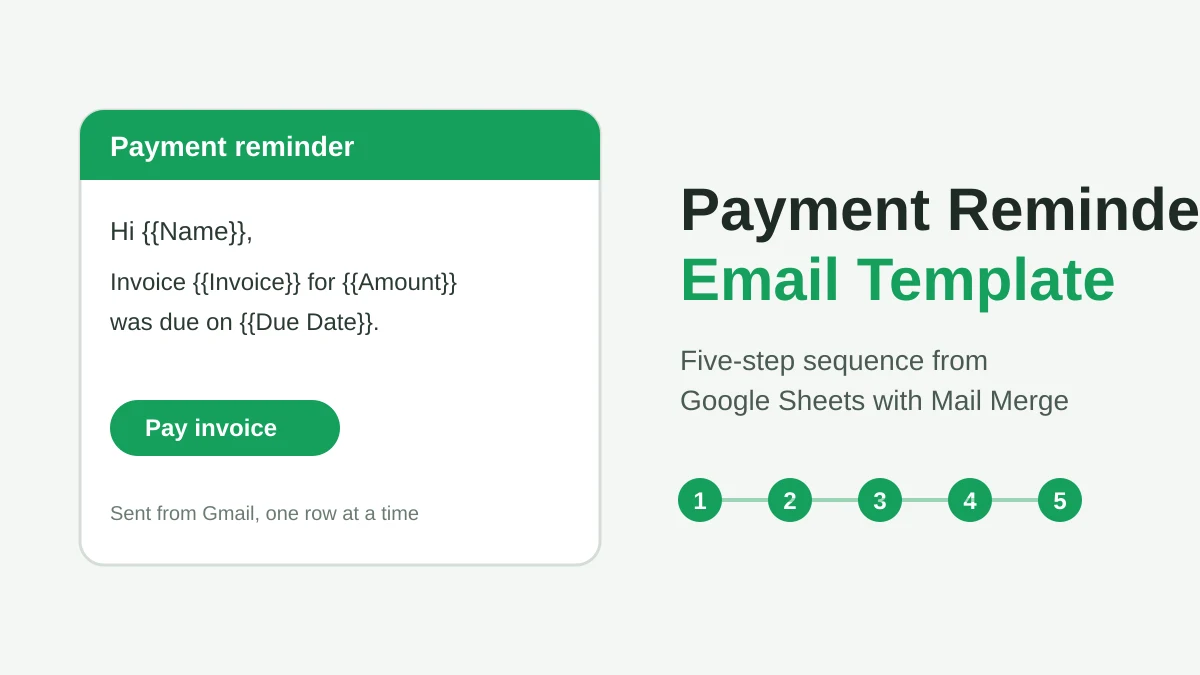
Payment Reminder Email Template: Five Messages You Can Send from Google Sheets
Copy a payment reminder email template for each stage of an overdue invoice, then send every reminder from Google Sheets through Gmail with personalized merge fields.
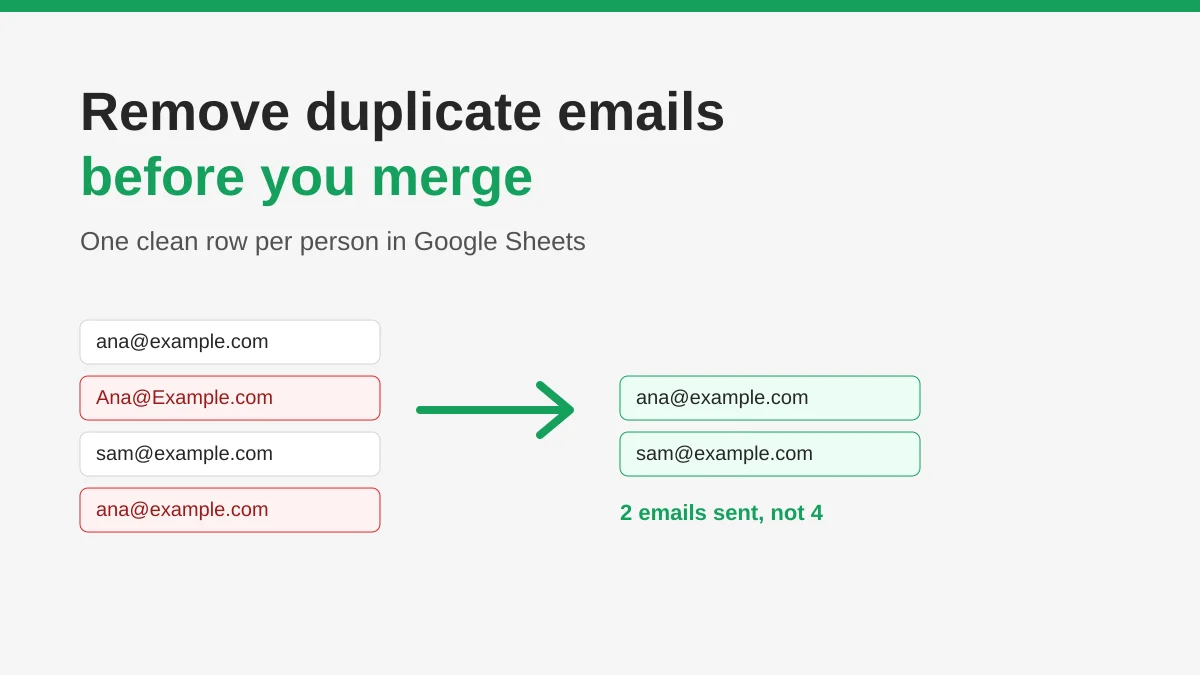
How to Remove Duplicate Emails in Google Sheets Before a Mail Merge
Learn how to remove duplicate emails in Google Sheets before a mail merge with Remove duplicates, UNIQUE and COUNTIF, so no contact gets the same message twice.
How to Build Targeted Email Lists That Actually Convert
Learn how to build targeted email lists that drive opens, clicks, and replies. Practical steps for sourcing, segmenting, cleaning, and GDPR-compliant outreach.