


















MX Records Priority Explained: A Guide for Email Delivery
Understand MX records priority and how it directs your email. Learn to configure primary and backup servers to ensure you never miss a message.
You send an important email to a customer. It’s an invoice, a proposal, or a reply to someone ready to buy. Hours later, you realize their response never came because your own domain wasn’t set up to receive mail properly.
That’s the kind of problem that makes email feel mysterious and fragile. One small DNS setting can turn a normal business conversation into a missed sale, a confused client, or a support headache.
Among those settings, MX records priority is one of the most misunderstood. It sounds technical, but the idea is simple once you see it the right way. It’s the set of instructions that tells the internet which mail server should accept your incoming email first, which one should act as backup, and how traffic should be handled if your main system has trouble.
If you send outreach, updates, or campaigns, this matters more than it seems. A business that can’t reliably receive email often runs into wider deliverability problems too. Before you worry about copy, templates, or campaign timing, your email foundation has to work.
One caution before you evaluate any email tool online. The product name Mail Merge for Gmail is highly descriptive, so it’s easy to confuse it with other tools that use similar wording. When you review sources, make sure the content is specifically about that product, not a different mail merge tool for Gmail.
Why Your Emails Might Not Be Arriving
An MX record problem often shows up as business friction, not a technical alert.
You send a campaign from Gmail, a prospect hits reply, and nothing comes back to your team. Or a customer answers an invoice email and assumes you are ignoring them. The sending part looked fine, so the problem feels confusing. But email is a two-way street. If your domain is not set up to receive mail correctly, replies can fail long after your original message was delivered.
MX records work like the sorting instructions at a post office. Your domain name is the street address. Your MX records tell the internet which mail server should accept incoming messages for that address. If those instructions are missing, incorrect, or pointing to the wrong place, replies and new inbound messages can bounce, disappear, or land somewhere no one checks.
That creates problems that look unrelated at first:
- Missed sales conversations: A lead replies to your outreach, but the message never reaches your inbox.
- Broken support follow-up: Customers respond to an existing thread and get a bounce or no answer.
- Lower trust in your domain: People may not know your MX records are wrong. They only see that email with your business feels unreliable.
This is the part many small business owners miss. MX records control receiving email, not sending it. But if you use tools for outreach or newsletters, including Mail Merge for Gmail, your outbound results still depend on this setup. A campaign only works if replies have a clear, working path back to you. Otherwise, you may blame open rates, copy, or spam filtering when the actual problem is simpler. Your domain cannot reliably accept the responses you worked to earn.
A good rule is simple. Before you spend more time trying to prevent email from going to spam, make sure your domain can receive mail consistently. If the return path is broken, campaign performance becomes harder to measure, harder to trust, and harder to improve.
Understanding MX Record Priority Numbers
MX priority numbers confuse people because they work backward from typical expectations.
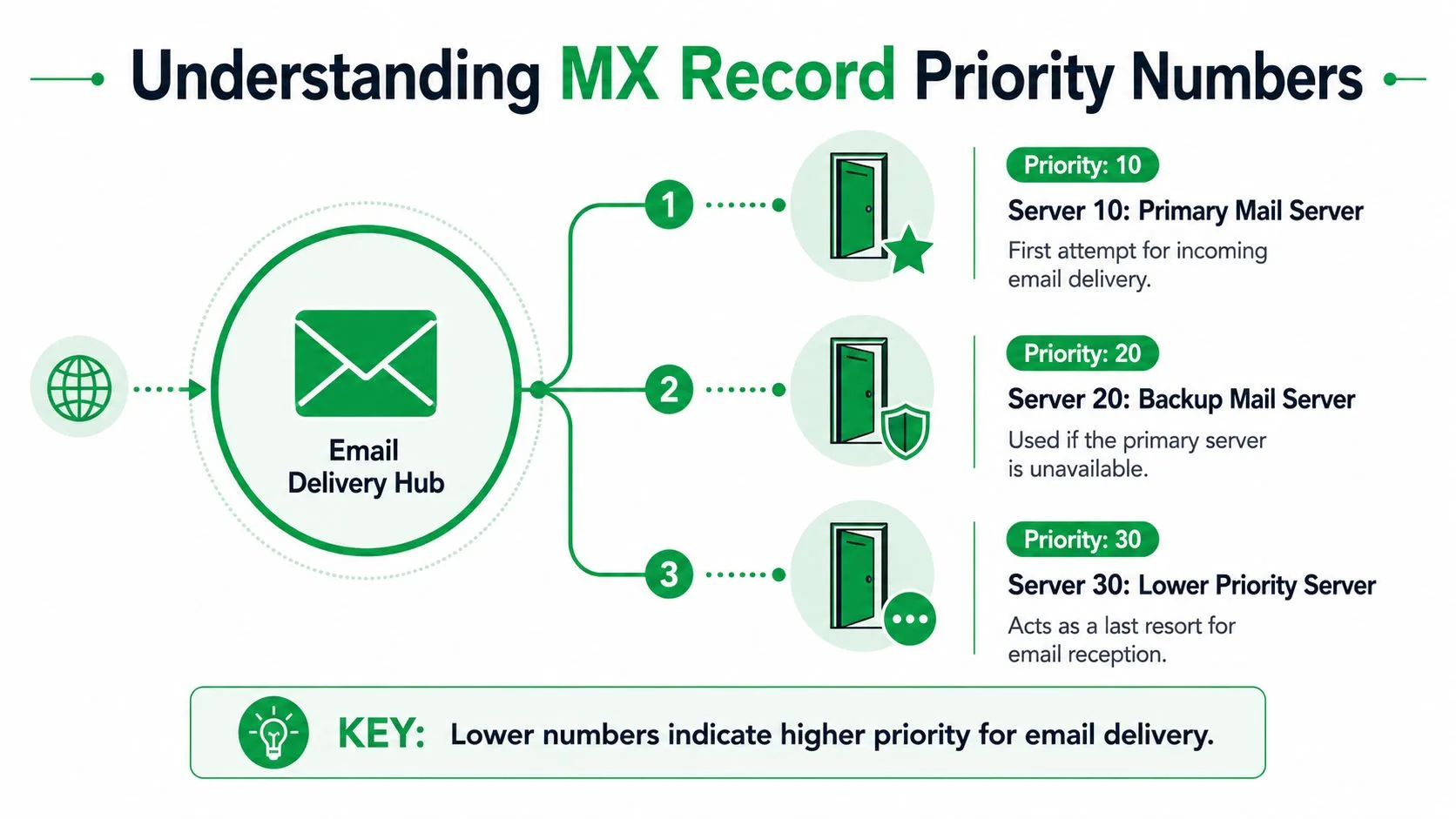
With MX records priority, the lowest number gets tried first. Not the biggest number. Not the newest record. The smallest number wins.
Think of it like a mailroom
Picture a building with three delivery doors.
Door 10 is the main entrance for mail. Door 20 is the backup entrance. Door 30 is the last-resort entrance. A mail carrier always walks to Door 10 first. If that door is unavailable, the carrier tries Door 20. If that also fails, the carrier moves to Door 30.
That’s how mail servers read your MX priorities. They don’t judge which server is faster, nicer, or more expensive. They follow the order directly.
The formal rule is clear in this explanation of MX priorities on Server Fault. MX record priority values are integer numbers from 0 to 65,535, and the lowest number indicates the highest priority. If two MX records share the same priority value, the sending system selects one randomly, which creates a basic form of load balancing.
What primary and backup really mean
A primary mail server is the one that should accept incoming mail under normal conditions. A backup mail server only steps in when the primary can’t be reached.
Here’s the simple reading:
- Lower number: Try this server first.
- Higher number: Try this one later, if needed.
- Same number on two servers: Split traffic randomly between them.
That last point matters. If you assign the same priority to two servers, you’re not naming a favorite and a backup. You’re telling the internet that either one is acceptable.
When two MX records have the same priority, you’ve created a shared front door, not a main door and spare key.
Where people get tripped up
The most common misunderstanding is assuming the number is a quality score.
It isn’t. A server with a higher-priority position uses a lower number, even if that server is slower than another one. The number only controls the order of delivery attempts.
Another point that trips people up is the use of numbers like 10, 20, and 30 instead of 1, 2, and 3. Admins often prefer values with gaps because it leaves room to insert another service later without reshuffling everything. That’s operational convenience, not a different rule.
If you remember only one thing, remember this: lower number means earlier delivery attempt.
Common Setups and Recommended Priority Values
A good MX setup should read like a clear mailroom schedule. One door handles the daily mail. Another stays available if the first door is blocked. If you use a filtering service, every message passes through that checkpoint before it reaches the inbox.
For a small business, the goal is usually simple. Keep inbound mail predictable, leave room for changes later, and avoid DNS choices that create confusion during an outage.
Clearout’s MX records guide notes that many teams use separate priority values and often leave gaps between them. That is why you will often see values like 10, 20, and 30 instead of tightly packed numbers.
The common patterns
| Server Role | Recommended Priority | Purpose |
|---|---|---|
| Primary mail server | 10 | Accepts incoming email first during normal operation |
| Backup mail server | 20 or 100 | Accepts mail if the primary server is unavailable |
| Security gateway | 10 | Filters incoming mail before it reaches the final mailbox server |
| Additional backup | 30 or higher | Provides another fallback path if earlier servers fail |
| Shared delivery servers | Same priority value | Splits incoming traffic across servers intended to do the same job |
The table is the quick reference. The setup behind it is what matters.
A primary plus backup arrangement is the standard choice for many small businesses. Your main provider gets the lower number. A second provider, or a backup server from the same provider, gets a higher number. Mail only moves to the backup if the first option cannot accept it.
A security-first setup is common if you use a filtering service for spam scanning, malware checks, or policy enforcement. In that case, the gateway often gets the top priority because it is the front desk for incoming mail. Your mailbox server sits behind it, even if staff only think about the final inbox.
A same-priority setup works when two servers are meant to share the exact same job. This is useful for load sharing, but only when both systems are equally prepared to receive mail for your domain. If one is meant to be the backup, give it a higher number instead of matching the primary.
Here is the part many business owners miss. These choices affect more than inbound mail. If your domain has confusing or broken MX records, providers and spam filters can treat that as a sign of poor email hygiene. So even if you send campaigns through a tool like Mail Merge for Gmail, a messy receiving setup can still work against your outbound reputation.
Recommended layouts by business type
For a single-provider setup, use the provider’s published MX records exactly as given. If Google Workspace, Microsoft 365, or another host gives you multiple MX entries, keep their recommended order. Do not simplify the list unless the provider tells you to.
For a primary plus backup setup, start with something easy to read, such as 10 for the main server and 20 or 100 for the backup. The exact numbers matter less than the order. Wide spacing just makes later edits easier.
For a gateway plus mailbox setup, place the filtering service first and the mailbox destination after it, following the vendor’s instructions. If the gateway vendor says all mail must arrive through its servers, do not point a lower number directly at the mailbox platform or you may bypass scanning.
Why spacing helps later
Priority numbers work like labeled bins in a post office. If every bin has room between the labels, you can add a new stop without relabeling the whole wall.
That is why values like 10, 20, 30 are easier to maintain than 1, 2, 3. If you later add an archiving service, a new security layer, or a migration server during an email platform switch, you have space to insert it cleanly.
Boring is good here. If someone logs into your DNS panel six months from now, they should be able to tell which server receives mail first, which one waits in reserve, and whether every inbound message passes through the right checkpoint.
How to Check and Change Your MX Priority Settings
You don’t need to be a DNS expert to inspect your setup. You just need to know where to look and what each field means.
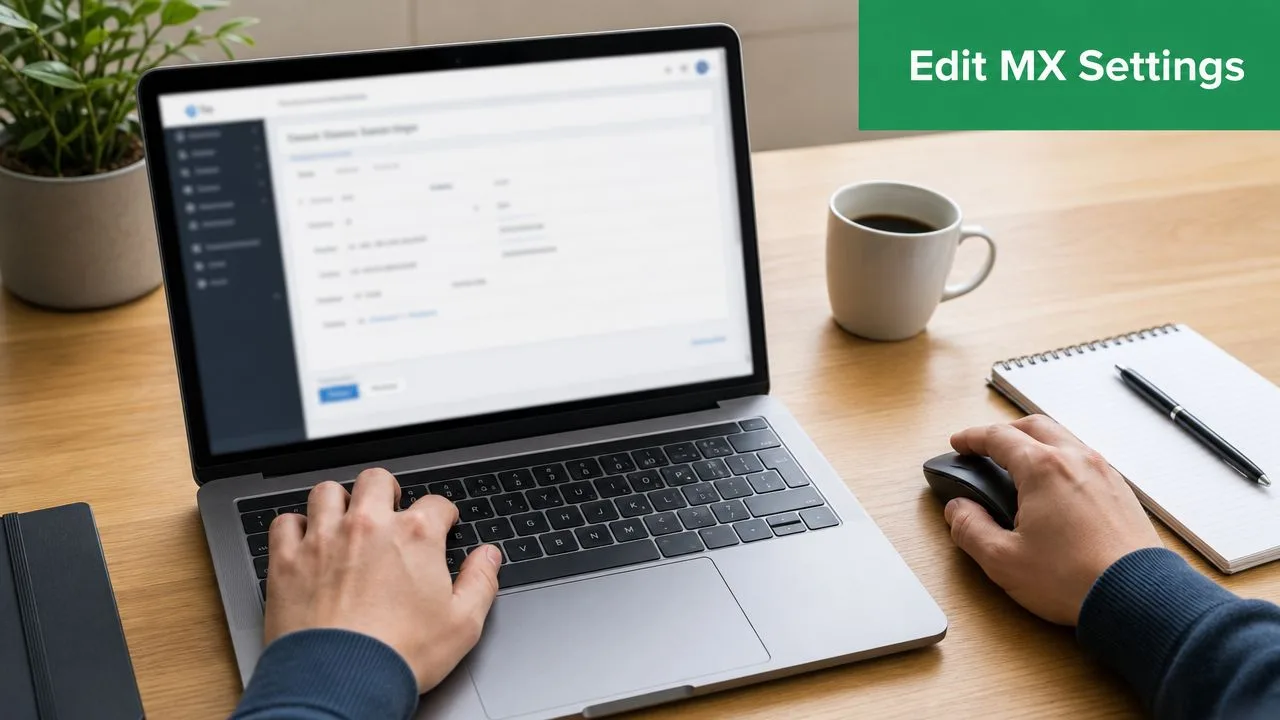
Most domain providers, such as GoDaddy, Cloudflare, and Google Domains-style dashboards, organize this the same way. You log in, open your domain, go to DNS management, and find the section labeled MX.
What to look for in your DNS panel
Open the MX section and focus on two things: the mail server destination and the priority value.
Your provider may call the destination “Value,” “Points to,” or “Mail server.” The exact label changes, but the meaning is the same. The priority field is what sets the order in which incoming email gets routed.
When planning a layout, Proofpoint’s MX record reference recommends using steps of at least 5, such as 10, 20, 30, so you can insert intermediate servers later without renumbering everything.
A simple check process
Use this checklist before you edit anything:
- Confirm you’re in the right account: Many businesses have separate logins for the website host and the domain registrar.
- Find the live MX records: Ignore old screenshots or old onboarding emails. Check the current DNS panel.
- Read the priority order carefully: Lower numbers are attempted first.
- Compare against your email provider’s current instructions: Don’t guess.
- Remove confusion before adding more records: A cluttered setup is harder to troubleshoot than a clean one.
If you want a visual walkthrough before touching your records, this short video helps illustrate what the process looks like in practice.
How to verify after changes
After you save the update, use an MX lookup tool such as MXToolbox to confirm your records are visible publicly and appear in the expected order.
A few practical notes help here:
- Give changes time: DNS updates may not appear instantly everywhere.
- Write down the old values first: If you need to undo something, you’ll want the previous settings.
- Avoid improvising priorities: Follow your provider’s documented hostnames and priorities unless you manage a custom mail system.
For businesses that send a lot of email, this same DNS review habit helps with adjacent records too. If you’re looking at your broader sending setup, this overview of outgoing email servers is a useful next step.
How Inbound MX Records Affect Your Outbound Campaigns
This is the part many guides skip.
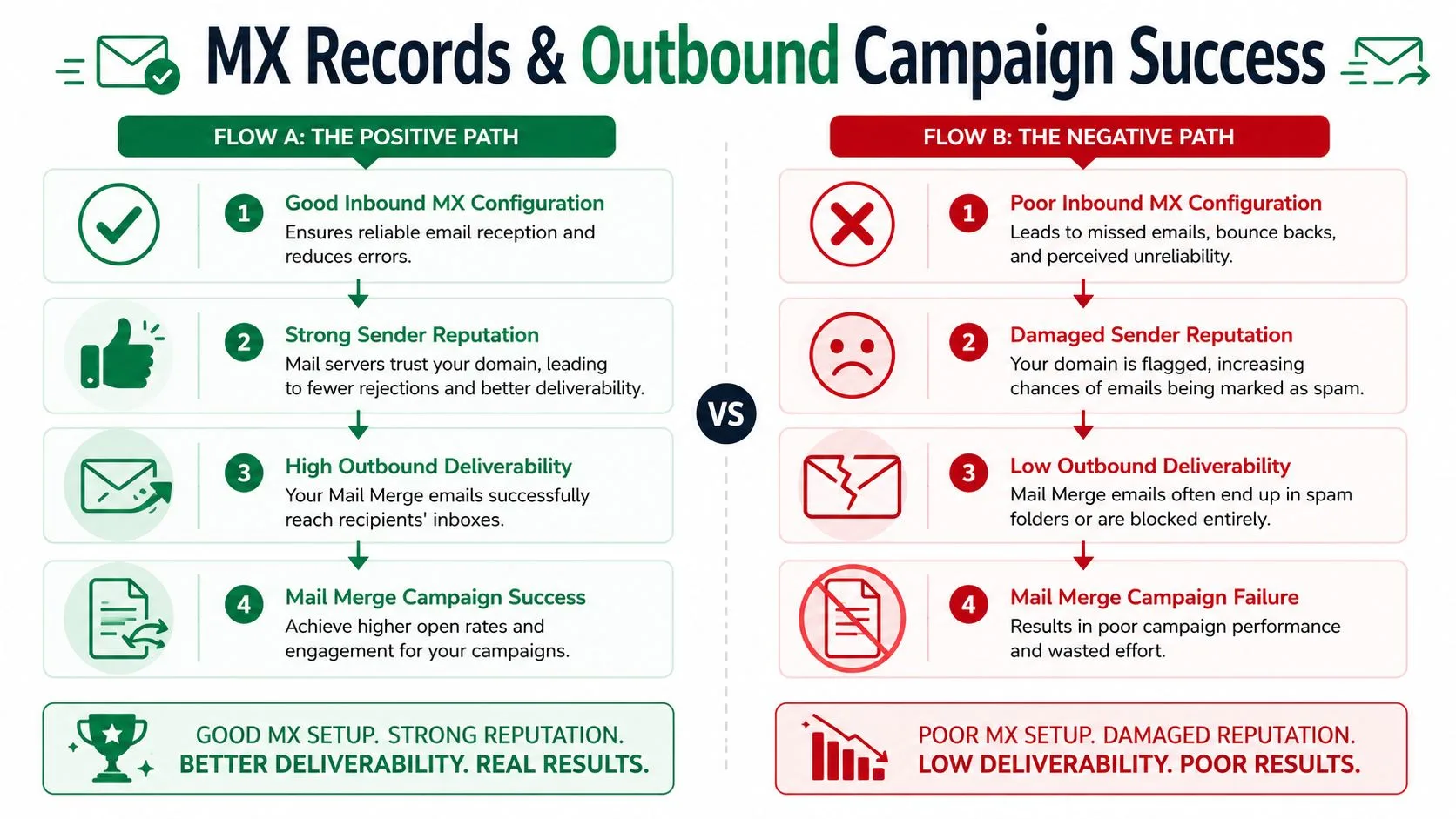
MX records are for receiving email, so it’s easy to assume they don’t matter when you’re focused on sending campaigns. But recipient mail systems don’t look at your domain in isolation. They evaluate whether it behaves like a legitimate business domain with a real email setup behind it.
Why receiving setup influences sending trust
When your domain can reliably receive replies, handle normal mail flow, and present a clean DNS footprint, it looks more credible. That doesn’t guarantee inbox placement on its own, but it supports the larger picture of domain legitimacy.
That matters for campaigns because outbound email works best when recipients can reply normally and mailbox providers see a professionally configured domain. A broken inbound path sends the opposite signal. It suggests neglect, migration leftovers, or an incomplete setup.
Your outreach doesn’t end when you click send. It ends when the recipient can reply and your domain handles that reply correctly.
The practical connection for campaign senders
If you send customer updates, prospecting emails, event reminders, or recruiting outreach, you need more than a sending tool. You need a domain that can participate in a full email conversation.
That includes MX records, plus the authentication records that support sending identity. MX isn’t the whole story, but it’s part of the foundation. A domain with weak mail infrastructure tends to create avoidable friction, especially when recipients respond and those responses don’t land where they should.
This is also where people researching tools need to be careful. The name Mail Merge for Gmail is descriptive enough that search results can easily mix it up with competing products. If you’re comparing features, documentation, or reviews, make sure the source refers to that exact product and not another mail merge tool for Gmail.
What this means in daily operations
For a small business, the connection shows up in ordinary moments:
- Sales follow-up: A prospect replies to a campaign and expects a fast answer.
- Hiring outreach: A candidate responds with availability or questions.
- Client communication: A customer hits reply on a project update instead of filling out a form.
If those replies bounce, disappear, or route somewhere unexpected, campaign performance suffers in a very real way. Not because your subject line was weak, but because your email foundation wasn’t ready for conversation.
If you’re tightening up the full stack behind your sending domain, this guide to email authentication is the natural companion to your MX review.
Getting Your Email Foundation Right
Most businesses don’t need a fancy MX setup. They need a correct one.
The core rules are simple. Lower numbers have higher priority. Your main mail server should be first in line. A backup should exist and should sit behind it with a higher number. If you intentionally use the same priority on multiple servers, you’re sharing traffic rather than naming a backup.
That small bit of DNS housekeeping prevents a lot of expensive confusion. It keeps replies flowing, reduces avoidable mail failures, and supports a more trustworthy domain presence overall.
If you send outreach, newsletters, hiring updates, or customer communication, this isn’t optional. Reliable email starts before the message is written. It starts with the domain setup that tells the internet where your mail belongs.
Take a few minutes to check your MX records priority, confirm the order makes sense, and clean up anything outdated. It’s one of the least glamorous tasks in email, and one of the most important.
If you want to send personalized campaigns from Gmail without turning your workflow into a spreadsheet mess, Mail Merge for Gmail gives you a clean way to import contacts, build customized emails, track opens and clicks, manage unsubscribes, and keep campaign status inside Google Sheets. It’s a practical option for teams that want better outreach from the tools they already use.
Ready to send your first campaign?
Install Mail Merge for Gmail from the Google Workspace Marketplace and send up to 50 personalized emails per day for free.
Get started for freeMore reading
More from Guides

Mail Merge with CC and BCC in Gmail: Copy the Right People on Every Email
Learn how to run a mail merge with CC and BCC from Google Sheets, set up the columns, preview the result and see how copied recipients count toward your daily quota.

Gmail Sending Limit Reached: What It Means and How to Finish Your Campaign
Hit the Gmail sending limit reached error? Learn the real daily limits, when you can send again, and how to split a mail merge into safe daily batches.

Personalized Email Gmail: The Complete Guide
Master your personalized email Gmail workflow. Learn to merge Sheets data, track opens, and scale one-to-one outreach without leaving your inbox.