


















Mail Merge with CC and BCC in Gmail: Copy the Right People on Every Email
Learn how to run a mail merge with CC and BCC from Google Sheets, set up the columns, preview the result and see how copied recipients count toward your daily quota.

A mail merge sends one personalized email per row of your spreadsheet. That is great for personalization, but it raises a practical question. How do you keep your manager, a sales partner or your CRM inbox in the loop on every message? The answer is a mail merge with CC and BCC, where each row can carry its own copied addresses.
This guide shows how to set up CC and BCC columns in Google Sheets, how to tell Mail Merge for Gmail to use them, when each field is the right choice, and how copied addresses affect your daily sending quota.
How a mail merge with CC and BCC works
In a merge, every row becomes its own email. The address in your recipient column goes in the To field. If you also keep a CC column and a BCC column, the addresses in those cells are added to the same message. That means the copied people receive exactly what the recipient receives, with the same personalized subject and body.
You can use this in two ways:
- The same copy for every row. Fill the CC column with one address, for example your account manager, on every line.
- A different copy per row. Each row lists the colleague who owns that account, so every salesperson is copied only on their own contacts.
The second pattern is the reason to put CC and BCC in the sheet rather than in a single global setting.
Set up CC and BCC columns in Google Sheets
Open your sheet and add one column for CC and a separate column for BCC. Give them clear headers such as CC and BCC. The Mail Merge for Gmail documentation on multiple recipients describes the same layout.
| First name | CC | BCC | |
|---|---|---|---|
| ana@acme.example | Ana | lead@yourcompany.example | crm@yourcompany.example |
| bo@zeta.example | Bo | lead@yourcompany.example, finance@yourcompany.example | crm@yourcompany.example |
A few rules keep the columns clean:
- Put one address in a cell, or several separated by commas.
- Leave a cell empty when a row needs nobody copied.
- Check spelling carefully, because a typo in a CC cell is just as undeliverable as one in the To column.
- Keep the header row in row one so the add-on can read the column names.
If you are still building your list, the guide on how to mail merge from Google Sheets covers the basics of preparing the sheet.
Tell Mail Merge for Gmail which columns to use
Adding the columns is only half the job. The add-on needs to know they hold copy addresses.
- Open your sheet and launch Mail Merge for Gmail.
- Click More options.
- Pick the right column for CC and, if you use it, for BCC.
- Check the preview. It should now show the CC and BCC addresses for the row you are viewing.
Always send a test to yourself first. Look at the received message, then step through a few rows in the preview to confirm each row picks up the right copied people. Mistakes here are easy to fix before sending and impossible to fix afterwards.
CC or BCC: which one should you choose?
The difference is visibility. People in CC are shown to everyone who receives the message. People in BCC are hidden from the others. Grammarly’s explanation of BCC summarizes the common etiquette well: use CC for transparency and BCC for privacy.
In a mail merge the recipients do not see each other anyway, because each person gets their own email. So the choice is about who is revealed to the recipient:
- Use CC when the recipient should know a colleague is involved. A named account manager in CC tells the prospect who else may reply.
- Use BCC when you simply want an internal copy, such as a CRM logging address or an archive mailbox, and it would be noise to the recipient.
Be careful with one BCC habit. If a hidden recipient hits reply all, their address is revealed to everyone on the thread. Tell internal colleagues who are BCC’d not to reply to the thread, or use CC when you expect them to join the conversation.
Also remember that neither field redirects replies. Replies go to your sender address unless you set a different reply-to address. Mail Merge for Gmail supports a customized reply-to address, which is the right tool when a colleague should receive the answers.
How CC and BCC count toward your daily quota
This is the part people miss. Every copied address counts as a recipient. According to the Mail Merge documentation, one email with one person in CC and one in BCC reaches three people, so your daily quota is reduced by three. Three recipients plus two in CC is five.
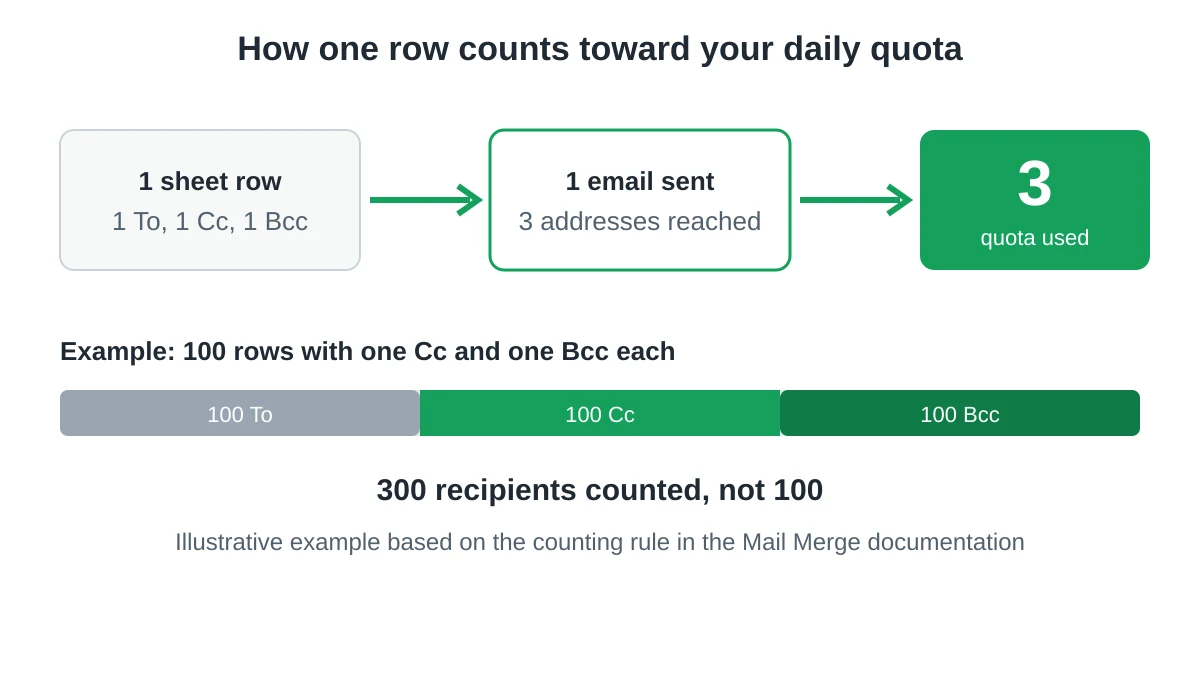
Google applies similar logic to its own limits. Its Gmail sending limits for Google Workspace page lists a mail merge cap of 1,500 messages per day and notes that each address counts every time a message goes to it, so 5 messages sent to 10 addresses count as 50 recipients. Google also warns that limits can change without notice, so check that page before planning a big send.
A worked example makes the effect clear. Imagine 100 rows, each with one CC and one BCC. You are sending 100 emails, but you are reaching 300 addresses. Against a daily cap of 1,500 recipients, that campaign alone uses a fifth of your day.
To stay inside the cap:
- Copy only the people who need it. A BCC on every row to an archive mailbox adds one recipient per email.
- Split a big list across days with scheduling or a drip campaign.
- If you ever hit the wall, read what to do when the Gmail sending limit is reached.
Common mistakes to avoid
- Copying the recipient on themselves. Check that a CC cell never repeats the To address.
- Mixing up the two columns. A manager meant to be hidden but placed in CC is visible to every prospect.
- Forgetting the preview. The preview is the quickest way to catch an empty or misaligned column.
- Using BCC to hide a conflict of interest. If you would be uncomfortable explaining why someone is hidden, use CC instead.
- Ignoring the quota. Large lists with multiple copies fill the day faster than the row count suggests.
For more on keeping a campaign healthy, see our guide to sending bulk emails from Gmail.
FAQ
Can I add several CC addresses to one row?
Yes. Separate the addresses with commas in the same cell, just as you would in a recipient column.
Can I send a mail merge to several To recipients in one row?
Yes. The recipient column also accepts several addresses separated by commas, and each one counts toward your quota.
Does the preview show CC and BCC?
Once you select the columns in More options, the preview shows the copied addresses for the row you are viewing.
Will BCC recipients see the other recipients?
A BCC recipient sees the To and CC addresses of that single email, which belong to one row only. They never see other rows of your sheet.
Do CC and BCC addresses reduce my daily quota?
Yes. Each To, CC and BCC address counts as one recipient, so one email with all three uses three units of quota.
Start your next merge with the right people copied
Setting up CC and BCC takes two extra columns and one trip to More options. Mail Merge for Gmail lets you personalize every message from Google Sheets, preview the result and send from your own Gmail account, with the right colleagues copied on each row.
Ready to send your first campaign?
Install Mail Merge for Gmail from the Google Workspace Marketplace and send up to 50 personalized emails per day for free.
Get started for freeMore reading
More from Guides

Gmail Sending Limit Reached: What It Means and How to Finish Your Campaign
Hit the Gmail sending limit reached error? Learn the real daily limits, when you can send again, and how to split a mail merge into safe daily batches.

Personalized Email Gmail: The Complete Guide
Master your personalized email Gmail workflow. Learn to merge Sheets data, track opens, and scale one-to-one outreach without leaving your inbox.
Email Contact List: Build and Maintain a Quality Database
Learn how to build, clean, and maintain a high-quality email contact list. Practical guide for small businesses using Mail Merge for Gmail.