


















Gmail Sending Limit Reached: What It Means and How to Finish Your Campaign
Hit the Gmail sending limit reached error? Learn the real daily limits, when you can send again, and how to split a mail merge into safe daily batches.

You queue up a campaign, half the rows go out, and then Gmail stops you with “You have reached a limit for sending mail.” If you are staring at that message, the Gmail sending limit reached error is not a bug and it is not permanent. It is a rolling cap, and once you understand how it is counted you can plan a campaign that finishes without surprises.
This guide explains the numbers Google publishes, when your account can send again, how recipients are counted, and how to split a large Google Sheets list into daily batches with Mail Merge for Gmail.
What the Gmail sending limit reached error means
Gmail protects its users from spam by capping how much one account can send. For personal Gmail accounts, Google’s help page says you hit the limit when you send to more than 500 recipients in a single email or send more than 500 emails in a day. When that happens you see the “You have reached a limit for sending mail” message, and Google says you should be able to send again within 1 to 24 hours. Source: Gmail Help, limits for sending and getting mail.
Google Workspace accounts have a larger set of limits. According to Google’s Workspace sending limits page, the main ones are:
| Limit | Value |
|---|---|
| Messages per day | 2,000 |
| Mail merge messages per day | 1,500 |
| Messages per day on trial accounts | 500 |
| Total recipients per message | 2,000, with at most 500 external |
| Total recipients per day | 10,000 |
| External recipients per day | 3,000 |
| Unique recipients per day | 3,000, with at most 2,000 external |
Two details matter most. First, the limits apply over a rolling 24-hour period, not a set time of day. Second, when you exceed a limit you cannot send for up to 24 hours, but you keep access to your account and incoming mail.
When can you send again
Because the window is rolling, there is no midnight reset to wait for. Gmail looks back over the previous 24 hours. If most of your messages went out at 9:00 in the morning, capacity starts to come back around 9:00 the next morning. Google’s own guidance for personal accounts is a wait of 1 to 24 hours.
While you wait, do not try to work around the block by switching to a second account and pasting the same list. Splitting one campaign across several sender identities makes replies messy and can look like the pattern Gmail limits exist to catch. Waiting or scheduling is the safer route.
If sends keep failing well after the window should have passed, work through the checks in why is my mail merge not working before assuming the limit is the cause.
How recipients are counted
The most common reason a campaign stops earlier than expected is that quota is spent per recipient, not per row. Cc and Bcc addresses count too. In Mail Merge for Gmail, a message with one person in To, one in Cc and one in Bcc reduces your daily quota by 3 after the send. The product documentation gives the same example for multiple recipients.
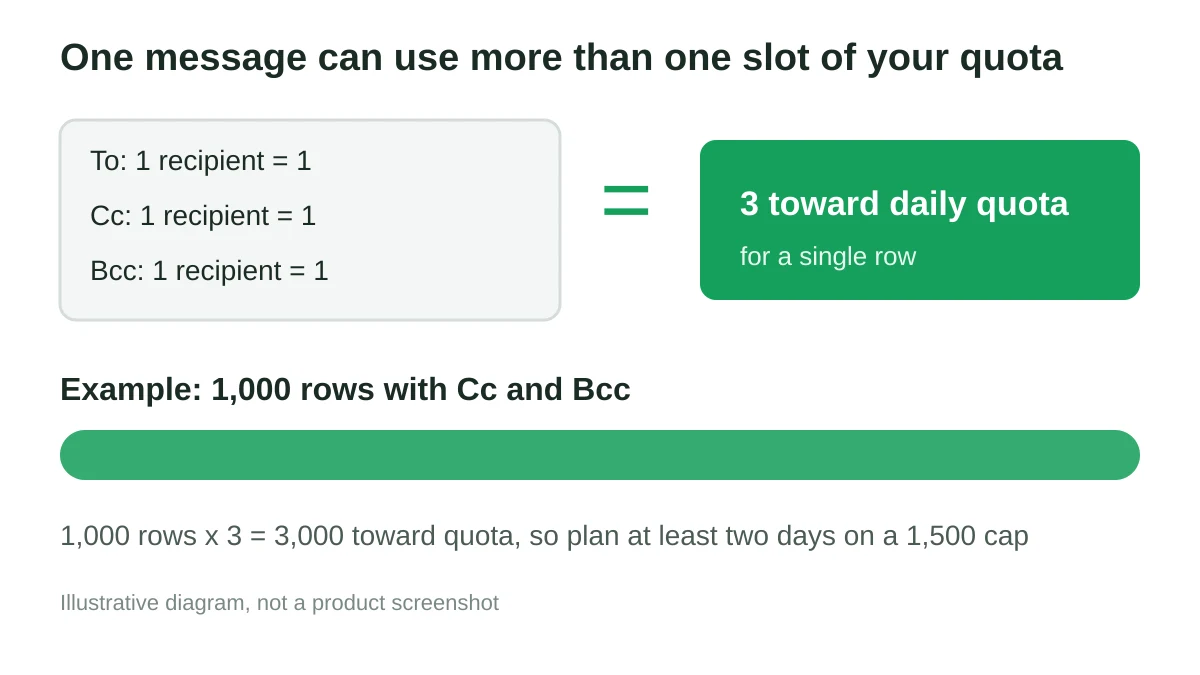
That changes the math for a real list. Say you have 1,000 rows and each message copies a manager in Cc and an archive address in Bcc. That is 3,000 toward your quota, not 1,000. On a 1,500 daily cap you would need at least two days. Check two other things before you plan:
- Other mail from the same account counts. Your normal daily conversations use the same allowance as the campaign.
- External recipients are limited separately. A list made mostly of outside addresses can hit the external cap before the total cap.
Split a big list into daily batches
The reliable fix is to decide the daily volume first and then let the campaign follow it. Here is a worked example for a list of 4,200 contacts on a plan with a 1,500 per day cap.
- Reserve headroom. Keep a few hundred messages of the allowance free for your normal inbox activity. Sending 1,200 per day from the campaign leaves room.
- Count real recipients. Multiply rows by the number of To, Cc and Bcc addresses on each message.
- Divide across days. 4,200 contacts at 1,200 per day is 3.5 days, so plan four sending days.
- Mark batches in the sheet. Add a column such as
batchwith values 1 to 4, and filter the sheet to one batch before each send. Keep the header row intact so merge fields still resolve. - Send each batch at a sensible hour. Start the next batch after the rolling window has room, not at a random time.
If you would rather not filter by hand each day, Mail Merge for Gmail can schedule a campaign for a date and time, and its Autopilot option drips a campaign over several days. Check the current plan details on the pricing documentation, since scheduling and Autopilot are tied to specific plans and each plan has its own daily email allowance.
Slow the send down with throttling
A daily cap is about volume. Speed matters too. Sending hundreds of messages in a burst looks different to mailbox providers than a steady trickle. Mail Merge for Gmail includes email throttling with three modes: blast, a fixed delay, or a random delay of up to a chosen maximum, from 1 to 60 minutes between messages.
Throttling changes how long a batch takes. Six emails with a 10 minute delay take an hour, as the documentation notes. A 1,200 message batch with even a 1 minute delay needs about 20 hours, which will not fit in a working day. Pick a delay that lets each batch finish inside your target window, and remember that a delay long enough to spill past 24 hours means overlapping batches. You can always cancel a running campaign if you set it too long.
For the reputation side of the story, read email sender reputation and how to prevent email from going to spam. A limit-friendly plan and a healthy reputation work together.
A simple checklist before you press send
- Count To, Cc and Bcc addresses, not just rows.
- Leave headroom for normal mail from the same account.
- Send a test to yourself and check the merge fields.
- Choose a throttle that fits your batch inside the day.
- Schedule or drip the remaining batches rather than resending manually.
- Write down when the first batch went out so you know when capacity returns.
For more on the full workflow, see send bulk emails from Gmail, drip email campaigns and email scheduling tools.
FAQ
How long does the Gmail sending limit last?
Google says personal accounts should be able to send again within 1 to 24 hours. For Workspace, a user who exceeds a limit can be blocked for up to 24 hours. The window is rolling, so it depends on when your earlier messages went out.
Does the limit reset at midnight?
No. Google describes the limits as applying over a rolling 24-hour period, not a set time of day.
Do Cc and Bcc recipients count against the limit?
Yes. Google counts recipients, and Mail Merge for Gmail deducts each To, Cc and Bcc address from your daily quota. One message with three addresses uses 3.
Is the mail merge limit different from the normal daily limit?
Google’s Workspace page lists 1,500 mail merge messages per day alongside the general 2,000 messages per day, so plan mail merge campaigns around the lower figure.
Can I keep receiving email while I am blocked from sending?
Yes. Google states that users keep access to their account and incoming mail when a sending limit is exceeded.
Finish your campaign without hitting the wall
Plan the volume, count every recipient, and let scheduling and throttling do the pacing. Mail Merge for Gmail lets you personalize each message from Google Sheets, schedule sends and manage the campaign from your own Gmail account, so a large list becomes a few predictable days of sending instead of an error message halfway through.
Ready to send your first campaign?
Install Mail Merge for Gmail from the Google Workspace Marketplace and send up to 50 personalized emails per day for free.
Get started for freeMore reading
More from Guides

Mail Merge with CC and BCC in Gmail: Copy the Right People on Every Email
Learn how to run a mail merge with CC and BCC from Google Sheets, set up the columns, preview the result and see how copied recipients count toward your daily quota.
Personalized Email Gmail: The Complete Guide
Master your personalized email Gmail workflow. Learn to merge Sheets data, track opens, and scale one-to-one outreach without leaving your inbox.
Email Contact List: Build and Maintain a Quality Database
Learn how to build, clean, and maintain a high-quality email contact list. Practical guide for small businesses using Mail Merge for Gmail.