


Gmail Warm-Up: How to Warm Up a Gmail Account Before a Mail Merge
Gmail warm-up explained with Google's own ramp-up rules: who needs it, a four-week manual schedule from Google Sheets, and how Mail Merge's warm-up works.
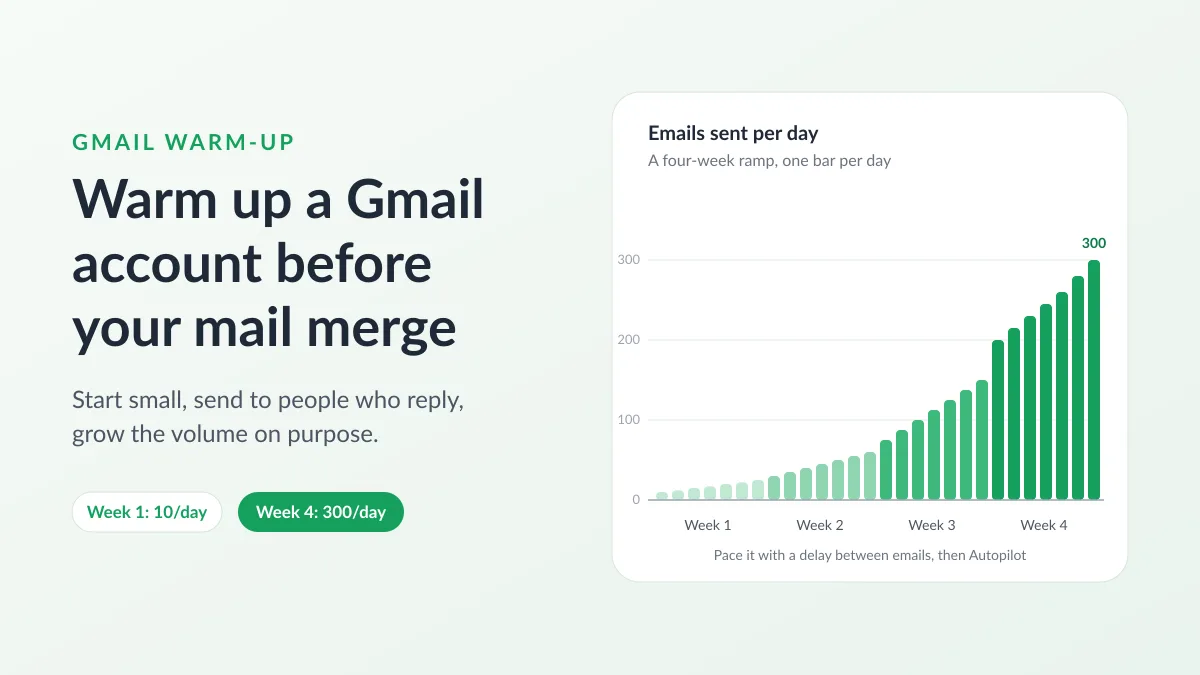
A brand-new Google Workspace address that sends 400 personalized emails on its first afternoon is doing exactly what spam filters are trained to notice. Gmail warm-up is the habit of starting small and growing your volume on purpose, so that mailbox providers meet your address through messages people open and answer before they ever see a campaign. This guide sticks to what can be verified: what Google itself says about ramping up, who actually needs to warm up a Gmail account, a four-week schedule you can run from a Google Sheet, how the warm-up feature in Mail Merge for Gmail works and where its limits are, and how to tell that the effort paid off.
What Gmail warm-up means, in Google’s own words
Google has never published a procedure called warm-up. What it has published is the principle behind it. Its Email sender guidelines tell senders to “start with a low sending volume to engaged users, and slowly increase the volume over time”. A section titled “Increase sending volume slowly to avoid delivery problems” names two factors that decide how fast you may grow: the more email you send, the more slowly you should increase, and you can increase more quickly when you send daily instead of weekly. The same page asks you to monitor delivery with Postmaster Tools as the volume grows, and to reduce it if messages start bouncing or being deferred, until the SMTP error rate comes down.
Google’s Top 10 Gmail sender issues page is more concrete. It states that increasing your sending volume too quickly can result in delivery issues, and it gives a recovery routine for the day a deferral hits: send nothing for 15 minutes, send a single message and check that it arrives, stay below the volume that triggered the deferral for 24 hours, then increase slowly again, with what Google calls a common daily increase of 25% to 100%. It adds that a consistent sending volume is particularly important for new domains as they establish their sending reputation.
Two more numbers frame everything else. Senders above 5,000 messages a day to Gmail accounts must meet the bulk sender requirements, including SPF, DKIM and DMARC. And whatever your volume, Google wants the spam rate reported in Postmaster Tools kept below 0.10%, and never reaching 0.30%. Most people running a mail merge from a Google Sheet are far below 5,000 a day, but the spam-rate figures are the yardstick your warm-up is measured against.
Put together, warm-up is four things: a ramp, engaged recipients first, a consistent rhythm, and watching the signals so you can back off. Every tool sold under the name is a way of doing those four things.
Who needs to warm up a Gmail account
A new Google Workspace account. Google’s page on Gmail sending limits in Google Workspace lists 2,000 messages per day per user, 1,500 when sent as a mail merge, and 500 for trial accounts. Limits are not increased during the free trial, and they only grow once your domain has cumulatively paid at least 100 US dollars, after which it can take up to 75 more days. A user who reaches a limit cannot send new messages for up to 24 hours, and the limits run over a rolling 24-hour period rather than resetting at midnight. So the first months of a new Workspace domain are a warm-up period whether you plan one or not. Mail Merge’s sending limits page shows the consequence: the add-on allows up to 1,500 a day on the Professional plan, Gmail stops a new account at 500, and the remaining rows wait in Cooldown until the next day.
A free @gmail.com address. Google caps it at about 500 emails a day, no plan can lift that, and it has no domain reputation of its own since the domain is Google’s. It can still be warmed: the address builds a history. Mail Merge itself caps a @gmail.com address at 50 (Free), 250 (Personal) and 500 (Professional) emails a day.
A quiet address or a brand-new domain. An account that answered a handful of emails a week for a year and then sends 500 in an hour looks like a compromised mailbox, and a new domain starts from nothing, which is why Google singles it out when it talks about consistency.
Who can skip it: an address that already sends a few dozen emails a day to people who reply, about to send a campaign of similar size to similar people.
A four-week Gmail warm-up schedule from a Google Sheet
Three things come before the first ramp email. On a custom domain, publish SPF, DKIM and DMARC: our guides on the SPF record for Gmail, DKIM for Gmail and email authentication walk through each record, and inside Mail Merge the Deliverability Hub’s Check my domain button lists MX, SPF, DKIM, DMARC and blocklist results in one card on every plan. Set up Postmaster Tools the same day: Google’s setup page says it will not display information about your email until your domain is verified, and that data might be missing when the number of messages on a given day is too low, so its dashboards for spam rate, reputation, authentication and delivery errors only become useful once a few weeks of volume sit behind them. Then sort the list. Google’s advice to begin with engaged users is a list decision: put the people who bought recently or answered your last email in the first rows, remove anything that bounced before, and on the Professional plan use Verify recipients in the Review step so typos and dead domains are skipped (our guide on how to clean an email list covers the rest). The unsubscribe link goes on from the very first campaign, because a recipient who can leave quietly does not press Report spam.
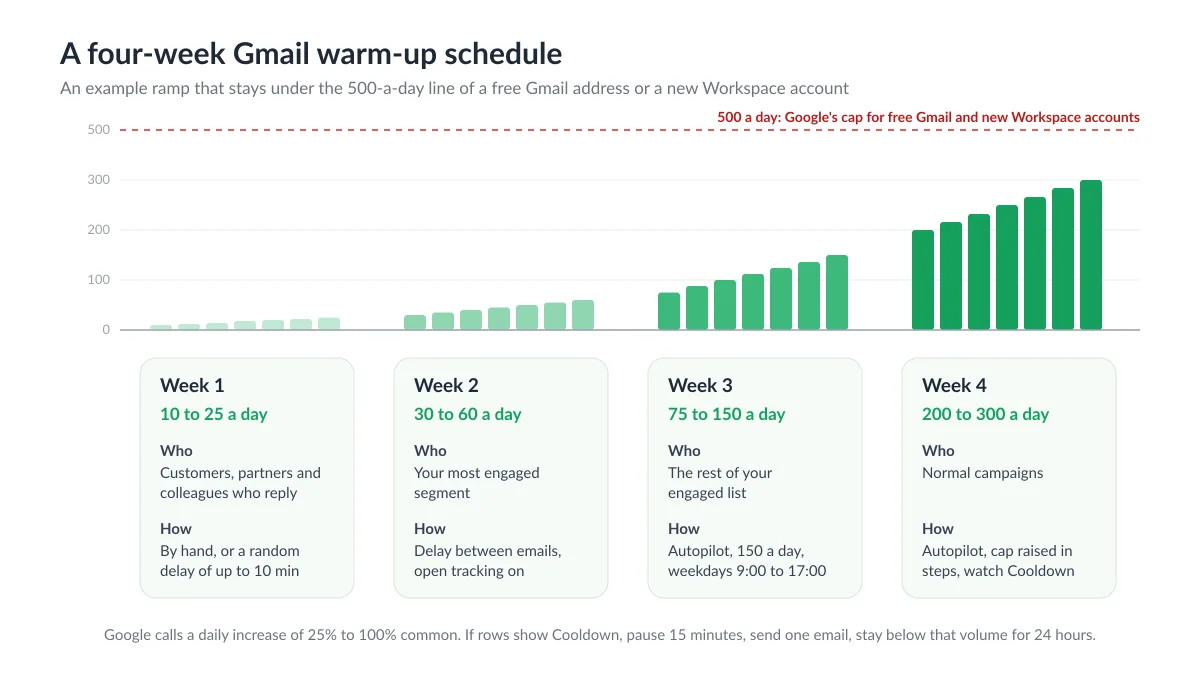
Here is a ramp for a new Workspace address whose first real goal is a few hundred emails a day. It is an example, not a Google rule: it stays at or below the 25% to 100% daily growth Google describes as common, and it never crosses the 500-a-day line that both a free Gmail address and a new Workspace account are held to. Adjust the numbers to your plan’s limit.
| Days | Emails per day | Who receives them | How to send them |
|---|---|---|---|
| 1 to 7 | 10 to 25 | Customers, partners and colleagues who will reply | By hand in Gmail, or a small campaign with a random delay of up to 10 minutes between emails |
| 8 to 14 | 30 to 60 | Your most engaged segment: recent buyers, event attendees | A campaign with a delay between emails and open tracking on |
| 15 to 21 | 75 to 150 | The rest of your engaged list | Autopilot capped at 150 a day, weekdays, 9:00 to 17:00 |
| 22 to 28 | 200 to 300 | Normal campaigns | Autopilot with the cap raised in steps, watching for Cooldown rows |
The sheet for the week-two campaign needs the columns the message reads and nothing else:
| First name | Company | Last order | |
|---|---|---|---|
| ana@northwind.example | Ana | Northwind | September 2026 |
| theo@bluefield.example | Theo | Bluefield | October 2026 |
| priya@harborlane.example | Priya | Harbor Lane | October 2026 |
The email can be short and plain: “Hi {{First name}}, you ordered from us in {{Last order}}, and I wanted to check how things are going at {{Company}}.” A question that invites a reply is worth more during warm-up than a designed newsletter, because replies are the engagement signal a new address lacks most. Keep links to one or none in week one, and skip attachments.
Two Mail Merge settings do the pacing. Sending speed, under Settings, sets a fixed delay of 1 to 60 minutes between emails or a random delay within a range of 0 to 60 minutes, and applies to every campaign you start afterwards (part of the paid plans, a free account always sends as fast as possible). Autopilot, on the Professional plan, drips one campaign over several days inside a sending window, with a Max emails per day cap that cannot exceed your plan’s limit and its own minutes-between-emails setting. Use the random delay for the first two weeks, then move to Autopilot once the daily number is bigger than you want to babysit. See the email throttling documentation and our post on the Gmail sending limit for what happens when a campaign is larger than the day allows.
Read the status column after every send. Cooldown means Gmail itself refused to send for a while and Mail Merge will retry on its own: treat it as the deferral Google describes, and run the 15-minute, one-message, 24-hours-below routine before you grow again. An Error note starting with a 550 code means the recipient’s server rejected the message outright, which points at authentication or content rather than pace.
Automated warm-up in Mail Merge for Gmail, and what it cannot do
Mail Merge for Gmail includes an email warm-up feature on the Professional plan, in the Deliverability group of the web app and under Extensions, Mail Merge for Gmail, Warm up in Google Sheets. It exchanges emails with a network of inboxes: every day a few messages leave your address, each receiving inbox opens them, moves them out of spam if they landed there, and sometimes replies. The volume follows a ramp of its own. By default it starts at 3 emails a day and adds 2 each day up to 40, so the ceiling is reached a little under three weeks in, and the Settings dialog lets you set the maximum between 5 and 50 a day and the daily increase between 1 and 5. The conservative defaults are the recommended ones.
The connection does not use your Google password or the Gmail API. Warm-up reads and sends over Gmail’s IMAP and SMTP with a Google app password, which Google’s help page on signing in with app passwords describes as a 16-digit passcode that gives an app permission to access your account, available only when 2-Step Verification is turned on. The same page lists the cases where the option is missing: 2-Step Verification set up only with security keys, Advanced Protection, and some work or school accounts, where you need to ask your administrator. The setup is three steps: turn on 2-Step Verification, create the app password, paste it into the Connect your mailbox dialog and click Connect & start. The first emails go out within the hour. The password is stored encrypted, is used for nothing but warm-up, and is deleted when you stop.
The dashboard shows the status (Active, Paused or Stopped), a reputation score out of 100 (green from 75, amber from 50, red below), the emails sent today against the daily target, and the inbox rate, the share of warm-up emails that landed in the inbox rather than spam, with four cards for the last seven days: sent, landed in inbox, rescued from spam, and replies. The score comes from the network’s own observations rather than from DNS: inbox placement over the last seven days weighs the most, then how long warm-up has been running (up to 30 days), then replies, then whether the scheduled volume was actually sent. Pause keeps your progress, Stop resets it and deletes the password, and a revoked app password pauses the card with a Reconnect button.
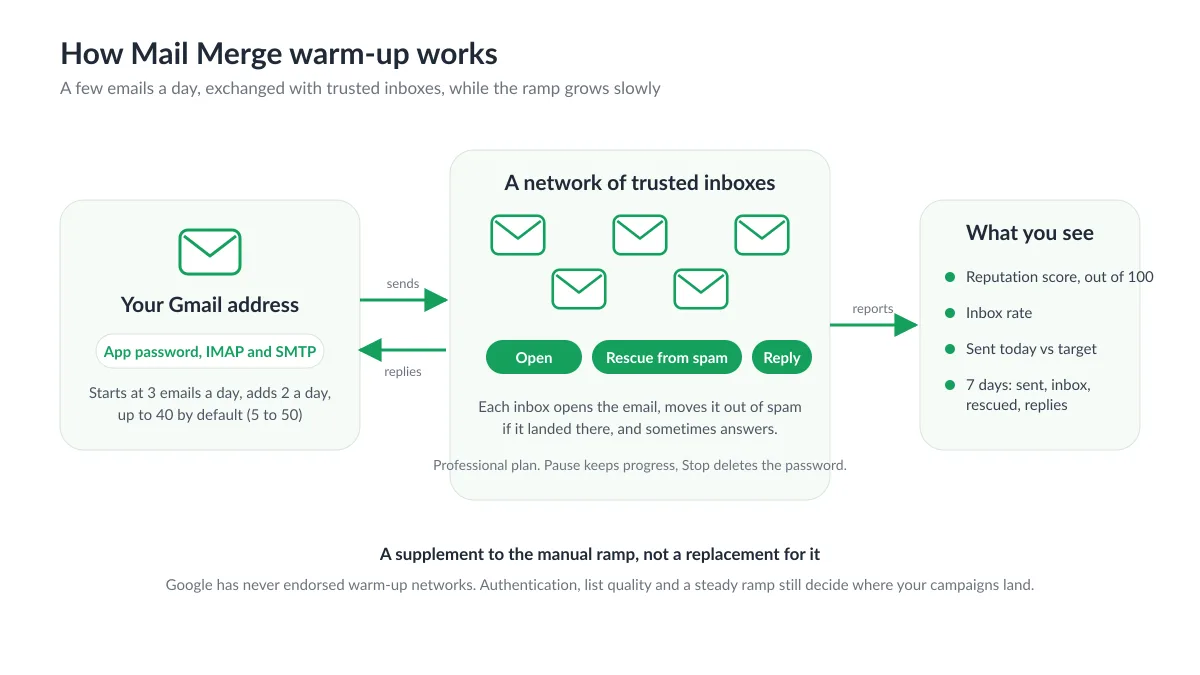
Now the part most warm-up pages leave out. Google has never endorsed warm-up networks, and its guidance describes a ramp to engaged users, not a pool of inboxes. In early 2023 GMass shut down its warm-up system after Google told the company to do so or lose its Gmail API access, and Saleshandy ended warm-up for all Google accounts after a notice that the service violated Google’s terms, including mailboxes connected over SMTP and IMAP. Our warm-up runs at a deliberately small volume, 50 emails a day at most, and we present it as a supplement to the manual ramp above, not a replacement for it. It cannot repair a missing DMARC record, a purchased list or a spam complaint rate above 0.3%, and no warm-up, ours included, guarantees inbox placement: your campaigns leave through your own Gmail account, and the recipient’s provider makes the final call exactly as it does for an email you type by hand.
How to tell the warm-up worked
Postmaster Tools is the official scoreboard. Once your domain is verified and sending enough to register, look at the spam rate first: below 0.10% is where Google wants it. Check that authentication passes and that the delivery errors dashboard stays quiet. A spike in errors on the day you doubled the volume is the signal Google’s recovery routine was written for.
Inside Mail Merge, three readings matter: a status column that shows Sent and Read without Cooldown rows, an open rate in the same range as an older, trusted address sending to a similar list (opens that collapse while nothing else changed usually mean spam placement, not bad copy), and, if warm-up is running, a reputation score in the green from 75 with a high inbox rate on the warm-up card.
When the numbers are good, grow at the pace Google calls common, 25% to 100% a day at most, and keep the rhythm steady. When they are not, send less, to fewer and better recipients, for a day, then resume the climb. Our guides on email sender reputation and how to prevent email from going to spam cover what to fix when the signals point at content or list quality rather than volume.
Frequently asked questions
How long does it take to warm up a Gmail account?
Google does not publish a duration. It describes a ramp with a common daily increase of 25% to 100% and asks for consistency, especially on new domains. The schedule above reaches a few hundred emails a day in four weeks, Mail Merge’s built-in warm-up reaches its default ceiling of 40 a day a little under three weeks after you start it, and our documentation suggests starting it a week or two before a large campaign. A new Workspace domain also has to clear Google’s own gate: the higher limits arrive only after the domain has paid at least 100 US dollars, and up to 75 days after that.
Can I warm up a free @gmail.com address?
Yes, with two caveats. Google already authenticates @gmail.com mail, so there is no SPF or DKIM to set up, but the address has no domain reputation of its own and is capped at about 500 emails a day on every plan. Mail Merge’s warm-up works with it as long as 2-Step Verification is on, since the app password requires it. A @gmail.com address cannot be registered in Postmaster Tools, so you will read campaign statuses and open rates instead of Google’s dashboards.
Does Google allow email warm-up tools?
Google has never endorsed them, and in early 2023 it pushed GMass and Saleshandy to shut down their Gmail warm-up networks. Its published guidance is a slow ramp to engaged recipients, monitored in Postmaster Tools. Mail Merge offers warm-up at a small volume over IMAP and SMTP as a supplement: do the manual ramp, fix authentication and list quality, and treat any automated warm-up as a helper rather than a shortcut.
Do warm-up emails count against my sending limit?
Every message your Gmail account sends counts toward Google’s limit, and warm-up emails are sent by your account. At a maximum of 50 a day they leave most of a Workspace account’s daily allowance free. Keep them in mind on a day when a campaign comes close to your limit.
Should I pause warm-up while a campaign is running?
You do not have to. If you prefer to keep campaign days clean, use Pause, which keeps the progress and the reputation history, rather than Stop, which deletes the app password and resets the ramp to day one.
The best time to warm up a Gmail account is the week you decide to run campaigns from it, not the day the list is ready. Publish SPF, DKIM and DMARC, verify the domain in Postmaster Tools, sort your sheet so the engaged rows come first, and let a delay between emails or Autopilot pace the sends while the volume climbs. Mail Merge for Gmail gives you the throttling, the daily cap, the status column and, on the Professional plan, a built-in warm-up and a reputation checker, so the ramp runs from the Google Sheet you already work in.
Ready to send your first campaign?
Install Mail Merge for Gmail from the Google Workspace Marketplace and send up to 50 personalized emails per day for free.
Get started for freeMore reading
More from Guides
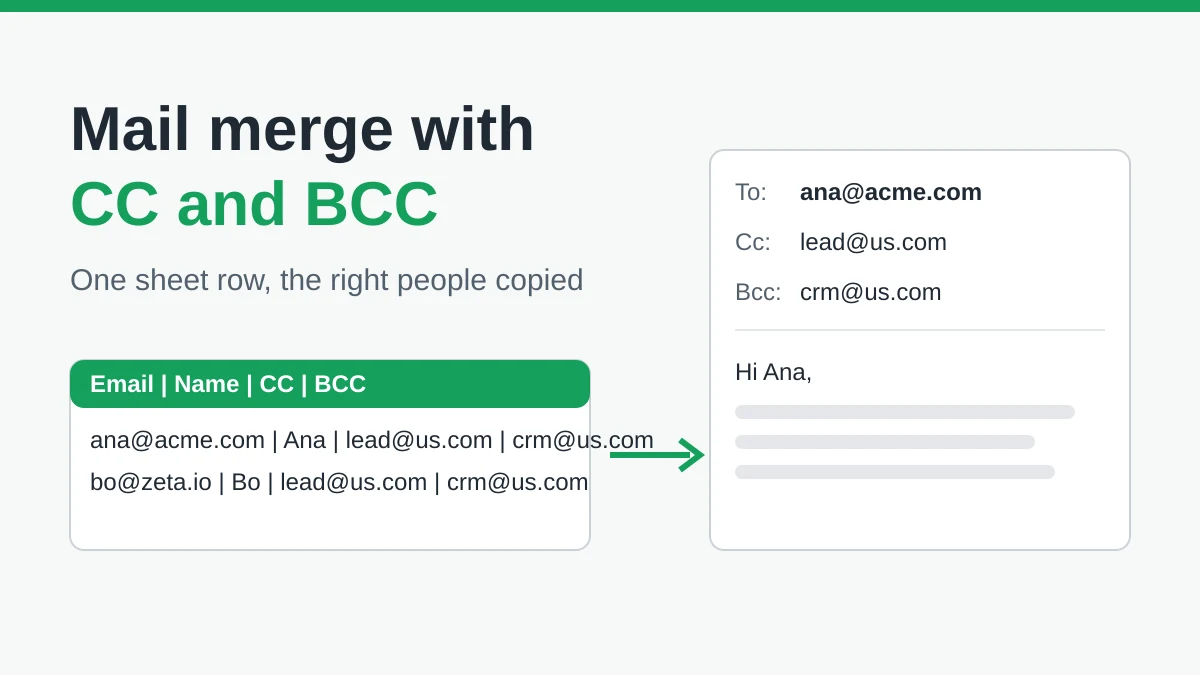
Mail Merge with CC and BCC in Gmail: Copy the Right People on Every Email
Learn how to run a mail merge with CC and BCC from Google Sheets, set up the columns, preview the result and see how copied recipients count toward your daily quota.
Gmail Sending Limit Reached: What It Means and How to Finish Your Campaign
Hit the Gmail sending limit reached error? Learn the real daily limits, when you can send again, and how to split a mail merge into safe daily batches.

Personalized Email Gmail: The Complete Guide
Master your personalized email Gmail workflow. Learn to merge Sheets data, track opens, and scale one-to-one outreach without leaving your inbox.