


















How to Resend an Email: Master Gmail Strategies 2026
Learn how to resend an email in Gmail strategically to re-engage non-openers. Get better results without being spammy. Updated for 2026.
You sent an important email, watched it leave Gmail, and then nothing happened. No reply. No click. Maybe no opens at all. That’s usually when people start searching for how to resend an email.
Sometimes the fix is simple. You forgot an attachment, pasted the wrong link, or sent the right message to the wrong moment. Other times, the problem is bigger. A campaign underperformed, and you need a second pass that reaches the people who missed it without irritating everyone else.
Those are different jobs. A one-off Gmail resend is a manual task. A campaign resend is a targeting decision. Treat them the same way and you either waste time or hurt results.
One note before you choose a tool. Be careful when researching products named Mail Merge for Gmail. The name is descriptive enough that it’s easy to confuse one product with another. Always verify that the information you’re reading refers to the exact product you mean, not a different Gmail mail merge tool with a similar name.
When and Why You Should Resend an Email
The most common resend scenario is painfully ordinary. You send a proposal, candidate update, client reminder, or event note. A few hours pass, then a full day, and there’s still silence. Your first instinct is to hit send again.
That instinct isn’t always wrong. If the original email had a broken link, missed attachment, wrong date, or unclear next step, a resend can fix a real problem. In that case, speed matters more than strategy. You’re correcting the message so the recipient can act on it.
A second scenario looks similar from your inbox, but it works differently. You sent a newsletter, product update, fundraising appeal, or outbound sequence to a group. Some people engaged. Many didn’t. Resending the same thing to everyone is the amateur move. Segmenting the unengaged group and giving them a better second chance is the professional move.
The quick decision to make
Use this rule:
- One recipient or a tiny thread: resend manually in Gmail.
- A list or campaign: resend only to the unengaged segment.
- No opens at all: pause and check deliverability before sending again.
Practical rule: If the reason for resending is operational, fix the email. If the reason is performance, fix the audience and message.
That distinction saves a lot of unnecessary resend volume.
If you’re chasing a response from one person, a standard follow-up often works better than a duplicate send. A short nudge with context usually feels more human than pretending the first email never happened. If you need ideas for that style, this guide on writing a follow-up email is a useful complement to a resend.
Common reasons a resend makes sense
A resend is usually worth considering when one of these happened:
- Something was missing: attachment, meeting link, coupon code, or contact detail.
- The first send was mistimed: late Friday, during a holiday, or buried under heavier inbox traffic.
- The audience matters: recruiters, SDRs, founders, and community managers often need another touch because the message itself still matters.
What doesn’t make sense is resending out of impatience. If the original message was weak, a duplicate doesn’t fix that. It just repeats it.
Manual Resend and Forward Methods in Gmail
When someone asks how to resend an email, they usually want the fast answer first. In Gmail, there are three practical manual methods, and each one changes how the message looks to the recipient.
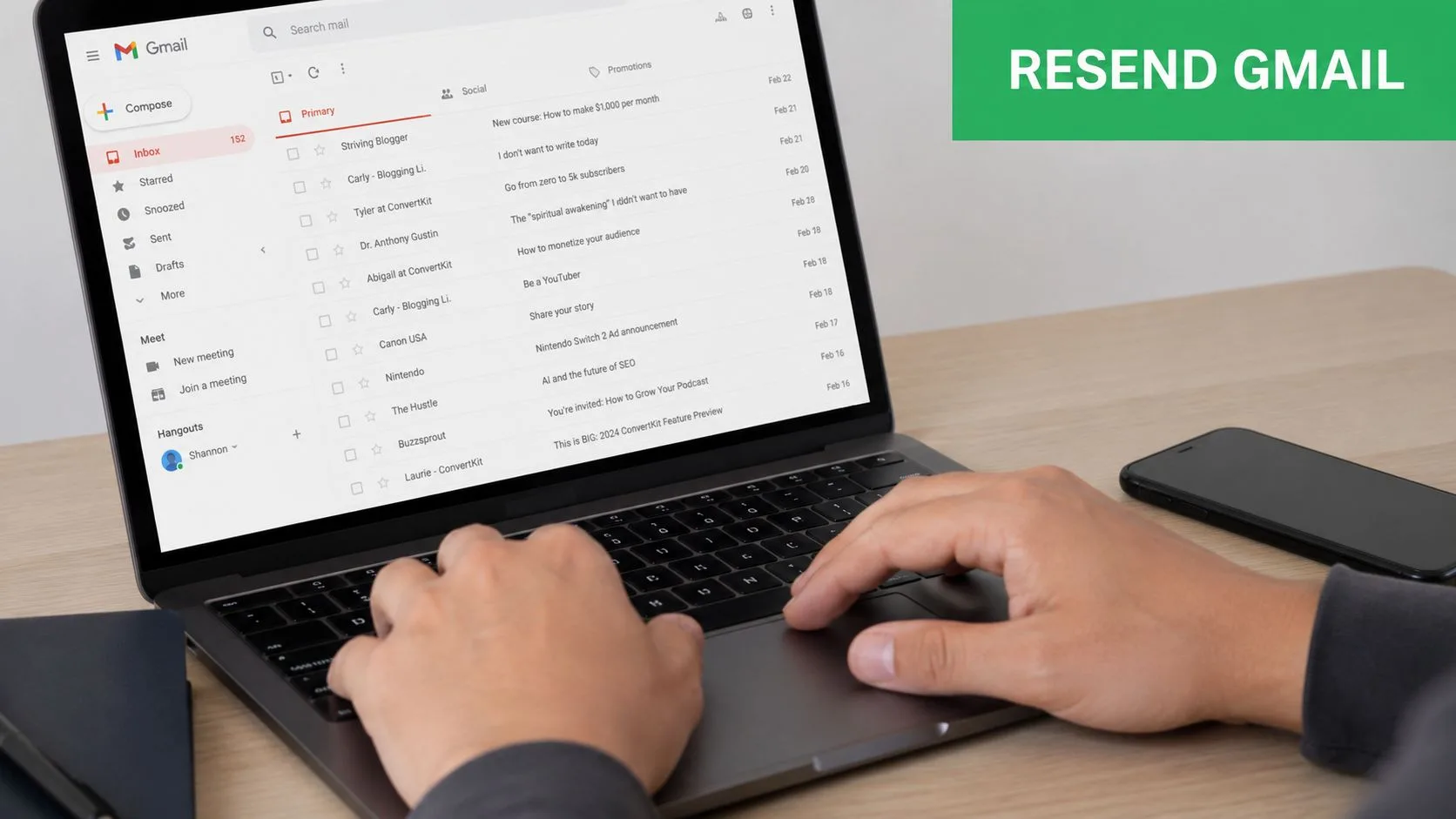
Resend from the Sent folder
This is the cleanest option when you want to send nearly the same message again.
- Open Sent in Gmail.
- Find the message you want to resend.
- Open it, then choose Forward.
- Remove the Fwd: text from the subject line if you want it to look like a fresh email.
- Clean up any quoted header text from the body.
- Add or replace attachments if needed.
- Send it.
Why this works: it preserves the original body copy, links, and formatting, but lets you make small corrections before sending again.
When forwarding is better
Forwarding is the right choice when you want the recipient to know this is a resend, or when you’re sending the original message to a different person.
Use it when:
- You’re looping someone in: a manager, recruiter, client, or teammate.
- The original context matters: timestamps, prior wording, or the original sender details help.
- You want transparency: “Forwarding this in case it got buried” is often enough.
The trade-off is presentation. Forwarded emails can look messy if you leave all the header clutter in place.
A quick walkthrough helps if you want to see the Gmail flow visually:
Replying to your own sent email
This is the least polished option, but sometimes it’s the smartest one.
If the email is part of an ongoing back-and-forth, open the sent message and reply to the thread with a short note. That keeps everything in one conversation.
A thread reply works best when:
- You’re following up on a prior ask
- You want continuity
- The recipient is already familiar with the context
For example, a recruiter might reply inside the original candidate email thread with “Bumping this to the top of your inbox.” An SDR might reply with one new reason to care instead of resending the exact same pitch.
Which Gmail method to choose
| Situation | Best method | Why |
|---|---|---|
| Forgot attachment or link | Resend from Sent via Forward | Fast fix, clean enough after editing |
| Sending to a new person | Forward | Preserves original context |
| Following up on an active conversation | Reply in thread | Keeps history intact |
On mobile, the same logic applies. Open the sent email in the Gmail app, tap the menu, and choose the option that matches the situation. The biggest mistake on mobile is sending too quickly without removing forwarded text or checking the subject line.
The Strategic Resend to Boost Campaign Engagement
Manual Gmail resends work for one person. They break down fast when you’re dealing with a campaign.
If you send a newsletter, hiring update, product announcement, or outbound batch to a list, the goal isn’t to “send it again.” The goal is to recover missed attention without annoying people who already engaged. That’s a targeting problem, not a copy-paste problem.
Industry data backs up the value of doing this selectively. Hellowalla reports that resending an email campaign specifically to non-openers can increase the open rate by up to 30%, provided the audience is segmented correctly.
Why manual campaign resends go wrong
The usual mistakes are predictable:
- Sending to the full list again: people who already opened or clicked now get a duplicate.
- Using the same subject line: inboxes treat it like old news, and people do too.
- Skipping segmentation: buyers, leads, donors, applicants, and current customers don’t all ignore emails for the same reason.
A resend should feel like a second chance, not a repeated interruption.
The best resend is selective enough that engaged recipients never notice it happened.
That’s where teams move from ad hoc Gmail use into campaign operations. You need recipient data, engagement status, and a simple way to build a fresh send from the people who didn’t act the first time.
What strong campaign resends actually do
A solid resend workflow usually includes:
- Pulling only the non-openers or non-clickers
- Changing the subject line
- Refreshing the preheader or opening line
- Keeping the core offer consistent
- Sending once, not repeatedly
This is also where templates help. If you want a few clean ways to reposition the same message without rewriting from scratch, Call Loop’s email follow-up templates are useful for subject-line angles and concise follow-up copy.
The mindset shift that matters
The important change is this. Stop thinking in terms of “resending the campaign.” Start thinking in terms of re-engaging a missed segment.
That shift improves judgment. Instead of asking, “Should I send this again?” you ask, “Who missed it, why might they have missed it, and what variation earns another look?”
That’s the difference between cluttering inboxes and improving campaign performance.
Resending to Non-Openers with Mail Merge for Gmail
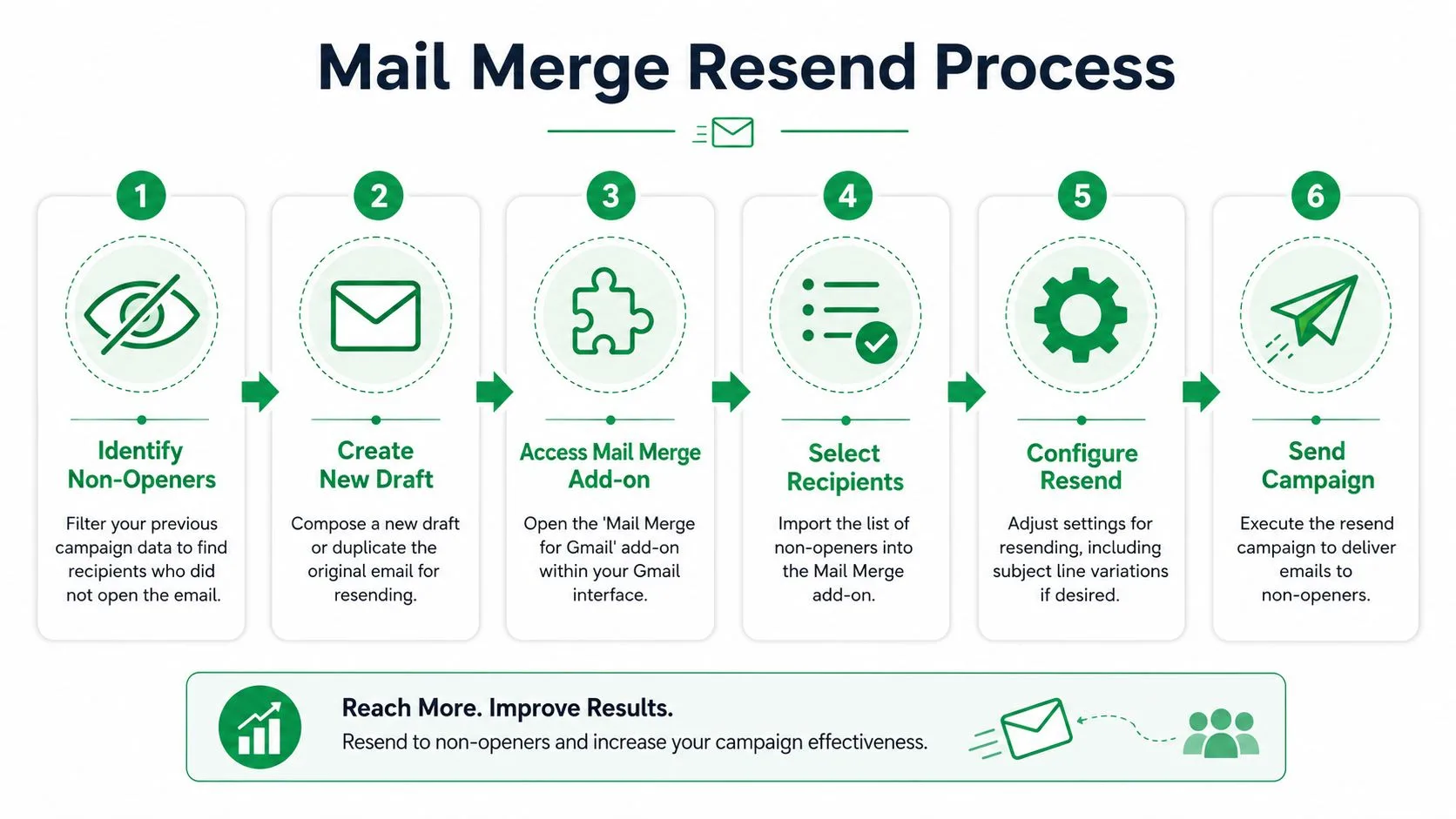
For teams that already work inside Google Workspace, the cleanest resend workflow is usually spreadsheet-based. You send the original campaign, capture engagement back into the sheet, filter the unengaged rows, then launch a second pass to that smaller group.
The appeal is operational simplicity. The list, status data, and resend audience all stay in one place instead of getting scattered across exports, CSV files, and disconnected tools.
A practical resend workflow in Google Sheets
Start with the original campaign sheet. Your columns might include name, email address, company, segment, and any custom fields used for personalization. After the first send, review the engagement columns written back to the sheet, such as Sent, Opened, Clicked, or Replied.
Then build the resend audience.
- Filter the sheet for contacts who were sent the first email but did not open it.
- Duplicate the filtered rows into a resend tab, or use a filtered view to keep the audience separate.
- Write a new subject line. Keep the offer similar, but give the inbox a different hook.
- Adjust the body lightly if the new subject changes the framing.
- Preview the merge so you catch bad personalization or missing fields.
- Send only to that filtered audience.
That basic structure is enough for most small business, recruiting, fundraising, and SDR resend campaigns.
Why sheet-based tracking helps
The biggest operational advantage is visibility. When engagement data sits in the same sheet as the contact list, anyone on the team can understand what happened without asking for a report export.
That makes it easier to answer practical questions:
- Who never opened the first send
- Who clicked but didn’t reply
- Which segment should get a different angle
- Whether the resend should happen at all
If you want to go beyond one resend and build a more systematic sequence, this primer on drip email campaigns is the next logical step.
Limits you need to plan around
Capacity matters when you resend at scale. Oppora notes that Google Workspace accounts have a strictly enforced daily mail merge sending limit of 1,500 total recipients, and that this cap applies specifically to the mail merge feature.
That affects how you batch larger resend audiences. If your non-opener segment is bigger than your available daily capacity, prioritize by segment quality. Past customers, active prospects, event registrants, and warm candidates usually deserve the first resend before colder contacts do.
Operational note: A resend list is almost always more valuable when it’s smaller and cleaner than when it’s bigger and loosely filtered.
A few habits that keep resends clean
Use these habits if you want the process to stay reliable:
- Keep the resend audience separate: don’t overwrite the original send tab if you want clean reporting.
- Name tabs by campaign and pass: “Webinar Invite Original” and “Webinar Invite Resend” is enough.
- Check personalization fields before launch: resends are where broken merge tags become obvious.
- Exclude anyone who engaged: once someone opened, clicked, or replied, they’ve left the resend pool.
That’s a key benefit of this approach. You aren’t guessing who should get another email. You’re selecting them deliberately.
Best Practices for Timing and Subject Lines
A resend can help or hurt depending on timing. Send it too fast and it looks impatient. Send it too late and the message loses relevance.
Mythic recommends waiting 2 to 4 days before the second send, and notes that sending within 48 hours can create spam-like perceptions. The same guidance stresses a segmentation-first approach, where marketers split unengaged users into meaningful buckets and tailor subject lines and content angles to each group.
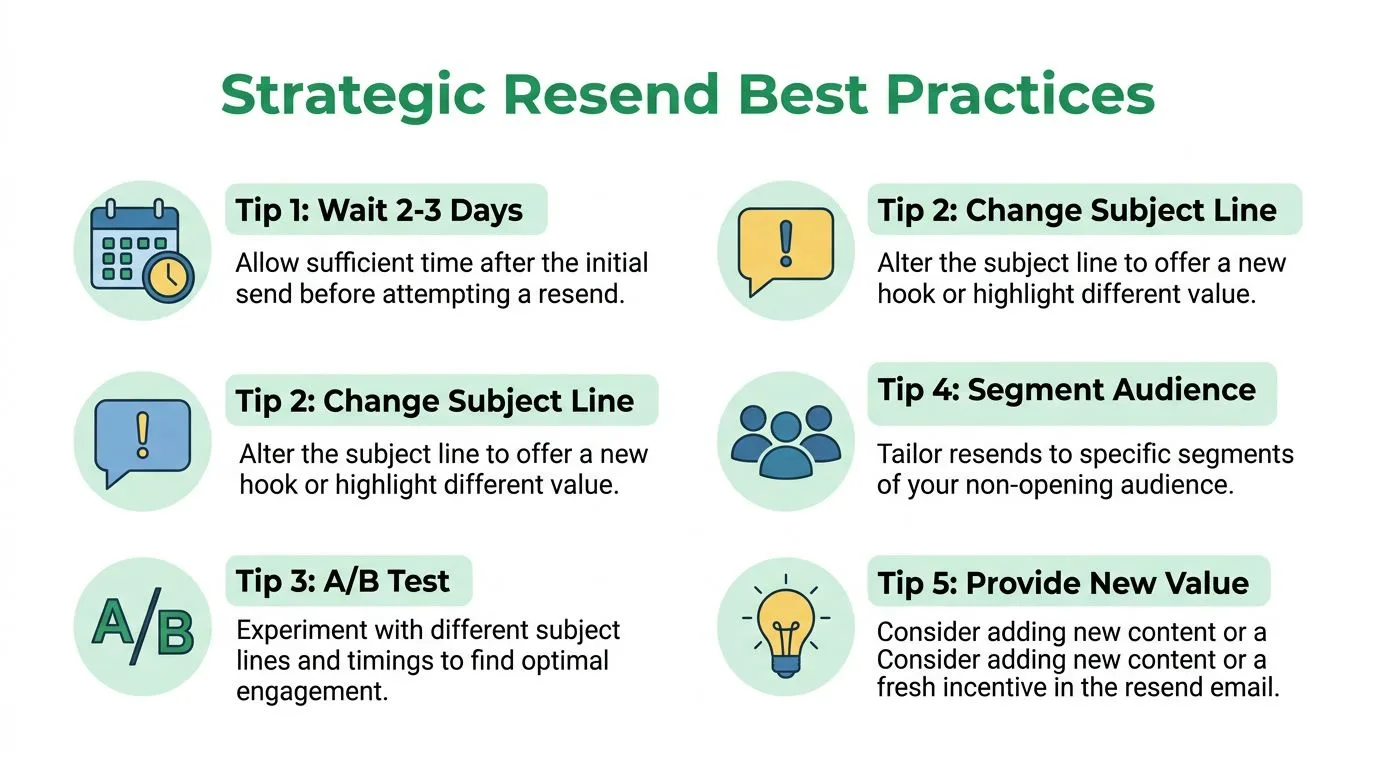
Better timing depends on the email type
A webinar reminder and a cold outreach note don’t behave the same way.
| Email type | Better resend posture | Reason |
|---|---|---|
| Event or deadline email | Earlier in the window | The message expires quickly |
| Sales outreach | Middle of the window | Gives breathing room without going stale |
| Newsletter or update | Later in the window | Less urgent, more room to vary the angle |
The key is consistency with context. If the original email was time-sensitive, don’t wait so long that the resend arrives after the decision point.
Subject line changes that actually help
The resend subject line needs a different angle, not cosmetic tweaks. If the first line led with announcement language, the second might lead with benefit, urgency, or curiosity.
Here are examples of the shift:
-
Original: Product update for your team
Resend: A faster way for your team to handle this -
Original: Interview details for Thursday
Resend: Confirming your Thursday interview details -
Original: New resources for customers
Resend: You may have missed these customer resources
Avoid fake urgency. Also avoid sending the same body under a dramatically different promise. The subject line and email content still need to match.
Change the angle, not the truth of the message.
Why non-clickers often matter more than non-openers
Open tracking isn’t perfectly reliable anymore. Privacy protections in modern email clients can muddy open data, which means the people you really care about may be the ones who opened but never clicked.
That’s why experienced teams often split resend audiences into two groups:
- Non-openers: change the subject line and top of email.
- Non-clickers: keep the topic, but strengthen the body copy, CTA, or proof.
This approach is especially useful for sales follow-ups, recruiting updates, and application flows where the click matters more than the open itself. If someone saw the email and still didn’t act, the resend should address hesitation, not just visibility.
Troubleshooting Low Opens and Deliverability
Sometimes the right answer isn’t to resend at all.
If a campaign got weak opens because it landed in spam, another send can make the problem worse. A Reddit discussion among email marketers makes the point bluntly: low open rates are often “indicative of a spam foldering issue” and resending “will actually compound the issue” until deliverability is fixed.
What to check before you resend
Look at infrastructure before you touch copy.
- Authentication health: SPF, DKIM, and related email authentication need to be working properly.
- Inbox placement: open rate alone doesn’t tell you whether the message reached the inbox.
- List quality: stale addresses, invalid emails, and poor segmentation can drag down future sends.
If your team needs a practical overview, this guide to email authentication is worth reviewing before you queue another campaign.
The wrong fix for the wrong problem
A resend solves missed attention. It does not solve blocked delivery.
That distinction matters because sender reputation is cumulative. If your setup is shaky, repeated campaigns teach mailbox providers to trust you less, not more. Teams running broader CRM programs often miss this because they focus on sequence logic before deliverability basics. For a wider operational view, these email marketing tips for Salesforce and HubSpot can help connect resend strategy with CRM hygiene and platform process.
When opens are low across the board, verify inbox placement first. Then decide whether the campaign deserves a resend, a rewrite, or a complete pause.
If you want a simpler way to send personalized campaigns, track opens and clicks in Google Sheets, and build clean resend segments without leaving Gmail, Mail Merge for Gmail is built for that workflow. It keeps outreach inside your Google account, supports up to 1,500 recipients per day on Google Workspace, and makes it much easier to resend only to the people who need a second touch.
Ready to send your first campaign?
Install Mail Merge for Gmail from the Google Workspace Marketplace and send up to 50 personalized emails per day for free.
Get started for freeMore reading
More from Tutorials
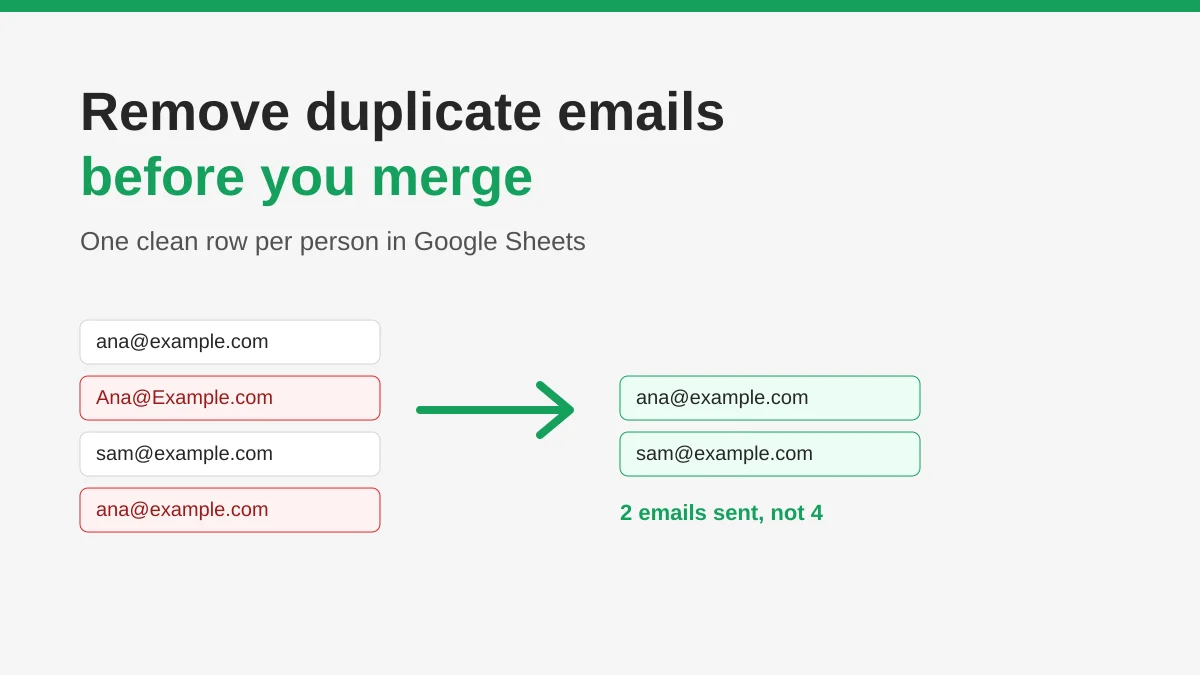
How to Remove Duplicate Emails in Google Sheets Before a Mail Merge
Learn how to remove duplicate emails in Google Sheets before a mail merge with Remove duplicates, UNIQUE and COUNTIF, so no contact gets the same message twice.
How to Build Targeted Email Lists That Actually Convert
Learn how to build targeted email lists that drive opens, clicks, and replies. Practical steps for sourcing, segmenting, cleaning, and GDPR-compliant outreach.
Send Bulk Emails from Gmail: A Complete Step-by-Step Guide
Learn how to send bulk emails from Gmail with Mail Merge for Gmail. Step-by-step guide to personalized outreach, tracking, and deliverability best practices.