


















Suppression List Management: A Practical How-To Guide
Master suppression list management with step-by-step instructions on setup, sync, automation, and compliance for cleaner outreach and stronger deliverability.
A rep re-imports a “cleaned” spreadsheet, misses a Gmail bounce from last month, and sends the same contact another campaign. The message fails again, an unsubscribe request from a different system goes unnoticed, and the team starts rewriting subject lines when the problem is operational. Without a reliable suppression list, every import, segment, and manual send can reopen a problem you’ve already identified.
Suppression list management prevents that loop before delivery. It protects sender reputation, supports CAN-SPAM obligations, and gives a small team a repeatable way to decide who must never receive another commercial message. The practical system is straightforward: maintain one source of truth, check it before every send, synchronize it across tools, and preserve the reason and timestamp behind every exclusion.
Why Suppression List Management Matters in Real Outreach
A hard bounce is more than a failed message. It tells you that the address shouldn’t be treated as an eligible recipient until someone reviews the record, and repeated attempts to deliver to invalid addresses can damage the sender’s standing with mailbox providers. Spam complaints create a different risk because the recipient has actively signaled that future mail is unwanted. Unsubscribe requests carry both reputation and legal implications.
Under U.S. CAN-SPAM guidance, commercial senders must provide a working opt-out mechanism and honor opt-out requests within 10 business days. The unsubscribe mechanism must remain functional for at least 30 days after the message is sent, and some guidance summaries describe penalties of up to $40,000 per email for violations. See the CAN-SPAM compliance guidance for the operational implications. That makes a suppression record a durable compliance control, not a campaign setting you can delete after an export.
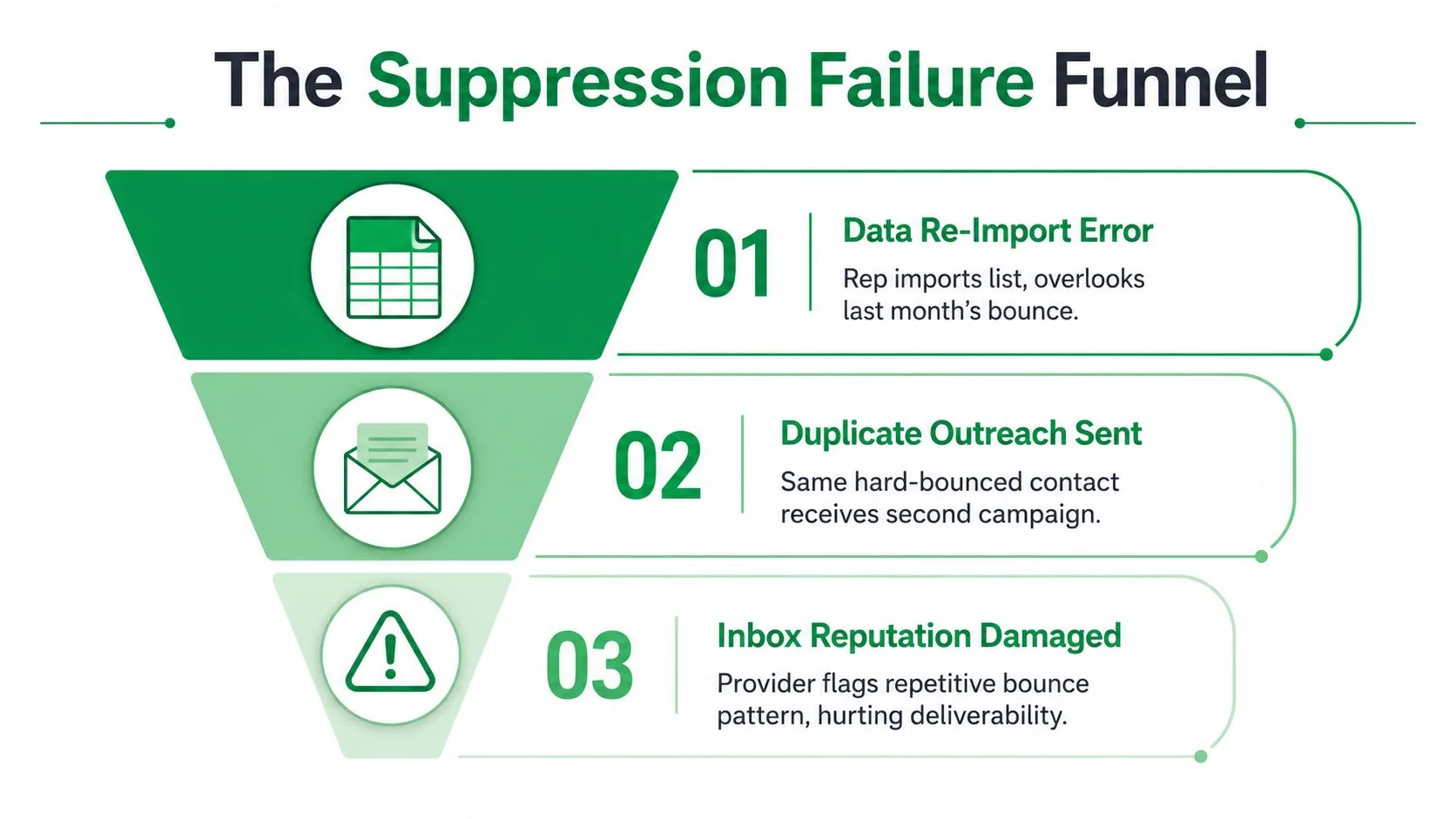
The cost of treating suppression as cleanup
A weekly review of bounces, complaints, and opt-outs takes little operator time when the data is already centralized. Recovering from reputation damage is far more disruptive. Teams may need to pause outreach, investigate sending behavior, rebuild targeting rules, and seek specialist help while valid messages struggle to reach inboxes.
List decay makes the issue harder to ignore. One industry benchmark cited in an email-suppression guide says at least 23% of an email list degrades every year (email suppression list management guidance). Opt-outs can also overlap across internal and partner lists, so a contact removed from one audience may remain active somewhere else.
Practical rule: A suppression record should survive imports, staff changes, CRM migrations, and sending-tool changes.
The right question before a campaign isn’t “Did we clean this spreadsheet?” It’s “Can every sending path prove that this address is eligible right now?” Teams that use a cold email follow-up template that books meetings still need this control. Strong copy can’t compensate for repeatedly mailing people who bounced, complained, or opted out.
Building the Canonical Suppression Source
A Google Sheet works well for a small Gmail-based operation because it’s visible, shareable, and easy to connect to campaign tabs or automation. It shouldn’t be treated as an informal list, though. Build one protected tab called suppression_master, and make every CRM view, mail merge sheet, and sending workflow consult that tab before delivery.
Start with these fields:
- email: The normalized email address and primary key.
- reason_code: A controlled value such as
hard_bounce,soft_bounce_3x,unsubscribe,manual_complaint,role_address, ormanual_block. - source: The system or person that created the record, such as Mail Merge, Gmail bounce notification, CRM sync, or manual review.
- date_added: When the address entered suppression.
- last_verified: The latest date someone or an automation confirmed the state.
- notes: Useful context, especially for complaints or manual blocks.
- owner: The person responsible for review.
Use separate reason codes because they lead to different operational decisions. A hard bounce normally requires permanent exclusion. A soft-bounce rule can become permanent after three strikes, while a complaint-driven record deserves prompt review of the campaign that preceded it. Role addresses may be a policy block rather than a delivery failure, so combining everything under “bad email” removes useful context.
A sheet that resists operator error
A sample row might look like this:
| reason_code | source | date_added | last_verified | notes | owner | |
|---|---|---|---|---|---|---|
| contact@example.com | hard_bounce | Gmail bounce notification | 2026-08-19 | 2026-08-19 | Address rejected during campaign | Operations |
Add data validation to the reason_code column using a dropdown. This prevents variations such as hard bounce, hard-bounce, and hardbounce from fragmenting filters and formulas. Freeze the header row, protect the tab from casual edits, and create a named range such as suppression_master.
Store the sheet ID in a central configuration document rather than hard-coding a tab name into every automation. A renamed tab shouldn’t break a workflow, and a copied workbook shouldn’t point an integration at the wrong file. The contact database management guide is useful context for keeping contact data organized alongside this suppression structure.
The governing rule is simple: nothing enters the master file by freehand alone. Every addition needs a source, a reason, a date, and an owner. Manual entries are valid when a recipient replies “remove me,” but the operator should record that reply in notes and identify the source as a manual request.
Applying Opt-Out and Compliance Timing Rules
Legal timing gives you a minimum operating standard, not a reason to wait. A sender can have up to 10 business days to honor a U.S. opt-out request under CAN-SPAM, but a Gmail-based outreach team should process suppression events much sooner. Delays create opportunities for another campaign, follow-up, or manual message to reach someone who already asked not to receive mail.
The unsubscribe path must remain functional for at least 30 days after the email is sent (CAN-SPAM unsubscribe timing guidance). Treat that as a retention and system-design requirement. Don’t remove the address from your suppression source just because the campaign has ended, and don’t share the suppressed address with a partner for another mailing purpose.
Convert events into service levels
A practical team policy can be stricter than the legal ceiling:
| Reason | Legal Ceiling | Recommended SLA | Action |
|---|---|---|---|
| Hard bounce | No future commercial send after detection | Immediately | Add the address to suppression_master and block the campaign row |
| Unsubscribe click | Honor within 10 business days | Within 1 hour | Record the event, timestamp, and source |
| Manual complaint | Treat the request as an opt-out | Review within 24 hours | Suppress the address and inspect the preceding campaign |
| Role address | Policy decision | Before first send | Pre-block according to your outreach policy |
A List-Unsubscribe click should write directly to the canonical source. A “this is spam” action should be treated as a complaint, even if the sending tool’s event arrives later. A manual reply saying “remove me” deserves the same exclusion outcome, with the reply preserved in notes. A Gmail bounce notification should create a hard-bounce record before the next batch is prepared.
That difference between the legal floor and deliverability hygiene matters. A team can technically meet the CAN-SPAM deadline while still allowing repeated complaint patterns or avoidable bounces to continue. For guidance on documenting requests and ownership, use this opt-out management resource, then enforce the result at send time rather than relying on a future cleanup.
Wiring Suppression Checks Into Your Gmail Sends
The safest Gmail and Google Sheets workflow blocks a recipient before a draft is composed. Don’t wait for the mail merge add-on to report a failed delivery after the campaign has already entered the send process. Put a validation layer beside the campaign data.
Assume the campaign sheet has an email column. Add Status, Suppression Reason, Suppression Source, and, when needed, Expiry columns. A lookup can compare each campaign address with the canonical range:
=IFERROR(VLOOKUP(LOWER(TRIM(A2)), suppression_master, 2, FALSE), "")
The exact formula depends on the range layout, but the logic should remain consistent. Normalize the address before comparison, return the reason when a match exists, and mark the row as SUPPRESSED rather than leaving the operator to interpret a blank or error.
A dependable pre-send sequence
- Normalize addresses. Trim spaces and standardize casing before matching. Deduplicate the campaign tab, but never delete the master suppression record to make a duplicate eligible.
- Run the lookup. Match every recipient against
suppression_masterimmediately before the send. - Reject matches. The mail merge workflow should skip suppressed rows before it creates drafts or sends messages.
- Write the result back. Record
SUPPRESSED, the reason code, and the validation time in the campaign sheet. - Review exceptions. A reviewer can inspect a questionable role address or temporary soft block without changing the canonical record casually.
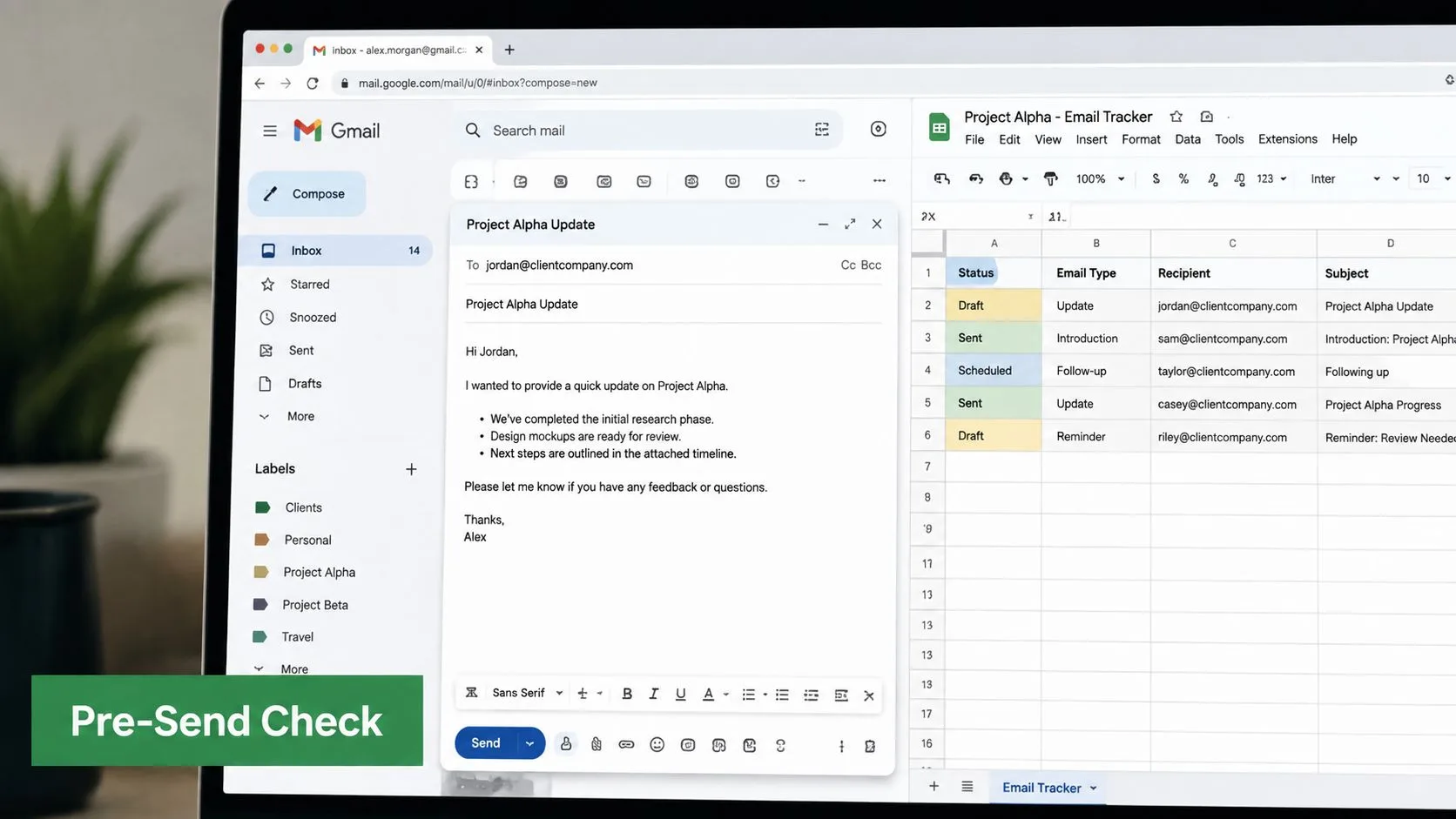
Hard-bounced addresses should remain blocked. For role-based inboxes, store role_address as the reason rather than disguising a policy choice as a delivery failure. Temporary soft blocks can use an Expiry value in the campaign sheet, but expiration must never remove a permanent unsubscribe or complaint from the master source.
The manual override path should require a named reviewer, a written reason, and a new verification step. An override can change a campaign row’s handling, but it shouldn’t erase the original event or weaken the canonical exclusion without evidence.
Automating Sync Across Sheets, CRM, and Sending Tools
Cross-system drift is where otherwise careful teams lose control. A contact can be suppressed in a Google Sheet, remain active in a CRM, and reappear in a new campaign after an import. The fix isn’t more exports. It’s an explicit authority model and predictable synchronization.
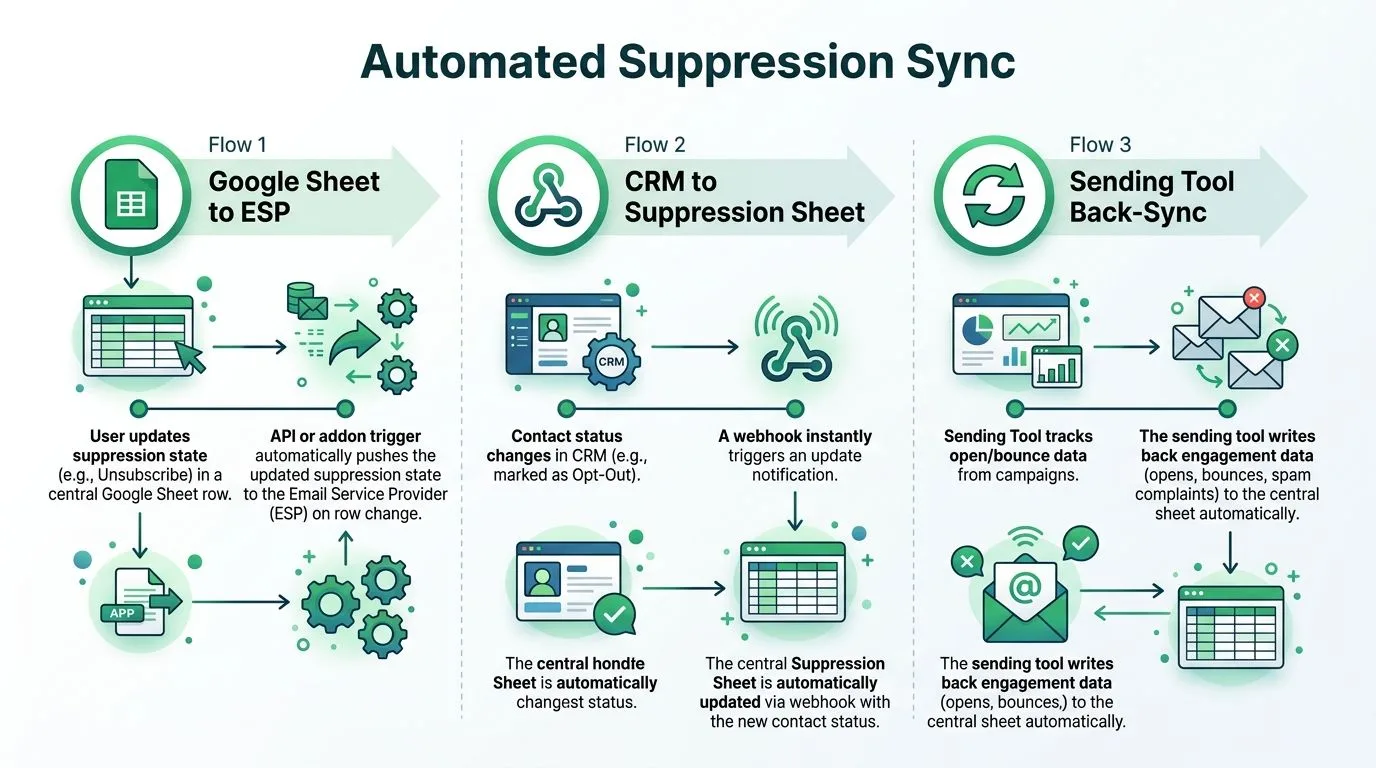
Use three complementary patterns:
- One-way sheet-to-sending-tool push: When a new suppression row appears or an existing row changes, an API connection or add-on trigger pushes the address and state to the sending tool. This keeps the delivery layer aligned with the canonical source.
- Event back-sync: A webhook receives unsubscribe, complaint, and bounce events from the sending tool, then writes the address, reason, source, and timestamp into the master sheet. The event should also identify the campaign when possible, so the operator can investigate the surrounding send.
- Scheduled reconciliation: An Apps Script or Zapier job compares the sheet with the CRM and sending tool, then emails the operator a difference report. A nightly run is a practical default for small teams, while real-time event handling should cover urgent opt-outs and complaints.
Resolve conflicts in favor of exclusion
The conflict rule should be unambiguous: suppression wins. If the CRM says “active” but the master sheet says unsubscribe, the contact stays blocked. If a CRM deletion removes the contact record, that deletion must not delete or resurrect the suppression record. Preserve the unmailable address separately from the marketing profile.
Teams evaluating specialized automation, including a recruiting firms AI outreach tool, should ask where unsubscribe and bounce states live, how events return to the central record, and whether a tool migration preserves suppression history. A workflow can be fast and personalized while still failing if each platform maintains an isolated exclusion list.
Document the fallback before automation breaks. If a trigger fails, pause sends, compare the last successful sync state, and run a controlled reconciliation before resuming. Keep the configuration document, sheet ID, owner, and error notifications easy to find. Guidance on connecting customer records and campaign operations is available in this email CRM marketing resource.
Reading the Numbers Behind a Healthy Suppression Program
Suppression metrics should guide operating decisions, not decorate a dashboard. For a Gmail and Google Sheets workflow, track whether events reach the canonical sheet, whether pre-send checks use that record, and whether the CRM or sending tool has drifted from it.
Start with four measures:
- Suppression match rate per campaign: Compare rows marked
SUPPRESSEDduring validation with total campaign rows. A higher rate can mean better event capture, poorer list quality, or an import error. Checkreason_codebefore interpreting the change. - Event-to-entry time: Compare the event timestamp with
date_added. A long gap shows that an unsubscribe or complaint waited in an inbox or queue before someone recorded it. - Bounce-to-suppression conversion: Compare bounce events with corresponding suppression records. Missing records point to a notification, webhook, or manual-entry failure.
- Cross-system drift count: Compare the canonical sheet with active CRM and sending-tool records. One suppressed address still eligible for Gmail sending matters more than a clean aggregate rate.
Practical thresholds for small Gmail programs
Use the deliverability benchmark as a reference point, then interpret results against your own audience, sender history, and event quality.
| Metric | Healthy Range | Warning Sign | Source in Sheet |
|---|---|---|---|
| Total bounce rate | Under 2% | Bounce rate reaches or exceeds the benchmark | Campaign delivery results and reason_code |
| Spam complaints | Under 0.10% | Complaints approach or exceed the benchmark | Complaint events, source, and date_added |
| Hard bounces | Under 0.5% | Hard bounces rise on previously clean segments | Bounce events and reason_code |
| Contacts in suppression | 10–25% can occur in a mature program | Suppression shrinks because records were removed or remailed | date_added, reason_code, and active audience counts |
| Cross-system drift | No suppressed contact eligible for send | An unsubscribed address appears in a campaign row | Lookup result and sync audit |
Review the rates weekly, but chart drift incidents separately. The counts answer different questions: bounce and complaint rates describe delivery and audience quality, while drift shows whether the control survived movement between Google Sheets, Gmail, the CRM, and sending tools.
A healthy program can accumulate suppressions as inactive, unsubscribed, or blocked recipients build up. Do not remove those records to make the audience appear cleaner. Keep the history, reason, and date intact, because the canonical suppression source must continue protecting contacts after a tool or team change.
Daily Habits and Troubleshooting Checklist
A suppression process becomes reliable when the operator can run it without reconstructing the logic each morning. Keep the checklist beside the campaign workbook, and make each action point to a field or automation that already exists.
The operating cadence
Before every send, take the short path:
- Scan the status column: Confirm every campaign row has completed the lookup against
suppression_master. - Stop unresolved rows: Blank, errored, or stale validation results shouldn’t enter the send queue.
- Review new events: Check Gmail bounce notifications, unsubscribe activity, complaint alerts, and direct removal replies.
- Confirm the source: Every new suppression row needs
source,reason_code,date_added, andowner.
Each week, reconcile the systems:
- Compare active audiences: Find addresses marked active in the CRM or campaign tabs that appear in the master sheet.
- Inspect drift: Review the sync diff, not only the total number of records.
- Check reason patterns: A cluster of
manual_complaintentries may indicate a targeting or message problem. - Verify formulas: Make sure named ranges still point to the intended sheet and that imports haven’t overwritten validation rules.
Each month, audit the record itself:
- Review stale metadata: Find rows with old
last_verifiedvalues or missing owners. - Separate temporary states: Check
Expiryvalues without weakening permanent unsubscribes, complaints, or hard bounces. - Test the unsubscribe path: Confirm the mechanism remains usable for messages still within the required retention window.
- Review access: Keep the master source protected and limit who can change suppression records.
Troubleshooting table
| Failure | First diagnostic step | Fix |
|---|---|---|
| Missed sync | Compare the latest event timestamp with date_added | Repair the trigger, backfill the event, and pause sends until reconciliation finishes |
| Late opt-out | Search Gmail, the sending tool, and the CRM for the earliest request | Add the canonical record, preserve the original timestamp in notes, and review any later sends |
| Duplicate contact | Normalize and compare the campaign address with the master key | Deduplicate the campaign row, never delete the suppression record |
| Wrong reason code | Check the original source event or operator note | Correct the controlled value and preserve the audit context |
| Broken unsubscribe link | Test the link in a recent message | Fix the template or sending configuration and keep the recipient suppressed while investigating |
The practical discipline is simple: don’t clean suppression data by deleting it. Reconcile it, correct its metadata, and keep the exclusion available to every tool that can send. That is what lets the workflow survive a new spreadsheet, a new operator, or a change in sending software.
Mail Merge for Gmail can send personalized campaigns from Gmail using Google Sheets, add unsubscribe links to templates, and write delivery and engagement statuses back to campaign rows, which fits a suppression workflow built around visible, auditable spreadsheet data. Visit Mail Merge for Gmail to review how its Gmail and Sheets workflow can support your pre-send exclusion checks.
Ready to send your first campaign?
Install Mail Merge for Gmail from the Google Workspace Marketplace and send up to 50 personalized emails per day for free.
Get started for freeMore reading
More from Tutorials
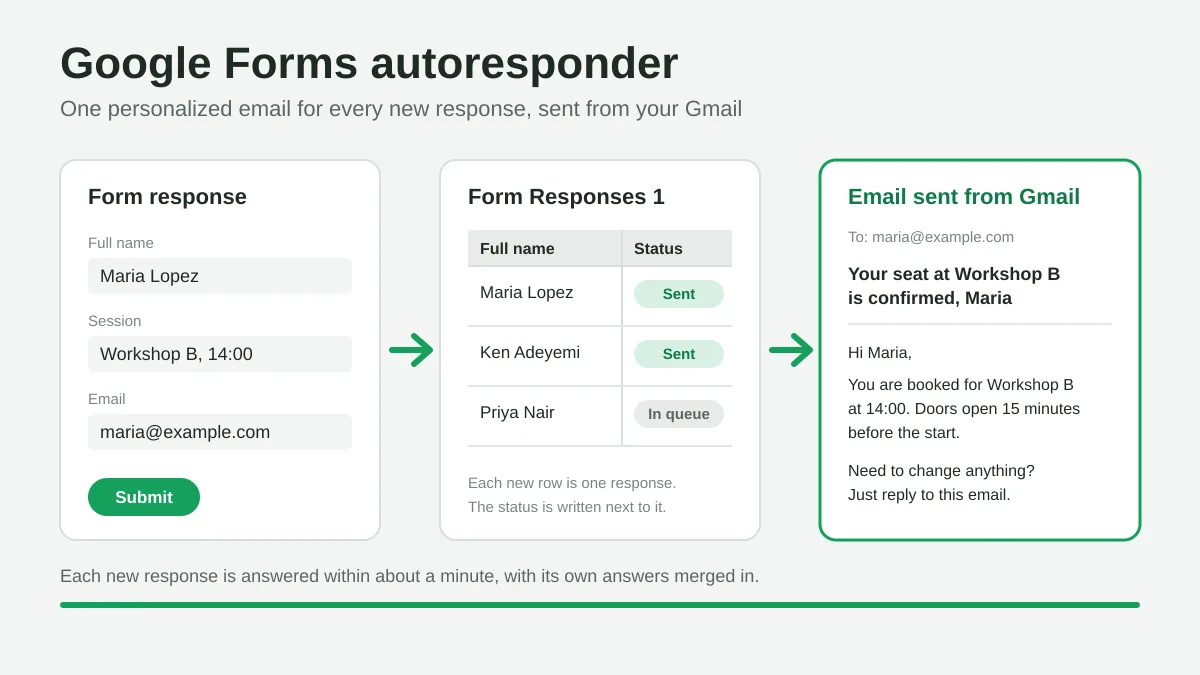
Google Forms Autoresponder: A Personalized Email for Every Response
Set up a Google Forms autoresponder that emails every new response from Gmail, personalized with the answers, using Google Sheets and Mail Merge for Gmail.
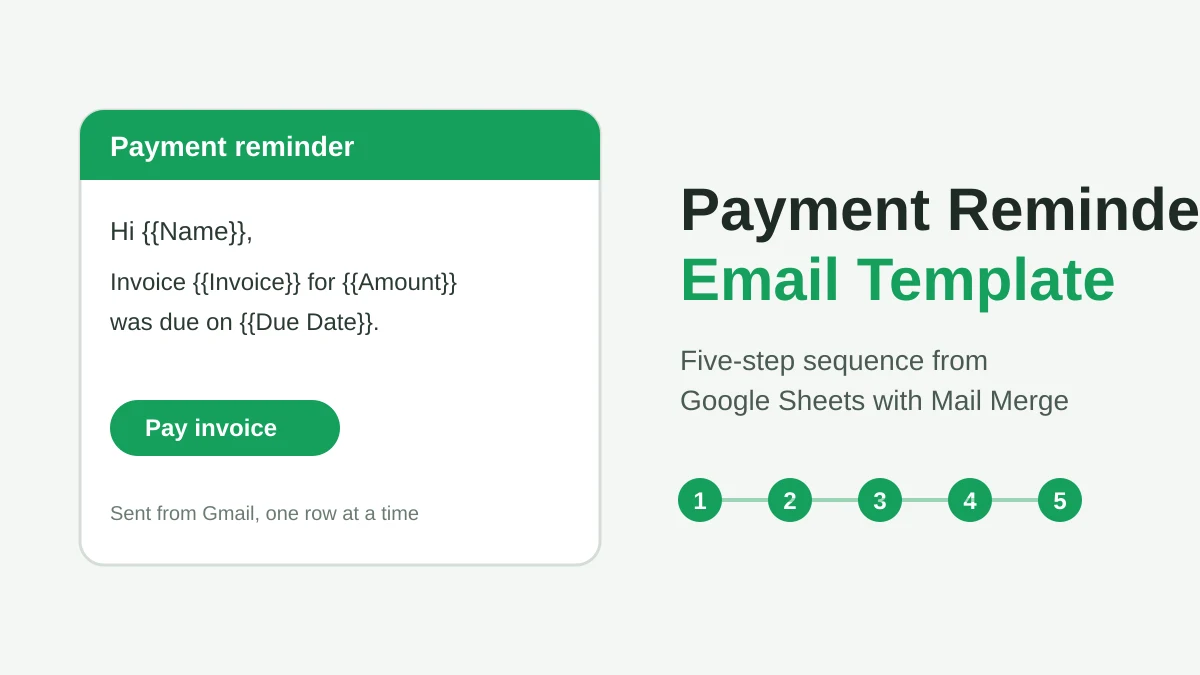
Payment Reminder Email Template: Five Messages You Can Send from Google Sheets
Copy a payment reminder email template for each stage of an overdue invoice, then send every reminder from Google Sheets through Gmail with personalized merge fields.
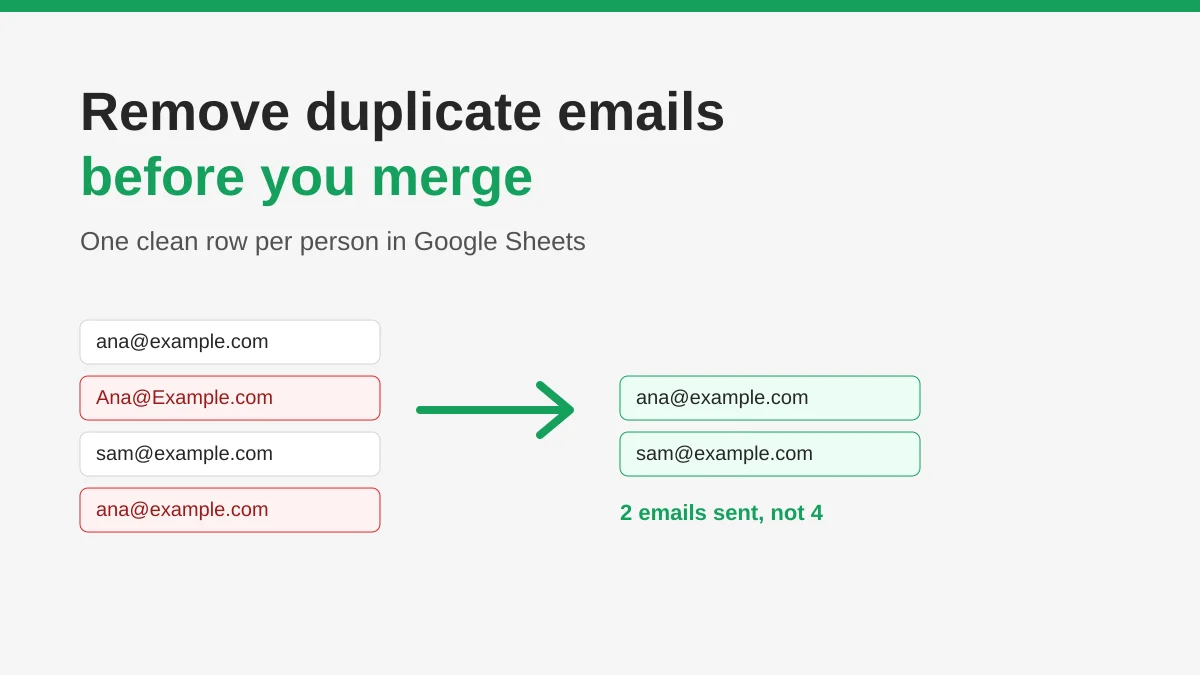
How to Remove Duplicate Emails in Google Sheets Before a Mail Merge
Learn how to remove duplicate emails in Google Sheets before a mail merge with Remove duplicates, UNIQUE and COUNTIF, so no contact gets the same message twice.