


















Send Bulk Emails from Gmail: A Complete Step-by-Step Guide
Learn how to send bulk emails from Gmail with Mail Merge for Gmail. Step-by-step guide to personalized outreach, tracking, and deliverability best practices.
You’ve got a spreadsheet full of prospects, customers, or event contacts, and the next step seems simple: write one email, paste the addresses into Bcc, and press send. That shortcut usually creates more problems than it solves. Recipients receive a generic message, your team loses personalization, and Gmail’s sending controls can turn an oversized campaign into delayed or rejected mail.
The practical way to send bulk emails from Gmail is to treat every message as an individual conversation. Use a clean Google Sheets list, personalize the copy with recipient data, preview the output, stay inside Gmail’s limits, and study the engagement signals after sending. This guide walks through that workflow with Mail Merge for Gmail, while keeping the deliverability realities in view.
Why Bulk Email from Gmail Matters for Small Teams
A founder often starts the week with a manageable outreach list. By Wednesday, manual follow-ups have consumed the time meant for sales calls, customer work, or product decisions. Copying a name into every message feels careful, but it becomes repetitive quickly, and repetitive work creates its own errors, including missing names, outdated details, and forgotten follow-ups.
Gmail remains useful because it’s already part of the team’s daily workflow. A Google Sheets contact list gives you structured information, while a mail merge process lets you send separate messages that use that information. Mail Merge for Gmail is a Google Workspace add-on built around that workflow. You import recipients, create or select a template, preview the campaign, and send from Gmail without asking the team to manage an entirely separate communications system.
Practical rule: Personalization should change the relevance of the message, not just the greeting.
A recruiting team might tailor outreach by role and location. A small agency might reference a prospect’s company and the service most relevant to its situation. A nonprofit might separate volunteers, donors, and event attendees rather than sending one announcement to everyone. The technology supports those distinctions, but the quality still comes from the list and the message.
Email benchmark results vary by audience and methodology. Brevo’s email marketing benchmarks report open-rate figures ranging from 20% to 40% across commonly used benchmark sets, including a 2026 average of 20.73% and 33.87% when Apple Mail Privacy Protection is included. Those figures don’t guarantee a result for your campaign. They show why targeting matters more than just increasing the number of recipients.
Installing Mail Merge for Gmail in Your Workspace
The installation happens inside Google Workspace, so your team doesn’t need to create a separate account or move campaign data into an unfamiliar dashboard. Before installing anything, confirm that you’re using the Google account that should own the campaigns and the associated Google Sheets files.
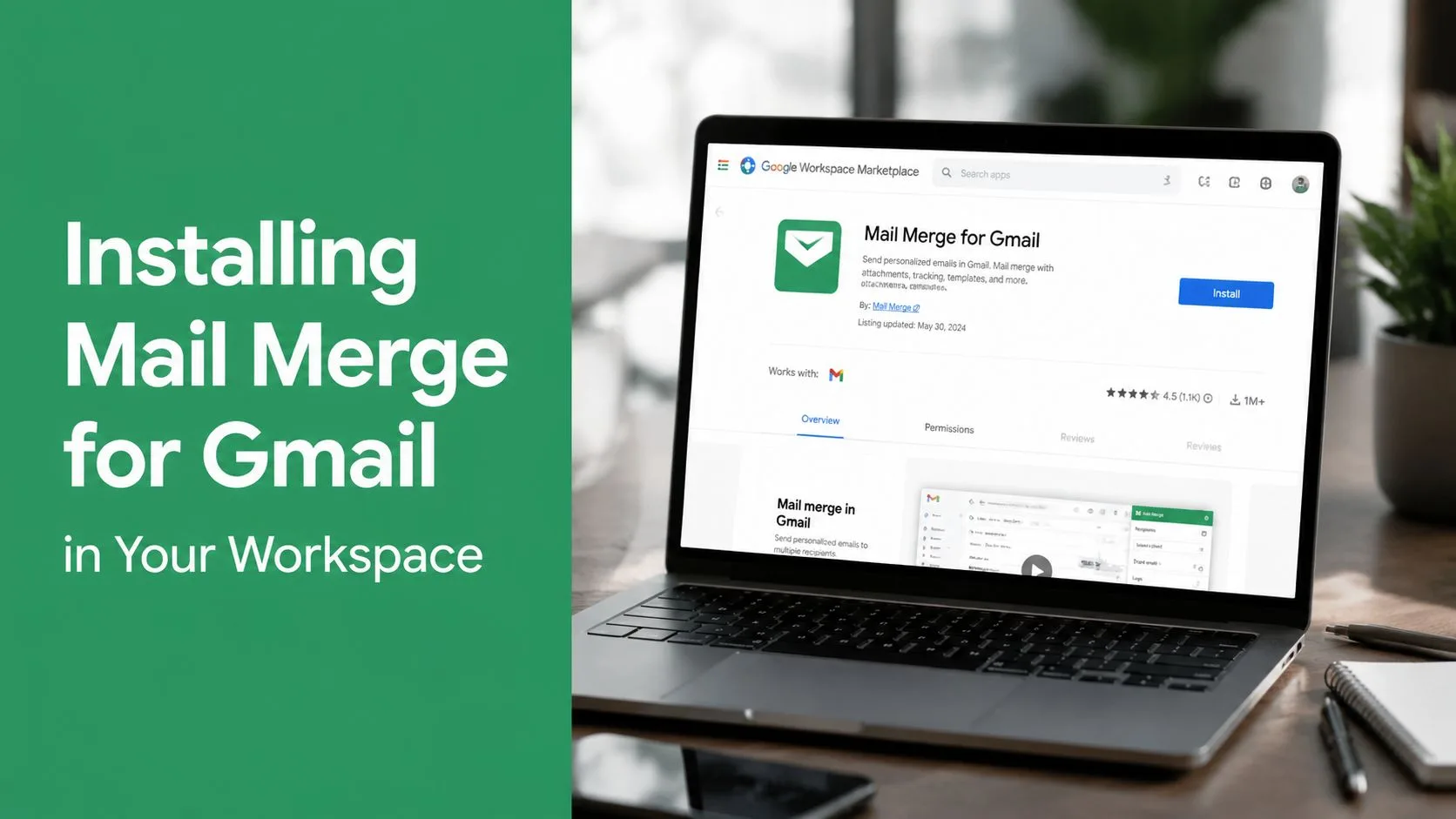
Install the add-on
- Open the Google Workspace Marketplace.
- Search for Mail Merge for Gmail.
- Select the product listing that specifically belongs to that service. Descriptive names can look similar, so check the publisher and product details before granting access.
- Choose Install, then review the Google permission prompts.
- Approve the requested access to Gmail and Google Sheets.
The permission screen deserves attention. Don’t approve an add-on merely because its name contains the words “mail merge.” Confirm that the listing refers to the product you intend to use, particularly if your organization is comparing several Gmail mail merge tools. The Google Sheets mail merge add-on guide can also help you understand how the spreadsheet workflow fits into the product.
Find the campaign workflow
After installation, open Gmail and start a compose window. The add-on should be available through the Workspace or add-ons controls associated with the compose experience. From there, the workflow follows three broad stages:
- Import recipients: Choose the Google Sheets data that contains your contact rows.
- Build or select a template: Write the message and insert the fields that should vary by recipient.
- Preview and send: Check populated examples, then send immediately or schedule the campaign.
The add-on keeps the workflow inside your Google account. The product description states that it doesn’t read your inbox, keeps data within your Google account, and maintains GDPR compliance. Those points matter when your outreach includes sensitive customer, candidate, or European contact data. You should still collect and use personal information lawfully, maintain permission records where required, and remove people who have asked not to receive further messages.
Preparing Your Recipient List in Google Sheets
A merge can’t rescue disorganized contact data. The spreadsheet determines which fields appear in each message, so list preparation is part of campaign writing, not an administrative task to postpone until the end.
Create a new Google Sheets workbook with one header row. Use clear, consistent names such as first_name, last_name, email, company, role, and custom_note. Each following row should represent one recipient. The email column must contain a valid address, and every personalization field used in the template should have a predictable value or an intentional blank.
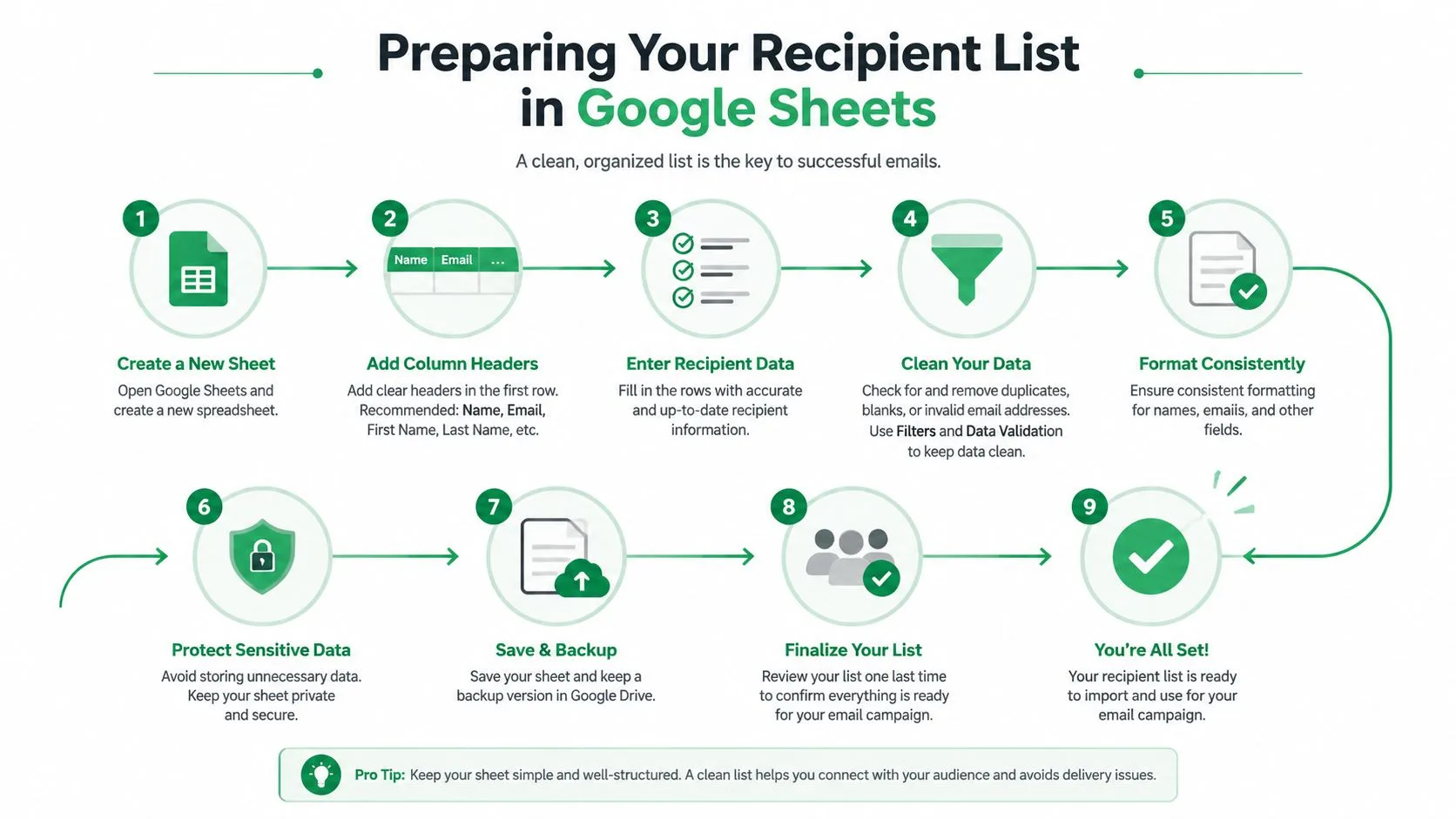
Use a simple, durable structure
Avoid merged cells, decorative title rows, blank headers, and inconsistent capitalization. A field called first_name won’t reliably match a template field called FirstName if the add-on expects the column name to be exact. Keep the first row for headers and avoid inserting notes above the data table.
A useful structure might look like this:
| first_name | last_name | company | role | custom_note | |
|---|---|---|---|---|---|
| Sarah | Patel | sarah@example.com | Acme | Operations | expanding the onboarding team |
| Marcus | Lee | marcus@example.com | Bright Ideas | Director | recently launched a new service |
The custom_note field is valuable because it gives you a place for a genuine, recipient-specific opening. It also prevents the body from relying on a first name as its only sign of relevance.
Clean the list before importing
Work through the list row by row, or use spreadsheet filters to find obvious problems:
- Check addresses: Remove malformed or incomplete email addresses before the merge.
- Remove duplicates: A person shouldn’t receive the same campaign multiple times because they appear in two exports.
- Separate audiences: Keep customers, prospects, candidates, and event contacts in distinct segments when their context differs.
- Respect exclusions: Maintain a clear suppression list for unsubscribes and people who shouldn’t receive outreach.
- Review blanks: Decide what the message should say when a company, role, or first name is missing.
Segmentation is a deliverability decision as much as a copywriting decision. A focused list gives you more room to write a useful message and makes it easier to suppress recipients who aren’t relevant. For a broader system of organizing and maintaining contact records, see this guide to contact database management.
This video provides a visual walkthrough of the preparation process:
Building Personalized Email Templates That Convert
The reason to use mail merge instead of a large Bcc field is not speed alone. It’s the ability to send a message that reflects what you know about each recipient while still working from one controlled template.
Start with a concise base message. Then identify the pieces that should change by row, such as the greeting, company name, role, opening observation, offer, or call to action. A field like {{first_name}} can personalize the salutation, but deeper relevance usually comes from a field such as {{custom_note}} or {{company}}.

Make the message feel individually written
A generic template says, “I help companies improve sales.” A useful merged version might connect the offer to the recipient’s role or company context. The spreadsheet supplies the variable data, but the sender still needs to write a natural sentence around it. Poorly inserted fields make automation obvious, especially when a blank value leaves an awkward greeting or an unfinished sentence.
Mail Merge for Gmail supports personalization in subject lines and body content, along with options for CC, BCC, attachments, and custom HTML templates. Those capabilities are useful when different recipients need different documents or when a branded layout matters. They also create more ways for a campaign to fail, so use only the fields and features that improve the recipient’s experience.
Preview real rows, not just the template
Previewing is where experienced senders catch the mistakes that look invisible in the editor. Review multiple rows with different data conditions:
- Complete records: Confirm names, companies, and custom notes read naturally.
- Partial records: Check what happens when a field is blank.
- Unusual characters: Look for punctuation, ampersands, or company names that affect formatting.
- Long values: Make sure a lengthy custom note doesn’t overwhelm the opening.
- Attachments: Confirm that the correct file is associated with the correct recipient.
Before sending: Read the rendered message aloud. If it sounds like a database field was inserted into a template, rewrite the surrounding sentence.
You can send immediately or schedule the campaign for a later time. Scheduling helps teams prepare carefully instead of rushing through a send while handling other work. It doesn’t replace audience judgment, list hygiene, or a proper preview.
Previewing and Sending Your First Campaign
The launch process should be deliberately uneventful. Select the Google Sheets file, choose the relevant worksheet, connect the columns to the template fields, and generate previews before you commit the campaign.
Read at least one complete preview from the beginning of the subject line through the final signature. Then inspect rows with missing or unusual data. A blank first name, a malformed company value, or an incorrect attachment can turn an otherwise credible message into an obvious automated send.
Respect Gmail’s sending limits
The most important planning constraint is the mail merge cap. Google Workspace officially allows 2,000 messages per user account per day, while Gmail’s mail merge feature is limited to 1,500 messages per day, according to Google Workspace’s Gmail sending limits. Google also counts recipients, not only messages, with 10,000 total recipients per day and 3,000 external recipients per day for Workspace accounts.
For a single message, Gmail allows up to 2,000 total recipients across To, Cc, and Bcc, with no more than 500 external recipients, as described in the same official guidance. Those figures make list hygiene and segmentation operational requirements. A campaign can be below one limit while still colliding with another because of other mail sent from the account.
| Planning question | What to account for |
|---|---|
| How many messages can the account send? | The Workspace account cap is 2,000 messages per day. |
| How many mail merge recipients can the feature handle? | Gmail mail merge is limited to 1,500 messages per day. |
| How are daily recipients counted? | Google counts recipients, not only messages. |
| What is the per-message recipient ceiling? | To, Cc, and Bcc combined can total 2,000 recipients, with 500 external recipients. |
Send in a controlled way
If the campaign exceeds the applicable daily threshold, pause and continue on a later day. Don’t try to bypass Gmail’s controls by rapidly switching accounts, hiding recipients in Bcc, or sending an irrelevant message to a larger list. Those workarounds increase operational and reputation risk.
Choose Send when the previews, audience, and schedule are ready. If timing matters, schedule the campaign rather than relying on someone to remember to launch it manually. Keep a record of the selected sheet, template version, audience segment, and send date so the results remain understandable later.
Tracking Results and Protecting Your Sender Reputation
A campaign isn’t finished when Gmail sends the messages. The useful work begins when you compare the audience, content, and recipient responses. Mail Merge for Gmail writes per-row statuses back to the spreadsheet, including Sent, Opened, Clicked, and Replied. That view lets you distinguish delivery activity from actual engagement and gives a sales or recruiting team a shared place to decide what happens next.
Open data requires judgment. Brevo’s benchmark data includes a 2026 median open rate of 21.5% from one benchmark and an average of 31%, with the top 10% of performers at 45.1%, from another. The same source also reports the 20.73% average and 33.87% figure that includes Apple Mail Privacy Protection. Because the methodologies differ and privacy features affect measurement, treat opens as directional rather than as proof that a person read every word.
Read the spreadsheet as a decision tool
Use each status to guide a different action rather than treating every non-response as the same:
- Sent: The message was processed, but this status alone doesn’t tell you whether the recipient engaged.
- Opened: The recipient generated an open signal, though privacy protections can make this metric imperfect.
- Clicked: The recipient interacted with a tracked link, which can indicate stronger interest than an open alone.
- Replied: A direct response deserves individual handling, not another automated message.
Compare segments, subject lines, and message versions inside the same audience context. A higher open rate may reflect a stronger subject line, a more familiar sender, or a different audience mix. Clicks and replies usually give you more practical direction about message relevance, while bounces and unsubscribe activity tell you whether the list or offer needs attention.
Follow Gmail’s sender requirements
Gmail’s sender guidelines require authentication and unsubscribe handling for high-volume mail. Since February 2024, senders delivering 5,000 or more messages per day to Gmail accounts must authenticate outgoing mail, avoid unsolicited mail, and provide an easy unsubscribe path, as stated in Google’s sender guidelines.
Google also defines a bulk sender as someone sending close to 5,000 messages or more to personal Gmail accounts within 24 hours, according to the same official guidance. That threshold is distinct from the Workspace mail merge limit. You can hit the product’s sending ceiling without being classified under Google’s bulk-sender definition, and you should still follow responsible sending practices at lower volumes.
| Limit or requirement | Detail |
|---|---|
| Workspace account sending cap | 2,000 messages per user account per day |
| Gmail mail merge cap | 1,500 messages per day |
| Overall daily recipients | 10,000 total recipients |
| External Workspace recipients | 3,000 external recipients per day |
| Single-message recipients | 2,000 across To, Cc, and Bcc |
| Single-message external recipients | 500 |
| Bulk-sender definition | Close to 5,000 or more messages to personal Gmail accounts within 24 hours |
| High-volume sender requirements | Authentication, no unsolicited mail, and an easy unsubscribe path |
Gmail doesn’t publish one fixed practical throughput rate for every sender. Deliverability depends on sender reputation, recent volume, authentication quality, and recipient feedback. That makes list maintenance more important than trying to maximize every available slot.
Protect the reputation you’ve built
Send only to people who should reasonably expect the message. Remove invalid addresses, suppress unsubscribes, and stop sending to contacts who consistently show no useful engagement. Use a recognizable sender name and make the purpose of the email clear in the subject and body.
The metric that matters most is not how many messages you can push out. It’s whether the right recipients find the message relevant enough to engage.
Review complaints, bounces, clicks, replies, and unsubscribe activity after every campaign. If those signals worsen, reduce the audience, revise the message, or pause to investigate. The email sender reputation guide offers additional context for managing the trust signals that affect inbox placement.
A disciplined Gmail campaign has a narrow audience, clean data, honest personalization, and a measured follow-up process. It doesn’t depend on Bcc shortcuts or repeated sends to people who have already declined. Mail Merge for Gmail offers the spreadsheet-based personalization, scheduling, tracking, and unsubscribe controls needed to manage that workflow from Gmail. Visit Mail Merge for Gmail to set up a campaign that keeps recipient relevance and Gmail’s sending limits at the center of execution.
Ready to send your first campaign?
Install Mail Merge for Gmail from the Google Workspace Marketplace and send up to 50 personalized emails per day for free.
Get started for freeMore reading
More from Tutorials
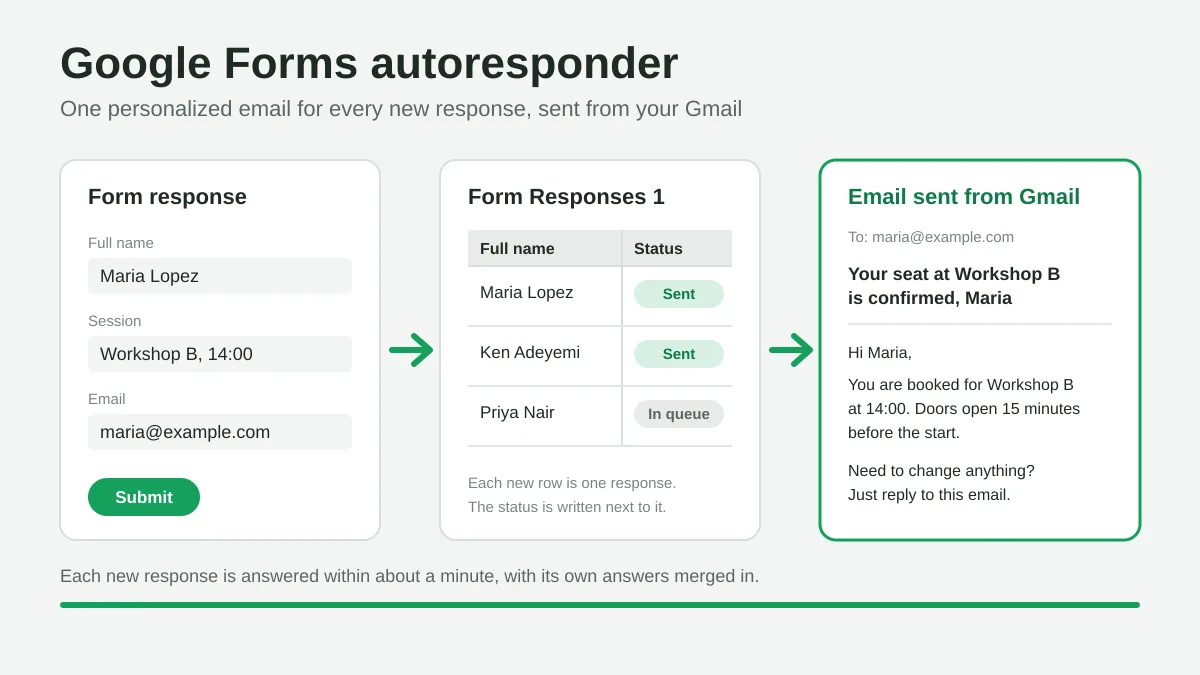
Google Forms Autoresponder: A Personalized Email for Every Response
Set up a Google Forms autoresponder that emails every new response from Gmail, personalized with the answers, using Google Sheets and Mail Merge for Gmail.
Payment Reminder Email Template: Five Messages You Can Send from Google Sheets
Copy a payment reminder email template for each stage of an overdue invoice, then send every reminder from Google Sheets through Gmail with personalized merge fields.
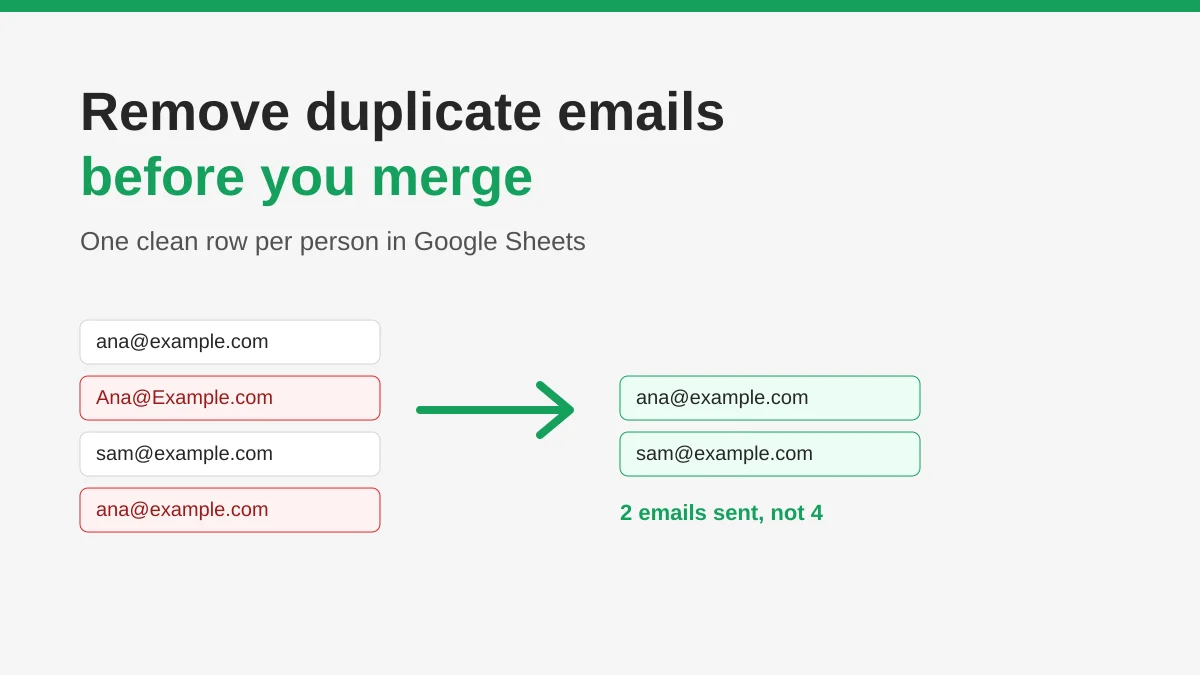
How to Remove Duplicate Emails in Google Sheets Before a Mail Merge
Learn how to remove duplicate emails in Google Sheets before a mail merge with Remove duplicates, UNIQUE and COUNTIF, so no contact gets the same message twice.