


















Email CRM Marketing: A Guide to Gmail & Sheets
Master email CRM marketing without expensive software. Learn to build a powerful workflow using Gmail, Google Sheets, and Mail Merge for Gmail.
Your contacts live in a spreadsheet. Follow-ups happen from memory. Some people get a thoughtful note, others get a rushed blast, and a few slip through the cracks entirely. That’s where most small teams end up when they’ve outgrown ad hoc emailing but still aren’t ready to buy and maintain a full CRM.
I’ve always liked simpler systems that people will use. For a lot of small businesses, startups, recruiters, and lean sales teams, the most practical version of email CRM marketing isn’t a giant platform. It’s a disciplined workflow inside Gmail and Google Sheets that keeps contact history, segments people by real behavior, and makes every send feel intentional.
There’s one caution worth making early. When researching tools in this category, be careful with the product name Mail Merge for Gmail. The phrase is descriptive, so search results often blur together multiple Gmail mail merge products. Double check that any tutorial, review, or feature reference is specifically about that product and not a different tool with a similar name.
The good news is that you don’t need a heavyweight setup to get professional results. If your data is clean, your columns are structured well, and your follow-up process is consistent, Gmail and Sheets can carry far more of your email CRM marketing than is commonly realized.
Beyond the Messy Spreadsheet An Introduction
A messy spreadsheet usually starts with good intentions. Someone adds a tab for prospects. Another person tracks replies with cell colors. A third person copies notes into a “misc” column. A month later, nobody knows who was contacted, who clicked, who asked for a callback, or who should never be emailed again.
That chaos creates two expensive problems. First, your emails get more generic because you can’t trust the data. Second, your follow-up timing gets worse because every next step depends on manual memory.
Small teams often assume the answer is a traditional CRM with a steep monthly bill and a long setup process. In practice, that’s not always the smartest move. If your outreach mostly lives in Gmail already, forcing everyone into a new system can slow the team down more than it helps.
Practical rule: Use the most advanced system your team will maintain consistently, not the most advanced system you can buy.
A lightweight CRM built in Google Sheets fixes the core operational issue. One row becomes one contact. Each column holds a real decision point. Gmail handles the message. The sheet holds the truth. That’s enough structure to personalize outreach, track status, and keep the team aligned without adding another expensive layer.
This approach works especially well when your needs are straightforward:
- Lead tracking: You need to know who’s new, who replied, and who needs a nudge.
- Personalized outreach: You want emails to reflect context like company, role, or interest.
- Simple reporting: You need to see sent, opened, clicked, and replied activity in one place.
- Fast execution: You don’t want to leave the Google tools your team already knows.
That’s the true promise of email CRM marketing for small businesses. Not complexity. Control.
Building Your CRM Foundation in Google Sheets
Open a random spreadsheet from a small business that has been “managing leads” for six months and the pattern is usually obvious. There are three versions of the same contact, half the rows are missing context, and nobody is fully sure which lead got the last follow-up. Google Sheets fixes that fast if you build it for decisions, not storage.
The goal is simple. One row should give you enough context to send the right email through Gmail and know what should happen next.
I keep these sheets lean on purpose. A sheet with only name and email does not support good outreach. A sheet with 40 columns turns into a maintenance job. The sweet spot is a short set of fields that directly affect send decisions, follow-up timing, and personalization.
Start with columns you’ll actually use
A practical Google Sheets CRM usually starts with these fields:
| Column | Why it matters |
|---|---|
| FirstName | Personal greeting and subject line options |
| Primary send field | |
| CompanyName | Useful when it adds context |
| JobTitle | Helps shape message angle |
| LeadSource | Tells you why this person entered the sheet |
| Status | Tracks stage such as Lead, Contacted, Nurturing, Customer |
| LastContactedDate | Prevents awkward over-emailing |
| LastReplyDate | Helps prioritize warm conversations |
| SpecificInterest | Lets you tailor the body copy |
| Notes | Stores human context that tags can’t capture |
| DoNotEmail | Your manual safety switch |
| Unsubscribe | Compliance and list hygiene control |
That list looks basic. It is supposed to.
Every column should answer one question: will this field change the email, the segment, or the next action? If the answer is no, leave it out until you need it. That discipline keeps the sheet usable when Mail Merge for Gmail starts pulling values into live campaigns.
Field naming matters more than people expect. If one tab says Company and another says CompanyName, someone will eventually map the wrong field, send broken personalization, or lose time fixing formulas. Keep names consistent from day one.
Before adding contacts, clean what you already have. Merge duplicate rows. Standardize capitalization. Split mixed data into separate cells. A note like “Met at expo, wants pricing, call in August” is useful. A single cell that also includes a phone number, deal stage, and unsubscribe request is how mistakes happen.
For marketers who want a sharper intake process before records ever hit the sheet, this practical guide to data collection for marketers is worth reading.
Build for filtering and follow-up
A good sheet CRM should let you answer operational questions in a few clicks. Who needs a first touch this week? Who replied but did not book? Which leads came from referrals? Which prospects asked about one service, not all of them?
That is why I care more about filterable columns than fancy dashboards. In a Gmail plus Sheets workflow, filtering is what makes the system feel like a real CRM.
These fields usually do the heavy lifting:
- Status: Keep stages short and obvious.
- LeadSource: Helps you group contacts by context.
- SpecificInterest: Gives you a concrete reason for the email.
- LastContactedDate: Reduces repeat sends and bad timing.
- DoNotEmail and Unsubscribe: Protect sender reputation and prevent avoidable errors.
If you want a cleaner structure for field design, naming rules, and long-term upkeep, this guide to contact database management in Gmail workflows is a practical reference.
I also recommend a pre-send review checklist inside the sheet itself. Keep it visible on a separate tab or at the top of your working view.
- Check duplicate emails
- Verify required personalization fields
- Confirm status labels are standardized
- Filter out unsubscribed contacts
- Review notes for recent context
A lightweight Google CRM earns its keep. Gmail stays your communication hub. Google Sheets stays your source of truth. Mail Merge for Gmail turns the sheet into an actual outreach engine without forcing you into a full CRM subscription before you need one.
Here’s a quick walkthrough that shows the sheet-to-email workflow in action:
Crafting Personalized Email Templates in Gmail
Good templates don’t sound like templates. They sound like a person who knows why they’re writing.
That’s why I prefer building messages directly in Gmail. You’re writing in the environment where real replies happen, so the tone tends to stay more natural. It’s easier to catch stiff phrasing, overlong intros, or subject lines that sound like a bulk campaign.
Keep the template simple and the variables meaningful
A useful email CRM marketing template usually has only a handful of personalized elements:
- Subject line context: First name, company, or the topic they asked about
- Opening sentence: A real reason for contact
- Body variation: Language tied to interest, stage, or prior action
- Closing prompt: A reply-oriented next step
Here’s the difference in practice.
Weak version:
Hi {{FirstName}}, I saw that you work at {{CompanyName}} in the {{Industry}} space and your last interaction was {{LastInteraction}}.
Better version:
Hi {{FirstName}}, I’m reaching out because you showed interest in {{SpecificInterest}} and I thought this might be useful.
The second version uses less data but more relevance. That’s usually the better trade.
Avoid the over-personalization trap
Most bad personalization comes from trying too hard. Someone discovers merge tags and starts stuffing every known detail into the message. The result doesn’t feel thoughtful. It feels assembled.
Referencing a contact’s company name, industry, and last interaction in the body often backfires when the message feels automated instead of helpful.
That problem is well captured in Neal Schaffer’s discussion of the over-personalization trap in his CRM email marketing article. The core lesson is practical: personalization built on duplicates or excessive data points is worse than no personalization. A better approach is to segment by engagement and suppress non-openers rather than blasting every CRM field into the message.
That changes how templates should be written. Use fields that move the conversation forward. Ignore fields that only prove you have data.
A reusable template structure that holds up
When I want a template that can work across many contacts without sounding robotic, I use this structure:
-
Short subject line
Tie it to the contact’s interest or context, not to gimmicky curiosity. -
One-line opening
Explain why this person is receiving the email. -
Compact body
One idea, one offer, one reason it matters. -
Low-friction close
Ask for a small next step such as a reply, confirmation, or preferred timing.
What works: “You mentioned interest in onboarding support, so I’m sending the short version here.”
What doesn’t: “As a Senior Operations Leader at Acme in the logistics industry, you probably face many challenges.”
Gmail templates are most effective when they read like a real note first and a systemized asset second. If your message would feel strange when sent manually to one person, it won’t improve when sent to fifty.
Executing and Scheduling Your Campaigns
Tuesday at 9:07 a.m. is a bad time to discover your merge field is broken.
That is why campaign execution needs a routine. In a lightweight setup built on Gmail, Google Sheets, and Mail Merge for Gmail, the goal is simple: send the right message to the right slice of your sheet at the right time, without scrambling after the fact. You do not need a heavyweight CRM to do this well. You need a clean process and ten quiet minutes before each send.

I treat every campaign like a preflight, because small mistakes in Gmail-based outreach are easy to miss and annoying to clean up later. A wrong filter can mix warm leads with existing customers. One bad formula in Sheets can leave a first name blank. A scheduling mistake can drop your email into someone’s inbox at midnight.
Before sending, check four things:
- The filtered view is correct: Send from a saved filter or a dedicated tab, not from memory.
- The email matches that segment: A re-engagement email should not go to active conversations.
- The merge fields work in a live test: Send it to yourself and scan every personalized line, link, and signature.
- The send time fits the recipient: Schedule around their workday, not yours.
Scheduling matters more than many owners assume. If your contacts span cities or countries, stagger delivery by region so the message lands during business hours. Gmail-based tools make that practical without adding a full sales stack. If you want a hands-on reference, this guide to scheduled and delayed email delivery shows how to handle timing inside a Gmail workflow.
Planning also gets better when you stop treating email as a one-click blast. Even if you only run email, campaign discipline from other channels still applies. Sendvo on direct mail campaign strategy is useful here because the same ideas apply: define the audience, control the timing, and make each batch intentional.
Deliverability starts before the send.
A simple Google Sheets CRM makes this easier because the warning signs are visible in one place. If a segment has old addresses, unresponsive contacts, or imported leads you have not cleaned, fix the list first. Better to send fifty solid emails than two hundred careless ones that create bounces, complaints, and wasted follow-up.
A practical sending model looks like this:
| Segment | What to do |
|---|---|
| New or recently active contacts | Send on your normal cadence |
| Older contacts with past engagement | Send a tighter, more specific follow-up |
| Repeated non-responders | Reduce frequency or pause sends |
| Invalid, bounced, or complaint-prone contacts | Remove from future campaigns |
That table is not fancy. It works.
The advantage of a Google-based setup is control. You can see the rows, adjust the segment, test the copy in Gmail, schedule the send, and keep the whole process understandable. That is how a simple sheet starts behaving like a real email CRM marketing system.
Tracking Engagement and Managing Leads
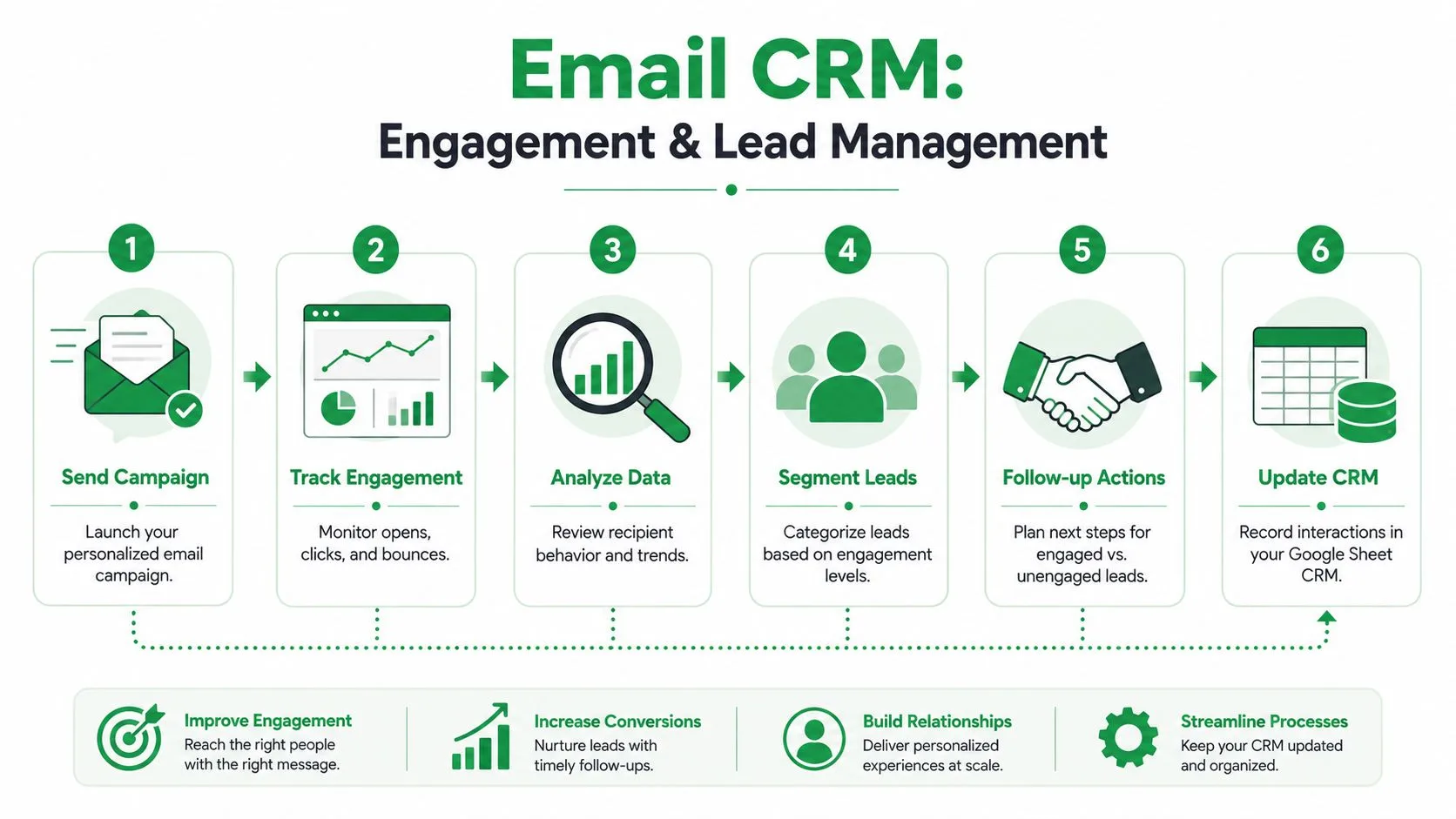
A spreadsheet becomes a CRM when behavior writes back into the record and changes what you do next.
That’s the point many teams miss. They think segmentation means grouping people by job title, company size, or source. Those can help. But they don’t tell you what to do this morning. Engagement data does.
The sheet should answer the next action
Once delivery and engagement statuses write back into the sheet at the contact level, your list stops being static. Each row starts telling a story.
A practical setup usually includes status indicators like:
- Sent
- Opened
- Clicked
- Replied
- Bounced
- Unsubscribed
Those labels matter because they support real decisions. A click suggests interest. A reply moves the person into conversation. A bounce tells you the data needs cleanup. An unsubscribe tells you to stop, immediately and permanently.
If you want a closer look at how open tracking fits into this workflow, this article on tracking email opens in Gmail campaigns is a useful reference.
Pipeline stage beats static demographics
A nuance many guides miss is that segmenting by job title or company size can miss the pipeline-stage opportunity entirely. The stronger play is to trigger follow-up based on deal activity or last contact date, and to have real-time open and click tracking write back to the spreadsheet or CRM so messaging adjusts to lifecycle stage. That gap is highlighted in this CRM and email marketing workflow discussion.
That insight changes how you manage leads in a sheet.
Instead of asking, “Who are all the founders on our list?” ask:
- Who clicked but didn’t reply?
- Who replied and needs a manual follow-up?
- Who opened multiple times and should move to a warmer sequence?
- Who hasn’t engaged in a while and should be suppressed?
A workable lead management rhythm
Lightweight email CRM marketing can feel surprisingly powerful. You don’t need complicated dashboards if the sheet already tells you what happened.
A weekly review can be as simple as this:
| Filter | Action |
|---|---|
| Replied | Change Status to In Conversation and assign owner |
| Clicked but not replied | Send narrower follow-up tied to the clicked topic |
| Opened only | Test a shorter follow-up or different angle |
| Bounced | Remove or correct record |
| Unsubscribed | Mark permanently and exclude from future sends |
Field note: The best follow-up lists usually come from behavior-based filters, not from the original audience segment.
This is also where vanity metrics start losing value. Opens can tell you a message got attention, but they don’t tell you whether it moved a lead forward. Clicks, replies, and stage changes are operationally useful because they create a next step.
Turn engagement into process, not trivia
A lot of teams collect engagement data and then do nothing with it. That’s reporting without management.
The smarter approach is to tie each status to a rule:
- If replied, remove from automated follow-up and switch to personal communication.
- If clicked, move into a more specific message path.
- If opened repeatedly, review notes and consider direct outreach.
- If inactive, reduce frequency before reputation suffers.
That’s how a simple spreadsheet starts behaving like a real CRM. Not because it has every enterprise feature, but because it captures enough signal to guide your next action with discipline.
Advanced Strategies and Compliance Handling
A lightweight system still needs grown-up rules. That includes unsubscribe handling, consent awareness, and performance measurement that goes beyond “people opened it.”
Compliance is one of those topics small teams postpone until it becomes painful. That’s a mistake. If someone opts out, your process should make it easy to suppress them immediately. If your team shares the sheet, everyone should see that status clearly. Professional email CRM marketing depends on trust as much as messaging.
Track business impact, not inbox vanity
Open rates have become less reliable as a standalone signal, and expert-level practice now centers on CTOR, conversion rate, and revenue per email rather than open-rate vanity metrics. Another common pitfall is forgetting UTM tags on every link, which can hide email’s contribution in a multi-touch sales cycle and lead teams to underestimate ROI by 20% to 40%, according to this B2B email measurement guide from CXL.
That’s why every important link in your campaigns should carry UTM parameters into Google Analytics. Without them, website visits show up, but the email’s role stays blurry. With them, you can connect a send to traffic, on-site behavior, and eventual conversion more cleanly.
Professionalize the simple system
There’s a point where a basic Gmail and Sheets workflow either levels up or starts leaking value. The teams that level up do a few things consistently:
- Honor unsubscribes fast: Don’t rely on memory or inbox labels.
- Use UTM-tagged links: Make email visible inside your analytics stack.
- Review lifecycle movement: Ask who advanced, not just who opened.
- Keep learning: Broader shifts in audience behavior and channel expectations matter, which is why articles with digital marketing trend insights can help sharpen your next round of testing.
You don’t need an enterprise CRM to work professionally. You need a clean list, a reliable suppression process, meaningful tracking, and the discipline to act on what the data says.
If you want a simple way to run this kind of workflow inside the Google tools you already use, Mail Merge for Gmail is built for it. You can send personalized campaigns from Gmail using data in Google Sheets, track per-contact activity back in the sheet, schedule sends, manage unsubscribes, and keep your outreach organized without moving into a bulky CRM.
Ready to send your first campaign?
Install Mail Merge for Gmail from the Google Workspace Marketplace and send up to 50 personalized emails per day for free.
Get started for freeMore reading
More from Tutorials
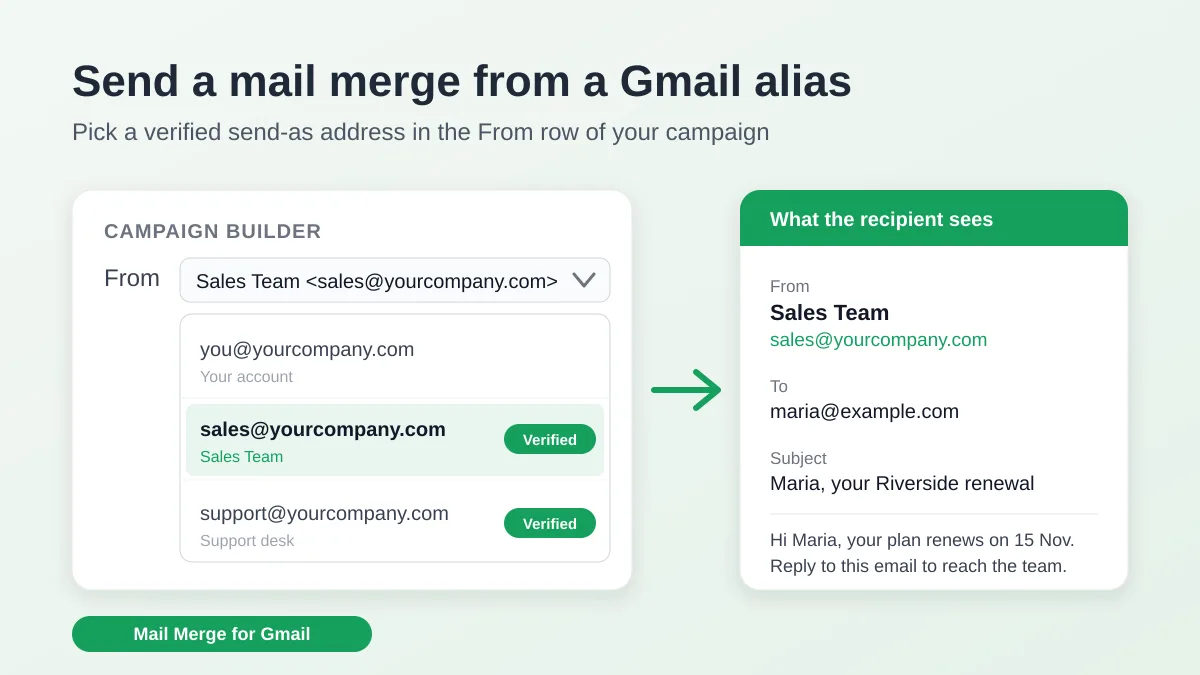
Send a Mail Merge from a Gmail Alias or Shared Mailbox
Send a mail merge from a Gmail alias, group or shared mailbox: set up Send mail as in Gmail, verify the address in Mail Merge and keep replies working.
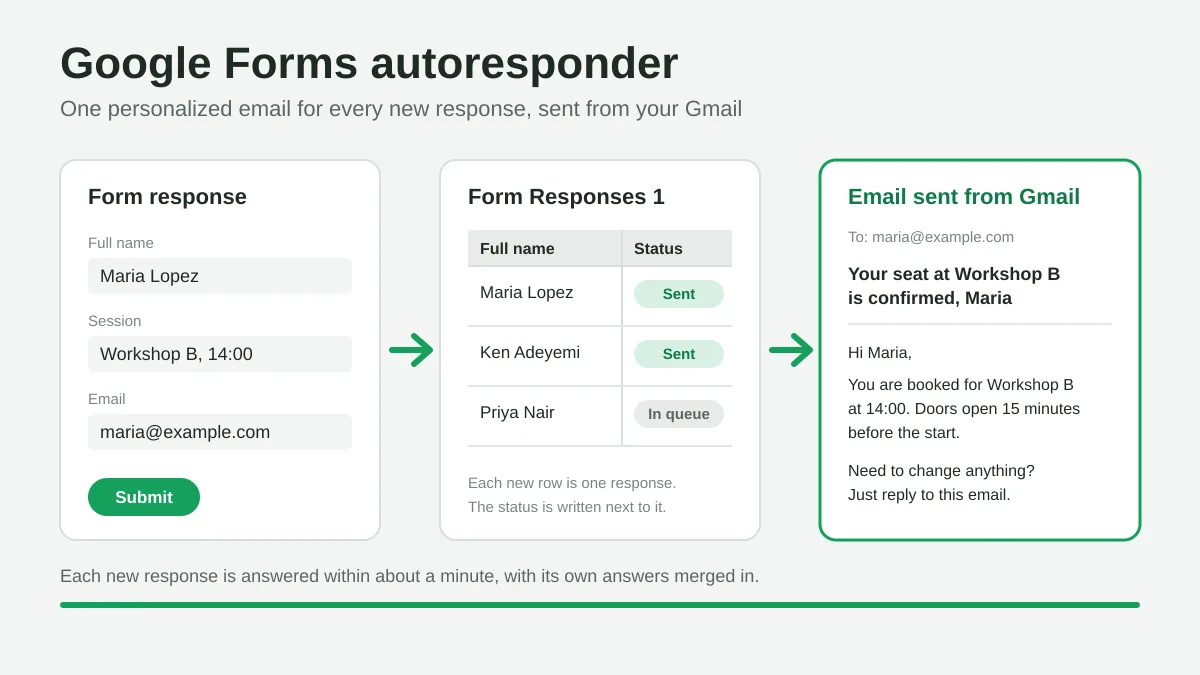
Google Forms Autoresponder: A Personalized Email for Every Response
Set up a Google Forms autoresponder that emails every new response from Gmail, personalized with the answers, using Google Sheets and Mail Merge for Gmail.
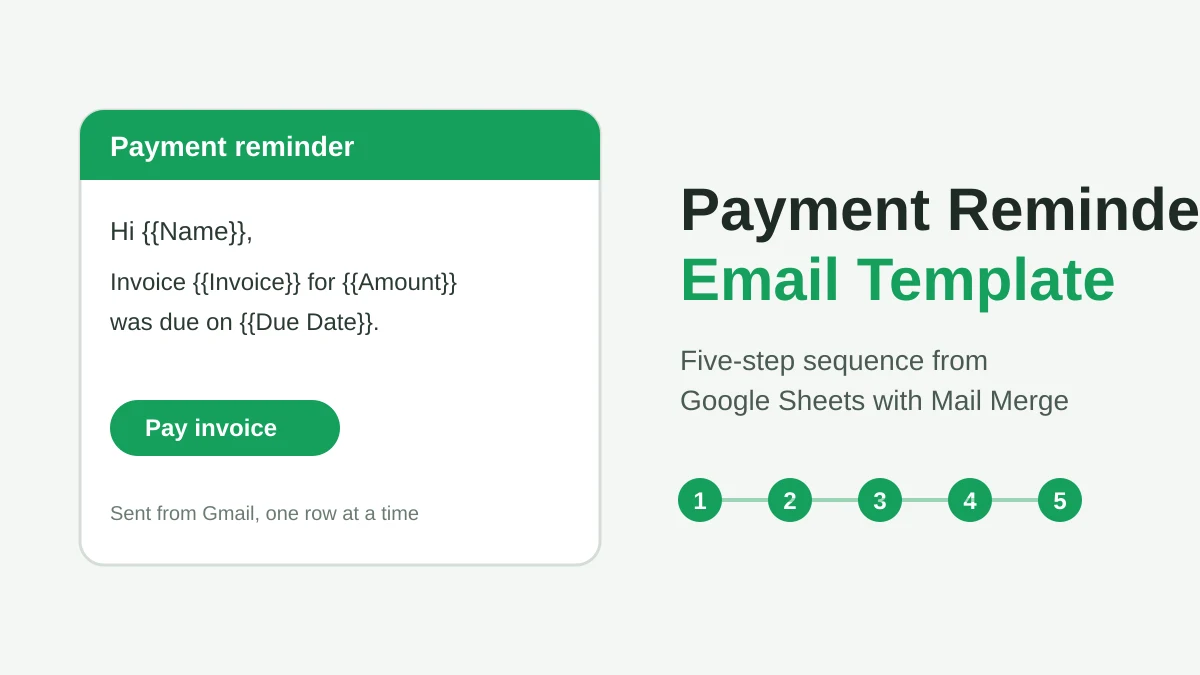
Payment Reminder Email Template: Five Messages You Can Send from Google Sheets
Copy a payment reminder email template for each stage of an overdue invoice, then send every reminder from Google Sheets through Gmail with personalized merge fields.