


















How to Export Contacts from Gmail Without Losing Data
Learn how to export contacts from Gmail in minutes using Google Contacts. Covers CSV vs vCard, Google Sheets imports, mobile steps, and cleanup tips.
Export contacts from Gmail happens in Google Contacts at contacts.google.com, not inside the Gmail inbox, and it’s usually a 3 to 5 step job that takes under 2 minutes when you know the path. That matters when you’re backing up an address book, moving to a new inbox, or turning a list into a mail-merge-ready sheet.
Stuck on the hunt for a Gmail export button that isn’t there? The right workflow starts in the Contacts app or the Google Contacts web interface, then ends with a CSV or vCard file you can use.
Why You Export Contacts From Gmail in the First Place
People usually come here in the middle of a real task, not out of curiosity. You might be switching inboxes, handing off a sales list to a teammate, prepping a newsletter, or making a backup before you wipe a phone and set up a new one. In all of those cases, the export is the upstream step that keeps the rest of the workflow from falling apart.
The biggest mistake is looking inside Gmail itself. Google’s export control lives in Google Contacts, and Google’s desktop help documents the path as Selection actions > All, then More actions > Export. If you stay in the Gmail inbox, you’ll miss the control entirely and waste time clicking around the wrong app. Google also notes that contacts can be exported and downloaded only if they haven’t been deleted, which is worth keeping in mind before you start a cleanup spree. Google Contacts export help
For anyone building outreach, the export is rarely the final step. It’s usually the handoff from a live address book to a spreadsheet, then to a mail-merge workflow, then into a campaign. If that’s your use case, the export pairs naturally with a planning doc like what is an email campaign, because contacts are only useful once they’re organized for a specific send.
Practical rule: export the smallest list that matches the job. A clean segment is easier to merge, easier to audit, and far less likely to include stale records.
The expectation is simple. You’ll get names and email addresses in a portable file, plus whatever export format you choose. You won’t get a magic cleanup pass, and you shouldn’t assume every field will survive every destination unchanged.
The Desktop Workflow in Google Contacts
Open a browser and go to contacts.google.com. Sign in with the Gmail account that owns the address book, because the export only reflects the contacts tied to that account. Google’s desktop workflow lets you export a single contact, multiple contacts, or all contacts, which is useful when you’re not trying to drag an entire address book into a new system. Google’s desktop export steps
Scope the export before you click anything
If you need one person, check that person and export just that record. If you need a client list, a sales segment, or a subset of vendors, select the rows you want and keep the export tight. If you need the whole address book, use Selection actions > All so you don’t miss anything hidden in a label or category.
That scoping choice matters more than it sounds. A full export is fine for disaster recovery, but a targeted export is cleaner when the file is headed into Sheets, a CRM import, or a team handoff. Google’s interface also supports a selection-based model, so you can ship a segmented list without first cloning the whole address book.
The click path itself is straightforward. After selecting the right contacts, open More actions > Export, choose the format, then confirm the download. The browser saves the file to its default download folder, and the download usually starts automatically once export is confirmed. Export flow in the current Google Contacts interface
Keyboard shortcuts can help if you handle large lists often, but they don’t change the workflow. Power move is exporting from a specific label, because labels are the cleanest way to keep segmented lists from getting mixed together during migration.
Choosing Google CSV, Outlook CSV, or vCard
The format choice determines whether the file lands cleanly in the next system or arrives with avoidable friction. Google gives you Google CSV, Outlook CSV, and vCard, and each one fits a different downstream job. Google’s own help recommends Google CSV when you want to back up contacts or reuse them inside Google products. Google Contacts export formats
Pick the format by destination
| Format | Best For | Watch Out For |
|---|---|---|
| Google CSV | Re-import into Google services, backups, and Google-to-Google moves | Best when you want the smoothest round-trip inside Google |
| Outlook CSV | Microsoft 365, Outlook desktop, and many systems that expect Outlook-style headers | Header mapping may still need cleanup after import |
| vCard | Apple Contacts, iCloud, and most mobile contact imports | Custom labels and some Google-specific fields may not carry over cleanly |
If the next stop is Google Sheets or another Google account, Google CSV is the least surprising choice. If the next stop is Microsoft-heavy, Outlook CSV usually fits better because the headers are closer to that ecosystem’s expectations. If you’re moving contacts into a phone book or Apple stack, vCard is the safer practical option.
The quirk that many miss is that vCard is portable, but not always faithful to every custom field. That’s fine for personal address books, less fine for segmented outreach lists where labels and metadata matter. In those cases, CSV usually gives you more control once the file reaches Sheets.
Getting the CSV Into Google Sheets for Mail Merge
Once the CSV is downloaded, the next job is getting it into a sheet you can use. The simplest path is Google Sheets > File > Import > Upload, then choose the CSV and let Sheets build a new tab. If you want the sheet to live in Drive and stay shareable, upload the file to Drive first and open it from there.
That part is easy. The part most export guides skip is the merge-ready layout. A mail-merge source works best when each row is one recipient and the first row contains stable headers like First Name, Email, and Company. Pretty labels don’t matter as much as consistent column names that your merge tool can match later.
A real-world example looks like this, a 200-row local-business outreach sheet with Name, Email, Company, and City columns. Before you send anything, the preview row should read like a single, complete recipient record, not a pasted blob of mixed fields. That structure is what lets personalization work without manual copy-paste.
If you’re building the sheet from scratch, the workflow in how to mail merge from Google Sheets aligns with this structure. The sheet becomes the source of truth, and the merge step reads the columns you’ve already cleaned up.
Keep the sheet boring. Boring sheets are reliable sheets, and reliable sheets are what keep personalized outreach from breaking at send time.
Exporting Contacts From the Gmail and Contacts Apps
On Android, the Google Contacts app can handle the export directly. Open the app, go to the contacts list, use More actions, then choose Export in the current interface. That’s the path that people use when they’re on the go and need a file fast.
On iPhone, the story is different. The Gmail iOS app doesn’t give you a native export button, so the realistic path is to open contacts.google.com in Safari and use the web workflow instead. That keeps the export inside Google Contacts where the control lives.
The main mobile limitation is storage handling. You can’t reliably save a Google CSV directly to Files on iOS the way you can on Android, so the practical move is to email the export to yourself or upload it to Drive. That’s clunkier, but it works when you’re away from a laptop.
For anyone doing this regularly, a desktop is still the cleanest choice. The browser workflow is faster, the file handling is simpler, and you’re less likely to lose track of where the download landed. For more context on audience-building and list use, the B2B prospecting articles and guides collection from Lead Printer is a useful companion read.
Cleaning Up the CSV Before You Use It
Raw exports are rarely send-ready. The file often reflects the way people used labels, not the way your next tool wants to read recipients, which is why cleanup matters before anything leaves the spreadsheet.
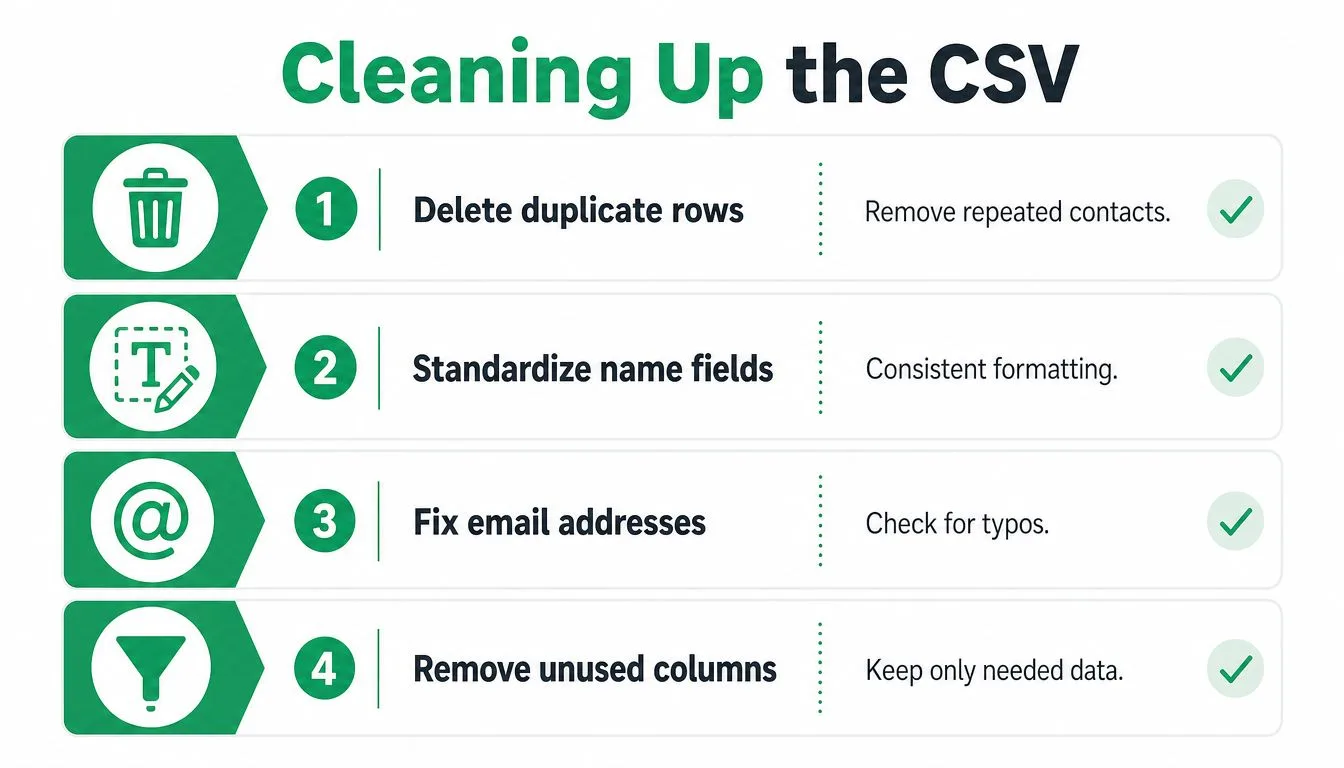
The first pass is duplicates. Google Contacts includes a Find & merge duplicates path, and that should be your starting point because repeated rows usually appear when the same person lived in more than one label. After that, check the CSV in Sheets and remove anything the auto-merge missed.
The second pass is name encoding. If you’ve ever seen Müller become Müller, you’ve seen a character-encoding problem, and it’s the kind of issue that makes a message look sloppy even when the copy is fine. Fix the sheet before you merge so accented or non-Latin names render correctly in the final send.
The third and fourth passes are basic but important. Delete rows with blank Email fields, and standardize the headers so the merge tool can find them without guessing. A sheet with mismatched column names can still open, but it won’t reliably merge.
The cheapest way to protect your sender reputation is to scrub the list before it ever leaves your outbox.
For broader hygiene habits, contact database management is worth treating as part of the export workflow, not a separate project. The better the source list, the less time you spend repairing it in Sheets.
Turning the Cleaned Sheet Into a Real Outreach Campaign
Once the sheet is clean, the export stops being a backup file and starts becoming a campaign asset. A Google Workspace add-on like Mail Merge for Gmail can take that sheet as the source, pull recipients directly, and use placeholders such as {{First Name}} and {{Company}} to personalize each message from Gmail. It also supports per-row delivery and engagement statuses, so the sheet becomes part of the record instead of a dead-end spreadsheet.
That matters because outreach doesn’t end at send time. Real-time open and click tracking, unsubscribe handling, and status fields like Sent, Opened, Clicked, and Replied let you see what happened without stitching together separate tools. The campaign stays inside Gmail, and the data loops back into the same sheet you cleaned at the start.
The practical pipeline is simple enough to reuse:
- Export from Google Contacts, not Gmail.
- Choose the right format for the destination.
- Import the CSV into Google Sheets.
- Clean duplicates, bad emails, and headers.
- Merge from the sheet into your Gmail send.
That sequence works whether you’re doing a one-off handoff or building a repeatable SOP for the next list you inherit. The export is just the first gate, but it’s the gate that decides whether the rest of the workflow stays tidy or turns into manual repair work.
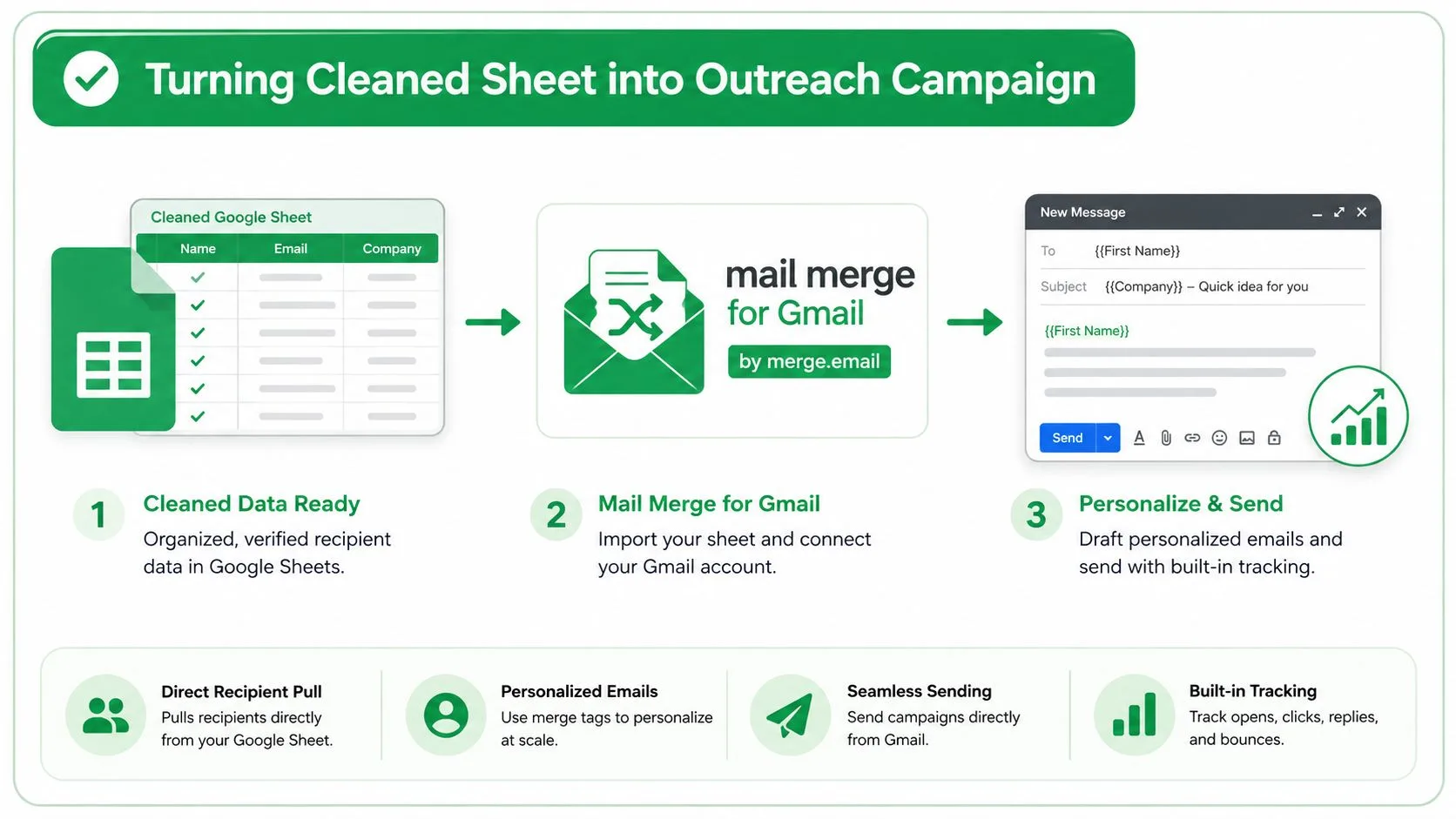
If you want a cleaner way to move from exported contacts to sending, Mail Merge for Gmail takes a Google Sheet, turns it into personalized Gmail outreach, and writes delivery and engagement status back to the same rows. It’s a practical fit when your contact export is the start of a campaign, not the end of one.
Ready to send your first campaign?
Install Mail Merge for Gmail from the Google Workspace Marketplace and send up to 50 personalized emails per day for free.
Get started for freeMore reading
More from Tutorials
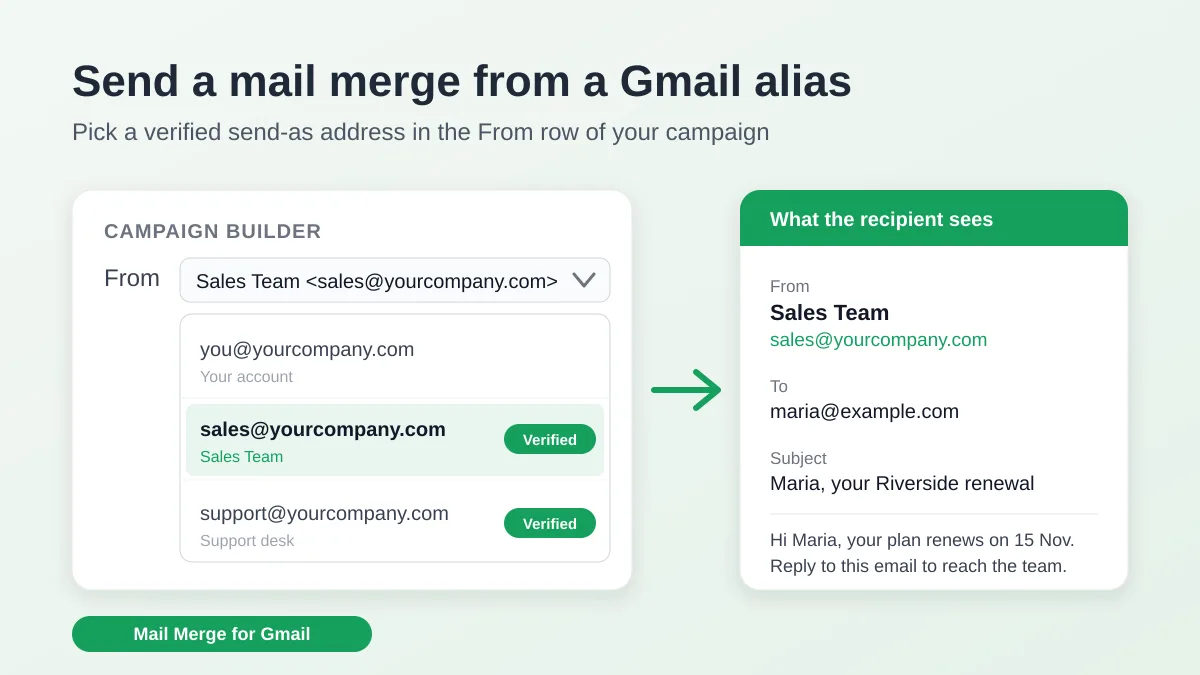
Send a Mail Merge from a Gmail Alias or Shared Mailbox
Send a mail merge from a Gmail alias, group or shared mailbox: set up Send mail as in Gmail, verify the address in Mail Merge and keep replies working.
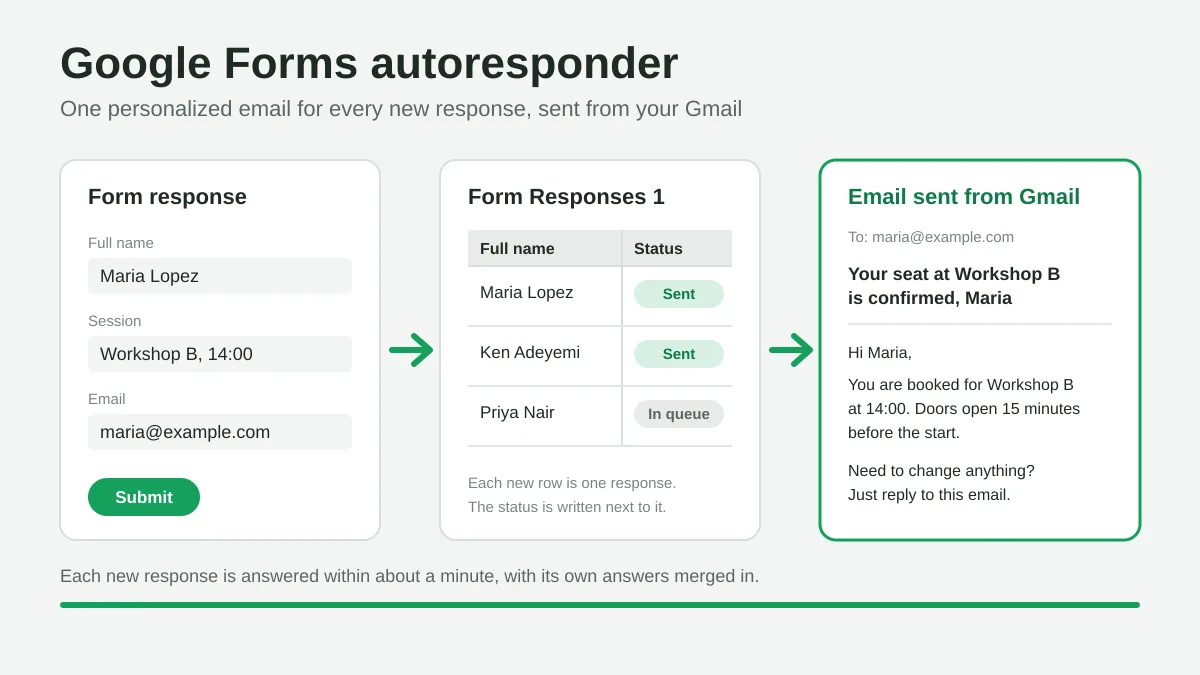
Google Forms Autoresponder: A Personalized Email for Every Response
Set up a Google Forms autoresponder that emails every new response from Gmail, personalized with the answers, using Google Sheets and Mail Merge for Gmail.
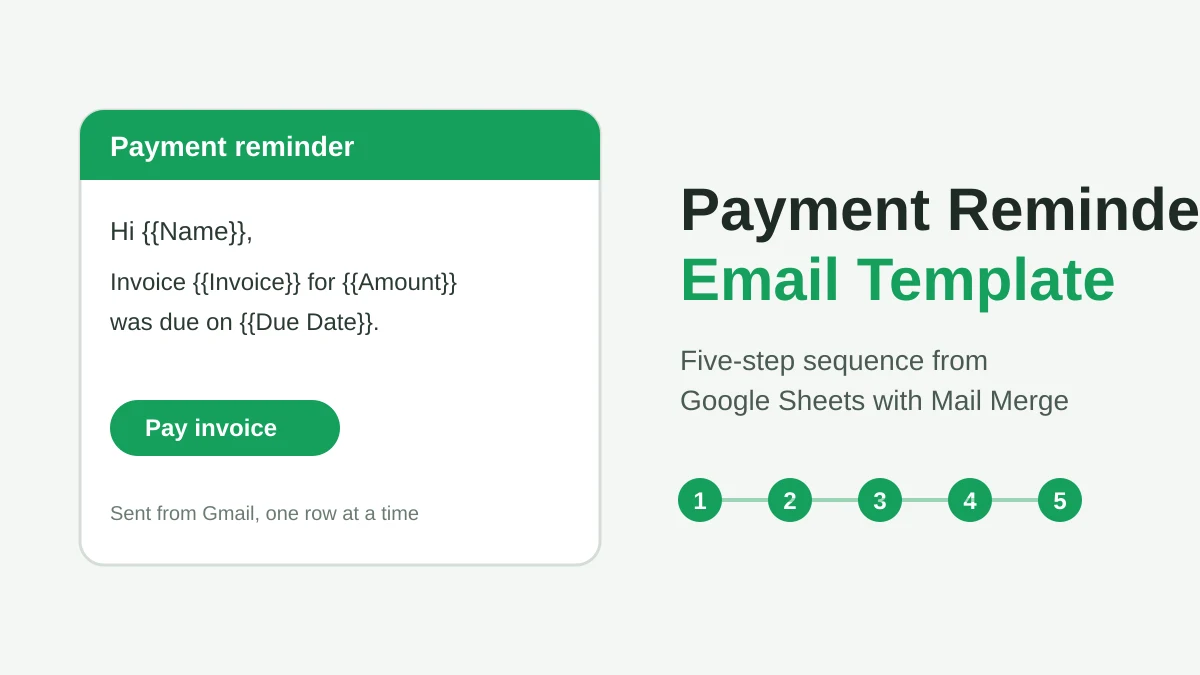
Payment Reminder Email Template: Five Messages You Can Send from Google Sheets
Copy a payment reminder email template for each stage of an overdue invoice, then send every reminder from Google Sheets through Gmail with personalized merge fields.