


















How to Build Targeted Email Lists That Actually Convert
Learn how to build targeted email lists that drive opens, clicks, and replies. Practical steps for sourcing, segmenting, cleaning, and GDPR-compliant outreach.
You’ve got a spreadsheet full of prospects, a polished email sequence, and enough confidence to press Send. Then the replies stall. The list looks impressive, but many contacts have changed jobs, sit outside your buying committee, never showed relevant intent, or use addresses nobody has verified recently.
That’s why targeted email lists should be managed as living operating assets, not permanent databases. A smaller audience with clear fit, current data, permission, and useful context can create more opportunity than a much larger file that damages inbox placement. The practical system is simple to state, but demanding to maintain: verify, segment, personalize, and measure.
Why Most Targeted Email Lists Underperform
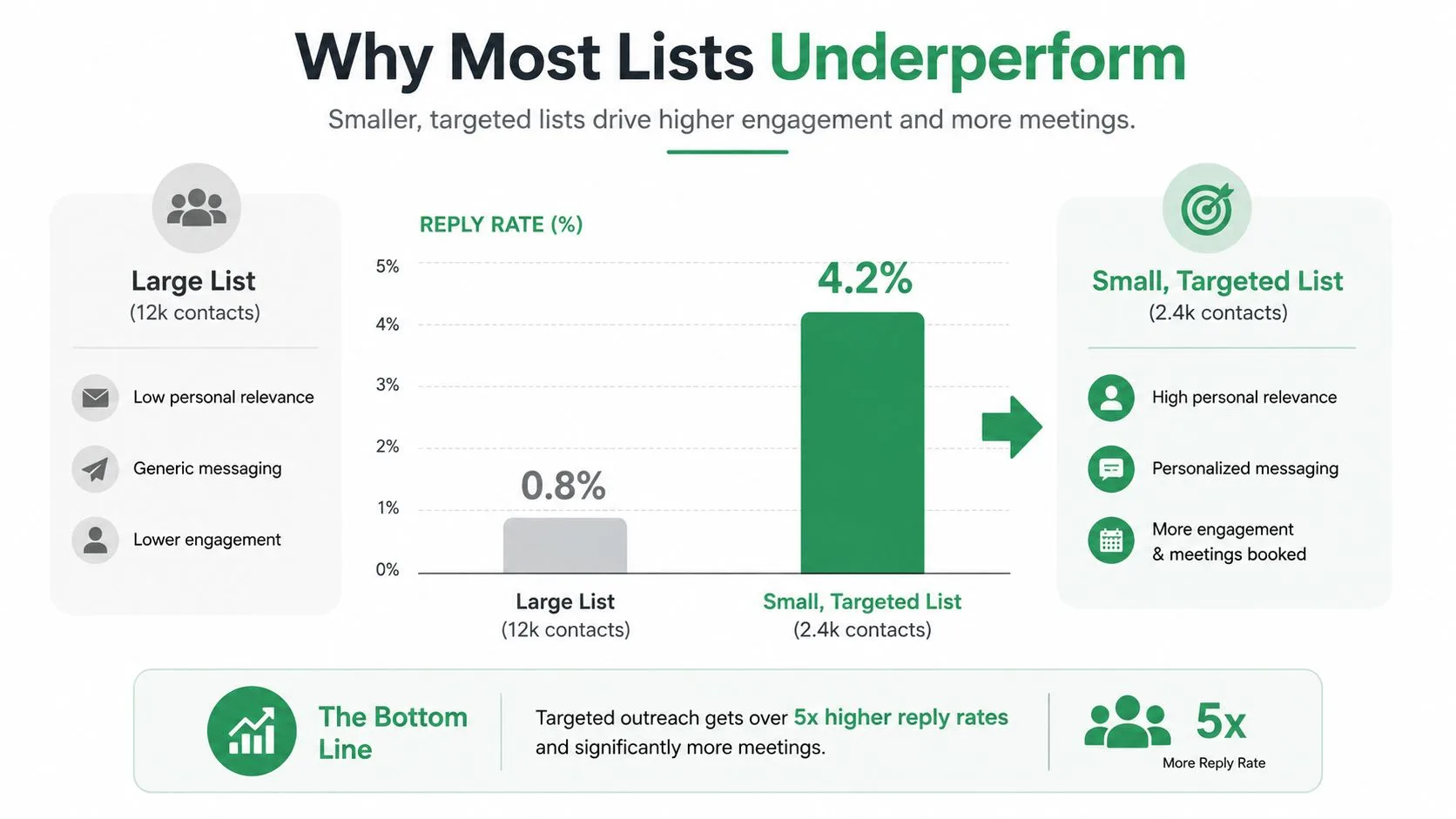
A founder opens a spreadsheet with 12,000 contacts and launches a carefully written sequence. The copy is direct, the subject line is clean, and the offer appears relevant. Replies barely move, while another team with a fraction of the contacts keeps booking conversations.
The bottleneck is often the list, not the writing. A large contact count creates false confidence when the file contains stale titles, role mismatches, weak intent signals, and unverified domains. Each issue shrinks the group able to respond meaningfully. Poor addresses can also produce bounces that make future delivery harder.
The four list risks
Stale titles make personalization look careless. A contact may have been promoted, changed roles, or left the company while remaining in a sheet that has not been refreshed.
Role mismatch creates a different problem. A marketing operations manager and a revenue operations leader may use related systems, yet their priorities, authority, and reasons to reply can differ. One message rarely fits both groups.
Missing intent places cold contacts in the same queue as people who attended a webinar, replied to a newsletter, visited a relevant page, or requested information. Those contacts need different timing and different asks.
Unverified domains create technical risk before anyone evaluates the message. Invalid addresses, outdated company records, and purchased data can increase bounce and complaint signals. Independent deliverability research reported that one in five permission-based marketing emails wasn’t delivered to the inbox, so inbox placement deserves attention alongside engagement metrics (deliverability and segmentation research).
B2B lists are perishable assets. People change companies and responsibilities, and one 2025 report estimated that 28% of email lists go bad annually (ZeroBounce’s email list decay report). That decay affects sourcing, segmentation, consent records, hygiene, and sender rules for Gmail and Yahoo. Every decision should support the same outcome: reaching the intended inbox with a relevant message.
Practical rule: A contact earns its place through current fit and credible data, not historical inclusion.
Verify addresses before sending, segment around meaningful differences, personalize only with trustworthy fields, and measure reply quality by cohort. Treat consent and suppression records as part of list hygiene, not administrative cleanup. A smaller, current list can protect inbox placement while giving each message a better chance to earn a response.
Defining the Audience Before You Collect a Single Contact
Start with the audience, not the database. Before opening LinkedIn Sales Navigator, Apollo, ZoomInfo, or a company directory, decide which use case you’re trying to solve and which people can authorize, influence, or use the solution.
Build the ICP in four passes:
- Choose the commercial use case. Pick the problem most closely connected to revenue or pipeline. “Companies that need better sales” is too broad. “Revenue teams struggling to coordinate follow-up after inbound demos” gives you a sharper starting point.
- Map the buying committee. Include the economic buyer, operational owner, technical evaluator, and likely user only when each role has a distinct reason to engage.
- Set firmographic filters. Industry, company size, geography, funding stage, technology environment, and business model should narrow the audience before sourcing begins.
- Write exclusions. Titles, industries, company stages, and trigger conditions that disqualify a contact are as useful as inclusion rules.
Consider a sales tool for RevOps leaders at US Series A and Series B SaaS companies. A tight program might cover 50 firms and four relevant roles. A loose version might cover 500 firms and eight roles. The larger audience offers more names, but it also creates more variation in process maturity, authority, and pain. If the message can’t change meaningfully across those groups, the list is too broad.
A useful starting point is this guide to email marketing lead generation, particularly when you’re connecting audience definition with acquisition and follow-up.
One-page ICP template
| Field | Definition | Worked Example, RevOps SaaS | Why It Matters |
|---|---|---|---|
| Industry | Market served by the company | B2B SaaS | Predicts operating model and pain |
| Company size | Employee or team range | Growth-stage SaaS team | Helps estimate process complexity |
| ARR band | Revenue range or commercial maturity | Defined internally from your best customers | Separates viable accounts from poor fits |
| Geography | Region you can support | United States | Aligns market, time zone, and compliance needs |
| Role titles to include | Titles with a credible use case | VP RevOps, Head of RevOps, RevOps Director, Sales Operations Lead | Guides sourcing and copy |
| Titles to exclude | Titles unlikely to own the problem | Intern, unrelated coordinator, non-revenue roles | Prevents role mismatch |
| Trigger events | Observable changes that create urgency | New funding, hiring, process expansion | Adds timing and intent |
| Disqualifiers | Conditions that remove an account | Outside market, incompatible model, existing customer conflict | Protects list quality |
Keep this template in the same Google Sheet as your contacts. Every sourced row should pass against it. If a prospect can’t be explained using the ICP fields, don’t add the person just to make the list look larger.
Sourcing and Enriching Contacts That Are Worth Targeting
The best source isn’t always the largest one. It’s the channel that produces contacts with a clear relationship to your ICP, a defensible reason for outreach, and data you can verify.
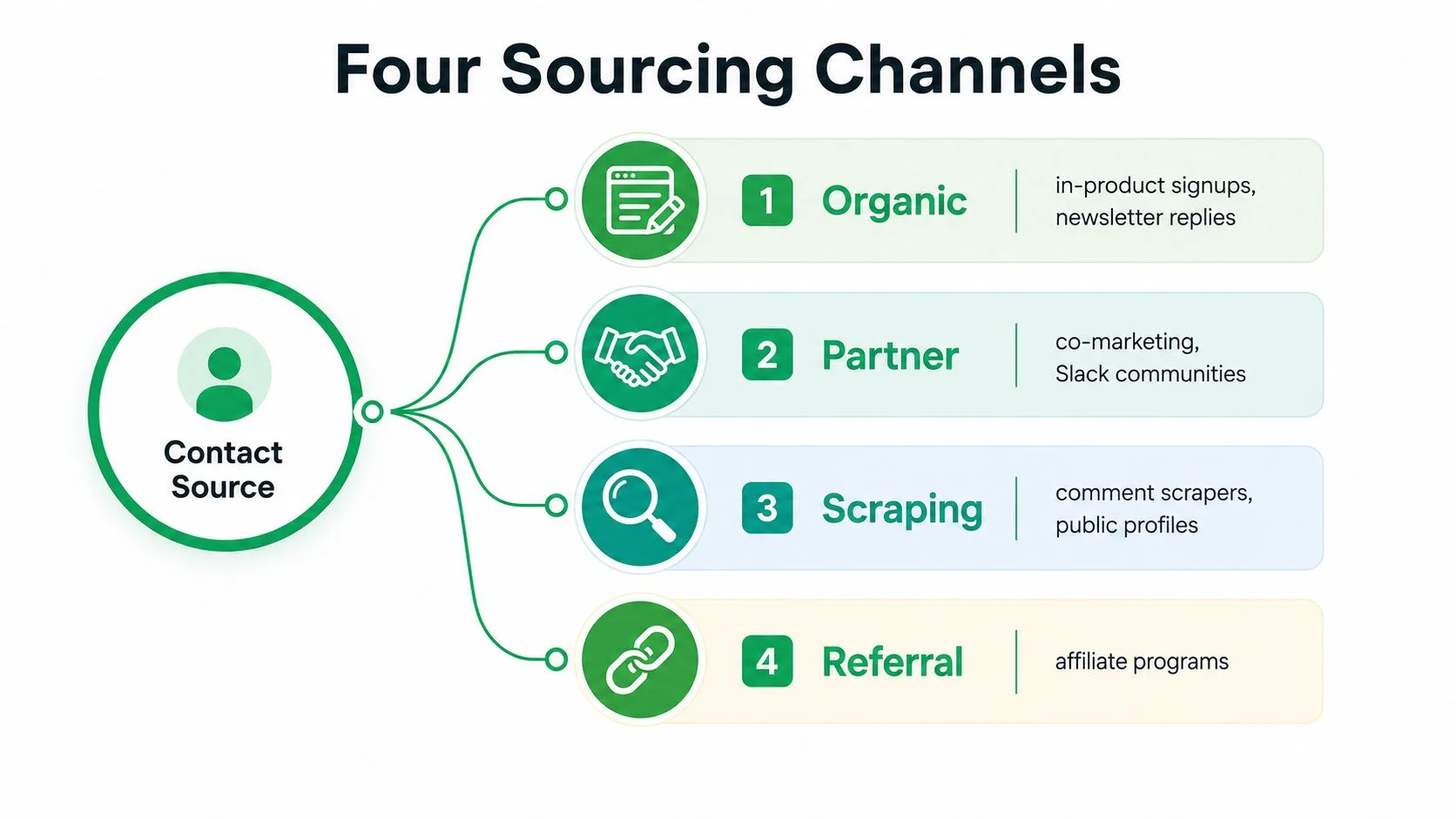
Organic sources include in-product signups, newsletter replies, and relevant public comments. They usually provide stronger context because the person has already interacted with your company or topic. Record the source event, date, and consent or expectation in separate columns.
Partner sources include integration co-marketing, relevant Slack communities, and affiliate referrals. They can work well when the introduction is explicit. A partner’s audience still needs permission and fit checks, so don’t treat an exported community directory as an automatic marketing list.
Event sources include conference badge scans, webinar attendees, and podcast guest lists. Attendance shows interest in a topic, not necessarily intent to buy. Store the event name, attendance type, and follow-up context so the first message reflects what happened.
Cold sources include LinkedIn Sales Navigator searches, Apollo or ZoomInfo exports, and domain research. These channels can expand coverage, but they require the most verification and the strictest ICP filtering. If you’re comparing acquisition approaches, this collection of strategies for growing your email list offers useful context on owned and permission-based methods.
Structure the sheet before enrichment
Use one row per contact and keep the operational fields visible:
FirstName, LastName, Company, Role, VerifiedEmail, Segment, PersonalizationLine, Status, SentAt, ReplyAt
Add source, source date, consent basis, and last verified date beside those fields. Mail Merge for Gmail can use the contact data stored in Google Sheets, but the sheet still needs to distinguish a deliverable address from an unreviewed one.
Enrichment should happen in layers:
- Mandatory: Verify the work email with a service such as NeverBounce or ZeroBounce before a send. Suppress invalid results, hard bounces, unsubscribes, and contacts whose expectation of communication is unclear.
- Useful for prioritization: Add employee count, funding round, industry, technology context, and a trigger event when those fields can be verified.
- Optional for selected plays: Append a mobile number for a sales-assisted sequence. Don’t collect it merely because a provider makes it available.
- Mandatory for personalization: Add one factual, recent personalization line. If you can’t support it, leave the field blank rather than inventing relevance.
For the mechanics of finding missing addresses, use this practical resource on email address search, then verify every result independently. A sourced address is only a candidate until it passes validation and the recipient has a legitimate reason to expect the message.
Segmenting for Relevance, Open Rates, and Click Behavior
Segmentation earns its keep when it changes the message, offer, timing, or suppression decision. A label that never affects campaign behavior is administration, not strategy.
Historical benchmark data gives segmentation a strong foundation. Segmented campaigns produced 14.31% higher open rates, 10.64% higher unique opens, and 100.95% higher click rates than non-segmented campaigns from the same brands. They also recorded 4.65% fewer bounces and 9.37% fewer unsubscribes (MarketingProfs’ segmentation analysis). Mailchimp’s benchmark similarly reported a 14.31% lift in opens and a 100.95% lift in clicks, alongside 3.90% fewer abuse reports (Mailchimp’s segmentation benchmark).
Segmentation axes compared
| Axis | Primary signal | Best for | Reply-rate impact | Maintenance cost |
|---|---|---|---|---|
| Behavioral | Opens, clicks, visits, replies | Timing and message intensity | Compare cohorts rather than assume a lift | Medium |
| Demographic | Role, company size, geography | Positioning and qualification | Reveals fit differences between roles | Low to medium |
| Lifecycle | Trial, customer, churned, evangelist | Retention and expansion | Aligns the ask with relationship stage | Medium |
Behavioral segments should be treated carefully. An open alone is a weak signal, while a reply, click, or relevant page visit gives you more useful context. Demographic segments help you avoid sending a CFO message to a practitioner. Lifecycle segments prevent customers, prospects, and former customers from receiving the same communication.
In Google Sheets, create a Segment column and derived flags such as active_30d, clicked_offer, replied_before, and customer_status. A pivot table can then compare replies across cohorts before the next send. For a deeper look at how to prioritize industry niches for sales, focus on segments where industry context changes the pain, proof, or buying process.
The practical test is simple: if two segments receive identical copy and follow-up logic, ask whether they really need to remain separate. If the answer is no, consolidate them. If the answer is yes, document the behavioral or commercial difference that justifies the split.
Keeping the List Clean With a Monthly Hygiene Routine
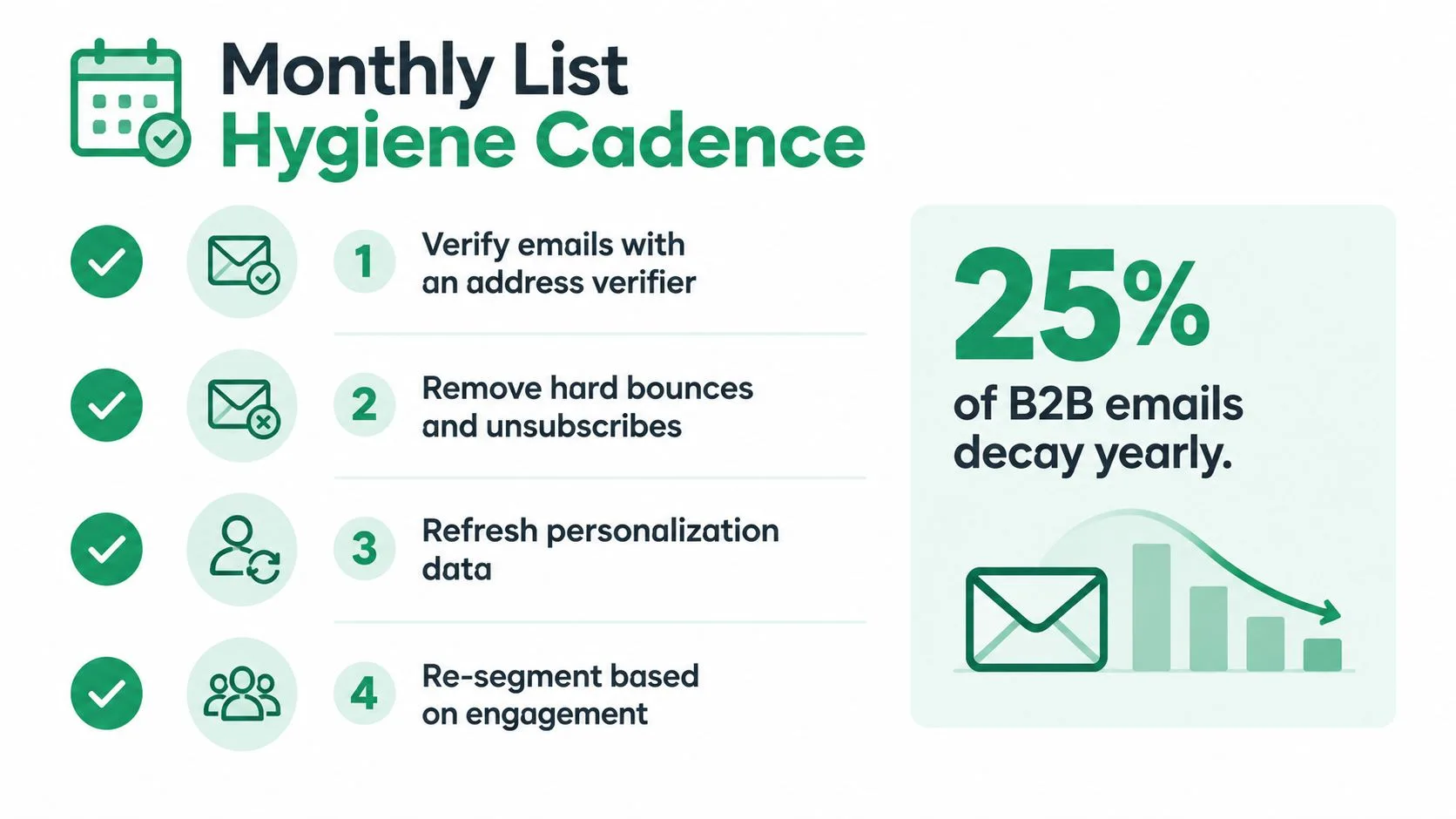
List hygiene works best as a calendar habit, not an emergency response after a campaign fails. B2B records become stale when people change employers, domains change, and contacts stop engaging. One industry roundup reported that 45% of email addresses become inactive within 12 months, with average annual list churn of 22.5% (2026 email marketing statistics roundup).
The same source reported that quarterly hygiene could improve deliverability by 28% when contacts inactive for six months or more were removed. Treat those figures as operational evidence that list maintenance matters, not as a reason to delete every quiet contact immediately. A contact can be temporarily inactive, incorrectly segmented, or receiving the wrong message.
Week one, verify the database
Export or review the active rows in your Google Sheet. Run work addresses through NeverBounce or ZeroBounce, then write the result to a verification column rather than overwriting the original address.
Suppress hard bounces immediately. Review soft bounces for repetition, and remove addresses that repeatedly fail delivery. A bounce rate above 2% is a useful internal warning threshold for pausing a segment and investigating the source, verification process, and recent additions. This threshold is an operating guardrail, not a universal legal rule.
Keep these fields visible:
- Verification status: Valid, invalid, unknown, or needs review.
- Last verified date: The last time the address passed a check.
- Bounce history: Hard and soft failures by campaign.
- Source: Signup, partner, event, referral, or cold research.
- Suppression reason: Bounce, unsubscribe, complaint, role change, or no expectation.
Week two, suppress negative signals
Unsubscribes and complaints must flow into a permanent suppression process. Don’t rely on a temporary filter that can be removed accidentally before the next Mail Merge for Gmail campaign.
For US commercial email, CAN-SPAM is an opt-out law rather than an opt-in law. Guidance covering the rule says senders need accurate sender identification, a clear unsubscribe mechanism, and must process opt-outs within 10 business days (CAN-SPAM compliance guidance). Put the sender identity and physical address in the footer, and place the unsubscribe URL in a dedicated sheet column or standard footer template.
For contacts covered by GDPR, document a lawful basis, explain why the recipient is receiving the message, and provide an easy way to withdraw permission or object. Don’t treat a narrow segment as a substitute for consent or a clear expectation.
Week three, re-engage inactive contacts
Create a segment for contacts with no meaningful interaction for more than 90 days. Send a short re-engagement message that explains the topic, offers a clear choice, and makes opting out easy. Don’t keep escalating messages to people who ignore the sequence.
An open rate below 10% can trigger a review of the subject line, source quality, and inbox placement. It shouldn’t automatically prove that every contact is bad, particularly because open tracking can be incomplete. Combine it with clicks, replies, bounces, complaints, and recent source history.
Prune contacts who ignore the re-engagement sequence, especially when they’re old, unverified, or outside the current ICP. Archive them rather than deleting the record if your retention policy requires an audit trail.
Week four, refresh identity and compliance controls
Check role and company changes against current professional profiles, company pages, CRM notes, and recent interactions. Archive contacts who changed companies or no longer match the role filter. Don’t replace an old title with a guessed new one.
Gmail and Yahoo sender rules make complaint monitoring an operational requirement. Senders should stay below 0.30% spam complaints, while Google guidance highlights a stricter target of under 0.10% for messages to Google accounts (spam complaint rate guidance). One-click unsubscribe also matters for applicable bulk sending, so configure the required header through the sending platform rather than relying only on a footer link.
Inbox-placement rule: A message can be relevant and still fail if the recipient didn’t expect it, the address is stale, or complaint signals are too high.
Build these controls into the sheet. The footer holds sender identity and physical address. The suppression column blocks unsubscribed and complained-about contacts. The unsubscribe field stores the opt-out path. The verification and last-reviewed fields show whether a row is safe to consider.
Use this email list cleaning workflow as a practical reference when turning the routine into repeatable spreadsheet operations.
A short operating demonstration can help teams standardize the process before they automate it.
Wiring the List Into Mail Merge for Gmail Campaigns
Before importing a Google Sheet into any tool, create a dedicated campaign tab and standardize the headers so every row has the same meaning. This keeps the list usable as a perishable campaign asset, because stale fields or mixed formats can undermine inbox placement before the message is sent.
Use a structure such as:
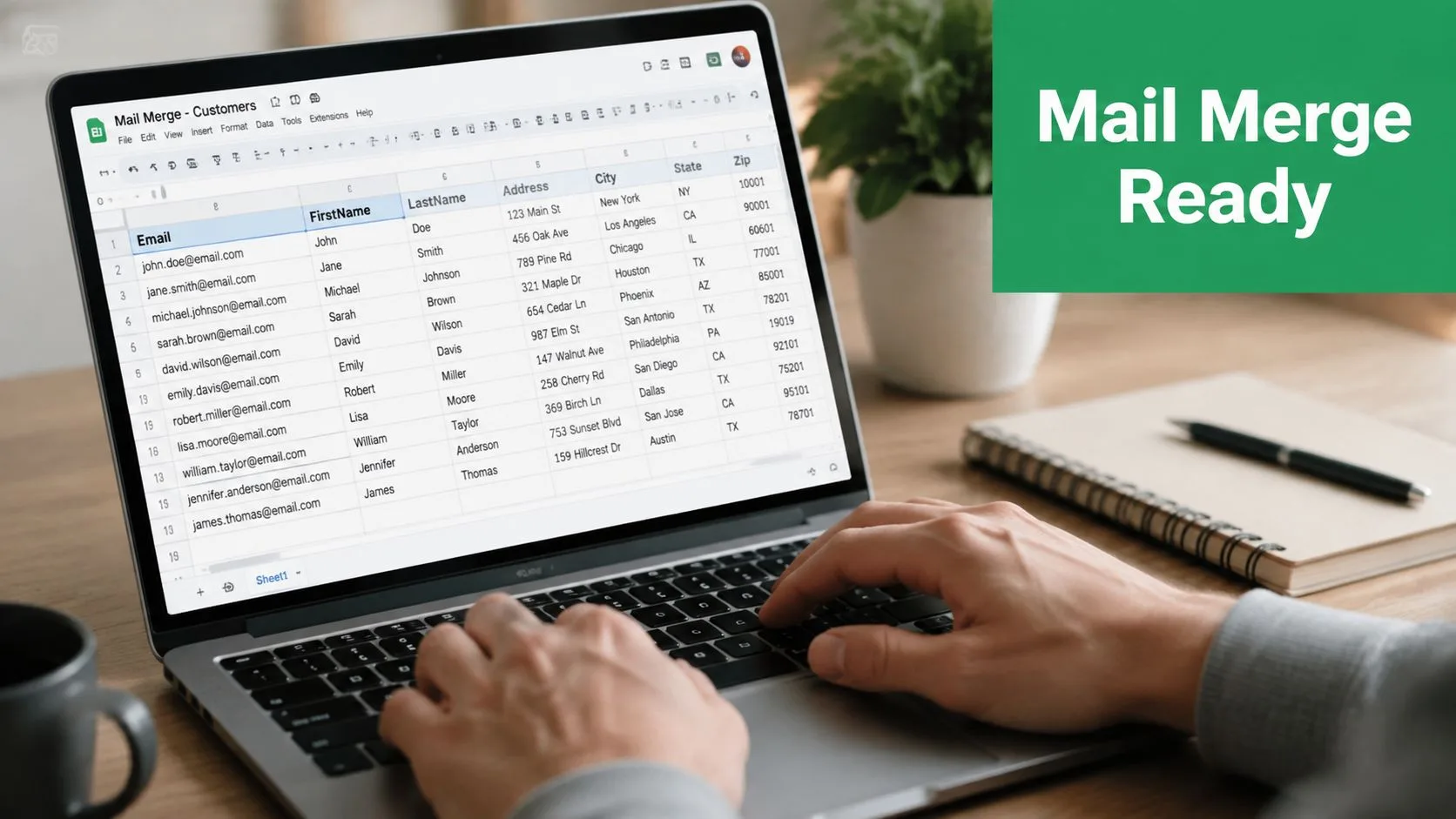
Email, FirstName, CompanyName, CustomField1, Status
Add segment, personalization, verification, suppression, and timing fields as needed. Keep the core merge fields simple. A blank cell signals that the value is unavailable, so the campaign should skip that personalization rather than invent one.
Build the message around verified fields
Use {{FirstName}} and {{CompanyName}} only when those values are present and accurate. A CustomField1 column can hold a specific personalization line, event reference, product context, or calendar link. Conditional content can vary by segment, such as one paragraph for trial users and another for qualified prospects.
Per-row attachments or calendar links work when the recipient has a clear reason to receive them. An attachment added only to make an email appear more personal can create friction and weaken trust. The file or link should support the email’s purpose.
The screenshot below shows the type of column mapping teams should confirm before launching a spreadsheet-driven campaign.
Use status fields as campaign controls
Track Sent, Opened, Bounced, and Replied in the Status column, with timestamps such as SentAt and ReplyAt in adjacent fields. As Mail Merge for Gmail writes those statuses back to your Google Sheet, you can filter the same columns to pause, suppress, or retry a row without switching platforms.
Schedule a staggered send across appropriate business hours instead of releasing every row at once. Match the schedule to the audience, consent basis, mailbox-provider requirements, and your team’s capacity to answer replies.
For follow-ups, filter rows where Status remains blank after 72 hours, then review suppression and recent replies before sending. To test subject lines, split one segment into two clearly labeled groups, keep the body and audience logic consistent, and compare qualified replies rather than opens alone.
The sheet remains the control layer. Pause a row when someone replies, remove it when they unsubscribe, and restart only after a human reviews the reason. That workflow keeps sourcing, segmentation, and list hygiene connected to the same inbox-placement decision.
Measuring Quality and Maintaining the List Over Time
A targeted list needs a quality dashboard, not just a campaign report. Track the health of each segment monthly, then connect the result to a clear action. This keeps a high reply rate from hiding poor delivery, and it prevents a large segment from surviving merely because it contains many contacts.
Four measures are enough for a practical starting dashboard:
- Bounce rate: Watch the internal 2% warning threshold and investigate the source when a segment crosses it.
- Reply rate per segment: Measure qualified replies, not automatic responses or vague acknowledgments.
- List decay rate: Record contacts lost through role changes, invalid addresses, unsubscribes, and suppression.
- Cost per qualified reply: Include sourcing, enrichment, verification, tools, and the time required to handle responses.
Monthly list quality dashboard
| Segment | Bounce Rate | Reply Rate | Decay Rate | Action |
|---|---|---|---|---|
| RevOps leaders | Review against 2% threshold | Compare with other role cohorts | Record monthly losses | Continue, refine message |
| Event attendees | Review after verification | Separate attendees by intent | Remove stale event records | Re-engage or archive |
| Partner referrals | Check source quality | Compare by partner | Review old introductions | Keep strong sources |
| Cold prospects | Monitor closely | Pause if below 1% for two consecutive sends | Re-verify older records | Re-segment or retire |
A segment that falls below 1% reply rate for two consecutive sends should be paused, not automatically scaled. Check whether the issue is audience fit, message relevance, timing, source quality, or inbox placement. If the data is old, re-verify before changing the copy.
Run a short weekly checklist between monthly reviews:
- Review bounces and complaints. Suppress failures and investigate spikes.
- Process unsubscribes. Update the suppression field immediately.
- Refresh the most decayed segment. Prioritize the cohort losing the most useful contacts.
- Re-verify older lists. Recheck any list older than 90 days before the next campaign.
The core loop remains consistent: verify, segment, personalize, measure. When those steps happen continuously, list size becomes a capacity decision rather than the definition of performance.
Mail Merge for Gmail lets you use Google Sheets to send personalized, trackable campaigns from Gmail, with per-row statuses that make suppression, follow-up, and reply management easier to control. If you’re ready to turn a verified, segmented spreadsheet into a disciplined campaign workflow, visit Mail Merge for Gmail and start with the list you already have.
Ready to send your first campaign?
Install Mail Merge for Gmail from the Google Workspace Marketplace and send up to 50 personalized emails per day for free.
Get started for freeMore reading
More from Tutorials
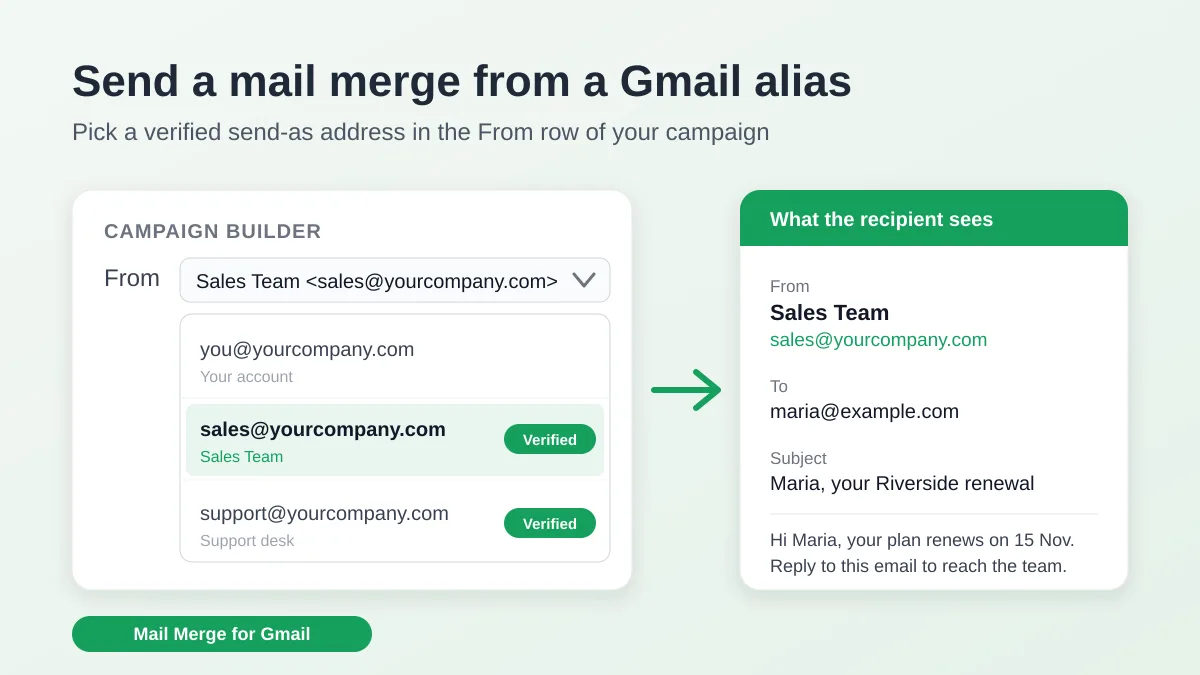
Send a Mail Merge from a Gmail Alias or Shared Mailbox
Send a mail merge from a Gmail alias, group or shared mailbox: set up Send mail as in Gmail, verify the address in Mail Merge and keep replies working.
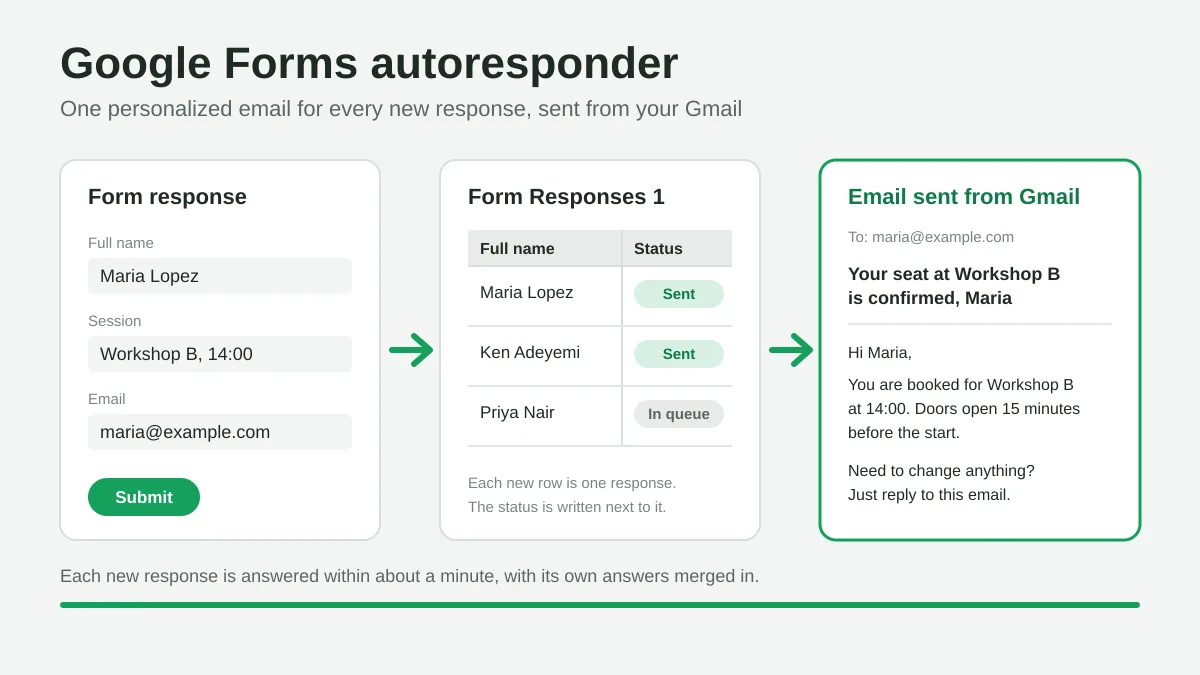
Google Forms Autoresponder: A Personalized Email for Every Response
Set up a Google Forms autoresponder that emails every new response from Gmail, personalized with the answers, using Google Sheets and Mail Merge for Gmail.
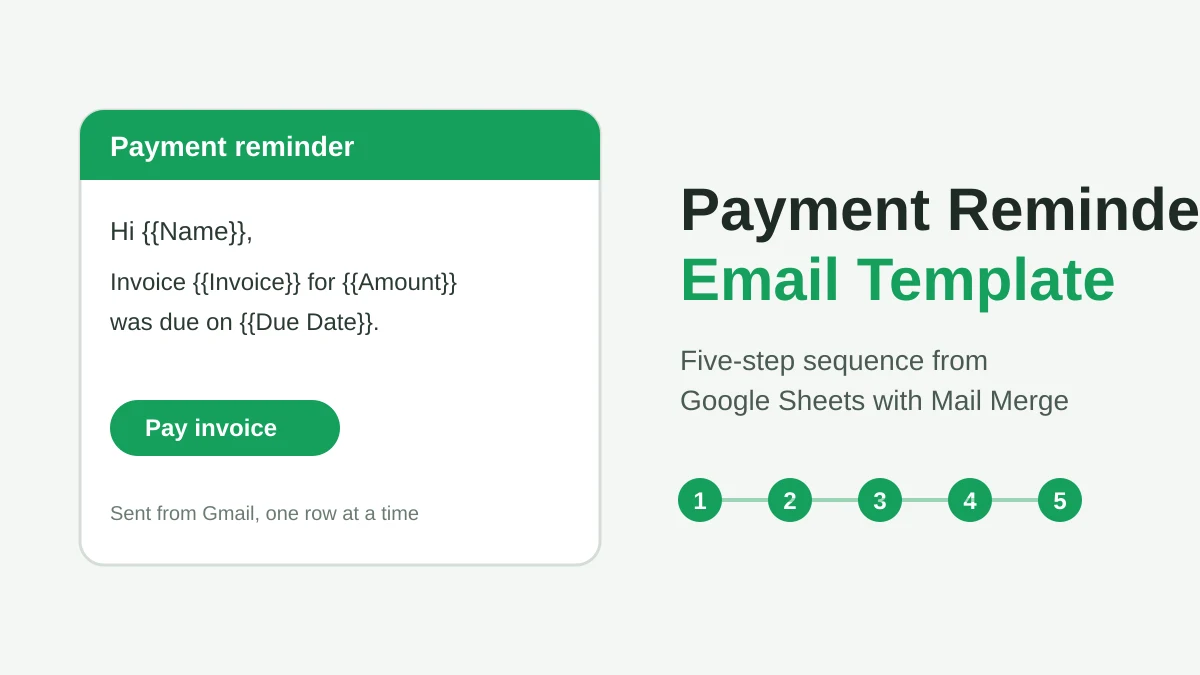
Payment Reminder Email Template: Five Messages You Can Send from Google Sheets
Copy a payment reminder email template for each stage of an overdue invoice, then send every reminder from Google Sheets through Gmail with personalized merge fields.