


















Google Forms Autoresponder: A Personalized Email for Every Response
Set up a Google Forms autoresponder that emails every new response from Gmail, personalized with the answers, using Google Sheets and Mail Merge for Gmail.
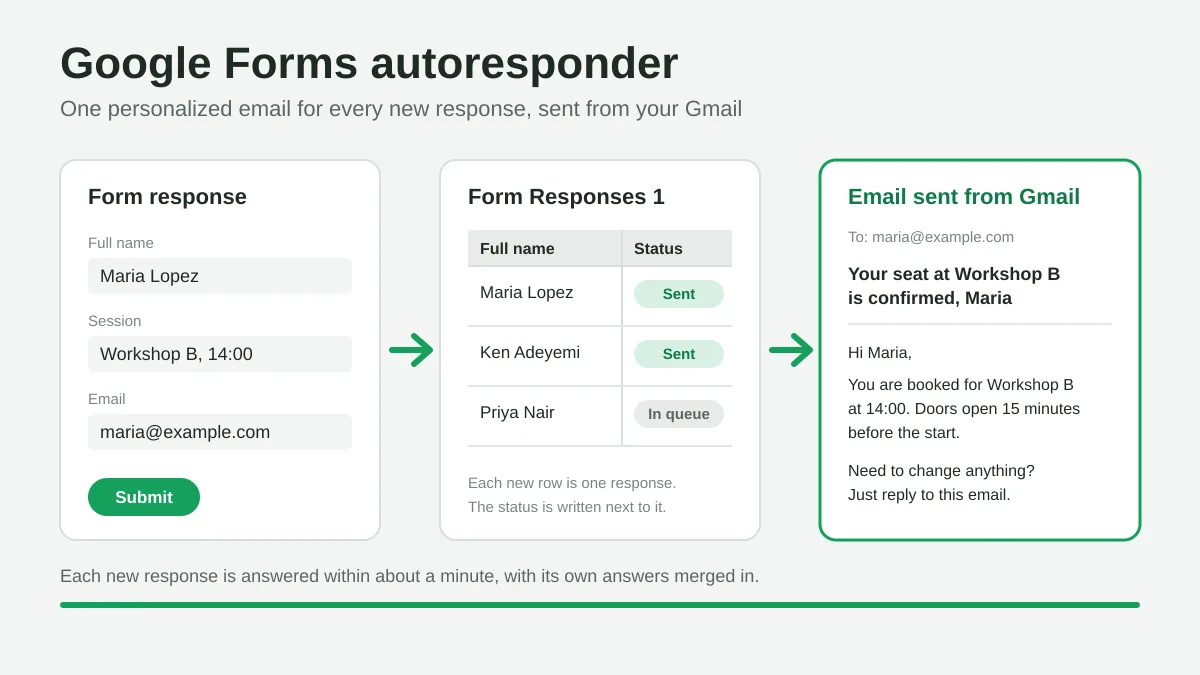
Someone fills in your registration form, your quote request or your support intake, and then nothing happens until a human reads the spreadsheet. A Google Forms autoresponder closes that gap: every new response gets an email back within about a minute, written by you, filled in with that person’s own answers, and sent from your Gmail address. This tutorial compares the ways to build one, then walks through the setup with Google Sheets and Mail Merge for Gmail, with a worked example you can copy.
What Google Forms sends on its own
Google Forms has a built-in receipt, and it is worth knowing exactly what it does before you reach for anything else. In the form’s Settings, under Responses, you can turn on Collect email addresses. Google’s help page on managing form responses describes two modes: Verified, where respondents must confirm that their Google Account address is collected with the response, and Responder input, where they type an address themselves. Once addresses are collected, a second option, Send responders a copy of their response, can be set to When requested or Always.
That copy is the whole feature. It contains the respondent’s own answers, with no custom subject, no greeting, no next steps and no attachment. Google also warns that responders may not receive the expected receipts because of spam filters and other counter-abuse measures. For a quick “we got it” it is fine. For a confirmation that tells people where to go, what to bring or what happens next, you need something that writes the email for you.
Three ways to email every respondent automatically
Apps Script
The form’s linked spreadsheet can run a script on every submission that reads the new row and sends an email. It is free and flexible, and it comes with two costs. The first is maintenance: the script is yours to debug when a question is renamed or a permission expires. The second is quota. Google’s Apps Script quotas page lists email recipients per day at 100 for consumer Gmail accounts and 1,500 for Google Workspace accounts, and quotas reset 24 hours after the first request rather than at midnight. Google’s own sample notification add-on, published in its Forms add-on quickstart, states that it is meant for demonstration purposes only and should not be used for complex or important workflows.
Notification add-ons for Forms
Marketplace add-ons such as Email Notifications for Google Forms install inside the form editor and send a templated email on each submission. They are quick to set up. The trade-off is a second limit layered on top of Google’s: the vendor’s premium editions page lists 20 emails per day on the free edition, 400 email recipients on the Standard edition and 1,500 per day on the Enterprise edition, which requires a Google Workspace account. That limit is shared between all the forms on the same Google account.
A form automation in Mail Merge for Gmail
Mail Merge for Gmail works from the spreadsheet that collects the responses. You write the email once in the campaign builder, with merge tags for the form’s questions, and choose Send when a new form response arrives. From then on, each new response is one personalized email, sent through your own Gmail account with your sender name and reply-to address, and with the usual campaign options: open and click tracking, an unsubscribe link, CC and BCC columns and attachments. The sending limit is the one of your plan and your Gmail account, and the status of each email is written next to its response in the sheet. Form automations are part of the Professional plan.
Here is how the three compare for the job of a personalized confirmation:
| Native receipt | Apps Script | Mail Merge automation | |
|---|---|---|---|
| Custom subject and text | No | Yes, in code | Yes, in a visual editor |
| Merge fields from the answers | Answers only, as a list | Yes, in code | Yes, with {{Question}} tags |
| Sent from | Google Forms | Your account, through a script | Your Gmail account |
| Status per response | None | Only if you build it | Written in the sheet |
| Setup effort | One switch | Coding and a trigger | A few clicks, no code |
Set up the Google Forms autoresponder step by step
The whole setup happens in three places: the form, its response sheet and the Mail Merge campaign builder. Budget about ten minutes.
1. Send responses to a spreadsheet
Open the form, click Responses, then Link to Sheets. Google’s help page on choosing where to save responses describes the same action as Select destination for responses in the More menu. Create a new spreadsheet or pick an existing one. Google Sheets adds a tab, named Form Responses 1 by default, with one column per question plus a Timestamp column, and appends a row for every new submission.
If you start from the form editor with Mail Merge instead (see step 3), the add-on checks for a linked spreadsheet and offers to create and link one for you when there is none.
2. Make sure every response has an email address
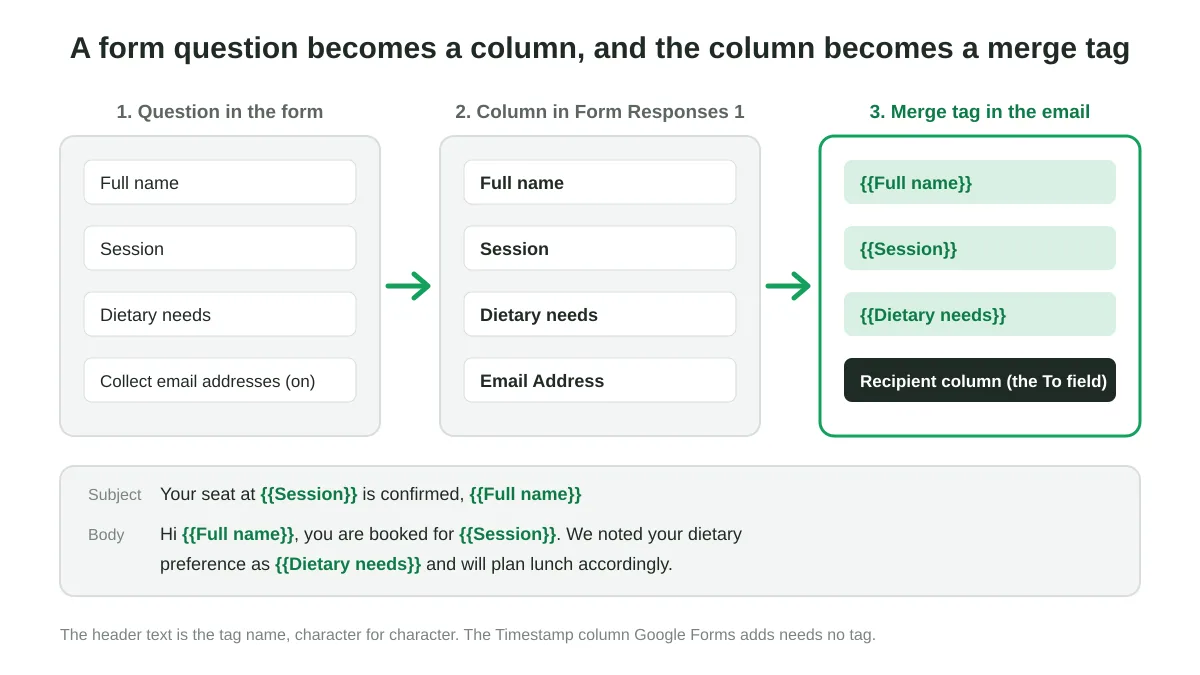
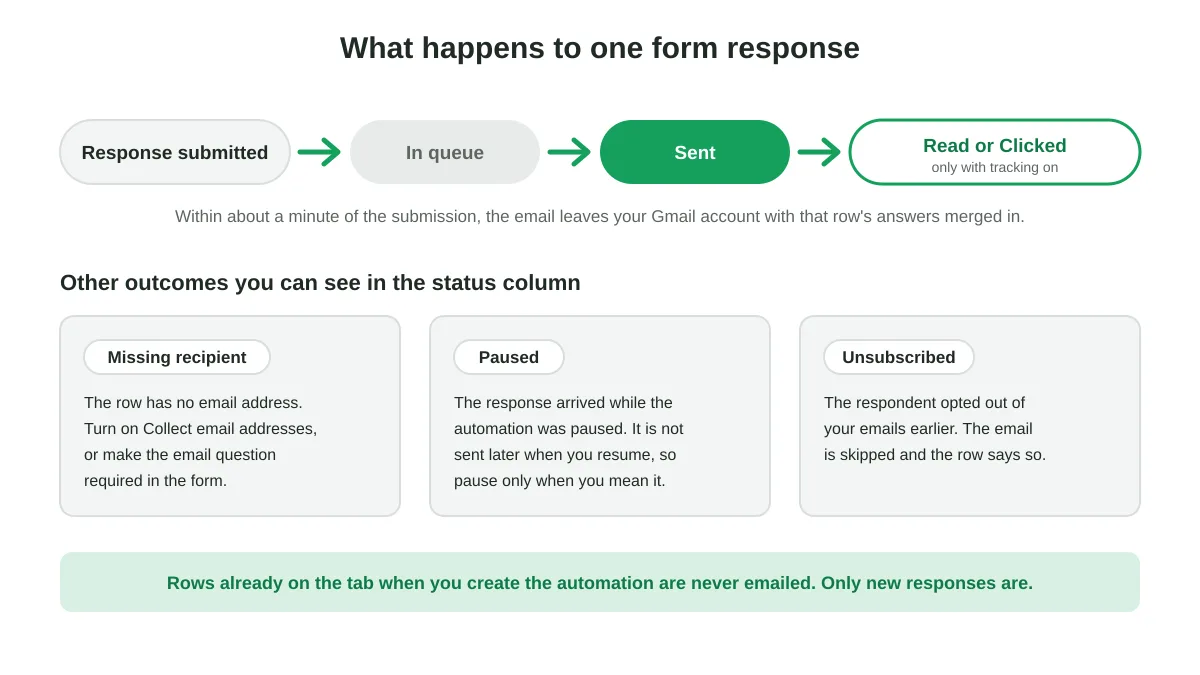
The autoresponder needs an address to reply to. Either turn on Collect email addresses in the form settings, which produces an Email Address column in the sheet, or add a short-answer question such as “Your email” and set its response validation to an email address. A response that arrives without one is marked Missing recipient in the sheet and nobody is emailed.
3. Open Mail Merge on the response tab
You can start from either side:
- In the spreadsheet, open the Form Responses 1 tab, then Extensions, Mail Merge for Gmail, New campaign.
- In the form editor, open Extensions, Mail Merge for Gmail, Send an email for each response. The builder opens on the form’s response tab, already in automation mode, and it works before the first response has arrived.
4. Write the email with merge tags
Each column header of the response tab is a merge tag. The question “Full name” becomes {{Full name}}, and the Merge tag button in the toolbar lists every column so you never have to type one by hand. Tags work in the subject line as well as the body. Write the email as you would to one person and insert the tags where their answers belong. Click Show preview to see how a row renders. If no response has arrived yet, submit a test response through the form yourself, preview that row, and use Send me a test to read it in your own inbox.
5. Create the automation
Open the arrow next to the send button and pick Send when a new form response arrives…, or turn on New form responses in the builder’s settings. The dialog recaps what will happen: nobody is emailed right now, every new response gets one email within about a minute, rows already on the tab are not emailed, and your daily limit still applies. Confirm with Create automation.
Mail Merge inserts a status column on the response tab. When a response lands, its cell reads In queue, then Sent, and later Read or Clicked if tracking is on. The automation appears in the Campaigns list with an Automation badge and a count of responses answered.
A worked example: a workshop registration
Suppose a form collects registrations for a series of workshops. The response tab looks like this after two submissions:
| Timestamp | Email Address | Full name | Session | Dietary needs |
|---|---|---|---|---|
| 2026-10-22 09:14 | maria@example.com | Maria Lopez | Workshop B, 14:00 | Vegetarian |
| 2026-10-22 09:31 | ken@example.com | Ken Adeyemi | Workshop A, 10:00 | None |
The recipient column is Email Address. The subject and body of the automation:
Subject: Your seat at {{Session}} is confirmed, {{Full name}}
Body:
Hi {{Full name}},
Thanks for registering. You are booked for {{Session}} at the Riverside Hub, room 2. Doors open 15 minutes before the start.
We noted your dietary preference as {{Dietary needs}} and will plan lunch accordingly.
Need to change anything? Just reply to this email.
Maria receives “Your seat at Workshop B, 14:00 is confirmed, Maria Lopez” about a minute after she clicks Submit, Ken receives his own version, and the sheet shows Sent next to each of them. A third person who submits next week gets the same treatment without anyone touching the sheet.
Two small habits make this read better. Keep question titles short and human, because they are both the column headers and the merge tags. And when a question is optional, write the sentence so that an empty answer still makes sense, or make the question required.
Keep the automation running smoothly
A form automation is a long-lived campaign, so a few rules differ from a one-off send. They come from the Mail Merge documentation on sending on new form responses.
- The message is frozen when you create it. To change the wording, stop the automation from the Campaigns page and create a new one. Only one automation can watch a given tab at a time.
- Pausing holds new responses, it does not queue them. A response that arrives while the automation is paused is marked Paused in the sheet and is not sent when you resume. Pause only when you mean it.
- The daily sending limit applies. Responses that arrive after the limit is reached wait in the queue and go out once the rolling 24-hour window clears. The limits per plan are on the daily sending limits page, and our guide to the Gmail sending limit explains what Google adds on top.
- Unsubscribed people are skipped. If a respondent has unsubscribed from your emails before, their row is marked Unsubscribed and nothing is sent, which keeps your unsubscribe management consistent across campaigns.
- Created in the web app? Open the add-on once. Only the add-on can watch a spreadsheet for new responses. An automation created from the web app shows Waiting for activation until you open Extensions, Mail Merge for Gmail, New campaign in that spreadsheet, and responses arriving before that are not emailed.
- Leave the status column alone. Google Forms appends each new response under the last filled row, so typing below the responses in the status column changes where the next response lands.
- Follow-ups and A/B subjects are not available in this mode. An automation sends one email per response, with no batch to split a test over and no single send date to hang a delay on. If you want reminders before the event, run a separate reminder campaign from the same sheet closer to the date.
Ideas beyond the confirmation email
The same mechanism works for any form whose respondents expect a reply:
- Event and webinar registrations: the confirmation above, with the calendar details and the joining link. Pair it with an event invitation campaign to fill the form in the first place.
- Lead and quote requests: an immediate acknowledgement that restates what the prospect asked for and names the person who will call them, a natural first message of an onboarding sequence.
- Applications and sign-ups: a receipt that lists what was submitted and the next deadline, useful for schools, clubs and volunteer programs.
- Feedback and surveys: a thank-you email that includes a discount code or the link to the results.
- Internal requests: IT, facilities or HR intake forms where the requester gets a ticket-style confirmation with the answers they gave.
Because each email is sent from your Gmail account, replies land in your inbox like any other conversation, and the respondent sees a real person’s address rather than a no-reply.
Frequently asked questions
Does Google Forms send confirmation emails on its own?
Only a copy of the respondent’s answers, and only when you collect email addresses and turn on the response copy. The content cannot be customized. For a personalized message you need a script, a notification add-on or a mail merge automation.
Which Mail Merge plan includes the Google Forms autoresponder?
Form automations are part of the Professional plan, which costs $8.99 per month or $89.90 per year at the time of writing and allows up to 1,500 emails per day with a Google Workspace address. A free @gmail.com address stays capped at 500 per day by Google whatever the plan.
Will existing responses be emailed when I create the automation?
No. Only responses that arrive after the automation is created are answered. To email the people who already responded, run a normal campaign on the same tab first, using the standard Google Sheets mail merge flow.
Can I attach a file, such as a ticket or a brochure?
Yes. Attach a file in the builder before creating the automation and it goes out with every email. A per-row attachment column holding a Drive link also works, as in a regular campaign. See mail merge and attachments for the details.
Which account sends the emails?
The Google account that created the automation. The add-on installs the watcher on the spreadsheet for that account only, and the emails use that account’s Gmail address and daily limit, so set the automation up from the account you want the confirmations to come from.
Answer every response the moment it arrives
A form that replies instantly feels like a service rather than a data drop. Link your form to a sheet, write the email once with the answers as merge tags, and let Mail Merge for Gmail send a personalized confirmation from your own Gmail account for every new response.
Ready to send your first campaign?
Install Mail Merge for Gmail from the Google Workspace Marketplace and send up to 50 personalized emails per day for free.
Get started for freeMore reading
More from Tutorials
Payment Reminder Email Template: Five Messages You Can Send from Google Sheets
Copy a payment reminder email template for each stage of an overdue invoice, then send every reminder from Google Sheets through Gmail with personalized merge fields.
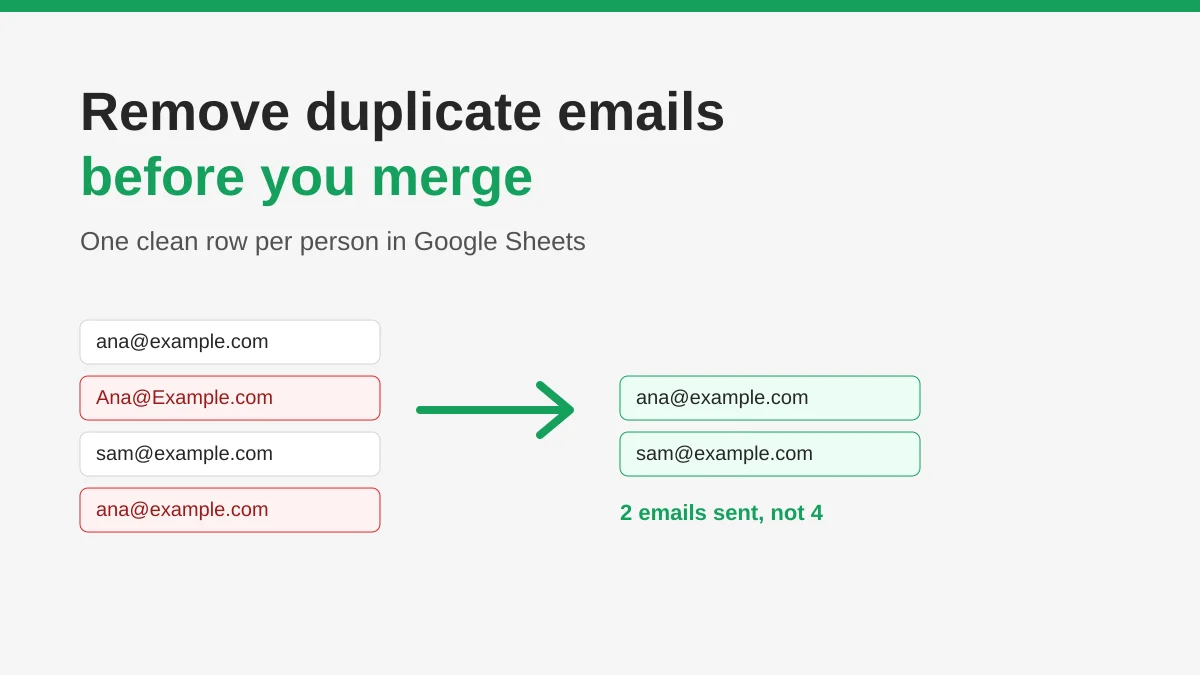
How to Remove Duplicate Emails in Google Sheets Before a Mail Merge
Learn how to remove duplicate emails in Google Sheets before a mail merge with Remove duplicates, UNIQUE and COUNTIF, so no contact gets the same message twice.
How to Build Targeted Email Lists That Actually Convert
Learn how to build targeted email lists that drive opens, clicks, and replies. Practical steps for sourcing, segmenting, cleaning, and GDPR-compliant outreach.