


















Send a Mail Merge from a Gmail Alias or Shared Mailbox
Send a mail merge from a Gmail alias, group or shared mailbox: set up Send mail as in Gmail, verify the address in Mail Merge and keep replies working.
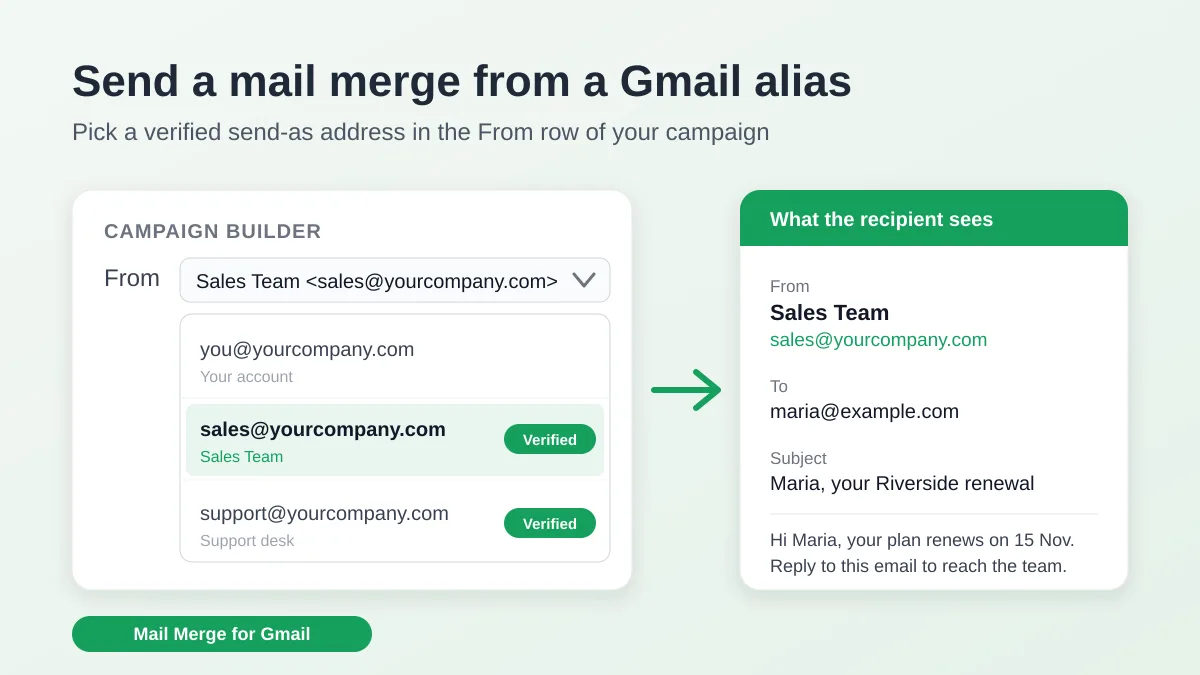
You run the campaign, but the emails should come from sales@yourcompany.com, from the support desk, or from the shared address your whole team answers. Gmail can do that for a single message through its Send mail as setting, and a mail merge can do it for hundreds of personalized emails at once, as long as two things are true: Gmail allows your account to use that address, and your mail merge tool asks Gmail for it the right way. This tutorial shows how to send a mail merge from a Gmail alias or shared mailbox with Mail Merge for Gmail, what Google permits, how a Google Workspace alias or a group address is set up, and what changes for replies, follow-ups and deliverability.
What Gmail lets you send as
Every email that leaves Gmail carries a From address, and Gmail only accepts the ones your account is allowed to use. That list is the Send mail as section of your Gmail settings. Google’s help page on sending from a different address or alias names three kinds of address you can add there: a Yahoo, Outlook or other non-Gmail address, your work, school or business domain or alias, and another Gmail address. The same page says you can send from up to 99 different addresses, and warns that a recipient on Outlook or another mail service might see something like “From yourname@gmail.com on behalf of othername@otherdomain.com”.
One change is worth planning around. Google states that starting January 2027, Gmail will no longer support the Send as feature for third-party addresses such as @yahoo.com or @outlook.com, and that the change does not affect Google Workspace aliases or other Gmail addresses you own. If your campaigns go out from an address hosted elsewhere, the durable setup is a Google Workspace alias or a Google Group on your own domain.
Google Workspace adds its own rules on the admin side. The Workspace help page on email aliases explains that an administrator can add up to 30 aliases per user at no extra cost, that only one user can use a given alias, and that an alias is not a Google Account, so nobody can sign in with it. Creating the alias is not enough to send from it: to send email from an alias, the user must set up a custom From address in Gmail. For an address that several people need, Google recommends Gmail delegation, and many teams use a Google Group instead, covered in the next section.
Mail Merge for Gmail sends through the Gmail API of the account you are signed in with, so the same rule applies to every campaign. An address that is on your Send mail as list can become a send-as address in Mail Merge. An address that is not on the list cannot: Gmail silently replaces it with your primary address, which is exactly what the verification step below is designed to catch.
Step 1: Add the address under Send mail as in Gmail
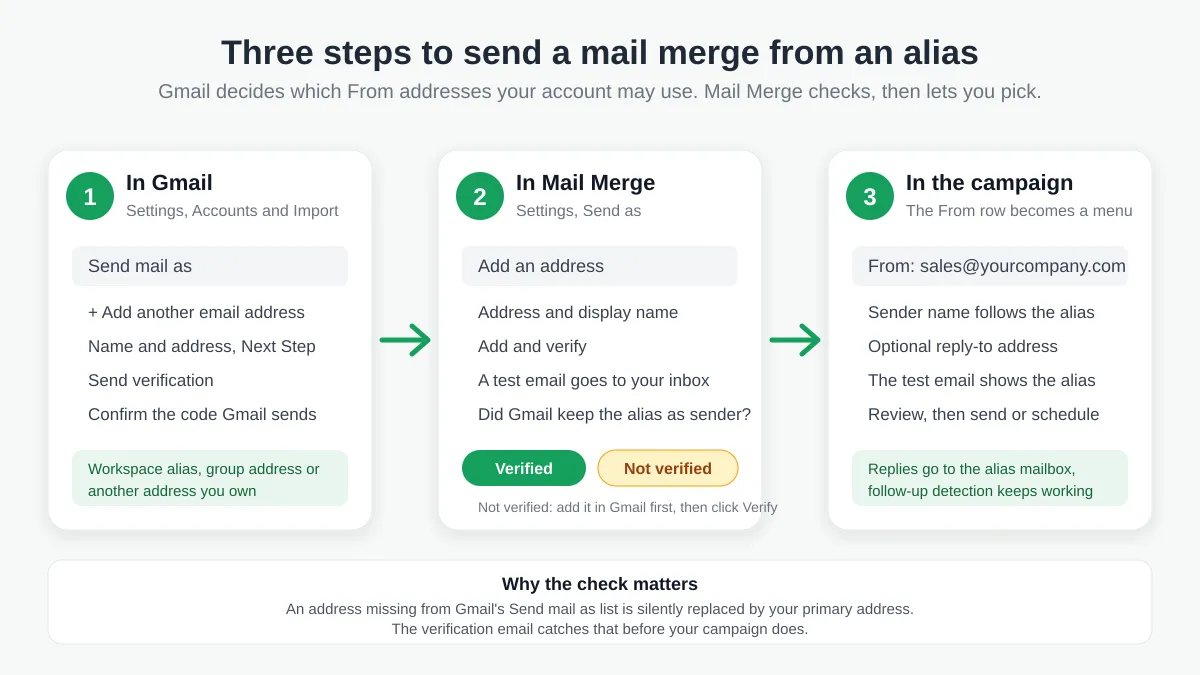
Whatever the address, the Gmail side comes first. The steps on Google’s page are:
- Open Gmail on a computer, click the Settings gear, then See all settings.
- Open the Accounts and import tab (called Accounts on some accounts).
- In the Send mail as section, click Add another email address.
- Enter the name recipients should see and the address you want to send from.
- Click Next Step, then Send verification. For work or school accounts, Gmail asks for the SMTP server, username and password of that account.
- Click Add Account, then confirm the code or link Gmail sends to the address you added. If it is missing, check that mailbox’s Spam or Bulk folder for a message from send-as-noreply@google.com.
How the confirmation reaches you depends on what kind of address it is.
A Google Workspace alias
An alias of your own Workspace account delivers to your own inbox, so the confirmation lands right where you are. Aliases of a Workspace account are usually already allowed under Send mail as. If yours is missing, ask your administrator to create it, then add it with the steps above.
A Google Group or shared mailbox
A team address such as support@ or hello@ is often a Google Group with Collaborative Inbox turned on. Google’s help page on adding a group as an email address in Gmail requires the Owner or Manager role and describes why an extra step is needed: when you set up Gmail to send messages as a group, Gmail sends a confirmation code to the group, and the group has to be able to receive it. The procedure is to open the group’s settings, under Who can post select Anyone on the web, optionally turn on message moderation so that only moderators see the confirmation link, then follow the first three Send mail as steps in Gmail. Once the code is verified, remove the confirmation email from the group and restore the previous Who can post and moderation settings. Leaving a group open to the web longer than needed lets anyone post to your team address, so do the cleanup right away.
An address from another provider
A mailbox hosted elsewhere needs its SMTP details in step 5, and Gmail’s confirmation goes to that mailbox. Remember the January 2027 deadline above: this is the type of send-as address Google is retiring.
Step 2: Verify the address in Mail Merge for Gmail
Send-as addresses are set up once in the Mail Merge web app, under Settings, then Send as, and they are part of the paid plans (Personal and Professional). Open the page and click Add an address. Enter the address and, optionally, the display name recipients should see, then click Add and verify.
Mail Merge then sends a short email from that address to your own inbox, using the same sending path your campaigns use, then reads the delivered message back. If Gmail kept the alias as the sender, the address is marked Verified and appears in your campaigns from then on. You can delete the test email.
If it comes back Not verified, Gmail rewrote the sender to your primary address. The cause is always on the Gmail side: the address is not under Send mail as yet, or Gmail’s own confirmation was never completed. Fix that, then click Verify next to the address in Mail Merge. You get ten verification attempts a day, and an account can hold up to ten send-as addresses. Remove takes an address out of the list, and adding it again later means verifying it again.
One thing a send-as address is not: a plus address such as you+news@gmail.com is a filtering trick for incoming mail (our free Gmail alias checker shows where one delivers), and it has nothing to do with the From line.
Step 3: Pick the From address in your campaign
In the campaign builder, the address in the From row becomes a dropdown as soon as you have at least one verified send-as address. Pick the address to send from. The sender name switches to the display name you saved for that address, and you can still type a different one. The test email you send yourself and the Review step both show the address you picked, and the campaign’s history records which address it used.
If replies should go somewhere else than the alias mailbox, click Add reply-to in the To row and enter that address. It applies to every email of the campaign and works with any From address. Our guide to mail merge with CC and BCC covers the other recipient options of the same screen.
A worked example: renewal notices from the sales address
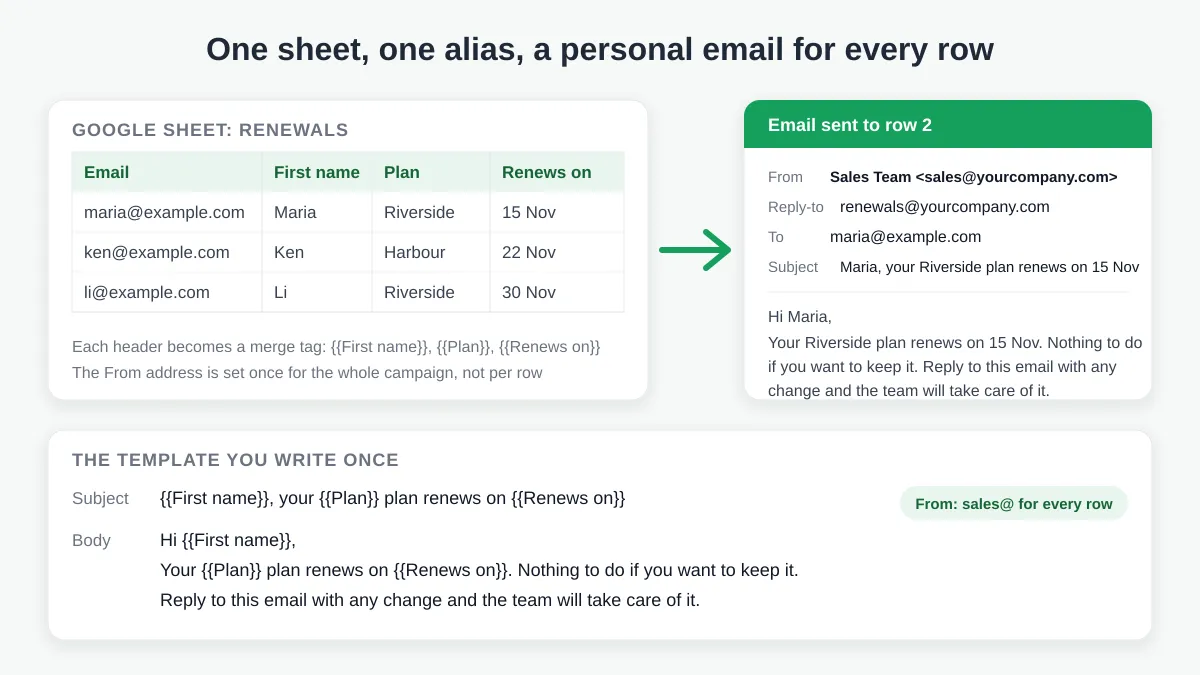
Suppose a small sales team sends renewal notices from sales@yourcompany.com, verified as a send-as address with the display name Sales Team, and wants replies to land on renewals@yourcompany.com. The sheet looks like this:
| First name | Plan | Renews on | |
|---|---|---|---|
| maria@example.com | Maria | Riverside | 15 Nov |
| ken@example.com | Ken | Harbour | 22 Nov |
| li@example.com | Li | Riverside | 30 Nov |
Each column header is a merge tag. The campaign is set up once:
- From: Sales Team, sales@yourcompany.com, chosen in the dropdown.
- Reply-to: renewals@yourcompany.com.
- Subject:
{{First name}}, your {{Plan}} plan renews on {{Renews on}} - Body: Hi
{{First name}}, your{{Plan}}plan renews on{{Renews on}}. Nothing to do if you want to keep it. Reply to this email with any change and the team will take care of it.
Maria receives “Maria, your Riverside plan renews on 15 Nov” from Sales Team, Ken gets his own version, and every reply arrives at renewals@. The From address is a property of the campaign, not of a row: all three emails come from sales@, and a list that should come from support@ is simply a second campaign. The rest of the workflow is the standard one described in how to mail merge from Google Sheets.
Replies, follow-ups, limits and deliverability from an alias
Sending from an alias changes a few things around the campaign.
Where replies go. Replies land in the mailbox of the address you sent from, as they would for any email sent from that alias in Gmail. For a Workspace alias that is your own inbox. For a Google Group it is the group, so make sure the people who should answer are members. A reply-to address overrides this per campaign.
Follow-up sequences keep working. Mail Merge’s automated follow-ups skip recipients who have replied, and reply detection reads the threads of the sending account. Mail Merge knows your send-as addresses are yours and never counts a message from one of them as a recipient’s reply, so a sequence sent from sales@ behaves the same as one sent from your primary address.
The daily limit is the account’s, not the alias’s. Campaigns are counted against the daily limit of the account you are signed in with and against Google’s own limit for that account. Adding a second verified address does not add sending capacity. The plan limits are on the daily sending limits page, and our guide to the Gmail sending limit explains what Google adds on top.
Authentication follows the domain in the From address. Mailbox providers check SPF, DKIM and DMARC for the domain that appears as the sender. A Workspace alias on the same domain as your account inherits that domain’s records. An alias on another domain needs its own, and YAMM’s documentation on sending a mail merge from an alias makes the same point for Workspace alias domains: turn on DKIM on the alias domain, or messages are more likely to be marked as spam. The free reputation checker on Mail Merge’s Warm-up page scores any address, so run it on the alias itself before a large send, and see our guides to DKIM for Gmail and the SPF record for Gmail for the DNS side.
Running campaigns keep their address. Removing a send-as address only affects new campaigns: one that is already sending keeps the address it started with.
How other Gmail mail merge tools handle aliases
Every mail merge add-on that sends through Gmail depends on the same Send mail as list, so step 1 is identical everywhere. The differences are in how the alias is chosen and what gets checked.
- Mail Merge for Gmail verifies each address with a real email before it can be selected, shows the alias in the test email and the Review step, records it in the campaign history and keeps follow-up reply detection working with it. See the Mail Merge vs YAMM comparison for the wider picture.
- YAMM lets you pick the alias in its “Alias, filters, personalized attachments” panel when you start a merge. Its help page notes that the alias feature does not work with the test email option, and that responses do not arrive at the address the mail merge is sent from, so it asks you to forward the alias mailbox to the sender address to keep its response tracking working.
- GMass works in the Gmail compose window: its guide on sending a mail merge from a non-Gmail address tells you to change the From address to the alias you set up in Gmail before sending, and its team explains in the comments that the subscription is on the main account, not on the aliases. Our GMass alternative page covers the rest.
- Mailmeteor adds a layer it calls senders. Its documentation on sending from a different address or alias starts with configuring the alias inside Gmail, then has you open Manage senders from the caret next to your address in the From field and click Add sender. See Mail Merge vs Mailmeteor for the comparison.
Frequently asked questions
Can I send a mail merge from a Gmail alias on the free plan?
No. Sending from another address is part of the Personal and Professional plans. On the free plan every campaign goes out from the Google account you are signed in with. Adding or verifying an address requires an active plan.
Why does Mail Merge say my address is Not verified?
Because Gmail rewrote the sender of the verification email to your primary address. Either the address is not under Send mail as in Gmail yet, or Gmail’s own confirmation for it was never completed. Add it there, finish Gmail’s confirmation, then click Verify in Mail Merge. You have ten attempts a day.
Can I send a mail merge from a Google Group or shared mailbox?
Yes, as long as you can add the group under Send mail as. That requires the Owner or Manager role on the group and a temporary change of its Who can post setting to Anyone on the web, so the group can receive Gmail’s confirmation code. Restore the setting afterwards. Replies to the campaign then land in the group.
Will recipients see my real address?
Gmail sends the email with the alias as the From address, which is what Gmail and most clients display. Google’s own help page notes that a recipient on Outlook or another mail service might see “on behalf of” followed by your primary address. Send yourself a test and open it in the clients your audience uses.
Do I need a separate subscription for each alias?
No. Send-as addresses belong to the account you are signed in with and are covered by its plan, up to ten addresses per account. Only a completely different Google account needs its own Mail Merge installation and its own subscription or team seat.
Send from the address your recipients expect
A campaign that comes from the team address, with replies landing where the team works, reads like a message from a colleague rather than a blast. Add the address under Send mail as in Gmail, verify it once in Settings, and Mail Merge for Gmail will offer it in the From row of every campaign you build from your Google Sheet.
Ready to send your first campaign?
Install Mail Merge for Gmail from the Google Workspace Marketplace and send up to 50 personalized emails per day for free.
Get started for freeMore reading
More from Tutorials
Google Forms Autoresponder: A Personalized Email for Every Response
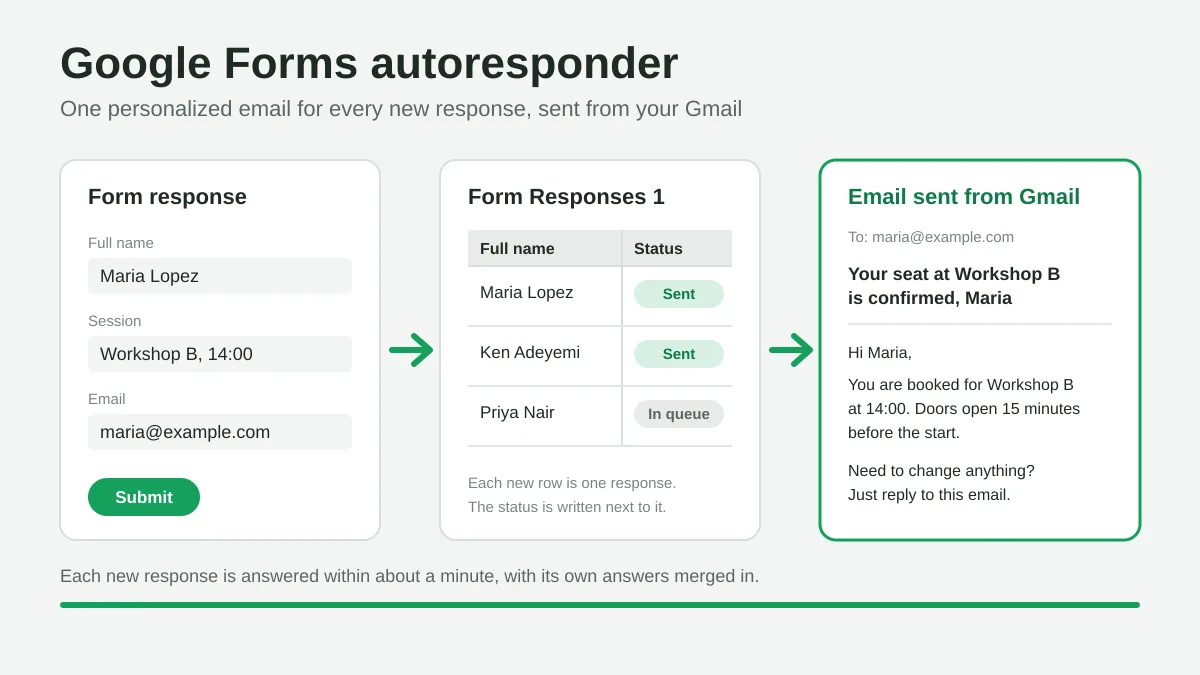
Set up a Google Forms autoresponder that emails every new response from Gmail, personalized with the answers, using Google Sheets and Mail Merge for Gmail.
Payment Reminder Email Template: Five Messages You Can Send from Google Sheets
Copy a payment reminder email template for each stage of an overdue invoice, then send every reminder from Google Sheets through Gmail with personalized merge fields.
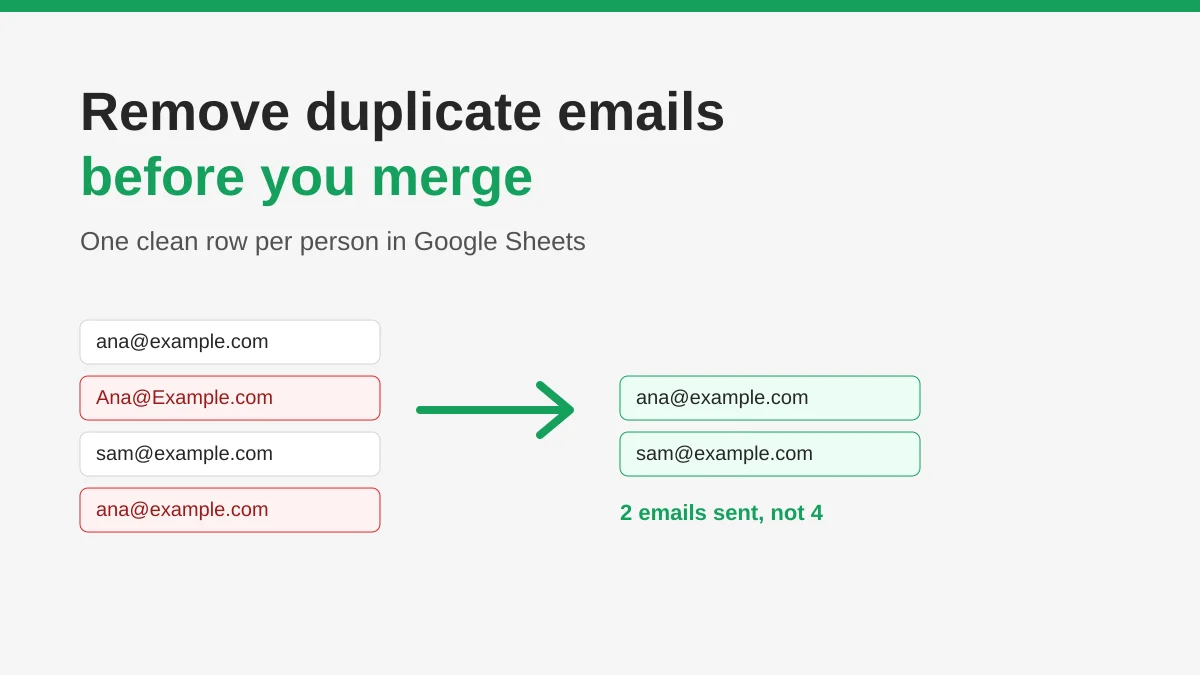
How to Remove Duplicate Emails in Google Sheets Before a Mail Merge
Learn how to remove duplicate emails in Google Sheets before a mail merge with Remove duplicates, UNIQUE and COUNTIF, so no contact gets the same message twice.