


















SPF Record Gmail: Your Step-by-Step 2026 Guide
Master your spf record gmail setup for Google Workspace with our 2026 guide. Prevent spam, boost deliverability & ensure email security.
You launch a customer update, a hiring email, or a sales sequence from Gmail. The copy is solid. The list is clean. Then replies slow to a crawl, or worse, someone tells you your message landed in spam.
In small teams, that usually sends people looking at subject lines, templates, and sending volume first. Fair enough. But one of the most common causes sits outside Gmail, in your DNS settings. Your SPF record decides whether receiving mail servers treat Gmail as an approved sender for your domain.
That matters even more if you’re researching tools around Gmail-based outreach. Be cautious with product names that sound generic, especially Mail Merge for Gmail. The phrase describes a category as much as a specific product, so it’s easy to read setup advice meant for a different mail merge tool and apply it to the wrong system.
Why Your Gmail SPF Record Matters
A useful way to think about SPF is as a guest list for your domain. When your email reaches another mail server, that server checks whether the sender is on the list. If Gmail is on it, your message has a much better chance of being treated as legitimate. If Gmail isn’t on it, the receiver has a reason to distrust the message before the recipient even reads the subject line.
That trust issue shows up in ordinary business situations. A founder sends onboarding emails. An HR manager sends interview invites. A school sends event updates to parents. Everything looks fine inside Gmail, but the receiving server sees no clear authorization for your domain and starts handling those messages more cautiously.

What SPF protects
SPF does two jobs at once:
- Delivery protection: It helps receiving servers recognize that Google is allowed to send on behalf of your domain.
- Brand protection: It makes it harder for someone else to spoof your domain in outbound email.
SPF tells the outside world which sending systems speak for your domain and which ones don’t.
If you’re trying to boost email marketing success, this is one of the first technical checks worth doing. Better copy can’t compensate for a domain that isn’t properly authenticated.
Why small mistakes cause outsized pain
The frustrating part is that SPF problems often don’t look like SPF problems. Messages may still send. Some recipients may still get them. Others may see spam placement, warnings, or silent filtering. That inconsistency is what throws people off.
If your emails are already drifting into junk folders, it’s worth pairing this setup guide with a practical walkthrough on how to prevent email from going to spam. SPF isn’t the whole deliverability story, but it’s one of the few fixes that directly improves trust at the domain level instead of tweaking the content and hoping for the best.
Creating Your Core Gmail SPF Record
If your domain sends email only through Gmail or Google Workspace, the setup is straightforward. Google’s official SPF record is the exact string documented in Google Workspace Admin Help:
v=spf1 include:_spf.google.com ~all
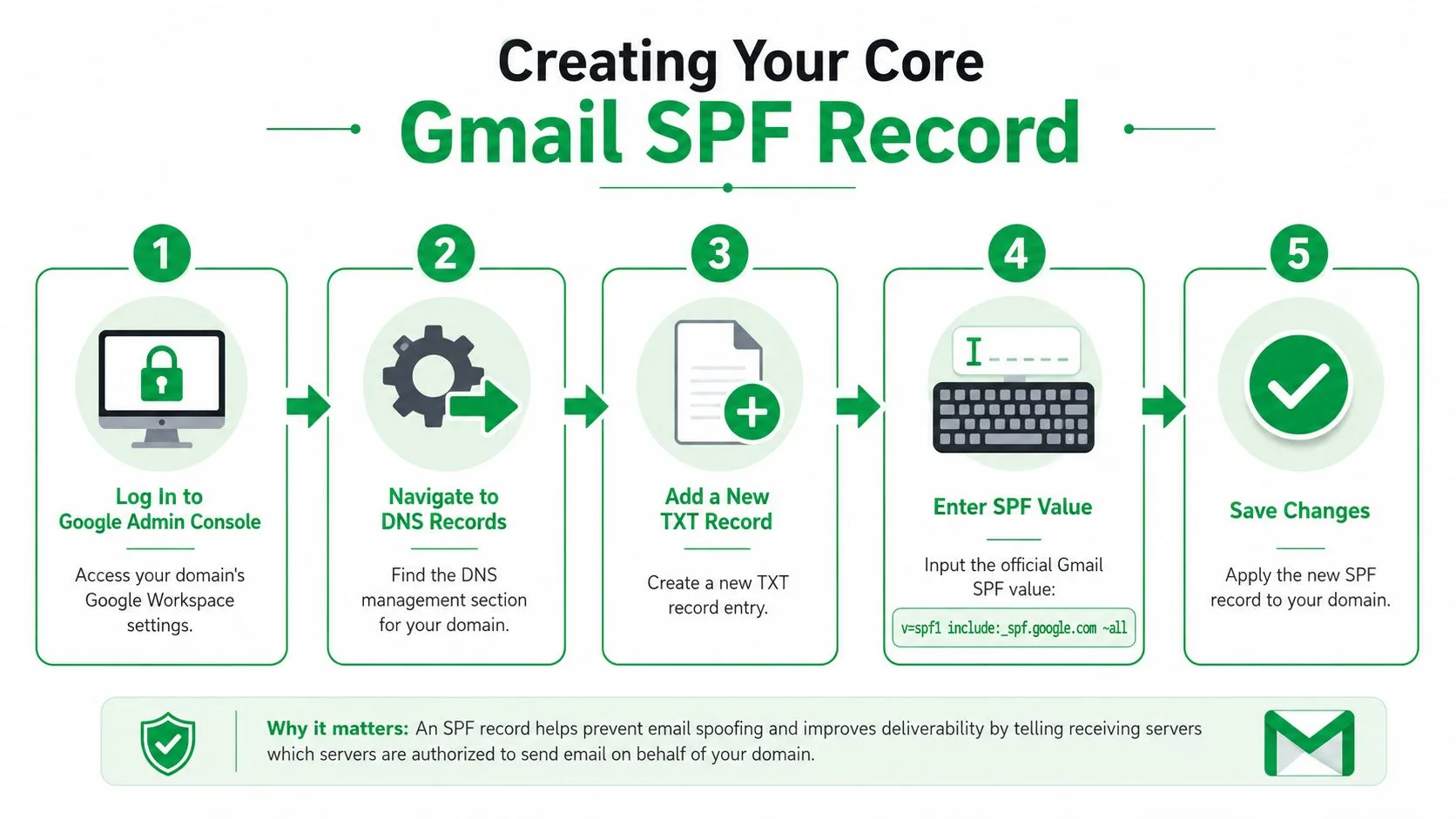
That value must be published as a single TXT record at the root of your domain. In most DNS dashboards, the host is @. Google also recommends a TTL of 3600 seconds (1 hour), and DNS changes can take up to 48 hours to fully propagate depending on your provider, according to that same Google Workspace documentation.
What to enter in DNS
Whether your DNS is managed in GoDaddy, Cloudflare, Namecheap, or another provider, the fields usually map like this:
- Type: TXT
- Host or Name:
@ - Value or Content: the SPF string above
- TTL:
3600if your provider lets you set it manually
The most common mistake here is overthinking the record type. Many DNS panels no longer offer a separate SPF record type. That’s normal. You want a TXT record.
A quick visual walkthrough can help if this is your first time editing DNS:
What works and what doesn’t
Here’s the practical version.
- Works: adding one TXT record at the root of the domain with the exact Gmail SPF value.
- Doesn’t work: adding extra spaces, splitting the value into separate SPF records, or publishing it under the wrong host such as a subdomain when your mail is sent from the main domain.
Practical rule: Copy the SPF value exactly, publish it once, and resist the urge to create a second SPF record later when you add another sender.
If you’re in a simple Gmail-only environment, this is usually enough to get your base SPF record Gmail setup done correctly. Save the record, wait for propagation, and verify it before changing anything else.
Handling Multiple Email Senders and Mail Merge
A common small business setup looks like this. Staff send regular mail from Google Workspace, marketing runs campaigns from a mail merge tool, and a CRM or help desk sends automated messages from the same domain. SPF has to cover all of them, or one of those systems starts failing authentication.
That is where many Gmail SPF setups break. The base Google record is easy. The complexity starts when each new tool asks you to add another include: entry and nobody checks what those additions do to the full record.
The two rules that matter most
Rule one: publish one SPF TXT record for the domain.
Rule two: keep the full SPF evaluation under 10 DNS lookups. That limit includes nested lookups inside each include:. A record can look short in your DNS panel and still fail because one vendor’s SPF record expands into several more checks. This breakdown from DMARC Report explains why lookup count matters in Gmail SPF configuration.
Multi-sender environments hit that limit faster than people expect. Google Workspace plus a mail merge sender, a CRM, and a support platform can push you into trouble even if every vendor’s instructions are technically correct on their own. The mistake is treating each sender as a separate DNS project instead of one combined authorization policy.
What a proper merge looks like
If Gmail and another approved service both send mail for your domain, add both senders to the same SPF record.
| Scenario | Correct Merged SPF Record |
|---|---|
| Gmail only | v=spf1 include:_spf.google.com ~all |
| Gmail plus one third-party sender | v=spf1 include:_spf.google.com include:spf.thirdparty.com ~all |
| Gmail plus several senders | v=spf1 include:_spf.google.com include:spf.vendorone.com include:spf.vendortwo.com ~all |
Those examples show the structure. Your actual third-party values must come from each provider’s documentation. The practical point is unchanged. One domain gets one SPF record.
What usually breaks in real life
I usually see three failure patterns.
- A second SPF record gets published. Someone adds a new TXT entry starting with
v=spf1instead of editing the existing one. - Old services stay authorized forever. A business stops using a tool, but its
include:remains in DNS and keeps consuming lookups. - Mail merge is treated as “just Gmail.” Some tools send through Google’s infrastructure, while others send through their own servers or a connected provider. That difference changes whether SPF needs another include.
The third point gets missed a lot. If your team uses a Sheets-based workflow, confirm how that tool sends mail before touching DNS. A guide on mail merge from Google Sheets can help you map the workflow, but SPF still depends on the sending infrastructure behind that workflow.
How to stay under the 10-lookup limit
Start with a sender inventory. List every system allowed to send mail as your domain. Include marketing platforms, CRMs, support tools, invoicing apps, website forms, and any mail merge product.
Then trim it hard.
Remove senders you no longer use. Check whether two tools send through the same provider, which may make one include unnecessary. If a vendor offers more than one SPF option, choose the one they document for your use case rather than pasting in every record you can find.
If the record is still too large, the answer is not a second SPF record. The answer is to reduce the number of authorized sending paths, or in some cases use a subdomain for a separate mail stream so the main domain SPF record stays manageable.
If you add a new sender, treat it like a DNS change review. Confirm the sender is still needed, update the single SPF record, and check the lookup count before saving.
How to Verify Your SPF Record is Working
Once you’ve saved the record, don’t assume you’re done. Verification is where you catch the quiet mistakes, especially if your DNS panel accepted the entry but the syntax or lookup count is still wrong.
Use a validator first
Start with a public SPF checker such as MxToolbox or dmarcian SPF Surveyor. These are useful because they don’t just confirm that a TXT record exists. They also inspect the structure and, in the case of more advanced lookups, help you see whether your includes create too many DNS lookups.
Enter your domain name and review the result carefully. You’re looking for three things:
- The record is found: the tool can see your SPF TXT record in public DNS.
- The syntax is valid: no malformed mechanisms, stray spaces, or duplicate SPF entries.
- The chain is manageable: the includes don’t expand into a broken result.
What a good result looks like
A healthy check usually looks boring, and that’s exactly what you want. The tool finds one SPF record, parses it cleanly, and doesn’t flag a permanent error.
A failing result usually falls into one of these buckets:
- No SPF record found: the record hasn’t propagated yet, was saved under the wrong host, or was never published.
- Multiple SPF records found: you added a second
v=spf1TXT record instead of editing the existing one. - Too many lookups: your combined sender list is too large or too nested.
Check a live email too
Validators are good for structure. A real message confirms behavior.
Send a test email to a Gmail inbox you can access. Open the message, use Gmail’s option to view the original message source, and inspect the authentication results. If SPF passes, that’s a strong sign your public DNS and your real sending path are aligned.
Validation tools tell you whether the DNS record is publishable. A live test tells you whether your actual mail flow matches the DNS policy.
If the validator passes but live messages still misbehave, the issue may sit elsewhere in your authentication stack rather than in SPF alone.
Troubleshooting Common SPF Record Errors
SPF problems usually become obvious right after a change. A small business starts sending proposals from Google Workspace, adds a mail merge tool, then notices replies slowing down or messages landing in spam. In practice, the issue is often one DNS mistake, not a complicated mail problem.
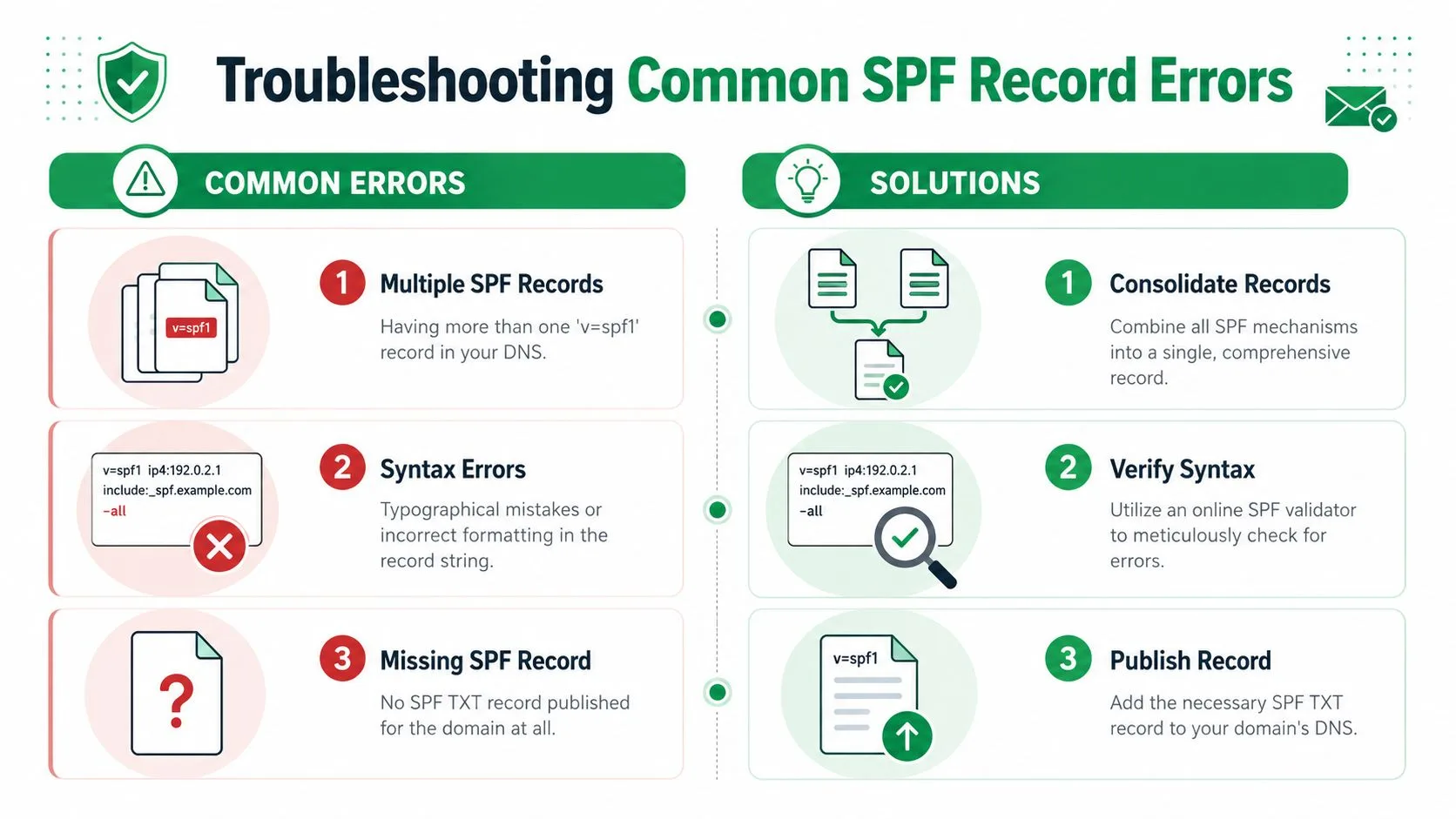
Multiple SPF records found
Symptom: your validator reports multiple SPF records, or receiving servers return a permanent SPF error.
Cause: your domain has more than one TXT record starting with v=spf1. I see this after a business adds a second sender, such as a CRM or outreach platform, and the new vendor’s setup guide gets followed to the letter. SPF does not merge those records. Receivers see the conflict and treat it as invalid.
Solution: keep one SPF record for the domain and fold every approved sender into that single TXT entry. If you already have separate records, choose one as the master, combine the needed mechanisms, then delete the extras.
Too many DNS lookups
Symptom: the record looks complete, but SPF still fails with a lookup limit or permerror result.
Cause: SPF checks can only follow a limited number of DNS lookups. This is the error basic Gmail SPF guides often skip. It shows up in real environments where Google Workspace is only one sender among several, especially if you also use mail merge software, a help desk, a billing system, and a marketing platform from the same domain. Each include: can pull in more includes underneath it, so a record that looks short can still exceed the limit.
Solution: trim the sender list before you try anything clever. Remove services that no longer send mail for your domain. Ask each vendor whether all of their published includes are needed for your use case. If your stack is still too large, split mail streams by subdomain. For example, keep regular staff email on your main domain and move outreach or bulk mail to a subdomain with its own SPF policy. That approach is often the cleanest fix in a multi-sender setup because it reduces lookup pressure and keeps one bloated record from breaking everything else.
Syntax problems and missing records
Symptom: the record exists in DNS, but the validator flags formatting errors, or no SPF record is found at all.
Cause: this usually comes from a bad paste, the wrong host value, or publishing the SPF string in the wrong field. In cPanel, GoDaddy, Cloudflare, and Google Domains replacements, the labels differ just enough to confuse first-time admins. A record meant for the root domain might get entered under www, or the TXT value might be split incorrectly.
Solution: compare the published TXT value against the intended record character by character. Confirm the host is correct for the domain you are authenticating, and make sure you created a TXT record, not another record type. If the syntax is fine but mail still fails, review the broader email authentication setup for custom domains, because the SPF record may be valid while another authentication control is causing the problem.
A practical troubleshooting order
Use this order when SPF breaks:
- Check for duplicate SPF records. This is the fastest issue to confirm and fix.
- Review the record text closely. Look for typos, missing spaces, extra quotes, or the wrong host.
- Map every sending service. Include Google Workspace, mail merge tools, CRMs, support platforms, and anything else that sends as your domain.
- Count lookup-heavy includes. If the list is crowded, simplify it or move some senders to a subdomain.
This order saves time because it matches how SPF usually fails in the field. Small teams often assume the newest tool caused the problem, but old DNS clutter is just as common. If you want a broader operational checklist while you clean this up, Simply Tech Today’s guide to email security is a useful reference.
Beyond SPF Your Next Steps in Email Authentication
A small business can publish a correct SPF record and still watch messages land in spam once invoices, outreach, and follow-ups start going out from different systems. That usually happens in mixed setups, especially when Google Workspace handles everyday mail and another tool sends campaigns or mail merge from the same domain.
SPF only covers part of the decision a receiving mail server makes. It checks whether the sending server is allowed to use your domain. That matters, but it does not prove the message was signed correctly or tell the receiving server what to do when authentication fails.
That is where DKIM and DMARC come in, and they matter even more in multi-sender environments.
DKIM adds a cryptographic signature to the message so receiving servers can confirm the message is legitimate and was not altered after it left your system. DMARC sits on top of SPF and DKIM and tells mailbox providers how to evaluate those checks for your domain. It also gives you reporting, which is often the first clear view of a sender you forgot was using your domain.
This is the point many basic SPF guides miss. If you use Google Workspace, a mail merge tool, a CRM, and a support platform, SPF can become hard to maintain because of the 10-lookup limit. DKIM helps reduce how much you have to rely on SPF alone, and DMARC gives you a policy layer so your domain is not judged only by one crowded TXT record.
For the next technical step after SPF, review this guide to email authentication for custom domains. It gives the practical setup path for DKIM and DMARC after your SPF record is in place.
If you want a broader operational checklist, Simply Tech Today’s guide to email security is a useful companion read.
The practical takeaway is straightforward. SPF gets permission in place. DKIM proves message integrity. DMARC gives you control, visibility, and a safer way to manage a domain that sends mail from more than one system.
Ready to send your first campaign?
Install Mail Merge for Gmail from the Google Workspace Marketplace and send up to 50 personalized emails per day for free.
Get started for freeMore reading
More from Tutorials
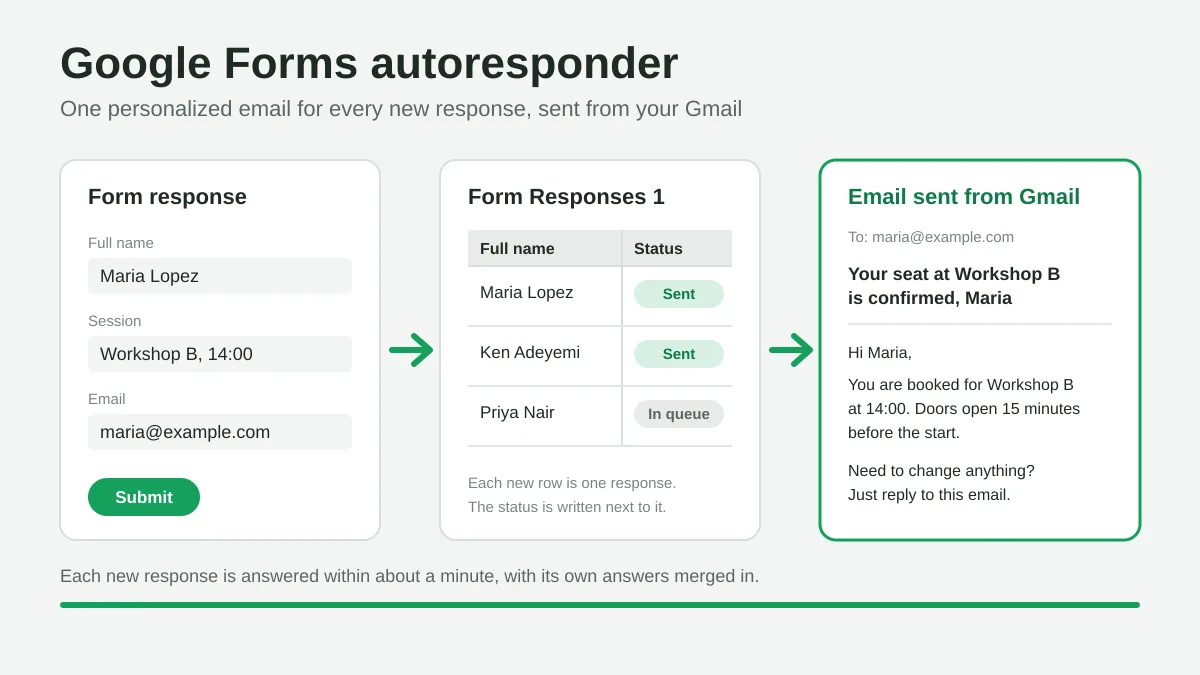
Google Forms Autoresponder: A Personalized Email for Every Response
Set up a Google Forms autoresponder that emails every new response from Gmail, personalized with the answers, using Google Sheets and Mail Merge for Gmail.
Payment Reminder Email Template: Five Messages You Can Send from Google Sheets
Copy a payment reminder email template for each stage of an overdue invoice, then send every reminder from Google Sheets through Gmail with personalized merge fields.
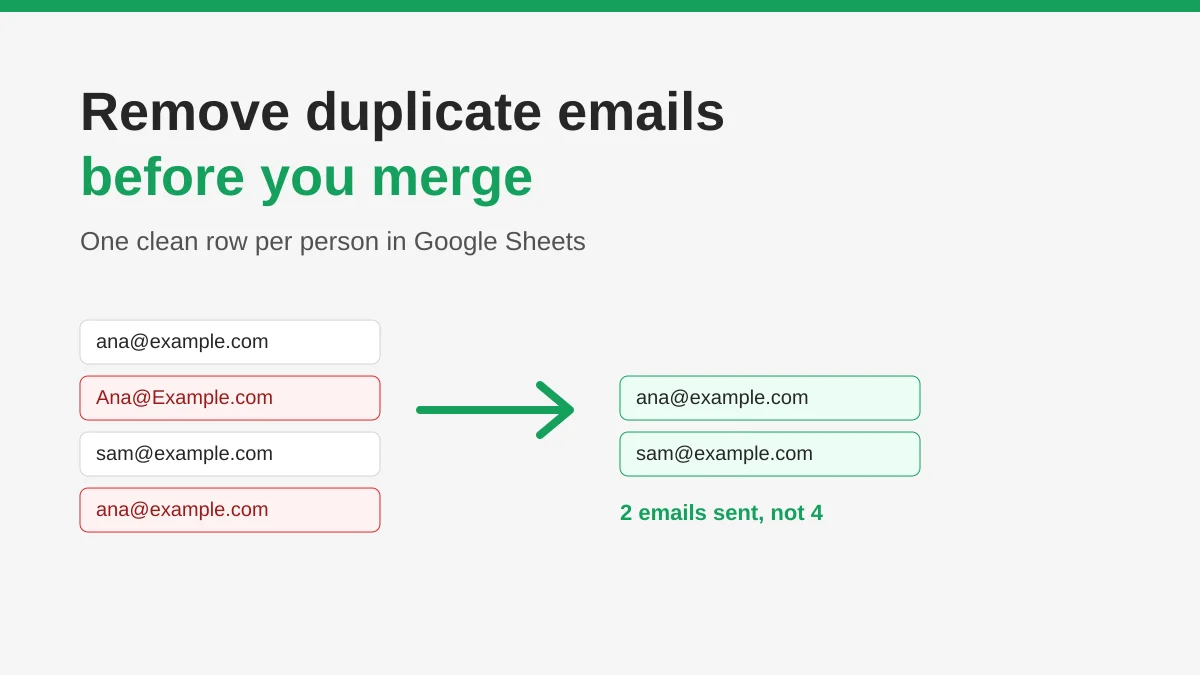
How to Remove Duplicate Emails in Google Sheets Before a Mail Merge
Learn how to remove duplicate emails in Google Sheets before a mail merge with Remove duplicates, UNIQUE and COUNTIF, so no contact gets the same message twice.