


















Run Targeted Email Campaigns That Get Results
Learn how to plan, build, and send targeted email campaigns from Gmail. Our guide covers segmentation, personalization, and tracking to boost your results.
You send a customer update from Gmail to everyone in your spreadsheet. Past buyers get it. Cold leads get it. A vendor gets it too because their email was sitting in the same tab. The message is polite, but it feels generic, so the people who matter skim it and move on.
That pattern is common in small businesses because the tools are already there. Gmail handles the sending. Google Sheets holds the list. BCC looks like a quick campaign setup. The problem is that a bulk send from familiar tools is still a bulk send unless the list and message change with the recipient.
A targeted email campaign fixes that without forcing you into a large email platform on day one. With Gmail, Google Sheets, and a bridge tool such as Mail Merge for Gmail, you can send messages that reference a customer’s last purchase, the service they asked about, or the event they attended, while still keeping the process manageable.
That is the practical shift. The goal is not more software. The goal is sending the right message to the right group with the tools you already know how to use.
The copy matters too. Even a well-segmented campaign falls flat if the email sounds stiff or machine-written. If you need help smoothing out phrasing before you send, HumanizeAIText for humanizing content is one way to make a draft sound more natural without rebuilding the whole campaign.
Why Your Generic Emails Are Falling Flat
A small business owner usually notices the problem after the send, not before it. The newsletter goes out from Gmail, replies are thin, clicks are weaker than expected, and one customer writes back asking why they received an offer that clearly was not meant for them.
Generic email creates that kind of friction because it forces the reader to sort out whether the message applies to them. Many people will not bother. They skim the first lines, see nothing tied to their situation, and leave it there.
A lead who asked for pricing needs a different email from a customer who already bought. A past event attendee needs a different reminder from a referral partner. Sending one version to all of them feels efficient on your side, but it lowers relevance for every group on the list.
That is why targeted campaigns usually outperform broad sends. The message has a clear fit. “Here is the guide we promised after Tuesday’s workshop” gives the reader a reason to care right away. “Your last order included this product, and this update affects it” does the same.
For a first campaign, that does not mean buying a full email platform and learning a new system. It usually means cleaning up your contacts in Google Sheets, deciding which rows belong in this send, and using Gmail with a bridge tool such as Mail Merge for Gmail to send the right version to the right segment. Good email list management practices matter more here than flashy automation.
Generic email feels faster to send, but slower to earn trust.
Tone matters too. Readers can tell when a message sounds copied, padded, or slightly off for the relationship. If your draft came from AI and reads stiff, review it like a real one-to-one email before you send it. HumanizeAIText for humanizing content is useful for smoothing wording when the message is technically correct but still does not sound like something you would personally send.
The business case for relevance is straightforward. Email is still one of the few channels a small business can run on its own terms, without depending entirely on a social platform’s feed rules. Inboxes are crowded, and personalized experiences tend to produce stronger commercial results than generic ones, as noted earlier. That matters even more when you are sending from tools people already use every day, because Gmail and Google Sheets make it easy to send at scale before you have done the harder work of choosing the right audience.
If a campaign fell flat, the first fix is rarely a cleverer subject line. Check the match between the recipient and the message first. That is usually where performance drops.
Planning Your Campaign and Segmenting Your Audience
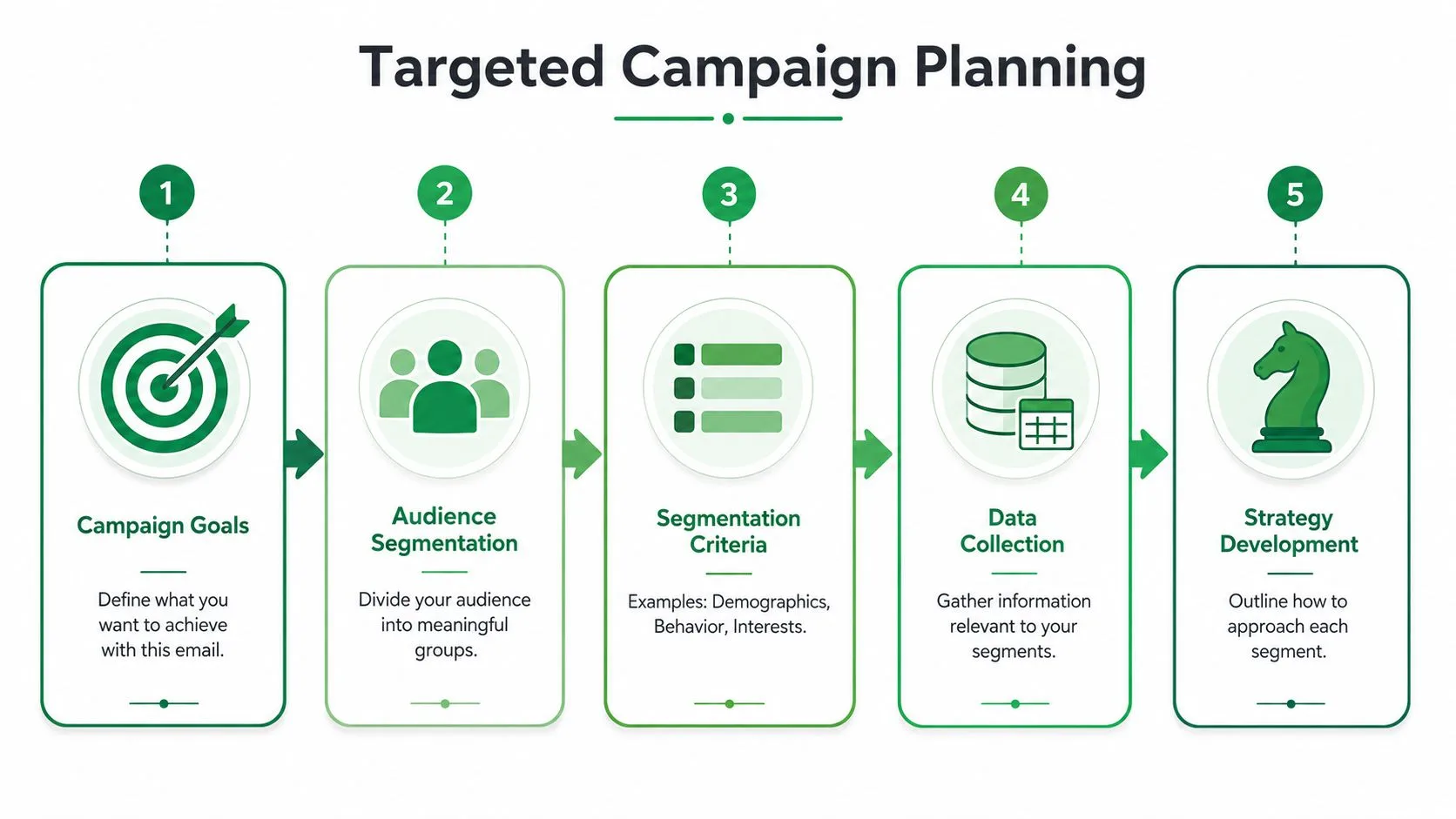
A workable targeted campaign starts in Google Sheets, not in Gmail. Before subject lines, drafts, or send timing, you need a list that makes sense.
The easiest mistake is collecting contacts in one long column labeled “email” and trying to personalize later. That leaves you guessing. Good targeting depends on simple structure.
Start with one campaign goal
Pick one outcome for the send. Don’t mix announcements, sales outreach, product education, and feedback requests in the same campaign. Your sheet should reflect that single purpose.
Use a tab in Google Sheets with columns that support the message you’re sending. For a first campaign, that often means fields like:
- Email: The recipient address you’ll send to.
- FirstName: Useful when it helps the message feel direct.
- CompanyName: Important for B2B outreach and partner communication.
- Segment: A clear label such as Lead, Customer, EventAttendee, or Partner.
- LastInteraction: A short reminder of the latest touchpoint.
- Offer or Topic: The angle this person should receive.
- Status: A place to record what happened after the send.
Build segments a small business can actually maintain
Most first-time senders over-segment or under-segment. Over-segmentation creates tiny groups you won’t maintain. Under-segmentation gives you another generic blast.
A practical middle ground is to segment by one of these:
| Segment type | When to use it | Example sheet value |
|---|---|---|
| Relationship stage | You have a mix of leads and existing customers | Lead, Customer, PastCustomer |
| Source | Contacts came from different channels | Webinar, StoreVisit, Referral |
| Behavior | You know what they did recently | DownloadedGuide, RepliedBefore, AttendedEvent |
| Buying stage | Your outreach depends on intent | Evaluating, ReadyForDemo, NeedsFollowUp |
This approach aligns with Bloomreach’s recommendation to segment by firmographics, behavior, and buying stage in a structured targeted email workflow, and the same guide notes that segmentation can improve open rates, deliverability, and response rates by 14–20% in major markets in a well-executed campaign, as covered in Bloomreach’s targeted email marketing guide.
Keep data collection light
You don’t need a giant CRM buildout. You need enough context to avoid sending the wrong message.
Practical rule: If a column won’t change what the email says, don’t collect it yet.
That’s why fields like Industry, Interest, EventName, LastPurchaseDate, or AssignedRep can be useful, while random profile details usually aren’t. Start lean, then add fields when they affect the message or follow-up.
A simple list management routine also matters. If your sheet is messy, duplicates creep in, old contacts stay forever, and segments stop meaning anything. A solid primer on that discipline is this guide to email list management in Google Sheets workflows.
A simple first campaign setup
For a local service business, a strong first spreadsheet might look like this:
- Leads from the website get an introductory email tied to the service they asked about.
- Past customers get an update or relevant offer based on prior work.
- Event attendees get a recap and a clear next step.
- Partners get a different email entirely, even if the core news is the same.
That’s enough structure to make your first targeted email campaign feel intentional instead of improvised.
Building Personalized Messages That Resonate
A good targeted email reads like one person sat down and wrote to another person for a specific reason. Your spreadsheet gives you that reason. Gmail gives you the draft. The merge tool handles the repetition.
Personalization starts before the first merge field. It starts with relevance.
Write from context, not from a template
Small business owners often make the same mistake on a first campaign. They drop {{FirstName}} into a standard promo email and expect it to feel personal. It usually does not. If the message could go to anyone on the list, the recipient can tell.
A stronger approach is simple. Open with the reason they are hearing from you, based on what is already in your Sheet. Then make one clear point and ask for one clear action.
Examples:
- Lead outreach:
{{FirstName}}, I saw your request about {{Topic}} - Customer follow-up:
A quick update related to your last order - Event follow-up:
Thanks for joining {{EventName}}
The body should stay just as focused. Center it on one of these:
- what changed
- what they asked for
- what you recommend next
- what action you want them to take
Use merge fields where they actually help
Merge fields work best when they add meaning, not when they decorate every sentence. In practice, three spots usually matter most:
| Area | Useful merge field example | Why it works |
|---|---|---|
| Subject line | {{FirstName}}, a quick idea for {{CompanyName}} | Signals relevance before the open |
| Opening line | You signed up after {{EventName}} | Shows the email has context |
| Call to action | If {{Topic}} is still a priority, reply and I’ll send details | Connects the ask to known interest |
If {{CompanyName}} makes the sentence sound stiff, cut it. If {{Topic}} makes the CTA clearer, keep it. That trade-off matters more than squeezing in every field you collected.
I usually tell teams to read the draft out loud with the merge tags filled in from one real row in the sheet. If it sounds like a note you would send from Gmail, you are close. If it sounds like a mail merge, revise it.
Build it inside Gmail and Sheets
For a first campaign, staying inside tools you already know is often the right call. Draft the email in Gmail. Keep your audience data in Google Sheets. Use a bridge tool such as Mail Merge for Gmail to pull row-level fields into the subject line and body, send from your Gmail account, and write send status back to the sheet.
That setup is practical because it removes a lot of platform friction. You do not need to learn a full email system before you can send a targeted campaign that feels professional. You need a clean sheet, a solid draft, and placeholders tied to the right columns.
One caution. Personalized copy only helps if the sender setup is sound. Before you send at volume from Gmail, review the basics of email authentication for Gmail-based campaigns so your messages have a better chance of being trusted by inbox providers.
If you want help tightening the structure of your draft before sending, this comprehensive guide on email templates is a practical reference. It is especially useful when you know the segment and offer, but need a cleaner way to shape the message.
Ensuring Your Emails Actually Reach the Inbox
You can do the segmentation right, write a strong email in Gmail, and still get weak results because the message never makes it to the primary inbox. For small businesses running targeted campaigns from Gmail and Google Sheets, inbox placement usually comes down to a few practical factors you can control: sender setup, list quality, sending volume, and message structure.
Fix the sending setup first
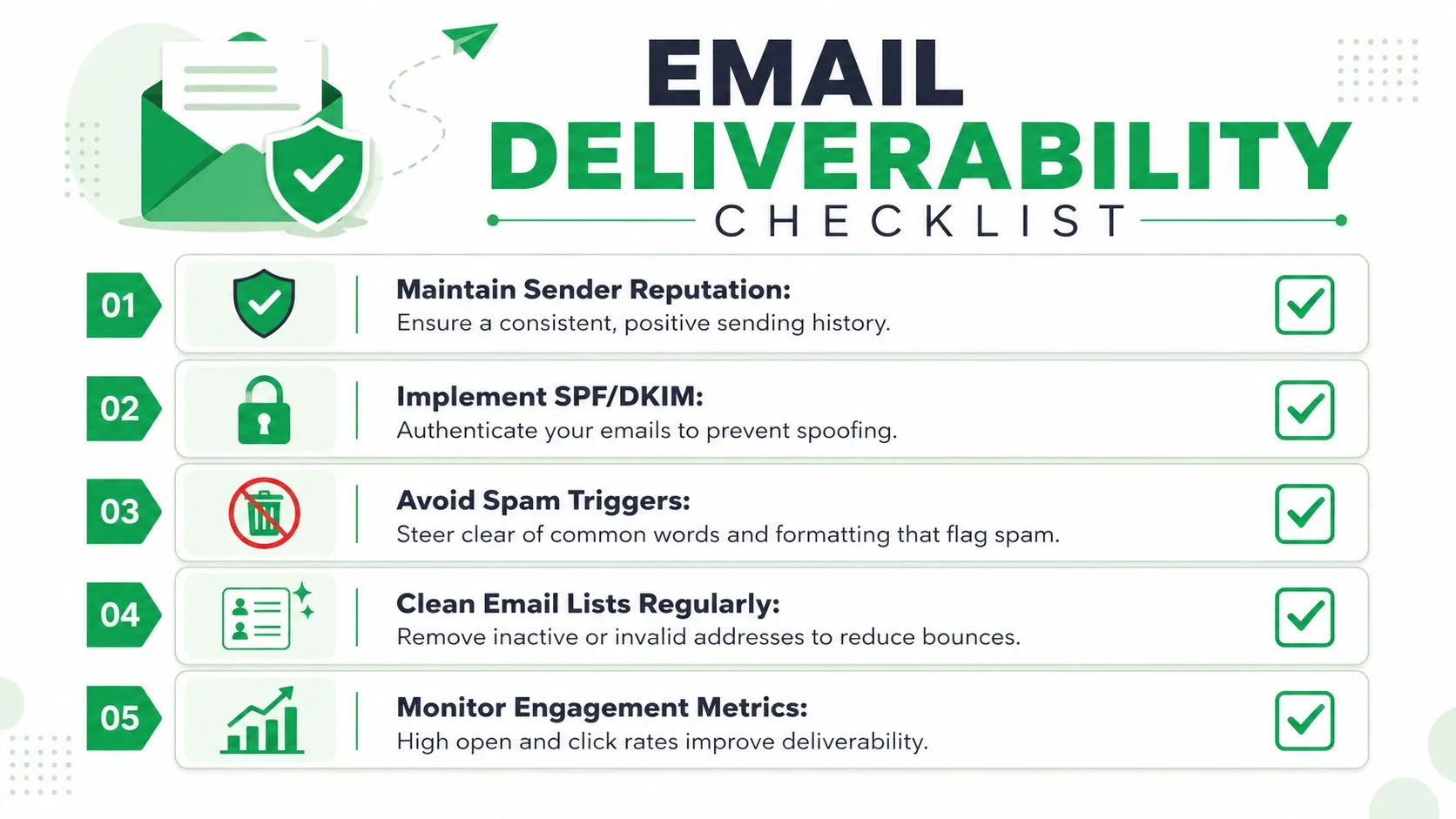
If you are sending through Gmail with a Google Sheets-based workflow, start with authentication. Inbox providers look for basic signals that your domain is legitimate and that Gmail is allowed to send on its behalf. Without that setup, even well-written campaigns can get filtered or sent to spam.
A good first check is this guide to email authentication for Gmail-based campaigns. It explains the Gmail-specific pieces without dragging you into technical jargon you do not need for a first campaign.
Braze’s email campaign best practices also point to the same two operational realities: unauthenticated domains face a much higher risk of junk-folder placement, and a large share of recipients read email on mobile devices (source). That has a direct implication for a Gmail-first workflow. Before you worry about copy tweaks, make sure your domain is trusted and your message is easy to scan on a phone.
The inbox problems small teams usually create
I see the same pattern in first campaigns built from Sheets and Gmail. The issue is rarely one dramatic mistake. It is a pile of small choices that make the send look less trustworthy.
Old contact lists are a common example. If your Google Sheet includes stale addresses, role accounts, or people who never asked to hear from you, bounces and complaints go up fast. That hurts the current campaign and makes the next one harder to place.
Formatting causes trouble too. A message with four links, three different calls to action, and a subject line that sounds like a promotion will not feel like a normal business email. One of the advantages of using Gmail for targeted sends is that it naturally pushes you toward a simpler format. Keep that advantage. Write like a real person, link only where needed, and make the email look like something you would send manually.
There is also a real volume trade-off with Gmail. Standard Gmail and Workspace accounts have sending limits, and each recipient counts toward that cap. If you try to push too much volume through one account, or you jump from occasional one-to-one emails to a large merged send overnight, you increase the chance of throttling and spam filtering. For a first campaign, smaller segmented batches are safer and easier to troubleshoot than one large blast.
What good campaign hygiene looks like in practice
Before sending from Gmail or through a bridge tool such as Mail Merge for Gmail, run a short pre-send check:
- Remove contacts that are outdated, inactive, or obviously invalid.
- Send to smaller segments instead of the full sheet at once.
- Keep one primary call to action in each email.
- Read the message on your phone and trim anything that feels dense.
- Avoid all-caps, excessive punctuation, and overly promotional subject lines.
- Confirm your domain authentication is set up before you send at volume.
That process is not complicated. It is disciplined.
For a broader plain-English walkthrough, How to avoid landing in spam is a useful companion read.
Measuring Performance to Get Better Results
A lot of small teams think they’re measuring email because they can see messages in Sent. That isn’t measurement. That’s confirmation that the campaign went out.
The limitation is sharpest with Gmail’s native mail merge. It provides zero analytics, so there are no open rates, click-through rates, reply rates, unsubscribe rates, or bounce rates tracked for the campaign, as explained in GMass’s comparison of Gmail’s built-in mail merge.
If you can’t see what happened, you can’t improve the next send. You’re left guessing whether the problem was the segment, the subject line, the offer, or the list.
Stop treating opens as the main goal
Many campaigns go sideways. Marketers often celebrate open rate because it’s easy to track and easy to compare. But opens don’t tell you whether the campaign created value.
According to Klaviyo’s 2025 analysis of B2C email campaigns, 65% of marketers optimize solely for open rates. The same analysis says subscribers receiving highly personalized, less frequent emails often yield a higher lifetime value than those bombarded with emails optimized for opens.
That’s an important correction for targeted email campaigns. A subject line can win the open and still attract the wrong curiosity. A campaign with fewer opens can still produce better replies, stronger conversions, and healthier long-term engagement.
Better question: Did this segment take the next action I wanted, and was that action worth the send?
What to track instead
If your workflow writes performance data back into Google Sheets, you get a useful operating view. At the row level, that means you can see who was sent the email, who opened it, who clicked, who replied, and which segment they belonged to.
That lets you ask better follow-up questions:
- Replies: Which segment started conversations?
- Clicks: Which message made the offer clear enough to explore?
- Bounces: Which list source needs cleanup?
- Segment patterns: Did one audience consistently underperform because the targeting was wrong?
If you want a practical framework for reading those signals, this guide to cold email performance metrics is useful because it pushes beyond vanity reporting.
A deeper issue sits underneath all of this. Sometimes teams keep rewriting copy for a segment that should never have received that angle in the first place. LinkedIn’s analysis of underperforming email angles argues that 70% of underperforming email campaigns fail due to inaccurate audience segments rather than weak copy, and recommends testing angles on a minimum of 200 contacts per angle over 2–3 weeks while controlling the value proposition variable in this LinkedIn piece on eliminating underperforming email angles.
That’s a useful discipline even for smaller lists. If a campaign misses, don’t assume the sentence was wrong. Check whether the segment was wrong first.
A short walkthrough can help if you haven’t built this feedback loop before:
Putting It All Together for Your Next Campaign
Monday morning, you open Gmail, pull up a Google Sheet with 75 contacts, and realize you do not need a full email platform to run a solid targeted campaign. You need a clean list, one clear segment, and a message that fits the reason those people should hear from you now.
That setup is enough to run a professional campaign inside tools many small businesses already use. Google Sheets stores the fields that matter. Gmail holds the draft and the replies. A mail merge tool connects the two so personalization happens from the sheet instead of by hand.
The workflow that keeps the campaign clear
Use a simple sequence:
- Pick one segment with a shared context. Past customers, event leads, recent quote requests, or dormant trials all work better than a mixed list.
- Trim the spreadsheet to useful fields. Name, company, offer, last touchpoint, and one custom note usually beat a sheet packed with unused columns.
- Write one email for that segment only. If the message tries to cover multiple situations, it usually gets vague.
- Add personalization that earns its place. A first name is fine. A relevant detail such as the product they viewed or the event they attended is better.
- Send a test to yourself first. Check mobile formatting, merge fields, links, and whether the email still sounds human.
- Track results back in the sheet. Mark replies, clicks, bounces, and notes on message fit so the next send gets sharper.
The trade-off is straightforward. A narrower campaign takes more thought up front, but it is easier to write, easier to judge, and easier to improve.
For a first campaign, keep the scope tight. Send one message to one segment you understand well and give yourself one clear goal, such as booking calls, restarting dormant conversations, or getting quote requests back in motion. That gives you a clean read on what worked without sorting through noise from three audiences and two offers.
Used this way, Gmail and Google Sheets stop being basic admin tools and become a practical campaign system. You stay close to the list, you can see exactly how personalization is built, and you avoid the overhead of learning a larger platform before you have a repeatable process.
If you want to run that workflow inside Gmail and Google Sheets without moving to a heavier platform, Mail Merge for Gmail is a practical place to start. It lets you personalize sends from spreadsheet data, track campaign activity, and keep the process inside the Google tools most small teams already use.
Ready to send your first campaign?
Install Mail Merge for Gmail from the Google Workspace Marketplace and send up to 50 personalized emails per day for free.
Get started for freeMore reading
More from Guides
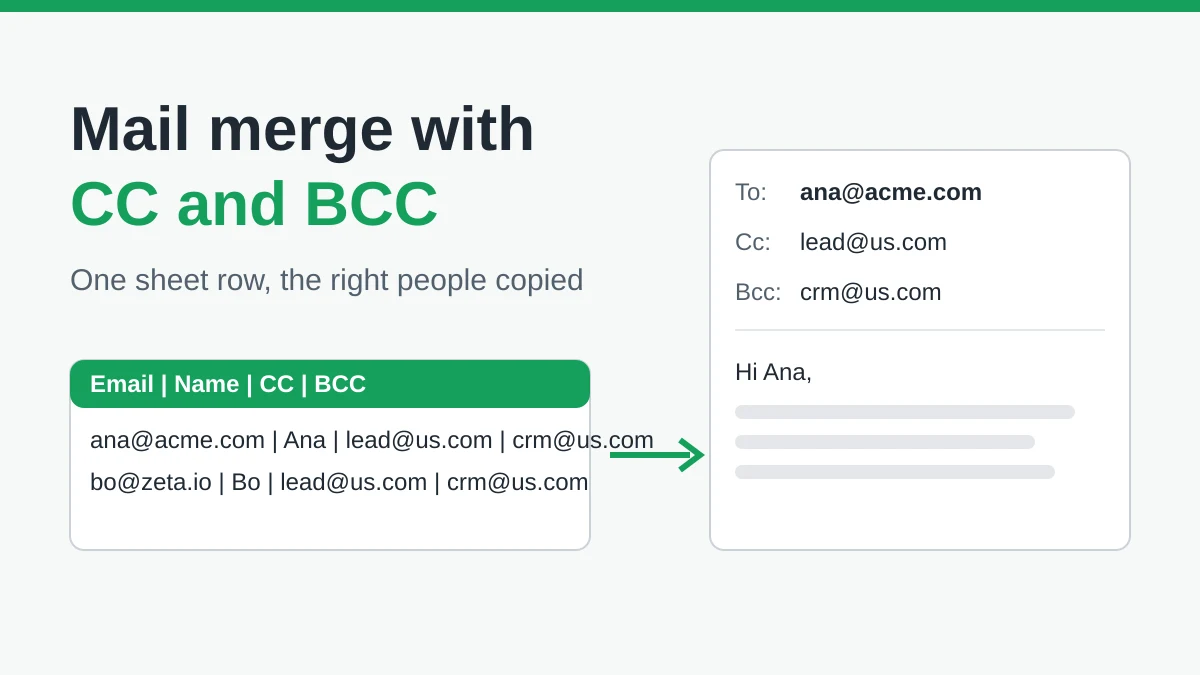
Mail Merge with CC and BCC in Gmail: Copy the Right People on Every Email
Learn how to run a mail merge with CC and BCC from Google Sheets, set up the columns, preview the result and see how copied recipients count toward your daily quota.
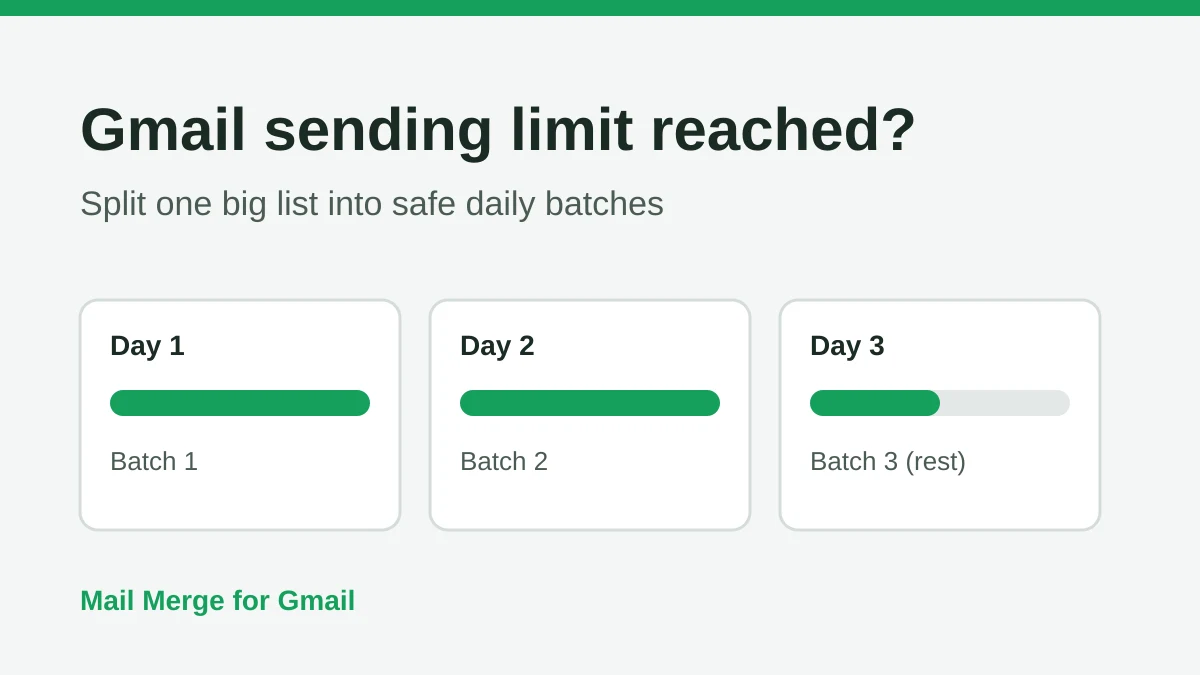
Gmail Sending Limit Reached: What It Means and How to Finish Your Campaign
Hit the Gmail sending limit reached error? Learn the real daily limits, when you can send again, and how to split a mail merge into safe daily batches.
Personalized Email Gmail: The Complete Guide
Master your personalized email Gmail workflow. Learn to merge Sheets data, track opens, and scale one-to-one outreach without leaving your inbox.