


















Delayed Email Delivery: Guide to Scheduling & Fixes
Master delayed email delivery with our 2026 guide. Learn to schedule emails effectively & troubleshoot common delivery issues for reliable communication.
You send a proposal at 8:03 AM. The client asked for it “as soon as possible.” Gmail says it’s sent. By noon, there’s still no reply, and now you’re wondering whether they’re ignoring you or whether your message never showed up when it mattered.
That uncertainty is what makes delayed email delivery so frustrating. Sometimes the email really is late. Sometimes it arrived but landed in spam. Sometimes the recipient server accepted it and held it briefly. And sometimes the smartest move is to delay delivery on purpose so your message arrives at a better time.
Why Your Sent Emails Sometimes Arrive Late
Email feels instant until you need it to be.
A founder sends an invoice before lunch. A recruiter sends an interview confirmation after business hours. A sales rep sends a follow-up with a proposal attached. In all three cases, “sent” doesn’t guarantee “seen,” and it doesn’t even guarantee “inbox.”

The key distinction is this: delivery and deliverability are not the same thing. According to MailReach deliverability benchmarks, approximately 16.9% of legitimate marketing emails accepted by receiving servers still fail to reach the intended inbox. That same benchmark says inbox placement averages 84%, while 10.5% land in spam and 6.4% are blocked entirely.
That matters for small businesses because the practical question isn’t “Did my app send the message?” It’s “Did the recipient get it in time, in the right place, and in a form they could open?”
Timing problems aren’t always technical failures
Some delays happen because mailbox providers slow things down while they evaluate a sender. New domains, new sending patterns, and sudden volume changes often get extra scrutiny. Other delays happen because the message itself takes longer to process, especially when attachments are heavy or complicated.
If your emails include large PDFs, one easy fix is to reduce PDF file size before sending. Smaller files are easier for mail systems to scan and less likely to create avoidable friction.
Practical rule: If an email is important and time-sensitive, treat file size, sender reputation, and send timing as part of the message. They affect whether the email arrives when it still matters.
Delayed email delivery can also be intentional
Not every delay is bad.
Sometimes delaying a send is the professional move. If you write an email late at night, scheduling it for the recipient’s workday often gets better attention. If you’re emailing B2B contacts, sending into a packed Monday morning inbox can bury a perfectly good message.
That’s why it helps to think about delayed email delivery in two categories:
- Unwanted delay: your email gets held up by servers, filters, or local client issues.
- Planned delay: you choose when the email should arrive for better timing and smoother sending.
Both matter. One is a troubleshooting problem. The other is a communication strategy.
What Really Causes Delayed Email Delivery
Most email delays come from a handful of places. Once you know which bucket you’re dealing with, the problem gets much easier to diagnose.
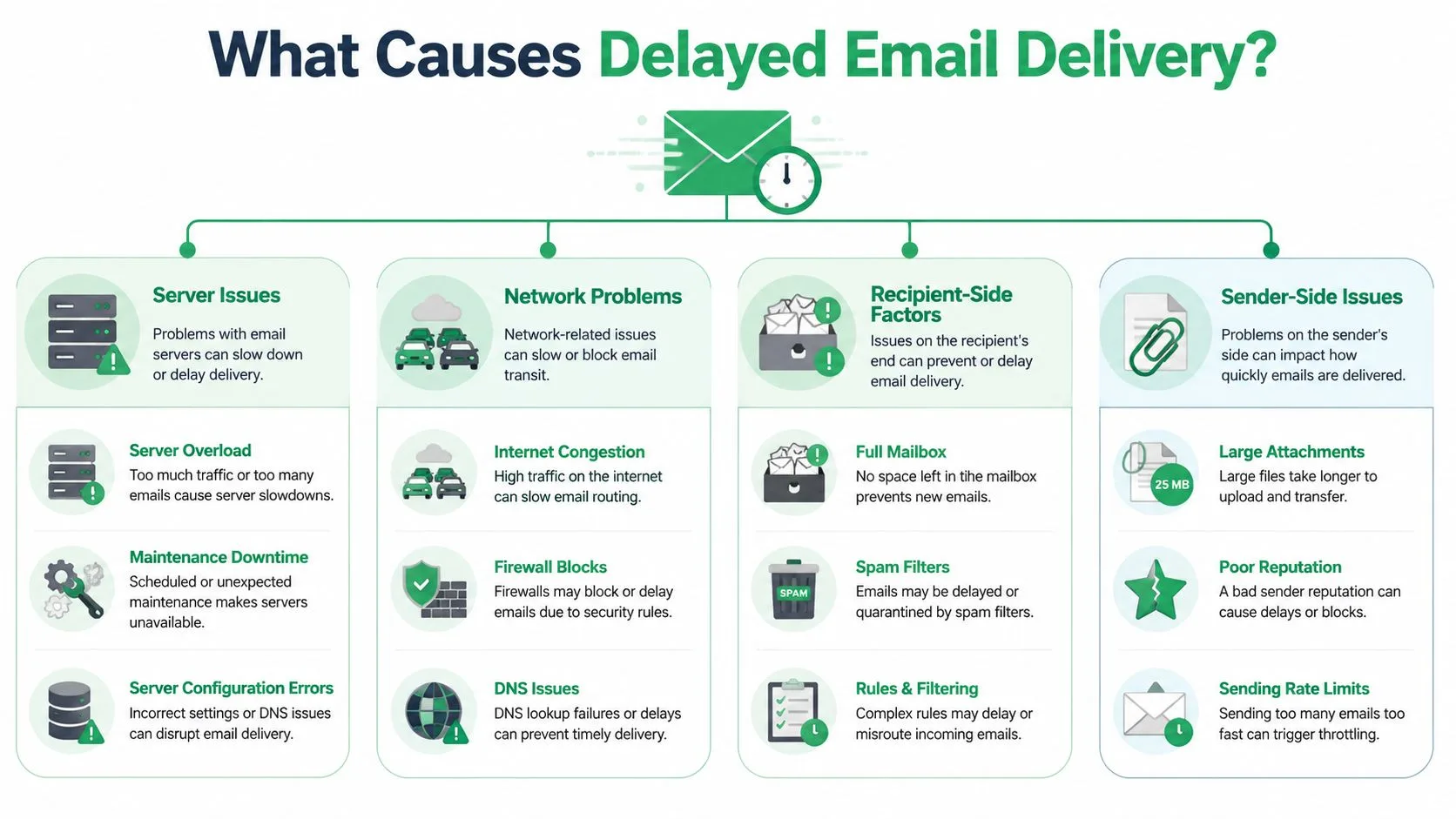
Server-side speed bumps
Mailbox providers don’t process every message the instant it arrives. Some run on timed send and receive cycles, and those cycles can range from seconds to 15 minutes, while anti-virus and spam screening can add more delay because messages are checked sequentially, as noted in SMTP.com’s overview of email delivery delays.
That’s why a short delay doesn’t automatically mean something is broken.
A common example is greylisting. This process is similar to a front desk asking an unfamiliar visitor to wait a moment before being let in. The recipient server temporarily defers the first message from a new sender, then accepts a retry if the sender behaves like a legitimate mail system.
Content checkpoints
Some delays have very little to do with your words and a lot to do with how the message is packaged.
- Large attachments: Security tools need longer to scan them.
- Complex formatting: Heavy HTML can trigger more checks.
- Suspicious combinations: Certain content patterns plus weak reputation can push a message into slower review.
This is one reason sender trust matters so much. If you’re seeing repeat delays, it’s worth reviewing your email sender reputation, because mailbox providers weigh that history heavily when deciding how quickly to accept and place your messages.
Short delays often come from the receiving side being cautious, not from your sending tool failing.
Recipient-side and sender-side issues
Some of the most overlooked causes aren’t on the mail server at all.
A local mail client can stall a message before it ever enters the normal delivery pipeline. Outlook offline mode, sync issues, and virtual desktop setups can make a user think the platform is delaying delivery when the message is stuck in a local outbox.
Then there’s plain volume pressure. Providers routinely slow inbound traffic during busy periods. A message can be valid, authenticated, and still wait in line.
A simple mental model helps:
| Cause category | What it usually means |
|---|---|
| Server issue | The recipient system is busy, overloaded, or intentionally deferring |
| Sender issue | Your reputation, attachments, or sending pattern triggered extra checks |
| Recipient issue | Their mailbox, client, or internal filters slowed processing |
| Network issue | Hand-off between systems took longer than normal |
When you understand those four buckets, delayed email delivery stops feeling random.
Scheduling Emails for Later with Gmails Native Tool
If your goal is simple timing, Gmail’s built-in scheduler is usually enough.
This works well when you’ve already written the email and just want it to arrive at a better hour. Maybe you’re finishing a message at 10 PM and want it to land at 9 AM. Maybe you’re replying on a weekend and don’t want to set the expectation that you’re always available.
How to schedule one email in Gmail
The steps are straightforward:
- Write your email as usual in Gmail.
- Click the arrow next to Send.
- Choose Schedule send.
- Pick a suggested time or set your own.
- Confirm the schedule.
If you want a click-by-click walkthrough, this how to schedule an email in Gmail guide shows the process clearly.
When Gmail’s scheduler is the right choice
Gmail’s native tool is best for one-to-one communication.
Use it when you want to:
- Send during business hours: You drafted the message too early or too late.
- Avoid awkward timing: You don’t want a client email arriving on Sunday night.
- Look more deliberate: A scheduled send can make your communication feel calm instead of rushed.
A scheduled email often performs better simply because it arrives when the recipient is ready to read it.
What it doesn’t solve
Gmail’s built-in scheduling is not built for campaign logic.
It doesn’t help much when you need to send personalized emails in batches, pace delivery over multiple days, or align timing with different recipient timezones at scale. It also doesn’t give you a campaign view for managing a broader send strategy.
That’s the line to keep in mind. Gmail schedule send is for one email at a time. When your timing needs become operational, you need more than a calendar picker.
Advanced Email Scheduling for Campaigns and Quotas
Once you move from one-off emails to outreach campaigns, scheduling becomes part of deliverability management.
A sales team sending follow-ups, a nonprofit sending announcements, or a recruiter contacting candidates in several countries all run into the same issue. “Send later” is too limited when every recipient shouldn’t get the message at the same moment.
Timing matters more in campaigns
For campaign sends, local timing affects response quality. Research cited by SMTP.com found that email engagement can drop by 20 to 30% when messages are sent during peak work periods like Monday mornings instead of Tuesday through Thursday mid-morning windows. In practice, that means timezone-based scheduling isn’t a nice extra. It’s part of getting the email seen at the right moment.
That’s especially relevant for B2B outreach. Monday morning is often a bad slot because people are clearing backlog, sitting in meetings, and triaging urgent work. A good message can disappear under more urgent email.
Why campaign scheduling needs a different tool
A campaign tool solves problems Gmail’s native scheduler doesn’t even try to solve:
- Timezone targeting: One recipient gets the email in their morning. Another gets it in theirs.
- Quota smoothing: Instead of pushing a full list at once, you spread delivery over time.
- Batch control: You can send one part of a campaign now and another part days later.
- Personalization at scale: The timing works alongside mail merge fields, templates, and list-based sending.
For this, a tool like Mail Merge for Gmail is well-suited. It lets you send personalized campaign emails from Gmail using Google Sheets data, schedule sends, and pace larger outreach instead of dumping everything into a single burst.
That pacing matters. Sending too much too quickly can create unnecessary pressure on quotas and reputation. A smoother send pattern is often less harmful than one sharp spike.
Here’s a quick way to think about it:
| Need | Better fit |
|---|---|
| One important email later today | Gmail schedule send |
| A personalized campaign over several days | A mail merge tool with scheduling |
| Recipients across multiple timezones | A campaign scheduler |
| Send pacing to avoid quota spikes | A campaign scheduler |
A short product walkthrough helps make the difference concrete:
The trade-off is simple. Gmail’s native feature is fast and clean for one message. Campaign scheduling is better when timing, personalization, and volume all need to work together.
Choosing the Right Scheduling Tool for Your Needs
The right tool depends less on features and more on the job you’re trying to do.
If you’re emailing one person, keep it simple. If you’re coordinating a campaign, simplicity can become a limitation.
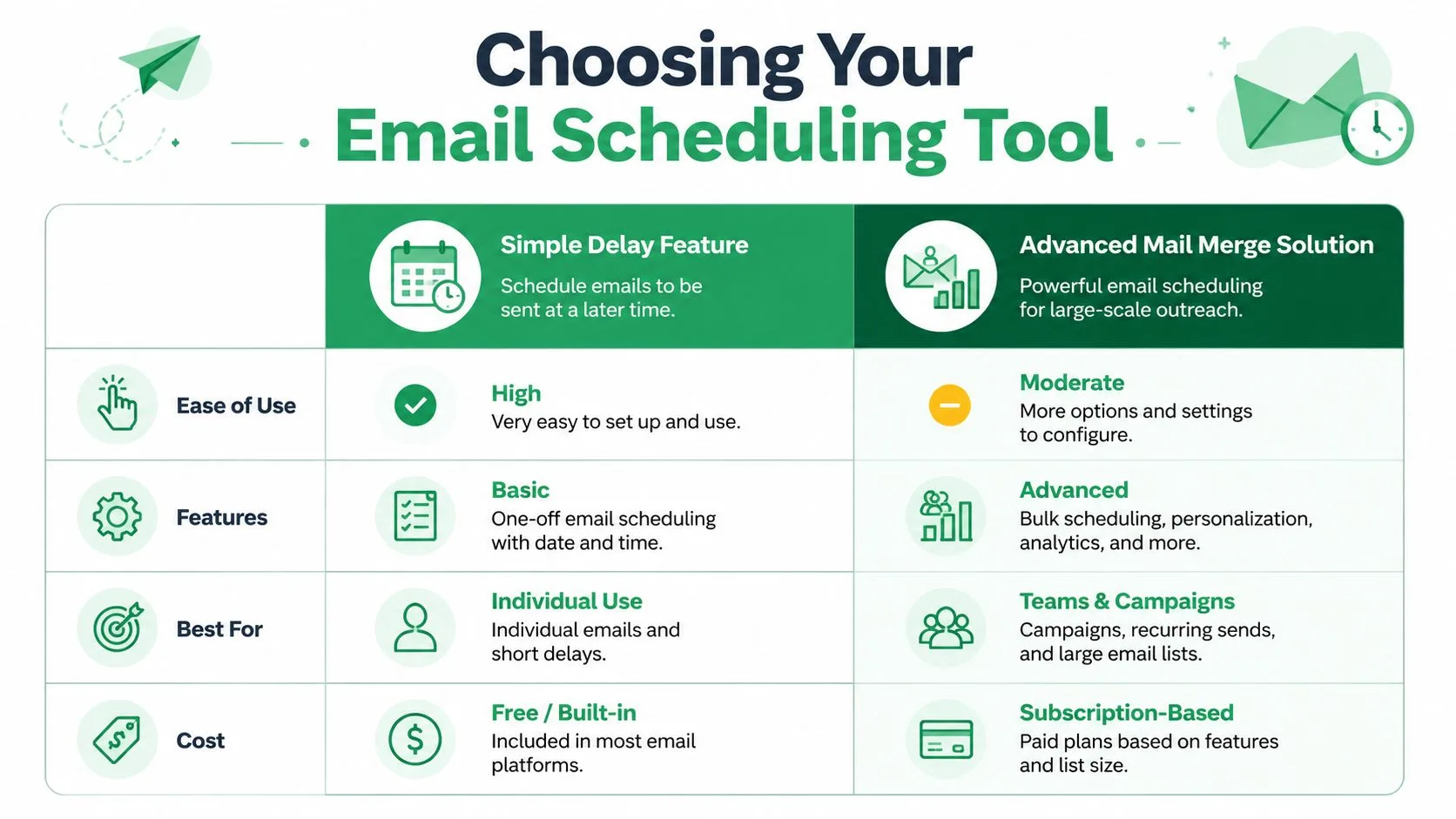
Quick comparison
| Criteria | Gmail native scheduling | Advanced mail merge scheduling |
|---|---|---|
| Best use case | One-to-one emails | One-to-many outreach |
| Setup | Built into Gmail | Requires campaign setup |
| Timing control | Single email, single send time | Broader scheduling across lists |
| Personalization | Manual | Automated from contact data |
| Tracking | Minimal | Campaign-level visibility |
| Quota management | Limited | Better for smoothing sends |
| Timezone use | Basic practical use | Better for audience-by-audience timing |
A simple rule of thumb
Choose Gmail’s native scheduler when:
- You’re sending a personal note
- You only need one delivery time
- You want the fastest path from draft to scheduled send
Choose an advanced scheduler when:
- You’re sending to a list
- You need personalization beyond copy-paste
- You want to spread sends to protect timing and sending patterns
If your scheduling decision affects deliverability, not just convenience, you’re already beyond basic send-later.
Most small businesses don’t need to overcomplicate this. Use the built-in option for ordinary correspondence. Move to campaign scheduling when timing becomes part of list management, quota smoothing, or audience strategy.
How to Troubleshoot and Fix Unwanted Email Delays
When an email shows up late, start with the boring causes first. They’re often the actual ones.
Check your own side before blaming the server
A surprising number of “server delays” begin on the sender’s machine.
If you use Outlook or another desktop client, check for:
- Outbox stalls: The message may still be sitting locally.
- Offline mode: The client may not be connected.
- Sync issues: Cached or virtual environments can delay sending without making it obvious.
User-side configuration problems are easy to miss because the interface still makes it feel like the email has been sent.
Use time as a clue, not a diagnosis
Not every delay needs intervention. According to SpamResource’s explanation of greylisting, 85% of short delays are intentional greylisting. The same guidance says delays under 1 hour are normal, 2 to 4 hours usually reflect ISP rate-limiting, and delays beyond 24 hours point to a genuine block.
That timeline is useful because it stops people from “fixing” the wrong thing.
- Under 1 hour: Usually wait and monitor.
- 2 to 4 hours: Look for throttling or sending-pattern issues.
- Over 24 hours: Treat it as a real delivery problem.
What to check next
After local issues and timing, move through a short checklist:
-
Review authentication If SPF, DKIM, or DMARC are missing or misaligned, receiving systems may slow or distrust your mail. This email authentication guide is a solid place to review the basics.
-
Look at attachments and formatting Heavy files and messy HTML can increase scanning time.
-
Inspect soft bounce signals Temporary SMTP deferrals usually mean “try again later,” not “permanent failure.”
-
Avoid resending too quickly A duplicate send can make the situation worse if the first message is already queued.
If you want a broader operational checklist, this guide for sales and marketing deliverability is useful for working through recurring inbox and delay issues.
Wait first, then diagnose. Panic-resending is one of the easiest ways to create a bigger deliverability problem than the one you started with.
The biggest practical lesson is simple: delayed email delivery is often temporary, sometimes intentional, and only occasionally a true failure. The faster you separate those cases, the faster you stop guessing.
If you need more control than Gmail’s basic scheduler gives you, Mail Merge for Gmail is built for sending personalized campaign emails from your Gmail account with scheduling, spreadsheet-based recipient management, and pacing that fits broader outreach workflows.
Ready to send your first campaign?
Install Mail Merge for Gmail from the Google Workspace Marketplace and send up to 50 personalized emails per day for free.
Get started for freeMore reading
More from Tutorials
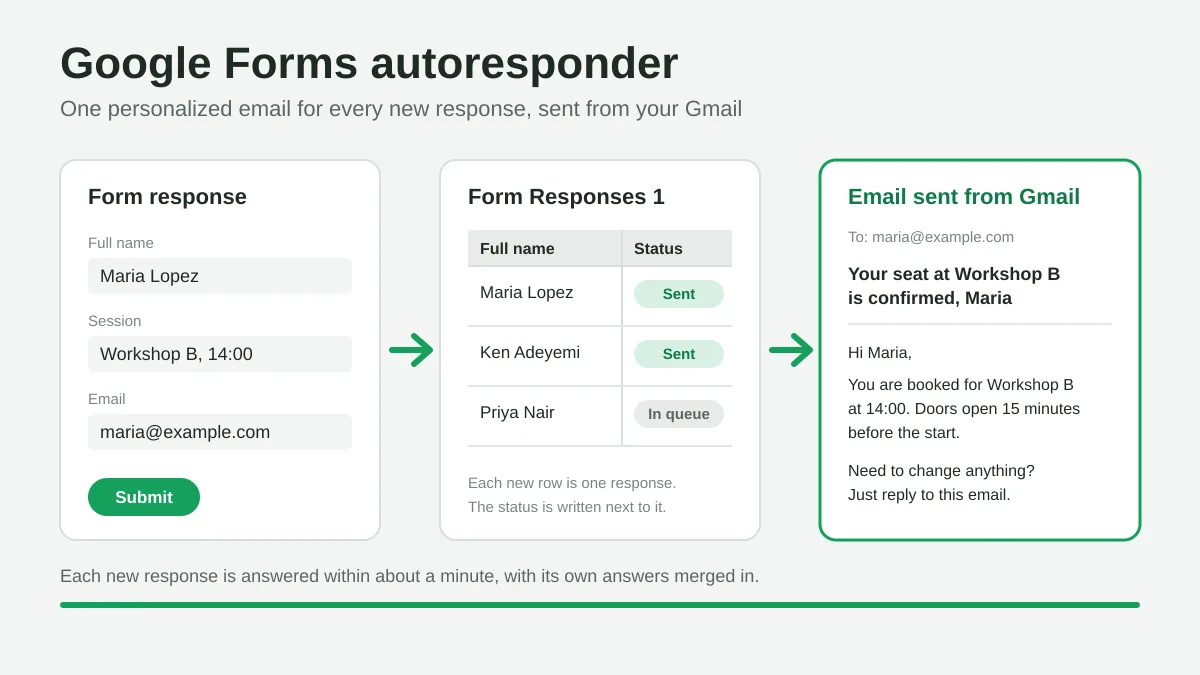
Google Forms Autoresponder: A Personalized Email for Every Response
Set up a Google Forms autoresponder that emails every new response from Gmail, personalized with the answers, using Google Sheets and Mail Merge for Gmail.
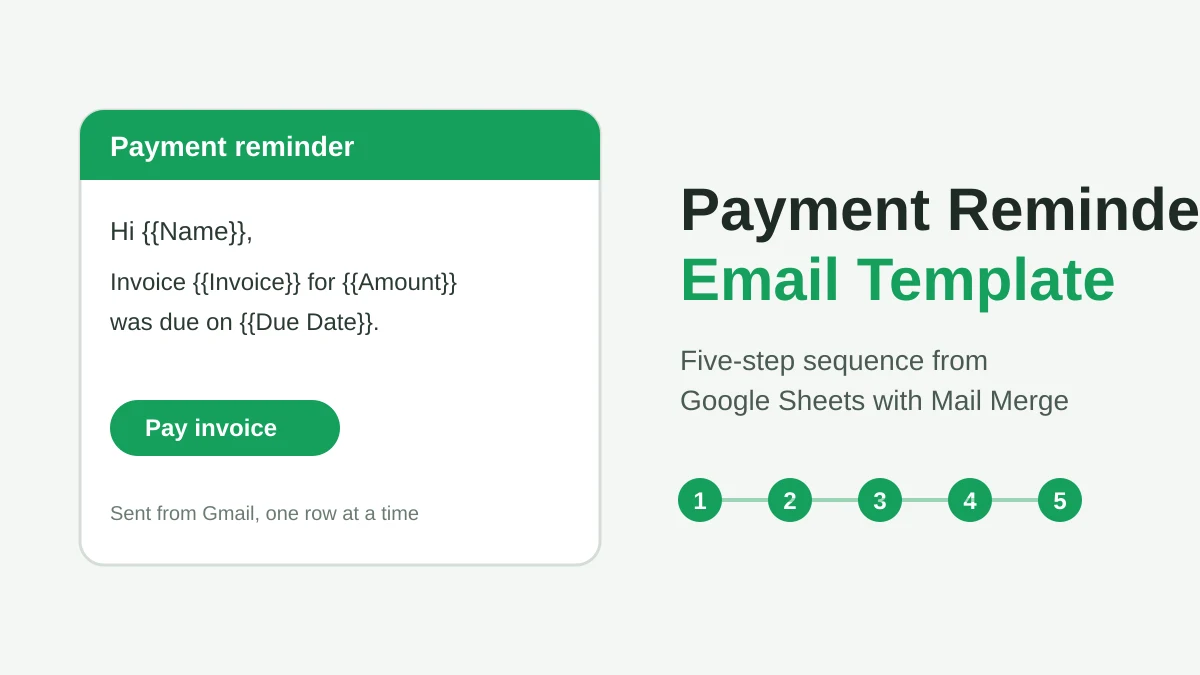
Payment Reminder Email Template: Five Messages You Can Send from Google Sheets
Copy a payment reminder email template for each stage of an overdue invoice, then send every reminder from Google Sheets through Gmail with personalized merge fields.
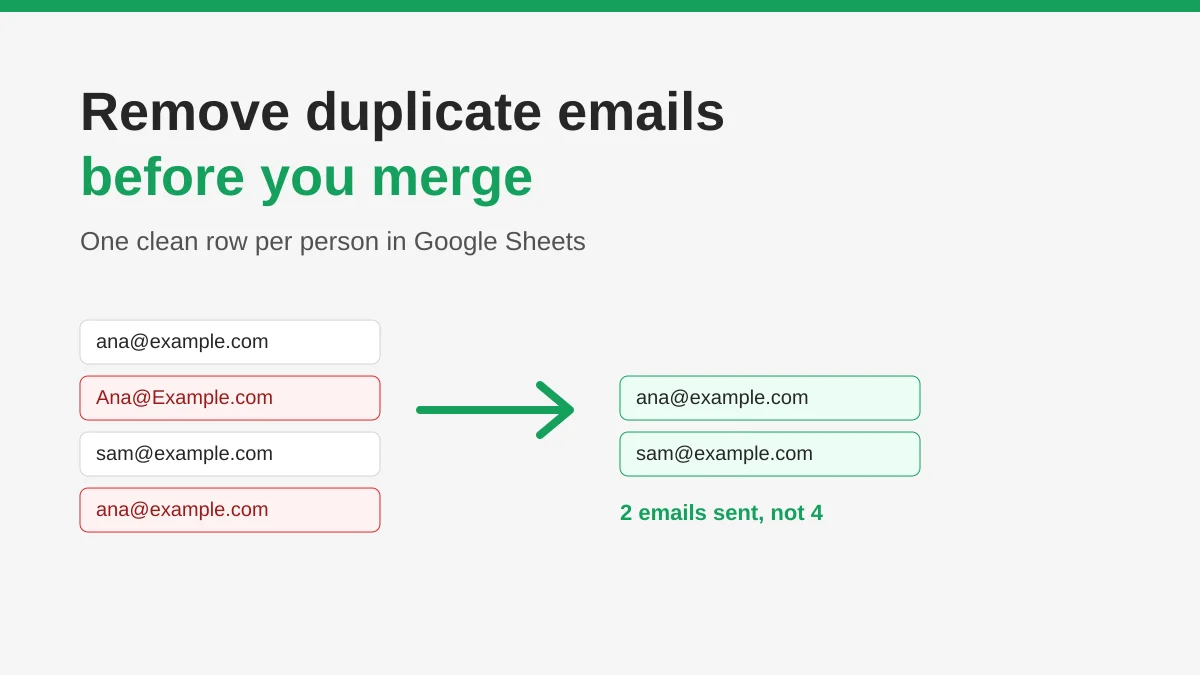
How to Remove Duplicate Emails in Google Sheets Before a Mail Merge
Learn how to remove duplicate emails in Google Sheets before a mail merge with Remove duplicates, UNIQUE and COUNTIF, so no contact gets the same message twice.