


















Dynamic HTML Email Templates That Actually Convert
Design, code, and send dynamic HTML email templates that adapt to every reader. Step-by-step guide with personalization, responsive design, and deliverability

You’ve built the campaign in Google Sheets, written a subject line that sounds human, and designed a polished email. Then the first preview arrives with a blank name, a broken product block, or a layout that collapses in Gmail. The problem usually isn’t the copy. It’s that the email was treated as a design file instead of a small application that must read data, render safely, send through Gmail, and produce usable feedback.
Dynamic HTML email templates solve that problem when they’re built as an engineering workflow. The template needs a reliable data model, predictable fallbacks, client-compatible HTML, careful testing, and a measurement loop that tells you what to change next. The most effective implementations usually aren’t the most elaborate. They’re modular, restrained, and designed to degrade gracefully.
What Makes an HTML Email Template Dynamic
A static email template is a finished composition. Someone exports the design, inserts the same headline and CTA for everyone, and sends one version to the list. A dynamic HTML email template is different because it remains partly unresolved until send time. The system uses recipient data to decide which text, blocks, links, and calls to action belong in each message.
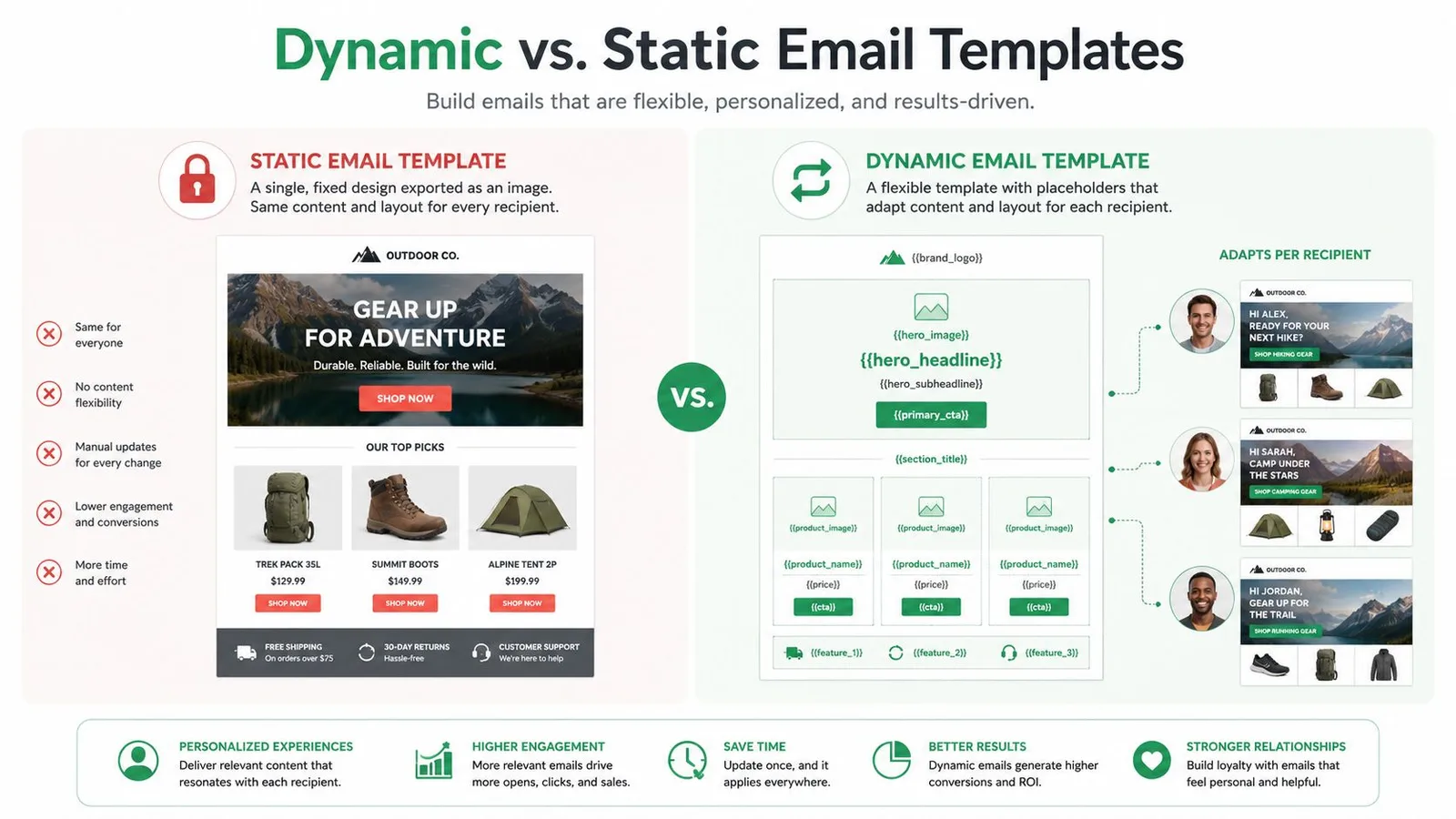
The send flow is straightforward:
- Create the data source. A Google Sheet might contain
first_name,plan,location,cart_value, and product fields. - Place tokens in the HTML. A greeting can use
{{first_name}}, while a button URL can include a recipient-specific identifier. - Resolve the template before dispatch. The merge system reads each row, replaces tokens, evaluates conditions, and generates the final HTML sent through Gmail.
That gives you three useful behaviors. Merge tag substitution changes a value such as a name or company. Conditional blocks show different content to trial and paid users. Repeated blocks generate a product or event card for each relevant row or item in a recipient’s data.
A practical template might use a shared header, a plan-specific hero message, a row of recommended products, and a CTA that points to a personalized destination. The layout remains consistent, but the message earns relevance without requiring a separate design for every segment. Industry research summarized by Instapage’s personalization statistics reports that personalized emails have a 29% higher open rate and a 41% higher click-through rate than non-personalized emails. The same source reports that personalized subject lines are 26% more likely to be opened, while personalized calls to action can improve conversion rates by 202%.
Practical rule: Treat every dynamic field as a dependency. Define its source, fallback, format, and test value before you design around it.
The payoff isn’t personalization for its own sake. The payoff is a reusable HTML system connected to a spreadsheet, a Gmail send flow, and analytics that can show whether relevance improves the outcome. A useful overview of the mechanics is available in this guide to dynamic email content.
Building the Template Architecture from Scratch
Start with a structure that email clients understand, not a web page layout that happens to look good in a browser. A table-based skeleton remains the safest foundation because Gmail, Outlook for Windows, Apple Mail, and Yahoo can apply HTML and CSS differently. Keep the design modular so you can replace a content block without disturbing the header, footer, or responsive rules.
A dependable architecture has three main blocks:
- Header: Branded masthead, logo with meaningful alt text, and a consistent top link if needed.
- Content well: A fluid container with a maximum width of 600px, holding the hero, body copy, dynamic blocks, and primary CTA.
- Footer: Unsubscribe link, physical address, preference link, and any required contact details.
Use merge tags that remain readable when a value is missing. Hi {{first_name}}, works only if the system supplies a sensible fallback. If not, define a default such as “Hi there” or store a clean salutation field in the sheet. Keep tags inline with surrounding copy rather than placing them in isolated design elements where a blank value can leave awkward spacing.
A mobile-first layout should use a fluid outer container and targeted media queries. At the 600px breakpoint, stack two-column sections into a single column. A narrower 480px breakpoint can tighten padding, resize headings, and make buttons easier to use on small screens. Use a font stack with web-safe fallbacks, such as Arial, Helvetica, sans-serif, and comment each block so the next editor understands its purpose.
| Block | Purpose | Example Merge Tag |
|---|---|---|
| Header | Establishes identity and navigation | {{company_name}} |
| Hero | Changes the main message by segment | {{hero_copy}} |
| Content well | Holds conditional or repeated content | {{product_block}} |
| CTA | Sends each reader to a relevant action | {{cta_url}} |
| Footer | Provides compliance and contact details | {{unsubscribe_url}} |
Keep three artifacts together: the source HTML, the production version with critical styles inlined, and a plain-text mirror. The plain-text version shouldn’t be an afterthought. It preserves meaning when HTML fails and gives filters and assistive technology a clearer alternative. For a launch-specific starting point, this new product launch email template can help you think through the content hierarchy before you add conditional logic.
Wiring Personalization and Conditional Content
The spreadsheet is the data contract between your audience and the template. Column headers should map cleanly to merge tags, and every row should contain values in the format your renderer expects. Avoid headers that change between campaigns, trailing spaces in cells, or mixed date formats that force the template to guess what a value means.
A SaaS onboarding row might contain:
| Column | Example value |
|---|---|
first_name | Maya |
plan | Premium |
inactive_features | Reports, Integrations, Team roles |
upgrade_url | Recipient-specific destination |
subject_a | Three features to try next |
subject_b | Maya, your next steps in the app |
cc | Optional internal owner |
from_name | Customer Success |
The subject and preheader can use the same data model as the body. Store variants in separate columns, then select the appropriate value during an experiment or by segment. For conditional content, use an explicit syntax supported by your merge tool, such as:
{{#if_plan_eq_premium}}Show VIP pricing and advanced setup guidance{{/if_plan_eq_premium}}
The renderer should remove the entire block when the condition is false. That matters because leaving empty table cells, padding, or orphaned headings can create visible gaps. For a trial user, you might show activation guidance. For a premium user, you might show a higher-touch upgrade or expansion CTA.
Looped content requires a stronger data model. If a single cell contains comma-separated SKUs, split and validate the values before rendering one product card per item. If the campaign needs richer details such as image URL, title, price, and destination, a separate product table keyed by SKU is safer than packing everything into one cell.
Data hygiene beats clever syntax. A clean sheet with explicit fields will outperform a sophisticated template fed by inconsistent values.
CC, BCC, and from-name swaps can support account-owner notifications or carefully controlled outreach, but they need validation. Check that addresses are valid, trim whitespace, normalize plan names, and verify dates before the send process begins. Preview a row with a missing name, an unknown plan, an empty product list, and an invalid link. Those cases reveal whether the template has real fallbacks or only works with perfect data.
Sending Dynamic Templates from Gmail
A Gmail-based campaign should feel like a controlled deployment, not a bulk paste operation. With Mail Merge for Gmail, the workflow starts by installing the Google Workspace add-on, authorizing the required Gmail and Google Sheets scopes, and selecting the spreadsheet that contains the recipient rows. The column headers then become the fields your draft can reference.
Compose the draft with tokens such as {{First Name}} and {{Company}} in the subject, body, and supported CC fields. Use the preview pane before sending. A real recipient preview exposes missing values, malformed URLs, conditional blocks that display incorrectly, and signatures that appear outside the intended layout.
The send process should include a review stage. Draft mode lets you inspect messages before dispatch, while scheduling separates preparation from delivery. Consumer Gmail has a daily cap of 500 recipients, and Google Workspace has a cap of 1,500 recipients, as documented in Google Sheets mail merge add-on guidance. Build your batches around the account you’re using, not the capacity you wish it had.
After dispatch, per-row writeback turns the spreadsheet into a lightweight campaign ledger. Statuses such as Sent, Failed, and Bounced help you identify which rows need attention without comparing separate exports. Keep the original merge fields visible in the sent copy where possible, because troubleshooting is faster when you can see which values produced a message.
Use this walkthrough as a visual reference for the Gmail-side flow:
Gmail adds a few practical complications. A signature may be injected below your HTML, replies may thread into an existing conversation when the subject and recipients match, and a malformed token can remain visible in the sent message. Send internal tests to accounts that represent the clients your audience uses, then inspect both the received and sent versions.
Responsive Design, File Size, and Accessibility
A dynamic template can be logically correct and still fail in the inbox. Start with a fluid container capped at 600px, then use media queries at 600px and 480px to stack columns, reduce padding, and keep buttons usable. Responsive HTML email templates rely on fluid widths, media queries, and mobile-first structure because clients don’t render HTML consistently across desktop and mobile environments. The responsive email templates guide covers the same foundation from a Gmail workflow perspective.
Gmail’s HTML clipping threshold is about 102 KB, and guidance recommends targeting roughly 75 KB to preserve headroom, according to email rendering troubleshooting guidance. Inline critical CSS, remove unused markup, keep the main value above the fold, and avoid generating unnecessary repeated branches. External-hosted hero graphics are usually safer than embedding large assets directly, while small base64 images should be used selectively.
| Constraint | Gmail | Outlook (Windows) | Apple Mail | Yahoo |
|---|---|---|---|---|
| HTML clipping | About 102 KB threshold | Rendering varies by desktop engine | Generally flexible, still test | Client support varies |
| Responsive CSS | Supports many common patterns | Media query behavior can differ | Strong responsive support | Test mobile and webmail views |
| Interactive content | AMP may be supported | AMP may fall back to HTML | HTML fallback is required | AMP support depends on mailbox |
| Dark mode | Can alter colors | Requires dedicated testing | May transform colors | Rendering can vary |
Deliverability also depends on balance. Guidance from Optimizely’s email content best practices cites a common guideline of no more than 40% image content and at least 60% text. Treat that as a practical benchmark, not a guarantee. Put the core message, product names, and CTA meaning in live text so the email still works when images are blocked.
Accessibility needs the same priority as visual polish. A 2025 accessibility report found that 99.89% of HTML emails in its sample contained serious or critical issues, and only 21 emails passed without issues, according to the Email Markup accessibility report. Add descriptive alt text to meaningful images, use a null alt attribute for decorative images, and apply role="presentation" to layout tables as recommended in Litmus’ accessible email guide. Preserve headings, contrast, readable fallbacks, and a plain-text version with the same personalization.
For broader responsive thinking beyond email, these mobile-friendly website tips from the pros offer useful principles around fluid layouts and device usability.
When AMP and Interactive Email Are Worth the Effort
AMP email sounds attractive because it can turn the inbox into an application surface. Forms, polls, sliders, collapsible sections, carousels, hover effects, dynamic pricing, and updating content can reduce the number of clicks between the recipient and the action. The engineering question is whether enough of your audience can use that experience to justify another code path.
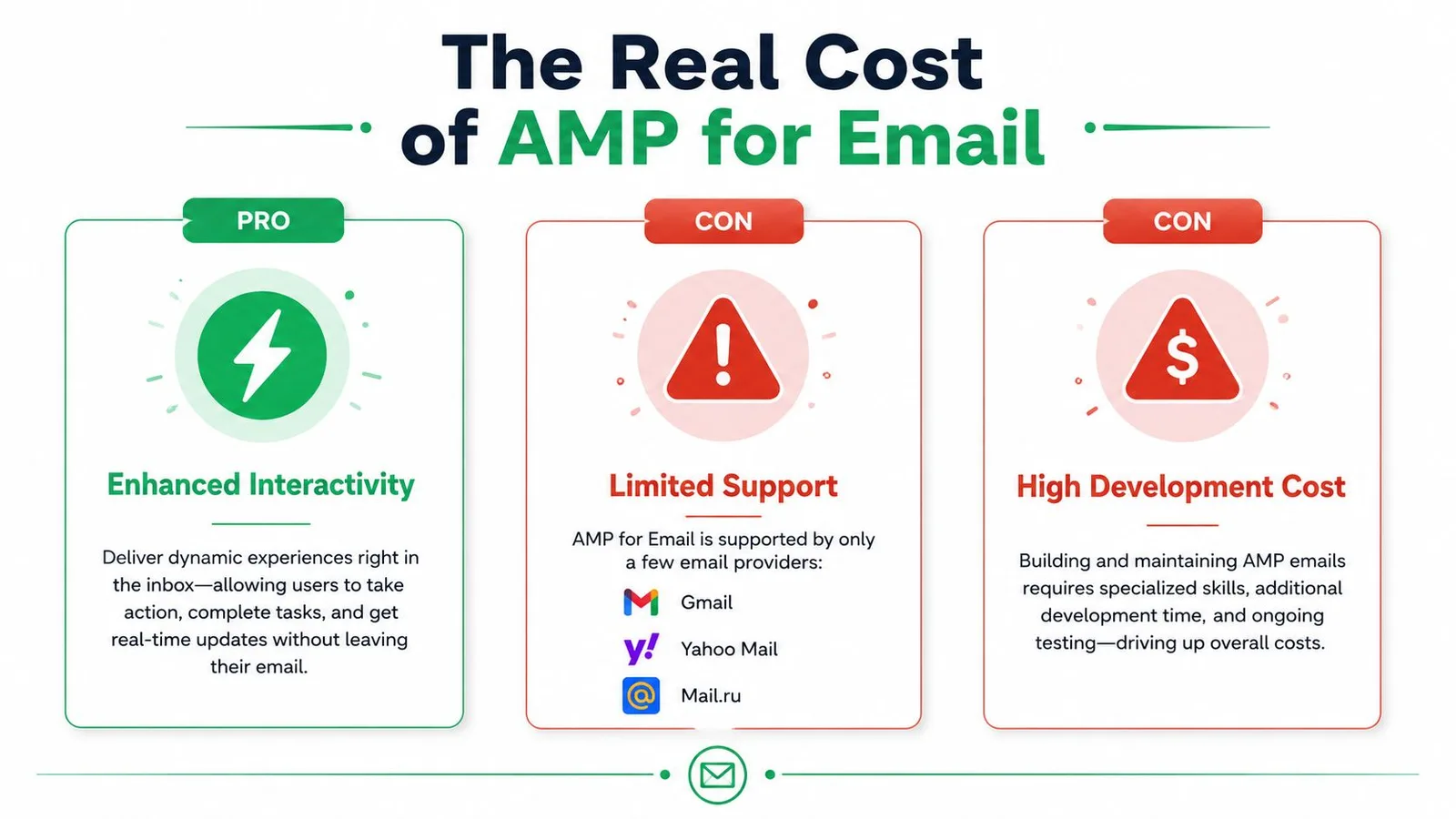
AMP support remains limited to Gmail, Yahoo Mail, and Mail.ru, while Outlook and Apple Mail fall back to HTML, as explained in this overview of AMP email templates. That means you still need a complete static version, and you need to keep both versions accurate as the offer, links, tracking, and brand system change.
Interactive email introduces more than development work. It adds QA combinations, approval complexity, accessibility risks, and a larger chance that a client will display an incomplete experience. Gmail’s HTML ceiling is also about 102 KB, and Badsender’s guidance warns that interactive content can push a template toward that limit when used too heavily. You can review the client and file-size constraints in Badsender’s email size guidance.
Progressive enhancement is the safer default. Make the static HTML version complete, then add interaction where a supporting client can use it.
AMP earns its keep in narrow situations. An in-email NPS survey may be valuable when the alternative adds friction. RSVP confirmation, appointment booking, live inventory, and pricing that changes at open time can also justify the extra implementation if the data is trustworthy and the fallback is equally clear. A carousel rarely deserves the same investment when a well-designed static card with a landing-page link delivers the core information.
Build the static path first. Add the AMP layer as an enhancement, not as the campaign’s only experience. Test the fallback as if it were the primary email, because for many recipients it will be.
Tracking Engagement and Improving Over Time
A dynamic template becomes useful when every send feeds the next decision. Add UTM parameters to links, use custom merge variables to identify segments or variants, and connect per-recipient tracking to the sheet or reporting system you already use. Measure opens, clicks, replies, and bounces separately. A high open count won’t rescue a weak CTA, and a strong click rate doesn’t excuse poor delivery.
For a Gmail-centered workflow, use lightweight tools at the stage where they provide enough signal:
- Gmail read receipts: Useful for limited one-to-one visibility, but they aren’t a complete campaign dashboard.
- Spreadsheet status writeback: Helpful for row-level delivery and engagement review.
- Link shorteners: Bitly or Rebrandly can provide click-level context, though they add another redirect to the path.
- ESP dashboards: Better suited to larger programs that need consolidated deliverability, cohort, and automation reporting.
A/B testing works best when you isolate the decision. Put subject line variants in separate columns, then test preheader text, hero copy, or CTA placement rather than changing everything at once. Use two sheet variants with the same audience rules and record the version attached to each row. Adobe reports that personalized emails can raise click rate by 139% versus static one-time sends, and that personalized subject lines are 26% more likely to be opened, as detailed in Adobe’s personalization guidance. Those benchmarks support testing personalization, but they don’t replace your own campaign evidence.
Declare a winner only after you’ve defined a minimum sample size and a 95% confidence rule before the test starts. If the audience is too small to support that decision, call the result directional rather than definitive. The discipline matters more than forcing a winner.
Run this health check every Monday:
- Verify SPF, DKIM, and DMARC alignment.
- Review failed, bounced, and unsubscribed rows.
- Check spam-score previews and client rendering.
- Remove invalid or disengaged addresses according to your list policy.
- Compare opens, clicks, replies, and bounces by segment.
- Review Google Postmaster Tools for domain reputation.
- Choose one template or data change for the next controlled test.
Deliverability deserves close attention because MailMend cites a 2024 average deliverability rate of 83.1%, meaning nearly 1 in 5 emails may fail to reach the inbox, as reported in MailMend’s deliverability analysis. Keep conditional logic understandable, monitor each variant, and resist adding dynamic branches that your team can’t QA consistently.
Mail Merge for Gmail connects Google Sheets recipient data with personalized Gmail drafts, HTML templates, previews, scheduling, tracking, and per-row campaign statuses. Use Mail Merge for Gmail to turn the template you’ve built into a repeatable send-and-measure workflow without leaving Gmail.
Ready to send your first campaign?
Install Mail Merge for Gmail from the Google Workspace Marketplace and send up to 50 personalized emails per day for free.
Get started for freeMore reading
More from Guides
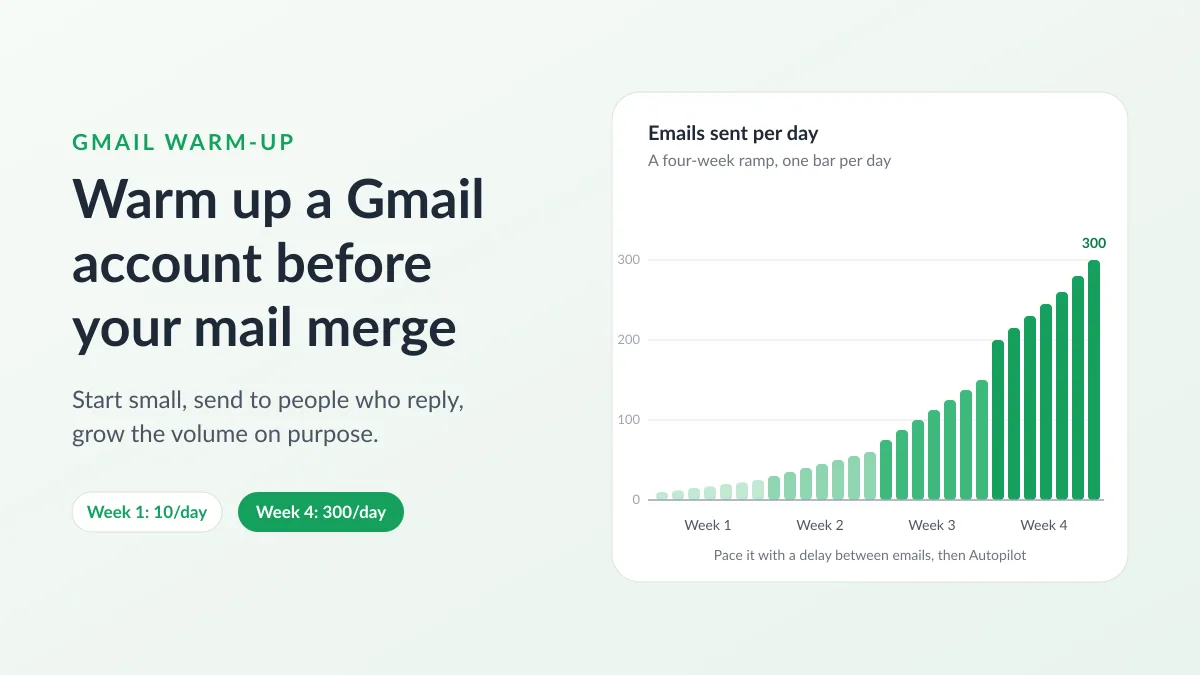
Gmail Warm-Up: How to Warm Up a Gmail Account Before a Mail Merge
Gmail warm-up explained with Google's own ramp-up rules: who needs it, a four-week manual schedule from Google Sheets, and how Mail Merge's warm-up works.

Mail Merge with CC and BCC in Gmail: Copy the Right People on Every Email
Learn how to run a mail merge with CC and BCC from Google Sheets, set up the columns, preview the result and see how copied recipients count toward your daily quota.

Gmail Sending Limit Reached: What It Means and How to Finish Your Campaign
Hit the Gmail sending limit reached error? Learn the real daily limits, when you can send again, and how to split a mail merge into safe daily batches.