


















Google Sheets Mail Merge Add-On: A Complete Explainer
Learn how a Google Sheets mail merge add-on works, what to look for, and how to set up personalized, trackable email campaigns straight from Gmail.

You’re looking at a Google Sheet full of contacts, and the next task is obvious: send each person a relevant email without typing every message manually. A single BCC email feels impersonal, while copying and pasting names, companies, and follow-up details creates room for mistakes. A Google Sheets mail merge add-on sits between those two extremes, connecting your spreadsheet with Gmail so you can send individualized messages while keeping the campaign visible in the rows that drive it.
The useful way to understand this tool isn’t as a bulk-send button. It’s a small outreach system with three moving parts, defined sending limits, permission boundaries, and a record of what happened to each recipient. Once you see that workflow clearly, choosing features and avoiding quota or privacy problems becomes much easier.
What a Google Sheets Mail Merge Add-On Actually Does
A Google Sheets mail merge add-on reads structured data from a spreadsheet, combines it with a Gmail draft, and creates separate messages for the contacts in your rows. Your sheet might include columns such as Email, FirstName, Company, and FollowUpNote. Your Gmail draft can then use those fields as personalization tags, such as {{FirstName}} or {{Company}}.
The basic process looks like this:
- Prepare the data. Each recipient gets a row, and each useful personalization field gets its own column.
- Create the message. Write a Gmail draft with placeholders that correspond to your column headers.
- Map the fields. The add-on connects each placeholder to the correct Sheet column.
- Send and record. Gmail sends the messages, while the add-on writes delivery or engagement information back into the spreadsheet.
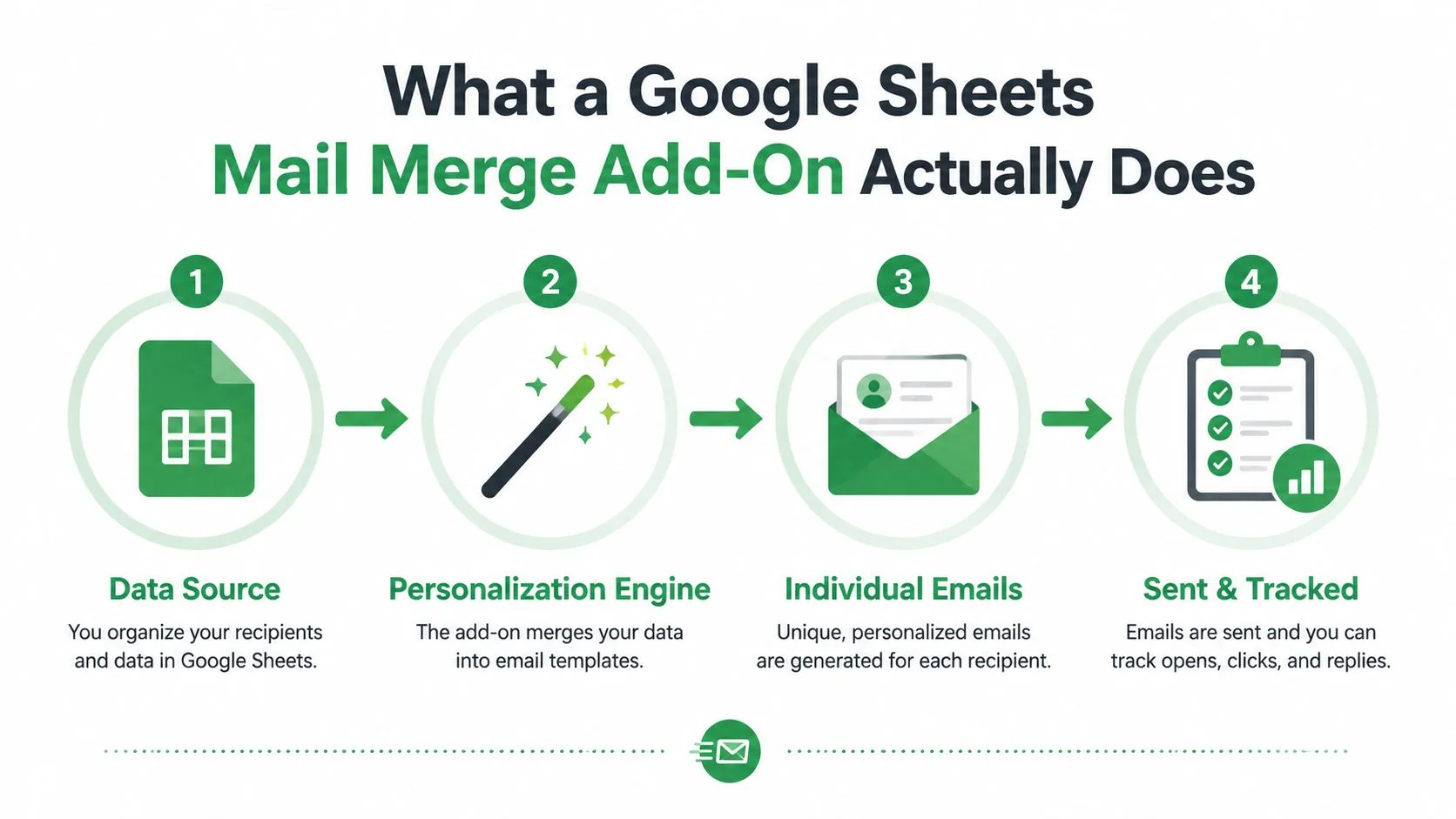
The important distinction is that recipients receive individual emails, not one visible group message. The spreadsheet remains the data source, Gmail remains the sending service, and the add-on acts as the connector between them. That division explains why a typo in a column header can affect personalization, while a Gmail permission problem can prevent sending altogether.
This workflow has been around for a long time. Google Apps Script mail merge tools existed by 2011, and one major example began as a script in September 2011 before reaching Google’s add-on store in March 2014. It later added paid plans, email tracking, open-rate reporting, follow-up segmentation, scheduling, and click, bounce, and unsubscribe tracking between 2014 and 2016. By January 2018, that example was reported as the #1 Google Sheets add-on with more than 880,000 installations in its own announcement. The add-on’s development history shows how a developer workflow became a familiar business process.
The Three Pieces Working Together
The setup involves three components, each with a distinct role: Google Sheets, Gmail, and the add-on. Understanding that division helps you locate errors, protect personal data, and treat a merge as a controlled workflow rather than a bulk-send button.
Google Sheets holds the recipient rows, column headings, and status fields. You can update a company name, change a follow-up detail, or review which rows were processed without rebuilding the campaign. The sheet supplies the structure and gives the team a shared record of what happened.
Gmail provides the account, sender identity, draft, signature, and message history. Messages leave through Gmail, so its permissions, sending rules, and account quotas still apply even when the process starts in Sheets. A merge tool does not create a separate sending channel.
The add-on connects the two services. It reads the columns you authorize, loads the selected draft or template, replaces placeholders with values from each row, starts the send, and writes the result back to the sheet. It does not replace a CRM, take permanent ownership of your contacts, or remove the need to check the source data.
A useful troubleshooting rule is to identify the component responsible. A blank value usually points to Sheets. A missing draft points to Gmail. An authorization failure or incorrect field mapping points to the add-on.
The connection normally uses Google’s authorization flow. You grant access to the services the tool needs, and Google applies those permissions to the account and files involved. Review the requested scopes before approving them, particularly when a shared sheet includes personal or confidential information.
The same boundary matters when content moves between Google services. For guidance on transferring AI-generated material into Docs, Sheets, and Gmail, see this Writingmate GPT export tutorial. The practical lesson is to identify where data is stored, which service performs the action, and which connector can move that information.
Features That Matter in Real Campaigns
Feature pages often list capabilities without explaining the operational question each one answers. A more useful approach is to group features by the part of the campaign they control.
| Feature Group in a Google Sheets Mail Merge Add-On | What It Controls | Why It Matters |
|---|---|---|
| Personalization | Subject lines, body text, links, and conditional content | It turns row data into a message that fits the recipient |
| Templates and attachments | Draft reuse, HTML layouts, and shared or row-specific files | It keeps formatting consistent while supporting relevant documents |
| Send controls | Sender identity, review mode, scheduling, and pacing | It reduces accidental sends and helps you manage quota pressure |
| Tracking and logging | Delivery, opens, clicks, replies, bounces, and unsubscribes | It turns a send into a reviewable workflow rather than a one-time action |
Personalization changes the message itself
A simple merge might insert a first name. A more useful one can reference a company, role, city, appointment detail, or prior interaction. Subject-line personalization can help the sender distinguish one campaign variant from another, while body fields make the message easier to understand.
The data must be clean enough to support that promise. A blank Company cell can produce awkward copy, and inconsistent headers can stop a tag from matching. Use a fallback or conditional rule when the add-on supports one, and preview representative rows before sending.
Templates and attachments control consistency
A Gmail draft can act as a reusable starting point, so the sender doesn’t rebuild the message for every campaign. Attachments require more care. Some workflows send the same PDF to everyone, while others select a different proposal, invoice, or document for each row. Confirm how the add-on identifies files before you send, and check that each recipient can receive the intended document.
Tracking is useful only when the log is understandable
Marketplace listings for Google Sheets and Gmail add-ons describe tracking for opens, clicks, replies, bounces, and unsubscribes, with those engagement details written back to Sheets. The Mail Merge for Gmail and Sheets listing describes that model directly. Treat those fields as workflow signals, not as a substitute for human review. A click may prompt a follow-up, while a bounce should usually suppress another attempt.
How It Compares to Alternatives
A Sheets add-on is one of several ways to send personalized email. The right choice depends on where your data already lives, how much control you need, and who will maintain the process.
| Approach | Personalization | Tracking | Lives In | Best For |
|---|---|---|---|---|
| Sheets mail merge add-on | Row-based fields in Gmail drafts or templates | Status columns and, depending on the product, engagement events | Google Sheets and Gmail | Small teams that want a visible, spreadsheet-led workflow |
| Gmail built-in mail merge | Google-supported merge fields and Sheet data | More limited workflow visibility | Gmail and Google Workspace | Senders who want a first-party option with minimal setup |
| Custom Google Apps Script | Whatever the developer builds | Whatever the script records | Apps Script, Sheets, and Gmail | Technical users with a defined internal process |
| Dedicated CRM outreach tool | CRM properties, sequences, and automation | Campaign dashboards and activity records | A separate sales or outreach platform | Teams that need centralized pipeline automation and reporting |
Gmail’s native option has become a meaningful alternative. Google announced in June 2023 that Gmail’s Sheet-based mail merge could connect a Sheet with up to 1,500 recipients, use any data column as a merge tag, and send to 1,500 mail merge recipients or messages per day. The announcement also states that Cc and Bcc can’t be used when recipients come from a Sheet. Google’s mail merge announcement is the clearest reference for those boundaries.
A hand-written Apps Script gives you control, but the workflow depends on whoever understands and maintains the code. A CRM provides richer automation, yet it asks the team to move contact data into another system and learn another interface. The add-on route generally fits people who want personalization and row-level visibility without leaving the Sheets and Gmail environment.
If you’re developing the content that supports those campaigns, a separate LinkedIn content creation tool can help organize ideas before they become outreach messages. For a wider comparison of sending approaches, review these mail merge alternatives.
Setting Up Your First Merge Step by Step
Suppose 25 prospects downloaded a whitepaper last week, and you want to send a personal check-in. You already have their email addresses in a Google Sheet, along with first names, company names, and a short note about the topic each person viewed.
Prepare the Sheet before installing anything
Give every field a clear column header. A practical layout might include:
- Email: One recipient address for the row.
- FirstName: The name used in the greeting.
- Company: The organization referenced in the message.
- Context: A short note that helps the sender make the follow-up relevant.
- Status: A blank field reserved for the campaign result.
Remove internal test addresses from the live range, check for blank required fields, and decide which Gmail account or send-from address should appear. Good formatting matters because the add-on can only personalize what the row provides. This guide to mail merge formatting can help you prepare the columns before you open the composer.
Build and inspect the message
Install the chosen add-on from the Google Workspace Marketplace, then open it inside the spreadsheet containing the prospect list. Google’s maintained Apps Script example for Gmail and Sheets demonstrates that this remains an official, supported pattern, while Marketplace search results show active mail merge listings updated in 2025 and 2026. The official Marketplace mail merge surface reflects a mature category that continues to evolve.
Create a Gmail draft with a subject and body. Insert the available merge fields, map them to the correct columns, and choose whether the tool should send immediately or create drafts for review. Send a test to your own address and inspect the greeting, spacing, links, signature, and attachment behavior.
Use the Sheet as the campaign record
After approval, start the send and watch the status field. A row might move from Queued to Sent, while another becomes Failed because of an invalid address or quota issue. That write-back makes the process recoverable. You can filter failed rows, correct the underlying data, and avoid sending the successful rows again.
Sending Limits and the Quota Reality
The add-on doesn’t create an unlimited Gmail sending channel. The controlling constraint is Google’s quota system, and the exact limit depends on the account and service used.
For Apps Script services such as MailApp, Google lists a daily quota of 1,500 email recipients for Google Workspace accounts and 100 recipients for consumer Gmail accounts. The same quota table lists 50 recipients per message and 250 attachments per message. Google’s Apps Script quota documentation explains why a large campaign may need to be divided across rows, days, or message variants.
Google’s account-level documentation presents another limit that users often confuse with Apps Script quotas. Google’s July 2026 Workspace documentation lists 10,000 total recipients per day for Google Workspace, 3,000 external recipients per day, and 1,500 for mail merge, previously called multi-send. The Gmail sending-limits documentation should be checked for the account type and workflow you’re using.
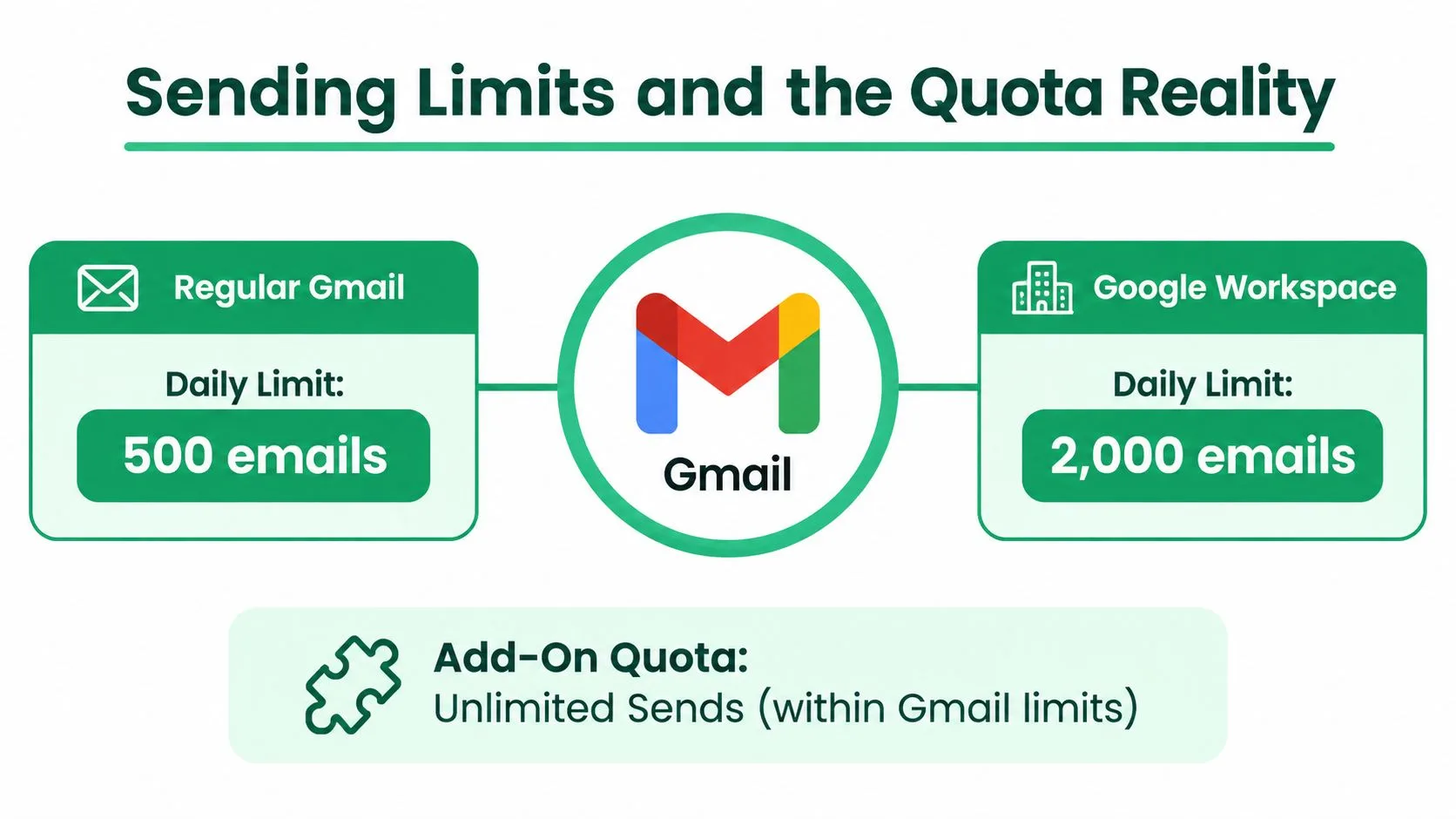
The quota counts recipients, not the number of send actions. Digital Inspiration’s email quota guidance highlights why aliases, multiple recipients, and activity from other sending tools can affect the available capacity. A campaign that appears small by row count may consume more quota when messages include additional recipients.
Quota rule: Plan around the Gmail or Apps Script limit that applies to your account, not a product label that says “bulk sending.”
When a row is skipped, fails, or bounces, the status log gives you a visible recovery point. Pause rather than repeatedly retrying a quota error, then review the account’s sending activity and divide the remaining work into a sensible batch.
Who Uses It and Why It Fits Each Workflow
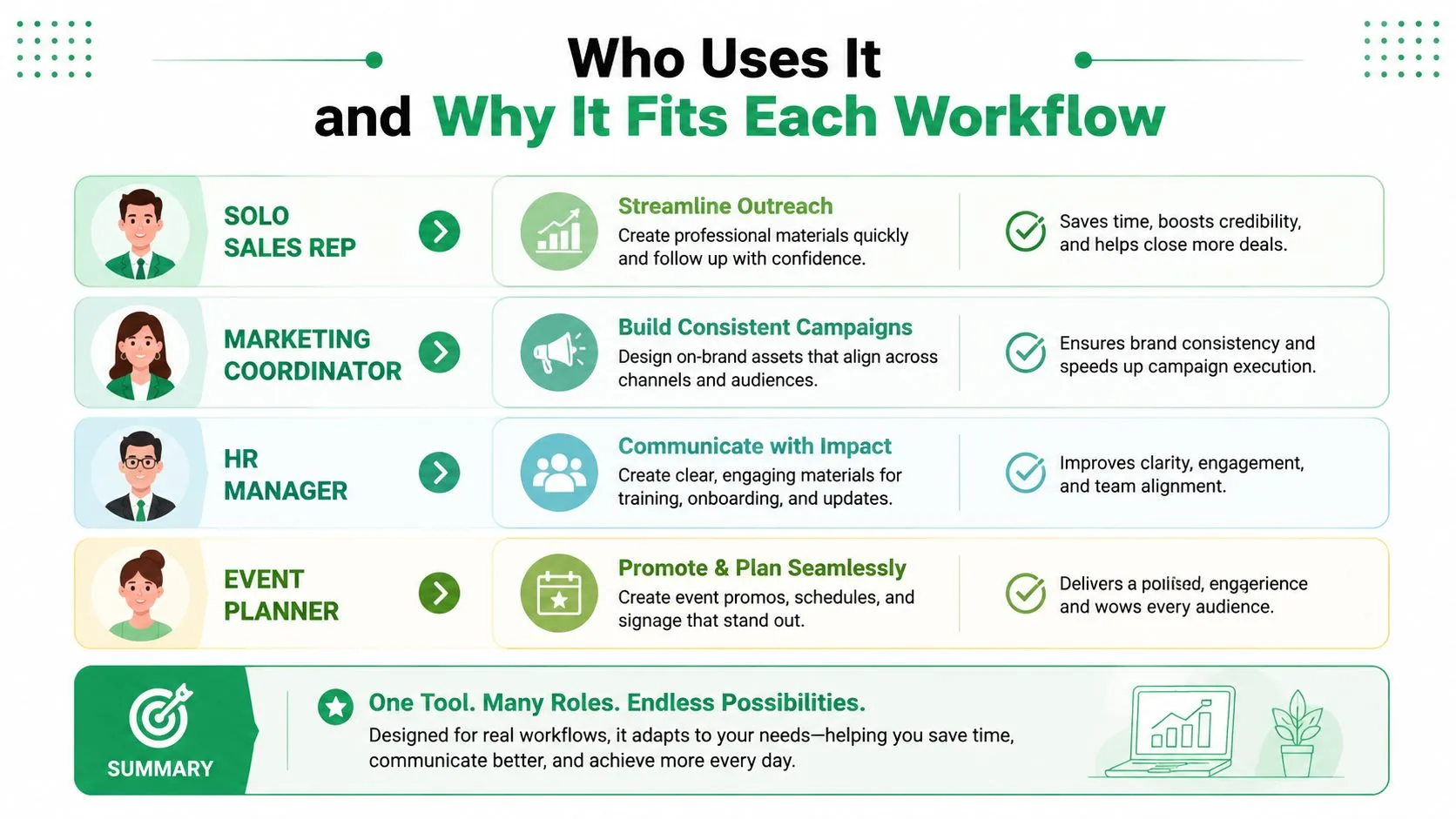
The same spreadsheet-led workflow can support very different jobs because the columns and template determine what each recipient sees.
A solo sales representative might keep company name, role, pain point, and follow-up date in separate columns. Merge fields bring those details into the email, while a status column helps the representative identify which contacts need a manual reply or another review. The value comes from keeping research and action in one working document.
An HR coordinator has a different need. Candidate rows may include interview stage, available time, and meeting link. A template can be chosen for shortlisted applicants, while another message handles candidates who aren’t moving forward. The coordinator should still review every conditional rule carefully, because an incorrect status field can send the wrong message to the wrong person.
An event organizer may use a Sheet for attendee confirmations, badge details, dietary notes, and agenda links. Draft preview is especially useful here, since a small formatting mistake can make a personalized confirmation look careless. Trackable links can show which recipients engaged, provided the organizer has explained the tracking and handled consent appropriately.
A nonprofit volunteer coordinator may send donor thank-you messages from a shared fundraising address rather than a personal mailbox. The sender identity becomes part of the workflow design, not a cosmetic setting. Shared access, clear ownership, and a reliable status log help prevent duplicate thanks or unclear replies.
Google’s ecosystem supports this range of use cases. An official Google help page describes mail merge as sending personalized emails from Sheets, while Marketplace listings show that users now look for tracking, unsubscribe handling, and team-oriented workflows. Google’s mail merge help provides the first-party explanation of the core feature.
The practical choice is to design the Sheet around the decision you’ll make after sending. Sales teams need follow-up states, HR teams need candidate stages, event teams need attendance or confirmation states, and nonprofits need acknowledgment records. The add-on becomes more useful when the spreadsheet captures that next action instead of only storing email addresses.
Privacy, Tracking, and Pre-Send Checklist
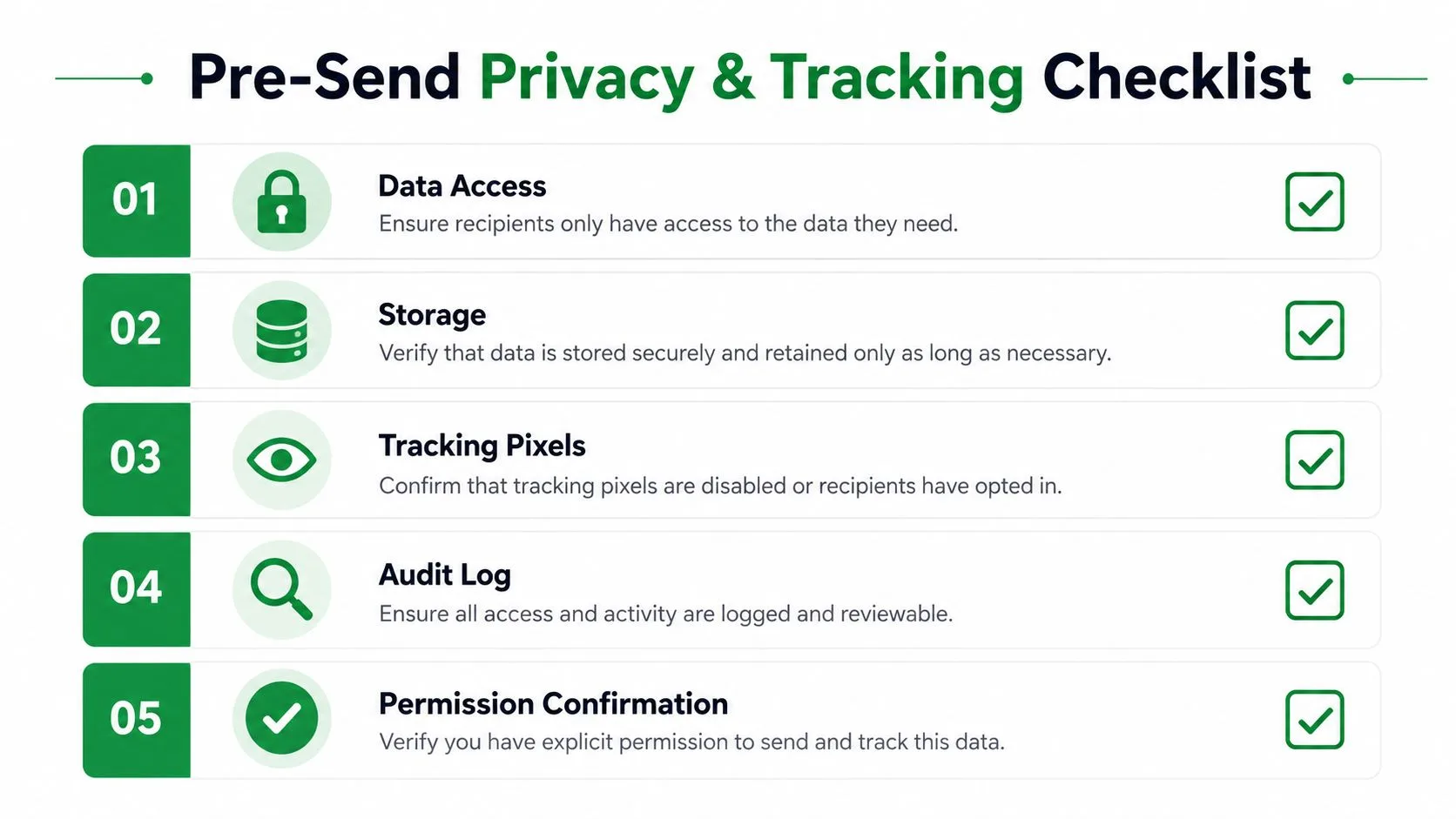
Before pressing send, ask one direct question: What information does this workflow need, who can access it, and what will happen after delivery?
The add-on reads the spreadsheet columns you select, uses Gmail to create or send the messages, and writes status information back into the Sheet. Tracking changes the privacy picture. Open pixels and click tracking may route event data through the add-on’s servers, so the sender should understand the provider’s terms, disclosure requirements, retention practices, and unsubscribe controls before enabling those features.
Google Marketplace listings describe add-ons that record opens, clicks, replies, bounces, and unsubscribes in Sheets. Those fields can support an audit trail, but they also create another layer of personal data. Limit spreadsheet access to the people who need it, protect sensitive columns, and avoid placing unnecessary personal details in the merge range.
A practical pre-send review
- Confirm consent: Verify that each recipient can lawfully receive the message under the rules relevant to your organization, including GDPR or CAN-SPAM obligations.
- Apply suppression: Remove unsubscribed, opted-out, or otherwise excluded contacts before creating the send range.
- Inspect personal data: Check that names, roles, companies, and other fields match the purpose for which you collected them.
- Validate the sender: Confirm that the From address and signature represent the correct person, team, or brand.
- Test a small batch: Send a controlled group of five to ten rows to inspect formatting, links, attachments, replies, and status updates before continuing.
A status log should show more than whether the button was clicked. Useful states distinguish queued, sent, failed, opened, clicked, replied, bounced, or unsubscribed, depending on what the product supports. That visibility helps a team stop duplicate sends and assign follow-up work without exporting the data into another system.
For a deeper review of data handling and email obligations, consult this mail merge data privacy and compliance guide. Also check the applicable Google quota before launch, because a privacy-approved campaign can still fail if the account has exhausted its recipient allowance.
When comparing products, verify that the listing refers specifically to the tool you’re evaluating. “Mail Merge for Gmail” is a descriptive name used across this category, so competitor pages and similarly named add-ons can be easy to confuse. Mail Merge for Gmail is a Google Workspace add-on that uses Google Sheets contact data, Gmail templates, previews, and per-row delivery or engagement statuses, so confirm those details in the product’s own listing before making a decision.
Mail Merge for Gmail lets you import recipients from Google Sheets, build or select a Gmail template, preview personalized messages, and send with delivery and engagement statuses written back to the sheet. Visit Mail Merge for Gmail to review the workflow and decide whether it fits your quota planning, privacy checks, and team outreach process.
Ready to send your first campaign?
Install Mail Merge for Gmail from the Google Workspace Marketplace and send up to 50 personalized emails per day for free.
Get started for freeMore reading
More from Guides

Mail Merge with CC and BCC in Gmail: Copy the Right People on Every Email
Learn how to run a mail merge with CC and BCC from Google Sheets, set up the columns, preview the result and see how copied recipients count toward your daily quota.

Gmail Sending Limit Reached: What It Means and How to Finish Your Campaign
Hit the Gmail sending limit reached error? Learn the real daily limits, when you can send again, and how to split a mail merge into safe daily batches.

Personalized Email Gmail: The Complete Guide
Master your personalized email Gmail workflow. Learn to merge Sheets data, track opens, and scale one-to-one outreach without leaving your inbox.