


















Personalized Email Gmail: The Complete Guide
Master your personalized email Gmail workflow. Learn to merge Sheets data, track opens, and scale one-to-one outreach without leaving your inbox.
You’ve got a Google Sheet full of prospects, a Gmail draft that sounds relevant, and a launch date approaching fast. Then you notice blank first names, inconsistent company fields, and a subject line that will look identical to everyone on the list. The hard part of personalized email in Gmail isn’t writing one clever message. It’s building a data pipeline that can produce hundreds of accurate, trustworthy messages without making your campaign look automated.
The practical standard is simple: every recipient should receive a message that uses the right data, reaches the right audience, and records what happened afterward. Gmail can support that workflow, but only when your spreadsheet structure, personalization logic, tracking choices, and send limits work together.
Why Inbox-Native Outreach Wins
Manual outreach usually fails in a predictable way. A founder opens Gmail, copies a template, edits a name and company, sends the message, then repeats the process until the list is exhausted. The first few emails may feel thoughtful. By the end, fatigue creates typos, forgotten follow-ups, and inconsistent personalization.
Inbox-native outreach solves the scale-versus-relevance problem by keeping the sending workflow close to the place where replies already arrive. Gmail launched publicly in 2004, and its continued reach helped establish the inbox as a familiar operating environment for sales, recruiting, education, fundraising, and customer communication. Email Vendor Selection’s current email marketing statistics compilation describes Gmail’s historical importance alongside the continued mainstream role of personalization.
The operational advantage isn’t just convenience. You’re working with an interface your team already understands, and replies remain connected to the sender’s normal communication habits. A recruiter can send candidate-specific updates without moving between a CRM and a separate campaign platform. A founder can follow up with investors from the same inbox used for ordinary correspondence. A small sales team can maintain a personal tone without taking on a heavy automation system.
Practical rule: Use automation for repetition, not for judgment. Let the system merge fields and record events, while a person decides who belongs in the campaign and what the message should say.
This approach also helps teams that need support with prospecting capacity. If you’re building an outbound function, resources such as Hire SDRs can help you think through the people and processes behind outreach. The sending tool matters, but list selection, research quality, and reply handling still determine whether a campaign feels human.
Inbox-native sending isn’t a substitute for permission, relevance, or good targeting. It’s a way to unify data, sending, and response management so the team can move quickly without hiding campaign activity inside a disconnected system.
Structuring Your Data for Seamless Merging
Personalization starts in the sheet, not in the email editor. Google’s native workflow uses spreadsheet column headers to determine the fields available as merge tags, so a poorly named or inconsistently populated column can create a broken message before the campaign begins. Google’s mail merge instructions recommend preparing recipient data, selecting the Email and First name columns, optionally adding Last name, and inserting fields by typing @ in the draft.
Create one row per recipient and keep the header row clean. Useful columns might include:
- Email: One valid recipient address per row.
- First name: The exact value you want to use in the greeting or subject.
- Company: A normalized company name, without stray spaces or inconsistent abbreviations.
- Role: Helpful when the offer depends on a person’s responsibilities.
- Segment: A control field for deciding which audience receives which message.
- Fallback fields: Safe alternatives for records missing a name or company.
Avoid turning the sheet into a notes archive. Long research paragraphs, mixed formatting, and multiple values in one cell make previews harder to inspect. Keep operational fields separate from copy fields, and use consistent capitalization so a merge doesn’t produce awkward text.
The exact Gmail workflow
Open Gmail, select Compose, and turn on Mail Merge. Add recipients from your spreadsheet, map the Email and First name columns, and include Last name if your data supports it. In the subject line or body, type @, then select the relevant field. Google determines the available tags from your column headers, which means changing a header changes the vocabulary of your personalization system.
Test missing values before sending. If a first name is blank, a greeting can become visibly incomplete. Use a fallback such as “there” only when it sounds natural, or exclude rows that fail a required-field check. For company-specific copy, write a neutral alternative rather than forcing an empty merge into a sentence that expects a value.
A reliable spreadsheet is also easier to maintain over time. Use the contact database management guide to keep ownership, segmentation, and record updates organized before they affect a live campaign.
Optimizing Subject Lines and Audience Sizing
A personalized subject line gives the recipient a reason to inspect the message, but personalization works best when it reflects a real audience distinction. Adding a first name to every subject while sending the same offer to unrelated groups creates surface-level relevance. A stronger approach pairs a dynamic field with a segment-specific reason for contact.
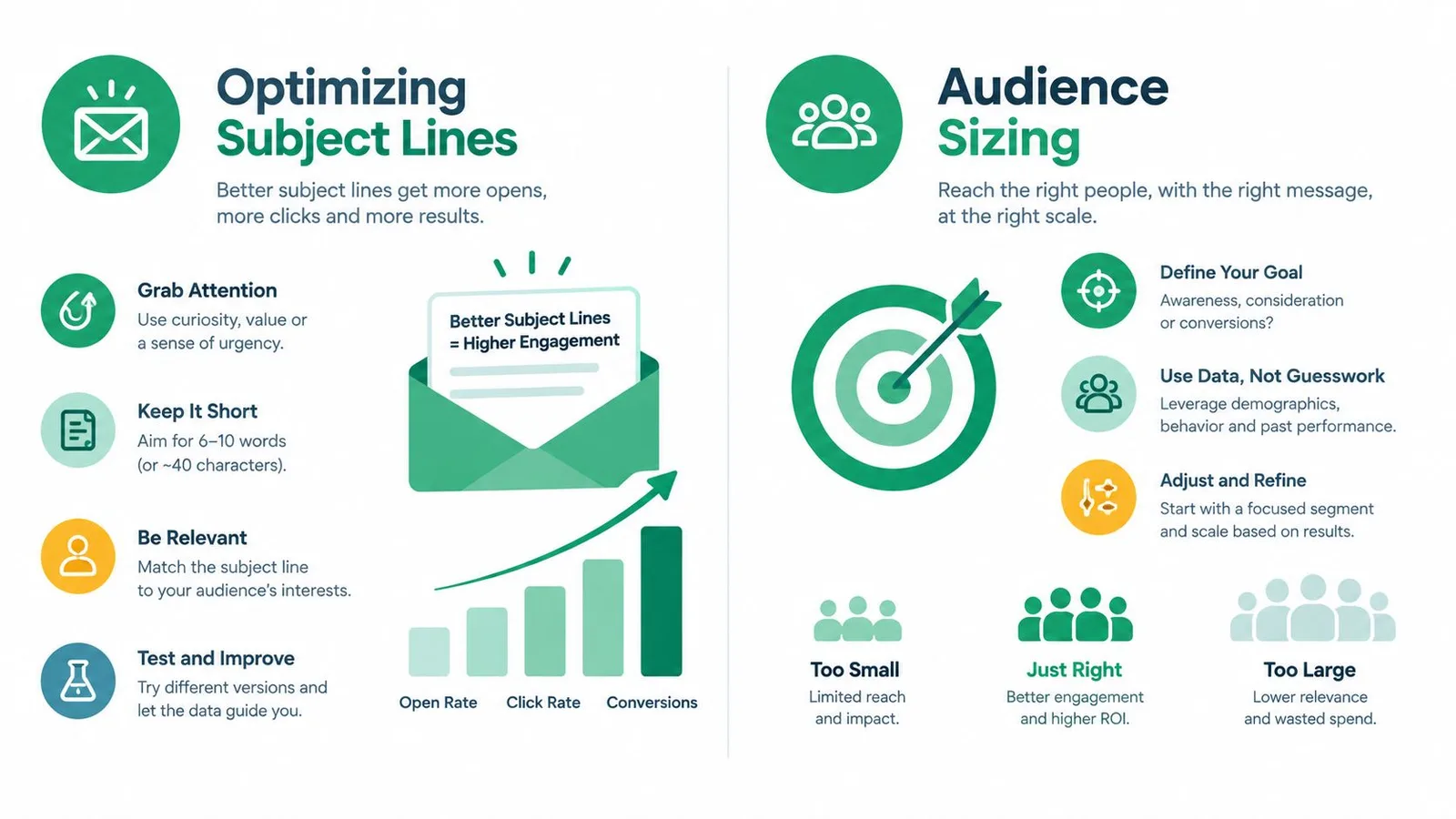
The performance evidence supports prioritizing the subject line early. Campaign Monitor’s email personalization statistics reports that personalized subject lines are 26% more likely to be opened, personalized emails can produce 6x higher transaction rates, and segmented and targeted emails generate 58% of email revenue. These figures describe industry-level findings, not a guarantee for every Gmail campaign, but they show why subject-line personalization deserves more attention than decorative body copy.
Experian’s study of personalized email reported 29% higher unique open rates and 41% higher unique click rates for personalized promotional mailings. Its findings for personalized triggered mailings were 25% higher unique open rates and 51% higher unique click rates. The operational lesson is to personalize the trigger and subject first, then add role, industry, or recent-action details where the data is dependable.
Why smaller segments usually win
Audience size changes the quality of your targeting. Marketing Dive’s summary of Constant Contact research found that campaigns sent to 35 subscribers or fewer averaged a 55% open rate, while campaigns sent to more than 7,500 subscribers averaged about 14%. The same coverage said personalization increased opens by up to 150%.
The figures point to a practical pattern, not a magic list size. Smaller batches make it easier to align the message with a clear need, inspect records, and react to weak engagement before expanding the send. Large generic blasts create more opportunities for irrelevant messages, ignored emails, and negative inbox signals.
Use segmentation fields that change the message, not fields you collect merely because they’re available. A recruiting campaign might separate active candidates from passive candidates. A sales campaign might distinguish current users from prospects. An event campaign might divide invitees by location or relationship to the organizer.
For subject-line testing, change one meaningful variable at a time. Compare a role-based subject with a company-based subject, then assess replies and clicks alongside opens. Open tracking can be incomplete across email clients, so the Gmail mail merge subject-line guide is most useful when treated as part of a broader testing process rather than a promise of a universal winning formula.
Advanced Tracking and Delivery Mechanics
Sending a personalized message is only the beginning. A campaign becomes operationally useful when each row tells you whether the email was sent, opened, clicked, or answered, and when the workflow routes follow-up work to the right person.
Start with the message architecture. Keep the main template stable, then use fields for the elements that genuinely vary. A sales campaign might personalize the subject, opening sentence, and call to action. A recruiting workflow might add a candidate’s role, interview stage, or coordinator. Attachments require special care because the wrong file can create a trust problem that no polished greeting can repair.
Build tracking around decisions
Tracking should answer a question. If you want to know which contacts need a follow-up, a per-row status is more useful than a total campaign count. If you want to compare segments, your sheet needs a stable segment field alongside engagement fields. If a team member owns a contact, include ownership in the data so replies and next actions don’t disappear into a shared queue.
The Google Workspace Marketplace listing for Mail Merge for Gmail says the add-on includes built-in opening and click tracking and describes sending up to 2,000 emails per day. Those are product-specific claims from its Marketplace listing, so verify the current terms before designing a process around them.
Google’s own Gmail help documentation sets different native mail merge limits. It says Gmail mail merge can include up to 1,500 recipients in the To line of one message and allows a maximum of 1,500 recipients per day. It also explains that a sender can send to 1,000 recipients and then another 500 recipients on the same day, while the last 500 sends in the daily limit are reserved for regular email. Google’s current mail merge quota guidance should be your reference when using native Gmail limits.
Protect the sending workflow
Schedule sends when your team can monitor replies, not when the spreadsheet is ready. Maintain an unsubscribe or suppression field and check it before every campaign. Stop contacting people who opted out, and preserve that decision across future list imports.
Attachments, CC, BCC, and custom HTML can support complex workflows, but each extra variable expands the testing surface. Confirm that the correct sender, reply path, attachment, and merge fields appear in a test message. For authentication and deliverability fundamentals, review this email authentication guide before increasing campaign volume.
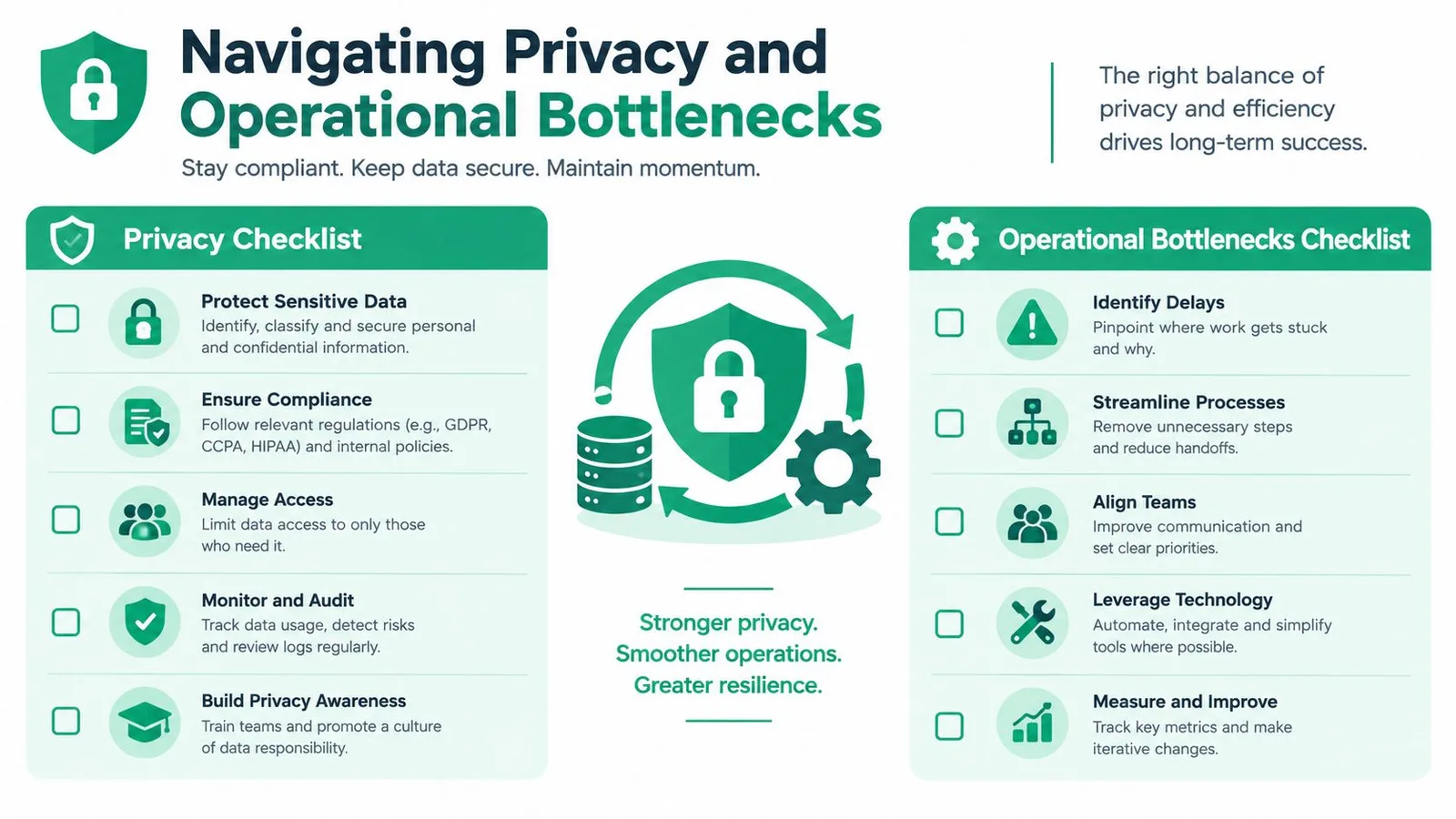
Navigating Privacy and Operational Bottlenecks
Personalization isn’t automatically trustworthy because it uses a recipient’s name. A message can feel invasive when it reveals more knowledge than the recipient expects, especially if the sender references sensitive behavior, private communications, or data gathered from unrelated systems.
Google says users can control whether Gmail data is used for personalized smart features, and it explains that Gmail uses data for functions such as Smart Compose and spam detection. Google’s privacy policy also notes that Gmail can suggest recipients based on frequently contacted people. Google’s Gmail smart features controls provide the relevant settings context for teams reviewing how inbox data supports personalization.
The safest campaign uses only the information necessary to make the message relevant. Don’t turn every available data point into copy. A role and company may be enough. A recent public action may be appropriate in one context, while a reference to private inbox activity may damage trust.
Generative AI adds another layer of risk. Validity’s State of Email 2025 report says 17% of marketers identify developing personalized content efficiently as their biggest challenge, 16% cite collecting and analyzing the required data, and 15% identify measuring impact as the key gap. The numbers explain why creative automation alone doesn’t solve personalization. Teams still need clean inputs, clear ownership, and an attribution method.
Reduce access before you add capability
Review what an add-on can access before installing it. Google Workspace’s add-ons documentation says third-party add-ons access the minimum required data for an action, while administrators can restrict or whitelist add-ons through API permissions. Its scope documentation distinguishes narrow permissions, including a compose scope for creating drafts and a metadata scope that can read open-message metadata such as subjects or recipients without reading message content.
Use that principle operationally:
- Limit fields: Store only data needed for the campaign.
- Control permissions: Ask an administrator to review add-on scopes.
- Document consent: Keep suppression and permission decisions in the contact record.
- Audit outcomes: Measure replies and useful actions, not just opens.
For teams using AI-assisted writing, a practical overview of privacy for AI content tools can help frame questions about data handling and disclosure. Privacy isn’t a final checkbox. It’s a design constraint that should shape the fields you collect, the tools you authorize, and the claims your copy makes.
Your Pre-Send Verification Checklist
Run a small, deliberate pre-flight before every campaign. The purpose isn’t to slow the team down. It’s to catch the errors that become expensive once they reach real recipients.
- Validate the sheet: Remove duplicates, confirm required email fields, normalize names, and check that segment values match the intended audience.
- Test merge behavior: Preview records with complete data and records with missing fields. Confirm that fallbacks produce natural sentences.
- Inspect the subject: Make sure the dynamic field adds relevance rather than looking like a gimmick.
- Check tracking: Send test messages to the email clients your team uses, then confirm that tracking and row-level statuses behave as expected.
- Review routing: Verify the sender, reply address, CC or BCC logic, attachment, and unsubscribe handling.
- Confirm quota: Compare the planned batch with the applicable Gmail or add-on limit, including regular email already sent that day.
- Start narrow: Send to a controlled segment, watch replies and failures, then expand only when the workflow behaves correctly.
Final check: If you wouldn’t send the preview manually to an important contact, don’t send the merged version to a list.
Mail Merge for Gmail offers a spreadsheet-driven way to import recipients, build or select a Gmail template, personalize fields, and track campaign activity from the same workspace. Visit Mail Merge for Gmail to review the workflow and decide whether it fits your next carefully segmented outreach campaign.
Ready to send your first campaign?
Install Mail Merge for Gmail from the Google Workspace Marketplace and send up to 50 personalized emails per day for free.
Get started for freeMore reading
More from Guides

Mail Merge with CC and BCC in Gmail: Copy the Right People on Every Email
Learn how to run a mail merge with CC and BCC from Google Sheets, set up the columns, preview the result and see how copied recipients count toward your daily quota.

Gmail Sending Limit Reached: What It Means and How to Finish Your Campaign
Hit the Gmail sending limit reached error? Learn the real daily limits, when you can send again, and how to split a mail merge into safe daily batches.
Email Contact List: Build and Maintain a Quality Database
Learn how to build, clean, and maintain a high-quality email contact list. Practical guide for small businesses using Mail Merge for Gmail.