


















Payment Reminder Email Template: Five Messages You Can Send from Google Sheets
Copy a payment reminder email template for each stage of an overdue invoice, then send every reminder from Google Sheets through Gmail with personalized merge fields.
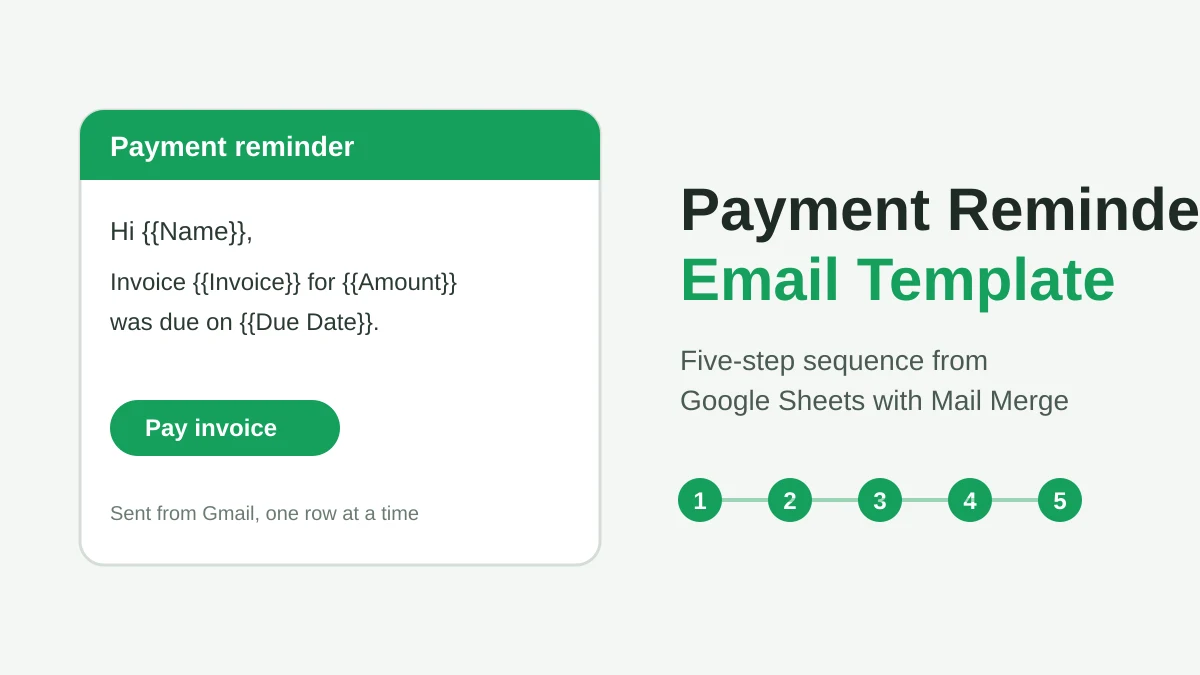
Chasing a late invoice is awkward, and it is easy to put off. A good payment reminder email template removes most of that friction. You write the message once, keep the tone steady, and let a spreadsheet fill in the client name, the amount and the due date.
This guide gives you five templates, one for each stage of an unpaid invoice. It also shows how to send them from Google Sheets through your own Gmail account, so each reminder arrives as a normal one-to-one email.
When to send each payment reminder
Sources disagree on exact days, which is fair, because the right rhythm depends on your payment terms. The pattern is consistent though. InvoiceOwl’s guide to payment reminders suggests a schedule of 3 days before the due date, on the due date, 3 days after, 1 week after, and a final notice. Other guides, such as Zoho’s overdue invoice advice, place the first overdue message within a few days and the later ones one to two weeks apart.
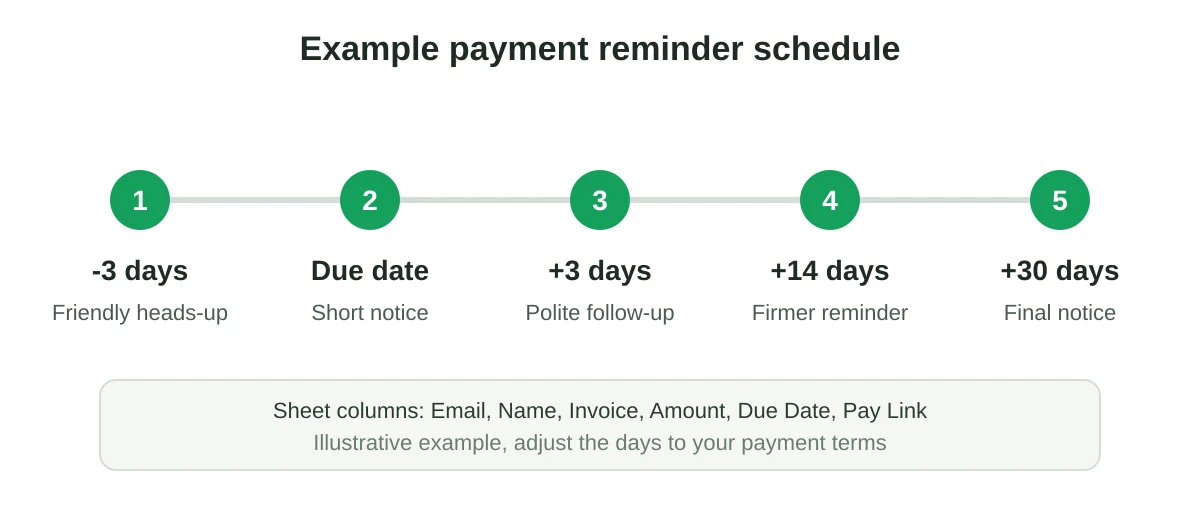
A workable default looks like this:
- About 3 days before the due date, a friendly heads-up.
- On the due date, a short notice with the pay link.
- About 3 days after, a polite follow-up.
- About 14 days after, a firmer reminder.
- About 30 days after, a final notice.
Treat these numbers as a starting point and adjust them to your contract. If you charge late fees, make sure your invoice terms support them and check the rules where you operate before you mention escalation.
Five payment reminder email templates
Every template uses merge fields in double curly braces. Each one maps to a column in your sheet, so {{Name}} reads the Name column. Write them in a Gmail draft and the add-on fills in each row.
1. Friendly heads-up
Subject: Invoice {{Invoice}} is due on {{Due Date}}
Hi {{Name}},
A quick note that invoice {{Invoice}} for {{Amount}} is due on {{Due Date}}. You can pay here: {{Pay Link}}.
Thank you, and please tell me if anything needs changing.
2. Due today
Subject: Invoice {{Invoice}} is due today
Hi {{Name}},
Invoice {{Invoice}} for {{Amount}} is due today. Here is the payment link: {{Pay Link}}.
If you have already paid, thank you and please ignore this message.
3. Polite follow-up
Subject: Checking in on invoice {{Invoice}}
Hi {{Name}},
I have not yet seen payment for invoice {{Invoice}} ({{Amount}}), which was due on {{Due Date}}. It may simply have crossed with this message.
You can pay here: {{Pay Link}}. If something is blocking payment, reply and I will help sort it out.
4. Firmer reminder
Subject: Overdue: invoice {{Invoice}}, {{Days Overdue}} days past due
Hi {{Name}},
Invoice {{Invoice}} for {{Amount}} is now {{Days Overdue}} days past its due date of {{Due Date}}. Please arrange payment this week using {{Pay Link}}.
If you would like to discuss a payment plan, reply to this email and we can agree on dates.
5. Final notice
Subject: Final notice: invoice {{Invoice}}
Hi {{Name}},
This is the final reminder for invoice {{Invoice}} ({{Amount}}), originally due on {{Due Date}}. Please pay by {{Final Date}} to avoid further action under our payment terms.
If there is a dispute, I want to hear about it now. Reply directly and I will respond promptly.
Notice how the tone escalates through the dates and the amounts rather than through harsh wording. That keeps the relationship intact while still being clear. For help with subject lines, see mail merge subject line ideas.
Set up the Google Sheet
Build one row per unpaid invoice. A simple layout works well:
| Name | Invoice | Amount | Due Date | Days Overdue | Pay Link | |
|---|---|---|---|---|---|---|
| ana@example.com | Ana | INV-1042 | $850 | Oct 1 | 14 | your link |
Compute Days Overdue with a formula such as =MAX(0, TODAY()-E2) so it stays current. Filter the sheet to the rows that match the stage you are about to send, and keep a Status column so you never remind the same client twice by accident. Our guide to mail merge from Google Sheets walks through the basic setup.
Send the reminders with Mail Merge for Gmail
- Write the template as a draft in Gmail with your merge fields.
- Open the sheet, start Mail Merge for Gmail, and choose the draft.
- Send a test to yourself and check that every field filled in.
- Send the batch, or schedule it for a weekday morning.
Because the messages go out from your own Gmail account, replies land in your normal inbox, and clients see a personal email rather than a system notice. If you need to attach the invoice PDF, you can map a different file to each row. See mail merge and attachments for the options. Gmail’s own mail merge cannot attach individual files per recipient, as GMass notes in its invoice mail merge post, so this is where an add-on helps.
Mind your daily volume as well. Google’s page on Gmail sending limits in Google Workspace lists 2,000 messages per day per user and 1,500 for mail merge at the time of writing. Most invoice reminder batches are far smaller, but if you chase a big list, see what to do when the Gmail sending limit is reached.
Tips that improve payment response
- Put the amount and the invoice number in the subject so the email is useful even unopened.
- Include one clear pay link and nothing else competing for attention.
- Send on weekday mornings, when finance contacts are most likely at their desks.
- Stop the sequence for a client the moment they pay. Remove or mark the row before the next stage.
- Always offer a way to reply if there is a dispute. Many late payments are admin problems, not refusals.
Frequently asked questions
How soon after the due date should I send a payment reminder?
Many guides suggest a first overdue note within one to three days. A faster nudge works for small amounts and good clients, while longer gaps suit larger enterprise accounts with slow approval chains.
How many reminders should I send?
Most sequences run three to five messages. The five-step schedule above covers a heads-up, a due date notice and three overdue stages.
Should I mention late fees?
Only if your contract or invoice terms already include them, and only after checking local rules. Mention them in the firmer stages, not the first.
Can I send reminders automatically?
You can schedule a batch for a chosen time. You still decide which rows go in, which keeps you in control of who gets a firmer message.
Will these emails look personal?
Yes. They are sent from your Gmail address, one message per recipient, with the details of each row merged in.
Start sending your reminders
A reminder sequence you can reuse saves hours every month and gets invoices paid sooner. Install Mail Merge for Gmail, paste in the templates above, and send your first batch from the sheet you already keep.
Ready to send your first campaign?
Install Mail Merge for Gmail from the Google Workspace Marketplace and send up to 50 personalized emails per day for free.
Get started for freeMore reading
More from Tutorials
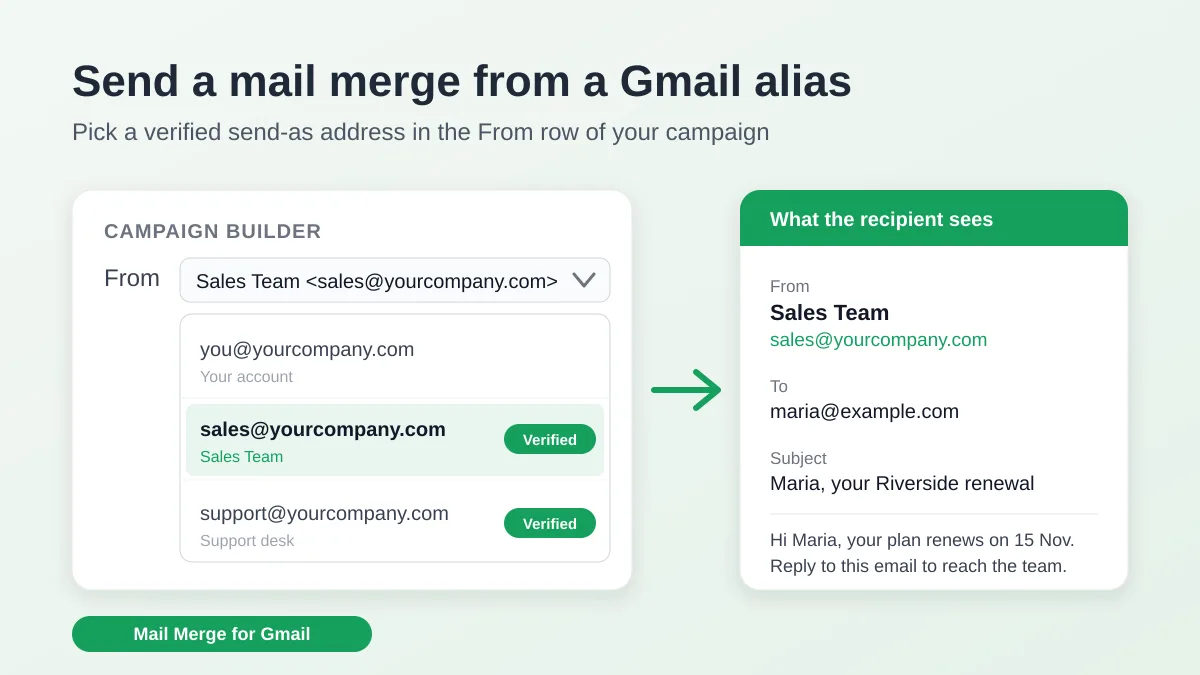
Send a Mail Merge from a Gmail Alias or Shared Mailbox
Send a mail merge from a Gmail alias, group or shared mailbox: set up Send mail as in Gmail, verify the address in Mail Merge and keep replies working.
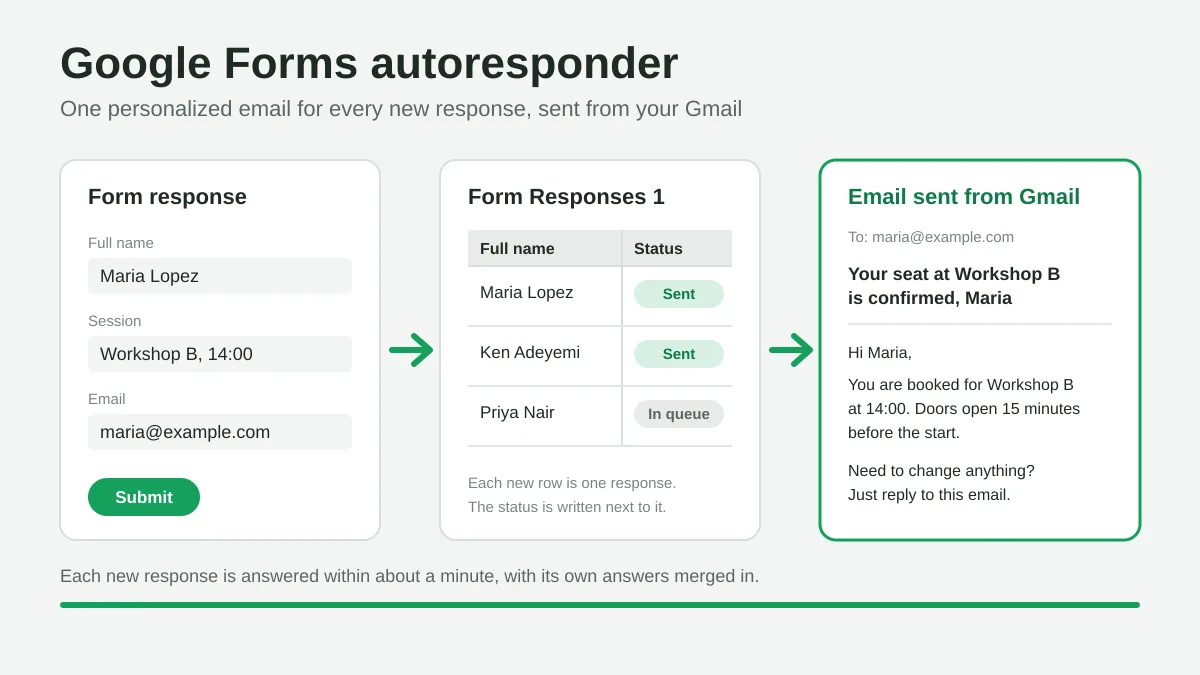
Google Forms Autoresponder: A Personalized Email for Every Response
Set up a Google Forms autoresponder that emails every new response from Gmail, personalized with the answers, using Google Sheets and Mail Merge for Gmail.
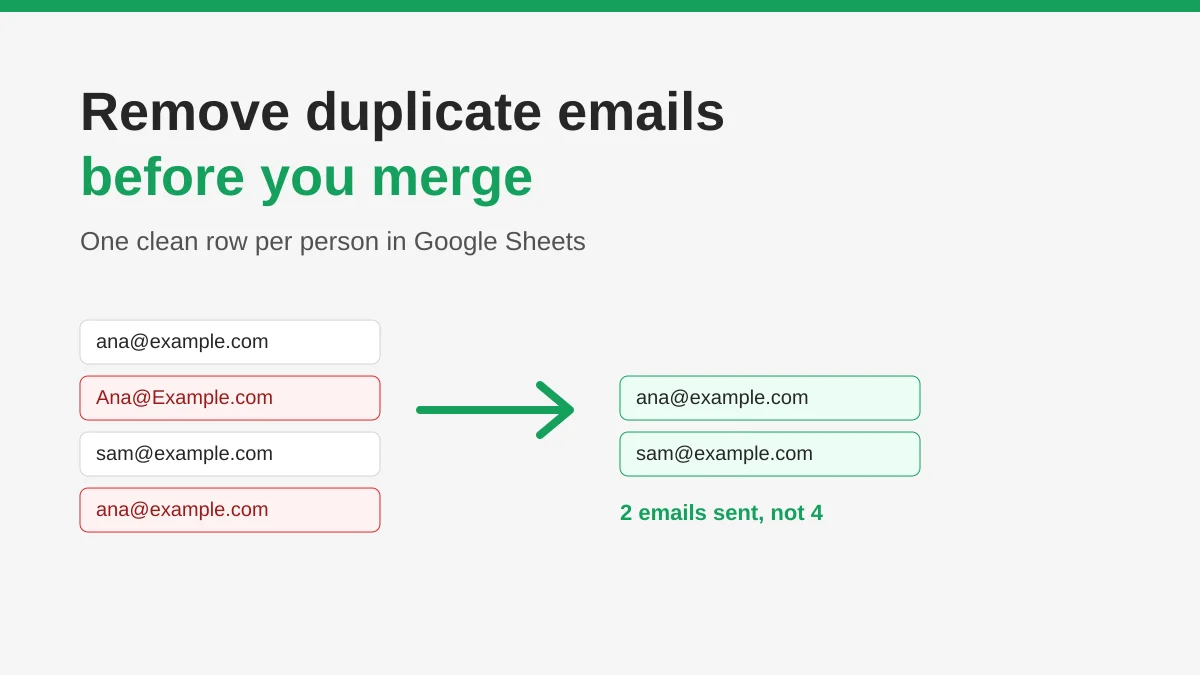
How to Remove Duplicate Emails in Google Sheets Before a Mail Merge
Learn how to remove duplicate emails in Google Sheets before a mail merge with Remove duplicates, UNIQUE and COUNTIF, so no contact gets the same message twice.