


















How to Invite Someone to Google Calendar in 2026
Learn how to invite someone to Google Calendar on web, Android, and iOS. Step-by-step instructions, RSVP tracking, and troubleshooting tips.

A community manager is juggling a hybrid meetup, three speakers, a volunteer team, and a long guest list that keeps changing. A sales lead needs a clean RSVP roster for a product session, while recruiting wants the same interview panel to see one shared event without the usual back-and-forth. In Google Calendar, “invite someone” can mean a simple guest add, a broader calendar permission, or a link-based handoff, and choosing the wrong one creates avoidable mess.
The practical question isn’t whether you can type an email address and hit save. It’s whether you need a tracked invitation, a shared calendar with permissions, or a fast distribution method for a group that won’t sit neatly in one guest list. Google’s own help materials make that distinction clear, because event guest management, calendar sharing, and link sharing all behave differently once the invite leaves your screen.
What It Really Means to Invite Someone to Google Calendar
A community organizer setting up a hybrid meetup usually starts with one event and a dozen moving parts. The speaker needs the link, the co-host needs editing access, and the wider audience may only need to know the time. In Google Calendar, those are not the same job, and treating them as if they are is where most invite problems begin.
Guest invites and shared calendars solve different problems
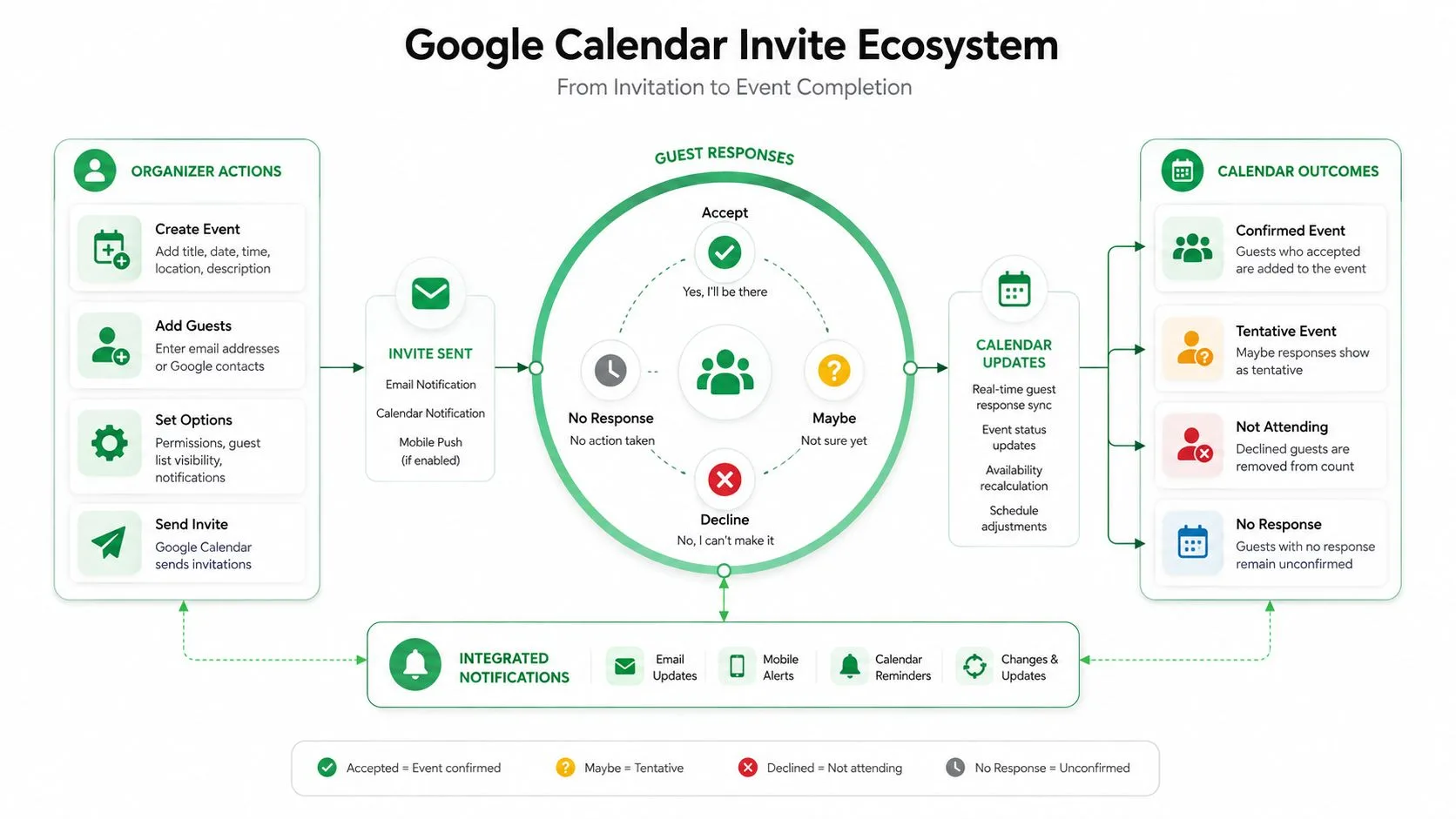
A guest invite lives on a single event. You open the event, add people by email, and Google treats them as attendees tied to that meeting. That is the right path when you want a clear RSVP list and event-by-event control, whether the person is already in your contacts or not, because Google’s help docs say you can type the email address directly into the guest field (Google Calendar help on attendee invitations).
A shared calendar works differently. Instead of inviting someone to one meeting, you grant access to the calendar itself, with role-based permissions such as Make changes and manage sharing for full control (Hope College IT help desk on adding people to a shared Google Calendar). That matters for teams that need to create, edit, or manage many events, not just receive a single invite. One is an event-level action. The other is an access decision.
Practical rule: if the person only needs to attend, invite them to the event. If they need to manage the calendar, share the calendar.
Guest visibility changes the coordination job
Google also documents a scale threshold that changes how an event behaves. Direct invitations have a ceiling of 200 people per event, Google Group distribution can extend reach to 100,000 guests, and once a guest list passes 50 guests, the list is hidden. That does not just matter to large enterprises. It changes how a meetup host, recruiter, or trainer should think about privacy and attendee tracking.
The moment you cross that line, the event stops feeling like a casual invite and starts acting like an audience mechanism. If you need an explicit roster, visible names, and individualized follow-up, keep the invite list tight. If you need broad reach and can live with less guest-level visibility, the tool is built for that too.
Inviting Guests on Google Calendar Web
Desktop is where most real scheduling decisions happen, because the browser view gives you the full event editor, the guest list, the conferencing option, and the permission controls in one place. That matters when you’re coordinating a sales review, a hiring loop, or a community program and you need to know exactly who gets what.
Build the event before you add the crowd
Start with the event title, date, time, and location or meeting link. Then move to the guest field and type email addresses directly, even if they’re not in your contacts, because Google supports that path in the desktop help flow (Google Calendar help on desktop event invitations). If you’re adding several people, pasting a comma-separated list is the cleanest way to keep the guest field readable while you work.
Once guests are in, mark attendance carefully. Optional guests are useful for stakeholders who should be informed but not forced to respond as though they’re essential participants. That distinction matters in recruiting and cross-functional meetings, where some people need visibility but shouldn’t clog the response list.
The invite email is only half the job. The event editor is where you decide whether the recipient is a participant, an optional observer, or someone who needs calendar access.
Save once, then edit with purpose
If the meeting is remote, add the Google Meet link before saving. If it’s an in-person event, fill in the location field so people aren’t hunting through the description later. Google’s event flow will prompt you to send invitations when you save, and that’s the moment the guest list becomes real for recipients.
When the event changes, open it again and edit the guest list or permissions rather than sending a fresh, separate message. That keeps the calendar record and the inbox version aligned. It also avoids the confusion that comes from forwarding a stale invite email around after the organizer has already moved the meeting.
Inviting Guests From the Android and iOS Apps
Mobile scheduling gets exposed fast. The app interface is tighter than the web editor, so a manager adding an interview, sales meeting, or community call on a phone has less room for mistakes and less time to clean them up later. The job is still the same, get the right people into the right event, but the path is shorter and easier to mis-tap.
Android puts the guest step inside the People area
On Android, Google’s sharing flow uses Settings and sharing, then Shared with, then Add people and groups, followed by Send for calendar sharing (Google Calendar Android sharing help). That path is for sharing the calendar itself. For a one-off meeting invite, stay inside the event editor and add guests there, because changing calendar access and inviting someone to a single event are different actions with different results.
The event flow on mobile is still direct. Build the event, add the guest email, and save. The trade-off is the smaller screen, which makes it easier to miss whether someone is required or optional, or whether the Meet link or location field got added before you sent it. I usually slow down at that point and check the attendee list before I commit the invite.
iPhone users need to watch the edit screen
The iOS path reaches the same outcome, but the taps are laid out differently. You normally open the event detail screen, then tap the edit pencil to add or adjust guests. That extra step is easy to miss if you work mostly in the web version, and it is where accidental resends happen, because even a small change can trigger another update if you confirm too quickly.
The safe mobile habit is simple. Check the guest list, check the conferencing link, then save once. If you are editing an existing event, pause before you approve the send prompt. That brief pause prevents a lot of “Why did everyone get another invite?” follow-up.
Email Invites vs Invite via Link
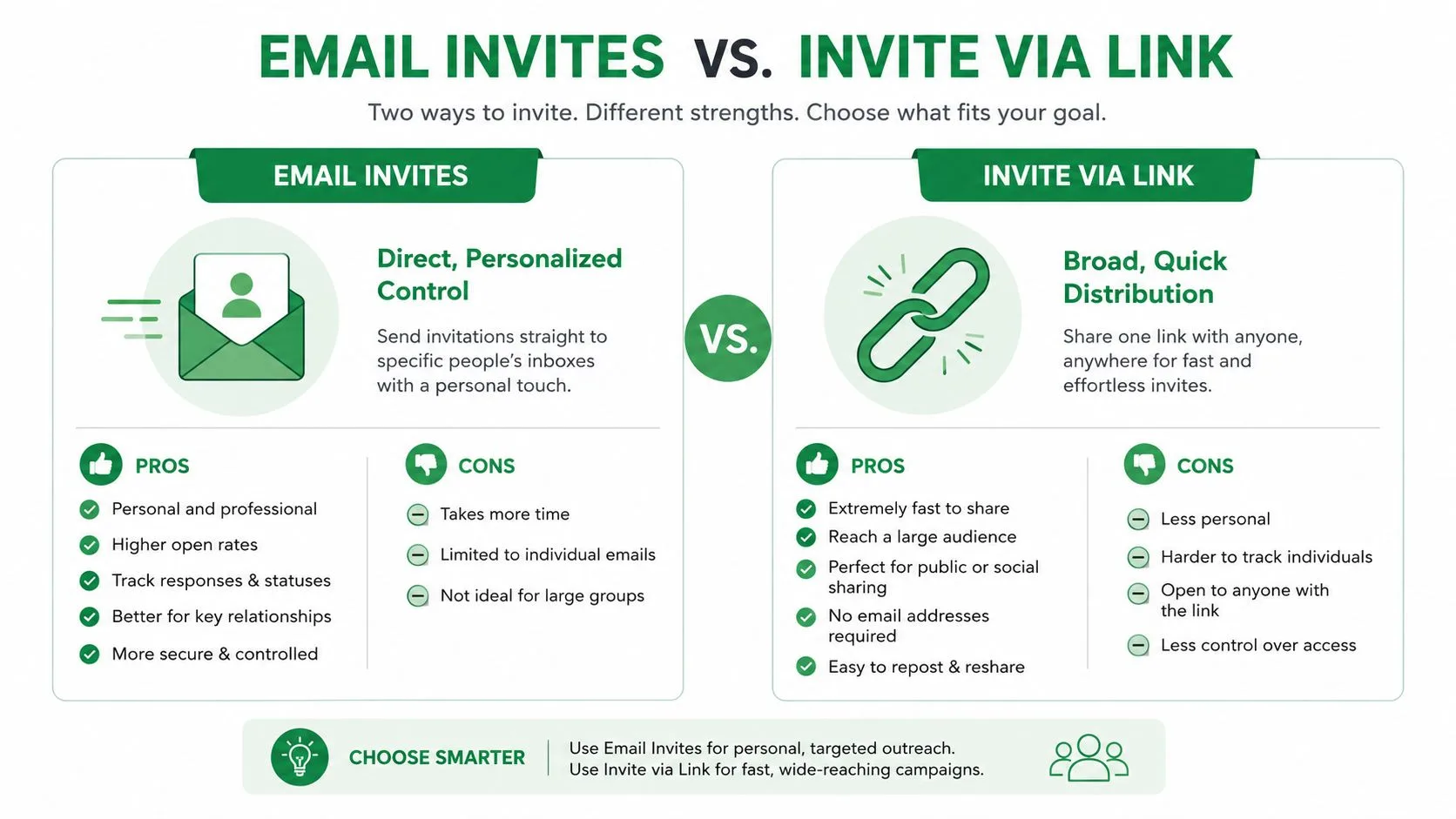
A typed email invite and an Invite via link flow solve different coordination problems. The wrong choice usually shows up later as missing RSVP data, too much friction, or a privacy gap nobody planned for. Google’s event-sharing guidance makes the link option available for modern use cases, but it’s still a tradeoff, not a universal upgrade (Google Calendar invite via link help).
Use email when you need names, replies, and control
Email invitations are the better fit when the guest list matters. You get a direct roster, a clearer RSVP trail, and the ability to manage people individually if someone needs a reminder or a corrected time. That’s why they’re the default for internal meetings, sales demos, recruiting interviews, and anything where attendance affects the next step.
The other benefit is accountability. If someone doesn’t respond, you know who that person is. If a meeting gets moved, you can update the right attendees instead of hoping a shared link reaches the right subset of people.
Use a link when distribution matters more than tracking
Invite via link is better when you’re reducing friction for a large, informal, or hard-to-reach group. It’s useful for public community calls, open office hours, or an event you’re sending through messaging tools where a full guest-by-guest workflow would slow everything down. The tradeoff is obvious. You give up some granular tracking and move away from a controlled guest list.
That’s why link sharing works best when the event itself is the priority, not the attendee ledger. If someone can safely self-select into the meeting, a link is efficient. If you need to know exactly who accepted, email wins.
An event invitation email template can help when you want the message around the invite to be clearer than the calendar note itself, especially for audiences who need context before they RSVP.
Tracking RSVPs and Following Up After You Send Invites
The actual work begins after the invite is sent. A clean send doesn’t help much if half the list never responds, someone’s invite lands in spam, or a coordinator has no idea who still needs a nudge. Google Calendar’s RSVP statuses are built to support that follow-up, which is why the event screen matters as much as the original send.
Read the response status as an operating list
Inside the event’s people view, treat Yes, No, Maybe, and Not responded as working categories, not passive labels. They tell you who to expect, who to chase, and who no longer belongs on the active list. That’s especially useful for sales sessions and interview loops, where the organizer needs a live attendance picture, not just a static guest roster.
If the attendee count is small, follow up directly from the event. If the audience is larger, move the list into your outreach process so you’re not manually checking names one by one. That’s the point where a spreadsheet becomes more practical than the calendar screen.
Fix delivery issues before they become no-shows
When an invite doesn’t surface, the first thing to check is the recipient’s email environment, not the calendar itself. The invite might have been filtered, mistyped, or never confirmed by the guest. Google’s invitation model still depends on a valid address, so a typo or a blocked external message can make the event look sent when it really isn’t reaching anyone.
A useful follow-up pattern is to resend only after you’ve confirmed the address and made the smallest necessary edit. That keeps the attendee record accurate and avoids generating duplicate confusion.
For broader follow-up sequences, a tool like automated follow-up emails can sit beside the calendar workflow when a coordinator needs a reminder campaign instead of one-off manual messages. It’s especially practical when the invite list is large enough that checking every response by hand becomes the bottleneck.
Scaling Beyond the 200-Guest Ceiling Without Losing Control
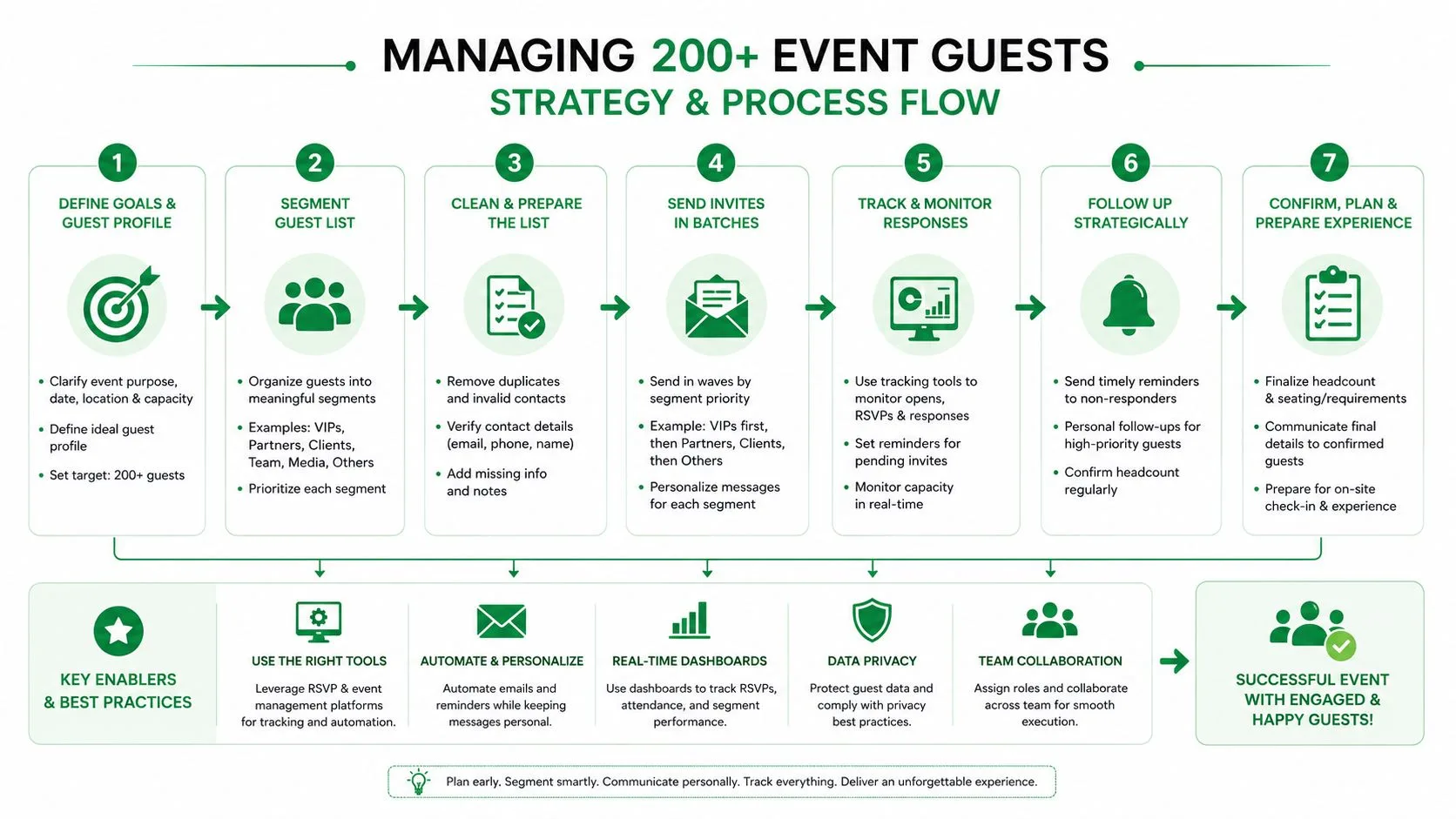
Many guides stop at the attendee cap as if that ends the task. It does not. Once an event grows beyond a normal guest list, the core work is keeping reach, visibility, and permissions aligned with how the event is being coordinated.
Google Groups and hidden guest lists change the shape of the event
Google’s invitation rules put a direct-invite ceiling at 200 people per event, allow Google Group distribution to reach 100,000 guests, and hide the guest list once the event goes beyond 50 guests. Those thresholds change the organizer’s job. A recruiter sending a panel invite usually needs a tight roster and clear replies. A training team, community organizer, or anyone running recurring sessions often needs broader distribution and less manual handling.
Segmentation becomes the practical answer. If the event is meant for a large audience, use the distribution path that matches that scale. If you need a precise roster, split the audience and keep each batch manageable. A calendar invite is not a mailing list, and forcing it to act like one creates visibility problems quickly.
Operational note: once the guest list is too broad to inspect easily, the process needs tighter list hygiene, not more improvisation.
The API gives more power, but not more forgiveness
Google’s API documentation shows that events are copied and synchronized through shared event identifiers, and that Events.update can set an attendee RSVP to accepted or tentative when the event already exists with attendees. If you have write access to another calendar, you can duplicate the event there with Events.import. That is useful in automated coordination, but permission level still determines the workflow.
The trap is assuming every event can be moved, copied, or updated programmatically in the same way. It cannot. Write access determines what you can do, and RSVP changes are not a cosmetic detail. They are part of how the calendar system propagates the invite. For organizations building reminders, interview blocks, or classroom sessions, that distinction keeps automation from breaking in the middle of a send.
For teams that manage appointment-heavy scheduling, a workflow such as tutoring scheduling software shows how a calendar-heavy process can be organized around recurring bookings and attendee coordination without forcing every organizer to improvise from scratch.
A Pre-Send Checklist and What Comes Next
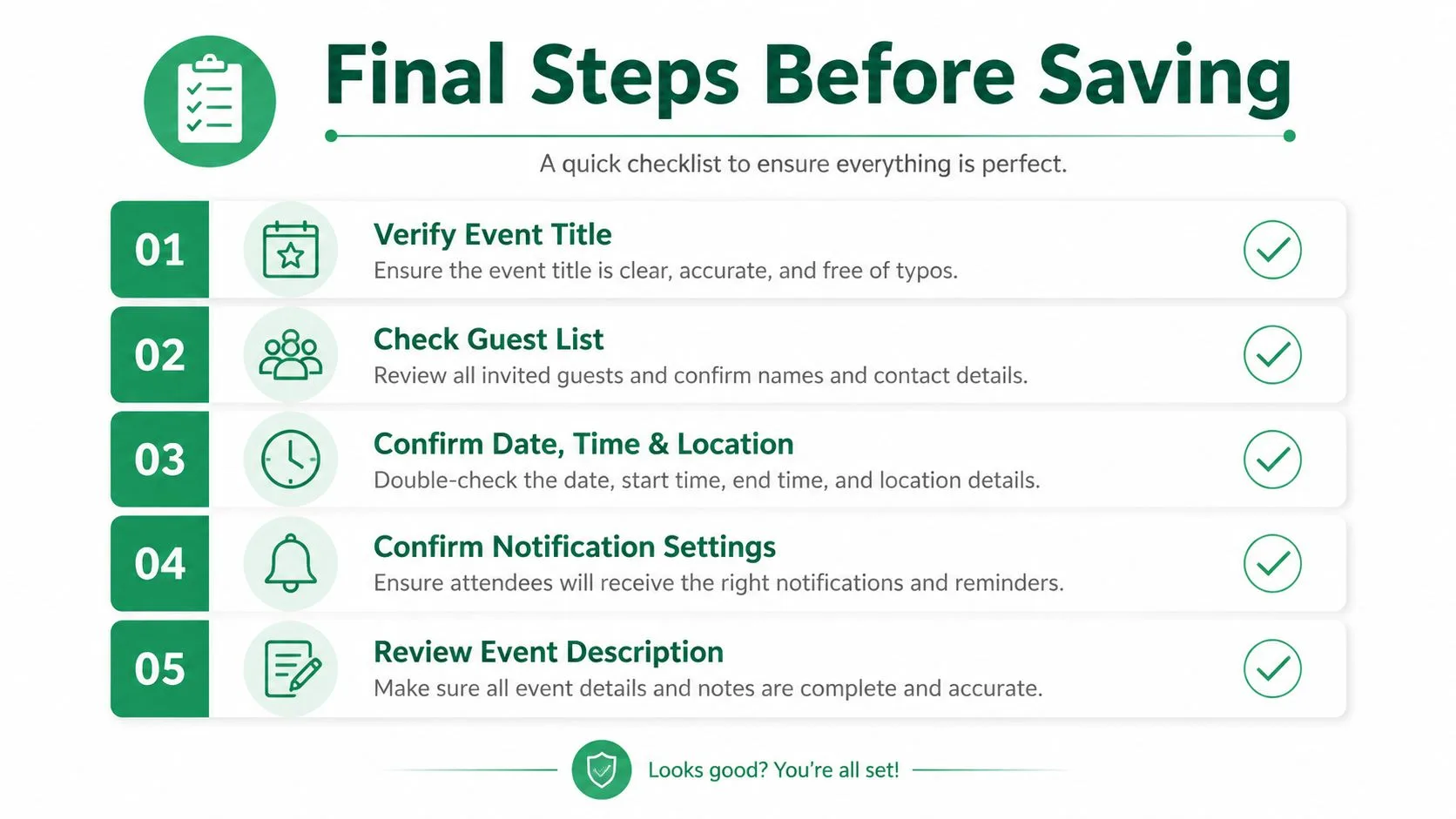
The last minute before you click Save is where most avoidable mistakes show up. The wrong calendar, the wrong guest permission, or the wrong conferencing choice can all make a clean event look sloppy. A short review catches that before the invite reaches anyone.
Run the invite through a quick final check
| Stage | Action | Why It Matters |
|---|---|---|
| Calendar selection | Confirm the event is on the right calendar | Prevents the invite from landing on a personal calendar when it should live on a team calendar |
| Guest access | Check whether people are being added as guests or shared-calendar users | Keeps permissions aligned with the actual coordination job |
| Distribution choice | Decide between email invites and link sharing | Matches tracking needs to the size and formality of the event |
| Meeting details | Attach the correct Meet or conferencing link | Avoids confusion when recipients open the invite |
| Reminder plan | Set your follow-up window before sending | Makes post-send outreach faster and more consistent |
The best organizers don’t rely on memory for this step. They use a repeatable send routine, because invite quality drops fast when the process is rushed. That’s especially true when you’re handling external guests or a mixed audience that doesn’t all live in Google Calendar.
For teams that pair calendar invites with personalized outreach, a contact workflow like gmail export contacts is often the practical next step when lists need to move cleanly into email campaigns or follow-up sequences.
Mail Merge for Gmail gives you a practical way to pair calendar coordination with personalized email outreach from inside Google Workspace. If you’re managing invites, follow-ups, or reminders at scale, visit Mail Merge for Gmail and see how it fits the workflow you already use in Google Sheets and Gmail.
Ready to send your first campaign?
Install Mail Merge for Gmail from the Google Workspace Marketplace and send up to 50 personalized emails per day for free.
Get started for freeMore reading
More from Tutorials
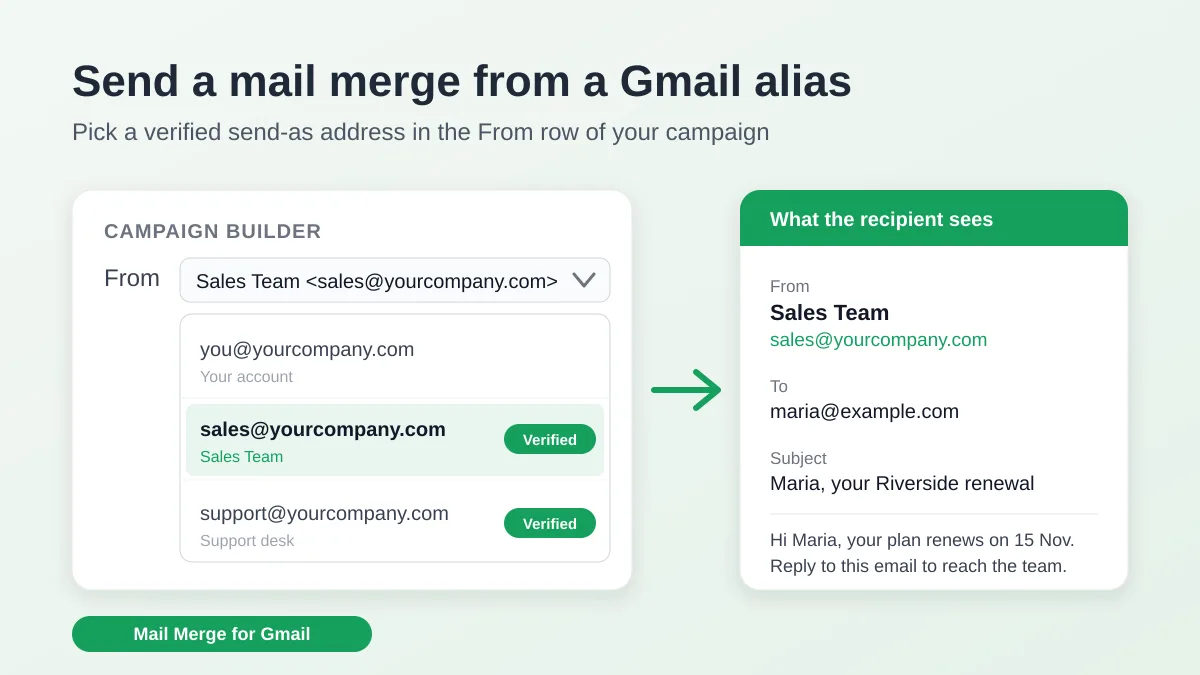
Send a Mail Merge from a Gmail Alias or Shared Mailbox
Send a mail merge from a Gmail alias, group or shared mailbox: set up Send mail as in Gmail, verify the address in Mail Merge and keep replies working.
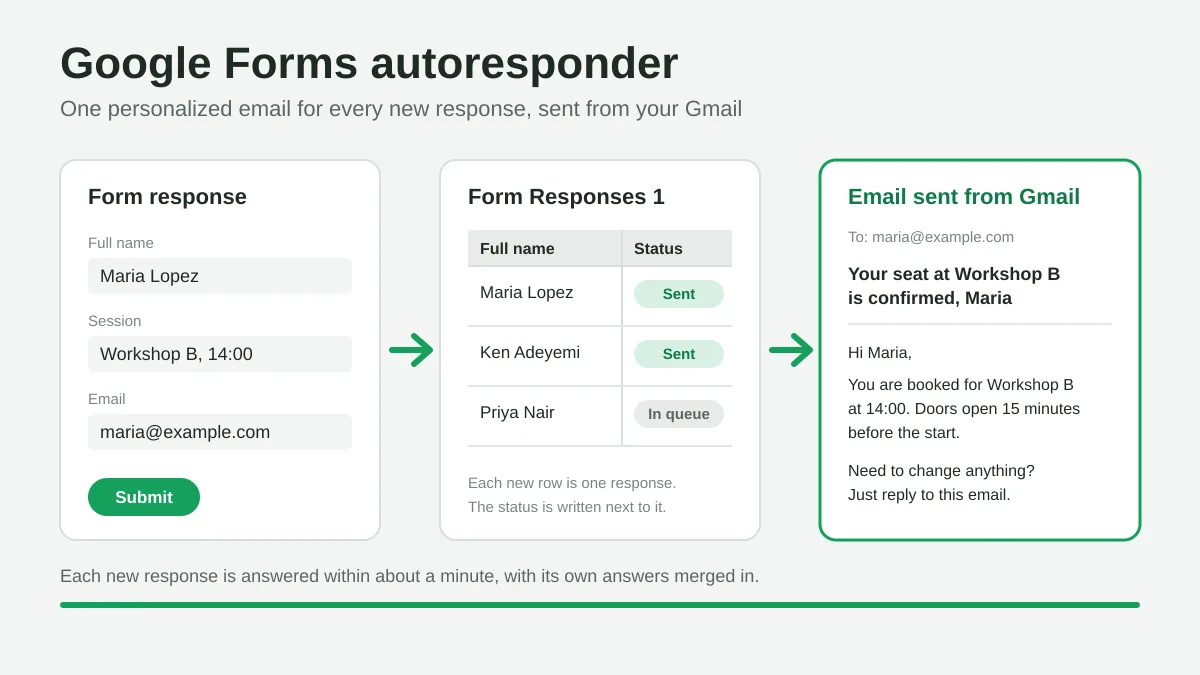
Google Forms Autoresponder: A Personalized Email for Every Response
Set up a Google Forms autoresponder that emails every new response from Gmail, personalized with the answers, using Google Sheets and Mail Merge for Gmail.
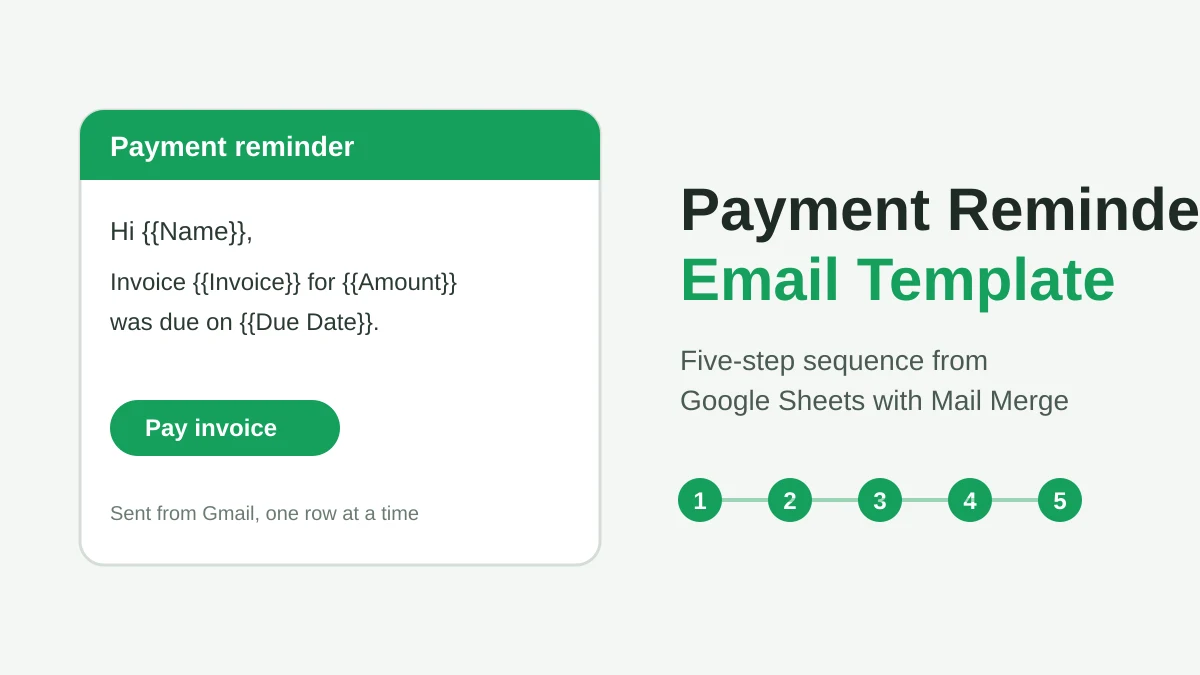
Payment Reminder Email Template: Five Messages You Can Send from Google Sheets
Copy a payment reminder email template for each stage of an overdue invoice, then send every reminder from Google Sheets through Gmail with personalized merge fields.