


















How Do I Stop Unsubscribe Emails the Right Way
Learn how do i stop unsubscribe emails with practical inbox, sender, and compliance tips that actually end the flow of opt-out messages for good.
Your Gmail inbox is full of messages saying “You’ve been unsubscribed”, yet the same sender keeps appearing tomorrow. Or you’re the sales rep on the other side of the problem, watching your own Gmail outreach trigger unsubscribe confirmations every time a prospect clicks the footer link. Both situations lead to the same search: how do I stop unsubscribe emails, but they require completely different fixes.
The recipient needs to remove unwanted messages without making a phishing problem worse. The sender needs reliable suppression so confirmed opt-outs never enter another campaign. This guide covers both jobs, including inbox controls, Gmail outreach settings, frequency hygiene, and the one-click unsubscribe changes enforced by major mailbox providers.
Two Very Different Meanings of Stop Unsubscribe Emails
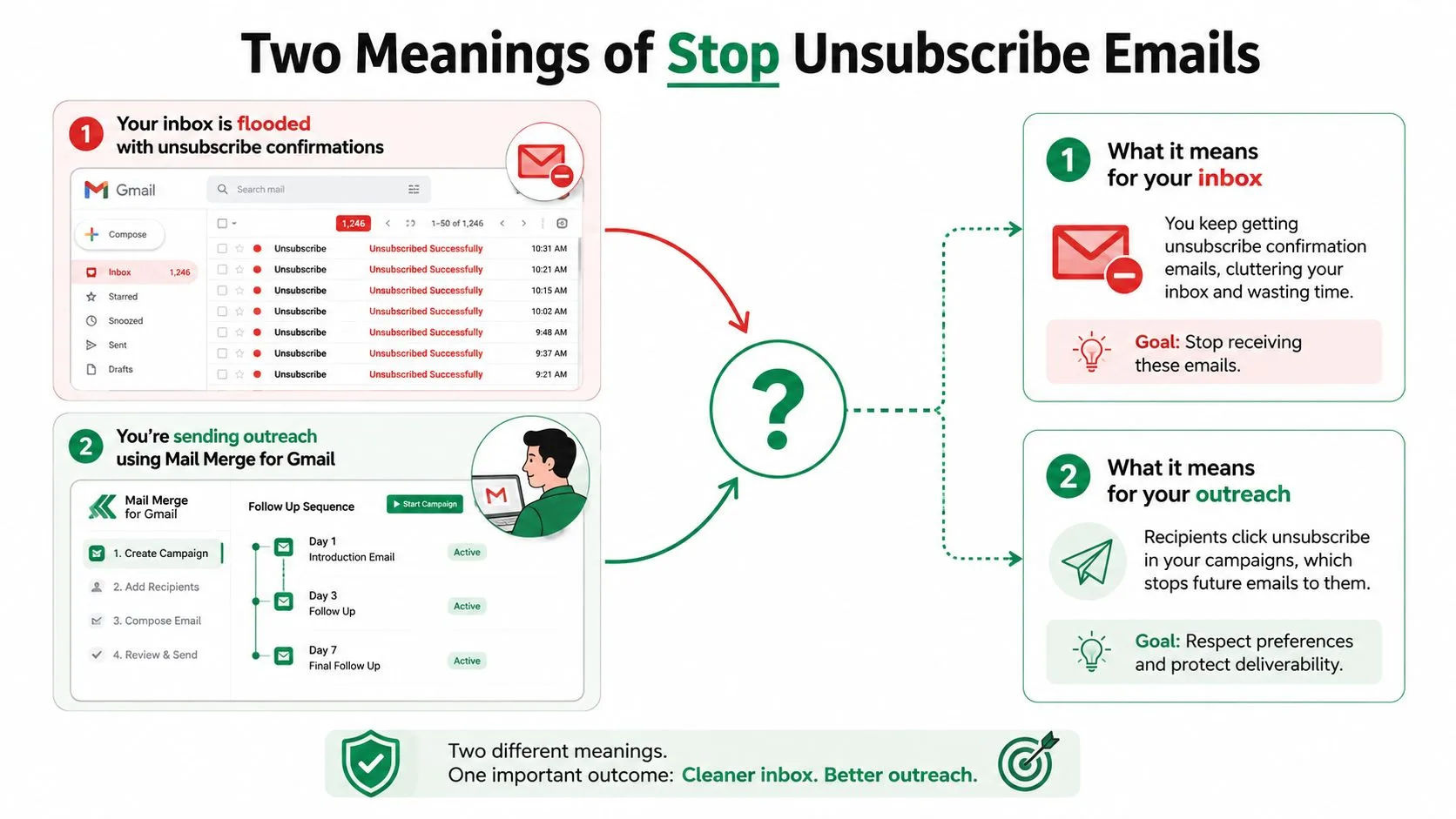
A sudden flood of “we’ve removed you” or “are you still subscribed?” messages usually points to one of two problems. You may be trying to clean up an inbox filled with confirmations from brands you barely remember, or you may be sending campaigns that generate those confirmations for people who no longer want contact.
The first job is recipient-side cleanup. You need to decide whether each message comes from a legitimate subscription, a persistent sender that ignored an earlier opt-out, or a suspicious campaign that uses the unsubscribe link to confirm your address is active. Gmail, Outlook, and Apple Mail each expose different controls, so clicking the same footer link repeatedly isn’t a complete strategy.
The second job is sender-side suppression. If your Gmail outreach includes an unsubscribe option, every confirmed opt-out must be removed from future sends. A footer link that records a request but leaves the address in a spreadsheet is not working suppression. It’s a delayed complaint.
Three questions matter:
- How do you silence the inbox? Use a legitimate unsubscribe path first, then block or filter persistent senders.
- How do you suppress confirmed opt-outs in Gmail outreach? Treat the suppression list as a permanent sending control, not a campaign note.
- When does ignoring an opt-out become illegal? Commercial senders must honor requests, and the applicable rules can impose specific deadlines.
The rest of the process moves between mailbox controls, sending-tool settings, list hygiene, and provider expectations. Gmail and Yahoo began enforcing one-click unsubscribe support in 2024, while Microsoft followed in May 2025 for qualifying bulk senders, according to Valimail’s explanation of one-click unsubscribe requirements.
Practical rule: If you’re receiving the confirmations, clean the mailbox. If you’re generating them, fix suppression before you edit another subject line.
Where Unsubscribe Controls Actually Live in Your Inbox
The unsubscribe button isn’t hidden in one universal place. It depends on the mailbox client, the sender’s headers, and whether the message looks like legitimate marketing rather than a transactional or suspicious email.
Gmail puts the fastest control near the sender
In Gmail, check for the Unsubscribe chip beside the sender information, above the subject line. That control is usually powered by the List-Unsubscribe and List-Unsubscribe-Post: List-Unsubscribe=One-Click headers. If it appears, use it before hunting through the footer.
Gmail also provides Manage subscriptions, which collects active subscriptions in one place. Open Gmail, select More, then choose Manage subscriptions. A sender-specific unsubscribe may remove you from one list, while the subscription manager can expose other active lists from that sender.
The newer Hide action is useful when the mail isn’t dangerous but keeps distracting you. It removes the visible clutter and helps Gmail learn that the messages aren’t a priority. It isn’t a legal opt-out, so don’t confuse it with suppression.
Outlook and Apple Mail use different paths
In new Outlook, go to Settings, then Mail, then Subscriptions. That screen is the direct place to manage recognized subscriptions. The legacy Rules area is not an unsubscribe system. Forwarding messages to yourself, moving them between folders, or building a rule around a subject line doesn’t tell the sender to remove your address.
Apple Mail offers an unsubscribe action at the top of recognized mailing-list messages. On newer Apple devices, Message Categories can separate recurring promotional mail from more important correspondence. On macOS, use the message’s context menu and choose Unsubscribe Sender when the option is available. If native controls aren’t enough, third-party tools such as MailMaven and SaneBox can provide additional filtering and subscription-management workflows.
| Client | Native Unsubscribe Path | Header-Based Chip | Reliability |
|---|---|---|---|
| Gmail | More, Manage subscriptions, or the message-level unsubscribe control | Yes, when the sender supplies qualifying headers | Strong for legitimate senders |
| Outlook | Settings, Mail, Subscriptions | Available for supported messages | Useful, but sender recognition varies |
| Apple Mail | Message-level unsubscribe or Unsubscribe Sender on macOS | Available when the provider exposes it | Good for recognized mailing lists |
For broader Gmail workflow ideas, see these Gmail layouts and formatting practices. The decision tree is simple: try the header unsubscribe first, use the subscription manager if the chip is missing or incomplete, and create a filter only after both fail. Don’t report a legitimate newsletter as spam just because it annoys you. Reserve spam or phishing reports for deceptive or malicious messages.
Suppressing Confirmed Opt-Outs in Mail Merge for Gmail
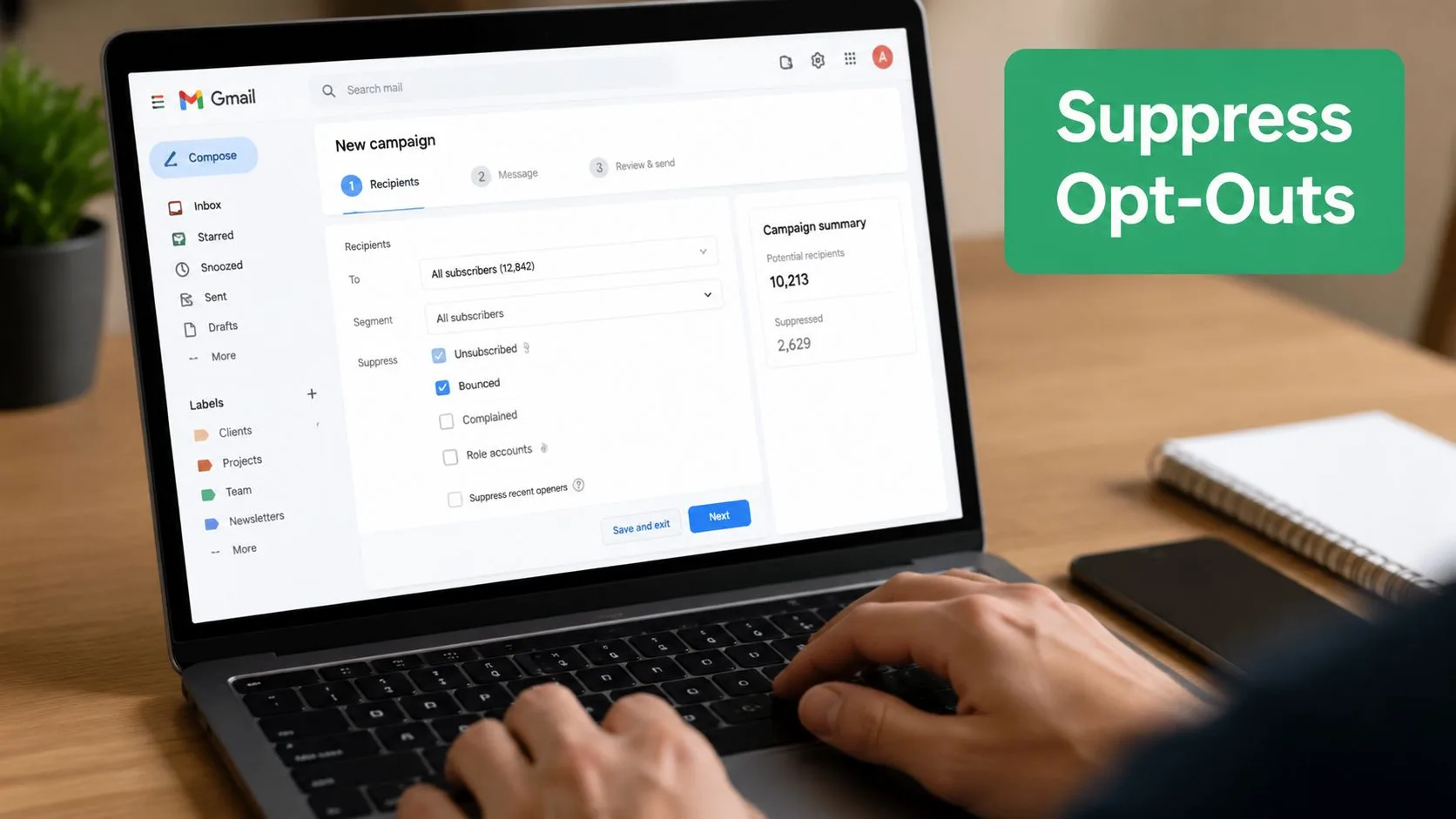
A sender should be able to answer one question before every campaign: which addresses are forbidden from this send? Start in the campaign’s Audience or Recipients sheet. Check the dedicated Suppressed tab, then inspect the Unsubscribe status column for every address you plan to contact.
The operational sequence is short:
- Open the Mail Merge sidebar.
- Select Settings, then Suppression.
- Confirm the sync from the connected Gmail label.
- Preview the campaign and verify that the opted-out address count appears.
The important detail is the label poll. When a recipient opts out through the supported workflow, the sending system needs to recognize the native Gmail opt-out label or equivalent suppression record. Don’t assume that a visible status in one sheet automatically blocks a different campaign.
Two mistakes cause repeat mailings:
- CSV replacement: Re-uploading a fresh CSV can overwrite the working audience while ignoring the suppression history.
- Alias switching: Sending through another Gmail alias may not carry the original opt-out label or list reference forward.
Operational standard: A recipient who opted out should be blocked before personalization, scheduling, or sending begins.
Keep a permanent suppression sheet that survives campaign deletion. Use color-coded statuses such as UNSUB, BOUNCE, and COMPLAINT, and audit it weekly. Leaving opted-out rows in an active sheet inflates unwanted-mail signals because Gmail can interpret continued contact as an ignored preference, even when the original message included an unsubscribe link.
For teams comparing outbound workflows, browse Pipecorn for Lemlist to examine how another outreach ecosystem approaches campaign operations. You can also use this guide to manage suppression lists as a reference for maintaining exclusions across campaigns.
Why Frequency and List Health Drive Unsubscribe Spikes
Searching for how do I stop unsubscribe emails isn’t typically a reaction to one badly written message. It’s a reaction to repetition. Content quality matters, but frequency is usually the first lever to pull because recipients tolerate a useful message less readily when the same brand keeps arriving.
MailerLite’s benchmark analysis covered 3.6 million campaigns across 181,000 accounts and found the average unsubscribe rate rose from 0.08% in 2024 to 0.22% in 2025, a 175% year-over-year increase. The same analysis placed the global average around 0.1% to 0.2% per campaign, with North America at about 0.39%. These figures are reported in MailerLite benchmark coverage on subscription fatigue.
An independent benchmark cited by email-industry coverage found a sharp difference between sending more than 5 emails per week, associated with a 0.58% unsubscribe rate, and sending 1 to 2 emails per week, associated with 0.07%. The comparison is a warning against treating cadence as a minor setting.
| Cadence | Healthy Unsubscribe Rate | Warning Zone | Critical Zone |
|---|---|---|---|
| 1 to 2 emails per week | 0.07% | Above 0.07% | Persistent upward movement |
| More than 5 emails per week | 0.58% | Around 0.58% | Continued increase after frequency reduction |
The table uses the benchmark values above, not universal thresholds. A list can look acceptable while still hiding serious data problems. A spike often means an old segment was reactivated, recipients were placed in the wrong stream, or a transactional message was treated as marketing.
Clean the list before changing the copy
Remove hard bounces promptly. Suppress role addresses such as [email protected] before sending. Create a sunset policy for contacts who haven’t opened in 90 days, and filter bounced rows directly in the spreadsheet.
For Gmail outreach, build the suppression sheet from prior unsubscribe replies, cap daily sends per domain, and review every imported file before launch. Use this practical resource on how to verify CRM data quality when the source data comes from several systems.
Treat unsubscribe rate as a leading indicator of list health, not a vanity metric. When it rises, pause the campaign, inspect the audience, and reduce repetition before trying new creative.
Compliance Rules That Force Senders to Listen
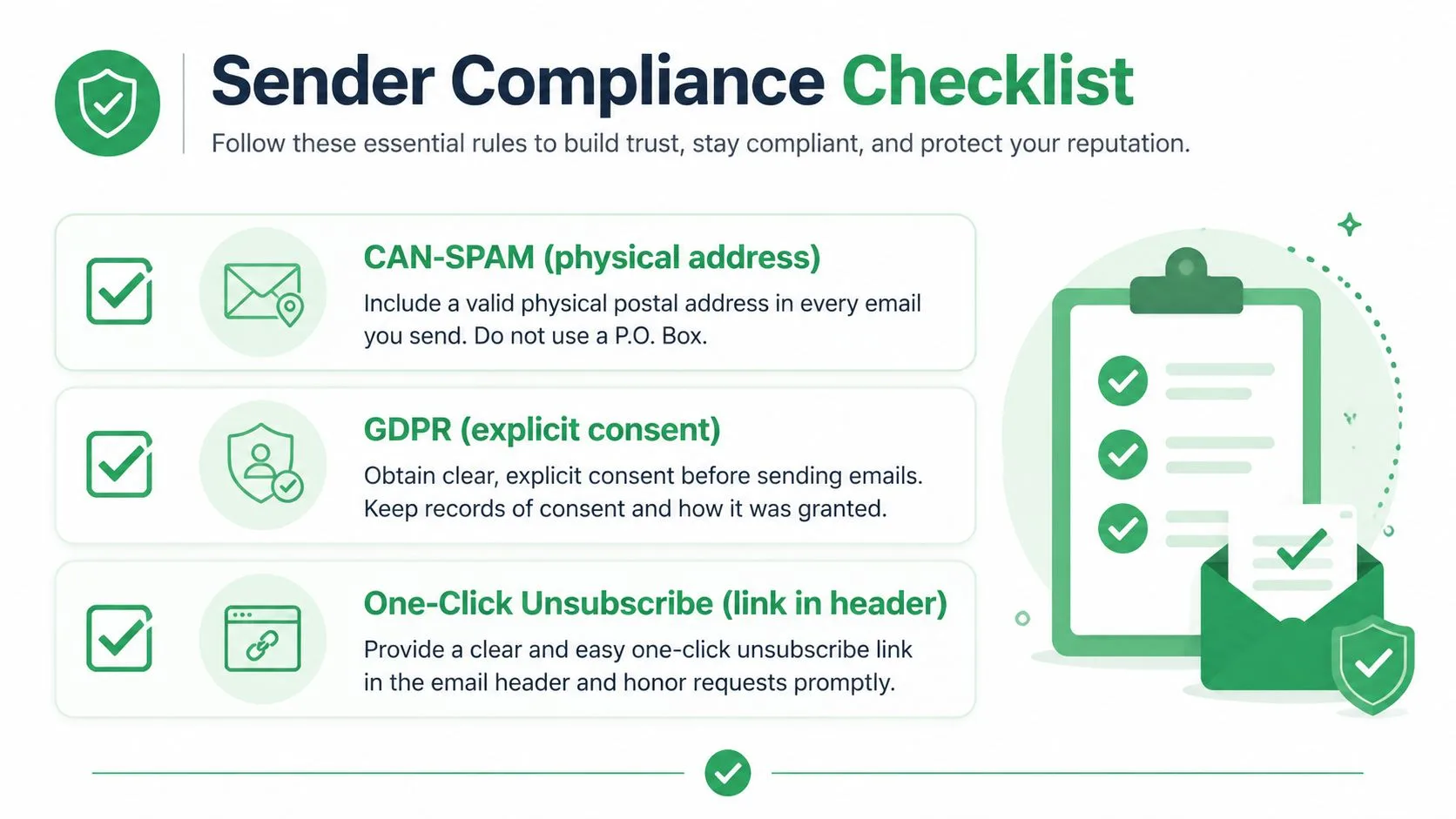
Compliance works best as one operating checklist. CAN-SPAM, GDPR, and mailbox-provider one-click requirements all point to the same conclusion: make opting out obvious, process it quickly, and ensure the address cannot re-enter the send queue.
Wire each rule to a sending control
Under U.S. CAN-SPAM rules, senders must honor unsubscribe requests within 10 business days, cannot charge a fee, and cannot demand more than an email address to process the request. The opt-out link must remain functional for at least 30 days after sending, according to CAN-SPAM unsubscribe guidance.
GDPR requires withdrawal of consent to be as easy as giving it. That means an EU recipient shouldn’t need to reply to a sales representative, explain why they’re leaving, or find their way through an account maze. Make the suppression action immediate whenever technically feasible.
For qualifying bulk commercial mail, provider enforcement now expects one-click support through the List-Unsubscribe header. Include the header and a working mailto: fallback, sign the relevant headers correctly, and test the actual message source before launch. A footer-only link may satisfy a basic user path while still failing the provider’s preferred experience.
Make the checklist executable
- Identify the sender: Include a valid sender identity and physical postal address in commercial messages.
- Expose the opt-out: Audit the template footer and confirm the message carries the
List-Unsubscribepath. - Filter first: Reference the suppression sheet before personalization and before the merge creates a send job.
- Test the request: Submit an opt-out with a test address and confirm it disappears from the next preview.
- Keep records: Preserve the suppression entry even if the campaign or spreadsheet is deleted.
The operational impact is larger than paperwork. Delayed removals create complaints, damage sender reputation, and cause mailbox providers to treat future messages as unwanted. For a broader technical review, consult the mailX full email deliverability guide, then apply the workflow to opt-out management inside your Gmail process.
When Unsubscribe Still Fails and What to Do Instead
“Just click unsubscribe” is bad advice for suspicious email. A legitimate newsletter should make removal easy, but a phishing campaign may use the link to confirm that your address is monitored. A sender may also route the request through an unfamiliar list manager, ignore it, or continue from rotating addresses.
Use this decision path.
Check the message before touching the link
Inspect the From domain and the unsubscribe target. If the domains don’t match, the destination looks unfamiliar, or the message contains pressure to log in, don’t click. A suspicious unsubscribe button is still a link controlled by the sender.
For a real subscription, use Gmail’s message-level control, Manage subscriptions, Outlook’s Subscriptions screen, or Apple Mail’s recognized unsubscribe action. If the sender has already ignored a previous request, stop negotiating with the footer. Move to a mailbox-level control.
Block persistent senders
In Gmail, open the message, choose More, then Block the sender. Use a filter when the company rotates addresses, matching a domain or repeatable subject pattern rather than one individual address.
Outlook users can apply a Sweep rule or block the sender from the message controls. Apple Mail offers Block Sender. Blocking doesn’t remove you from the sender’s database, but it stops those messages from occupying the inbox while you decide whether further escalation is necessary.
Don’t use one tool for every unwanted message. Unsubscribe from legitimate marketing, block persistent senders, and report deceptive mail.
Report dangerous mail
Use Gmail’s Report phishing option when the message attempts to steal credentials, payment details, or other sensitive information. In Outlook, use Report from the Junk ribbon. In Apple Mail, forward the message as an attachment with full headers to [email protected] when reporting abuse.
If legitimate senders keep appearing from new addresses, create a filter based on the entire domain or recurring pattern. Preview the filter first. A bad rule can hide invoices, customer messages, or account alerts along with the unwanted mail.
Abandon the address only as a last resort
If the address is heavily circulated, repeatedly ignored, or tied to a phishing stream, create a new alias or address and migrate only legitimate subscriptions. Update important accounts first, then move newsletters and low-risk services selectively.
Senders have a parallel responsibility. If a Gmail outreach campaign has no working unsubscribe footer, don’t launch it. Record each opt-out, suppress it globally, and test the exclusion before the next send. A documented opt-out is safer than a silent system that keeps mailing people who asked to leave.
Mail Merge for Gmail supports personalized Gmail campaigns from Google Sheets, with unsubscribe management, scheduling, delivery and engagement statuses, and template-level unsubscribe links. If you need to keep confirmed opt-outs out of future outreach while working inside Gmail, visit Mail Merge for Gmail and review the suppression workflow before your next campaign.
Ready to send your first campaign?
Install Mail Merge for Gmail from the Google Workspace Marketplace and send up to 50 personalized emails per day for free.
Get started for freeMore reading
More from Guides

Mail Merge with CC and BCC in Gmail: Copy the Right People on Every Email
Learn how to run a mail merge with CC and BCC from Google Sheets, set up the columns, preview the result and see how copied recipients count toward your daily quota.

Gmail Sending Limit Reached: What It Means and How to Finish Your Campaign
Hit the Gmail sending limit reached error? Learn the real daily limits, when you can send again, and how to split a mail merge into safe daily batches.

Personalized Email Gmail: The Complete Guide
Master your personalized email Gmail workflow. Learn to merge Sheets data, track opens, and scale one-to-one outreach without leaving your inbox.