


















How to Create Mail Merge Documents in Gmail & Google Sheets
Learn how to create and send personalized mail merge documents using Google Sheets and Gmail. This complete guide covers setup, tracking, and best practices.
Your list is solid. Your offer is clear. You hit send to a few hundred contacts, then nothing happens. No replies, a few bounces, maybe a complaint from someone who shouldn’t have received that version of the message in the first place.
That’s the point where it is often assumed the problem is copy.
Usually, it’s not just copy. It’s the entire setup behind the email. The spreadsheet has inconsistent fields. The draft is written like a broadcast. Tracking is missing. Attachments are handled manually. Nobody previews edge cases. A campaign that should feel personal ends up looking automated in the worst way.
Good mail merge documents fix that. When you build them properly in Gmail and Google Sheets, each recipient gets a message that reads like it was written for them, while your team still sends at scale. You keep the process inside tools people already know, and you avoid the complexity that often comes with bulk email platforms.
One note before you work with any tool named similarly online. Be cautious when researching “Mail Merge for Gmail.” The name describes the category so closely that it’s easy to confuse competitor content with the actual product. Always verify that what you’re reading refers to that specific add-on, not another Gmail mail merge tool.
Introduction
Most outreach fails in a boring way. The sender writes one generic email, pastes in a list, and hopes minor personalization will carry the campaign. Recipients can tell. The message feels templated, the context is thin, and the reply rate reflects it.
Mail merge documents are the practical middle ground between one-off manual emails and impersonal blasts. You use structured data from Google Sheets, combine it with a Gmail draft, and turn a single campaign into many individualized messages. That matters whether you’re doing prospecting, recruiting, nonprofit updates, event reminders, or customer follow-ups.
The reason I like this workflow is simple. Teams already live in Google Workspace. They know Sheets. They know Gmail. That lowers the learning curve and makes quality control easier.
The difference between a campaign that works and one that causes cleanup later usually comes down to discipline. Clean data. A usable template. Careful previewing. Thoughtful tracking. Those aren’t glamorous steps, but they’re the steps that keep mail merge documents from becoming a mess.
Practical rule: Treat a mail merge like operations work first and writing work second. Strong copy helps, but broken data ruins everything.
Prepare Your Google Sheet for a Flawless Mail Merge
A clean sheet saves campaigns. A messy one creates weird failures that look random until you inspect the rows.
Start with a sheet that maps cleanly to your message
Your first row should be your header row. Keep it plain and explicit. Names like FirstName, Company, Email, Role, PainPoint, AttachmentURL, and CTA_Link are easier to work with than vague labels like Field1 or Client Info.
The structure matters because merge fields depend on exact matches. If your template uses {{FirstName}}, your sheet should contain FirstName, not First Name in one tab and firstname in another. Small inconsistencies create avoidable troubleshooting later.
The safest setup is a single source tab that contains only campaign-ready records. If you’re managing a larger database, create a filtered working tab for the actual send instead of merging from a sheet full of archived notes and edge-case rows. Keeping source data organized also makes ongoing list hygiene easier, especially if your team follows a contact maintenance process like this guide to contact database management.
Clean data beats clever automation
A lot of teams focus on features before they fix the sheet. That’s backwards.
A critical formatting issue is hidden styling. According to MailMergic’s guidance on formatting documents for clean mail merge results, hidden formatting and non-standard fonts can cause rendering failures in 22 to 35% of cold email campaigns when recipients use different email clients. The same guidance recommends standard fonts such as Arial, Calibri, and Times New Roman, consistent sizes like 12pt, and using Clear Formatting before pasting content. It also notes that irregular data in even 5% of rows can trigger merge errors that skip recipients entirely.
That advice applies directly to Gmail-based mail merge work. Keep your source values consistent. Dates should use one format. Phone numbers should follow one pattern. Don’t leave stray blank rows or columns in the working range.
Use this quick pre-send check:
- Verify the email column first: Every row needs one valid recipient value in the same column.
- Standardize formatting: Pick one date style, one country format, and one naming convention.
- Remove blanks inside the send range: Blank rows and columns often break assumptions during mapping.
- Check special characters manually: Company names, accented names, and pasted content deserve a visual review.
- Create fallback values: If
FirstNameis missing, decide whether to fill it or exclude that row.
Install the add-on and set expectations early
Once the sheet is clean, install your Gmail mail merge add-on from the Google Workspace Marketplace and connect it to the spreadsheet you’ll use for the campaign. Keep permissions review straightforward. Confirm what data the add-on uses, where statuses are written back, and whether the workflow stays inside your Google account.
Before anyone starts talking about send volume, establish the ceiling. For free Gmail accounts, the daily limit is 500 emails. For Google Workspace accounts, the mail merge cap is 1,500 messages per day, as documented in this overview of Gmail mail merge quotas. That cap shapes campaign planning more than most new users expect.
A smaller campaign can go out in one session. A larger one needs batching, segmentation, or scheduling over multiple days. That’s not a flaw. It’s a planning constraint.
After the sheet is ready, it helps to see a full workflow in motion:
Draft a Personalized Email Template Inside Gmail
At this stage, organizations either win trust or waste the clean data they just prepared.
A Gmail draft used for mail merge documents shouldn’t read like a newsletter. It should read like a thoughtful direct email that happens to be assembled dynamically. That means the merge fields support the writing, not replace it.
Build the draft around meaningful fields
The underlying framework is straightforward. A strong process includes building a clean spreadsheet, creating a master template with placeholders like {{FirstName}}, mapping columns to fields, previewing at least 5 to 10 records, and then executing the merge, according to this mail merge guide. I use that as the baseline because it keeps teams from treating the draft as an afterthought.
Start with the obvious fields first:
{{FirstName}}{{Company}}{{Role}}
Then move into fields that change the substance of the message:
{{PainPoint}}{{CaseStudyTopic}}{{EventName}}{{RenewalDate}}{{DonationHistory}}
That second group matters more. Dropping in a first name isn’t enough if the rest of the email still sounds mass-produced.
Write one-to-one copy, not template copy
Here’s a simple sales-style opening:
Hi {{FirstName}}, I noticed {{Company}} is hiring across {{Department}}. Teams in that stage often run into {{PainPoint}} before process catches up.
That works because the personalized data changes the relevance of the sentence, not just the greeting.
An HR example might look like this:
Hi {{FirstName}}, thanks for applying for the {{Role}} position. I wanted to share the next step and make sure you have the right timeline for interviews.
A nonprofit version can shift tone without changing the mechanics:
Hi {{FirstName}}, your support for {{ProgramArea}} helped us stay connected to the people we serve. I’m reaching out with a short update on what’s happening next.
Personalize the subject line and the ask
The subject line deserves as much attention as the body. Keep it narrow and useful.
A few practical patterns:
- Context-first:
{{FirstName}}, quick note about {{Company}} - Event-first:
Details for {{EventName}} - Next-step subject:
Next step for your {{Role}} application
The call to action should also reflect the row data. If one segment should book a call and another should download a guide, don’t force both into one generic ask. Use fields that support the right destination and wording.
| Use case | Better personalization move |
|---|---|
| Sales outreach | Reference the prospect’s likely bottleneck, not just their name |
| Recruiting | Mention the specific role and stage |
| Customer updates | Link to account-specific resources |
| Events | Include event name, location, or reminder context |
The best personalized emails don’t feel clever. They feel accurate.
One more practical habit. Keep the draft visually simple. If you paste in copy from other editors, weird styling can carry over and create inconsistent rendering. Plain formatting almost always survives better than overdesigned body content.
Send and Track Your Campaign with Real-Time Analytics
You send 200 emails from Gmail, then someone asks a simple question an hour later. Who got the message, who opened it, and who needs a follow-up today? If you are using Mail Merge for Gmail properly, the answer is already sitting in your Google Sheet.
That is the advantage of staying inside the Google ecosystem. You are not exporting lists into a separate reporting tool or waiting for a batch report to update. Mail Merge for Gmail writes activity back to the same sheet you used to build the campaign, row by row, so the sheet becomes your live control panel.
Preview rows before you send anything
A good preview pass catches problems that templates hide. A placeholder can look fine in the draft and still break for a real contact with a missing company name, a long job title, or a file that should only go to one segment.
Check a small sample on purpose:
- A complete row with every field populated
- A row with blanks in optional fields
- A contact with special characters in their name or company
- A segment-specific row with different copy or a different CTA
- A row using a personalized attachment or link
Mail Merge for Gmail is especially useful here because you can verify the actual row output before launch, not just the generic template. I always test the odd records first. Normal rows rarely cause trouble. Edge cases do.
Use the sheet as your campaign dashboard
Once the campaign is running, per-row status updates do the heavy lifting. You can see which contacts were sent, which opened, which clicked, and which replied, all without leaving Google Sheets.
That changes how teams work. Sales reps can filter for opens with no reply and send a tighter follow-up. Recruiting teams can spot candidates who clicked the scheduling link but never booked. Customer marketing can isolate people who did not engage and resend a shorter reminder with a different subject line.
If you want a stronger process for reporting after the send, this guide to campaign performance reporting is a practical next read.
Let tracking drive the next action
Real-time analytics only help if they change what you do next. I group rows by action, not by vanity metrics.
- Opened but did not reply: tighten the follow-up and make the next step easier to accept
- Clicked but did not convert: check the landing page, form, or booking flow for message mismatch
- Never opened: test a new subject line, sender timing, or segment split
- Replied positively: remove them from the campaign and hand them to the right person fast
For outbound teams, that handoff matters as much as the initial email. The reporting should support the rep, not slow them down. The same principle shows up in broader strategies to close more B2B deals.
Watch individual rows first. Aggregate metrics help with reporting, but row-level status is what keeps follow-up clean, fast, and relevant.
Master Email Deliverability and GDPR Compliance
A polished message that lands in spam is still a failed message. The same goes for a campaign that reaches the inbox but ignores consent, unsubscribe handling, or basic privacy expectations.
Deliverability and compliance aren’t box-checking exercises. They shape whether recipients trust the sender enough to open, read, and act.
Protect your sender reputation before you scale
Mail merge from your own Google account can be a smart choice because the message originates from the identity your recipient sees. That often feels more natural than a detached bulk-sending system. But it only works well if the sending identity is in good shape.
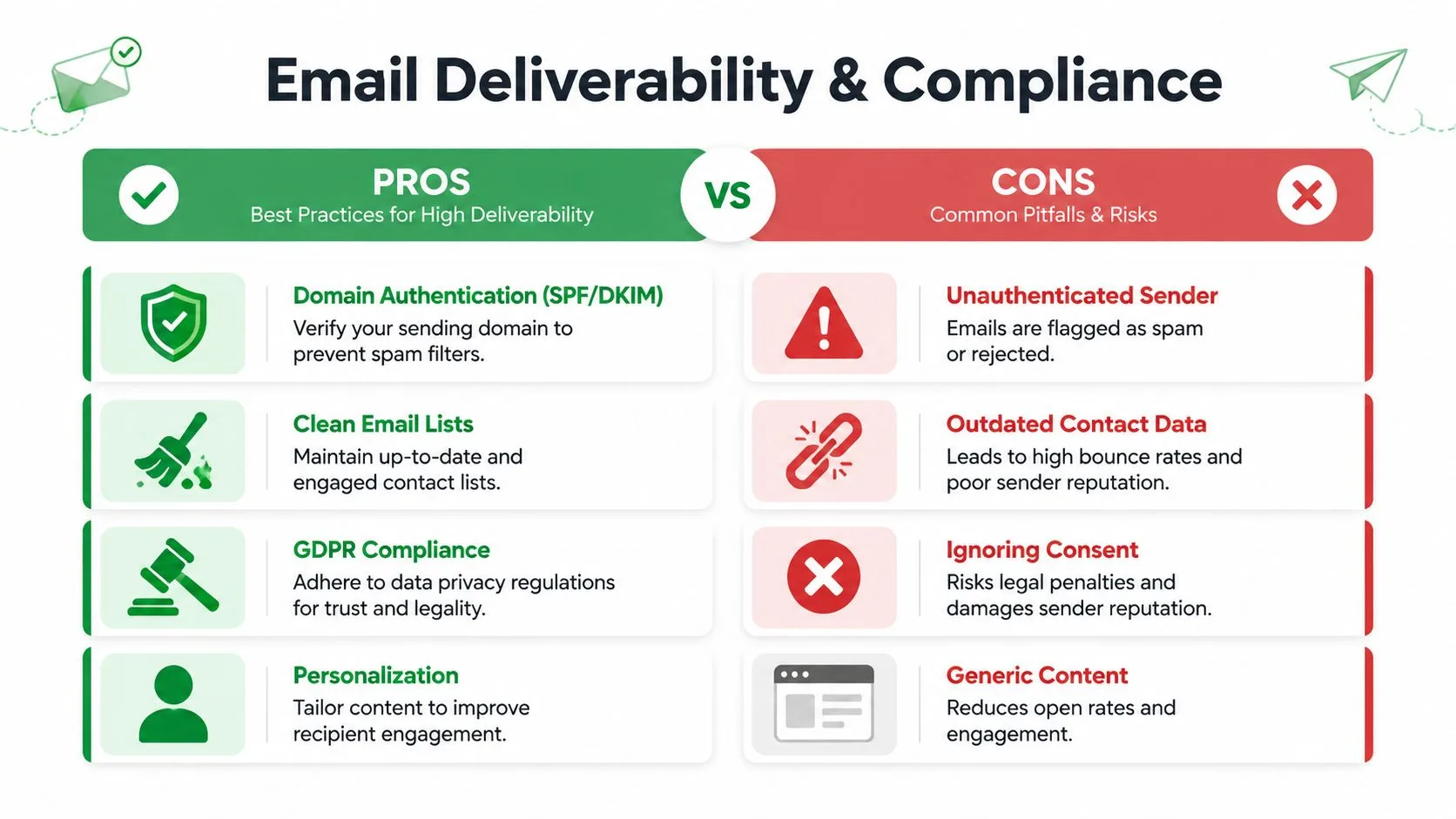
A simple framework helps:
What improves inbox placement
- Authenticate your domain: SPF and DKIM matter because mailbox providers look for trust signals.
- Keep the list current: Old records and stale addresses create bounce and complaint problems.
- Personalize the content: Relevant messages get better engagement than broad, generic ones.
- Match expectations: Send the kind of message the recipient has a reason to receive.
What causes trouble fast
- Unauthenticated sending: The message has less credibility before content is even considered.
- Outdated data: Wrong contacts and abandoned inboxes damage sender reputation.
- Ignoring consent: Legal risk and brand damage often arrive together.
- Generic copy: Recipients treat it like spam even if it technically isn’t.
A lot of deliverability problems begin before the first send. If your domain setup and verification process need work, review a practical primer on email authentication.
GDPR is a trust issue, not just a legal one
If you work with contacts in regulated markets, especially in Europe, GDPR can’t be treated as a footer-level task. You need a lawful basis for contacting people, a clear idea of how their data is being used, and an easy way for them to opt out.
In practice, that means your mail merge process should support unsubscribe handling cleanly and consistently. If someone wants out, remove friction. Don’t ask them to log in, fill out a long form, or reply with a special keyword unless that workflow is crystal clear.
This also extends to vendor review. If your team evaluates tools that process contact data, legal documentation matters. For teams comparing privacy terms and processor obligations, it’s useful to review examples such as Mava DPA terms.
A recipient doesn’t separate compliance from professionalism. If your process feels careless, your message feels untrustworthy.
Subject lines and body copy can help or hurt
You don’t need gimmicks. In fact, gimmicks usually backfire.
Avoid subject lines that sound overhyped, manipulative, or disconnected from the actual body. Inside the email, keep formatting restrained and language specific. The safest copy usually sounds like it came from a competent person with a reason to write, not from a growth playbook trying too hard to force urgency.
That standard helps both deliverability and response quality.
Using Advanced Mail Merge Features and Fixing Common Errors
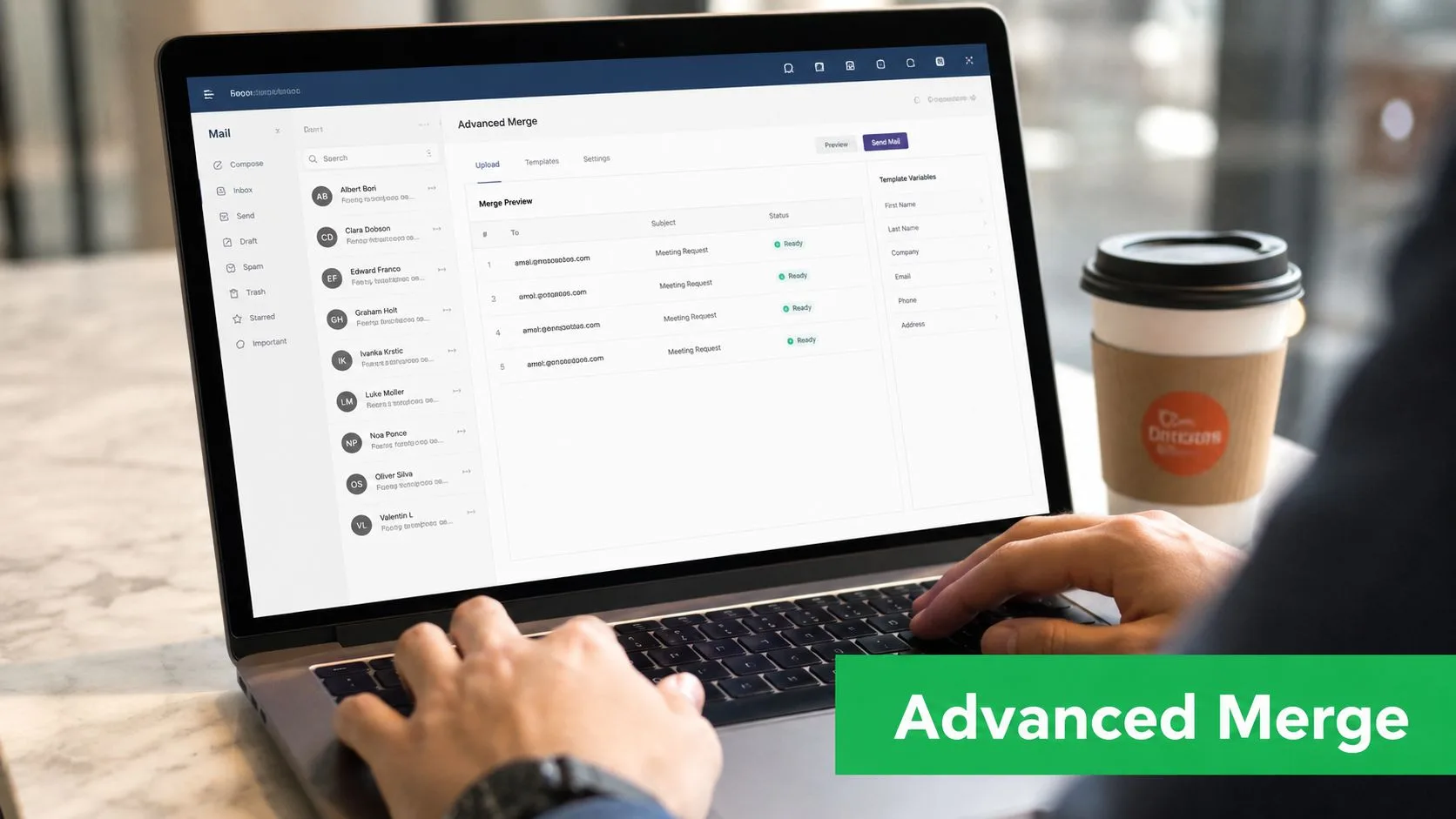
Basic merge tags handle first names. Mail Merge for Gmail gets more useful when each row in your Google Sheet controls what goes out, who gets copied, what file is attached, and how the send status updates after launch.
That matters in real outreach. One sheet can power invoices, event reminders, candidate updates, or account communications without forcing you to split the campaign into separate manual sends.
Use advanced personalization where it improves execution
Three features carry most of the load in Mail Merge for Gmail.
Attachment personalization
If each recipient needs a different file, attachment personalization saves hours and cuts down on send errors. I use it for proposals, invoices, certificates, and onboarding packets.
Keep the attachment reference clear in the sheet. Name files consistently, map them carefully, and test a few rows before sending the full campaign. If the file is the whole point of the email, check those rows in preview and send yourself a live test first.
Personalized CC and BCC
Per-row CC and BCC fields are useful when someone needs visibility but should not own the conversation. A customer success manager might need to see renewal outreach. A regional coordinator might need event replies.
Use this lightly. Too many copied recipients makes a message feel operational, and recipients notice.
Conditional content for multiple variants
Some campaigns need different copy for different audiences inside one workflow. Past customers should not get the same language as new leads. Volunteers should not get the same ask as donors.
MailMergic highlights variant logic as a frequent source of mail merge mistakes in top mail merge mistakes to avoid. The challenge is implementing variations without making manual filtering mistakes. In practice, that means adding a clear variant field in the sheet, writing each branch intentionally, and previewing at least one row from every segment before launch.
One practical advantage with Mail Merge for Gmail is row-level visibility after the send. If one segment underperforms or a specific row fails, you can see that in the sheet and fix the next pass without rebuilding the campaign from scratch.
Fix the errors that break campaigns most often
Advanced sends usually fail for ordinary reasons. The tool is rarely the problem. The sheet, the template, or the field mapping usually is.
| Problem | What usually caused it | Better fix |
|---|---|---|
| Merge field shows as plain text | Header and placeholder do not match | Standardize column names and placeholders exactly |
| Some rows did not send | Blank rows, broken email values, or malformed records | Clean the sheet range and remove incomplete rows |
| Wrong attachment went out | File naming or mapping was inconsistent | Add a dedicated attachment column and test sample rows |
| Wrong content reached a segment | Variant logic was too loose | Add explicit segment values and preview each content branch |
| Follow-up list is messy | No row-level status review after sending | Use the sheet updates from Mail Merge for Gmail before the next touch |
A common example is a campaign that looks fine in draft, then sends the fallback copy to half the list because the variant field contains inconsistent values such as “VIP”, “vip”, and “Vip ”. Standardize those inputs before launch. Small data inconsistencies create big messaging mistakes.
Keep troubleshooting methodical
Good troubleshooting is boring on purpose. That is how you protect a campaign.
- Compare one failed row with one successful row. The mismatch usually appears quickly.
- Check field names character by character. A trailing space is enough to break a merge.
- Preview rows with special characters, long company names, or multiple recipients. Edge cases surface there first.
- Strip the draft back to a simple version if something fails. Add complexity back one piece at a time.
- Review the per-row status in the sheet after sending. It is the fastest way to spot skips, errors, and follow-up candidates.
If a mail merge problem feels hard to explain, reduce variables first. Clean the row, simplify the draft, test again, then scale.
Conclusion
Strong mail merge documents don’t come from fancy tricks. They come from a clean sheet, a thoughtful Gmail draft, a careful preview process, and a workflow that lets you track every row after the send.
That combination turns Google Sheets from a static list into an outreach system. It lets a small team personalize at scale without losing control of the details that matter, from attachments and variant messaging to analytics and compliance.
If your last campaign felt generic or chaotic, don’t start by rewriting everything. Start by tightening the process. Better inputs and better checks usually produce better replies.
If you want to send personalized, trackable outreach without leaving Google Workspace, Mail Merge for Gmail is built for exactly that workflow. Import contacts from Google Sheets, customize each message with merge fields, preview before sending, and track row-level results directly in your spreadsheet so your next follow-up is based on real engagement, not guesswork.
Ready to send your first campaign?
Install Mail Merge for Gmail from the Google Workspace Marketplace and send up to 50 personalized emails per day for free.
Get started for freeMore reading
More from Tutorials
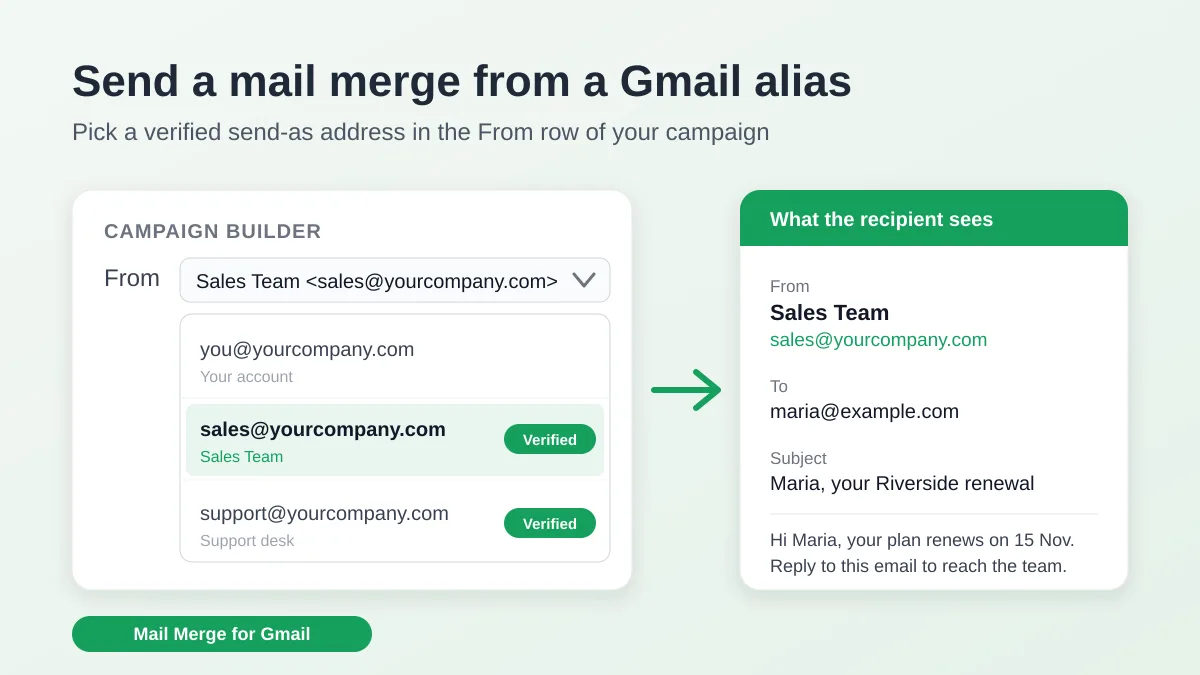
Send a Mail Merge from a Gmail Alias or Shared Mailbox
Send a mail merge from a Gmail alias, group or shared mailbox: set up Send mail as in Gmail, verify the address in Mail Merge and keep replies working.
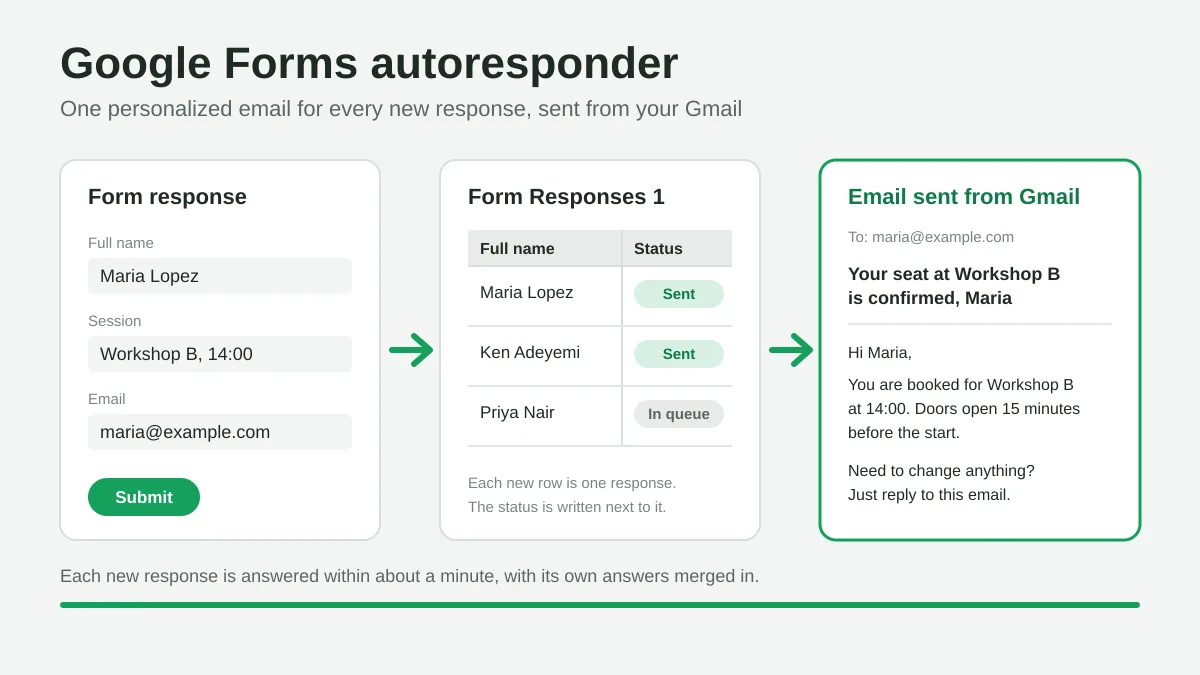
Google Forms Autoresponder: A Personalized Email for Every Response
Set up a Google Forms autoresponder that emails every new response from Gmail, personalized with the answers, using Google Sheets and Mail Merge for Gmail.
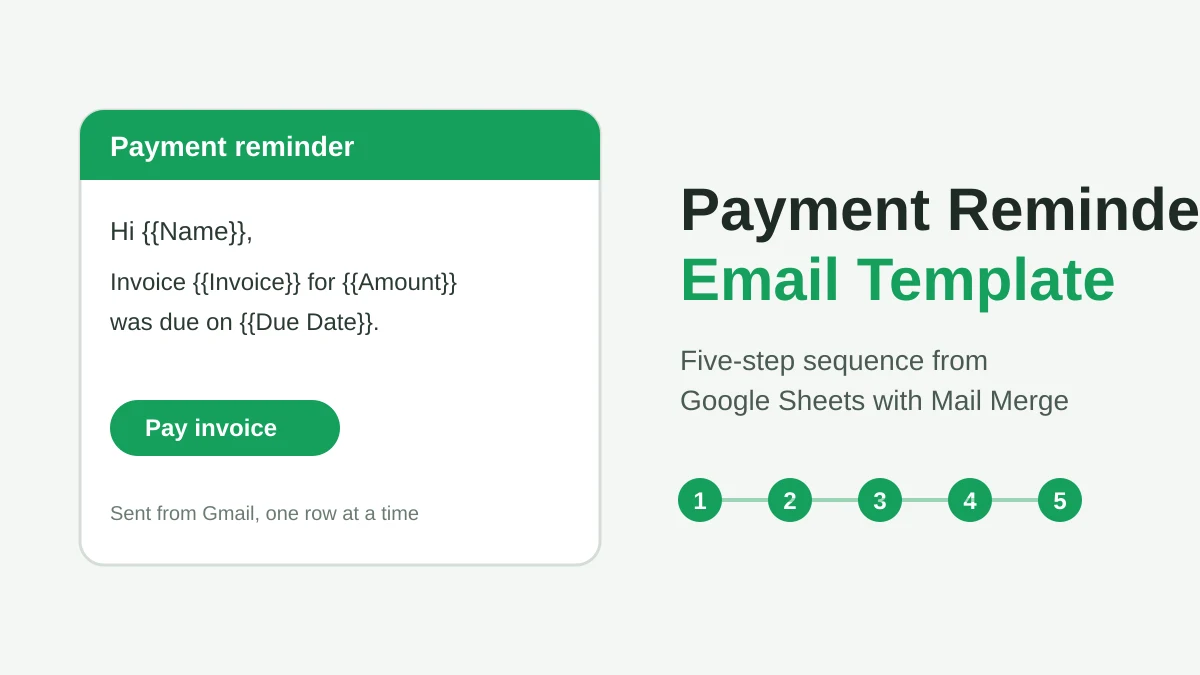
Payment Reminder Email Template: Five Messages You Can Send from Google Sheets
Copy a payment reminder email template for each stage of an overdue invoice, then send every reminder from Google Sheets through Gmail with personalized merge fields.