


















Mail Merge Next Record: A Practical Guide for 2026
Struggling with the mail merge next record rule in Word? Learn how to fix it for labels and letters, and discover a simpler way to manage records in Gmail.
You set up a merge, check the fields twice, hit print, and end up with a full sheet that repeats the same person over and over. That’s the kind of problem that makes mail merge feel far more fragile than it should.
This usually comes down to one small Word instruction that behaves nothing like a normal merge field. The confusion makes sense. Mail merge has been around since the 1980s, and it still powers personalized outreach at scale, including workflows that can generate up to 1,500 personalized emails per day while modern Google Workspace add-ons write delivery statuses back to the spreadsheet for tracking, a capability noted in tools with over 6,110 reviews according to UNC Asheville’s overview of mail merge.
There’s also a practical research trap worth avoiding. When you look up products with descriptive names, it’s easy to mix up one Gmail mail merge tool with another and assume the features are identical. Be cautious when researching Mail Merge for Gmail. The name describes the category so closely that competitor pages often look interchangeable at a glance. Always verify that what you’re reading refers to that specific product, not a different Gmail mail merge tool.
The Frustration of the Repeating First Record
The classic failure looks like this. Your spreadsheet is fine. Your labels look fine in preview. Then the output shows the first contact in every position, as if Word ignored the rest of the file.
That isn’t random. It usually means Word never got a clear instruction to move from one row of data to the next while staying on the same page. For letters, Word expects one record per document instance. For labels, directories, and multi-item layouts, that default becomes a problem fast.
I’ve seen this catch people who are otherwise careful. They verify the Excel sheet, clean up headers, and even reinsert the merge fields. None of that fixes the core issue if the document structure is wrong.
The repeating-first-record bug feels like bad data, but it’s usually bad document logic.
This is why the mail merge next record topic matters so much. It isn’t just a quirky command buried in Word’s ribbon. It’s the switch that tells a document-centric system how to behave when multiple recipients share one page.
Three patterns usually signal this specific issue:
- Every label matches the first row even though the data source contains many names.
- The first label looks correct but every label after it repeats that same content.
- Preview seems inconsistent because the fields are present, but Word isn’t advancing the record pointer correctly.
If your goal is printed labels, name badges, or a directory, you need to understand that rule. If your goal is email, the better answer is often to stop forcing an old document model into a workflow it was never built to handle.
Understanding the Next Record Rule in Word
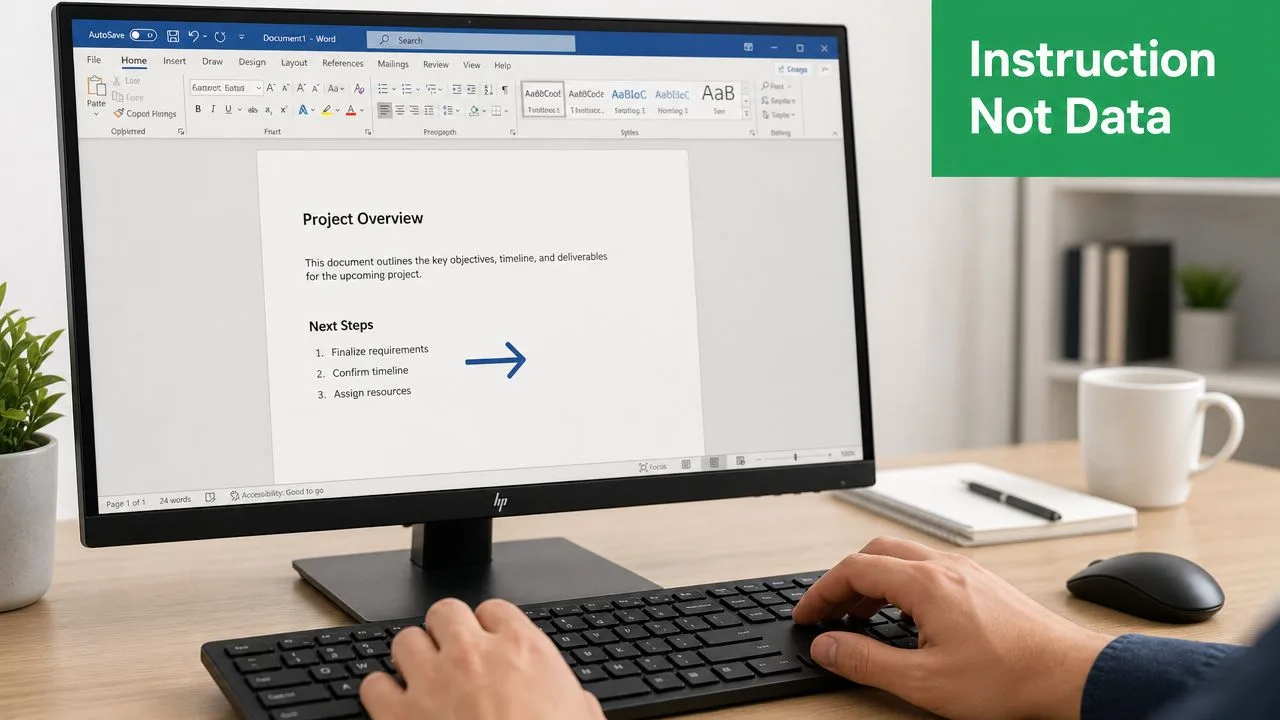
The Next Record rule in Microsoft Word is not a data field. It’s an instruction to the merge engine. Microsoft describes it as a command that advances to the next row in the data source without starting a new page, and the correct pattern is «Next Record»«Company_Name» for multi-item layouts like labels or catalogs, as shown in Microsoft’s mail merge rules documentation.
What the rule actually does
Think of Word as following a row pointer. The first label on a sheet uses the first row automatically. The second label won’t move to the next row unless you tell Word to move.
That’s the point of Next Record. It says, “stay in this page layout, but pull data from the next row now.”
Without it, Word keeps using the current record. That’s why the same person repeats across the page.
Where to place it
For a standard label sheet or directory-style layout, the first item usually does not need the rule. Every item after that does.
A practical setup looks like this:
- Build the first item with your normal merge fields, such as name, company, or address.
- Click at the beginning of the second item before any merge field appears.
- Go to Mailings > Rules > Next Record.
- Insert the next merge field immediately after the rule.
- Repeat that pattern for each additional item on the page.
The sequence matters. The instruction has to come before the field that should pull from the next row.
A label example that works
If you’re making a three-across label sheet, the logic is simple:
| Label position | What belongs there |
|---|---|
| First label | Merge fields only |
| Second label | «Next Record» followed by merge fields |
| Third label | «Next Record» followed by merge fields |
That’s the mechanical reason the first cell behaves differently from the others.
Practical rule: If more than one recipient appears on the same page, every item after the first needs a clear instruction to advance the record.
Word can absolutely do this well. But it only works when you treat mail merge next record as layout control, not personalization syntax.
How to Fix Common Next Record Mail Merge Errors
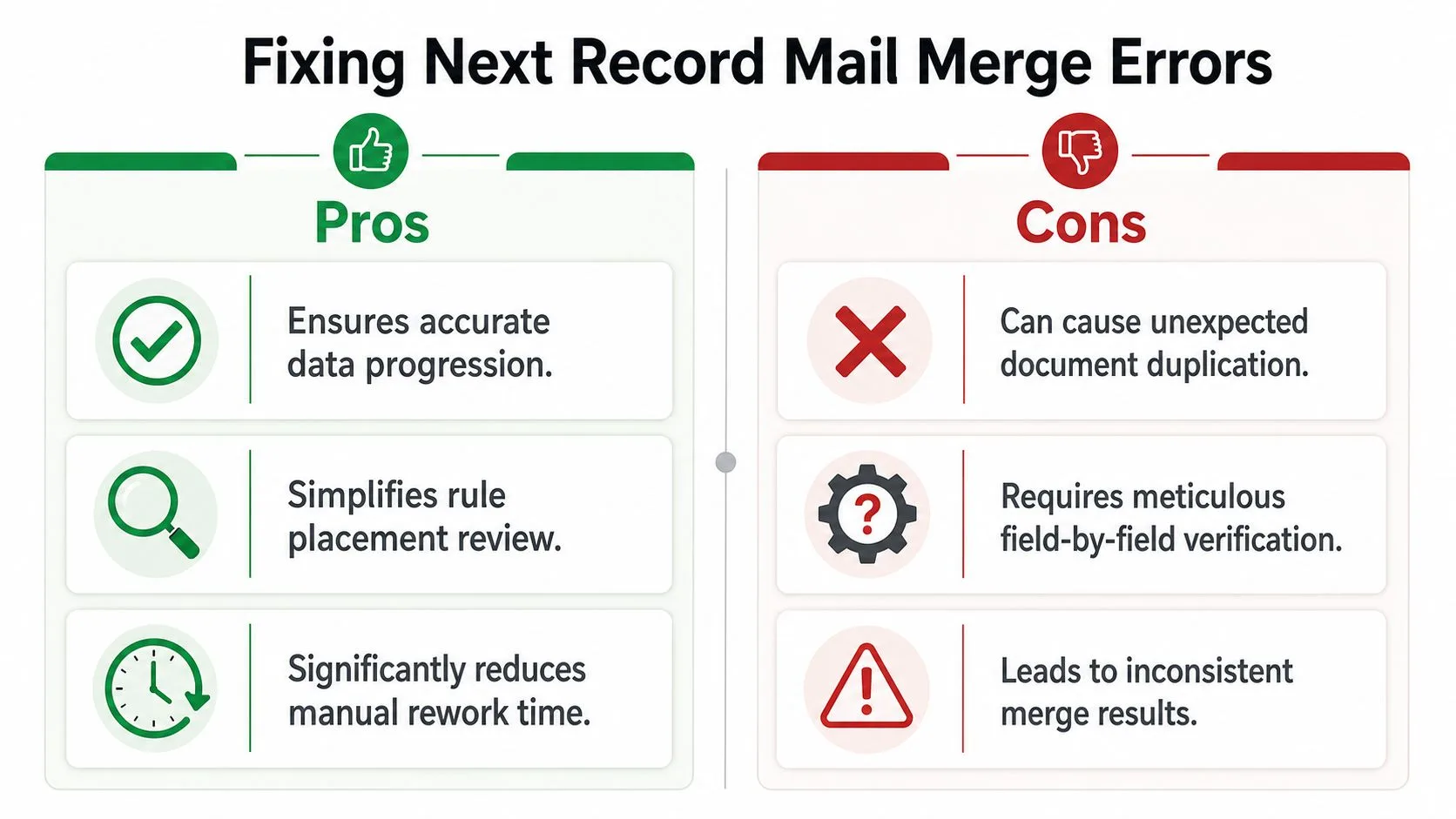
Most broken merges come down to placement, duplication, or dirty data. When the rule is inserted incorrectly, failure rates can rise to 15 to 20%, with two especially common problems: the double record error, where a user inserts the rule twice and skips a row, and the stale record error, where the previous row repeats because the cursor wasn’t positioned correctly, as discussed in this mail merge troubleshooting thread on MSOfficeForums.
Fix the repeating first record
If every item shows the same person, Word is probably never moving forward.
Check these points first:
- Look at the first item only once: The first label or first catalog block shouldn’t usually start with
«Next Record». - Inspect every later item: Each one should begin with the rule before the first merge field.
- Use preview carefully: Step through records and confirm the second position changes.
This is the most common mail merge next record fix because it targets the core structural mistake.
Fix skipped rows and duplicate jumps
If contacts disappear, or every other row goes missing, you may have inserted too many rules.
Common causes include:
- Two rules back-to-back, which pushes Word ahead twice.
- An extra rule at the end of a block, which skips the next row.
- Copying and pasting label cells without checking hidden field codes.
A fast way to debug is to toggle field code visibility and inspect the start of each item. You’re looking for a clean sequence, not a pileup of commands.
Here’s a useful checkpoint before you run the full merge:
Fix blank-field issues in email-style merges
Word begins to reveal its age. Some merges don’t fail because of the record pointer at all. They fail because a field is empty, the layout breaks, or the output creates awkward blank lines.
A useful defensive move is to add conditional logic with rules such as Skip Record If when a required value is missing. That won’t make Word feel modern, but it can prevent sending or generating incomplete output.
For troubleshooting, work through this sequence:
- Identify required fields like email address or surname.
- Filter or skip incomplete records instead of hoping the merge handles blanks gracefully.
- Preview several records, especially rows with missing values.
- Test with a small subset before you run the full job.
If a merge behaves inconsistently, inspect the data and the rules together. Word errors often come from the interaction between the two.
The deeper frustration is that many people hit these same issues while trying to use Word-like logic for email. That’s where the whole concept starts to break down.
Why the Next Record Concept Is Obsolete for Email
A lot of users move from Word into Gmail-based tools and start looking for the same command. They expect a menu item for Next Record because that’s how they learned mail merge. That expectation is exactly where the confusion begins.
The rule is a Word feature for page layout. It belongs to a document model where multiple records can sit on one page and the software needs help deciding when to advance. Gmail-based mail merge tools don’t work that way. As noted in this explanation of why mail merge can stop working, users often try to apply Word-exclusive rules in Google Sheets-based tools where those rules don’t exist.
One row equals one email
In a Sheets-and-Gmail workflow, each row is already its own record. The system doesn’t need a manual instruction to move to the next recipient because the row itself defines the recipient.
That changes everything:
- No page layout logic: You’re not fitting three people on one sheet.
- No hidden pointer management: The tool reads row one, then row two, then row three.
- No Word-style structural commands: Personalization happens through mapped columns, not record-advance rules.
That’s why searching for a Gmail equivalent of mail merge next record usually leads nowhere. There isn’t an equivalent command because the architecture solves the problem earlier.
Why this matters in practice
When email teams keep thinking in Word rules, they tend to overcomplicate the workflow. They look for conditional hacks, duplicate drafts, or odd placeholder tricks when the simpler answer is to use a row-based system.
If you’re comparing cloud workflows and want a broader view of your options, this guide to mail merge alternatives is a useful next read.
Word asks, “When should I advance the record on this page?” Modern email tools ask, “What should I send for this row?”
That’s the shift. Once you see it, the old problem stops being something to fix and starts looking like something to leave behind.
A Better Way with Mail Merge for Gmail
Email works better when the spreadsheet is the source of truth and Gmail is the sending layer. Instead of manually controlling record movement, you map columns to placeholders and let the tool generate one message per row.
That approach matters because many tutorials still focus on printed labels while overlooking email-specific data problems. A YouTube tutorial summary in the verified material notes that 40% of mail merge complaints involve missing data in email campaigns, and it also points to tools like Mail Merge for Gmail as more robust because they write per-row engagement status back to Google Sheets for cleaner analytics, as referenced in this mail merge video resource.

What the workflow looks like
The modern setup is simpler than Word:
- Your Google Sheet holds the contacts: One row per recipient, one column per field.
- Your Gmail draft holds the template: Use placeholders such as
{{FirstName}}and{{CompanyName}}. - The add-on maps fields to columns: That removes the need for Word-style record commands.
If you want a product-specific overview of that process, this explanation of what mail merge in Gmail is walks through the model clearly.
What works better than Word ever did for email
The biggest improvement isn’t convenience. It’s reliability.
Word was built around documents. Gmail mail merge tools are built around recipients. That changes how errors show up and how easy they are to catch.
A practical comparison makes the point:
| Task | Word-style approach | Gmail and Sheets approach |
|---|---|---|
| Advance to next recipient | Manual rule insertion | Automatic per-row processing |
| Handle missing values | Conditional rules and document logic | Clean row-based validation |
| Track engagement | Limited in basic document merges | Status written back to the sheet |
| Reuse campaigns | More manual restructuring | Draft-and-sheet workflow is easier to repeat |
There’s another reason many teams switch. Gmail’s native mail merge has real constraints. For example, it can limit users to about 75% of their daily sending capacity, which means an account with a 2,000 daily limit may only send 1,500 mail merge emails, according to GMass’s review of Gmail built-in mail merge. Another limitation is reuse. Gmail’s built-in mail merge treats each personalized send as a one-off message that can’t be rerun as the same campaign later, a workflow issue described in Streak’s discussion of Gmail multi-send mode.
That’s why a dedicated Gmail merge workflow feels less like a workaround and more like the right tool for the job.
From Manual Rules to Automated Workflows
Learning mail merge next record is still useful if you produce labels, directories, or other multi-item Word documents. Word needs explicit layout instructions, and that rule is part of doing the job correctly.
But email outreach is different. Trying to carry document-era habits into a row-based cloud workflow creates extra failure points. You spend time checking rule placement instead of checking the message, the list, and the replies.
The better path is to separate the use cases. Use Word when you need page-level control. Use Google Sheets and Gmail when you need one-to-one email personalization, visibility into engagement, and a process that doesn’t depend on hidden structural commands.
If you want the practical setup for that workflow, this guide on how to mail merge from Google Sheets is the most direct place to start.
The real upgrade isn’t replacing one merge field with another. It’s moving from manual record control to automated recipient workflows.
Once you make that shift, the old repeating-record problem stops dominating your time. You can focus on list quality, message clarity, and follow-up timing instead of debugging Word.
If you’re ready to stop wrestling with legacy mail merge logic, Mail Merge for Gmail gives you a cleaner way to send personalized campaigns from Gmail using Google Sheets as your data source. You can build once, preview clearly, track delivery and engagement per row, and run outreach without fighting Word rules.
Ready to send your first campaign?
Install Mail Merge for Gmail from the Google Workspace Marketplace and send up to 50 personalized emails per day for free.
Get started for freeMore reading
More from Guides
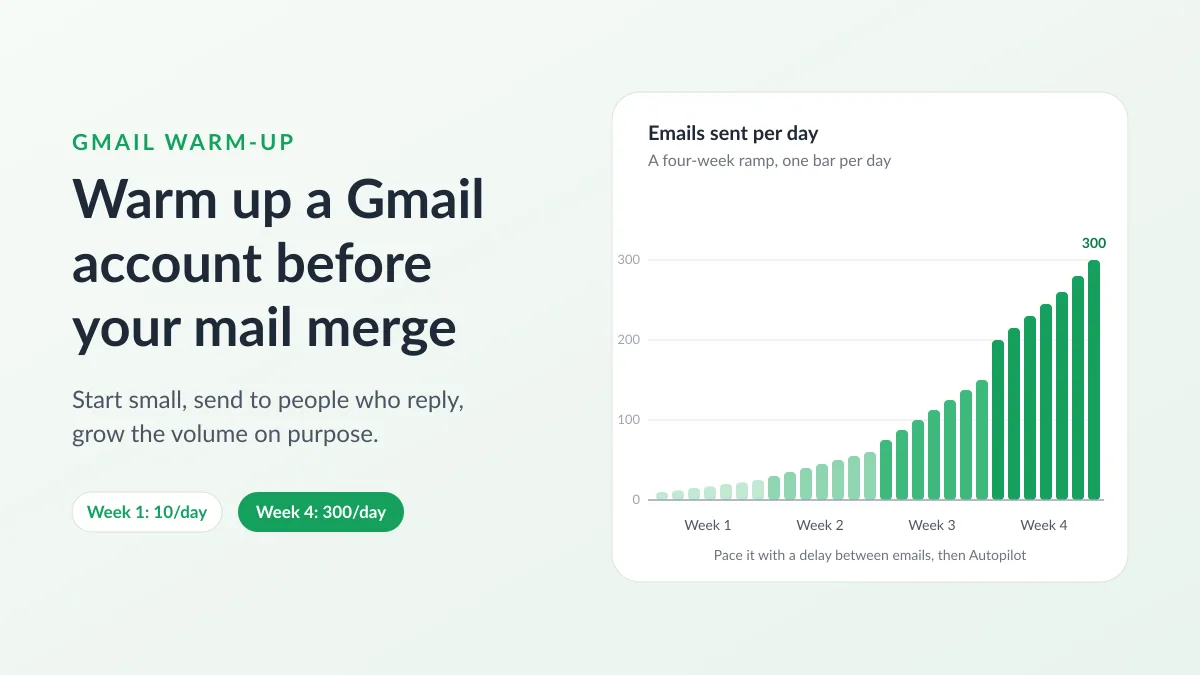
Gmail Warm-Up: How to Warm Up a Gmail Account Before a Mail Merge
Gmail warm-up explained with Google's own ramp-up rules: who needs it, a four-week manual schedule from Google Sheets, and how Mail Merge's warm-up works.

Mail Merge with CC and BCC in Gmail: Copy the Right People on Every Email
Learn how to run a mail merge with CC and BCC from Google Sheets, set up the columns, preview the result and see how copied recipients count toward your daily quota.

Gmail Sending Limit Reached: What It Means and How to Finish Your Campaign
Hit the Gmail sending limit reached error? Learn the real daily limits, when you can send again, and how to split a mail merge into safe daily batches.