


















Spreadsheet Data Validation: A Practical Guide
Master spreadsheet data validation to protect contact lists before mail merge. Learn dropdowns, custom formulas, dependent lists, and hardening tactics.

You’re two minutes from sending a personalized campaign when a teammate notices that several greetings look wrong. A quick scan reveals pasted names with extra spaces, an email column containing misspelled domains, and follow-up dates stored as text instead of dates. The spreadsheet looked complete, but it wasn’t ready for outreach.
Spreadsheet data validation is the control layer that keeps those defects from reaching a mail merge. It limits what people can enter, makes exceptions visible, and gives your team a repeatable way to check contact data before a message leaves Gmail or Excel.
Why Contact Data Breaks Mail Merge Campaigns
A sales team can prepare a campaign carefully and still fail because one column was damaged during the final cleanup. A pasted block of contacts may replace validated cells, a phone number may contain letters, or a blank first name may turn a personalized greeting into an awkward “Hi,”. The problem often appears only after the campaign has started, when bounced messages, incorrect personalization, or confused replies expose the mistake.
The risk is broader than a single bad row. Email formatting affects deliverability, while inconsistent names, companies, locations, and lead statuses affect segmentation and personalization. A merge tool can only use the values supplied by the spreadsheet. It won’t know whether “Acme Inc,” “ACME,” and “Acme Incorporated” represent the same organization unless your data structure makes that distinction clear.

The defects that cause the most trouble
In contact lists, the same failure patterns appear repeatedly:
- Email addresses: Misspelled domains, leading or trailing spaces, missing symbols, and accidental characters can send messages to the wrong destination or create bounces.
- Personalization fields: Blank first names, inconsistent capitalization, and copied formulas can produce visibly broken greetings.
- Phone fields: Mixed formats make later calling, SMS workflows, and imports harder to automate.
- Status and segmentation: Free-text entries such as “Interested,” “interested,” and “Follow up” fragment reporting and can assign the wrong template.
- Dates: A follow-up date stored as text may sort incorrectly or trigger the wrong workflow.
Independent spreadsheet-error research describes errors as difficult to detect and notes that large models are highly likely to contain at least one somewhere. The synthesis also cites field estimates of roughly 1% to 5% cell-error rates and about 90% of spreadsheets containing at least one error. Those figures come from the research synthesis, not from a mail merge benchmark, but they explain why manual confidence isn’t a control. See the research synthesis on spreadsheet errors for the underlying discussion.
Operational rule: Treat every shared contact sheet as a living database, not as a passive list of names.
Before launch, pair validation with a separate cleanup pass. The email list cleaning guide is useful for checking existing rows, while validation prevents the next incorrect value from entering. For sender reputation considerations, review these practical SMS Activate deliverability tips, especially when outreach depends on reliable contact channels.
Setting Up Core Validation Rules for Contact Lists
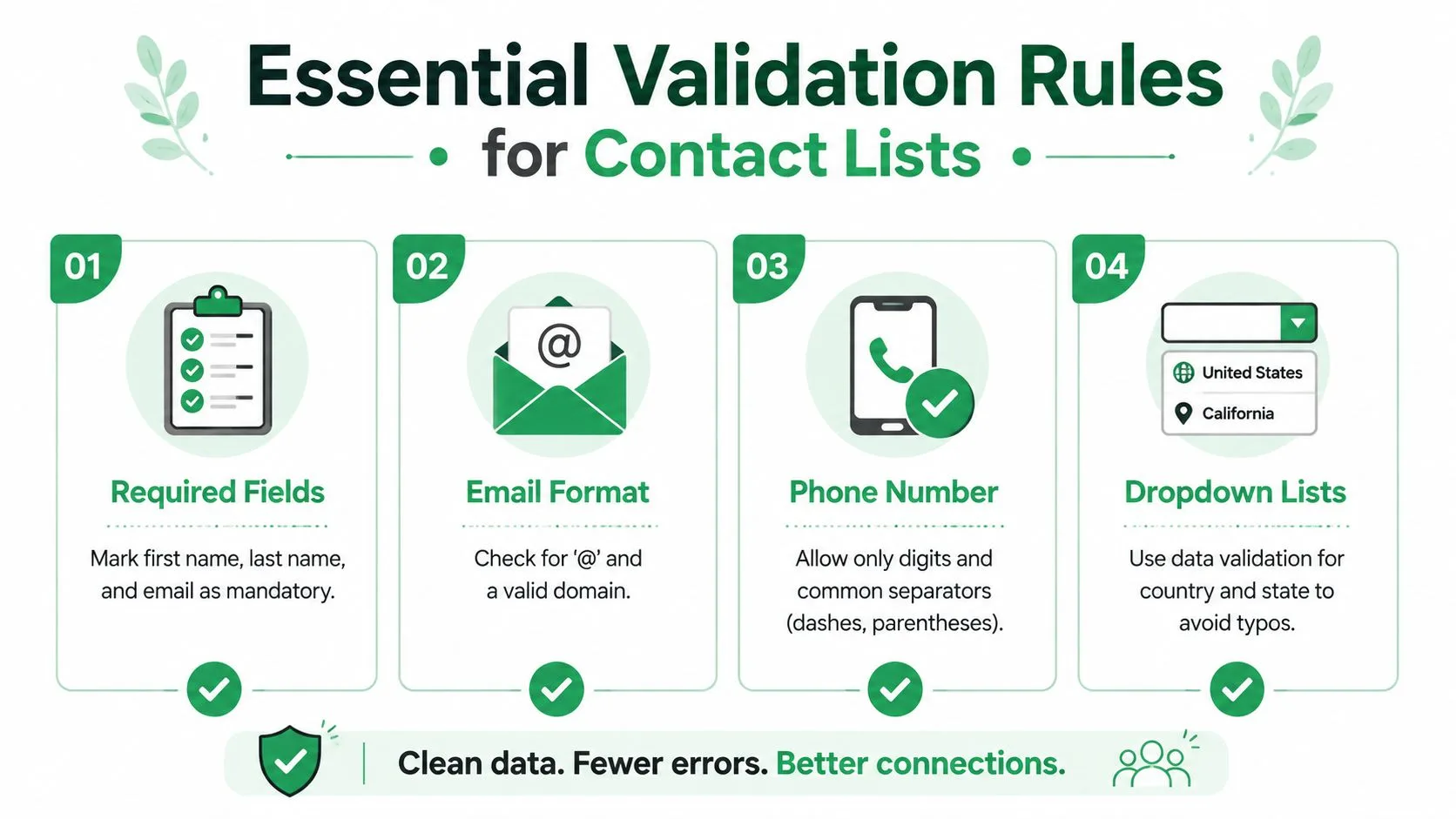
Start with the fields that determine whether a row can be used safely. For a mail merge, that usually means first name, last name, email, company, country, status, and any date or phone field used by the campaign.
Google Sheets provides seven validation criteria types: list from a range, list of items, number, text, date, custom formula, and checkbox. For invalid values, you can show a warning or reject the entry outright, as documented in this Google Sheets validation overview.
Build controlled lists first
For fields such as country, industry, lead status, or campaign, choose between a fixed list and a maintained range.
A fixed list works when options change rarely. Select the target cells, open Data > Data validation, add a rule, choose a list of items, enter the approved values, and save. Google’s documented workflow also supports creating a dropdown from a range on another sheet. Select the cells, open the same menu, choose the criteria, point to the source range, and save the rule. The Google Sheets dropdown workflow provides the menu sequence.
A range-based list is usually safer for a team. Put approved countries or statuses on a protected “Lists” sheet, then reference that range from the contact sheet. When the approved vocabulary changes, you update one source instead of editing rules across multiple columns.
Match the rule to the field
Use text validation for names and labels where length matters. Microsoft documents controls such as limiting text to 10 or fewer characters, which can be useful for short codes, territory labels, or compact campaign identifiers. Don’t apply an arbitrary limit to a full name without considering legitimate longer names.
For phone fields, decide whether the column stores a display number or a normalized value. If collaborators need parentheses and dashes, allow those deliberately and explain the format in the input message. If downstream automation expects digits, enforce that convention instead. A rule that rejects every real-world format may drive teammates to paste around it.
Date validation belongs on fields such as “Initial contact date” and “Follow-up date.” Require actual dates, not text that merely looks like a date, and define whether past dates are acceptable. Google Sheets can warn users, but a rejection is more appropriate when an invalid date would place a contact in the wrong campaign queue.
Write useful error messages
A cryptic rejection creates workarounds. Tell the person what the field accepts and give an example, such as “Choose a status from the dropdown” or “Enter a follow-up date after the initial contact date.” Use warnings when exploration is legitimate, and reject values when the field feeds personalization, routing, or compliance-sensitive reporting.
For broader contact-structure practices, use this guide to manage a contact database alongside the validation rules. Validation controls entry, while the database design determines whether the resulting information stays usable.
Advanced Techniques with Custom Formulas and Dependent Lists
Basic dropdowns control vocabulary, but they don’t enforce relationships between fields. A contact may have a valid country and a valid city, yet the two values may not belong together. A follow-up date may be valid on its own but earlier than the initial contact date.
Excel supports custom formulas that return TRUE or FALSE, along with rules for whole numbers, decimals, dates, times, and text length. Its documented examples include duplicate prevention with COUNTIF and date checks based on TODAY(), described in this Excel data validation guide.
Use formulas for row-level logic
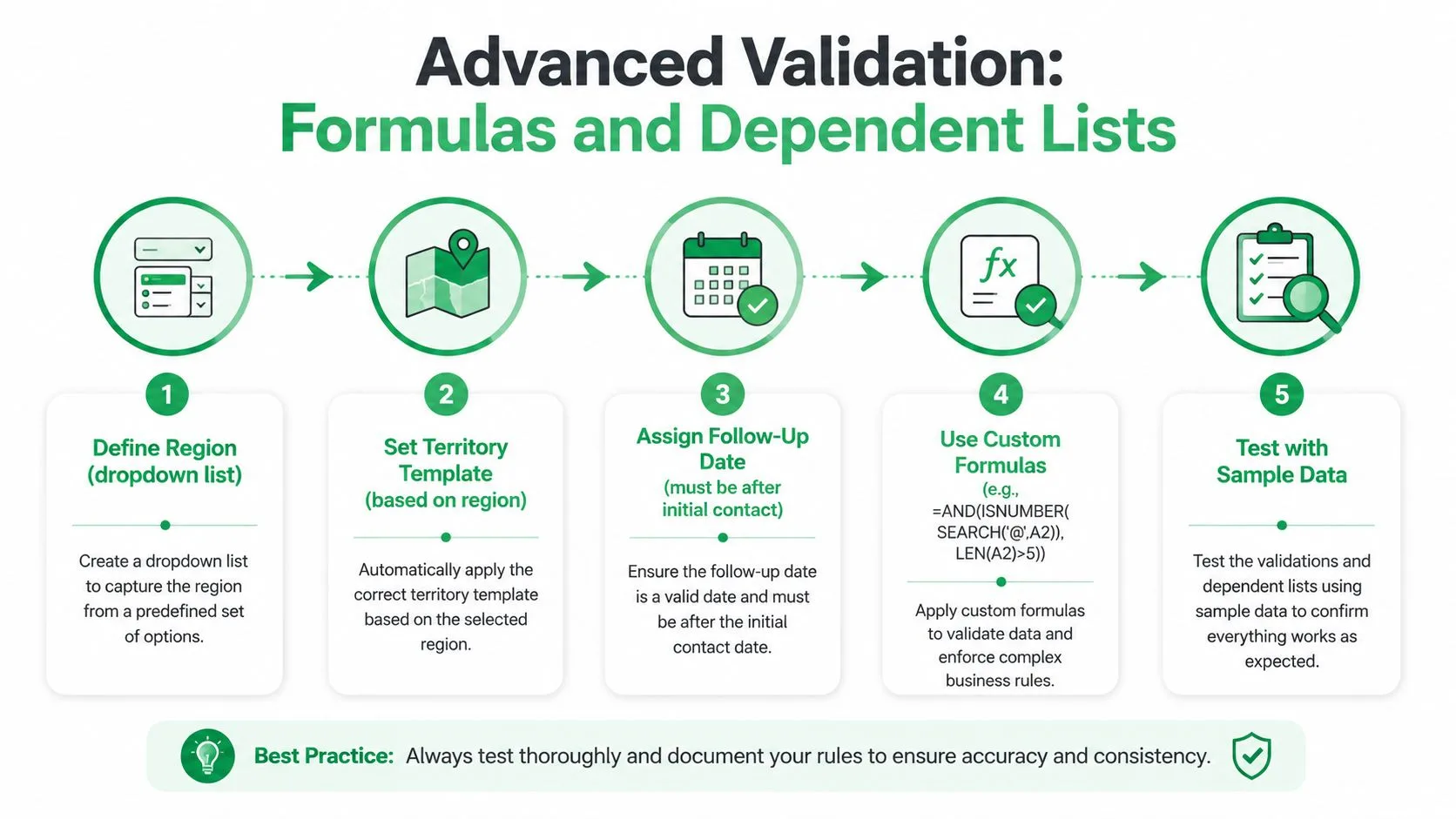
Suppose email addresses are in column A, beginning at row 2. A simple custom rule can check for a basic email marker and a minimum length:
=AND(ISNUMBER(SEARCH("@",A2)),LEN(A2)>5)
That check isn’t a complete email verification system. It only rejects obvious malformed entries, so pair it with a cleanup process and, where appropriate, a confirmation workflow.
To block duplicate emails in Excel, a custom validation formula can use COUNTIF against the email range. The principle is straightforward: accept the current value only when its count remains within the allowed threshold. In Google Sheets, you can create equivalent logic with a custom formula, but test the relative references carefully before applying it to the full column.
For date sequencing, apply a rule to the follow-up column that compares each row’s follow-up date with its initial contact date. The formula should return TRUE only when the follow-up is later, or when the field is intentionally blank. That exception matters because rejecting every blank can prevent a team from saving an incomplete but valid draft row.
Make lists depend on earlier choices
Dependent lists reduce mismatched combinations. A “Region” dropdown can determine which territories appear in the next column, and a country selection can narrow the city choices. Store the relationships on a lookup sheet, then use named ranges, filtered helper ranges, or formulas appropriate to your spreadsheet platform.
A practical setup might contain:
- Region, selected from a controlled list.
- Territory, populated from the region’s approved options.
- Template, selected according to territory or campaign.
- Follow-up date, checked against the initial contact date.
The extra structure takes more planning than a single dropdown, but it prevents subtle errors that a mail merge can’t interpret reliably.
Keep helper columns visible to administrators, even if you hide them from ordinary users. A visible “Validation status” field can combine checks for email format, duplicate status, missing personalization, and date order. That turns scattered warnings into a review queue.
For practical sheet maintenance, alphabetizing data in Google Sheets can help organize lookup values, but sorting a live contact table requires care. Sort the complete range, not one column, or you may separate contacts from their associated fields.
Here’s a visual walkthrough of the advanced pattern:
Protecting Validation Rules from Collaborative Overwrites
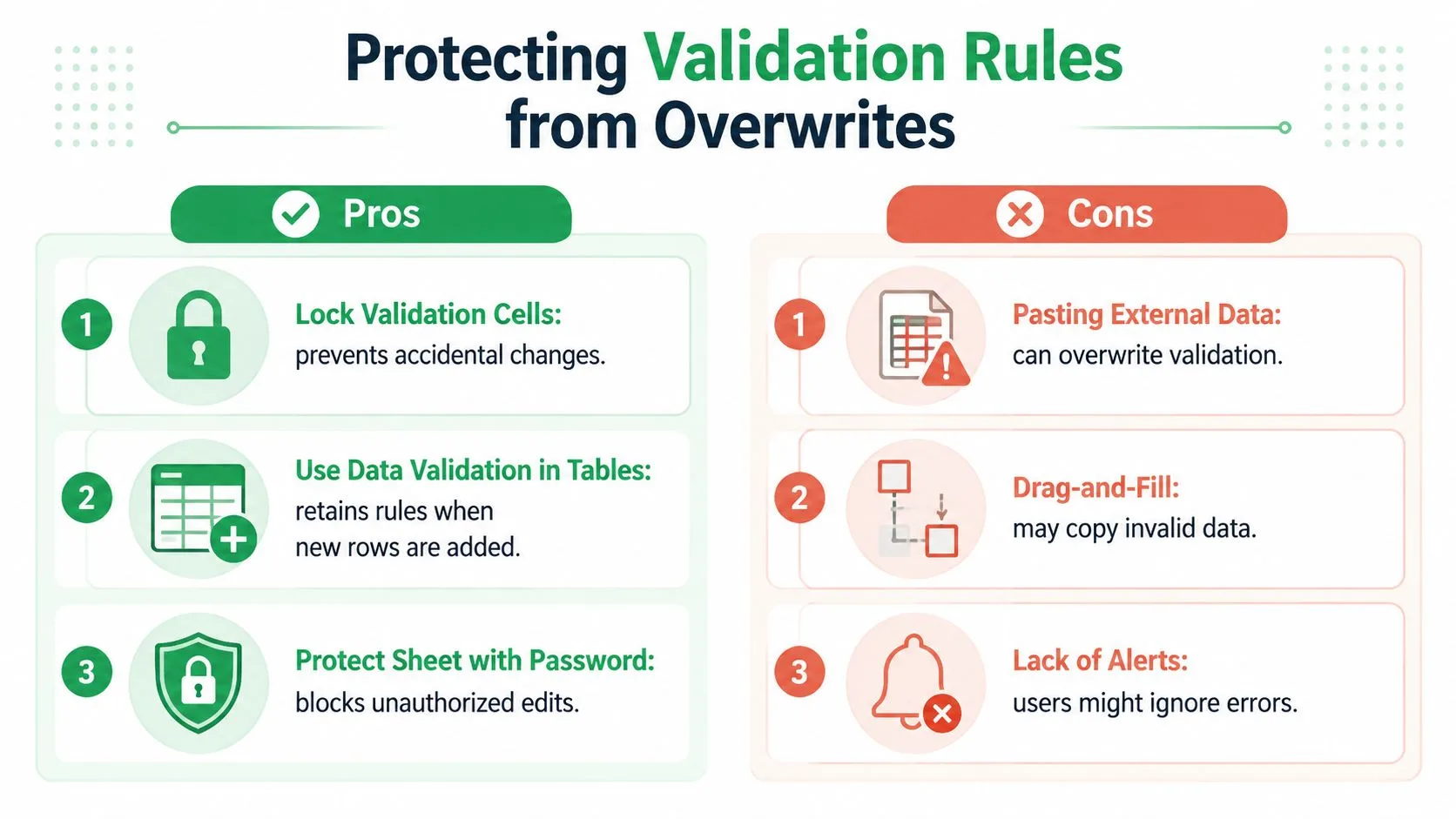
Creating a rule isn’t the same as preserving a rule. Microsoft explicitly notes that copied or filled cells may bypass validation prompts, and its guidance recommends disabling fill handle and drag-and-drop behavior, then protecting the sheet to preserve validation. That operational detail is where many spreadsheet guides stop too soon.
A teammate may paste values from a CRM export, drag a formula down, or copy a row from another workbook. The cells may still look normal, but the validation rule can be missing or the pasted values can sit outside the intended controls. A shared sheet therefore needs both entry rules and rule integrity checks.
Separate editable data from protected structure
Keep lookup lists, formulas, headers, and validation-bearing structure on protected ranges. Leave only the intended entry cells editable. In Excel, sheet protection can restrict structural edits while allowing approved input areas. In Google Sheets, protected sheets and ranges can prevent collaborators from changing rules or editing reference lists.
Protection has a trade-off. If the owner locks too much, teammates create duplicate files or request constant access changes. If the owner locks too little, validation becomes optional. The practical compromise is to document which cells are editable, assign a small group of rule owners, and provide a controlled import area for outside data.
Monitor exceptions after sharing
Add a validation-status column that flags rows with missing or unexpected values. Conditional formatting can make those rows easy to find, while filters let an operator review only exceptions before a campaign. Keep an eye on the validation rule map itself, not just the data. If one column has rules on some rows and none on others, the sheet has a governance problem even when current values look clean.
Pasting is an import action, not harmless data entry. Treat it as a workflow that needs review.
Before launch, compare the number of populated contact rows with the number of rows covered by each rule. Check the first, middle, and last populated areas, especially after teammates have inserted rows or copied formulas. This simple inspection catches the silent gaps that a green-looking spreadsheet can hide.
Testing Your Validation Before Launching a Campaign
A validation rule is a hypothesis about how people will enter data. Testing turns that hypothesis into evidence. The most useful approach treats the spreadsheet like a small software system, with expected inputs, transformations, and outputs that need coverage.
A spreadsheet-testing methodology adapted from data-flow adequacy criteria and coverage monitoring found that test suites built around spreadsheet data flows detected, on average, 81% of faults in faulty spreadsheets, significantly outperforming randomly generated test suites. The practical lesson is to design tests around how values move through the workbook, then measure coverage against expected inputs, formulas, and outputs. See the ACM spreadsheet-testing methodology.
Test the paths that matter
Don’t test only a clean row. Use realistic failures and boundary conditions:
- Required fields: Leave first name, last name, or email blank and confirm the intended response.
- Email format: Enter a value without an
@, add spaces, and test a malformed domain. - Duplicates: Repeat an existing email and confirm that the duplicate rule responds.
- Date order: Enter a follow-up date before the initial contact date.
- Dependent values: Select one region, then try to enter a territory belonging to another.
- Overwrite behavior: Paste a block over validated cells and drag a value or formula through the range.
- Output behavior: Confirm that helper formulas, filters, template fields, and campaign statuses still work after corrections.
Record expected behavior
Use a compact test register rather than relying on memory.
| Test Scenario | Expected Behavior | Rule Type |
|---|---|---|
Email lacks @ | Reject or flag the value | Custom formula |
| Email repeats an existing row | Reject or flag the duplicate | Custom formula with COUNTIF |
| Follow-up date precedes initial contact | Reject the date | Date or custom formula |
| Country is outside the approved list | Reject the value | List from a range |
| Phone contains an unsupported character | Reject or flag the value | Custom formula |
| Teammate pastes over the column | Preserve rules or create an exception for review | Governance check |
Coverage means more than testing every visible column. Trace each important field from entry to formula, filter, personalization token, and final send decision. If an email value bypasses validation but later feeds a merge field, the test should expose that route before launch.
Run the register whenever the sheet structure, lookup lists, formulas, or collaborators change. The goal isn’t to prove that the workbook is perfect. It’s to find the hidden paths where a believable value can still produce an unsafe campaign.
Scaling Validation for Growing Teams and Evolving Lists
A contact sheet changes as the business changes. New territories appear, campaign statuses evolve, teams add fields, and source systems export values in different formats. Rules built as isolated cell settings become difficult to maintain because nobody knows which list is authoritative or who changed a formula.
Centralize approved values on a dedicated lookup sheet, protect that sheet, and make dropdowns reference it. Give each list an owner and a clear change process. If “Lead status” changes, record the old value, the new value, the reason, and the date of the change. That creates an audit trail without forcing every collaborator to understand the underlying formulas.
Move from setup to governance
Automated or continuous validation is more resilient than a one-time review. Thomson Reuters describes a validation gap in audit data where manual sampling can miss systemic issues and argues for automated, continuous validation with transparent audit trails. Its discussion of the data validation gap supports a useful principle for contact operations: monitor the process, not just a sample of rows.
For growing workbooks, establish a routine that checks:
- Rule coverage: Confirm that new rows inherit the intended validation.
- Reference integrity: Verify that dropdowns still point to the approved lookup ranges.
- Cross-sheet dependencies: Check that formulas, helper columns, and templates use the same row.
- Exception ownership: Assign someone to resolve flagged rows before sending.
- Change history: Record edits to rules, lists, and protected ranges.
A mail merge workflow should consume a reviewed dataset, not perform the cleanup at send time. Mail Merge for Gmail can use contact data stored in Google Sheets, send personalized messages from Gmail, and write per-row delivery and engagement statuses back to the sheet, so teams can keep validation and campaign tracking in one working file. The product is one option among spreadsheet-based outreach tools, and its pre-send checks still depend on the quality of the underlying rows.
Small teams don’t need a complex data platform to begin. They need protected lookup lists, explicit ownership, test cases, and a visible exception queue. Build those controls before the next campaign, then visit Mail Merge for Gmail to see how a spreadsheet-based workflow can connect reviewed contact data with personalized Gmail campaigns.
Ready to send your first campaign?
Install Mail Merge for Gmail from the Google Workspace Marketplace and send up to 50 personalized emails per day for free.
Get started for freeMore reading
More from Guides

Mail Merge with CC and BCC in Gmail: Copy the Right People on Every Email
Learn how to run a mail merge with CC and BCC from Google Sheets, set up the columns, preview the result and see how copied recipients count toward your daily quota.

Gmail Sending Limit Reached: What It Means and How to Finish Your Campaign
Hit the Gmail sending limit reached error? Learn the real daily limits, when you can send again, and how to split a mail merge into safe daily batches.

Personalized Email Gmail: The Complete Guide
Master your personalized email Gmail workflow. Learn to merge Sheets data, track opens, and scale one-to-one outreach without leaving your inbox.