


















Professional Icons for Email Signature: A 2026 Guide
Learn to add professional icons for email signature. Our 2026 guide covers selection, sizing, embedding in Gmail, and best practices for deliverability.
You’ve probably done this yourself. You write a careful outreach email, trim the fluff, double-check the subject line, and then hit the signature block and realize it still looks like a leftover from ten years ago. Name, phone, website, maybe a line break too many. It works, but it doesn’t help.
That’s why so many people start looking at icons for email signature design. A few clean social icons or a simple website icon can make the whole message feel more credible. The hesitation is reasonable, though. Email clients are messy. Gmail and Outlook don’t render the same way. Mobile apps behave differently from desktop apps. Some recipients block images. Some corporate environments are strict enough that a good-looking signature can turn into broken placeholders.
The risk is real, especially if you send cold outreach, recruiting emails, customer updates, or any message where trust matters in the first few seconds. A signature should support the email, not create friction.
A major 2025-2026 survey found that 75.8% of email signatures include social media icons, which makes them one of the most common visual elements in current signature design and a clear professional norm, according to MySignature’s email signature statistics roundup.
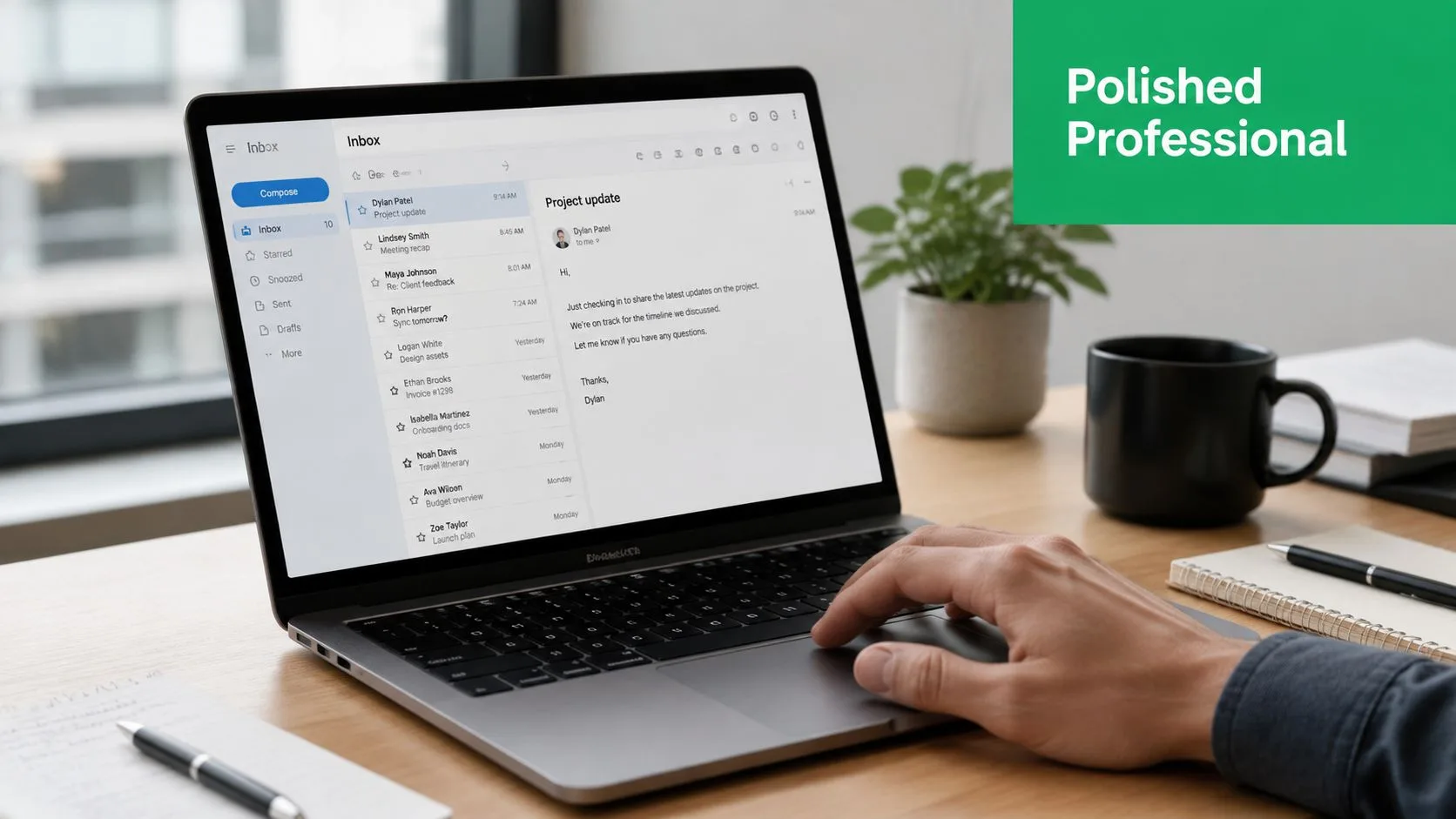
The difference between a polished signature and an amateur one usually isn’t the icons themselves. It’s the engineering behind them. The sharp versions are small, linked correctly, readable in dark mode, and restrained enough that they don’t feel like a banner ad.
Why Signature Icons Are Your Silent Brand Ambassador
Most signatures get judged too narrowly. People ask whether icons look nice. The better question is whether they subtly reinforce recognition every time someone receives your email.
A signature is one of the few branding surfaces that shows up on routine communication: follow-ups, replies, intros, proposals, support threads, hiring outreach. That repetition matters. Wavecnct’s email signature statistics estimate that a 100-employee company generates about 60,000-80,000 branded signature impressions per month, based on roughly 3,000-4,000 outbound emails per day and 20 working days per month.
That doesn’t mean you should turn every sign-off into a marketing block. It means a compact set of icons can do useful work without asking the reader for much attention.
What icons actually do well
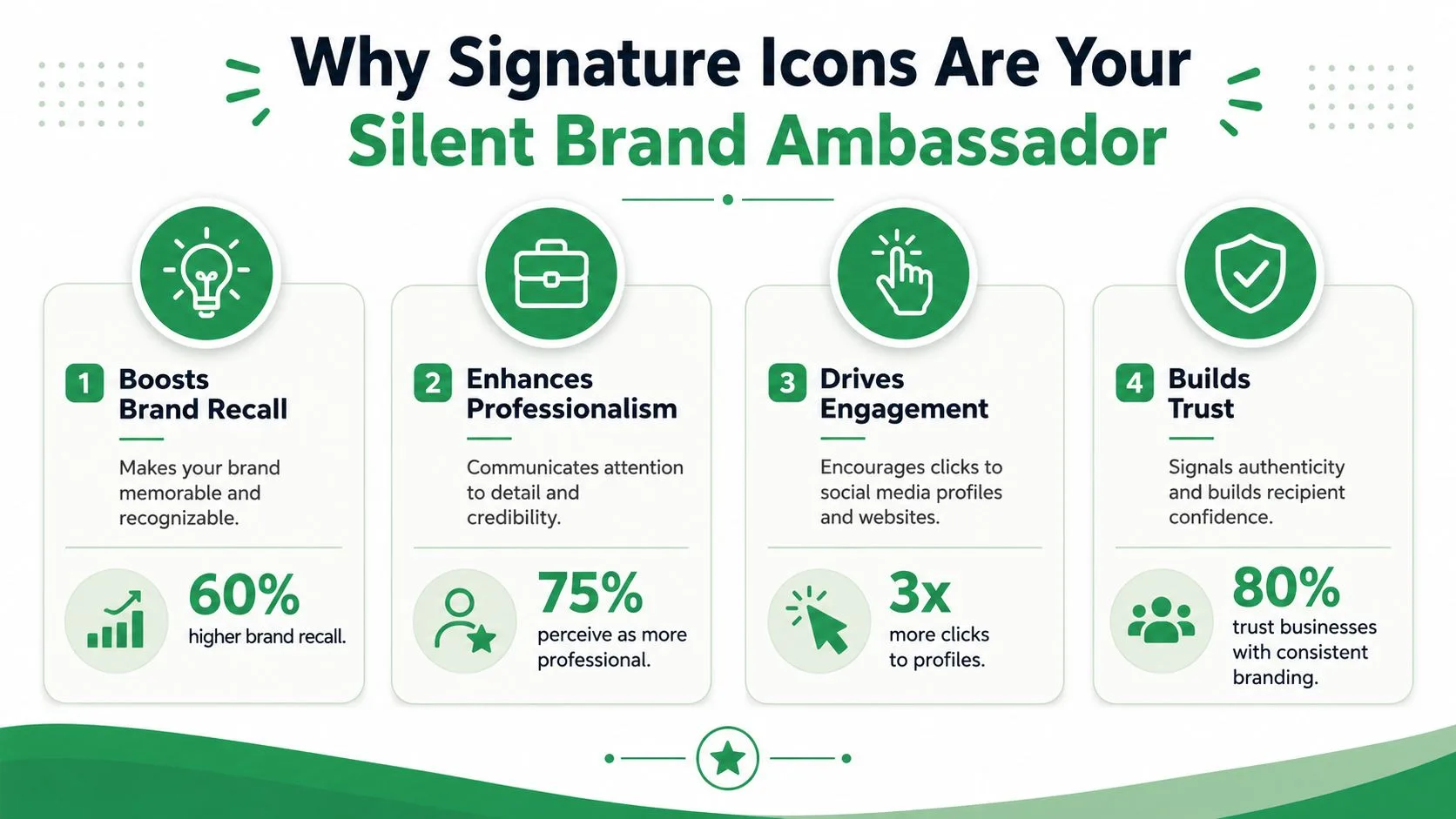
Icons help in four practical ways:
-
They reduce friction. A LinkedIn or website icon is easier to scan than a long raw URL.
-
They add legitimacy. A clean, consistent signature often signals that the sender is part of a real business process, not a throwaway account.
-
They guide next steps. Recipients who aren’t ready to reply may still click to verify your company, profile, or portfolio.
-
They reinforce consistency. If your logo, colors, and icon style align, your signature stops looking assembled from random parts.
Practical rule: Good signature icons don’t compete with the message. They support trust after the reader finishes the email.
Where teams get this wrong
The most common mistake isn’t using icons. It’s using too many, with no hierarchy. Five different social profiles, a scheduling button, two badges, and a colored banner can make a short email look like a newsletter footer.
For outreach users, restraint usually performs better than decoration. Add links people may want to verify: your website, LinkedIn, maybe one more channel if it serves the relationship. If a platform doesn’t help a prospect trust you or contact you, it probably doesn’t belong in the signature.
Sourcing and Preparing Your Icons for Success
The easiest way to make icons for email signature use look unprofessional is to grab whatever comes first in search results and paste it into Gmail. That’s how you end up with mismatched icon styles, fuzzy edges, or files that look fine on your screen and odd everywhere else.
Preparation matters more than most tutorials admit.
Pick the source before you pick the style
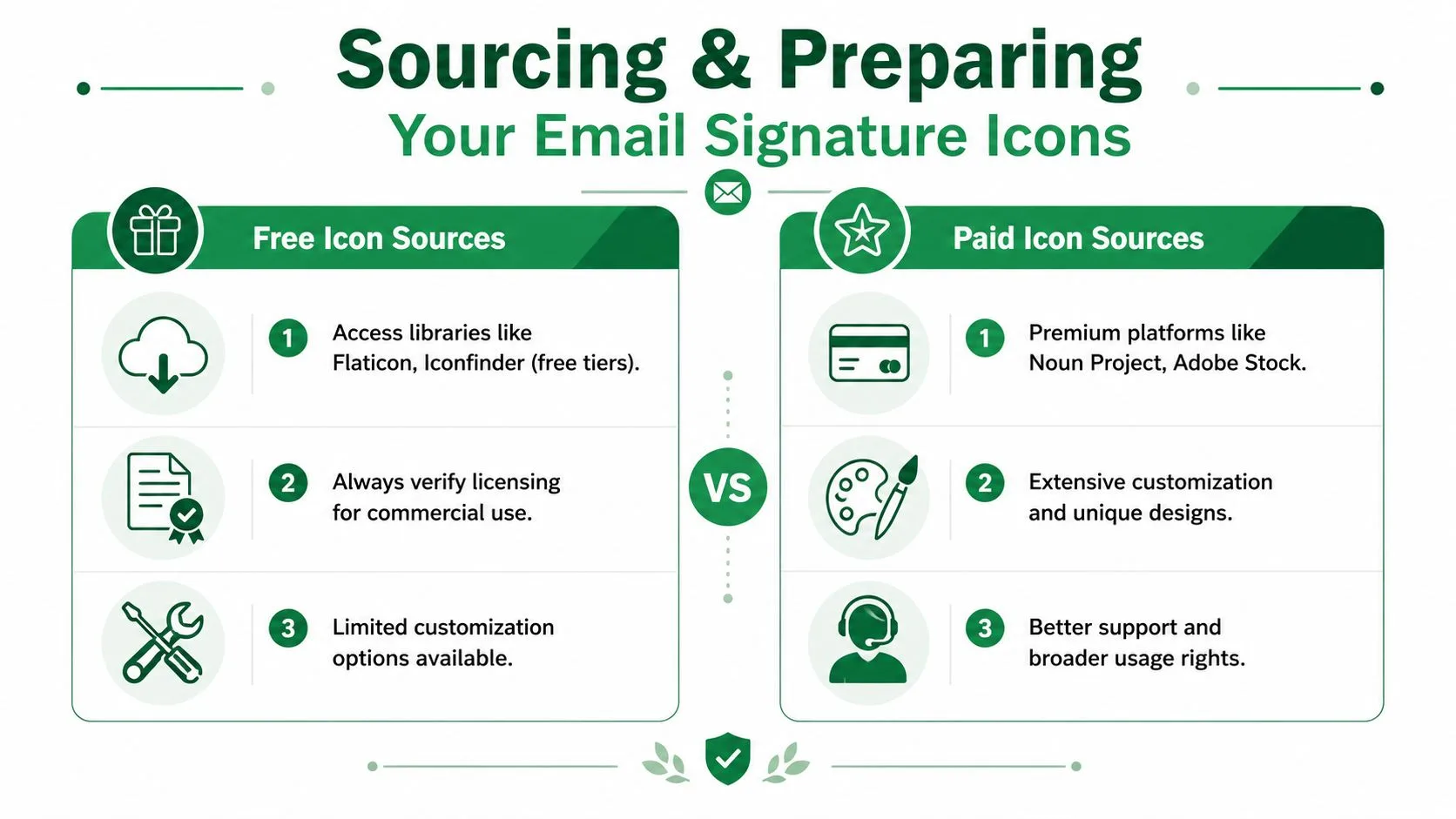
Start with one of these, in order of preference:
-
Your company brand kit
If your team has approved social icons, use those first. They’re usually closest to the brand’s spacing, color system, and visual standards. -
A reputable icon library
Flaticon, Iconfinder, The Noun Project, and Adobe Stock are common places to source professional icon sets. The key isn’t the platform name. It’s choosing one set from one style family so the icons feel coherent. -
Platform-provided assets
Sometimes the safest visual choice is the simplest one: an official logo mark for LinkedIn, Instagram, YouTube, or X used within each platform’s brand rules.
Check the license before you use anything in a commercial signature. This gets skipped all the time, especially when someone pulls icons from a free download page and assumes business use is covered.
Prepare icons like email assets, not website assets
Email clients are less forgiving than websites. Heavy files, inconsistent dimensions, and transparent backgrounds handled badly all show up faster in email than they do in a browser.
Industry guidance summarized by Exclaimer’s handbook on social media icons in email signatures converges on keeping social icons to 3–5 platforms, using 16–24 px icon sizes, and placing them below contact details. The same guidance also recommends keeping the total email footer under 50 KB and designing within approximate desktop and mobile footprints of 700 × 300 px and 320 × 600 px.
A practical prep workflow looks like this:
-
Choose PNG when transparency matters. PNG usually works best for icons because the edges stay crisp and the background can remain transparent.
-
Use JPG only when transparency isn’t needed. That’s uncommon for icons, but acceptable if the graphic sits on a plain solid background.
-
Resize before inserting. Don’t rely on Gmail or Outlook to scale large images cleanly.
-
Keep the set visually consistent. Same stroke weight, same corner style, same color logic.
A polished signature usually comes from disciplined file prep, not from a fancy signature generator.
If you build signatures with HTML tables or want more layout control, a simple table generator for Gmail can help structure icon rows and spacing more predictably than ad hoc pasting.
How to Embed Icons in Your Email Signature
You send a clean outreach email, the recipient opens it in Outlook, and the icon row shifts, shows gaps, or fails to load. That is the definitive test. Adding icons is easy in a compose window. Adding them in a way that survives different email clients takes more care.
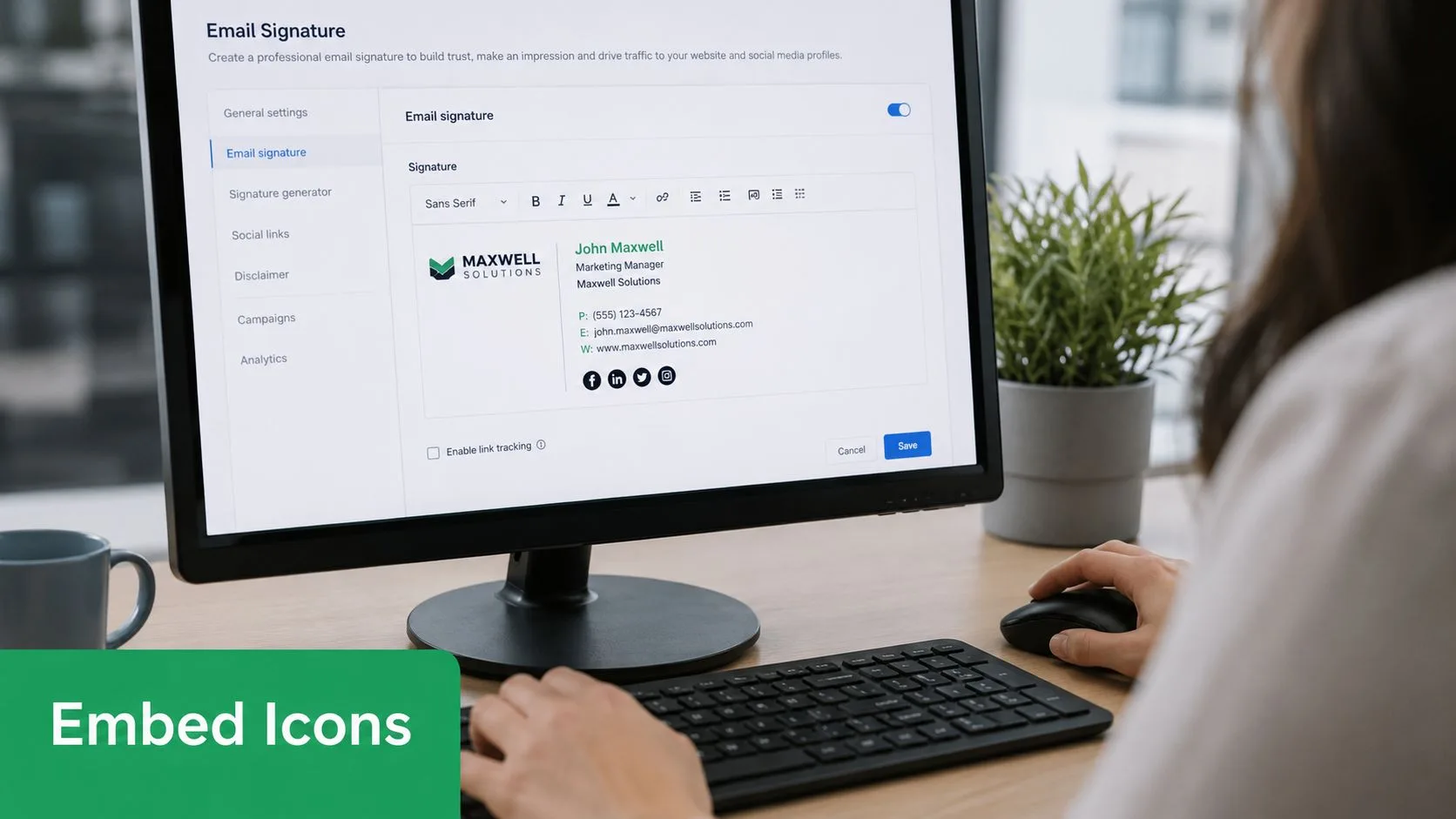
Use the Gmail editor when you need speed
Gmail is the practical choice if you manage one signature for yourself and can accept limited layout control. It works well for simple icon rows, but manual spacing can drift, especially after edits or copy-paste changes.
-
Open Gmail settings.
-
Go to the signature area and create or edit your signature.
-
Place the cursor where the icons should appear.
-
Use Insert Image and upload the icon image.
-
Click the inserted icon and add its destination link.
-
Repeat for each platform, then adjust spacing by hand.
Keep the editor job small. Insert icons only after the files are already resized and finalized, because Gmail is not reliable for fine image scaling or pixel-level alignment.
If you need the Gmail setup itself, this guide on how to add a signature in Gmail walks through the editor flow cleanly.
Use HTML when you need control
HTML is the better option for shared signatures, outreach templates, and any workflow where rendering errors cost replies. It gives you tighter control over spacing, click targets, and image behavior across clients. It also makes it easier to keep one approved signature block consistent across multiple senders.
A simple icon snippet looks like this:
<a href="https://www.linkedin.com/in/yourname" target="_blank" style="text-decoration:none;">
  <img src="https://yourcdn.com/linkedin.png" alt="LinkedIn profile" width="20" height="20" style="display:block; border:0;">
</a>
Each part has a job:
-
hrefsends the click to the right destination. -
srcpoints to the hosted icon image. -
altgives context when images are blocked or read by assistive tech. -
widthandheighthelp prevent inconsistent scaling. -
display:blockreduces the stray whitespace some clients add around inline images.
For a single icon, that may be enough. For a row of icons, wrap them in a table if you care about predictable rendering in Outlook and older desktop clients. Web-style layout habits do not translate well to email HTML, and signatures are one of the first places where that breaks.
A related challenge comes up when you add logos alongside icons. This mailX guide on email logos is useful because the same underlying issues apply: image hosting, sizing, and placement determine whether the signature looks stable or fragile.
One more practical point. Test the signature by sending real messages to Gmail, Outlook, and a mobile inbox before rolling it out to daily outreach. The compose view is only a draft of how the signature may render, not a reliable preview of what recipients will see.
Best Practices for Professional and Deliverable Icons
A signature can look clean in your compose window and still fail where it counts. Recipients may use dark mode, block remote images, read on mobile, or open your message inside a locked-down corporate environment. That’s why the best icons for email signature use follow delivery rules as much as design rules.
Keep the signature scannable
The safest signatures stay narrow, simple, and predictable. Exclaimer’s guidance, cited earlier, converges on 3–5 platforms, 16–24 px icon sizes, and icon placement below contact details. That’s a practical ceiling, not a challenge.
Use that guidance as a restraint system:
-
Limit the choices. Website, LinkedIn, and one supporting channel are enough for most professionals.
-
Leave breathing room. Tiny gaps between icons improve scanning and reduce the “stuck together” look.
-
Keep the line short. If icons wrap on mobile, the signature starts to feel unstable.
-
Match icon treatment. Don’t mix filled, outlined, circular, and square icons in one row unless your brand system explicitly supports it.
Design for blocked images and assistive tech
Basic tutorials usually stop too early. A signature image that doesn’t load shouldn’t turn your sign-off into dead space.
Independent guidance from Bybrand on images in email signatures highlights a gap most how-tos miss: they explain setup, but often ignore what happens when images are blocked, filters are strict, or dark mode changes the result.
That leads to a few essential elements:
-
Add descriptive alt text. “LinkedIn profile” is better than “icon” or a file name.
-
Host images reliably. If the host breaks, the signature breaks.
-
Avoid image-only signatures. They look consistent, but accessibility suffers and text can become unreadable or unselectable.
-
Test with images off. If the signature becomes confusing, fix the structure before sending live outreach.
When images fail, the signature should still identify the sender clearly and leave usable contact paths.
Icon Best Practices at a Glance
| Attribute | Recommendation | Reason |
|---|---|---|
| Number of icons | 3 to 5 | Keeps the footer focused and avoids visual clutter |
| Icon size | 16 to 24 px | Balances visibility with compact layout |
| Placement | Below contact details | Preserves scan order and keeps identity first |
| Alt text | Use descriptive labels | Helps screen readers and blocked-image scenarios |
| File format | Prefer PNG for icons | Supports transparency and cleaner edges |
| Hosting | Use stable public hosting | Prevents broken images for recipients |
| Layout | Keep the signature compact | Reduces rendering problems on mobile and in Outlook |
If your signature also includes aggressive CTA language, flashy badges, or other sales-heavy elements, review the copy as carefully as the visuals. This list of spam words to avoid in emails is a useful reminder that design and wording work together in inbox placement.
Troubleshooting Common Email Signature Icon Problems
Most signature failures come from a short list of issues. The hard part is that the signature often looks fine to the sender, which hides the problem until a prospect sees a broken version first.
Broken icons and paperclip attachments
If an icon shows as broken, start with the image URL. The file usually isn’t publicly accessible, has moved, or is hosted somewhere that requires a session the recipient doesn’t have.
Another common issue is the paperclip effect, where the icon appears as an attachment. That often happens when people paste images directly from a desktop app or clipboard instead of using a properly hosted file reference. In practice, URL-based image embedding is more reliable than copy-paste image insertion when consistency matters.
For testing, an external rendering check can save time. HTML Email Checker is useful for spotting markup issues that don’t stand out inside a compose window.
Blurry mobile rendering and dark mode issues
If icons look fuzzy on mobile, the file may have been resized inside the signature editor rather than prepared at the intended display size. Explicit width and height attributes help, especially in HTML signatures, because some clients render unpredictably when dimensions are implied.
Dark mode creates a different class of problem. Icons with hard white boxes or poor contrast can look awkward or disappear against dark backgrounds. Transparent backgrounds usually behave better, and simple shapes survive inversion and theme changes more gracefully than intricate logos.
Bybrand’s guidance, cited earlier, is useful here because it frames the actual risk correctly. Most how-tos focus on appearance during setup, not on what happens when images are blocked, corporate filters are strict, or dark mode is enabled.
Test your signature in the environments you don’t control. That’s where the failures show up.
Frequently Asked Questions about Email Signature Icons
Can I use an animated GIF as a signature icon
You can, but it’s rarely the professional choice. Motion in a signature pulls attention away from the email body and can feel promotional fast. For outreach, recruiting, account management, or support communication, static icons are usually the safer call.
If you still use animation, keep it subtle and assume some email clients may not render it as you expect.
Why do my icons look blurry on high-resolution screens
Blurry icons usually come from poor source files, editor-based resizing, or both. Start with a clean asset, export it sharply, and constrain its displayed size in your signature markup or editor. Tiny source images stretched larger almost always look worse than larger clean images sized down carefully.
Should I host icons on my website or on a free image host
Your own website or a stable branded asset host is usually the better option if you can keep the file path public and persistent. Free image hosts can work, but they introduce another point of failure. If the host changes permissions, rate limits access, or removes files, your signature breaks without warning.
The practical rule is reliability over convenience. If you wouldn’t trust the host with a logo on your site, don’t trust it with a logo or icon in your signature.
If you send recurring outreach, hiring emails, updates, or campaign-style messages from Gmail, Mail Merge for Gmail is one option for keeping signature formatting consistent inside custom HTML templates while sending personalized emails from Google Sheets data.
Ready to send your first campaign?
Install Mail Merge for Gmail from the Google Workspace Marketplace and send up to 50 personalized emails per day for free.
Get started for freeMore reading
More from Guides
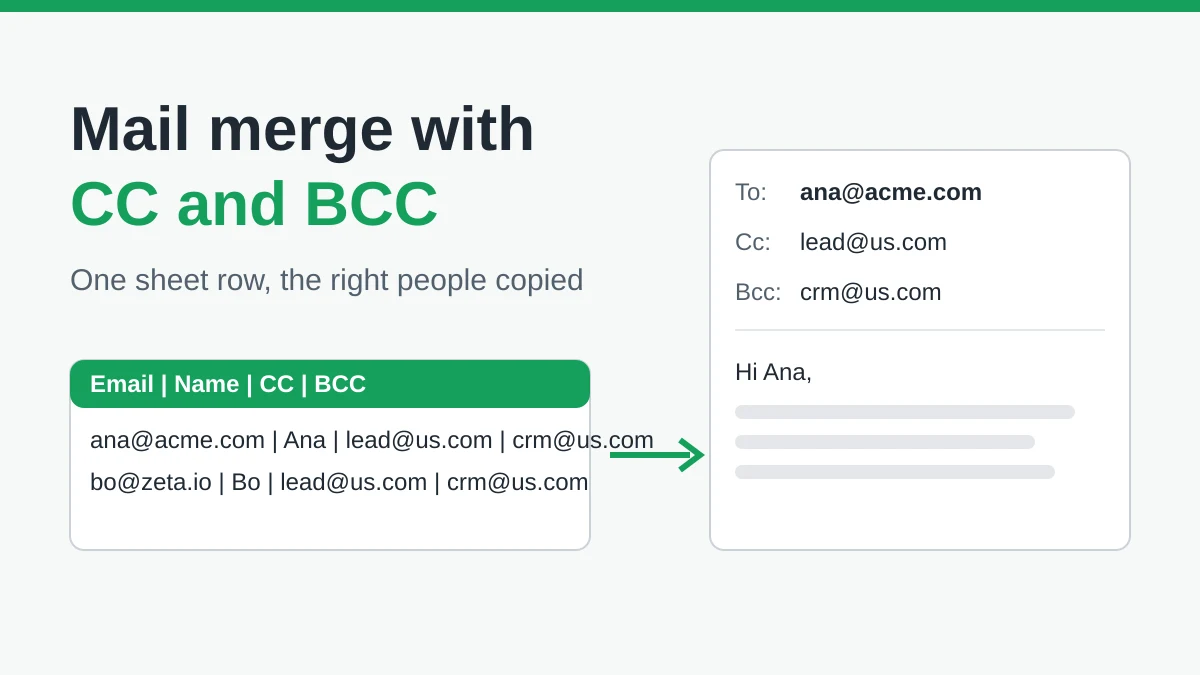
Mail Merge with CC and BCC in Gmail: Copy the Right People on Every Email
Learn how to run a mail merge with CC and BCC from Google Sheets, set up the columns, preview the result and see how copied recipients count toward your daily quota.

Gmail Sending Limit Reached: What It Means and How to Finish Your Campaign
Hit the Gmail sending limit reached error? Learn the real daily limits, when you can send again, and how to split a mail merge into safe daily batches.

Personalized Email Gmail: The Complete Guide
Master your personalized email Gmail workflow. Learn to merge Sheets data, track opens, and scale one-to-one outreach without leaving your inbox.