




















Job Rejection Email: 5 Templates for Every Hiring Stage
Copy a job rejection email for each hiring stage, then send every candidate a personal version from your applicant sheet in Google Sheets with Gmail.
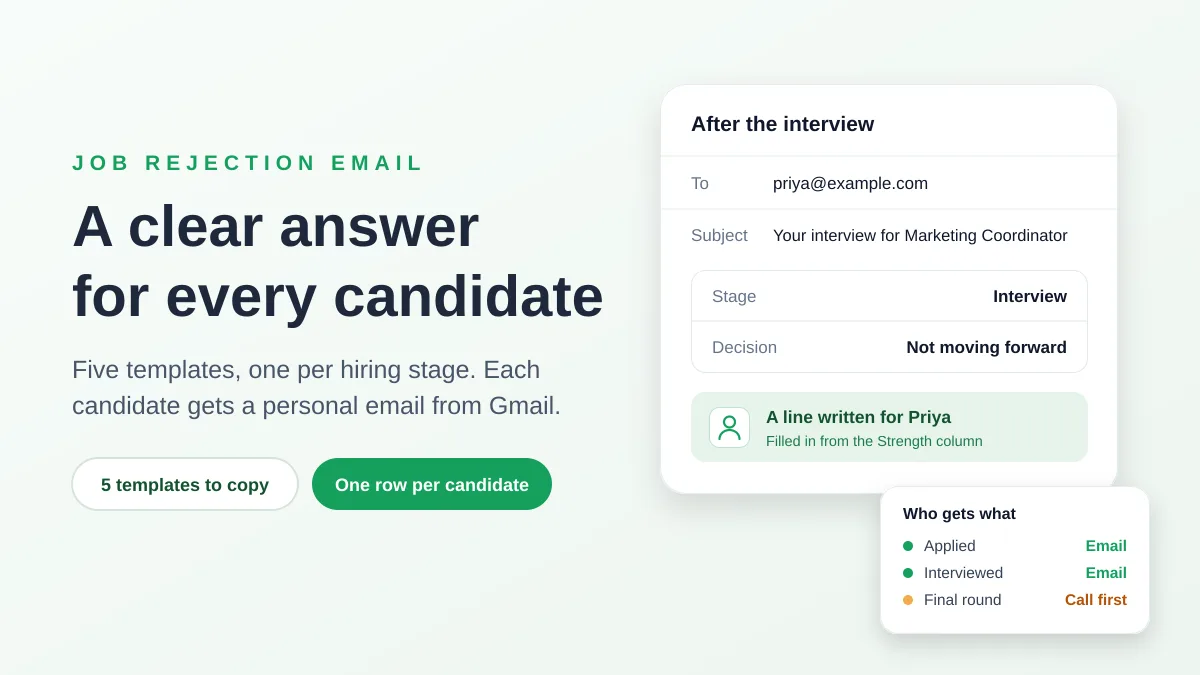
A job rejection email tells a candidate, in a few sentences, that they are not moving forward: a subject line that names the job, a thank you, the decision near the top and a sign-off from a named person. The message below is enough for a candidate you interviewed.
Subject: Your interview for Marketing Coordinator at Harbor Lane Studio
Hi Priya,
Thank you for interviewing for the Marketing Coordinator role and for the time you gave us. We have decided not to move forward with your application.
We were impressed by your campaign calendar exercise. We chose a candidate whose experience was closer to what this role needs.
Thank you again, and we wish you the best in your search.
Lena Ortiz, Operations Lead
This guide explains what each part does, gives five templates to copy, one for each hiring stage, and shows how to send them from the Google Sheet where you track applicants, through your own Gmail account. Harbor Lane Studio and its candidates are made-up examples.
What a job rejection email should say
Two employer guides agree on the parts: Indeed’s guide to job rejection emails, reviewed by an HR leader and updated in June 2026, and LinkedIn’s guide to candidate rejection letters.
| Part | What to write | Why |
|---|---|---|
| Subject line | The job title and your company name | Indeed: candidates should understand the purpose of the email from the subject line, and the job title gives context. LinkedIn: keep it clear, concise and specific |
| Greeting | The candidate’s name | LinkedIn: address the candidate by name. Indeed: use the candidate’s name and mention the role they applied for |
| Thanks | The application, the call or the interview | Indeed: thank the candidate for their time and effort, even if they only took part in the first stage |
| Decision | One plain sentence, near the top | Indeed: do not leave the important news until the end. LinkedIn: state your decision early in the letter |
| Feedback | Optional. One specific point about the job | Indeed: avoid generic feedback, and leave this section out if you cannot personalize it |
| What comes next | An invitation to apply again, only if you mean it | Indeed: communicate the decision clearly, to avoid creating false expectations |
| Sign-off | Your name and job title | Indeed: end as you would any other work email |
How personal each stage should be
Not every candidate should get the same message. SHRM’s guide for recruiters on turning candidates down, published in May 2025, quotes recruiters who put in more effort at each stage of the process.
| Stage reached | What the sources say | How to send it |
|---|---|---|
| Application only | A consultant quoted by SHRM: a standard email expressing appreciation for their interest is sufficient | Mail merge, template 1 |
| Phone screen | SHRM’s director of talent acquisition: anyone her team phone screens gets a personalized email | Mail merge, template 2 |
| Interview | UC Berkeley’s templates for deselected candidates end with one instruction: send a more personal email to finalists and to those interviewed | Mail merge with a personal line, template 3 |
| Final round | Indeed: a phone call is often appropriate when a candidate has completed multiple interview rounds. SHRM’s director calls a generic response to late-stage candidates “just lazy” | A call first, then template 4, written one by one |
The Management Center’s rejection email samples follow the same ladder: one sample for a candidate who did not reach the interview stage, one for a candidate who made it through the first interview, and one for a finalist.
A mail merge fits the first three rows. The last one deserves a call and a message that you write yourself.
Five job rejection email templates to copy
Each template uses two conventions:
- Square brackets, such as [Company], are the same for everyone. Replace them once, or delete the sentence when it does not apply.
- Merge tags in double curly braces, such as
{{First name}}, change with each candidate. Each one is the name of a column in your sheet, and the next section shows how the sheet fills them in.
1. After the application, with no interview
Use it for candidates you did not speak with. It is short on purpose.
Subject: Your application for {{Role}} at [Company]
Hi {{First name}},
Thank you for applying for the {{Role}} role at [Company]. After reviewing the applications we received, we have decided not to move forward with yours.
[We received more than 100 applications and could invite only a few people to interview.]
Thank you for your interest in [Company]. We wish you the best in your search.
[Your name], [Your role]
2. After a phone screen
Use it after a first call. Write it in the first person, because the candidate has spoken with you.
Subject: Your application for {{Role}} at [Company]
Hi {{First name}},
Thank you for speaking with me about the {{Role}} role. After the first round of calls, we have decided not to move forward with your application.
We are continuing with the candidates whose experience is closest to what the role needs.
I appreciated our conversation, and I wish you the best in your search.
[Your name], [Your role]
3. After an interview
This is the template behind the example at the top. The {{Strength}} tag carries one thing that the candidate did well, taken from your interview notes.
Subject: Your interview for {{Role}} at [Company]
Hi {{First name}},
Thank you for interviewing for the {{Role}} role and for the time you gave us. We have decided not to move forward with your application.
We were impressed by {{Strength}}. We chose a candidate whose experience was closer to what this role needs.
[If you would like feedback on your interview, reply to this email and I will set up a short call.]
Thank you again, and we wish you the best in your search.
[Your name], [Your role]
4. After the final round
Call first. Then confirm in writing, with a paragraph that only this person could receive. With two or three finalists, write it directly in Gmail.
Subject: [Role] at [Company]: following up on our call
Hi [First name],
Thank you for talking with me today. As I said on the call, we have offered the [Role] role to another candidate.
[One or two sentences written for this person: what stood out, and the reason for the decision in terms of the job.]
I am grateful for the time and energy you gave to this process. [I would like to stay in touch about future roles, if you are open to it.]
[Your name], [Your role], [Your phone number]
5. When the role is filled or put on hold
Use it for everyone still in the process when it closes, so that nobody is left waiting.
Subject: An update on the {{Role}} role at [Company]
Hi {{First name}},
Thank you for your application for the {{Role}} role. We have [filled the role / paused hiring for this role], so we are closing the process and will not be moving forward with your application.
This decision is about the role and not about your application. [If the role reopens, we will post it on our careers page.]
Thank you for your interest in [Company] and for your patience.
[Your name], [Your role]
Send each candidate their rejection from your applicant sheet
One hiring round can leave dozens of people waiting for an answer. Gmail has a mail merge of its own, but Google’s help page on mail merge in Gmail lists limits that matter for this kind of message.
| Gmail’s built-in mail merge | Mail Merge for Gmail | |
|---|---|---|
| Who can use it | Eligible Google Workspace plans, such as Business Standard or Workspace Individual | @gmail.com and Google Workspace addresses |
| Job title in the subject line | No. Merge tags cannot be used in subject lines | Yes. Merge tags work in the subject and in the body |
| Unsubscribe link | Added automatically to the bottom of each email | Your choice, with a switch |
| Hiring manager in copy | Not with recipients from a spreadsheet, which cannot have Cc or Bcc recipients | A CC or BCC column, row by row |
| Send later | No. Mail merge cannot be used with Schedule send | Schedule send, on paid plans |
Mail Merge for Gmail is an add-on for Google Sheets. Each row of the sheet becomes one email, sent from your own Gmail account, and a column name in double curly braces is replaced with that row’s value. Our guide to mail merge for HR has matching templates for the earlier steps, from the application follow-up to the interview invitation.
The sheet: one row per candidate
Harbor Lane Studio tracks its applicants in a sheet like this one:
| First name | Role | Stage | Decision | Strength | |
|---|---|---|---|---|---|
| priya@example.com | Priya | Marketing Coordinator | Interview | Rejected | your campaign calendar exercise |
| tomas@example.com | Tomas | Marketing Coordinator | Applied | Rejected | |
| mei@example.com | Mei | Marketing Coordinator | Final | On hold | |
| daniel@example.com | Daniel | Office Manager | Phone screen | Rejected |
Four habits make the sheet safe to send from:
- One row per candidate, with a clean first name. A name in lowercase or in capitals stands out in a message like this one. Our guide to mail merge names capitalization has the formulas.
- Stage and Decision from a dropdown. Select the cells and choose Insert, then Dropdown, so that every row is spelled the same way and the filter catches all of them.
- Strength is a phrase, not a sentence. It has to fit after “We were impressed by”, so write it in lowercase and with no period. Fill it in for every interviewed candidate, because an empty cell is merged as a blank.
- Keep finalists on hold. In the SHRM guide, a recruiter says she does not contact the runners-up until the selected candidate has accepted. Leave those rows On hold until the offer letter email has been accepted.
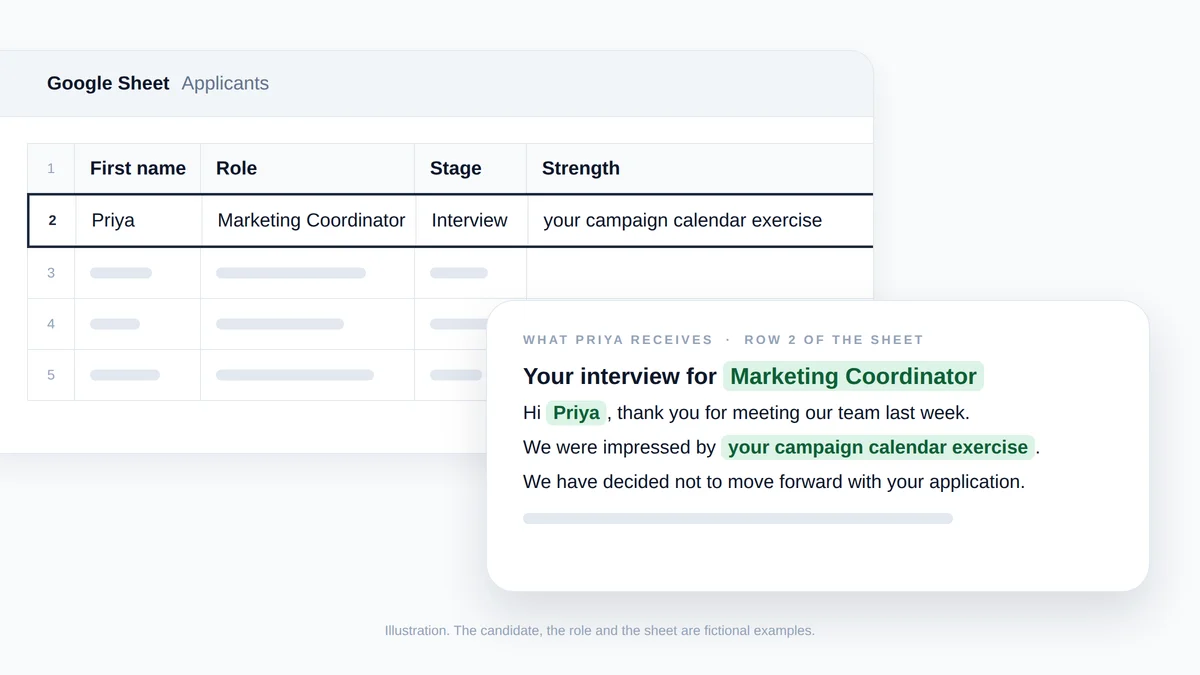
Illustration, not a screenshot: row 2 of the sheet fills the subject, the greeting and the personal line of the email. The candidate, the role and the phrase are fictional.
Two closing lines in one template. Invite people to apply again only when you mean it. Add a Reapply column that holds Yes or No, then a Closing column with this formula in row 2:
=IF(G2="Yes", "I would be glad to hear from you when we open a similar role.", "We wish you the best in your search.")G2 is the row’s Reapply cell. Google’s IF function returns one value if a logical expression is TRUE and another if it is FALSE. Put {{Closing}} in the template where the last sentence goes.
Filter one stage, then write and send
Install the add-on from the Google Workspace Marketplace, then:
- Filter the sheet. Choose Data, then Create a filter. Show only the rows where Decision is Rejected and Stage is Interview.
- Open the builder. Choose Extensions, then Mail Merge for Gmail, then New campaign. The builder opens over the sheet. Under the To row, the Only visible rows switch is on by default when the tab has hidden rows, so only the rows you can see are sent to.
- Paste the template for that stage. Put the subject and the body in place and replace the square brackets. The Merge tag menu in the toolbar lists your columns, so you can insert each tag without typing it.
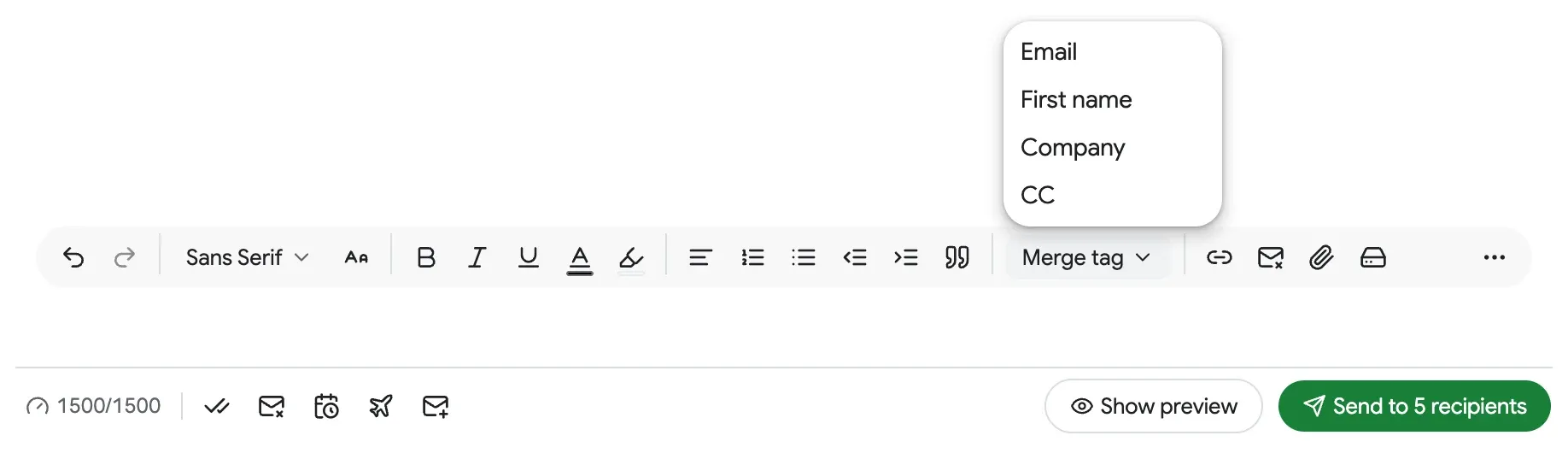
- Set who it comes from. The From field holds the sender name, which you can edit. Add reply-to sends replies to another address, such as the recruiter’s. Add bcc copies the addresses held in a column, for example each role’s hiring manager.
- Check the two switches. Track opens is off by default, and a rejection gives you no reason to turn it on. The Unsubscribe link switch adds an opt-out footer, which is discussed below.
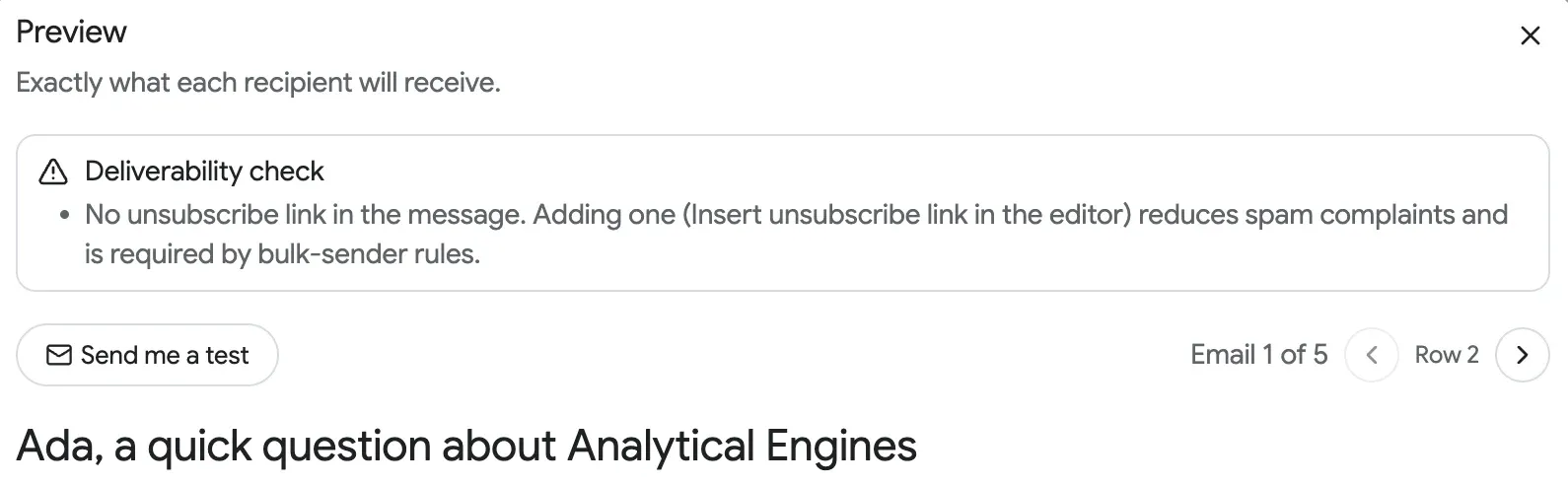
- Preview every email. Show preview renders each candidate’s email with the tags replaced, and the arrows page through them. The preview can also list every email at once and mark the rows that have an empty value. Send me a test delivers the email on screen to your own inbox.
- Send. Click Send to N recipients and confirm. Then change the filter to the next stage and repeat with its template.
About the unsubscribe warning. The check points to the rules for bulk senders. Google’s email sender guidelines FAQ says that one-click unsubscribe is required only for marketing and promotional messages, and that transactional messages are excluded. It adds that recipients, not Google, determine the nature of the messages they receive. A rejection answers an application and promotes nothing, so the link is your call.
After the send, the add-on adds a status column to the sheet, named after the campaign and the date. Each row reads Sent once its email has left your Gmail account, which gives you a record of who was told and when. On paid plans, a row turns Replied when the candidate answers in the same thread, so a request for feedback is easy to spot.
Three limits to plan around:
- Volume is capped per day, because every email leaves through your Gmail account: 50 emails on the Free plan, 250 on Personal, and 1,500 on Professional with a Google Workspace address (500 with an @gmail.com address). Each BCC copy counts as one email.
- Free plan emails carry a small Mail Merge footer, which the paid plans remove.
- Scheduling needs a paid plan. Schedule send holds the campaign for a date and time at least two hours ahead.
Our walkthrough of a mail merge from Google Sheets covers the basics from an empty sheet.
When to send, and who should wait
- Within a week. Indeed calls it good practice to send a rejection email within a week of interacting with a candidate, whether or not they reached the interview stage.
- As soon as the decision is firm. The SHRM guide says that once it is clear a candidate is not the right fit, it is important to let them know quickly.
- Runners-up after the acceptance. The same guide quotes a recruiter who waits for the selected candidate to accept before she contacts the others. That is what the On hold value is for.
- On the day you promised. Acas, the UK’s Advisory, Conciliation and Arbitration Service, says in its guidance on interviewing job applicants that at the end of each interview you should tell applicants when and how they will hear, and what sort of feedback to expect.
A decision made at 9 pm does not have to arrive at 9 pm. With Schedule send, the campaign can leave the next morning.
Feedback, records and background checks: settle them before you send
Feedback is optional, and it should be about the job
Acas states on its page about rejected job applications that employers do not have to explain their reasons. It adds that doing so can help: it shows that they are open in how they make decisions, and it tells applicants what to do differently next time.
When you do give a reason, take it from your selection criteria. The Acas interviewing guidance says to check that decisions are based on how each applicant met each point in the job description and the person specification. The Strength column and any reason in your email should come from those same points.
Keep the sheet after the emails are sent
In the United States, the EEOC’s guidance for small businesses on hiring says to retain applications and any interview notes for at least one year. The federal rule behind it, 29 CFR 1602.14, covers application forms and other records having to do with hiring. It counts the year from the making of the record or the personnel action, whichever occurs later. When a charge of discrimination has been filed, the records relevant to it must be kept until its final disposition.
A sheet that tracks applicants and the decision on each one has to do with hiring. The safe habit is to archive it with its status column, not to delete it once the emails are out.
A rejection based on a background check needs its own notices
The FTC’s guide for employers, Using Consumer Reports, sets out two steps under the US Fair Credit Reporting Act:
- Before you reject the application because of information in a consumer report, give the applicant a notice that includes a copy of the report, and a copy of A Summary of Your Rights Under the Fair Credit Reporting Act.
- After the decision, give a notice with the name, address and phone number of the company that supplied the report, a statement that this company did not make the decision, and the person’s right to dispute the report and to get an additional free report if they ask for it within 60 days.
None of the five templates is that notice. Give those candidates their own Decision value, so that the filter leaves them out, and read our guide to the background check email.
This section is general information about the United States and the United Kingdom, not legal advice. Other countries have their own rules.
Frequently asked questions
What should the subject line of a job rejection email say?
The job title and your company, for example “Your application for Marketing Coordinator at Harbor Lane Studio”. Indeed says that candidates should be able to understand the purpose of the email from the subject line, and that the job title gives them context.
How soon should you send a rejection email after an interview?
Indeed’s guide gives one week as good practice. The SHRM guide says to answer quickly once the decision is made, with one exception: the runners-up, who hear after the selected candidate has accepted.
Do you have to explain why a candidate was rejected?
In the UK, Acas says that employers do not have to explain their reasons, and that feedback can still help both sides. Indeed advises leaving feedback out when you cannot make it personal. If you give a reason, keep it about the job.
Should you reject a candidate by phone or by email?
Email suits the early stages. Indeed says a phone call is often appropriate when you hire from a small pool or when a candidate has completed multiple interview rounds. SHRM’s director of talent acquisition says her team calls anyone who sat for an in-person interview.
Can I send rejection emails from a free Gmail account?
Yes. Mail Merge for Gmail works with @gmail.com addresses, and merge tags in the subject and the body are part of the Free plan, within 50 emails a day. Free plan emails carry a small Mail Merge footer, and scheduling needs a paid plan.
Every candidate gets an answer
A good rejection is short: the job in the subject, the decision near the top, one true line about the person for those you met, and your name at the bottom. The hard part is sending all of them. Keep one row per candidate, filter one stage at a time, and each person receives an answer written for the stage they reached. Install Mail Merge for Gmail for free, paste the template for the first stage and send it from your own Gmail account.
Ready to send your first campaign?
Install Mail Merge for Gmail from the Google Workspace Marketplace and send up to 50 personalized emails per day for free.
Get started for freeMore reading
More from Tutorials
Survey Email Template: 5 Examples to Send from Google Sheets
Copy a survey email template for customers, attendees or employees, then send each person their own Google Forms link from Google Sheets and remind the rest.
Invoice Email Template: 5 Examples You Can Send from Gmail
Copy an invoice email template for a first, recurring, milestone or purchase order invoice, then send each client their own PDF from Google Sheets with Gmail.
Gmail Templates: How to Create, Use and Personalize Them
Turn on Gmail templates, then create, insert, edit and delete one. See what templates cannot do and how a mail merge personalizes each recipient's copy.