




















Survey Email Template: 5 Examples to Send from Google Sheets
Copy a survey email template for customers, attendees or employees, then send each person their own Google Forms link from Google Sheets and remind the rest.
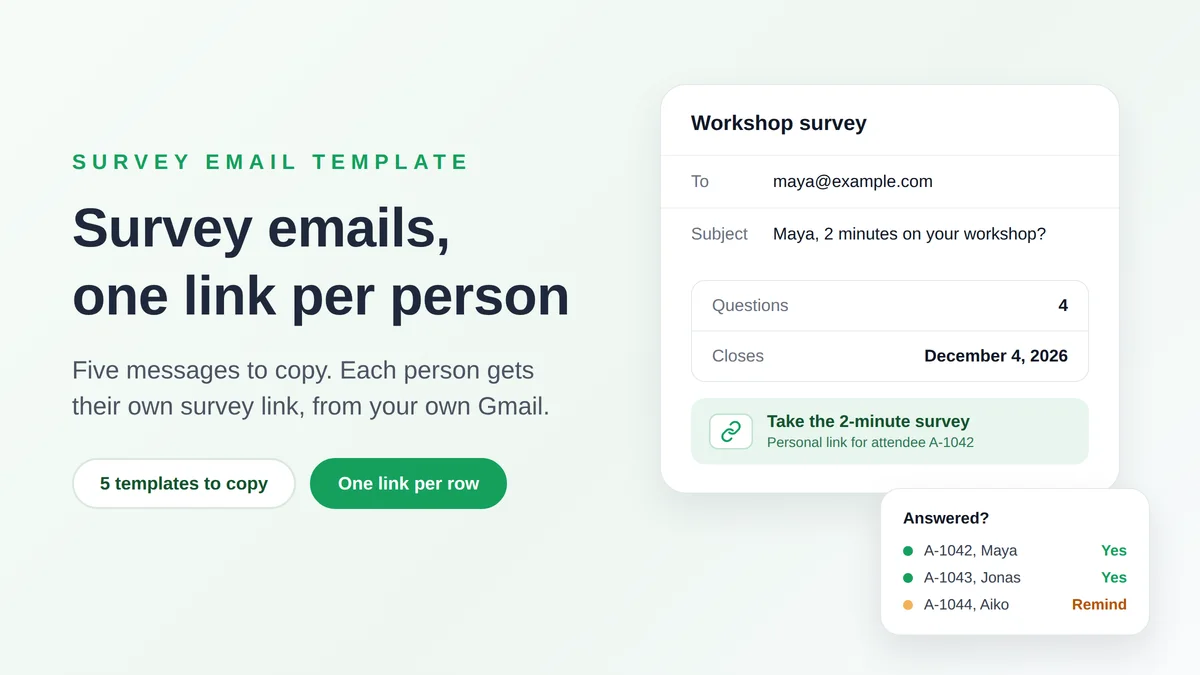
A survey email template is a short invitation that you reuse every time you ask people for feedback: a subject line that says what you are asking, two or three sentences on why you ask and how long it takes, one survey link that is easy to find, and a closing date. The message below is enough for most surveys.
Subject: Maya, 2 minutes on your Spreadsheet Basics workshop?
Hi Maya,
Thank you for joining Spreadsheet Basics on November 18. Could you tell us how it went? The survey has four questions and takes about two minutes.
Take the 2-minute survey
It closes on Friday, December 4. We read every answer and use them to plan the next sessions.
Thank you, Elena, Alder Row Training
This guide explains what each part does, gives five templates to copy, and shows how to send the survey from a Google Sheet through your own Gmail account, with a personal Google Forms link for each person and a reminder for those who have not answered. Alder Row Training and its attendees are made-up examples.
What a survey email template should include
Two guides agree on the parts of the invitation: SurveyMonkey’s guide to survey email templates, updated in February 2026, and Listen4Good’s best practices for surveying via email, written for nonprofits that survey their clients.
| Part | What to write | Why |
|---|---|---|
| Sender | An address the recipient already knows, ideally a named person | Listen4Good: invitations from a generic address or a third-party researcher typically receive fewer responses |
| Subject line | The purpose of the survey and a call to action | Listen4Good’s example is “Please take this survey to help us improve”. SurveyMonkey lists vague or misleading subject lines among the common mistakes |
| Greeting | The recipient’s name | SurveyMonkey: greet the respondent by name if possible |
| Purpose | One or two sentences on why you ask and what you will do with the answers | SurveyMonkey: explain the purpose of the survey and what you plan to do with the feedback |
| Time needed | How long it takes and how many questions there are | Listen4Good: state the time required and the total number of questions |
| Survey link | One link, near the top, that is easy to find | Listen4Good: do not bury the request under paragraphs of introduction. SurveyMonkey: the link should be obvious |
| Closing date | The day the survey closes | Listen4Good: the survey should have a stated closing date |
| Thanks and sign-off | A thank you, your name and your role | SurveyMonkey lists gratitude and a sign-off among the elements of the email |
Both guides also say to keep the invitation short. The survey deserves the same care: the best practices of the American Association for Public Opinion Research (AAPOR) advise keeping respondent burden low, with short questionnaires and short questions. For more subject ideas, see our examples of a mail merge subject line.
When to send it, and when to close it
- Give a closing date and plan a reminder. Listen4Good recommends a stated closing date, with at least one reminder before it.
- Avoid Fridays. SurveyMonkey’s guide says to steer clear of Mondays and Fridays. Listen4Good cites SurveyMonkey research in which invitations sent on Monday drew the most responses and those sent on Friday the fewest. The two disagree about Monday and agree about Friday, so pick a midweek day or test Monday with your own audience.
Five survey email templates to copy
Each template uses three conventions:
- Square brackets, such as [Your business], are the same for everyone. Replace them once.
- Merge tags in double curly braces, such as
{{First name}}, change with each person. Each one is the name of a column in a spreadsheet, and the next section shows how a sheet fills them in. - Bold words carry the link to your survey.
1. Customer feedback after a purchase or a project
Use it a few days after the work is delivered, while the experience is still clear.
Subject: {{First name}}, how did {{Service}} go?
Hi {{First name}},
Thank you for choosing [Your business] for {{Service}}. We would like to know how it went and what we could do better.
Take the 2-minute survey
There are [4] questions, and the survey closes on [date].
Thank you, [Your name], [Your role]
2. Event or workshop feedback
Use it the day after a workshop, a class or a conference.
Subject: {{First name}}, 2 minutes on {{Workshop}}?
Hi {{First name}},
Thank you for joining {{Workshop}} on [date]. Could you tell us how it went? The survey has [4] questions and takes about two minutes.
Take the 2-minute survey
It closes on [date]. We read every answer and use them to plan the next sessions.
[Your name], [Your organization]
3. Employee survey
Use it for a yearly or quarterly staff survey. Say who will see the answers before people open the form.
Subject: [Company] staff survey: 5 minutes before [date]
Hi {{First name}},
Once a year we ask everyone at [Company] how work is going. The survey has [12] questions and takes about five minutes.
Open the survey
[Say here who will see the answers and whether they are anonymous.] We will share the results at [the team meeting on date].
The survey closes on [date].
[Your name], [Your role]
4. Reminder to people who have not answered
SurveyMonkey’s advice for a reminder is a clear subject line, a polite greeting, a mention of the original survey and a thank you.
Subject: Reminder: the {{Workshop}} survey closes on [day]
Hi {{First name}},
A quick reminder about our survey on {{Workshop}}. It takes about two minutes and closes on [date].
Take the 2-minute survey
If you have already answered, thank you, and please ignore this message.
[Your name]
5. Thank you, with what you learned
SurveyMonkey counts a lack of follow-up among the common mistakes. This message closes the loop once the survey is over.
Subject: What you told us about {{Workshop}}
Hi {{First name}},
Thank you for answering our survey. [Number] people replied. The two things we heard most were [finding 1] and [finding 2].
Here is what we are changing: [one concrete change].
[Your name]
For other ways to word it, see our thank you email template examples.
Send each person their own survey link from Google Sheets
A survey for 10 people is easy to send by hand. A survey for 200 raises two problems: the subject and the greeting should carry each person’s name, and the reminder should skip the people who have already answered. Google’s own tools do not cover both, according to its help pages on publishing and sharing a form and on mail merge in Gmail.
| Google Forms share dialog | Gmail’s built-in mail merge | Mail Merge for Gmail | |
|---|---|---|---|
| What it sends | A notification that includes the form, with one optional message | A copy of your email for each recipient | One email per row of your sheet, from your own Gmail account |
| Name in the subject line | Not offered | No. Merge tags cannot be used in subject lines | Yes |
| Personal link behind the link text | Not offered | No. Merge tags cannot be used in hyperlinked text | Yes. A merge tag can be part of a link’s address |
| Who can use it | Anyone who can share the form | Eligible Google Workspace plans, such as Business Standard or Workspace Individual | @gmail.com and Google Workspace addresses |
Mail Merge for Gmail is an add-on for Google Sheets. Each row of the sheet becomes one email, and a column name in double curly braces is replaced with that row’s value in the subject, in the body and inside a link.
The sheet: one row per person
Alder Row Training keeps its attendees in a sheet like this one:
| First name | Workshop | Attendee ID | |
|---|---|---|---|
| maya@example.com | Maya | Spreadsheet Basics | A-1042 |
| jonas@example.com | Jonas | Spreadsheet Basics | A-1043 |
| aiko@example.com | Aiko | Presenting with Data | A-1044 |
Three habits make the sheet safe to send from:
- One row per person. First remove duplicate emails in Google Sheets, so nobody gets the survey twice.
- Give each person a short ID made of letters, digits and hyphens: an order number, a member number or a ticket number. It goes into the survey link exactly as it appears in the cell.
- Leave no gaps in the columns your template uses. An empty cell is merged as a blank, which leaves a hole in the sentence.
Build the personal link in Google Forms
Google Forms can open a form with some answers already filled in. Here the pre-filled answer is the ID, so that each response can be matched to its row later.
- Add an ID question. Make Attendee ID the first question of the form, as a short answer. In its description, write something like “Filled in for you. Please leave it as it is.”
- Publish the form. Google’s page states that responders with the link cannot open an unpublished form. Under General access, choose anyone with the link if the survey goes to people outside your organization.
- Get the pre-filled link. In the form editor, click More (the three dots), then Pre-fill form. Type TESTID in the Attendee ID field, click Get link and copy the link.
- Find your placeholder in the link. The copied link ends with the text you typed, after a number that identifies the question. It looks like this, with your own form ID and number:
https://docs.google.com/forms/d/e/FORM_ID/viewform?usp=pp_url&entry.1840221764=TESTID- Send the answers to your spreadsheet. In the form, open Responses, click More, then Select destination for responses, and pick Select existing spreadsheet, as described on Google’s page about where to save form responses. Choose the spreadsheet that holds your list. A new tab, named Form Responses 1 by default, collects the answers.
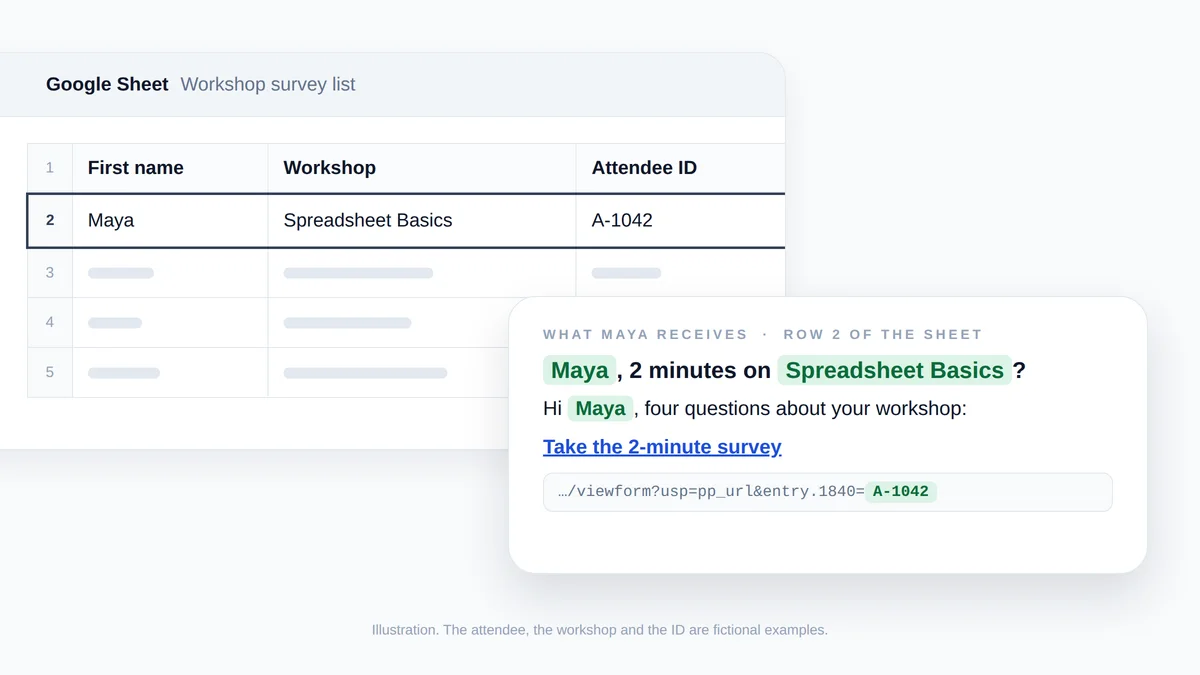
Illustration, not a screenshot: row 2 of the sheet fills the subject and the greeting, and its Attendee ID replaces the placeholder at the end of the survey link. The attendee, the workshop and the ID are fictional.
No ID column? Use the email address. Name the form question Email, add a sheet column named Key with the formula =ENCODEURL(A2), where A2 is the row’s email cell, and put {{Key}} in the link. Google’s ENCODEURL function encodes text so that it can be used in the query string of a URL. Do the same for any value that contains spaces or symbols.
Write and send the invitation
Install the add-on from the Google Workspace Marketplace, then:
- Open the builder. In the sheet, choose Extensions, then Mail Merge for Gmail, then New campaign. The builder opens over the sheet with the rows loaded as recipients.
- Paste a template. Put the subject and the body in place and replace the square brackets. The Merge tag menu in the toolbar lists your columns, so you can insert each tag without typing it.
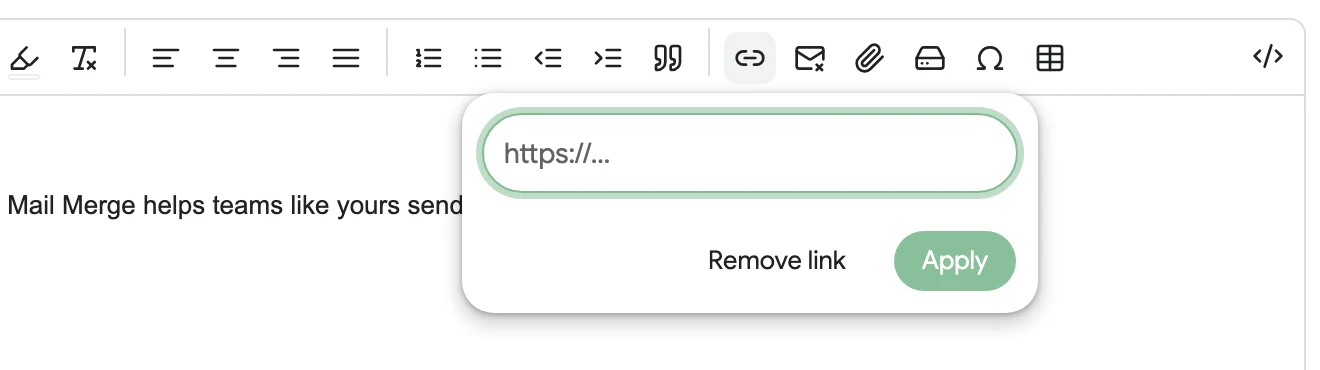
- Link the words. Select “Take the 2-minute survey” and click Insert link, the chain icon. Paste the pre-filled link, replace TESTID with
{{Attendee ID}}, then press Enter or click Apply.
- Choose the options. Track opens is off by default. Turn it on to see who opened the email. The Unsubscribe link switch adds an opt-out footer, and the preview’s Deliverability check warns when a message has none.
- Preview, then test. Show preview renders each person’s email with the tags replaced. Send me a test delivers the email on screen to your own inbox. Click the link there and check that the form opens with that person’s ID filled in. Submit it once, find the new row in the responses tab, then delete that row.
- Send. Click Send to N recipients and confirm. On a paid plan, Schedule send holds the campaign for a date and time at least two hours ahead.
Our walkthrough of a mail merge from Google Sheets covers the basics from an empty sheet.
Volume is capped per day, because every email leaves through your Gmail account: 50 emails on the Free plan, 250 on Personal, and 1,500 on Professional with a Google Workspace address (500 with an @gmail.com address). The invitation and the reminder go out on different days, so a list of up to 50 people fits the Free plan. Free plan emails carry a small branding footer, which the paid plans remove.
See who answered, then remind only the people who have not
After the send, the add-on adds a status column to the sheet, named after the campaign and the date, with one status per row.
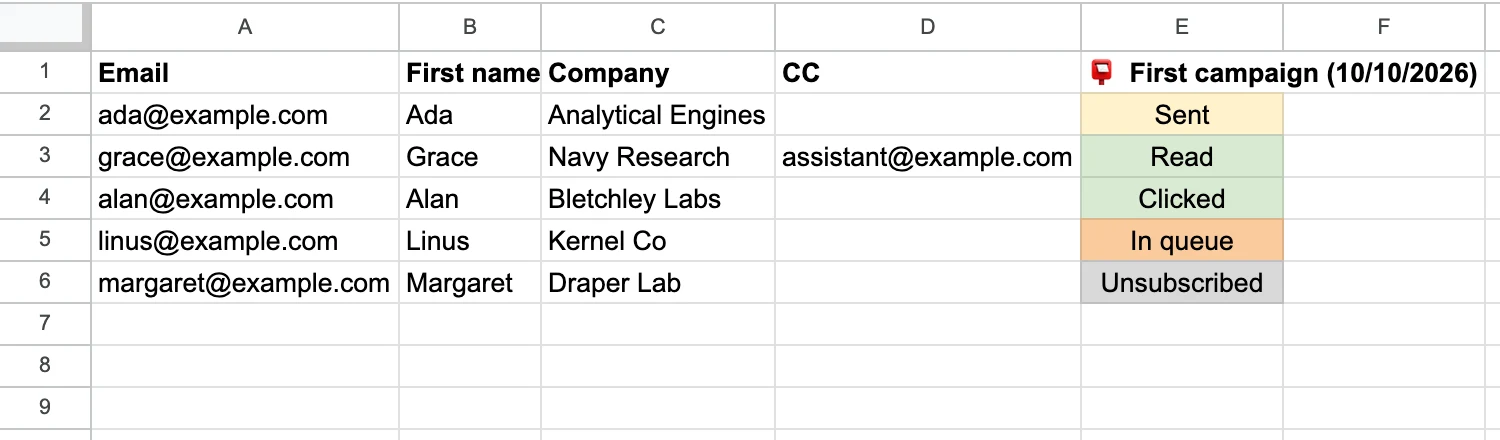
| Status | What it tells you about the survey |
|---|---|
| Sent | The email left your Gmail account |
| Read | The person opened it. This needs Track opens, which is included in every plan |
| Clicked | The person clicked the survey link. Click tracking is part of the paid plans |
| Replied, Bounced | On paid plans: the person answered by email, or the address could not be delivered to |
A click is not an answer. The form’s responses are the reliable record, and the ID question connects each response to its row.
Add an Answered column to the list
In the tab that holds your list, add a column named Answered and enter this formula in row 2:
=IF(COUNTIF('Form Responses 1'!B:B, D2)>0, "Yes", "No")D2 is the row’s Attendee ID. Column B of the responses tab is where the ID lands when it is the first question of the form. Check your own tab and adjust the letter, then fill the formula down. Google’s COUNTIF function returns a conditional count across a range, so the cell reads Yes as soon as a response with that ID arrives.
Send the reminder to the rows that still say No
- Filter the list. In Google Sheets, choose Data, then Create a filter, and show only the rows where Answered is No.
- Start a new campaign. Keep the Only visible rows switch on, which is its default when the tab has hidden rows. Only the rows you can see are sent to.
- Paste the reminder template and link the words to the survey the same way.
- Confirm and send. The builder notes that these people already received a campaign from you. Keep Send anyway, the default.
On timing, Listen4Good relays SurveyMonkey research that puts the best moment for a reminder 48 to 72 hours after the invitation. It also cites a review of survey methods in which one or two reminders raised the response rate, with diminishing returns after that.
Or let a follow-up send it for you
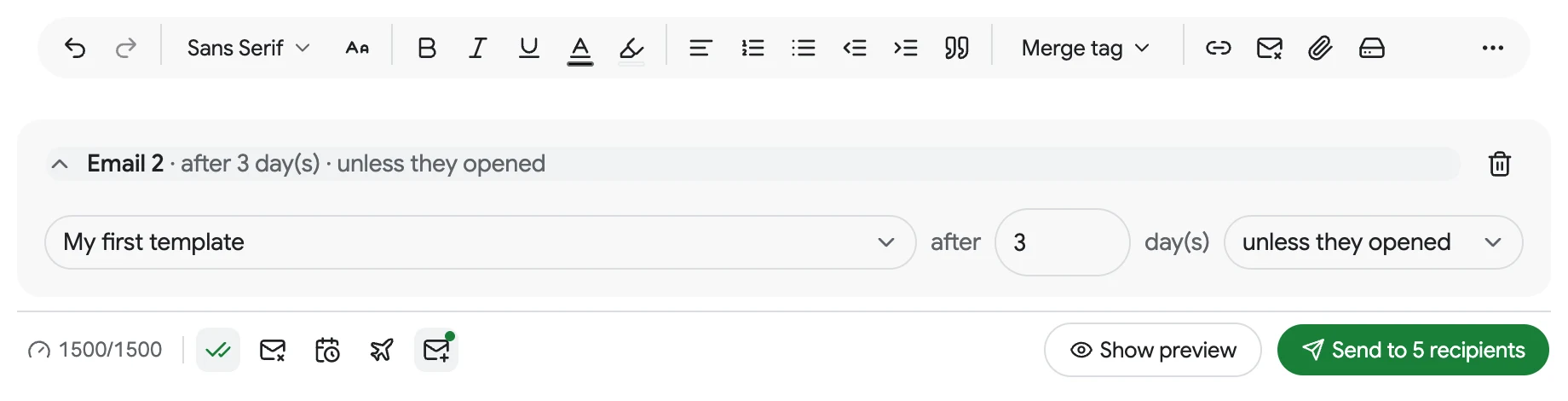
On the Professional plan, a follow-up sequence sends the reminder automatically. Save the reminder as a template first, under Extensions, Mail Merge for Gmail, Templates. Then, before you send the invitation, click Add follow-up in the bottom bar of the builder, pick the template, set the delay to 3 days and choose the condition to those who did not click.
Three things to know before you rely on it:
- The condition reads clicks, not answers. Someone who opened the form and left without submitting is not reminded. The Answered column remains the exact method.
- Some people are always skipped. Anyone who replied, bounced or unsubscribed gets no follow-up, whatever the condition.
- The same tags work. The reminder template can use the same merge tags, including the one inside the link. Adding a follow-up also turns Track opens on.
If the form also collects each respondent’s email address, a form automation can thank people as their answers arrive. Our guide to a Google Forms autoresponder shows the setup.
Promised an anonymous survey? Leave the personal link out
A pre-filled ID ties every answer to a person. That is the point of a workshop survey, and a problem for a staff survey that you described as anonymous. In that case:
- Send everyone the same plain link. Copy the responder link from the form and leave the ID question out. The greeting can still use the person’s name, because the email and the form are separate.
- Do not collect email addresses in the form. Google’s page on viewing and managing form responses describes two collection modes, Verified and Responder input. Both record an address with the response.
- Decide about tracking. Tracking shows who opened the email or clicked the link, never what they answered. If that is still more than you promised, leave Track opens off.
- Remind everyone, with a line that thanks the people who have already answered. Template 4 has one.
AAPOR’s best practices give the general rule: follow your institution’s guidance and policies on the protection of personal identifiable information, and determine whether any data privacy laws apply. This article is general information, not legal advice.
Frequently asked questions
What should the subject line of a survey email say?
The purpose of the survey and a call to action, for example “Maya, 2 minutes on your Spreadsheet Basics workshop?”. Listen4Good recommends putting both in the subject line, and SurveyMonkey warns against vague or misleading subject lines.
Can I embed a Google Form in an email?
Google Forms can do it in its own notification. When you share a published form and leave Notify people checked, the email sent to responders includes the form. Google lists four cases in which a form cannot be embedded in an email: a file upload question, a rating question, an image in a question or an option, and a secured quiz. An email sent with a mail merge carries a link to the form instead.
Do respondents need a Google Account to answer?
Two settings require one, according to Google’s help pages. With Limit to 1 response on, users must sign in to their Google Account to fill out the form. With Verified email collection, respondents confirm that their Google Account address is collected with the response. Leave both off when you survey people who may not have a Google Account.
Can I send a survey from a free Gmail account?
Yes. Mail Merge for Gmail works with @gmail.com addresses, and merge tags in the subject, the body and the link are part of the Free plan, within 50 emails a day. Click tracking and scheduling need a paid plan, and automatic follow-ups need Professional.
One sheet for the invitation, the reminder and the thank you
A good survey email is short: what you are asking in the subject, why and how long in the body, one link near the top and a closing date. Once the wording is settled, the work that remains is getting the right link to each person and knowing who still has to answer, and a spreadsheet does both. Install Mail Merge for Gmail for free, paste one of the five templates, link the words to your form and send the survey from your own Gmail account.
Ready to send your first campaign?
Install Mail Merge for Gmail from the Google Workspace Marketplace and send up to 50 personalized emails per day for free.
Get started for freeMore reading
More from Tutorials
Invoice Email Template: 5 Examples You Can Send from Gmail
Copy an invoice email template for a first, recurring, milestone or purchase order invoice, then send each client their own PDF from Google Sheets with Gmail.
Gmail Templates: How to Create, Use and Personalize Them
Turn on Gmail templates, then create, insert, edit and delete one. See what templates cannot do and how a mail merge personalizes each recipient's copy.
Donation Receipt Template: Email Every Donor from Google Sheets
Copy a donation receipt template for cash, in-kind and year-end gifts, see what the IRS asks for, and email each donor their receipt from Google Sheets.