


















Mail Merge Names Capitalization: Clean Your Google Sheet Before You Send
Fix wrong capitalization and stray spaces in names before a mail merge. Use PROPER, TRIM and a helper column in Google Sheets so every merged email greets people correctly.
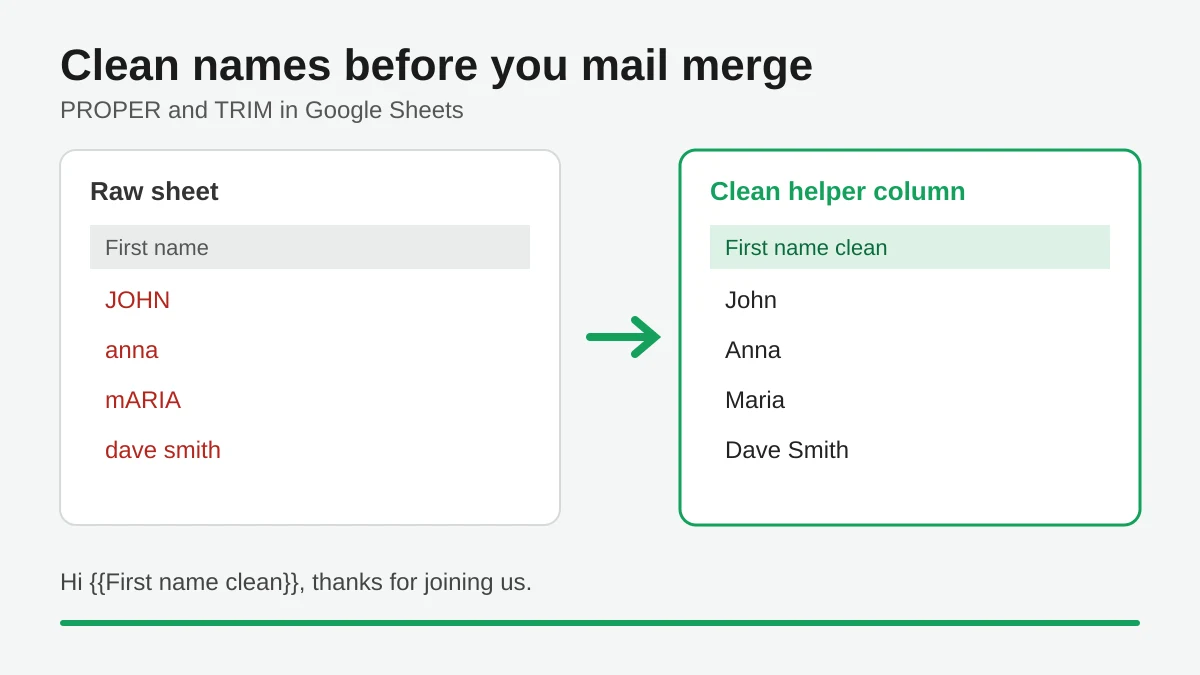
Nothing undoes the effort of personalization faster than an email that opens with “Hi JOHN,” or “Hi anna ,”. A mail merge pastes whatever sits in the cell into your message. If the cell is messy, the email is messy. Mail merge names capitalization is one of the most common data problems, and it takes about five minutes to fix before you send.
This guide shows how to clean first names, last names and company names in Google Sheets with two built-in functions, how to keep your original data safe, and how to check the result in the preview before a single email leaves your Gmail account.
Why messy cells become messy emails
In Mail Merge for Gmail, each row of your sheet is one email and each column name becomes a merge tag such as {{First name}}. At send time the tag is replaced with the value from that recipient’s row. The add-on does not guess what you meant, so the cell text is what the recipient reads.
Messy names usually come from a few places:
- A lead form where people typed in all caps or all lowercase.
- An export from a CRM or event tool that stores names in uppercase.
- Copy and paste from a website or PDF that adds leading, trailing or doubled spaces.
- Two lists merged into one sheet, each with its own habits.
You will not see these problems by scrolling the sheet. A trailing space is invisible, and all caps looks normal in a long table. They show up when the name sits in the middle of a sentence.
Fix capitalization with PROPER
Google Sheets has a function built for this. According to Google’s help page for PROPER, the syntax is PROPER(text_to_capitalize), it capitalizes each word, and it suits proper nouns such as the names of people or places.
Here is the worked example:
- Keep your original column untouched. Say first names live in column B with the header
First name. - Insert a new column to the right and give it the header
First name clean. - In the first data row of the new column, type
=PROPER(B2)and press Enter. - Fill the formula down, or use one formula for the whole column with
=ARRAYFORMULA(PROPER(B2:B))in row 2.
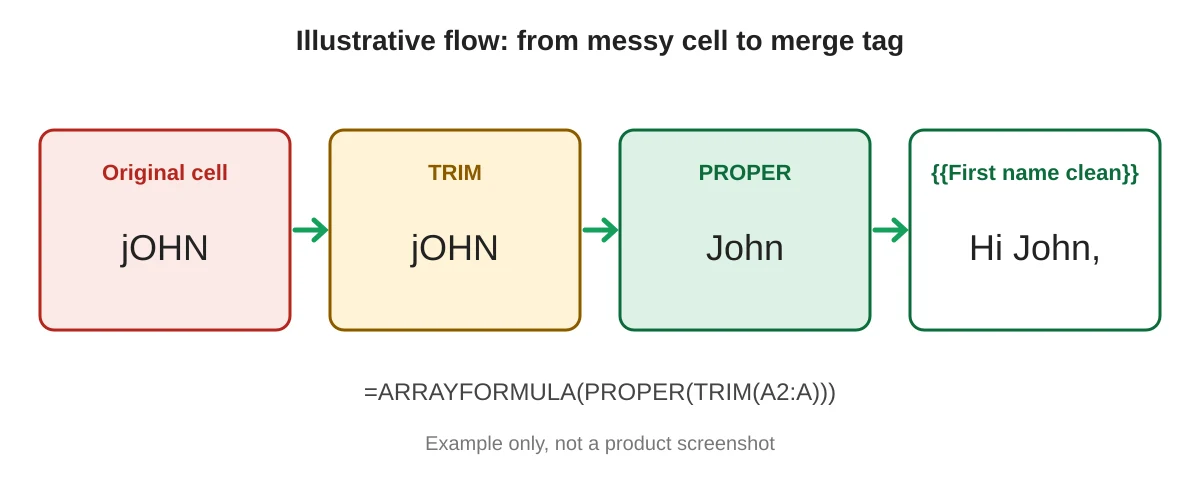
JOHN becomes John, mARIA becomes Maria, and dave smith becomes Dave Smith. For a full name column the same formula works, because PROPER treats every word separately.
Know the limits of PROPER
PROPER lowercases every letter that is not the first letter of a word. Google’s own page points out that PROPER("mcLeod") returns Mcleod. The same thing happens with DeSouza, McDonald and brand names like iPhone. It also turns van der berg into Van Der Berg, which some people dislike.
So treat PROPER as a fix for the majority and review the exceptions. A practical approach is to sort the helper column, scan for names that contain internal capitals in the original, and type the right spelling over the formula for those rows only.
Remove extra spaces with TRIM
Capitalization is half of the problem. The other half is spacing. Google’s help page for TRIM describes TRIM(text) as removing leading and trailing spaces and leaving a single space between words. That is exactly what a greeting needs, because Hi Anna , with a stray space before the comma looks careless.
Combine both functions so you only need one helper column:
=ARRAYFORMULA(PROPER(TRIM(B2:B)))Read it from the inside out. TRIM cleans the spaces first, then PROPER fixes the case. Put it in row 2 of the First name clean column and the whole column fills in, including rows you add later.
When TRIM does not seem to work
Google notes that non-breaking spaces are not trimmed. They often arrive when you copy text from a web page. If a name still looks wrong after TRIM, replace the non-breaking space first:
=ARRAYFORMULA(PROPER(TRIM(SUBSTITUTE(B2:B, CHAR(160), " "))))If you only need a one-off cleanup of typed data, the Data menu also offers a Trim whitespace command under Data cleanup, which Google documents in its article on trimming whitespace. Note that it edits the cells in place, so make a copy of the sheet first.
Keep the original and merge from the clean column
There are two safe ways to handle the cleaned data.
Live helper column. Leave the formula in place and use the clean column as your merge tag. This is the right choice when the sheet keeps growing, because new rows are cleaned automatically. The downside is that you now have two similar columns, so name them clearly.
Paste values. Copy the helper column, then use Edit, Paste special, Values only over the original column and delete the helper. You end up with one tidy column and no formulas. This is a one-time snapshot, so use it when the list is final.
Whichever you pick, remember that Mail Merge for Gmail takes tags from the first row. A column called First name clean becomes {{First name clean}}. You can also pick it from the Merge tag button in the toolbar, which lists the sheet’s columns, so you never have to type the tag by hand.
If you also want to avoid sending twice to the same person, clean the addresses too. Our guide to removing duplicate emails in Google Sheets covers that step, and the general walkthrough in how to mail merge from Google Sheets shows the full flow.
Check the result in the preview
Cleaning data only helps if you confirm it worked. Before sending:
- Open the campaign builder from Extensions, Mail Merge for Gmail.
- Write the greeting with your clean tag, for example
Hi {{First name clean}},. - Click Show preview and page through recipients with the arrows. Look at rows from the top, middle and bottom of the sheet, and at any names you edited by hand.
- Click Send me a test to receive the recipient currently shown in your own inbox and read it as a customer would.
Spot checking a handful of rows is quick, and it catches the odd name that a formula cannot get right. For more ideas on testing before you send, see email template testing and the broader advice in personalized email in Gmail.
Frequently asked questions
Does Mail Merge for Gmail fix capitalization automatically?
The add-on inserts the value from the cell into your message. Cleaning the text in the sheet is the reliable way to control how a name appears.
Should I use PROPER on email addresses or company names?
Do not apply it to email addresses. Company names deserve a manual look because of acronyms and brand spellings such as IBM or eBay, which PROPER would change.
What if I only have a full name in one column?
You can split it into first and last name columns with the Split text to columns command in the Data menu, then clean each part. A first name column gives you a more natural greeting than the whole name.
Will the formulas slow down a large sheet?
A single ARRAYFORMULA over a column is lighter than thousands of separate formulas. If the sheet feels slow, paste the values and remove the formulas.
Can I use a fallback when a first name is missing?
Plan for it before sending. Fill missing names with a neutral word like there in the helper column, for example with an IF formula, and then preview those rows to confirm the sentence still reads well.
Send a merge that gets the small things right
Correct names signal care, and care is what personalization is for. Clean the sheet, preview a few rows and send with confidence. Mail Merge for Gmail lets you personalize every message from Google Sheets, preview each recipient and send from your own Gmail account.
Ready to send your first campaign?
Install Mail Merge for Gmail from the Google Workspace Marketplace and send up to 50 personalized emails per day for free.
Get started for freeMore reading
More from Tips

Track Email Opens in Gmail
Learn to track email opens in Gmail with clear setup steps, Sheets status updates, troubleshooting tips, and privacy guidance for reliable outreach results.

10 Email Campaign Best Practices for Better Results
Use these 10 email campaign best practices to improve targeting, deliverability, engagement, testing, compliance, and conversions with Mail Merge for Gmail.

Best Email Testing Tools: Boost Deliverability in 2026
Discover the top email testing tools to ensure flawless renders and high inbox placement before every send.