





Invoice Email Template: 5 Examples You Can Send from Gmail
Copy an invoice email template for a first, recurring, milestone or purchase order invoice, then send each client their own PDF from Google Sheets with Gmail.
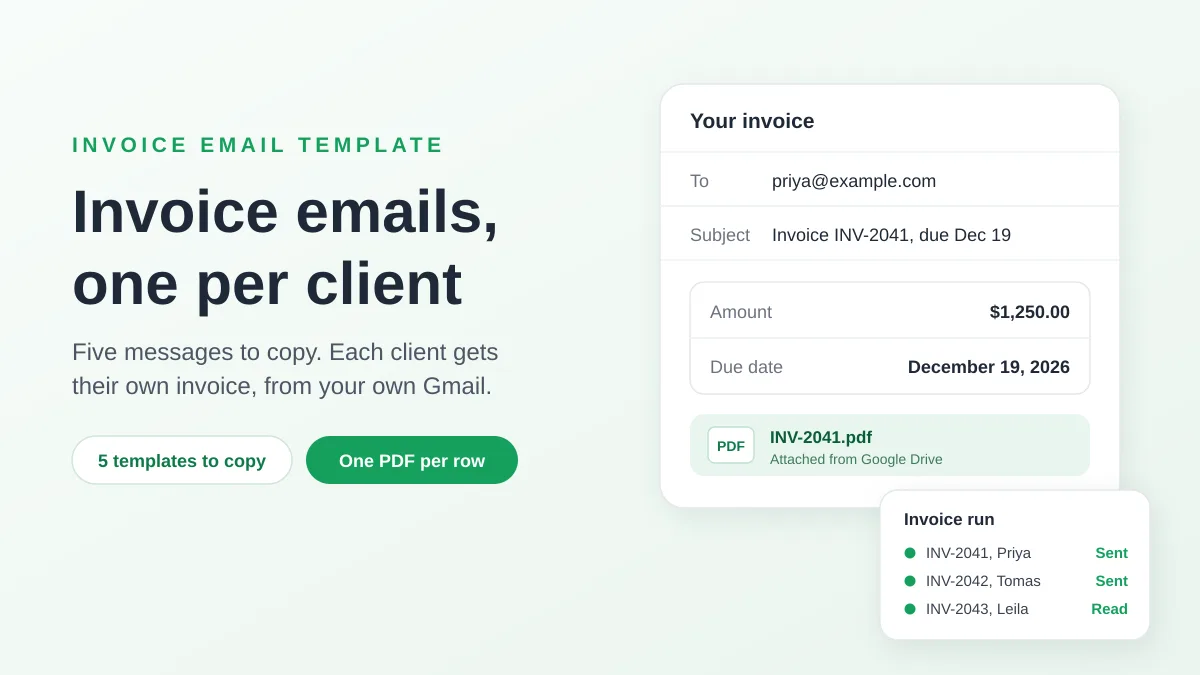
An invoice email template is a short cover note that you reuse every time you send an invoice: a subject line with the invoice number, three or four sentences that state the amount, the due date and how to pay, and the invoice attached as a PDF. The message below is enough for most invoices.
Subject: Invoice INV-2041 from Harbor Lane Design, due Dec 19, 2026
Hi Priya,
Please find attached invoice INV-2041 for the November brand retainer. The total is $1,250.00, due on Dec 19, 2026.
You can pay by bank transfer with the details on the invoice. Reply to this email if anything looks wrong.
Thank you for your business.
Elena, Harbor Lane Design
This guide explains what each part does, gives five templates to copy, and shows how to send every client their own invoice from a Google Sheet through your Gmail account. Harbor Lane Design and its clients are made-up examples.
What an invoice email should say
The email is a cover note. Its job is to get the attached invoice to the right person and to make it easy to process. Two guides agree on the parts: Xero’s guide to sending an invoice, published in May 2026, and GoCardless’s guide to writing an invoice email.
| Part | What to write | Why |
|---|---|---|
| Subject line | The word “Invoice”, the invoice number, your business name and the due date. Add the purchase order number when the client gave you one | Xero asks for subject lines that are easy to identify and search for. GoCardless says the invoice number and the due date help a busy client find your invoice |
| Greeting | The name of the person who handles the bill | It shows the message was written for them |
| Summary | One or two sentences: the invoice number, what it covers, the amount and the due date | Xero: a few sentences covering the invoice number, amount, due date and how to pay are all you need |
| How to pay | The payment method, or where to find the details on the invoice | The client should not have to ask |
| Attachment | The invoice as a PDF | GoCardless: do not paste the invoice into the body. A PDF can be saved, printed or uploaded to accounting software. Xero adds that a PDF prevents unauthorized editing |
| Sign-off | Your name, and an invitation to reply | Billing questions come back to you |
Xero also says where the detail belongs: detailed work descriptions go on the invoice itself, not in the email.
What belongs on the invoice, not in the email
Rules for the invoice itself depend on your country. As an example of an official list, the UK government’s page on what invoices must include names:
- a unique identification number
- your company name, address and contact information
- the company name and address of the customer
- a clear description of what you are charging for
- the date the goods or service were provided
- the date of the invoice
- the amounts being charged, the VAT amount if applicable, and the total amount owed
The email repeats only the number and the total, plus the due date, so the client can act without opening the file. Everything else stays in the PDF. Check the rules that apply where you and your client are based: this article is general information, not tax or legal advice.
When to send it, and which due date to give
Xero’s advice is to send the invoice as soon as the work is done or the product is delivered. For the due date, use the terms you agreed with the client. In the UK, the government’s page on payment obligations says you can set your own payment terms, and that unless you agree a payment date, the customer must pay within 30 days of getting your invoice or the goods or service.
Five invoice email templates to copy
Each template uses two kinds of placeholders:
- Square brackets, such as [Your business], are the same for every client. Replace them once.
- Merge tags in double curly braces, such as
{{Invoice no}}, change with each client. Each one is the name of a column in a spreadsheet, and the next section shows how a sheet fills them in. If you send a single invoice by hand, type the value in their place.
1. Standard invoice email
Use it for a one-off invoice to a client who already knows how you bill.
Subject: Invoice {{Invoice no}} from [Your business], due {{Due date}}
Hi {{First name}},
Please find attached invoice {{Invoice no}} for {{Service}}. The total is {{Amount}}, due on {{Due date}}.
You can pay by bank transfer with the details on the invoice. Please use {{Invoice no}} as the payment reference.
Reply to this email if anything looks wrong, and thank you for your business.
[Your name]
2. First invoice to a new client
Use it the first time you bill someone. It points to the payment details and asks who should receive future invoices.
Subject: Invoice {{Invoice no}} from [Your business] for {{Service}}
Hi {{First name}},
Thank you for choosing [Your business]. Attached is invoice {{Invoice no}} for {{Service}}, for a total of {{Amount}}.
Payment is due on {{Due date}}. Our bank details and payment terms are on the invoice.
If invoices should go to someone else in your team, such as accounts payable, tell me and I will send the next ones there.
[Your name]
3. Monthly or recurring invoice
Use it for retainers, subscriptions and regular services. Add a Period column to the sheet, with values such as “November 2026”.
Subject: {{Period}} invoice {{Invoice no}} from [Your business]
Hi {{First name}},
Your invoice for {{Period}} is attached. It covers {{Service}}, for {{Amount}}, due on {{Due date}}.
Nothing has changed in how to pay. The details are on the invoice as usual.
Thank you.
[Your name]
4. Milestone invoice for a project billed in stages
Use it when you bill a project stage by stage. Add a Milestone column, with values such as “phase 1” or “the final stage”.
Subject: Invoice {{Invoice no}} for {{Service}}: {{Milestone}}
Hi {{First name}},
The invoice for {{Milestone}} of {{Service}} is attached. The amount for this stage is {{Amount}}, due on {{Due date}}.
The remaining stages will be invoiced as we complete them. Reply if you have questions about the work delivered so far.
[Your name]
5. Invoice with a purchase order number
Use it for clients whose accounts payable team matches every invoice to a purchase order. Xero’s guide recommends adding the PO number to the subject line when the customer provides one. Add a PO number column.
Subject: Invoice {{Invoice no}} for PO {{PO number}}, due {{Due date}}
Hello {{First name}},
Attached is invoice {{Invoice no}} against purchase order {{PO number}}, for {{Service}}. The total is {{Amount}}, due on {{Due date}}.
Please tell me if you need anything else to process it, such as a supplier form or a different billing contact.
[Your name], [Your business], [Phone number]
For more wording ideas, see our examples of a mail merge subject line.
Send each client their own invoice from Google Sheets
One invoice a week is easy to send by hand: write the email, attach the PDF, send. A month-end run of 20 or 40 invoices is different, because the risk is no longer the wording. It is attaching one client’s invoice to another client’s email.
Gmail has a built-in mail merge, but it does not fit this job. Google’s page on sending personalized emails with mail merge lists three limits that matter here:
- Plans. It needs an eligible Google Workspace plan, such as Business Standard or Workspace Individual.
- Subject lines. Merge tags cannot be used in subject lines, so the invoice number cannot go there.
- Attachments. If you add an attachment, it is included in each recipient’s copy of the message. Every client would get the same file.
Mail Merge for Gmail, an add-on for Google Sheets, covers all three. Each row of the sheet becomes one email sent from your own Gmail account, merge tags work in the subject line, and a column of Google Drive links attaches a different file to each row. It works with free @gmail.com addresses and with Google Workspace.
The sheet: one row per invoice
Harbor Lane Design keeps its November invoices in a sheet like this one:
| First name | Invoice no | Service | Amount | Due date | Invoice file | CC | |
|---|---|---|---|---|---|---|---|
| priya@example.com | Priya | INV-2041 | the November brand retainer | $1,250.00 | Dec 19, 2026 | Drive link to INV-2041.pdf | accounts@example.com |
| tomas@example.com | Tomas | INV-2042 | the menu redesign | $480.00 | Dec 19, 2026 | Drive link to INV-2042.pdf | |
| leila@example.com | Leila | INV-2043 | the website refresh | $2,900.00 | Dec 19, 2026 | Drive link to INV-2043.pdf | billing@example.com |
Three habits make the sheet safe to send from:
- Format the cells the way the email should read. The add-on merges each value as it is displayed in the sheet, so format Amount as currency and Due date as a date before you send.
- Leave no gaps in the columns your template uses. An empty cell is merged as a blank, which leaves a hole in the sentence.
- Write Service so it reads well in the middle of a sentence, for example “the menu redesign”.
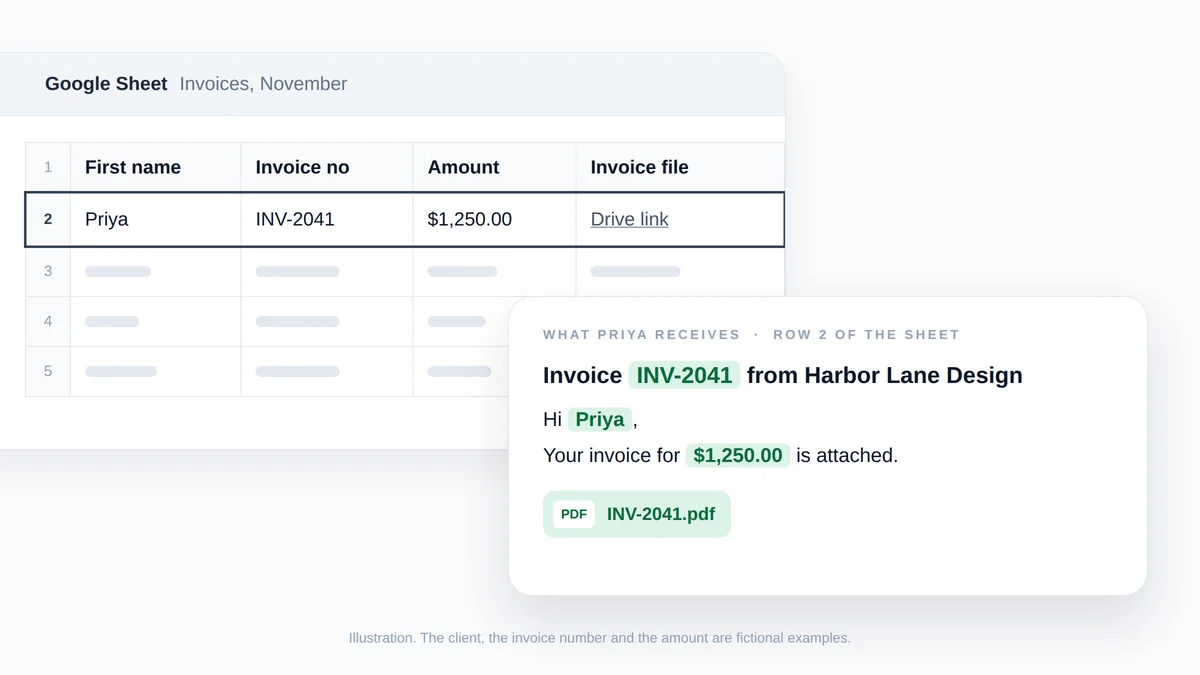
Illustration, not a screenshot: row 2 of the sheet fills the merge tags, and the Drive link in the same row becomes Priya's attachment. The client, the invoice number and the amount are fictional.
Seven steps from the sheet to the sent invoices
Install the add-on from the Google Workspace Marketplace, then:
- Put the invoice PDFs on Google Drive. Upload each file, right-click it, choose Share, then Copy link, and paste the link into the Invoice file column of the matching row. The file can stay private: it only has to be readable by the account you send from. A file name that starts with the invoice number makes the match easy to check.
- Open the builder. In the sheet, choose Extensions, then Mail Merge for Gmail, then New campaign. The builder opens over the sheet with the rows loaded as recipients.
- Paste a template. Put the subject and the body in place and replace the square brackets. The Merge tag menu in the toolbar lists your columns, so you can insert each tag without typing it.
- Attach the invoice column. In the To row, click Add attachment, then pick the Invoice file column in the Files row.
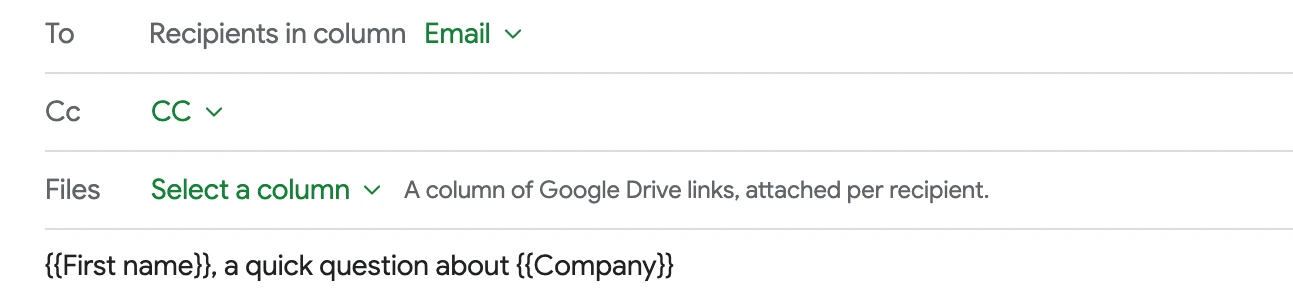
- Copy the billing contact. Click Add cc and pick the CC column. A CC cell can hold one address, several separated by commas, or nothing. Our guide to a mail merge with CC and BCC covers the details.
- Preview, then test. Show preview renders each client’s email with the tags replaced. Page through a few and compare the invoice number with the row. Send me a test delivers the email on screen to your own inbox with that row’s file attached, so you can open the PDF and confirm it is the right one.
- Send. Click Send to N recipients and confirm. On a paid plan, Schedule send holds the run for a date and time, at least two hours ahead.
Two notes on what you will see in the builder:
- The unsubscribe warning. The preview’s Deliverability check warns when a message has no unsubscribe link. Adding one is a switch in the builder, and you decide whether an invoice run needs it.
- Next month. To reuse the wording, save it under Extensions, Mail Merge for Gmail, Templates. The Free plan keeps up to 3 saved templates.
The same mapping exists in the web app, where the recipients dialog offers an Attachment column for a Google Sheet or an uploaded CSV or Excel file. Our walkthrough of a mail merge from Google Sheets covers the basics from an empty sheet.
Attachment limits to know before a big run
The help center’s attachments page lists these limits:
| Limit | Value |
|---|---|
| Files per email | 10, counting the files attached to the whole campaign and the row’s own |
| Size per file | 5 MB |
| Distinct files per campaign | 25 MB in total |
| Google Docs, Sheets and Slides | Attached as PDF, so an invoice written in Google Docs needs no export |
| Access | The Drive file must be readable by the account you send from, or shared publicly |
For comparison, Google’s page on sending attachments with Gmail puts the limit at 25 MB for personal Gmail accounts, and says a Google Workspace administrator sets it for work and school accounts. If an invoice is a scan or a photo that comes close to 5 MB, export it again as a text PDF before the run.
A row whose file cannot be attached is not sent. Its status cell reads Attachment Error, with the reason in the cell note: a wrong link, a deleted file, no access or a file that is too large. Fix the link and send that row again. Our guide to a mail merge with attachments compares the other ways to send files.
After you send: who opened the invoice, and who to chase
After the send, the add-on adds a status column to the sheet, named after the campaign and the date, with one status per row.
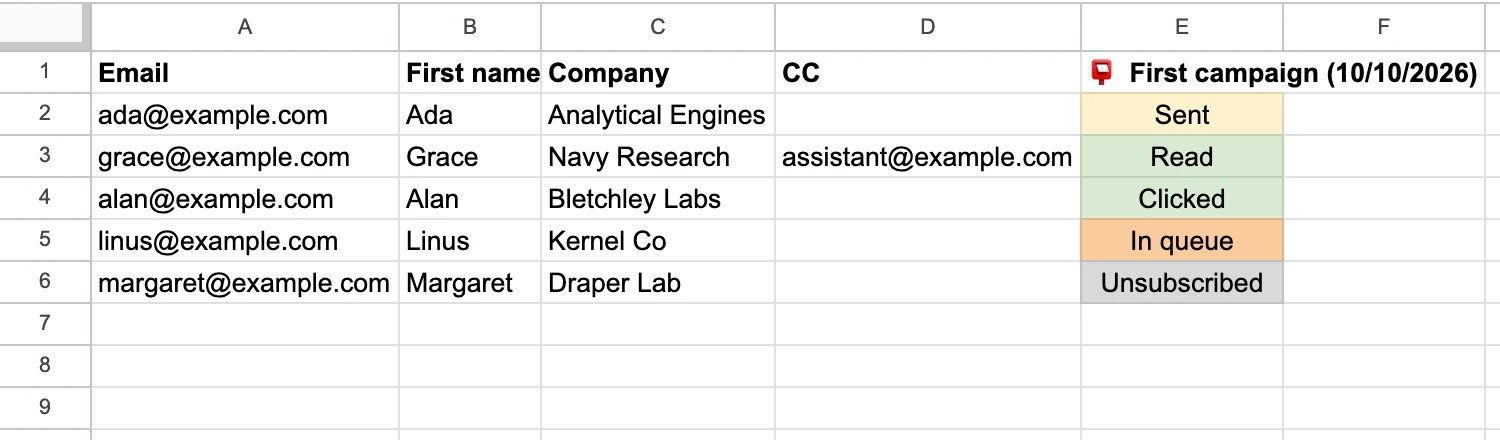
| Status | What it tells you about the invoice |
|---|---|
| Sent | The email left your Gmail account |
| Read | The client opened it. This needs Track opens, which is off by default and included in every plan |
| Attachment Error | The row was not sent, because its file could not be attached |
| Replied, Bounced | On paid plans: the client answered in the same thread, or the address could not be delivered to |
Two of these deserve attention:
- Read is a hint, not a confirmation. It relies on an invisible pixel in the email. It tells you the message was opened, not that the invoice was processed.
- Bounced means the invoice never arrived. Call the client the same day. GoCardless makes a similar point about slow payers: it is possible that your emails are simply going to the wrong person, so it suggests getting in touch by phone.
From there, the sheet is your collection list:
- Add a Paid column and mark each invoice as the payment arrives.
- Filter to the unpaid rows when a due date passes.
- Send a reminder to those rows only. Our payment reminder email template has a message for each stage, from a friendly nudge to a final notice.
Volume is capped per day, because every email leaves through your Gmail account: 50 emails on the Free plan, 250 on Personal, and 1,500 on Professional with a Google Workspace address (500 with an @gmail.com address). Every address counts, so an invoice with one person in CC uses two of the day’s emails. Free plan emails also carry a small Mail Merge footer, which the paid plans remove.
Four checks before you press send
- The email and the PDF agree. The amount and the due date in the sheet match the ones printed on each invoice.
- Each PDF belongs to its row. Open a few links from the sheet, then the attachment of your test email.
- The email goes to the person who pays. Put the accounts payable address in the CC column when there is one.
- Replies reach the right inbox. The emails come from your own Gmail address. Click Add reply-to if billing questions should go somewhere else.
Frequently asked questions
What should the subject line of an invoice email say?
The word “Invoice”, the invoice number, your business name and the due date, for example “Invoice INV-2041 from Harbor Lane Design, due Dec 19, 2026”. Xero and GoCardless both recommend the invoice number, and Xero suggests adding the purchase order number when the client gave you one.
Should I attach the invoice as a PDF or paste it into the email?
Attach it as a PDF. GoCardless advises against pasting the invoice into the body, because a PDF can be saved, printed or uploaded to accounting software, and Xero notes that a PDF prevents unauthorized editing. Keep the amount and the due date in the body too, so the client sees what is owed without opening the file.
Is an invoice sent by email valid?
It depends on the rules where you and your client are based. For VAT invoices in the European Union, the European Commission’s page on VAT invoicing states that electronic invoices are equivalent to paper invoices, and that businesses are free to issue them subject to acceptance by the recipient. Ask your accountant about the requirements in your country.
Can I send invoices from a free Gmail account?
Yes. By hand, attach the PDF to a normal email: Google sets the attachment limit for personal Gmail accounts at 25 MB. For a batch, Mail Merge for Gmail works with @gmail.com addresses, within the Free plan’s limit of 50 emails a day.
Write the invoice email once, then let the sheet fill it in
A good invoice email is short: the invoice number in the subject, the amount and the due date in the body, and the PDF attached. Once the wording is settled, the work that remains is matching each message to the right client and the right file, and a spreadsheet does that better than copy and paste. Install Mail Merge for Gmail for free, paste one of the five templates, map your invoice column and send this month’s invoices in one run from your own Gmail account.
Ready to send your first campaign?
Install Mail Merge for Gmail from the Google Workspace Marketplace and send up to 50 personalized emails per day for free.
Get started for freeMore reading
More from Tutorials
Gmail Templates: How to Create, Use and Personalize Them
Turn on Gmail templates, then create, insert, edit and delete one. See what templates cannot do and how a mail merge personalizes each recipient's copy.
Donation Receipt Template: Email Every Donor from Google Sheets
Copy a donation receipt template for cash, in-kind and year-end gifts, see what the IRS asks for, and email each donor their receipt from Google Sheets.
How to Create a Group Email in Gmail, and When to Use a Mail Merge
Create a group email in Gmail with a Google Contacts label, send it with To or Bcc, know Google's recipient limits, and see when a mail merge fits better.