


















Why Is My Mail Merge Not Working? Gmail Fixes
Why is my mail merge not working - Struggling with why your mail merge isn't working in Gmail? This 2026 guide resolves common Mail Merge for Gmail add-on
You click send, wait a few seconds, and nothing happens. Or the messages go out with {{FirstName}} still sitting in the body like a bad joke. Or the draft looks fine, but the merge skips rows, stalls halfway through, or acts like your spreadsheet and email have never met.
That’s usually the moment people search Why Is My Mail Merge Not Working? and fall into a mess of advice meant for Outlook, Gmail’s built-in multi-send, or a completely different Gmail extension.
That confusion wastes time. It also matters because “mail merge for Gmail” is a generic phrase as much as it is a product name. A lot of online advice mixes together unrelated tools, so it’s worth double-checking whether any guide is talking about the specific add-on you’re using or just mail merge in Gmail generally.
Most failed merges come down to a handful of issues. Bad sheet data. Broken tag matching. Hidden formatting in the draft. Browser conflicts. Gmail limits. The fastest way back to a working campaign is to check them in that order.
Starting with the Quickest Fixes First
You click Send Merge in Mail Merge for Gmail, expect the usual progress window, and instead get nothing useful. No send. No clear error. Sometimes the add-on opens, but the wrong draft is connected or the sheet it pulls from is not the one on screen.
Start with the checks that fix the highest number of failures in the least time. In Mail Merge for Gmail, early problems usually come from setup mismatches, not broken data or Gmail limits.
The first question is simple. Are you troubleshooting the Mail Merge for Gmail add-on, or are you expecting Gmail’s own built-in mail merge behavior? Those are different tools with different menus, permissions, and failure points. Generic Gmail advice often sends people to the wrong place, which is why this guide stays focused on the add-on workflow.
If your setup still feels off, compare it against a clean Google Sheets mail merge setup guide for Mail Merge for Gmail. That helps confirm whether the issue is in your current merge or in the way the campaign was set up.
Run this 60-second triage
Check these before editing your draft or cleaning your spreadsheet:
- Confirm the Google account in the sheet matches the account running the add-on. This trips people up constantly when multiple Gmail accounts are open in one browser.
- Make sure you are on the correct spreadsheet tab. I have seen merges fail because the add-on was pointed at last week’s tab, not the final list.
- Open the Gmail draft tied to the merge and save it again. Old drafts can hang onto outdated tags, subject lines, or formatting.
- Verify the recipient column selection. If the add-on is mapped to the wrong column, the merge can look broken even though it is doing exactly what it was told.
- Refresh the sheet and reopen the add-on sidebar. This clears a surprising number of temporary UI sync issues.
One small mismatch is enough to stop the whole run.
Separate missing functionality from an actual error
A lot of frustration comes from treating “I can’t do this in my current setup” as “the add-on failed.” Those are different problems.
Mail Merge for Gmail is built around a Google Sheet, a Gmail draft, tag matching, and account permissions. If one of those pieces is disconnected, you get a real troubleshooting case. If you are following instructions written for Gmail multi-send or for another extension, you can spend twenty minutes trying to fix a feature gap that does not belong to this add-on at all.
That is why I start here. Confirm the account, the sheet tab, the selected recipient field, and the active draft first. Once those are correct, the remaining issues are usually easier to isolate and fix.
Diagnosing Your Google Sheet Data Integrity
Bad sheet data breaks more merges than bad email copy. If the source file is messy, the merge engine has nothing reliable to work with.
Start with the sheet as if you were auditing a database, not a contact list.
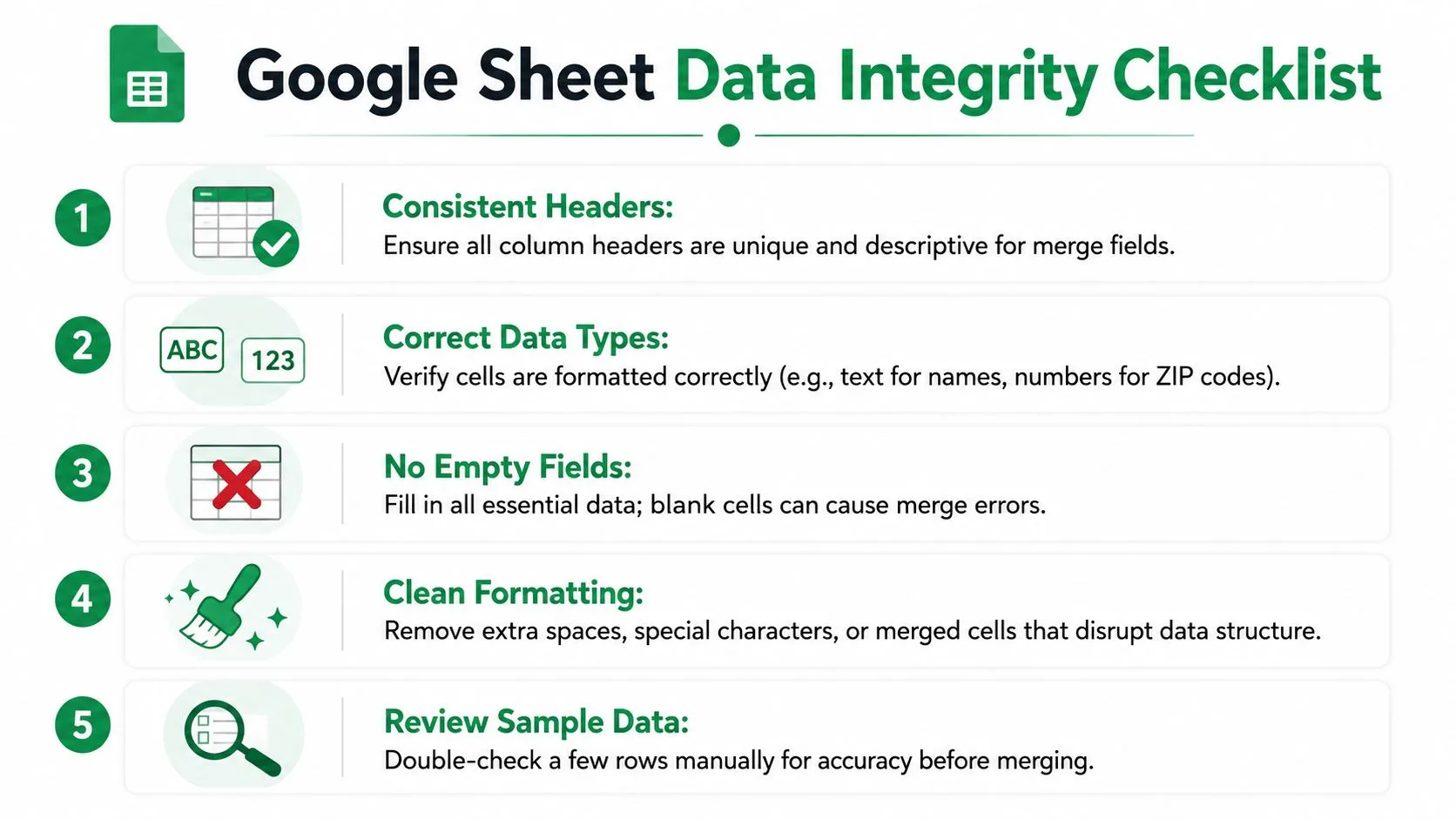
Clean the header row first
Header mismatch is one of the most common causes of merge failure. Troubleshooting guidance collected by GMass notes that over 60% of “tags not working” errors come from merge tags not matching spreadsheet headers exactly, including spacing and special characters, as detailed in their mail merge error guide.
Use simple headers such as FirstName, Company, and Email. Avoid First Name, Company Name!, or duplicate labels that look harmless to a person but confuse exact string matching.
A good header row looks like this:
| Good | Risky |
|---|---|
FirstName | First Name |
Company | Company Name |
Email | Email Address #1 |
If you need a refresher on setting up the source file cleanly, this walkthrough on how to mail merge from Google Sheets is a solid reference.
Look for list hygiene problems
A merge can fail before the template even matters if the list itself is dirty. Verified deliverability data shows 15 to 20% of bulk email campaigns fail checks because of list hygiene issues before the merge executes, and approximately 18% of personalized senders using Google Workspace add-ons hit failures tied directly to malformed email syntax or duplicate entries in Google Sheets.
That’s why I always check these next:
- Duplicate emails: The same contact appearing twice wastes send capacity and can trigger row-level processing problems.
- Malformed addresses: Missing
@, trailing spaces, or copied text likename@company,com. - Blank email cells: These can stop a row from sending and make the campaign log harder to trust.
- Old formulas: If an email field is generated by a formula, make sure it resolves to plain usable text.
Remove sheet structure problems
The sheet should be boring. Boring is good.
Watch for:
- Merged cells in the header area
- Protected ranges that block read access
- Hidden rows you forgot were hidden
- Pivot outputs that haven’t refreshed
- Extra spaces before or after values
- Duplicate headers with near-identical names
For a quick visual setup reminder, this video is useful:
Do a five-row manual audit
Before sending, inspect a few real rows by hand.
Pick five contacts and verify:
- The email address is valid.
- Every required personalization field is filled.
- No row contains odd pasted characters.
- The values look like the final version, not formulas in progress.
- There isn’t an accidental test contact still mixed into production data.
Clean sheet structure solves a surprising number of “my mail merge isn’t working” cases before you ever edit the draft.
Fixing Your Email Template and Merge Tags
Once the sheet is clean, the next failure point is the draft itself. Here, placeholders, formatting, and editor behavior collide.
I’ve seen plenty of drafts that looked perfect on screen and still failed because the merge tags didn’t map cleanly or because copied formatting introduced invisible junk into the HTML.
Rebuild the tags instead of patching them
If a placeholder stays visible in sent emails, don’t just tweak one character and retry. Rebuild the tag from scratch.
A reliable checklist:
- Match the sheet header exactly: If the column is
FirstName, don’t useFirst Name. - Retype the tag manually: Don’t trust pasted placeholders from an old draft or another tool.
- Remove duplicate variants: Using two styles for the same field in one draft invites inconsistency.
- Check subject and body separately: One may be fine while the other is broken.
Gmail-style merge systems often need an exact match between the field reference and the sheet header. Near matches don’t count.
Strip formatting if the draft came from somewhere else
If you copied the email from Word, a website, Notion, or a design tool, hidden formatting is a prime suspect. Benchmarks tied to Google Workspace troubleshooting show 45 to 50% of persistent merge failures clear up after converting content to plain text with Ctrl+Shift+V, according to this documented issue discussion.
That’s one of the most impactful fixes in this whole process.
Try this sequence:
- Copy the draft text into a plain editor.
- Paste back into Gmail using
Ctrl+Shift+V. - Remove the signature temporarily.
- Reinsert merge tags manually.
- Save a fresh draft and test again.
Hidden HTML is the kind of problem that makes users think the add-on is broken when the real issue is the draft carrying markup it can’t handle cleanly.
If you want a disciplined way to validate drafts before launch, this guide to email template testing is worth bookmarking.
Know what Gmail itself won’t do
Many “why is my mail merge not working” searches come from people trying to personalize a subject line inside Gmail’s native built-in flow. That’s a bad rabbit hole.
Gmail’s built-in mail merge has a well-known limitation around subject line personalization, and generic tutorials often blur that distinction. If you’re debugging a draft based on advice meant for native Gmail rather than your actual add-on setup, you can spend an hour fixing the wrong problem.
That’s also why I’m careful when researching anything called “Mail Merge for Gmail.” The phrase is descriptive enough that search results often mix competitor instructions, native Gmail instructions, and add-on-specific instructions into one pile. Always verify that the documentation matches the exact tool you’re using.
Checking Permissions and Add-on Health
A very common Mail Merge for Gmail failure looks like this. The sheet is ready, the draft is ready, you click run, and nothing useful happens. No clear error, no send, sometimes just a spinner or a prompt loop. In that situation, stop editing the data or the template. The next checks are account permissions, browser state, and the add-on itself.
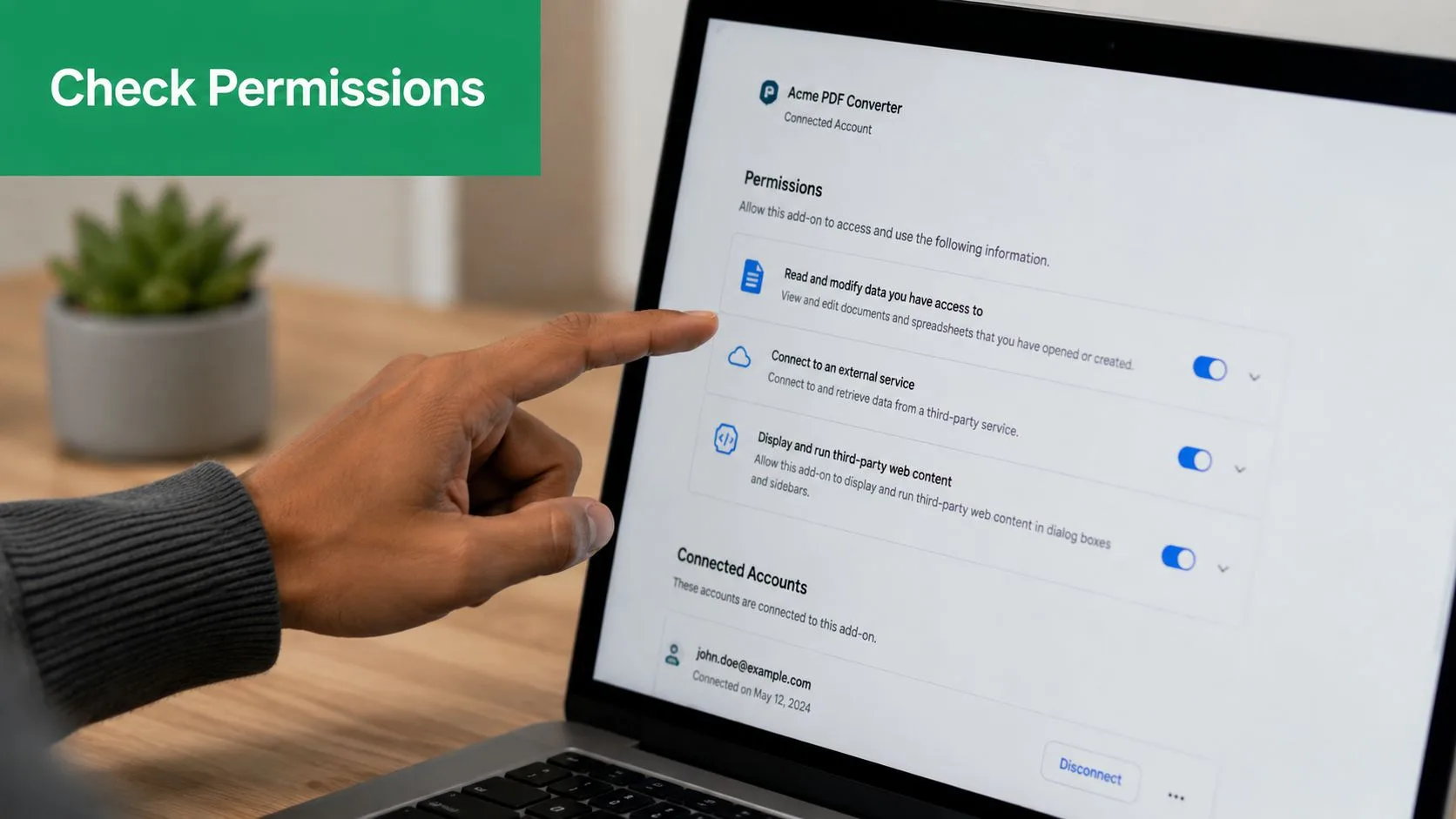
Re-authorize before you start changing everything else
Mail Merge for Gmail depends on Google authorization staying valid. That breaks more often than users expect. Admin policy changes, switching between personal and Workspace accounts, expired sessions, and old spreadsheet tabs can all interrupt the connection.
Use this order. It resolves a lot of stuck merges quickly.
- Sign out of extra Google accounts in the same browser session.
- Open the spreadsheet from the correct Google account instead of from an old bookmark or recent-tab shortcut.
- Launch the add-on and review any permission prompt. Re-authorize if Google asks.
- Refresh both the Google Sheet and Gmail after permissions are accepted.
- Run a small test first, ideally one row, before restarting the full campaign.
I see account switching cause this constantly. A user opens the sheet in one account, Gmail in another, then the add-on tries to act on behalf of the wrong session. The setup looks fine on screen, but Mail Merge for Gmail cannot complete the action cleanly.
That same discipline matters in other Google tools too. If your team also manages analytics access, this guide on how to securely share GA4 access is a useful reference because the same messy permission habits often cause add-on failures.
Use a clean browser test to rule out extension conflicts
If re-authorizing does not fix it, test the environment. Browser extensions regularly interfere with Google Sheets add-ons, especially privacy tools, ad blockers, script injectors, and other Gmail productivity extensions.
Open an Incognito window. Sign in only to the Google account that should run the merge. Then retry the exact same Mail Merge for Gmail workflow.
If it works in Incognito, the problem usually sits outside the add-on itself.
| Likely blocker | Why it matters |
|---|---|
| Ad blockers | Can interrupt scripts or requests |
| Privacy extensions | May block cookies, pop-ups, or API calls |
| Script managers | Can change page behavior inside Sheets or Gmail |
| Multiple Gmail helpers | Can interfere with compose and send actions |
One clean browser test saves a lot of wasted time.
If you are still sorting out whether a limitation belongs to Gmail itself or to your add-on setup, the comparison earlier on Gmail native mail merge versus add-ons helps frame that difference correctly.
Understanding Gmail Sending Quotas and Limits
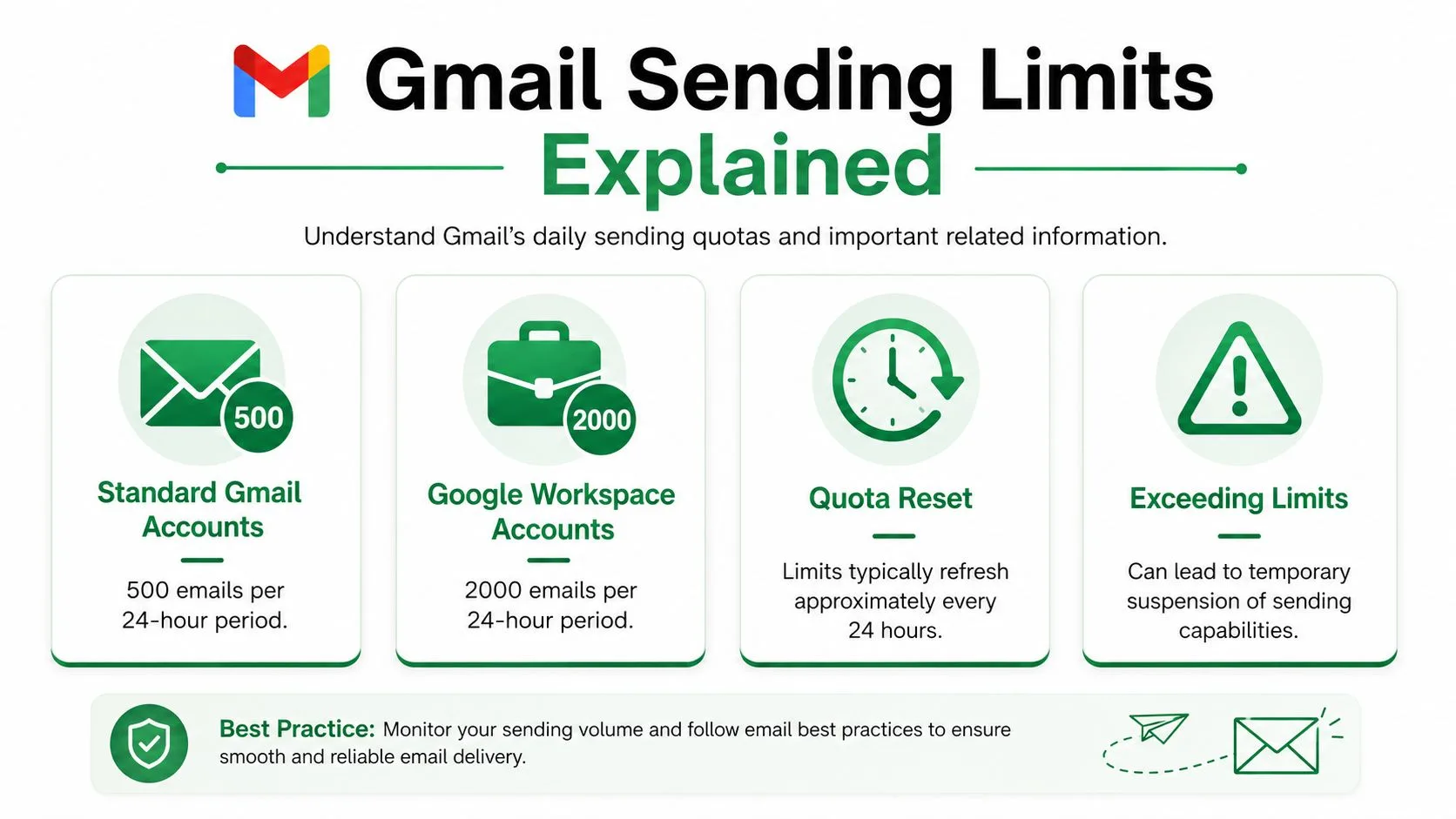
A campaign can be technically correct and still stop cold because Gmail itself enforces hard sending limits. When that happens, the merge often looks broken even though the system is just obeying Google’s quota rules.
For Gmail-based campaigns, the key number is simple. Gmail’s native mail merge is capped at 1,500 recipients per day, and that limit applies across batches, as described in this guide to Gmail’s 1,500 personalized email limit.
Know the difference between a quota issue and a bad row
A bad row usually affects one contact or a small cluster of contacts. A quota issue affects the whole campaign.
Common signs you’ve hit a sending ceiling:
- The merge starts normally, then stops partway through
- Later batches won’t send even though the setup hasn’t changed
- Retrying immediately doesn’t help
- The account has already sent other messages that day
If your list also contains invalid or duplicate addresses, quota pressure gets worse because you burn capacity on rows that should never have been in the campaign to begin with.
Work with the limit instead of fighting it
The practical fix is operational, not technical.
Break larger sends into scheduled batches across multiple days. Keep your recipient list deduplicated. Avoid rerunning partial campaigns blindly unless you know exactly which rows already went out.
Here’s the simplest way to look at it:
| Scenario | Better move |
|---|---|
| You need to send to fewer than the daily cap | Send after testing |
| You need to send above the daily cap | Schedule across days |
| You hit a stop mid-campaign | Pause and check quota history |
| You aren’t sure what was sent | Review row-level send status before retrying |
A lot of users assume a limit error means the add-on failed. It usually means Gmail stepped in first.
Advanced Checks and Proactive Best Practices
If the merge says messages were sent but recipients never received them, you’re no longer debugging the merge itself. You’re debugging deliverability.
That’s where domain authentication, internal spam filtering, and recipient-side filtering come into play. You don’t need to become an email infrastructure expert to spot the pattern. If the logs show sent status but inbox placement is poor, look beyond the template and sheet.
What to check when messages show as sent
A few advanced checks help narrow the issue:
- Domain authentication health: If SPF or DKIM is off, messages may leave your account but struggle to land reliably.
- Attachment size: Large files can create failures or rejections before the email reaches the inbox.
- Reply address and sender identity consistency: Mismatched identities can make campaigns look suspicious.
- Apps Script or execution errors: If you see a specific script failure, capture the exact text before changing anything.
This is also the stage where maintaining one clean master template pays off. If every campaign starts from a heavily edited old draft, you inherit formatting debt and tag mistakes from previous sends.
Habits that prevent future failures
The best troubleshooting routine is the one you rarely need because your process is stable.
Testing matters most. A verified best practice across troubleshooting guides is to send to 2 to 5 internal recipients first, and that step appears in 92% of documented guidance. Campaigns that skip this validation step show a 34% increase in post-send rejection rates, according to the assigned troubleshooting reference used for permission and campaign health checks earlier in this guide.
That pre-send test catches problems like broken personalization, oversized attachments, and template alignment mistakes while the blast radius is still tiny.
Send a small internal batch every single time. Even if the draft only changed a little. Especially if the draft only changed a little.
I’d keep a standing preflight checklist like this:
- Audit the sheet: Headers, duplicates, blanks, and malformed addresses.
- Open the draft fresh: Recheck merge tags and remove suspect formatting.
- Test internally: Confirm subject, body, links, and attachments.
- Run in a clean browser session: Especially if a previous campaign behaved oddly.
- Check your daily sending plan: Don’t discover quota limits mid-campaign.
A calm way to think about mail merge failures
Most merge problems aren’t mysterious. They’re layered.
The sheet might be mostly right but have one duplicate header. The draft might look fine but contain hidden HTML. The browser might have one privacy extension blocking sync. Or the campaign might be bigger than Gmail allows in one day.
When you troubleshoot in that order, the answer usually shows up fast. And once you tighten the workflow, the same class of error tends not to come back.
If you want a simpler way to send personalized campaigns from Google Sheets through Gmail, track opens and clicks, and keep send status tied to each row, Mail Merge for Gmail is built for exactly that workflow.
Ready to send your first campaign?
Install Mail Merge for Gmail from the Google Workspace Marketplace and send up to 50 personalized emails per day for free.
Get started for freeMore reading
More from Guides

Mail Merge with CC and BCC in Gmail: Copy the Right People on Every Email
Learn how to run a mail merge with CC and BCC from Google Sheets, set up the columns, preview the result and see how copied recipients count toward your daily quota.

Gmail Sending Limit Reached: What It Means and How to Finish Your Campaign
Hit the Gmail sending limit reached error? Learn the real daily limits, when you can send again, and how to split a mail merge into safe daily batches.

Personalized Email Gmail: The Complete Guide
Master your personalized email Gmail workflow. Learn to merge Sheets data, track opens, and scale one-to-one outreach without leaving your inbox.