


















Gmail Export Contacts: Complete CSV & VCF Guide
Gmail export contacts - Learn how to export Gmail contacts to CSV or VCF, back them up, or prepare them for mail merge. Simple steps and tips for 2026
You’re usually at this point for one reason, a list has to move now. Maybe a campaign is waiting on a clean recipient file, maybe a CRM import failed because the contacts were trapped inside Gmail, or maybe you just need a backup before a migration. The frustration is the same, because people search for gmail export contacts and expect a button inside Gmail, then discover the workflow lives somewhere else.
The good news is that the path is straightforward once you separate the inbox from the address book. Google Contacts, not Gmail’s mail view, is where export lives for most desktop workflows, and that distinction matters when you’re building a spreadsheet, segmenting a list, or moving data into another system. If the export is going to support a real mail-merge process, the file has to leave cleanly and land somewhere you can work with it.
Why Gmail Export Contacts Happens in Google Contacts
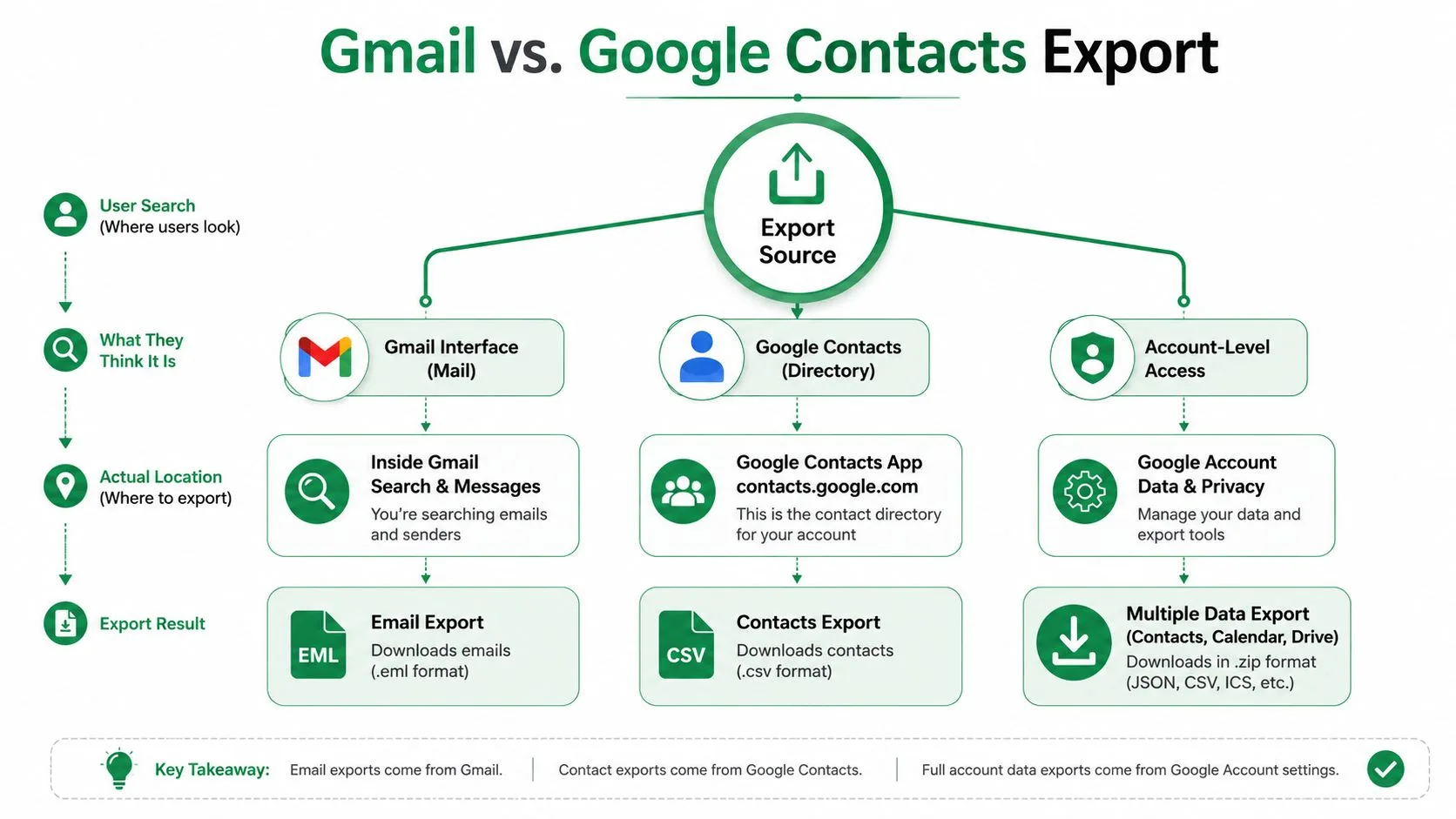
A lot of people start in Gmail because that is where their relationships feel stored. The emails are there, the replies are there, and the search bar has probably surfaced half the people they want to export. Then they hit the wall, because the export action is not in the inbox interface. It sits in Google Contacts, which is the directory layer for the account, and Google’s export guidance points people there for desktop exports. The workflow is built around contacts management, not mail viewing, which is why extraction usually happens through Google Contacts or Google Takeout, not Gmail itself.
Where the data lives
In practice, that separation keeps the process sane. Gmail is for messages, while Google Contacts is the portable address book that can feed spreadsheets, CRMs, and mail tools. For business users, that means the export becomes the source file for list building, segmentation, and downstream imports, instead of a loose pile of names buried in email threads. The file is what you move, edit, and clean, not the inbox itself.
Practical rule: if you need recipient data for a campaign, start from the address book layer, not the inbox layer.
That difference also explains why people get better results when they stop thinking in terms of “Gmail export” and start thinking in terms of contact export. Gmail can help you discover who you have interacted with, but Google Contacts is where you control what leaves the account. That matters for outreach teams, recruiting teams, and nonprofit coordinators alike, because the exported file is the artifact that survives the move.
Why the distinction matters for downstream work
The portable file is only useful if it can travel cleanly into the next system. Google’s desktop export gives you Google CSV, Outlook CSV, or vCard, and that range exists for a reason, spreadsheets want CSV, while address books and mobile tools often want vCard. The format choice changes how much cleanup you face later, so the decision starts before you click export.
For bulk moves or full-account backup, Google’s support materials also point people toward account-level export paths like Google Takeout when they are thinking beyond a single labels view. That is the right mental model if your list is bigger than one campaign or one team. You are not just downloading contacts, you are creating a managed copy that can be moved, audited, and re-used without retyping anything.
Exporting Contacts from Google Contacts on Desktop
Desktop export is the cleanest route when the file is meant for real work. You get the broadest format choice, the best visibility into what’s selected, and the least friction when you’re preparing data for Sheets, Outlook, or a CRM. Google’s desktop flow also supports exporting either selected entries or the full address book, which is what you want when a label needs to stay separate from everything else. Google Contacts desktop export flow
The shortest reliable path
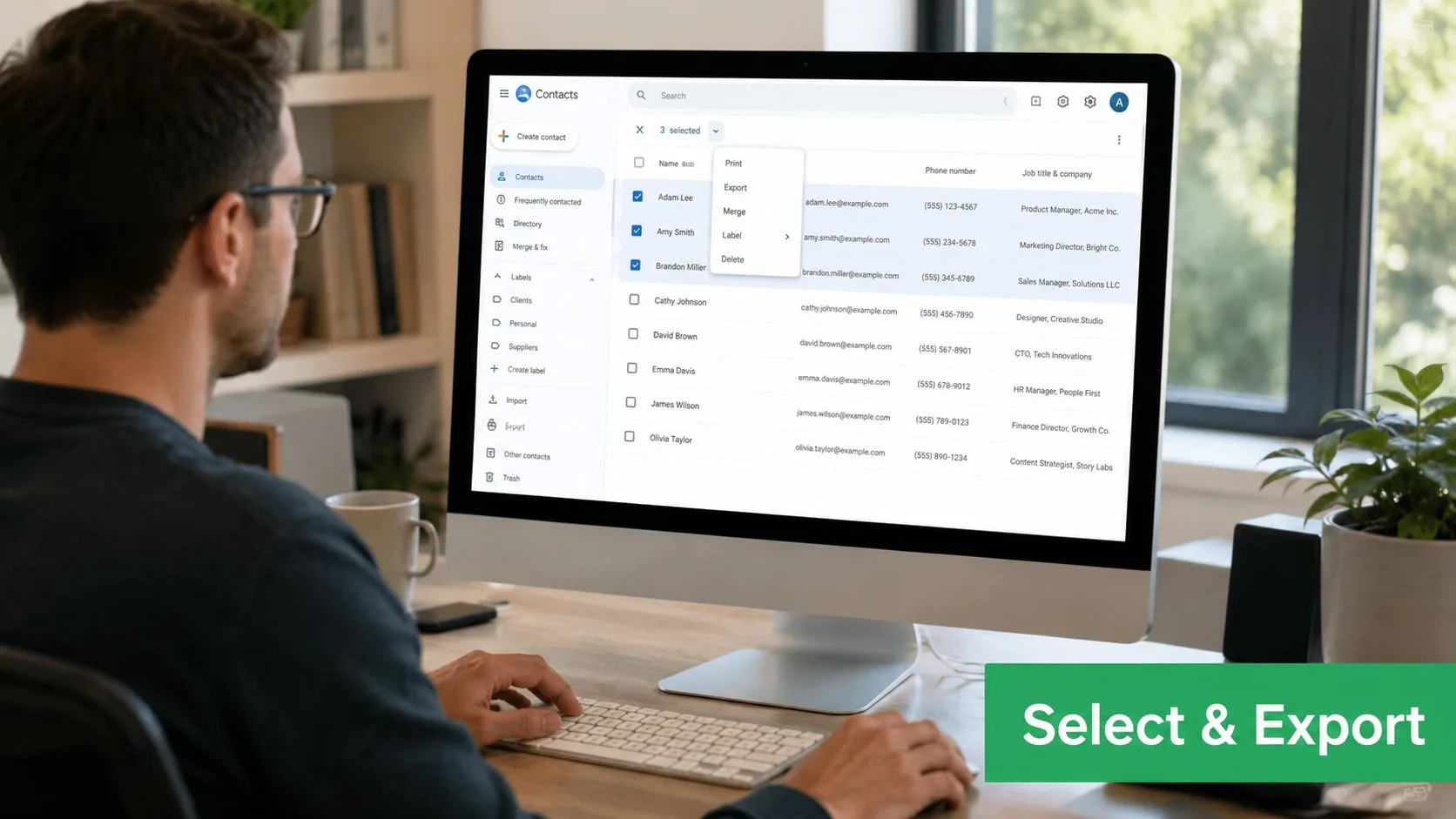
Open Google Contacts in a browser. From there, choose individual entries or select all contacts, then click Export. Google will ask what you want to include and which format you want to save, and the file downloads to your device when you confirm. That’s the whole motion, but the selection step is where you can create accidental cleanup work later.
If you export a specific label, you get a narrower list that is easier to review and safer to send into a segmented workflow. If you export everything, you get broader coverage, which helps with backup or migration, but you also inherit every stale record, duplicate, and half-finished note sitting in the account. Neither choice is wrong, they just serve different jobs.
The download itself is ordinary, which is good. The file lands on your machine, and from there it becomes a spreadsheet asset, an import file, or a backup copy you can store securely. The discipline is making sure you know exactly where the file went after the browser saved it, because that’s where files tend to get duplicated across desktops, downloads folders, shared drives, and messenger attachments.
A quick visual check before you export saves time later.
How to choose between labels and the full list
The export scope should match the next job. If you’re handing a prospect list to sales ops, a label export keeps the file tight. If you’re moving data into a new account or creating a true backup, the broader export is usually the safer call.
After the file downloads, don’t rush it straight into a live campaign. Open it first, check column names, and make sure the right contacts made it out. That one-minute review catches the common messes, missing emails, wrong label scope, or old records that should’ve stayed out of the working list.
A clean export is easier to trust than a fast export.
Exporting Contacts on Android Devices
Android follows a different path, and that matters if you’re trying to move contacts while you’re away from a laptop. Google’s Android workflow lives in the Contacts app, not in Gmail, and it ends with a .VCF file instead of CSV. That’s useful for quick transfers, but it’s not the best choice when you need to do spreadsheet cleanup or prepare a merge list on desktop. Google Contacts Android export guidance
The Android steps that actually work
Open the Contacts app. Tap Fix & manage, then choose Export to file. Pick one or more accounts, then tap Export to .VCF file. Google’s support documentation shows that Android export is designed around that address-book path, so if you’re expecting a CSV download, you won’t find it here. Google Contacts Android export guidance
That distinction matters in the field. If you’re on a phone and need to hand a contact file to another person, VCF is usually fine. If you’re trying to reconcile names, phone numbers, and labels in Sheets, it’s not the best endpoint. In that case, wait until you’re at a desktop browser and use the desktop flow, because CSV is far easier to audit and reshape.
The mobile route makes the most sense for fast, practical jobs, like moving a contact file between phones or getting a clean address-book file onto a shared drive. It’s less useful for structured marketing or recruiting workflows, where the list has to be segmented and mapped carefully before it goes anywhere else.
Mobile export is for movement, desktop export is for preparation.
A good habit is to treat the Android file as transport, not final working data. Once the VCF is saved, decide whether it belongs in storage, whether it needs to be converted downstream, and whether the same list should later be re-exported from desktop in CSV for a cleaner handoff. That small discipline keeps people from building messy one-off copies on phones that no one can later trace.
Choosing the Right Export Format for Your Workflow
The wrong export format creates extra work. If the file is headed for a spreadsheet, a CRM, or another Google account, the choice changes how much cleanup you will do later. Google Contacts offers Google CSV, Outlook CSV, and vCard, and each one fits a different operational job.
Match the file to the destination
Google CSV is the safest pick for Google-to-Google moves and for spreadsheet-based editing. It keeps the fields in a shape that is easier to review in Sheets, sort by hand, and map back into another contact list without guessing which column is which. Microsoft’s guidance also describes the common route as exporting a CSV from the source account and importing it into the target Google account, which is why CSV remains the standard technical path for account transfers. Microsoft Q&A on Google account contact transfer
Outlook CSV is the better choice when the next stop is Outlook or another Microsoft-friendly app. Microsoft’s Outlook support specifically tells users to choose Outlook CSV for that import path. Microsoft Outlook contact import guidance
vCard is the portability format. It moves well across address books and mobile platforms, and it fits the Android export flow naturally. If the goal is handheld sharing or broader contact portability, VCF is the one to use.
| Export Format | Best For | Spreadsheet Compatible | Cross-Platform |
|---|---|---|---|
| Google CSV | Google account transfers, Google Sheets cleanup | Yes | Moderate |
| Outlook CSV | Outlook or Microsoft-based imports | Yes | Moderate |
| vCard | Phones, address books, portable sharing | No | High |
A simple decision rule
If the next step is Sheets, choose CSV. If the next step is Outlook, choose Outlook CSV. If the next step is a phone or address book, choose vCard. Anything else usually adds conversion work, and conversion work is where formatting gets lost.
The practical reason I prefer CSV for operational work is simple, it keeps the structure visible. You can open it, sort it, delete bad rows, and map it back into another system with far less friction. That also makes it easier to prepare a file for contact database management, especially when the same list has to serve marketing, sales, and support use cases without turning into a duplicate-ridden mess.
Privacy and Data Lifecycle After Export
The risk does not end when the download finishes. That is when the file starts moving, to desktops, shared laptops, cloud drives, email attachments, and sometimes personal devices that nobody later remembers. Google treats exporting contacts as a separate account-data action, which is a useful reminder that this file is a privacy-sensitive asset, not just another download. Google support on contacts export and account data
What happens after the file lands
On a personal machine, the file usually stays in Downloads until someone moves it or deletes it. On a shared device, that same file can sit around long enough for the wrong person to open it. On a company laptop, the bigger problem is file sprawl, because people often make multiple copies while they test imports, clean duplicates, or send the file to a colleague. Each extra copy adds another exposure point.
The practical answer is plain. Keep the file in the place your team already uses for controlled documents, restrict access to the people who need it, and remove the copy when the job is done. If the file contains candidate, donor, or customer contacts, handle it like any other sensitive data set, because that is what it is.
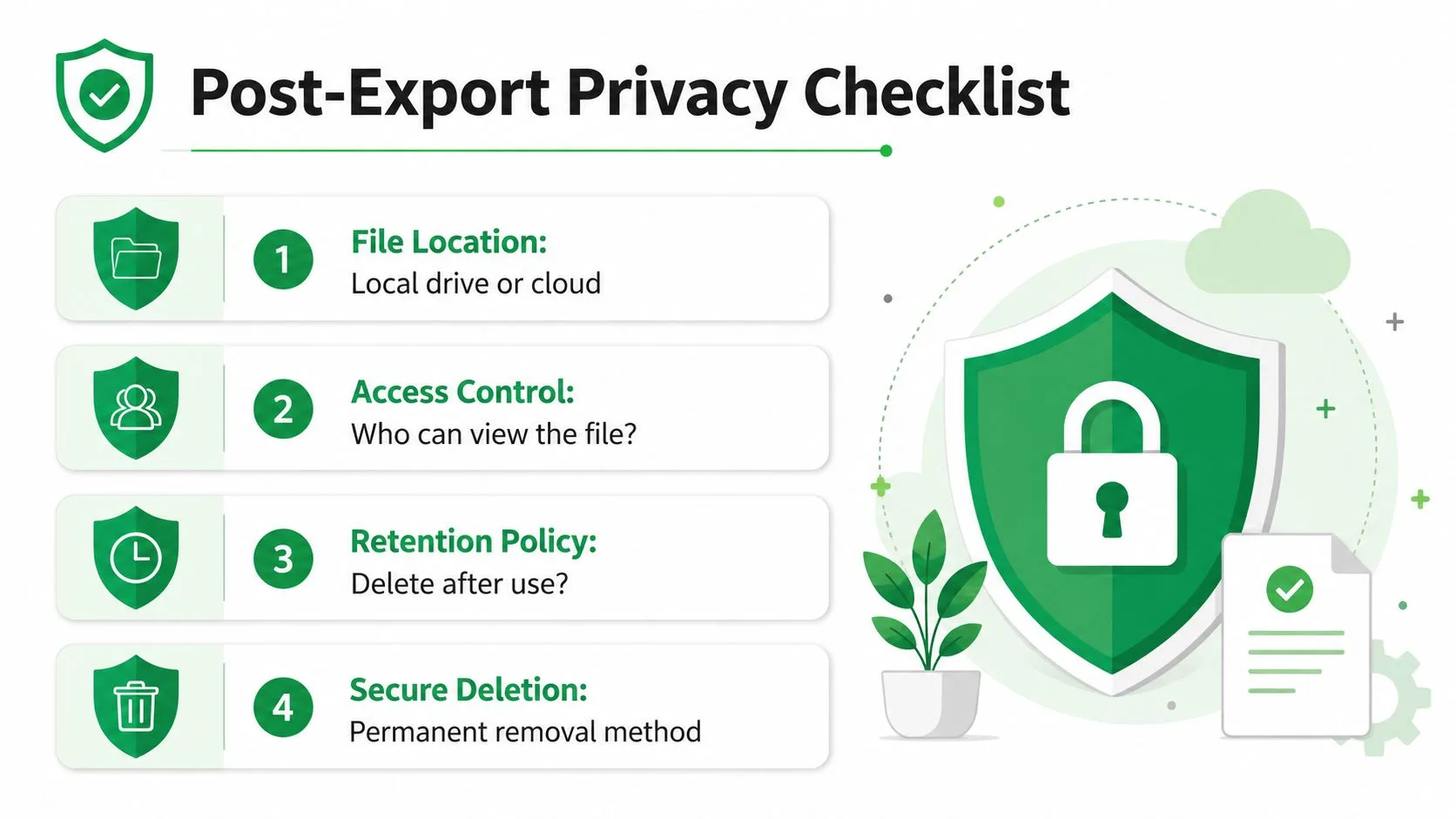
A workable lifecycle checklist
- File location: Decide whether the file belongs on a local drive or in a managed cloud folder before the export is shared.
- Access control: Keep the file visible only to the people who need it for the current task.
- Retention policy: Delete the working copy after import, cleanup, or migration is complete.
- Secure deletion: Do not leave abandoned copies in downloads, desktop folders, or chat attachments.
Recordkeeping matters too. An export can create an audit gap if the team does not track who pulled the file, where it was stored, and when it was removed. Teams that handle regulated contact sets usually need more than “someone downloaded it last week.” For repeat export workflows, email compliance software helps teams keep that trail in order without relying on memory and ad hoc notes.
If a contact file can be copied freely, it can be exposed freely.
Keep the exported file’s lifespan short. Export, transform, use, then delete the working copy. Anything longer should be intentional and documented.
Preparing Exported Contacts for Mail Merge in Google Sheets
A raw export is not ready for outreach just because it opens in Excel or Sheets. It still needs structure, validation, and a quick pass for duplicates or missing fields before it becomes a usable merge list. That is the point where the contact export stops being a file and starts being an operations asset.
Clean the sheet before you trust it
Import the CSV into Google Sheets, then read the headers before you do anything else. If the columns are not named clearly, rename them now so they match the fields your outreach process expects. That makes later mapping easier, and it keeps your team from guessing whether a column contains first names, full names, or notes.
Duplicates are the next thing to handle. A contact export often contains repeated records from years of email threads and partial imports, and those duplicates lead to awkward sends, poor reporting, and confused follow-ups. Missing email addresses need attention too, because they are easy to overlook in a large list and they break merge runs when you least want them to.
Map the file to the merge workflow
Once the sheet is clean, decide how the columns will support personalization. Name fields, company fields, labels, and custom notes can all become useful merge tags if they are organized consistently. If a segment is supposed to stay separate, keep that distinction in the sheet instead of relying on memory.
A simple structure usually works best.
- Core identity fields: Keep name and email visible at the top of the sheet.
- Segmentation fields: Use labels or custom columns to separate prospects, clients, candidates, or donors.
- Merge fields: Align your column names with the placeholders you will use in the email template.
- Quality checks: Scan for blanks, duplicates, and rows that should not go into the campaign.
That kind of prep turns a Google Contacts export into a dependable working list instead of a one-time download. If you want a practical starting point for the workflow itself, the mail merge from Google Sheets guide shows the mechanics clearly, and the important part here is that the spreadsheet is the control surface. Clean it once, and every send built from it gets easier to manage.
If you are turning exported contacts into outreach, Mail Merge for Gmail lets you work from Google Sheets without leaving Gmail, which keeps the list, the template, and the send process in one place. It is built for the exact handoff described here, from clean CSV to personalized campaign, so you can move faster without losing control of the data.
Ready to send your first campaign?
Install Mail Merge for Gmail from the Google Workspace Marketplace and send up to 50 personalized emails per day for free.
Get started for freeMore reading
More from Guides

Mail Merge with CC and BCC in Gmail: Copy the Right People on Every Email
Learn how to run a mail merge with CC and BCC from Google Sheets, set up the columns, preview the result and see how copied recipients count toward your daily quota.

Gmail Sending Limit Reached: What It Means and How to Finish Your Campaign
Hit the Gmail sending limit reached error? Learn the real daily limits, when you can send again, and how to split a mail merge into safe daily batches.

Personalized Email Gmail: The Complete Guide
Master your personalized email Gmail workflow. Learn to merge Sheets data, track opens, and scale one-to-one outreach without leaving your inbox.